
Blog

  • Port Forwarding in Windows: Best Methods for Gaming & Remote Work

    Port Forwarding in Windows: Best Methods for Gaming & Remote Work

    Understanding Port Forwarding in Windows: Why It Matters

    Port forwarding in Windows is a key networking tool that allows external devices to connect to specific services on your local network. By configuring your router and computer settings, you can enable applications like gaming, remote access, and home automation to communicate smoothly. In this section, we’ll explore how port forwarding can benefit these activities and help you optimize your Windows setup for a better network experience.

    Why Port Forwarding is Important for Gaming, Remote Access, and Home Servers

    Port forwarding in Windows plays a crucial role in enhancing network performance, especially for activities like gaming, remote access, and hosting home servers. By forwarding the right ports, you can improve your gaming connection, making it faster and more reliable. For instance, if you’re hosting a multiplayer game on your computer, forwarding the appropriate ports allows other players to connect to your game server more easily, reducing lag and connection issues.

    Similarly, port forwarding enables remote access to devices on your network, allowing you to connect to your home PC or server from anywhere. Whether you’re accessing files or using remote desktop software, port forwarding ensures that your device is reachable over the internet. For example, if you’re working remotely and need access to a home server, port forwarding allows you to log in securely without needing to be physically present.

    Additionally, for those running home servers, such as media servers, port forwarding is necessary to allow external devices to connect and stream content. Without port forwarding, services like Plex or a web server won’t be accessible from outside your local network, limiting their functionality. By setting up port forwarding correctly, you can ensure that these services are available to you and others remotely.

    Port Forwarding for Home Automation and IoT Devices

    Port forwarding is also essential for enabling communication between IoT devices and your home network. As more smart devices become a part of everyday life—such as smart thermostats, cameras, and security systems—port forwarding helps these devices connect to your network remotely, giving you control from anywhere.

    For example, imagine you have a smart thermostat installed in your home. Port forwarding allows you to access it from your smartphone or tablet, even when you’re away. This is especially useful for adjusting settings, checking system statuses, or troubleshooting issues without being on the same network. Without port forwarding, these devices may be limited to local use and inaccessible remotely.

    Similarly, home automation systems that control lighting, security cameras, and other smart appliances rely on port forwarding to function optimally. By forwarding specific ports for these devices, you ensure that they remain connected and responsive, no matter where you are. This setup makes managing your home automation system far easier, enabling remote control, updates, and monitoring.

    Understanding the importance of port forwarding in Windows is key to optimizing your network setup for both entertainment and practical uses. Whether you’re gaming, accessing a home server, or managing IoT devices, proper configuration of port forwarding can significantly enhance your experience and ensure your devices are accessible when you need them.

    Common Use Cases for Port Forwarding in Windows 11

    Port forwarding in Windows 11 plays a key role in enabling various services that require remote access or stable connections to external networks. Whether it’s enhancing your gaming experience, setting up a home server, or controlling smart home devices, understanding how to properly set up port forwarding can significantly improve your network’s performance. This section explores some of the most common use cases of port forwarding in Windows 11, offering clear, actionable examples for beginners.

    Why Port Forwarding is Important for Gaming, Remote Access, and Home Servers

    Port forwarding in Windows is crucial for several common activities, particularly for gaming, remote access, and home server setups. Here’s why:

    1. Gaming: For multiplayer games like Minecraft or Fortnite, port forwarding allows incoming game traffic to reach your computer, reducing connection issues like lag or disconnections. Without port forwarding, your router might block or delay this traffic, causing frustrating interruptions during gameplay.

      Example: To set up port forwarding for Minecraft on Windows 11, you’ll need to forward the game’s port (default: 25565). Access your router settings and add a forwarding rule for TCP/UDP port 25565 to your PC’s local IP address. This ensures that your game is accessible to other players on the network.

    2. Remote Access: If you need to access your computer remotely via tools like Remote Desktop Protocol (RDP), port forwarding is essential. It allows the Remote Desktop connection to pass through your router’s firewall and reach your device.

      Example: To set up RDP port forwarding, forward port 3389 in your router’s settings to your computer’s local IP address. This enables external devices to connect to your Windows 11 PC securely. Learn more about Remote Desktop access.

    3. Home Servers: For home servers, such as Network Attached Storage (NAS), port forwarding allows devices outside your local network to access files and services. Without proper port forwarding, remote access to the server would be blocked by the router.

      Example: To access a home server, forward the relevant port (e.g., 80 for web servers or 21 for FTP) from your router to the internal IP address of the server. This configuration allows you to connect to the server from anywhere in the world, as long as the router allows the specific port traffic.

    Port Forwarding for Home Automation and IoT Devices

    Port forwarding also plays a critical role in connecting and controlling smart home and IoT devices. Many home automation systems, such as security cameras or smart thermostats, rely on remote access to function properly. Here’s how it works:

    1. Home Automation: Port forwarding enables remote control of home automation systems, allowing you to interact with devices like lights, thermostats, or locks even when you’re away from home.

      Example: For a security camera, you can set up port forwarding by forwarding port 8080 (the camera’s default port) to the local IP address of the camera. This setup allows you to view the camera feed from anywhere using the assigned external IP address.

    2. IoT Devices: Similar to home automation, IoT devices like smart thermostats or smart doorbells need port forwarding to communicate with the devices remotely. This is especially important for devices that send data to the cloud or need remote monitoring.

      Example: For a smart thermostat, you might need to forward port 443 (HTTPS) to the device’s IP address. This enables secure communication between the device and its cloud service, giving you control over the thermostat from anywhere.

    By setting up port forwarding in Windows 11 for these devices, you ensure that they remain accessible even when you’re not on the same local network. However, always remember to follow security best practices for port forwarding, such as using strong passwords and regularly updating device firmware to protect your devices from unauthorized access.

    In conclusion, port forwarding in Windows 11 enhances your gaming, remote access, and home automation setups. Whether for gaming, accessing remote desktops, or managing smart home devices, understanding the essentials of port forwarding will help ensure a smooth, secure experience.

    Manual vs. Automated Port Forwarding Methods: Which is Best for You?

    Port forwarding in Windows is essential for directing internet traffic to specific devices within a local network, enabling activities like gaming, remote work, and home automation. Understanding the differences between manual and automated port forwarding methods can help you choose the right approach for your needs. In this section, we’ll compare the pros and cons of each method, focusing on ease of use, security considerations, and optimal configurations for your unique use case.

    Manual Port Forwarding: Pros and Cons

    Manual port forwarding involves configuring port rules on your router to forward data packets to specific devices in your network. This method provides full control over the ports and protocols being forwarded, making it ideal for users who need fine-tuned customization.

    Pros:

    • Customization: You have full control over which ports are forwarded and how they are managed.
    • Stability: Once set up, manual port forwarding is stable and reliable, with no ongoing configurations needed.
    • Security: You can specifically choose which ports to open, reducing the attack surface.

    Cons:

    • Complexity: The process can be time-consuming and requires a basic understanding of your router settings.
    • Error-prone: Incorrect configurations or forgotten ports can result in connectivity issues.
    • Manual maintenance: If changes are required (e.g., a new game or device), you must manually adjust the settings.

    To manually configure port forwarding in Windows, access your router’s web interface, locate the port forwarding section, and specify the internal IP address of the device along with the required port numbers. For example, if you’re setting up port forwarding for gaming, you might open ports like 27015 for a game server. After entering the required details, save your changes.

    Automated Port Forwarding: Benefits and Drawbacks

    Automated port forwarding, often achieved through protocols like UPnP (Universal Plug and Play), simplifies the process by automatically detecting and forwarding the necessary ports for applications or devices on your network. It’s a more hands-off approach compared to manual configuration.

    Pros:

    • Ease of use: Automated methods require minimal input from users, making them perfect for beginners.
    • Quick setup: With UPnP, for instance, devices can automatically configure port forwarding without manual intervention.
    • Convenience: Ideal for users who frequently add or change devices or applications on their network.

    Cons:

    • Security risks: Automated methods like UPnP can open unexpected ports, potentially creating vulnerabilities.
    • Lack of control: You have little oversight over which ports are opened, which could lead to unnecessary or insecure ports being forwarded.
    • Compatibility: Not all routers and applications support automated port forwarding.

    For example, if you enable UPnP in your router’s settings, it will automatically open the necessary ports when a compatible application or device requests it. However, it’s important to monitor your router’s settings to ensure that no unnecessary ports are opened, which could create security risks.

    Router-Based vs. Software-Based Port Forwarding

    When setting up port forwarding in Windows, users can choose between router-based and software-based solutions. Both methods serve the same purpose, but they differ in how they are implemented.

    • Router-based port forwarding: This method configures the router itself to forward specific ports to internal devices. It’s more secure and offers better control over which devices and ports are accessed. Router-based port forwarding is ideal for users with static IP addresses or those who want to forward multiple ports.
    • Software-based port forwarding: Some applications, like Remote Desktop or VPN software, can handle port forwarding within the application itself, bypassing the need to configure the router directly. While easier to set up for specific applications, this method lacks the flexibility of router-based forwarding and can be less secure.

    When deciding between router-based or software-based solutions, consider whether you need flexibility or simplicity. If you’re configuring ports for multiple devices, router-based forwarding is likely the better choice. For single-device applications, such as remote desktop setups, software-based solutions might suffice.

    Considerations for Scalable and Low-Latency Port Forwarding Solutions

    When selecting a port forwarding method, it’s crucial to consider scalability and latency, especially for activities like gaming or remote work, where speed and stability are essential.

    • Quality of Service (QoS) settings on your router can prioritize traffic for specific applications, reducing latency and ensuring that port forwarding does not interfere with high-priority activities. For instance, configuring your router to prioritize gaming ports can improve responsiveness during online play.
    • Scalability: If you plan to forward many ports or add new devices frequently, automated solutions like UPnP can be a practical choice, as they handle new devices without manual intervention.

    To optimize for low-latency gaming, you can configure your router’s QoS settings to prioritize traffic for the game server. By setting this, your router will prioritize bandwidth for gaming traffic, reducing lag and improving performance during online play.

    Both methods have their strengths and weaknesses, so understanding your needs, such as the number of devices and the importance of network speed, is key when choosing between manual or automated port forwarding solutions.

    Step-by-Step Guide to Setting Up Port Forwarding in Windows 11

    Setting up port forwarding in Windows 11 is a crucial step for users who need external devices to connect to specific services hosted on their local network. Whether you’re setting up a gaming server, using remote desktop, or configuring any other service that requires external access, port forwarding ensures that data flows smoothly between devices. This guide will walk you through the process of configuring port forwarding manually and automatically, so you can choose the best method for your needs.

    1. Prepare Your System for Port Forwarding

    Before diving into the configuration process, it’s essential to ensure your system is ready for port forwarding. Here are the key steps to follow:

    • Set a Static IP Address: A static IP address is necessary for port forwarding to work properly. By setting a static IP, your device will always use the same IP address, preventing changes that could break your port forwarding setup. To set a static IP in Windows 11:
      1. Open Settings and go to Network & Internet.
      2. Click on Ethernet (for wired connections) or Wi-Fi (for wireless).
      3. Click on Properties under your network.
      4. Under IP settings, select Edit and choose Manual.
      5. Enable IPv4, then enter your desired IP address, subnet mask, and gateway. Ensure the IP is within your router’s range.

      This static IP ensures that your computer always uses the same address, making the port forwarding process stable.

    • Enable UPnP (Universal Plug and Play): Some routers support UPnP, which can automatically handle port forwarding for certain services. UPnP simplifies setup, especially for gaming or applications that require automatic configuration. To enable UPnP, access your router’s settings (usually by typing your router’s IP address into a web browser) and look for UPnP settings in the advanced menu. Make sure it is turned on.
    • Check Firewall Settings: Ensure that your Windows 11 firewall or any third-party firewall isn’t blocking the ports you want to forward. You can configure these settings in Control Panel > System and Security > Windows Defender Firewall.

    Once your system is prepared, you can move on to the next steps in the port forwarding setup.

    2. Manually Configure Port Forwarding on Your Router

    Manually configuring port forwarding on your router gives you full control over which ports are opened and how they are mapped. Here’s how to do it:

    1. Log in to Your Router: Open a web browser and enter your router’s IP address (commonly `192.168.1.1` or `192.168.0.1`). You’ll be prompted for a username and password, which are often found on a sticker on the router itself.
    2. Find the Port Forwarding Section: Once logged in, navigate to the Port Forwarding or NAT Forwarding section of your router’s settings.
    3. Enter Port Details:
      • Service Name: Give a name to your port forwarding rule (e.g., “Minecraft Server”).
      • Port Range: Enter the range of ports you want to open (e.g., `25565` for Minecraft).
      • Local IP Address: Enter the static IP address you assigned to your computer earlier.
      • Protocol: Select TCP, UDP, or both, depending on the service.
      • Enable the Rule: Make sure to enable the rule after adding it.
    4. Save the Settings: After entering the details, save the settings. Your router will now forward the specified ports to your computer’s static IP.

    Example: Port Forwarding for a Gaming Server

    For a Minecraft server, you would forward port `25565` to your device’s static IP. This allows other players on the internet to connect to your server.

    Tip: Check your router’s manual or online documentation for more specific instructions, as the interface and options may vary.

    3. Automated Port Forwarding Setup Using Software Solutions

    If you prefer an automated approach, several software tools can simplify the port forwarding process by using UPnP or similar protocols. These tools are ideal for beginners or those who want a quicker setup.

    • UPnP-Enabled Software: Many applications, like games or VoIP software, support UPnP to automatically open and close ports as needed. If your router and software support it, enable UPnP within the software’s settings, and it will configure the port forwarding for you.
    • Third-Party Port Forwarding Tools: There are also third-party applications that can help with port forwarding. One popular choice is PFConfig, which allows users to easily configure port forwarding without needing to log into the router interface. These tools are often designed to automatically detect your router model and streamline the configuration process.

    Example: With PFConfig, after installing the software, you can select the service you want to forward ports for (such as gaming or remote desktop), and the software will automatically adjust your router’s settings.

    While automated tools are convenient, they may not provide as much control over individual settings, making manual configuration better for advanced users or specific needs.

    4. Verify and Test Your Port Forwarding Configuration

    Once you’ve set up port forwarding, it’s essential to verify that the configuration works as expected. Here’s how to do it:

    1. Use a Port Checker: Websites like canyouseeme.org or yougetsignal.com offer free port checking tools. Enter the port number you forwarded and the public IP address of your router to check if the port is open.
    2. Test the Service: If you’re forwarding ports for a gaming server or remote desktop, try accessing the service from an external device (e.g., another computer, a friend’s computer, or a mobile device). This will help confirm that the forwarded port is functioning.
    3. Troubleshoot Common Issues:
      • Firewall Problems: If the port checker shows the port is closed, your firewall may be blocking the connection. Check your Windows Defender Firewall or any third-party firewall and allow the necessary ports.
      • Incorrect IP Address: Ensure that you’ve correctly entered the static IP address of your computer in the router’s port forwarding settings.
      • Router Settings: If it’s still not working, make sure your router’s UPnP is enabled or check that the port forwarding rule is properly configured.

    By following these steps, you can ensure that your port forwarding in Windows works as intended, providing seamless connectivity for gaming, remote desktop, or other services requiring external access.

    For further tips on optimizing your network settings, check out our guide on changing your DNS server for faster, more secure browsing.

    Optimizing Your Windows 11 Port Forwarding for Performance and Security

    Port forwarding in Windows is essential for applications like gaming, remote access, and file sharing, as it allows external traffic to reach specific services on your computer. Optimizing your port forwarding setup is crucial for improving network performance and ensuring your system is secure. In this section, we’ll walk through ways to optimize your port forwarding configuration in Windows 11, enhancing both speed and security while troubleshooting common issues.

    How to Optimize Network Performance After Setting Up Port Forwarding

    After configuring port forwarding in Windows, it’s important to optimize the network performance for a smoother experience. One effective way to enhance performance is by reducing network congestion. You can prioritize traffic to specific applications by utilizing Quality of Service (QoS). QoS allows you to prioritize data packets for critical services, such as gaming or VoIP calls, ensuring they’re not delayed by less important data.

    Here’s how you can configure QoS on your router or Windows device:

    1. Configure QoS on Windows 11:
      • Press Win + R, type gpedit.msc, and press Enter to open the Group Policy Editor.
      • Navigate to Computer Configuration > Administrative Templates > Network > QoS Packet Scheduler.
      • Double-click Limit Reservable Bandwidth, select Enabled, and set it to 0%.
    2. Configure QoS on Your Router:
      • Log into your router’s web interface.
      • Locate the QoS settings, which may be under “Advanced” or “Traffic Management.”
      • Set priorities for specific applications or IP addresses to ensure that critical services get the necessary bandwidth.

    Additionally, adjusting port ranges can also improve performance. Narrowing the range of open ports can help reduce unnecessary traffic, improving overall bandwidth usage. To adjust port ranges in Windows, follow these steps:

    • Open Windows Firewall and navigate to Advanced Settings.
    • Select Inbound Rules, then New Rule.
    • Choose Port and specify a port range that is optimized for your needs.

    Optimizing these settings can significantly enhance your network performance by reducing congestion and prioritizing important traffic.

    Securing Your Windows PC with Proper Port Forwarding Configurations

    Port forwarding in Windows opens specific ports to external traffic, which can expose your system to security risks. It’s important to minimize exposure by securing your PC and ensuring only necessary ports are forwarded. A key measure is configuring your firewall to restrict access to open ports.

    Here’s how to secure your system using Windows Firewall:

    1. Create a Firewall Rule:
      • Open Control Panel and go to Windows Defender Firewall.
      • Click Advanced Settings, then select Inbound Rules.
      • Click New Rule and choose Port. Enter the port number or range that you need to forward.
      • Select Allow the connection, then specify the profile (Domain, Private, Public) to apply the rule to.
    2. Block Unnecessary Ports:
      • In Inbound Rules, review and disable any unnecessary open ports.
      • For example, if you’ve forwarded ports for a specific game or application, make sure that ports for other unused services are blocked.

    You should also limit access to forwarded ports by only allowing trusted IP addresses or networks. This reduces the chance of malicious users exploiting open ports. Configuring these firewall rules ensures your system remains secure while still allowing necessary traffic.

    Best Practices for Testing Port Forwarding Functionality

    Once you’ve set up port forwarding, it’s important to test whether the configuration is functioning correctly. Testing helps ensure that the necessary ports are open and that external traffic can successfully reach the desired application.

    Here are two simple methods for testing port forwarding:

    1. Using Telnet:
      • Open the Command Prompt (Win + R, type cmd).
      • Type telnet [your public IP address] [port number] and press Enter.
      • If the port is open, you will see a blank screen; if it’s closed, you’ll receive an error message.
    2. Using an Online Port Checker:
      • Visit a trusted online port checker, such as YouGetSignal.
      • Enter your public IP address and port number to check if the port is open.

    If the port isn’t open, you may need to review your port forwarding configuration or firewall rules. Sometimes, issues like incorrect port numbers or misconfigured routers can prevent proper connectivity.

    Troubleshooting Common Port Forwarding Issues

    Even after setting up port forwarding in Windows, you may encounter issues. Common problems include incorrect port numbers, misconfigured router settings, or firewall blocking the traffic. Here are some troubleshooting steps for resolving these issues:

    1. Check Your Port Numbers:
      • Ensure that the port numbers in your forwarding rules match exactly with the ports required by your application or service.
    2. Check Router Settings:
      • Log into your router’s settings and ensure that the port forwarding rules are applied correctly. Make sure the correct IP address and port numbers are entered.
    3. Verify Firewall Settings:
      • Double-check your firewall rules in Windows to ensure that the ports you’ve opened are not being blocked. You can also temporarily disable your firewall to test if it’s causing the issue, but be sure to re-enable it afterward.
    4. Restart Your Devices:
      • Sometimes, a simple restart of your router and Windows PC can resolve port forwarding issues, especially after making changes to configuration settings.

    Following these steps can help resolve the most common issues and get your port forwarding setup working smoothly.

    Using Customizable Virtual Machines for Advanced Port Forwarding Setup

    For users looking to create a more advanced and isolated port forwarding setup, using virtual machines (VMs) can be a good option. VMs allow you to configure port forwarding within a controlled environment, keeping your main system secure while still offering the necessary access for applications.

    Here’s how to configure port forwarding within a VM on Windows 11:

    1. Using Hyper-V (for Windows Pro or Enterprise users):
      • Open Hyper-V Manager and select your virtual machine.
      • Under the VM settings, go to Network Adapter and enable Virtual Switch.
      • Add a Port Forwarding Rule in the virtual switch settings to map the VM’s network to a specific port on the host machine.
    2. Using VirtualBox:
      • Open VirtualBox and select the VM.
      • Go to Settings > Network > Adapter 1 and choose Attached to Bridged Adapter.
      • Then, configure port forwarding under Port Forwarding to map external ports to internal ones.

    Port forwarding within VMs allows for isolated environments, ensuring your main system’s security isn’t compromised. It also offers flexibility in managing multiple applications or services that require different port configurations.

    For further guidance on monitoring traffic in your setup, check out our traffic monitoring guide.

    By following these steps, you can optimize your Windows 11 port forwarding setup for both performance and security, ensuring a smooth and secure experience for all your networking needs.

  • Ubuntu-Based Distros: The Ultimate Comparison for 2025

    Ubuntu-Based Distros: The Ultimate Comparison for 2025

    Understanding Ubuntu-Based Distros: A Flexible and Stable Foundation

    Ubuntu-based distros offer a robust and flexible foundation for users seeking a stable Linux experience. These distributions are built upon the well-established Ubuntu framework, providing a familiar environment with additional customizations and unique features tailored to different needs. Whether you’re a developer, gamer, or business user, Ubuntu-based distros offer a versatile choice for a variety of use cases. You can explore a full list of Ubuntu flavors on the official Ubuntu variants page.

    Key Features and Performance of Ubuntu-Based Distros

    Ubuntu-based distros provide a blend of usability, performance, and stability, making them suitable for a wide range of users. These distributions generally maintain the ease of use that Ubuntu is known for, while adding specialized features. Popular Ubuntu derivatives, such as Pop!_OS, are designed with specific use cases in mind, like gaming or multimedia production, which enhance their performance for those needs.

    Ease of Use

    Ubuntu derivatives are renowned for their ease of use, which is one of the reasons why they are often the first choice for Linux newcomers and intermediate users. Unlike other Linux distributions, Ubuntu-based distros often come with a user-friendly graphical interface and plenty of out-of-the-box software, which reduces the time spent on initial configuration.

    Customization and Flexibility

    One of the biggest advantages of Ubuntu-based distros is the customization potential. As open-source Linux distros, they allow users to tweak almost every aspect of the system, from the desktop environment to system tools. For example, Pop!_OS offers an optimized experience for gaming with additional performance tools and a clean, distraction-free desktop setup. On the other hand, Linux Mint is designed to be a user-friendly option for those coming from a Windows background, offering a similar interface and wide software support.

    Performance in Specialized Environments

    Ubuntu-based distros are often optimized for different use cases. For example, some, like Ubuntu Studio, focus on multimedia production, offering pre-installed audio, video, and graphic design tools. Others, like Kubuntu, offer a more polished KDE desktop environment for users who need a high level of customization and performance for their daily tasks.

    For those interested in gaming, Ubuntu-based distros such as Pop!_OS come with built-in support for gaming and performance enhancements. These distributions often provide gaming drivers, optimizations for high-end graphics, and easy integration with Steam or other gaming platforms. This makes them an excellent choice for gamers who need a stable, high-performance Linux environment.

    Choosing the Right Ubuntu-Based Distro for Your Needs

    When selecting an Ubuntu-based distro, consider your specific requirements. If you’re looking for a well-rounded system with ease of use, Linux Mint or Ubuntu Mate might be ideal. If you’re a developer or need an environment tailored to coding, Pop!_OS offers performance optimizations for software development. For multimedia creators, Ubuntu Studio provides a suite of creative tools, while Xubuntu and Lubuntu offer lighter alternatives for older hardware.

    Each Ubuntu distribution has its strengths, so it’s important to assess what features you need most. Additionally, you can explore more Ubuntu-based derivatives listed on the Ubuntu derivatives page to find one that aligns with your needs.

    By choosing the right Ubuntu-based distro, you ensure a stable and customizable Linux environment that suits your specific use case, whether that’s casual use, development, or specialized tasks like gaming or multimedia production.

    Key Features to Look for in Ubuntu-Based Distros

    When choosing an Ubuntu-based distro, it’s important to focus on features that align with your specific needs, whether for general use, gaming, or business tasks. Ubuntu-based distros offer excellent compatibility, stability, and ease of use, but the unique features of each distribution can make a big difference depending on your use case. In this section, we’ll compare key features of popular Ubuntu-based distros and outline their core benefits to help you make an informed decision.

    Key Features of Popular Ubuntu-Based Distributions

    Ubuntu-based distros are designed to offer various features that cater to different user needs, whether you’re a casual user, gamer, or a business professional. Some of the most popular Ubuntu-based distros include Ubuntu, Linux Mint, and Pop!_OS. Each offers distinct advantages:

    • Ubuntu: Known for its robust community support and long-term stability, Ubuntu is one of the most widely used Linux distributions. It features a simple, easy-to-navigate interface, making it suitable for both beginners and intermediate users. With regular security updates and extensive software availability, it remains a top choice for users who want a reliable operating system for general use or development.
    • Linux Mint: If ease of use is a priority, Linux Mint stands out as a top contender. It’s built with the user experience in mind, providing a familiar interface that closely resembles Windows. This makes it an ideal choice for users transitioning from Windows to Linux. Mint’s performance is optimized for lower-resource machines, and its out-of-the-box multimedia support is a notable feature.
    • Pop!_OS: Tailored for power users, Pop!_OS is designed by System76 and optimized for gaming, multimedia production, and STEM (science, technology, engineering, and mathematics) applications. It comes with features like automatic window tiling, a clean user interface, and easy access to gaming tools and software. Pop!_OS also supports gaming through native Steam integration and other essential tools for a seamless gaming experience.

    These distros also differ in how they handle updates and long-term support. Ubuntu and Linux Mint are known for their stability with Long Term Support (LTS) releases, ensuring security patches and updates for extended periods. Pop!_OS, while still offering stability, is more frequently updated with the latest features, which can be great for users who want cutting-edge performance.

    Overview of Ubuntu-Based Distros and Their Core Benefits

    Ubuntu-based distros offer significant advantages, which make them a preferred choice for many Linux users. Their core benefits include:

    • Stability and Security: One of the primary reasons to choose Ubuntu-based distros is their reliability. Ubuntu’s LTS releases offer up to 5 years of security updates, ensuring that your system remains secure with minimal intervention. This makes them ideal for users who need a stable and secure system for personal use, development, or business applications.
    • Ease of Use: Ubuntu-based distros are known for their user-friendly interface. Many distros, like Linux Mint and Pop!_OS, go the extra mile to ensure that users have an intuitive experience right out of the box. Whether you’re a beginner or an experienced Linux user, you’ll find the transition to these distros easy, with helpful tools and a welcoming desktop environment.
    • Strong Community Support: The Ubuntu community is one of the most active and helpful in the Linux world. Whether you’re troubleshooting an issue or seeking advice on optimal configurations, you can find guidance through official forums, online tutorials, or through trusted community channels like the Ubuntu subreddit and other forums.
    • Flexibility for Various Use Cases: From gaming to business to multimedia production, Ubuntu-based distros excel in offering versatility. Pop!_OS is great for gaming and high-performance tasks, Linux Mint suits users looking for a comfortable and resource-efficient system, and Ubuntu is a solid option for developers and those needing dependable software support.

    Choosing the right Ubuntu-based distro depends on your specific needs, whether that’s ease of use, high performance, or long-term support. For further details, the official Ubuntu flavors overview provides a comprehensive guide on various Ubuntu-based distributions. If you’re looking for a deeper comparison, articles like features of popular Ubuntu-based Linux distributions can help you refine your choice.

    Comparing Performance and Scalability Across Ubuntu-Based Distributions

    When selecting an Ubuntu-based distro, performance and scalability are two critical factors to consider, especially if you’re using the system for specific use cases like gaming, business, or server environments. Ubuntu-based distros offer a range of choices, from the lightweight Xubuntu to the feature-rich Ubuntu Server. Each distribution has its strengths and weaknesses depending on your workload, hardware, and scalability needs. This section compares the performance and scalability of popular Ubuntu-based distributions, helping you choose the best option for your specific needs.

    Performance Benchmarking of Ubuntu-Based Distros

    Performance benchmarks offer valuable insights into how different Ubuntu-based distros handle system resources like CPU, memory, and overall responsiveness. Common benchmarking tools such as Geekbench and Phoronix Test Suite provide standardized results, allowing you to compare various distros based on objective performance metrics. For example, Geekbench measures single-core and multi-core CPU performance, while Phoronix Test Suite evaluates more comprehensive metrics such as system responsiveness under load.

    When comparing popular Ubuntu-based distros, such as Ubuntu, Kubuntu, and Xubuntu, the differences in performance often become apparent. Ubuntu, known for its versatility, performs well in most general use cases, with moderate memory consumption and responsive CPU usage. On the other hand, Kubuntu, a more resource-intensive environment due to its KDE Plasma desktop, may show higher CPU usage in lighter workloads but offers better customization options and aesthetic appeal.

    A useful real-world example is the gaming performance on Ubuntu versus Xubuntu. Using a game like Dota 2 as a benchmark, Ubuntu with GNOME uses more memory compared to Xubuntu, which uses the lightweight XFCE desktop. Despite this, Xubuntu maintains smooth gameplay performance with less system overhead, making it a good choice for gaming on lower-end hardware.

    Comparing Ubuntu-Based Distros for Performance and Scalability

    When it comes to scalability, Ubuntu-based distros perform differently under various loads. Distros like Ubuntu Server and Kubuntu are optimized for different purposes—Ubuntu Server is specifically designed for enterprise environments, while Kubuntu caters to users looking for a full desktop experience with advanced graphical capabilities.

    In multi-tasking or resource-heavy applications, Ubuntu Server shines due to its minimal overhead and ability to scale seamlessly in server environments. For instance, in cloud testing environments such as AWS, Ubuntu Server consistently outperforms other distros in handling high numbers of concurrent users and services due to its efficient memory management and minimal desktop environment.

    However, Kubuntu, while more feature-rich and visually appealing, can face challenges when scaling with multiple simultaneous processes or intensive applications. Kubuntu’s resource requirements may increase as you add more graphical or system-intensive processes, making it a less ideal choice for scaling in server environments. In contrast, lighter distros like Xubuntu or Lubuntu might be better suited for environments that prioritize scalability and low resource consumption.

    Ubuntu-Based Distros for Server Use

    When evaluating Ubuntu-based distros for server use, the clear leader is Ubuntu Server. It is designed specifically for handling server workloads, with performance optimizations for services like web hosting, databases, and networking. Ubuntu Server performs exceptionally well with resource-heavy applications, offering seamless integration with popular server software like Apache, Nginx, and MySQL.

    A typical configuration for a server running Ubuntu Server might include a minimal setup with just the necessary components, ensuring that no unnecessary resources are used. For example, when configuring a web server, you might choose to install only the required services:

    bash
    sudo apt-get update
    sudo apt-get install apache2 mysql-server
    

    This command updates your package lists and installs the Apache web server along with the MySQL database server, ensuring a lean server environment.

    Ubuntu Server’s ability to scale efficiently in server environments with minimal resource usage makes it the best option for businesses looking to handle heavy workloads or run critical services. By focusing only on the server components, Ubuntu Server ensures that hardware resources are allocated where they are most needed.

    Cloud Infrastructure for Evaluating Ubuntu-Based Distros

    In cloud environments, the performance of Ubuntu-based distros can vary based on factors like cloud infrastructure (AWS, Azure), use case, and scalability requirements. For example, Ubuntu Server is often the preferred choice for cloud deployments due to its well-established performance and support across major cloud providers. It integrates easily with cloud services and is optimized for both horizontal and vertical scaling.

    When deploying Ubuntu Server on AWS, performance testing often reveals that it handles load balancing and scaling more efficiently than other distros, such as Kubuntu. This is due to its lightweight nature, which reduces the overhead required for cloud applications. In addition, tools like Cloud-init can be used to automate server provisioning and scaling within cloud environments, further enhancing its scalability.

    For instance, a typical cloud setup with Ubuntu Server on AWS might look like this:

    bash
    sudo apt-get install awscli
    aws ec2 run-instances --image-id ami-xyz123 --instance-type t2.micro --count 1 --subnet-id subnet-abc123
    

    This command installs the AWS CLI tool and launches a new EC2 instance running Ubuntu Server, providing the foundation for cloud-based applications with automatic scaling capabilities. This approach can handle varying levels of load, which is critical for businesses that need to scale on-demand in response to user traffic.

    In conclusion, the cloud infrastructure performance of Ubuntu-based distros, particularly Ubuntu Server, demonstrates excellent scalability. It is ideal for environments where demand fluctuates, offering both flexibility and reliability.

    By understanding the specific strengths of each Ubuntu-based distro, such as Ubuntu Server for enterprise and Kubuntu for desktop use, you can make informed decisions based on your specific use case. Whether you’re optimizing for gaming, business, or cloud deployments, understanding how these distros perform in real-world environments will ensure that you select the right tool for your needs.

    For a comprehensive comparison of Ubuntu-based distros, visit our Ubuntu-Based Distros: The Ultimate Comparison for 2025.

    Choosing the Right Ubuntu-Based Distro for Your Hardware

    When selecting an Ubuntu-based distro, it’s crucial to consider factors such as system resources, intended use, and user-friendliness. Ubuntu offers several distributions or “flavors” that cater to different types of hardware and use cases. Understanding these differences will help you make an informed decision. Whether you’re looking for a lightweight option for an older system or a more feature-rich environment for a specific task, there’s an Ubuntu-based distro for you.

    How to Choose the Right Ubuntu-Based Distro for Your Needs

    Choosing the right Ubuntu-based distro involves evaluating several key factors, including system requirements, the specific use case, and available support. Some distros are optimized for performance on low-resource systems, while others are designed for more powerful hardware or specific tasks like security or multimedia.

    1. System Resources: If your hardware has limited resources (like low RAM or an older CPU), lightweight distros like Xubuntu or Lubuntu might be a good fit. On the other hand, if you’re using more modern hardware, you could opt for feature-rich distros such as Ubuntu or Pop!_OS.
    2. Intended Use: Think about what you’ll be using the distro for. If you’re working in a development environment, Ubuntu MATE or Ubuntu Server might suit your needs. For everyday use or multimedia, Ubuntu or Pop!_OS could be more appropriate.
    3. User-Friendliness and Support: The availability of community support and ease of use is essential. Ubuntu is the most beginner-friendly, with extensive online resources and an active community. For more experienced users, Kubuntu or Xubuntu may offer a more customizable and lightweight environment without sacrificing usability.

    For a deeper dive into these distros and comparisons, check out our Ubuntu-Based Distros: The Ultimate Comparison for 2025.

    Lightweight Ubuntu-Based Distros for Low Resource Systems

    For systems with limited resources—such as older laptops or desktops with 2GB of RAM or less—lightweight Ubuntu-based distros offer a great solution. These distros prioritize minimal resource usage while still providing a familiar Ubuntu experience.

    1. Lubuntu: Known for its lightweight LXQt desktop environment, Lubuntu is designed to be fast and efficient, making it ideal for low-spec hardware. It offers a simple interface and fast boot times, which are crucial for older systems.
    2. Xubuntu: Built around the XFCE desktop, Xubuntu is another excellent choice for low-resource systems. It balances performance and aesthetics, providing a smooth user experience without demanding too much from your hardware.
    3. Ubuntu MATE: If you prefer a traditional desktop environment, Ubuntu MATE offers a lightweight experience with the MATE desktop. It’s a great choice for users transitioning from older systems or those who want a more classic desktop feel.

    These distros are perfect for running on machines with limited RAM and processing power, offering a smooth user experience without compromising performance.

    Ubuntu-Based Distros for Secure Remote Work Setups

    Security is a top priority when setting up a remote work environment, and certain Ubuntu-based distros offer features specifically designed for secure remote work setups.

    1. Ubuntu MATE: This distro includes built-in encryption tools, such as full disk encryption during installation. Additionally, it supports secure updates and offers a traditional desktop environment with essential remote work tools.
    2. Ubuntu Server: For more advanced setups, Ubuntu Server is a powerful choice. It allows you to configure your environment for security, including setting up secure shell (SSH) access, configuring firewalls, and installing necessary security packages. Ubuntu Server is often used for hosting business-critical applications or running a secure server in a remote environment.
    3. Pop!_OS: While primarily known for its focus on performance, Pop!_OS also includes strong security features, such as disk encryption and secure boot, making it a solid choice for remote work, especially for developers who need a robust, secure environment.

    For remote work, focus on distros that support encryption, secure updates, and user access control. These features help safeguard sensitive data and ensure that your remote working setup is protected from potential threats.

    Selecting Cloud Infrastructure for Optimal Ubuntu-Based Distro Performance

    When deploying Ubuntu-based distros in a cloud environment, selecting the right infrastructure can significantly impact performance. Major cloud providers such as AWS and Azure offer a variety of instance types that cater to different workloads.

    1. AWS: For cloud hosting, Ubuntu Server is a popular choice due to its flexibility and performance on AWS. It supports a wide range of applications, from basic web hosting to complex enterprise-level setups. When using Ubuntu Server on AWS, ensure you’re selecting an appropriate instance size that matches your workload requirements. Smaller instances (like t2.micro) are ideal for light workloads, while larger instances are better suited for more resource-intensive applications.
    2. Azure: Azure also offers optimized Ubuntu images for various workloads. For high-performance tasks, you might opt for Azure’s D-series virtual machines, which provide more CPU and RAM for demanding applications.

    Selecting the right cloud infrastructure is critical for achieving optimal performance when running Ubuntu-based distros in the cloud. Make sure to choose an instance size and cloud provider that matches the specific requirements of your use case.

    By considering your system’s capabilities, intended use, and cloud infrastructure, you can select the ideal Ubuntu-based distro to suit your hardware and requirements.

    Best Ubuntu-Based Distros for Developers and Specialized Workloads

    When choosing an Ubuntu-based distro, developers and users with specialized workloads must consider various factors like ease of use, tool compatibility, and system performance. Ubuntu-based distros are popular for their stability, vast software repositories, and strong community support, making them excellent choices for both general use and more specific tasks such as web development, gaming, or multimedia production. This section will help you compare some of the best Ubuntu-based distros, focusing on key features for developers and specialized workloads.

    Best Ubuntu-Based Linux Distributions for Developers

    For developers, an ideal Linux distribution should combine a user-friendly interface, robust package management, and strong support for development tools and environments. Ubuntu-based distros such as Pop!_OS, Zorin OS, and others stand out for their unique features tailored to development needs.

    • Pop!_OS: Developed by System76, Pop!_OS is known for its optimized performance and developer-friendly features. It comes with pre-installed support for software development tools, including the latest versions of Python, Node.js, and various IDEs. Pop!_OS also provides excellent hardware compatibility, making it a top choice for developers who require power and flexibility.

      Installation Example: To get started with Pop!_OS, you can download the ISO from the System76 website and create a bootable USB. After booting up, the system provides an easy installation wizard to guide you through the setup process.

    • Zorin OS: Another great choice for developers, Zorin OS combines a polished user interface with strong support for development environments. It comes with various software packages pre-installed, and its user interface is highly customizable. Zorin OS is particularly ideal for developers transitioning from Windows or macOS, as it closely resembles those environments.

      Installation Example: For development purposes, you can install Visual Studio Code on Zorin OS with the following command:

      sudo apt install code

      This command installs Visual Studio Code, a popular code editor for developers.

    These distros prioritize ease of use, high performance, and compatibility with development tools, making them perfect for software development.

    Ubuntu-Based Distros for Web Development

    For web developers, Ubuntu-based distros that support LAMP stack (Linux, Apache, MySQL, PHP) or containerization technologies such as Docker are critical. These distros are optimized to handle the needs of web development, providing tools and configurations out of the box.

    • Ubuntu Server: While Ubuntu Desktop is widely used, Ubuntu Server is an excellent choice for web development environments. It can be configured with Apache, MySQL, and PHP for a powerful LAMP stack setup. Ubuntu Server is lean and focused, making it ideal for setting up a development server.

      Installation Example: To install the LAMP stack on Ubuntu Server, you can run the following commands:

      sudo apt update
      sudo apt install apache2 mysql-server php libapache2-mod-php php-mysql

      These commands install Apache, MySQL, and PHP, setting up a basic LAMP stack for web development.

    • Pop!_OS: Also a strong contender for web developers, Pop!_OS comes with easy access to web development tools like Docker, making it a great choice for those using containers for deployment and testing. Docker allows developers to quickly set up isolated environments for different projects without interference.

      Installation Example: To install Docker on Pop!_OS, run:

      sudo apt install docker.io

      This command installs Docker, which can be used to containerize web applications, helping streamline web development workflows.

    Both Ubuntu Server and Pop!_OS offer streamlined environments with robust web development tool support, making them ideal for building and testing web applications.

    Customizing Ubuntu-Based Distros for Different Workloads

    Ubuntu-based distros offer a high degree of customization, allowing users to tailor their systems to different workloads such as gaming, multimedia production, or business use. Customization can help optimize system performance and enhance compatibility with specific tools or applications.

    • Gaming: For gamers, Ubuntu-based distros like Pop!_OS and Ubuntu Desktop come with pre-installed tools to manage game installations and performance. You can install Steam on Ubuntu using the following command:
      sudo apt install steam

      This command installs Steam, the most popular gaming platform, allowing you to play games on your Ubuntu-based system.

      Additionally, Pop!_OS offers a dedicated game mode that optimizes GPU performance, ensuring smooth gaming experiences on Linux.

    • Multimedia Production: For those working in multimedia production, Zorin OS provides a stable platform for creative applications like GIMP, Inkscape, and Audacity. You can install GIMP on Zorin OS using:
      sudo apt install gimp

      This installs GIMP, a powerful image editing tool used in design and multimedia work.

    Customizing Ubuntu-based distros to meet the needs of specific workloads enhances system performance and compatibility, whether you’re focused on gaming, multimedia production, or business applications.

    In conclusion, Ubuntu-based distros offer a wide range of options for developers and users with specialized workloads. Whether you’re a developer seeking powerful tools, a web developer in need of a streamlined environment, or someone customizing your system for gaming or multimedia tasks, there is an Ubuntu-based distro suited to your needs. Be sure to choose a distro that aligns with your workflow and customize it accordingly to get the best performance and productivity.

    How to Optimize Your Ubuntu-Based Distro for Better Performance

    Optimizing your Ubuntu-based distro can significantly enhance your system’s responsiveness, stability, and overall efficiency. Whether you’re running Ubuntu itself or an alternative like Kubuntu, Linux Mint, or Xubuntu, applying specific performance tweaks can make a noticeable difference. In this guide, we’ll explore practical steps to optimize your Ubuntu-based distro, covering performance tools, package management systems, and backup strategies that intermediate users can implement with ease.

    Optimizing Performance in Ubuntu-Based Linux Systems

    When it comes to optimizing the performance of your Ubuntu-based distro, there are several tools and tweaks that can help streamline your system’s operations.

    Start by using performance monitoring tools like htop to identify which processes are consuming the most system resources. Running the command below will give you an interactive, real-time view of your system’s resource usage:

    htop

    This allows you to see CPU, memory, and process statistics, helping you identify any resource-hogging processes. You can kill unnecessary processes directly from the htop interface to free up resources.

    Additionally, adjusting system resource limits and disabling unnecessary startup services can significantly boost performance. For example, using systemctl to disable unwanted services can help reduce system overhead. To disable a service, use:

    sudo systemctl disable <service-name>

    This prevents the service from running at boot, improving startup time and reducing resource consumption.

    Another essential tip is to keep your system up to date. Regular updates ensure that your system runs the latest, most optimized software. You can update your packages by running:

    sudo apt update && sudo apt upgrade

    This updates all installed packages to the latest versions, ensuring your system is not bogged down by outdated software.

    For more detailed performance tuning, consider tools like the TuneD service, which automates system performance tuning. You can explore its features in Ubuntu’s official performance tuning documentation.

    Ubuntu-Based Distros with the Best Package Management Systems

    Ubuntu-based distros generally come with excellent package management systems, and choosing the right one can enhance your system’s performance and ease of use.

    1. APT (Advanced Package Tool) is the default package manager for Ubuntu-based distros. It’s known for its speed and simplicity, making it an excellent choice for most users. To install a package using APT, simply run:
    sudo apt install <package-name>
    1. Snap is another package manager available on many Ubuntu-based distros. It’s designed to provide applications in a self-contained environment, making them easy to install and manage. While Snap packages offer convenience, they can sometimes be slower than traditional APT packages because of their size and dependencies. To install a package using Snap, use:
    sudo snap install <package-name>
    1. Flatpak is a similar tool to Snap, allowing users to install software in isolated environments. Flatpak is known for providing newer software versions compared to APT but can consume more system resources. To install a package via Flatpak:
    flatpak install <package-name>

    Each package management system has its advantages and drawbacks, but APT is typically the fastest and most efficient in terms of performance. Snap and Flatpak offer excellent flexibility for certain use cases, though they can have a slightly higher overhead.

    Backup and Recovery Options in Ubuntu-Based Distros

    Ensuring your data is protected is crucial for maintaining a stable system. Ubuntu-based distros offer various backup and recovery tools to help you safeguard your files and settings.

    1. rsync is a powerful command-line tool for file backup and synchronization. To back up your home directory to an external location, run:
    rsync -avz /home/user/ /mnt/backup/

    This command will sync your home directory to an external drive, preserving file permissions and timestamps.

    1. Deja Dup is a user-friendly graphical backup tool included with many Ubuntu-based distros. It allows you to back up files to cloud storage or local devices with ease. You can configure it through the GUI for scheduled backups.
    2. Cloud solutions like Google Drive or Nextcloud are also great for keeping your files safe. You can use tools like rclone to sync files to cloud storage. For example:
    rclone sync /home/user/ remote:/backup/

    This syncs your files to a cloud storage solution configured with rclone, ensuring your data is always safe.

    In case of a system failure, having a recovery plan in place is vital. Using a live USB or recovery partition allows you to restore backups efficiently. The Ubuntu-based distros make it easy to boot into a live session and restore your data from backup locations.

    For further tips on speeding up your system, check out this guide on 15 practical ways to speed up Ubuntu performance.

    By following these performance optimization tips, choosing the right package manager, and regularly backing up your data, you can ensure that your Ubuntu-based distro remains fast, stable, and secure.

    Post-Installation Maintenance: Tips for Keeping Your System Secure and Efficient

    After installing your Ubuntu-based distro, it’s crucial to perform regular maintenance to ensure the system remains secure and operates efficiently. Whether you’re using Ubuntu distros for work or personal use, maintaining your system is key to its long-term stability. This section will provide practical tips on monitoring, updating, and optimizing your Ubuntu-based systems to keep them in top shape.

    Monitoring and Maintaining Ubuntu-Based Systems Post-Installation

    Monitoring system performance and security is an essential part of maintaining your Ubuntu-based system. Regular checks allow you to identify issues early and keep your system running smoothly.

    To monitor system performance, tools like htop are invaluable. This command-line tool offers a dynamic, real-time view of your system’s resource usage, including CPU, memory, and processes. Here’s how to use it:

    sudo apt install htop

    This command installs htop. After installation, run it by typing:

    htop

    htop provides a user-friendly interface for monitoring system performance, allowing you to quickly spot resource hogs or unresponsive processes.

    Another critical aspect of post-installation maintenance is securing your system. Ubuntu distros come with a built-in firewall management tool called ufw (Uncomplicated Firewall). Here’s how you can set it up:

    sudo ufw enable

    This command enables the firewall, blocking all incoming connections by default while allowing outgoing traffic. To allow specific services, like SSH, use:

    sudo ufw allow ssh

    This ensures that only trusted services can access your system, providing a layer of security against unauthorized access. Regularly reviewing and adjusting firewall settings is an important task for keeping your system secure.

    Updating and Upgrading Ubuntu-Based Distributions

    Regular updates and upgrades are vital to maintaining the security and performance of your Ubuntu-based system. This includes not just system updates but also the installation of security patches to address vulnerabilities.

    Start by updating your package list with the following command:

    sudo apt update

    This command refreshes the list of available packages and their versions. After updating the package list, upgrade installed packages to their latest versions:

    sudo apt upgrade

    The apt upgrade command installs the newest versions of all packages that have updates available. It’s a simple but effective way to keep your system current with the latest software and security patches.

    To automate updates and ensure your system is always up-to-date, you can configure automatic updates. This can be done by installing unattended-upgrades:

    sudo apt install unattended-upgrades

    Once installed, enable automatic updates:

    sudo dpkg-reconfigure --priority=low unattended-upgrades

    This will automatically install security updates without your intervention, ensuring your system remains secure without manual checks. For more details on configuring automatic updates, refer to the official guide to configuring automatic updates on Ubuntu.

    Regular monitoring of available updates is also crucial to ensure that no important updates are missed. For more tips on monitoring updates, refer to this monitoring guide for Ubuntu.

    By incorporating these practices into your regular routine, your Ubuntu-based system will remain secure, optimized, and efficient.

    Security Features in Ubuntu-Based Distros: Ensuring a Safe Environment

    Ubuntu-based distros come with a rich set of built-in security features designed to protect your system from a wide range of threats. These security tools, including AppArmor, UFW, and Secure Boot, ensure that your system remains protected from both internal and external risks. By enabling these features and configuring them correctly, users can create a secure environment for both personal and enterprise-level applications. This section will provide an overview of these key security features, their benefits, and practical advice on how to implement them effectively in your Ubuntu-based system.

    Security Features in Ubuntu-Based Distributions

    Ubuntu-based distros are equipped with several native security tools that help secure the system out-of-the-box. Here’s a breakdown of the most prominent features:

    • AppArmor: AppArmor is a mandatory access control (MAC) system that restricts the capabilities of applications. It works by enforcing security policies that define what resources (files, network ports, etc.) each application can access. By default, AppArmor is enabled in Ubuntu-based distros, and several essential system applications come with pre-configured security profiles. You can enforce these profiles using commands like:
    sudo aa-enforce /etc/apparmor.d/usr.bin.firefox

    This command enforces the Firefox security profile, ensuring that the browser operates within a set of predefined limits, protecting your system from potential vulnerabilities in the browser.

    • UFW (Uncomplicated Firewall): UFW is a front-end for iptables, designed to make managing a Linux firewall easier. By default, UFW is disabled, but enabling it can significantly improve your system’s security. To enable UFW, run the following command:
    sudo ufw enable

    This command activates the firewall and begins blocking all inbound connections by default, providing an additional layer of protection against unauthorized access. You can customize UFW rules to allow specific connections as needed.

    • Secure Boot: Secure Boot is a feature that prevents unauthorized code from running during the system startup process. It ensures that only trusted, signed software is executed, preventing malware from loading before the operating system even starts. Enabling Secure Boot is a great way to ensure that the system’s boot process remains secure.

    Additionally, automatic security updates help maintain system integrity by patching known vulnerabilities. Ubuntu-based distros typically configure automatic updates by default, ensuring your system is always up-to-date with the latest security fixes.

    Ensuring Security and Compliance in Ubuntu-Based Distros

    To ensure that your Ubuntu-based system remains secure and compliant with industry best practices, it’s important to apply security standards such as the CIS (Center for Internet Security) benchmarks. These benchmarks provide detailed guidance on configuring your system to mitigate common security risks. Here’s how you can ensure compliance and enhance security:

    • Apply CIS Benchmarks: The CIS benchmarks offer a set of security guidelines for hardening Ubuntu systems. These benchmarks include steps for configuring services, managing user permissions, and securing system settings. For example, you can follow these guidelines to configure user account settings and ensure that only authorized users can access your system.
    • Security Patches and Updates: Regularly applying security patches and updates is crucial for maintaining system security. Ubuntu-based distros make this easy by providing automatic updates for security fixes. You can install the necessary packages for automatic updates with:
    sudo apt install unattended-upgrades

    This command ensures that your system automatically downloads and installs critical security updates, helping prevent the exploitation of vulnerabilities. The unattended-upgrades package can be configured to automatically install security updates without user intervention.

    • Audit System Compliance: For organizations that need to maintain a high level of compliance, auditing the system configuration against the CIS benchmarks is essential. You can use tools like Lynis to conduct a security audit and generate a report on areas that need improvement.

    By following these steps and regularly updating your system, you can ensure that your Ubuntu-based distro remains compliant with security standards and up-to-date with the latest patches.

    Secure Infrastructure for Post-Installation Maintenance

    Securing a system goes beyond initial installation; post-installation maintenance is crucial to maintaining long-term security. After setting up your Ubuntu-based distro, follow these steps to further enhance system security:

    • Configure UFW for Default Deny: After enabling UFW, it’s essential to configure it to block all incoming traffic by default, allowing only necessary connections. Use the following command:
    sudo ufw default deny incoming

    This sets the firewall to deny all incoming connections unless explicitly allowed, reducing the risk of unauthorized access.

    • Backup and Recovery: Regular backups are a vital part of maintaining a secure system. You should set up automated backup solutions to ensure your data is regularly backed up and can be quickly restored in case of an attack. Tools like rsync or dedicated backup software can be configured for this purpose.
    • System Monitoring and Logging: Implementing system monitoring tools like fail2ban and reviewing logs regularly can help identify potential security threats before they escalate. fail2ban blocks IP addresses after repeated failed login attempts, adding an additional layer of defense against brute-force attacks.

    By following these post-installation maintenance practices, you can ensure that your Ubuntu-based distro remains secure and resilient to ongoing threats.

  • vdi vs vm: A Reliable Comparison for Your Organization

    vdi vs vm: A Reliable Comparison for Your Organization

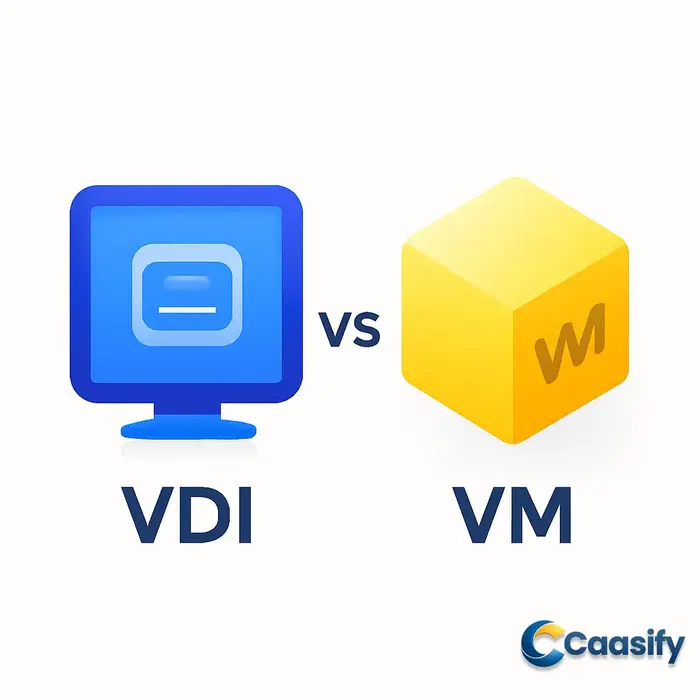
    What is VDI and How Does it Differ from VM?

    Virtual Desktop Infrastructure (VDI) and Virtual Machines (VM) are both powerful technologies used in virtualization, but they serve different purposes and have distinct benefits. The comparison of VDI vs VM can help businesses and IT professionals decide which solution best meets their needs based on factors like cost, scalability, and performance. In this section, we will break down what VDI and VM are, how they work, and when to use each, giving you a clear understanding of their practical applications.

    What is VDI?

    Virtual Desktop Infrastructure (VDI) is a technology that allows users to access desktop environments hosted on centralized servers rather than relying on physical machines. With VDI, the operating system and applications run on a remote server, while the user interacts with it through a thin client or any device with network access.

    VDI is primarily used in remote work environments, where centralized management, security, and access control are critical. For example, businesses that need to ensure their employees can securely access company data from various locations often implement VDI to maintain a high level of security and compliance.

    Some key benefits of VDI include:

    • Security: All data remains on centralized servers, reducing the risk of data breaches and loss.
    • Scalability: Organizations can easily scale their VDI infrastructure to accommodate more users by simply provisioning additional virtual desktops.
    • Centralized Management: IT teams can manage, update, and troubleshoot desktops from a single location, improving efficiency.

    A practical example of VDI is a company that deploys it to provide employees with remote access to their desktop environments, ensuring consistent and secure access to corporate resources from anywhere.

    What is VM?

    A Virtual Machine (VM) is an emulation of a physical computer that runs an operating system and applications just like a physical machine. VMs are hosted on hypervisors, which enable multiple virtual machines to run on a single physical server. Each VM is isolated, meaning it functions independently from others, allowing users to run different operating systems on a single machine.

    VMs are widely used for flexibility and cost-effectiveness. For example, businesses can run multiple VMs on a single server, which maximizes hardware usage and reduces infrastructure costs. A typical use case for VMs is to run different applications in isolated environments or to test new software without affecting production systems.

    The key advantages of VMs include:

    • Cost Efficiency: By consolidating multiple virtual environments on a single server, businesses can reduce hardware and energy costs.
    • Flexibility: VMs allow running various operating systems (e.g., Linux, Windows) on a single physical server, making them ideal for testing or multi-platform software deployment.
    • Scalability: It’s easy to add more VMs as the demand for computing power grows.

    For instance, a software development company may use VMs to run different operating systems for testing compatibility or to host isolated environments for different applications.

    The VDI vs VM comparison highlights that while both technologies use virtualization to optimize IT infrastructure, VDI focuses on providing secure, remote desktop environments, while VMs excel in creating isolated, cost-effective environments for different operating systems or applications. To dive deeper into the distinctions, you can explore an in-depth comparison of VDI vs VM.

    For additional context on how virtualization technologies work, you can refer to the virtualization overview on Wikipedia.

    When to Choose VDI vs VM for Your Organization

    When considering virtualization options for your organization, it’s essential to understand the differences between Virtual Desktop Infrastructure (VDI) and Virtual Machines (VM). The decision between VDI vs VM often depends on several factors, including cost, scalability, and security. In this section, we’ll explore when each option is best suited for your needs and provide practical insights to help guide your decision-making process.

    When to Choose VDI Over VM for Your Organization

    Virtual Desktop Infrastructure (VDI) can be a more suitable choice than Virtual Machines (VM) in several scenarios, particularly when centralized management, scalability, and remote work are priorities.

    • Centralized Management: VDI provides centralized control over desktops, making it easier to manage updates, security patches, and configurations across all users. This is particularly beneficial for businesses with a large number of users or those with dynamic teams that frequently require updates to their desktop environments.
    • Scalability: VDI offers scalability benefits for organizations that need to quickly deploy desktops to many users, such as in seasonal businesses or rapidly growing teams. With VDI, you can quickly scale up or down without having to worry about provisioning hardware for each user.
    • Cost Efficiency in Large Deployments: While VM can be cost-effective for isolated or smaller environments, VDI is often more cost-efficient when you need to deliver similar desktops to many users. The centralized management and shared resources of VDI can reduce the need for individual machines and the associated costs.
    • Remote Work: VDI shines in remote work scenarios. It allows employees to securely access their work environments from virtually anywhere, ensuring consistent performance regardless of device or location. This makes it an ideal solution for organizations embracing flexible work policies or managing a distributed workforce.

    Example Use Case: A multinational company with thousands of remote employees in various regions might choose VDI over VM to simplify management, enhance security, and ensure all employees access the same desktop environment with minimal latency.

    Choosing the Right Virtualization Solution Based on Security Needs

    Security is a critical factor when deciding between VDI and VM. Both solutions offer benefits, but the level of control and the type of security needed may make one a better choice over the other.

    • VDI Security Advantages: VDI typically provides centralized security management, which allows IT administrators to apply security policies, monitor activity, and implement updates across all virtual desktops from a single point. VDI environments often use encrypted communication channels, ensuring that data is protected as it travels between users and the data center. This is especially important for organizations handling sensitive data.
    • VM for Enhanced Isolation: On the other hand, VM environments provide more isolation between virtual machines, making them an ideal choice for organizations that need highly isolated environments for specific tasks or applications. For example, VMs are useful for testing potentially risky software or running workloads that require strict separation from other systems.

    Example Use Case: A financial institution handling confidential customer data may opt for VDI due to its centralized security features, ensuring data remains secure while being easily accessible from remote locations. Conversely, a tech company developing software might prefer VMs to isolate development environments and prevent interference between various projects.

    For more details on VDI security, consider reading the VDI security overview from VMware.

    Evaluating the Cost and Scalability of VDI and VM Solutions

    When comparing VDI vs VM, businesses must weigh the costs and scalability factors of each solution. Both Virtual Desktop Infrastructure (VDI) and Virtual Machine (VM) solutions offer flexibility and efficiency, but they come with different challenges and benefits depending on the use case. Understanding these differences is crucial for making an informed decision that aligns with your company’s growth plans and IT budget. In this section, we will explore the scalability challenges, transparent pricing models, and overall cost-effectiveness of both solutions, helping you determine which one best suits your needs.

    Scalability Challenges in VDI and VM Solutions

    When it comes to scalability, VDI vs VM presents distinct challenges.

    VDI solutions are often designed for large numbers of users, where the user experience depends heavily on centralized resources. As demand increases, scaling requires more powerful servers and storage to support additional users and desktops. In large enterprises, adding users can result in noticeable performance degradation unless the infrastructure is sufficiently robust and optimized for scale. For instance, a company experiencing sudden spikes in demand during busy seasons might face difficulties with VDI scalability unless they’ve invested in scalable hardware or cloud-based infrastructure.

    VM solutions, on the other hand, tend to offer more flexibility when scaling individual workloads. Since each VM operates independently, scaling involves provisioning additional virtual machines on existing hardware or in the cloud. While it’s generally easier to scale VMs compared to VDIs, there are still challenges, especially in managing the infrastructure. For example, a business might find that as their number of VMs grows, it can become difficult to efficiently manage resources, leading to higher overhead costs.

    Assessing Transparent Pricing Models for VDI and VM

    Transparent pricing is a key factor in evaluating VDI vs VM solutions. Understanding how costs accumulate is essential to managing IT budgets and avoiding unexpected expenses.

    VDI pricing typically includes costs for software licenses, servers, storage, and sometimes additional network infrastructure. Some vendors offer pricing models based on concurrent users, which means costs rise with the number of active users on the system. Additionally, cloud-based VDI options might include pay-per-use models, where businesses pay for the compute resources used. For example, VMware’s VDI solutions often require upfront investment in hardware or cloud services, but they offer a more predictable cost structure over time.

    On the other hand, VM solutions tend to be more flexible in pricing. Costs usually include licensing for the hypervisor, management software, and virtualized infrastructure. For businesses, the total cost can vary based on the number of VMs and the hardware resources required. Vendors like Google Cloud Virtual Desktops provide a more granular pricing structure, where businesses pay for exactly what they use. For small to medium-sized businesses (SMBs), VM solutions may be more cost-effective because they can scale quickly without substantial upfront investment.

    Understanding these models is essential. Look for vendors offering clear cost breakdowns that show not just the initial setup costs, but also the ongoing costs for scalability and maintenance. For instance, tools like VDI Cost Breakdown can help businesses assess the long-term cost structures involved in deploying VDI solutions.

    VDI vs VM: Which Is More Cost-Effective for Your Business?

    When deciding on a solution, businesses must evaluate the cost-effectiveness of VDI vs VM in relation to their unique needs.

    For small businesses with a modest budget and fewer users, VM solutions might be more cost-effective. They offer a pay-as-you-go model, meaning companies only pay for the resources they consume. This can be particularly beneficial for businesses with fluctuating demands or those just starting out. The ability to scale VMs with minimal infrastructure changes provides greater flexibility and often lower total cost of ownership (TCO) over time.

    In contrast, VDI solutions are often better suited for larger enterprises or organizations with a more predictable user base. While the initial investment may be higher due to the need for powerful hardware and centralized infrastructure, VDI can lead to savings in the long term, especially if there’s a need for consistent, secure desktop environments across many users. VDI solutions also provide better centralized management, which can reduce IT overhead.

    Ultimately, the choice between VDI and VM depends on your business size, user demand, and growth projections. Consider the total cost of ownership (TCO), including licensing, infrastructure, and long-term maintenance. For example, a large enterprise might opt for enterprise VDI solutions for the security and efficiency of centralized management, while a smaller company might prioritize the scalability and flexibility of VMs.

    In conclusion, evaluating VDI vs VM requires understanding the unique cost and scalability challenges of each solution and matching them with your business’s needs. To help further with this decision, consider reviewing additional resources like VMware Virtual Machine Overview for deeper insights on how VM solutions function and scale.

    Optimizing Performance in VDI and VM Environments

    Optimizing performance in Virtual Desktop Infrastructure (VDI) and Virtual Machine (VM) environments is essential for ensuring smooth operation and resource efficiency. While both technologies allow for flexible, scalable computing, their optimization strategies differ in key areas. In this section, we’ll explore effective strategies for optimizing performance post-deployment, whether you’re managing virtual desktops or VMs. We’ll cover practical steps for performance tuning, best practices for managing VM or VDI environments, and techniques for handling multi-region virtual environments, ensuring your system runs at peak performance.

    How to Optimize Performance in Virtual Environments

    Optimizing performance in virtual environments involves various strategies that focus on resource management, load balancing, and performance monitoring. The key difference in optimizing VDI vs VM environments is their specific resource needs. VDI, which runs desktop environments for multiple users, requires high availability and efficient memory management, while VM environments, which run isolated server applications, often benefit from strong CPU and disk I/O optimization.

    One way to monitor and optimize performance in a VM environment is by using tools like vSphere for resource allocation adjustments. For example, by checking the VM’s resource usage in vSphere, you can identify bottlenecks in CPU or memory usage and adjust the resource allocation accordingly. The following command can help identify CPU performance in a VM:

    esxtop

    This command displays real-time statistics, allowing you to spot CPU overloads or memory pressure. Adjusting the VM’s CPU and memory allocation based on this data can significantly improve performance.

    Best Practices for Optimizing VM or VDI Performance Post-Deployment

    Once your VDI or VM environment is up and running, continuous optimization is crucial for maintaining performance. After deployment, it’s essential to monitor and adjust resources based on real-time needs. For instance, consider using VMware vCenter for centralized management of both VDI and VM environments, which allows you to automate resource allocation based on usage patterns.

    A practical step for optimizing VM performance is to monitor memory usage. If a VM consumes excessive memory, consider adjusting the memory limits or enabling memory ballooning, which allows the VM to adjust memory dynamically depending on host demand. Another technique is to enable paravirtualized drivers for network and disk operations, which reduces overhead and improves throughput.

    Real-World Example: If a VM’s CPU usage consistently peaks during business hours, it might be time to reallocate resources or schedule additional VMs to share the load. This can be done through the VMware vSphere management console or by using VMware vRealize Operations to predict resource needs based on historical data.

    Managing Multi-Region Virtual Environments with VDI and VM

    Managing multi-region virtual environments introduces challenges related to network latency, bandwidth limitations, and load balancing. When deploying VDI or VM across multiple regions, ensuring minimal latency and effective load distribution is critical for performance.

    One technique is to implement load balancing across regions, ensuring that virtual machines or virtual desktops are evenly distributed across data centers. For example, with VMware vSphere or AWS, you can configure Global Load Balancing to direct traffic to the closest data center, minimizing latency for end-users.

    Additionally, consider using AWS CloudWatch for monitoring multi-region performance and proactively adjusting resources based on usage spikes. This enables you to identify potential issues such as bandwidth congestion or increased response times in specific regions, which can then be addressed by adjusting traffic routing or resource allocation.

    Real-World Example: If a user in a region experiences slower access to their virtual desktop due to latency, you might adjust the Global Load Balancer settings to route the traffic to a closer region. This reduces latency and ensures a smoother experience for end-users.

    In conclusion, optimizing performance in VDI and VM environments, whether through fine-tuning resource allocation, monitoring with tools like vSphere and CloudWatch, or balancing load across regions, is crucial for maintaining efficiency and reliability. By applying these strategies, you can ensure that your virtual environments deliver optimal performance in the long term.

    Key Differences Between VDI and VM: A Side-by-Side Comparison

    Virtual Desktop Infrastructure (VDI) and Virtual Machines (VM) are both foundational to modern IT infrastructure, but they serve different purposes. Understanding the differences between VDI vs VM is crucial for organizations looking to optimize their virtual environments. While both technologies use virtualization to enable efficient use of resources, they differ in how they manage and deliver computing environments. This section compares VDI and VM in terms of performance, scalability, and real-world use cases, providing insights to help you choose the right solution for your organization.

    Understanding Virtual Desktop Infrastructure (VDI) and Virtual Machines (VM)

    Virtual Desktop Infrastructure (VDI) and Virtual Machines (VM) both enable virtualization but in different ways. A Virtual Machine (VM) is a software-based emulation of a physical computer, providing a complete operating system and applications. Each VM runs its own instance of an operating system (OS), which can be independent of the host system.

    In contrast, Virtual Desktop Infrastructure (VDI) refers to the technology that hosts desktop environments on a centralized server. Users access their desktops remotely, making VDI ideal for environments where users need personalized, full desktop experiences from various devices.

    Here’s a simple breakdown of their differences:

    Feature Virtual Machine (VM) Virtual Desktop Infrastructure (VDI)
    Definition Emulates an entire physical computer on a host system. Hosts desktop environments on a server for remote access.
    Resource Allocation Resources are allocated per virtual machine. Resources are shared among multiple desktops on a centralized server.
    Use Case Running applications, isolated environments. Providing user desktops remotely, centralizing desktop management.

    A key difference is that VMs are often used for server workloads, whereas VDI is focused on providing individual desktop experiences for users across various locations.

    How VDI and VM Impact Performance and Scalability

    When comparing VDI vs VM in terms of performance and scalability, there are distinct considerations. Virtual machines are generally more flexible in handling workloads and are optimized for running multiple applications on a single system. Each VM is allocated specific CPU, memory, and storage resources, which allows for efficient operation of resource-heavy applications. However, managing the performance of multiple VMs requires significant resource overhead, especially if there are many concurrent users or applications running in parallel.

    VDI, on the other hand, centralizes desktop environments on a server, which allows organizations to scale efficiently. Performance in a VDI environment can be impacted by the number of concurrent users and the resources available on the server. To optimize VDI performance, businesses often implement load-balancing tools and monitoring solutions.

    Key Performance Factors:

    • VMs: Provide isolated environments, meaning resource allocation is straightforward. However, performance can degrade if resources are not managed well.
    • VDI: Relies on server capacity, meaning performance can be optimized with the right infrastructure and resource management.

    For both, ensuring efficient resource allocation and load balancing is essential. Tools like VMware vSphere for VMs and Citrix Virtual Apps for VDI can optimize resource usage and scalability.

    The Role of VDI in Cloud Environments

    VDI integrates seamlessly with cloud environments, offering businesses the flexibility to host desktop environments remotely. Cloud-based VDI solutions like AWS WorkSpaces or Azure Virtual Desktop enable users to access their desktop environments from anywhere, making it easier for remote or hybrid teams to collaborate and work effectively.

    Using VDI in the cloud offers several benefits:

    • Scalability: Businesses can easily scale their desktop environments by adding or removing virtual desktops without investing in physical hardware.
    • Cost Efficiency: Cloud VDI reduces the need for on-premise infrastructure, allowing businesses to optimize costs associated with hardware maintenance.

    For example, deploying Azure Virtual Desktop enables companies to host their desktops in Microsoft’s cloud, offering users the flexibility to access their workspaces from any device.

    Virtual Machine Use Cases for Different Business Sizes

    When choosing between VDI vs VM, it’s essential to consider the size and needs of your business. Smaller businesses often prefer VMs for their simplicity and low overhead, allowing them to set up isolated environments for testing, development, or running specific applications. VMs are also ideal for environments where each user requires different configurations and independent operating systems.

    On the other hand, larger organizations benefit more from VDI due to its centralized management, scalability, and ease of administration. For example, large enterprises with hundreds or thousands of users can centralize their desktop environments using VDI, which simplifies updates, patch management, and security enforcement.

    VM Use Case Examples:

    • Small Business: A small business may use VMs to run specific applications in a test environment without affecting the production system.
    • Medium to Large Business: For businesses with multiple departments or office locations, VMs enable the separation of workloads, providing isolated environments for different teams.

    By understanding the differences between VDI and VM, businesses can better align their virtualized environments with their operational needs and scale as they grow.

    In conclusion, while both VDI and VMs offer powerful virtualization solutions, the choice between them depends on the organization’s specific needs, such as performance requirements, scalability, and the number of users. For businesses needing remote desktop environments, VDI is a clear winner. For those requiring isolated virtualized environments for specific applications, VMs are likely a better fit. To dive deeper into virtualization and its benefits, consider exploring resources like the KVM Virtualization: The Ultimate Guide to Performance and Cost.

    Choosing the Right Configuration for VDI or VM Solutions

    When evaluating VDI vs VM solutions, organizations must consider various factors such as security, configuration, network performance, and overall scalability. Understanding the key differences between Virtual Desktop Infrastructure (VDI) and Virtual Machines (VM) can significantly influence the decision-making process. In this section, we’ll explore how to choose the best option based on these crucial aspects, ensuring your infrastructure meets both business and technical needs.

    Choosing the Right Virtualization Solution Based on Security Needs

    When comparing VDI vs VM for security, both solutions come with unique features and challenges. VDI typically involves a central server hosting multiple virtual desktops, allowing IT administrators to maintain strict control over user access and data protection. Security for VDI environments often includes multi-factor authentication (MFA), role-based access control (RBAC), and strong encryption for data at rest and in transit.

    On the other hand, VM environments, which typically host individual virtual servers, require security measures tailored to each VM instance. Key considerations include secure hypervisor configuration, network isolation for each VM, and guest OS hardening. VM environments may also use snapshot features for disaster recovery, providing an added layer of protection.

    For both solutions, adopting a proactive approach to patch management and applying security configurations like firewalls and anti-malware solutions can significantly enhance security.

    How to Set Up and Configure Virtual Machines for Maximum Efficiency

    Configuring a VM for optimal performance starts with proper resource allocation. For example, when setting up a VM in VMware vSphere, allocate CPU and memory resources based on workload needs. A typical configuration might look like this:

    # Example of VM configuration in vSphere
    cpu = 4
    memory = 8192MB
    disk = 50GB
    

    This configuration assigns 4 CPUs, 8GB of RAM, and a 50GB disk to the virtual machine, providing a balanced setup for moderate workloads. The key is ensuring that resources are not over-provisioned, as this can lead to performance bottlenecks, or under-provisioned, which may cause the VM to run slowly.

    Additionally, using tools like VMware vSphere or Microsoft Hyper-V for management can help automate the VM setup and streamline resource allocation across your virtualized infrastructure. By monitoring performance metrics, you can fine-tune resource distribution to ensure peak efficiency and reduce system overhead.

    Optimizing Network and Latency for Virtual Desktop Infrastructure

    Optimizing network performance is crucial for VDI environments, as network latency can significantly impact user experience. One effective approach to minimizing latency is implementing WAN optimization techniques. This includes compressing traffic and caching frequently used data at remote locations.

    Another critical factor is bandwidth management. Proper allocation of bandwidth ensures that VDI sessions remain responsive, especially in remote work scenarios. Tools like VMware Horizon allow IT administrators to configure Quality of Service (QoS) settings to prioritize critical traffic.

    Ensuring that network configurations align with the VDI infrastructure can minimize lag and provide a seamless experience for end-users. For example, setting up VLANs (Virtual Local Area Networks) for segmentation can improve the isolation and security of VDI traffic.

    By focusing on these areas, organizations can ensure that their VDI infrastructure provides a smooth, responsive user experience while maintaining high security and performance standards.


    By carefully considering the specific needs of your organization in terms of security, configuration, and network optimization, you can make an informed decision between VDI vs VM solutions. For further details on how to configure VMware environments for optimal performance, check out VMware Virtualization Technology: The Ultimate Guide to Optimizing Your Setup.

    Post-Migration: Ensuring Smooth Operations in VDI and VM Setups

    After migrating to Virtual Desktop Infrastructure (VDI) or Virtual Machine (VM) environments, ensuring smooth operations is crucial for maintaining performance and reliability. Understanding the differences between VDI vs VM helps in optimizing your infrastructure and making sure each system is operating at its best post-migration. In this section, we will cover monitoring tools, common troubleshooting issues, and strategies for improving VM reliability to ensure continued success in these virtualized setups.

    Monitoring Virtual Environments After Migration

    Monitoring is essential to maintaining the health of virtual environments like VDI and VM setups after migration. Basic monitoring tools, such as vSphere or Hyper-V, allow administrators to track essential performance metrics. Key metrics to monitor include:

    • CPU usage: Track how much processing power is being consumed.
    • Memory consumption: Ensure that memory is allocated efficiently.
    • Network activity: Monitor network traffic to identify potential bottlenecks.

    For example, using vSphere, you can easily set up monitoring for these metrics through its performance charts. This helps you keep an eye on your VDI or VM environment’s overall health, and proactively detect and resolve issues.

    Troubleshooting Performance Issues in Virtual Environments

    Performance issues are common after migration, especially with high CPU usage or slow disk I/O. To troubleshoot these problems, start by identifying the root cause of the issue:

    1. High CPU usage: Check the resource allocation settings for the affected VM. Adjusting the number of CPU cores or limiting the number of background processes can help.
    2. Slow disk I/O: If disk performance is lagging, consider optimizing the storage subsystem or increasing the disk size for your VM.

    For instance, if a VM’s CPU usage is consistently high, you might reduce the number of VMs running on a physical host to distribute the load more evenly. Adjusting the VM’s resource allocation to match the actual demand is a simple but effective solution.

    Improving Virtual Machine Reliability and Uptime

    To ensure consistent performance and reduce downtime in your VDI or VM environments, consider implementing strategies like resource allocation adjustments and VM clustering.

    • Resource allocation: Allocating more CPU or memory to critical VMs can prevent bottlenecks.
    • VM clustering: By using VM clustering for high availability, you can minimize service interruptions during planned or unplanned outages.

    For example, configuring a VM cluster can automatically redistribute workloads if one VM fails, ensuring minimal downtime. This helps maintain uptime and reliability, which is essential for smooth operation in production environments.


    By following these steps for monitoring, troubleshooting, and improving the reliability of your VDI or VM environments, you’ll be better prepared to handle post-migration challenges. For further guidance on optimizing virtualization infrastructure, check out KVM Virtualization: The Ultimate Guide to Optimizing Your Infrastructure. Understanding the VDI vs VM setup can also help ensure your virtual environments meet performance and uptime expectations.

  • Certificate Signing Request: Easy Methods for Secure Creation

    Certificate Signing Request: Easy Methods for Secure Creation

    What is a Certificate Signing Request (CSR) and Why is it Important for SSL Protection?

    A Certificate Signing Request (CSR) is a crucial element in securing your website through SSL/TLS encryption. It is a message sent from an applicant to a certificate authority (CA) to request the issuance of an SSL/TLS certificate. The CSR contains essential information about your website, such as its domain name and public key, which is used to generate the SSL certificate. Understanding how to generate a CSR and knowing the best method for your needs is key to ensuring secure SSL/TLS communications. Learn more about how to create a CSR.

    Manual vs Automated CSR Generation: Understanding the Pros and Cons

    When it comes to creating a Certificate Signing Request (CSR), there are two primary methods: manual CSR generation and automated CSR generation. Each method has its strengths and weaknesses, and understanding these differences can help you choose the best option based on your security needs and technical comfort level.

    Manual CSR Generation

    Manual CSR creation typically involves using command-line tools like OpenSSL. This method offers greater control over the process, which can be beneficial for advanced users or those needing a highly customized CSR. Here’s an example of how to generate a CSR manually using OpenSSL:

    openssl req -new -newkey rsa:2048 -nodes -keyout mydomain.key -out mydomain.csr

    This command does the following:

    • Generates a new private key (mydomain.key).
    • Creates a new CSR (mydomain.csr) with a 2048-bit RSA key.

    Pros:

    • More control: You have full control over the CSR details, allowing for customization, such as specifying the subject fields.
    • Security: As a hands-on method, it ensures you’re directly managing your private key and CSR creation process, which can minimize human error in the generation.
    • Transparency: You can view and verify all details of the CSR before submitting it.

    Cons:

    • Complexity: For users who are not comfortable with command-line interfaces, this method can be challenging and error-prone.
    • Time-consuming: Requires manual input and verification, which can slow down the process compared to automated methods.

    Automated CSR Generation

    Automated CSR generation simplifies the process by providing graphical interfaces or automated tools. Popular web hosting control panels, such as cPanel and Plesk, offer user-friendly options for generating CSRs without the need for command-line interaction. Here’s a general overview of how the automated process works in cPanel:

    1. Log in to your cPanel account.
    2. Navigate to the “SSL/TLS” section.
    3. Click on “Generate a New CSR.”
    4. Fill in the required details (e.g., domain name, organization).
    5. The CSR will be automatically generated and displayed.

    Pros:

    • Ease of use: The automated process eliminates the need for command-line interaction, making it accessible to beginners or users who prefer a graphical interface.
    • Speed: It’s a faster method compared to manual CSR creation, as the tool handles most of the process automatically.
    • Less risk of human error: Automated tools ensure the necessary fields are filled out correctly, reducing the chance of mistakes.

    Cons:

    • Less control: Automated tools typically limit customization options, which may be a disadvantage if you need to modify advanced settings.
    • Dependence on the tool: If the automated tool has a bug or malfunction, it could affect the CSR generation process, potentially leading to issues with SSL certificate issuance.

    Which Method is Best for You?

    When deciding between manual and automated CSR generation, consider the following factors:

    • Security needs: If you need full control over the CSR’s details, or if you’re working with a unique SSL certificate configuration, manual generation may be the better choice.
    • Technical skill: If you’re comfortable with command-line tools, manual generation gives you more flexibility. For less experienced users, automated tools provide a faster, simpler solution.
    • Time constraints: Automated tools are faster and more convenient, which may be important if you need to quickly generate a CSR for SSL certificate issuance.

    Ultimately, the method you choose will depend on your specific requirements and your comfort level with the CSR generation process. For more detailed instructions, check out this guide on how to generate your CSR and explanation of its role.

    In conclusion, both manual and automated CSR generation methods have their place in SSL/TLS certificate management. Whether you choose manual generation for its control and security or an automated tool for its ease and speed, understanding the pros and cons will help you make the right choice for your website’s security needs. For further information on CSR structure, you can refer to the technical definition and structure of a certificate signing request.

    Manual vs Automated CSR Generation: Understanding the Pros and Cons

    When it comes to generating a Certificate Signing Request (CSR), there are two main methods: manual generation and using automated tools. Each approach offers its own set of advantages and challenges, depending on your specific needs and technical expertise. In this section, we’ll compare both methods, focusing on control and flexibility in manual CSR generation versus the efficiency and error reduction provided by automated CSR tools. By the end, you’ll be better equipped to choose the method that suits your security requirements and workflow.

    Comparing the Control and Flexibility of Manual CSR Generation

    Manual CSR generation using tools like openssl offers a high degree of control and customization, making it ideal for advanced users who need fine-tuned configurations. One of the key benefits of manual CSR generation is the ability to customize certain parameters, such as Subject Alternative Names (SANs), which are necessary for multi-domain SSL certificates. This flexibility can be particularly useful for administrators managing complex certificate setups.

    For example, to generate a CSR using openssl, you can use the following command:

    openssl req -new -newkey rsa:2048 -keyout mydomain.key -out mydomain.csr

    This command does the following:

    • req: Creates a new certificate request.
    • -new: Specifies a new CSR.
    • -newkey rsa:2048: Generates a new private key with RSA encryption and a 2048-bit length.
    • -keyout mydomain.key: Specifies the file to save the private key.
    • -out mydomain.csr: Specifies the file to save the CSR.

    While this process allows for maximum customization, it can be more complex and requires a basic understanding of how CSRs work. Users must manually input details such as organization name, country, and, if needed, SAN entries. Although this gives you full control over the CSR generation process, it can also introduce errors if not carefully executed.

    In summary, manual CSR generation offers superior control but at the cost of complexity, making it suitable for users who require precision and customization. If you need to fine-tune SSL certificates or handle multiple domains, manual CSR generation is a strong choice.

    Exploring the Efficiency and Error Reduction of Automated CSR Tools

    On the other hand, automated CSR tools simplify the process significantly, making it an ideal choice for users who need a quick and reliable solution without delving into the complexities of manual configuration. Many web hosting platforms, such as cPanel and Plesk, offer built-in CSR generation tools. These tools walk users through the process via an intuitive graphical interface, reducing the likelihood of errors.

    For instance, in cPanel, generating a CSR typically involves navigating to the SSL/TLS section and filling in a form with required details such as the domain name, organization, and location. Once the user submits the form, the system automatically generates the CSR and private key. This process is much quicker than manually generating the files and eliminates the risk of missing critical fields.

    Automated tools are especially beneficial for users with limited technical knowledge or those looking to save time. However, they do come with certain limitations. While automated CSR generation is efficient, it may not provide the same level of customization as manual methods. For example, adding SAN entries or other advanced configurations may not be possible or may require additional steps outside of the tool’s interface.

    Despite these limitations, automated CSR tools provide a streamlined and error-resistant method of generating a CSR, which can be ideal for most users, particularly those who need to generate a CSR for a single domain or a straightforward SSL certificate.

    In conclusion, automated CSR tools excel in simplicity and speed, making them a great option for users who prioritize efficiency over customization. However, for more complex certificate requirements, such as multi-domain certificates, a manual approach may still be necessary.

    Common Issues in CSR Creation and How to Avoid Them

    Creating a Certificate Signing Request (CSR) is a crucial step in obtaining an SSL/TLS certificate. However, several common issues can arise during CSR creation, such as key mismatches or incorrect formatting. Addressing these problems early in the process ensures a smoother certificate deployment and helps maintain the security of your system. In this section, we’ll explore some of the most frequent issues and offer practical advice for resolving them.

    Understanding Key Mismatches and Common Errors

    A key mismatch occurs when the private key used to generate the CSR does not match the public key in the resulting certificate. This can lead to a failed SSL/TLS certificate installation and functionality issues. Common causes of key mismatches include:

    • Incorrect key pair: When generating a CSR, the private key and public key must form a valid pair. If the wrong private key is used during CSR creation, it results in a mismatch.
    • Key size issues: Some certificate authorities (CAs) may require specific key sizes, such as 2048-bit or 4096-bit. Using an incorrect key size can also cause errors.

    To troubleshoot and resolve key mismatches, follow these steps:

    1. Check CSR details: Use the following command to inspect the CSR and verify the key details:
      openssl req -in csr.pem -text -noout

      This command displays the information in the CSR, including the public key details. Compare this information with the private key used to generate the CSR.

    2. Verify key pairing: If there’s a mismatch, ensure you’re using the correct private key with the CSR. If necessary, regenerate the CSR with the correct private key.
    3. Check key size: If you suspect a key size issue, ensure that the key size meets your CA’s requirements. You can use the following command to check the private key size:
      openssl rsa -in private_key.pem -text -noout

      This will output the key size and other details of the private key, helping you identify any discrepancies.

    By following these steps, you can easily identify and fix key mismatches, ensuring that your CSR is correctly generated and ready for submission to the CA.

    Handling Inconsistent CSR Formats Across Platforms

    Another common issue in CSR creation is format inconsistencies between different platforms. The two most common CSR formats are PEM (Privacy-Enhanced Mail) and DER (Distinguished Encoding Rules). Each platform or tool may require a specific format, and errors can occur if the CSR is not in the correct format for the intended use.

    To handle inconsistent formats, follow these guidelines:

    • PEM vs. DER format: PEM is the most widely used format and is ASCII-encoded, while DER is binary-encoded. Some platforms may require one format over the other.
    • Check CSR format: Use the following command to inspect the format of a CSR:
      openssl x509 -in csr.pem -text

      This command will display the details of the CSR, including the format.

    If your CSR is in the wrong format, you can convert it using the following OpenSSL commands:

    • Convert PEM to DER:
      openssl x509 -outform der -in csr.pem -out csr.der

      This command converts a PEM-encoded CSR to DER format.

    • Convert DER to PEM:
      openssl x509 -inform der -in csr.der -out csr.pem

      This converts a DER-encoded CSR to PEM format.

    Ensuring that the CSR is in the correct format for the platform or tool you are using will prevent issues during certificate submission. If you need further assistance, you can consult DigiCert’s troubleshooting guide for CSR formatting errors.

    By following these steps, you can avoid common CSR format issues and streamline the certificate deployment process.

    For more detailed guidance on generating a CSR, you can refer to DigiCert’s official guide on creating a CSR and Microsoft Learn documentation on generating and merging CSRs.

    How to Ensure Secure and Efficient CSR Management in Cloud Environments

    Managing a certificate signing request (CSR) and SSL/TLS certificates within a cloud infrastructure requires careful attention to both security and efficiency. The process of CSR generation, coupled with proper certificate management, is critical for securing communications and ensuring trustworthiness in cloud environments. This section outlines methods to generate and manage CSRs effectively using cloud-native tools, alongside best practices for maintaining secure certificates throughout their lifecycle.

    Managing CSR and SSL Certificates in a Cloud Infrastructure

    Generating and managing a certificate signing request in cloud environments can be done manually or automated through cloud-native tools. Cloud providers like AWS, Azure, and Google Cloud offer built-in services that streamline the process of CSR generation and SSL certificate management.

    • Manual CSR Generation: This method involves creating a CSR on your server or through a command line interface. For example, you can generate a CSR using OpenSSL commands. However, cloud providers like AWS and Azure provide more efficient ways to handle CSR requests using their tools.
    • Automated CSR Generation: Cloud-native services like AWS ACM (AWS Certificate Manager), Azure Key Vault, and Google Cloud Certificate Manager simplify CSR management by automating key tasks. These services ensure the CSR is generated securely and efficiently, reducing manual errors and administrative overhead.

    Example: Generating a CSR in AWS ACM

    To generate a CSR using AWS ACM, you can use the AWS CLI:

    aws acm request-certificate --domain-name example.com --validation-method DNS

    This command requests a new SSL/TLS certificate for the domain example.com, using DNS validation. After this, AWS ACM will automatically generate the CSR, and you can use it to submit a request to a certificate authority (CA).

    The advantage of using AWS ACM is that it automates both the generation of CSRs and the renewal of certificates, making the process much more efficient and secure than doing it manually.

    By using these cloud-native tools, you can manage certificates directly from the cloud interface, track expiration dates, and set up automatic renewals, ensuring that your certificates remain valid and secure without manual intervention.

    Security Considerations for Cloud-Based CSR Generation and Management

    When dealing with CSR generation in cloud environments, security is a primary concern. Improper handling of CSRs and SSL certificates can expose your systems to risks such as data breaches or unauthorized access.

    • Securing Private Keys: The private key associated with a CSR must be stored securely. If compromised, it can lead to the exposure of sensitive data. Cloud platforms like AWS, Azure, and Google Cloud offer robust methods for securing private keys.
    • Risks of Weak Keys: A common security pitfall when generating a CSR is using weak encryption keys. Ensure that the key length is sufficient for modern security standards—typically 2048-bit or 4096-bit RSA keys are recommended. Using outdated or weak key lengths could expose your organization to attacks.
    • Handling Certificate Renewals: Another crucial aspect is handling certificate renewals. In cloud environments, services like AWS ACM and Azure Key Vault allow for automatic certificate renewals. Ensure that renewal settings are configured properly to prevent lapses in certificate validity.

    Example: Securing a CSR with a Private Key in AWS ACM

    To ensure security while generating a CSR, AWS ACM handles the private key automatically, and it is never exposed outside the AWS environment. When requesting a certificate, the private key is securely stored and used for signing requests without ever being manually handled.

    If you’re manually managing your keys, ensure they are stored in secure key management solutions like AWS KMS or Azure Key Vault, which provide an extra layer of protection. These services allow you to control who has access to your keys, minimizing the risk of exposure.

    For more details, you can refer to the Azure Key Vault CSR creation and management documentation or the Google Cloud Certificate Authority Service CSR request guide.

    In summary, securing the CSR and certificate process involves using cloud-native security features, automating key management tasks, and ensuring proper private key storage to avoid security risks.

    Best Practices for CSR Validation and Certificate Renewal

    Managing a certificate signing request (CSR) and ensuring timely certificate renewal are essential to maintaining the security of your server and communications. Verifying the CSR’s validity before submission and staying on top of renewal dates can prevent common issues such as certificate errors and security breaches. In this section, we’ll cover the best practices for CSR validation and certificate renewal, ensuring that your certificates stay valid and secure.

    Verifying CSR Validity Before Submission to a Certificate Authority

    Before submitting a certificate signing request to a certificate authority (CA), it is critical to ensure its validity. Failing to do so can lead to certificate errors, such as a domain name mismatch or missing details, which could delay the issuance of the certificate.

    Here are a few best practices for verifying your CSR:

    1. Check Domain Name Match: Ensure that the domain names in the CSR match the intended certificate. A mismatch can cause the CA to reject the request. For example, submitting a CSR with the domain www.example.com while requesting a certificate for example.com can cause validation errors.
    2. Verify CSR Details Using OpenSSL: You can use OpenSSL to verify the CSR details before submission. The following command displays the details of your CSR:
      openssl req -text -noout -verify -in csr.pem

      Explanation: This command will verify the CSR and display the details, allowing you to confirm that everything, including the domain name, organization, and other details, is correct.

    3. Manual or Automated Validation: Depending on your setup, you can either manually inspect the CSR or use automated systems that integrate with your certificate management tools to catch common errors early.

    Validating the CSR is crucial to avoid the delays caused by incorrect submissions and to ensure that the issued certificate is configured correctly for your domain.

    Planning for Certificate Renewal and Avoiding Expiration

    Keeping track of your certificate expiration dates and planning for timely renewals is essential for avoiding service interruptions and maintaining the integrity of your encrypted communications.

    Here’s how to proactively manage certificate renewals:

    1. Track Expiration Dates: Regularly monitor the expiration date of your SSL/TLS certificates. Using OpenSSL, you can check the expiration date of your certificate with the following command:
      openssl x509 -enddate -noout -in certificate.crt

      Explanation: This command retrieves the expiration date of your SSL certificate, helping you stay on top of upcoming renewals.

    2. Set Renewal Reminders: Consider setting up automated reminders or using certificate management tools that notify you ahead of time when a certificate is nearing expiration. This proactive approach helps prevent the risk of certificates expiring without being renewed.
    3. Use Automated Renewal Services: Many certificate authorities offer automated renewal processes that can simplify certificate management. These services automatically generate a new CSR and submit it to the CA when your certificate is close to expiring, reducing the risk of forgotten renewals.

    For more information on managing certificates, you can explore DigiCert’s guide on renewing SSL/TLS certificates.

    By following these best practices for certificate renewal, you’ll avoid expiration-related security issues and ensure your SSL/TLS certificates are always up to date.

    Pricing Factors, Plans, and Providers for CSR Generation Tools

    Understanding the pricing models for certificate signing request (CSR) generation tools is essential for businesses looking to secure their web servers. By comparing different pricing plans and providers, you can find the most cost-effective solution for your needs. The cost of CSR tools can vary based on features, support, and whether they are automated or manual. This section will provide insights into pricing models and help you choose the best provider based on cost-effectiveness.

    Comparing Pricing Models for CSR Generation Tools

    There are several pricing models available for CSR generation tools, and understanding these differences can help you make an informed decision. Generally, you will encounter three primary pricing structures:

    • Subscription-based pricing: You pay a recurring fee, often monthly or annually. This model is typical for automated CSR tools that provide additional services like certificate management or security features.
    • Pay-per-use: With this model, you only pay for each CSR generation, making it ideal for users who need CSR generation tools infrequently.
    • One-time payment: Some tools offer a one-time fee for unlimited CSR generation, making this an attractive option for users who want a simple, long-term solution without ongoing costs.

    For example, if you’re using a subscription-based CSR tool, you might pay $10 per month for automatic generation and management of your CSR. In contrast, a pay-per-use tool could charge $2 per CSR generation, which could be more cost-effective for occasional use.

    These pricing models offer flexibility depending on your usage patterns, whether you’re managing a high volume of CSR requests or only need them sporadically.

    Choosing a CSR Generation Provider Based on Cost-Effectiveness

    When selecting a CSR generation provider, it’s important to consider not only the pricing structure but also the reliability and features they offer. Providers often differ in the tools and support they provide, so the most cost-effective choice will depend on your specific needs.

    For example, Cloudflare offers a free CSR generation tool that allows for manual CSR creation but also provides excellent support and security features. On the other hand, a service like DigiCert may charge a premium but offers automated CSR generation as part of a larger certificate lifecycle management solution, making it ideal for organizations requiring extensive certificate management.

    To choose the right provider, assess the following:

    • Pricing tiers: Compare what’s included at each level. Some providers include additional security features or dedicated support at higher tiers.
    • Ease of use: Some tools are more user-friendly than others, which can save time and reduce training costs.
    • Support and updates: Look for providers that offer solid customer support and frequent updates to ensure your CSR tool stays secure and functional.

    By comparing the pricing plans and the additional services provided, you can choose a CSR tool that balances cost with the features your business needs.

    For more insights on CSR generation methods, check out Cloudflare’s documentation on generating Certificate Signing Requests (CSRs). You can also explore online CSR generation methods covering OpenSSL and keytool approaches. Additionally, for a broader look at certificate management tools, visit Top certificate lifecycle management solutions with features and comparison.

    Comparing CSR Generation Methods and Tools: Strengths and Weaknesses

    When setting up an SSL or TLS certificate, generating a certificate signing request (CSR) is a crucial step. This process involves creating a file that contains information about your domain and public key, which is sent to a certificate authority (CA) to obtain an SSL/TLS certificate. There are two primary ways to generate a CSR: manually and using automated tools. Both methods have their strengths and weaknesses, depending on your needs, expertise, and the scale of certificate deployment.

    Manual CSR Generation: Advantages and Drawbacks

    Manually generating a CSR offers a high level of control and flexibility. With this approach, you can customize the details included in the CSR, such as subject alternative names (SANs) and other specific configurations. It’s ideal for users who need full control over the process, especially in cases where security requirements demand precise configurations.

    However, manual CSR generation comes with its drawbacks. It’s more time-consuming and requires a deeper technical understanding of tools like OpenSSL. Additionally, there’s a higher chance of human error, especially when dealing with complex configurations. For example, running the following OpenSSL command generates a CSR along with a private key:

    openssl req -new -newkey rsa:2048 -keyout mydomain.key -out mydomain.csr

    This command creates a 2048-bit RSA key and the associated CSR. It requires the user to input information such as the domain name, organization details, and country. While it offers great control, the manual process may lead to mistakes, such as entering incorrect data or forgetting to secure the private key.

    Automated CSR Tools: Pros and Cons

    Automated CSR tools, such as those provided by cPanel, Plesk, or Microsoft’s certreq command, streamline the CSR generation process. These tools are faster and easier to use, especially for those with limited technical expertise. The tools typically guide users through the process, reducing the likelihood of errors and ensuring that the CSR is generated correctly.

    The main advantage of automated CSR tools is convenience. They are ideal for high-volume deployments or users who need to quickly generate multiple certificates without delving into technical details. However, these tools also come with some trade-offs. One downside is the reduced control over the CSR’s customization. Advanced users may find that they can’t configure certain parameters to their exact specifications.

    For example, the certreq command in Windows can be used to automatically generate a CSR:

    certreq -new request.inf mydomain.csr

    This command generates a CSR based on the settings defined in the request.inf file. While this method is easy to use, it may not offer the same flexibility as a manual process. Additionally, automated tools may not expose all configuration options, which could limit customizations for advanced security needs.

    While automated CSR tools are suitable for most users, those with specific security or configuration requirements may prefer manual methods for greater control. Understanding the strengths and weaknesses of both approaches will help you choose the best CSR generation method for your needs.

    For more information on CSR generation, you can explore this SSL Certificate CSR Generation Guide. Additionally, you can refer to the RFC 2986: PKCS #10 Certification Request Syntax Specification for a detailed explanation of CSR structure and standards.

    How to Generate a CSR: Step-by-Step Guide for Different Server Platforms

    Generating a Certificate Signing Request (CSR) is a crucial step in obtaining an SSL/TLS certificate for your server. The CSR contains the necessary information that a certificate authority (CA) will use to create a valid certificate for your website. The process of creating a CSR may vary depending on the server platform you are using. This guide will walk you through how to generate a CSR on four popular server platforms: Apache, Nginx, Microsoft IIS, and customizable virtual machines. By the end of this section, you’ll know exactly how to generate a CSR on your chosen platform and select the best method for your needs.

    Generating a CSR on Apache Web Server

    To generate a CSR on an Apache web server, you’ll typically use OpenSSL, a command-line tool that facilitates the process of creating the CSR and private key.

    Prerequisites:

    • OpenSSL installed on your server.
    • Sufficient server permissions to create files in the required directories.

    Steps:

    1. Generate the Private Key: First, you’ll generate the private key, which is essential for creating the CSR.
      openssl genpkey -algorithm RSA -out mydomain.key -aes256

      This command generates a private key (mydomain.key) using the RSA algorithm and secures it with AES256 encryption.

    2. Generate the CSR: With the private key created, you can now generate the CSR.
      openssl req -new -key mydomain.key -out mydomain.csr

      This command creates a CSR (mydomain.csr) using the previously generated private key. You’ll be prompted to provide details like your domain name, organization, and location.

    What it Does:

    The above steps generate both the private key and the CSR. The private key should remain secure on your server, while the CSR is sent to a certificate authority (CA) to obtain your SSL certificate.

    Creating a CSR on Nginx Server

    Similar to Apache, generating a CSR on Nginx requires OpenSSL. However, the key difference lies in how the private key is handled during the CSR creation process.

    Prerequisites:

    • OpenSSL installed.
    • Nginx server running.

    Steps:

    1. Generate the Private Key (if you haven’t already):
      openssl genpkey -algorithm RSA -out mydomain.key -aes256
    2. Generate the CSR: After you have your private key, use it to generate the CSR.
      openssl req -new -key mydomain.key -out mydomain.csr

      This command will prompt you for information about your organization and domain, just like with Apache.

    What it Does:

    The command creates a CSR (mydomain.csr) for your Nginx server, which can be submitted to a certificate authority. The private key (mydomain.key) will be used during the SSL handshake to encrypt communication between the client and server.

    Generating a CSR on Microsoft IIS

    In Microsoft IIS, the process of generating a CSR is slightly different and relies on the IIS Management Console to initiate the process.

    Prerequisites:

    • IIS installed and running.
    • Administrative permissions on the IIS server.

    Steps:

    1. Open IIS Manager: Open the IIS Manager and navigate to the server where the SSL certificate will be installed.
    2. Request a New Certificate: In the “Server Certificates” section, click “Create Certificate Request.”
    3. Enter the CSR Details: Follow the prompts to enter the necessary information, such as your common name (domain name), organization, and location. After completing the details, click “Next.”
    4. Save the CSR: Choose a file location to save the generated CSR, which will be sent to the certificate authority.

    What it Does:

    This process generates a CSR using the IIS interface, which can then be sent to a CA for certificate issuance. The key is securely stored within the IIS server, and the CSR file is what you will submit to obtain an SSL certificate.

    Leveraging Customizable Virtual Machines for Optimized CSR Generation

    Customizable virtual machines (VMs) offer flexibility and control over the CSR generation process, making them an ideal choice for advanced users who require a tailored environment. By using a VM, you can install OpenSSL and configure your server exactly how you like, ensuring that the CSR generation process is optimized for your needs.

    Benefits of Using a Virtual Machine:

    • Complete Control: You have full access to the underlying OS, which allows you to adjust security settings and install necessary tools like OpenSSL.
    • Customizable Environment: Choose the operating system and configuration that best suits your server’s requirements, whether it’s for a specific version of OpenSSL or other software dependencies.
    • Scalability: Easily scale the VM to match the resource needs for CSR generation, which is useful for large-scale environments.

    Steps:

    1. Set Up the VM: Create and configure a virtual machine with your preferred operating system (e.g., Linux, Windows).
    2. Install OpenSSL: Ensure OpenSSL is installed on the VM.
    3. Generate the CSR: Once the VM is ready, you can follow the same steps as you would on a physical server to generate the CSR, like running the OpenSSL commands mentioned in earlier sections.

    What it Does:

    Using a VM gives you full control over the environment, allowing for an optimized CSR generation process, whether for testing, production, or high-demand setups.


    By following these methods for generating a CSR on Apache, Nginx, Microsoft IIS, or customizable virtual machines, you can ensure that your server is configured properly for SSL/TLS communication. Whether you are using a standard web server or a flexible VM setup, generating a certificate signing request is the first step toward securing your website with HTTPS. For further information on SSL/TLS concepts, consider reading What Is SSL and Why It’s Essential for Secure Websites.

    Choosing the Right Encryption Algorithm for CSR Generation

    When generating a certificate signing request (CSR), selecting the right encryption algorithm is crucial for ensuring both security and performance in your SSL/TLS certificates. The algorithm you choose directly influences the strength of your certificate’s encryption, the efficiency of your systems, and the compatibility across various platforms and browsers. This section will guide you through understanding the importance of choosing the correct encryption algorithm, the most commonly used options, and how scalable infrastructure can ensure secure and efficient deployment.

    The Importance of Selecting the Right Encryption Algorithm

    Choosing the appropriate encryption algorithm for CSR generation is essential to ensure that your SSL/TLS certificates are both secure and performant. The encryption algorithm defines how the private key is generated and how the SSL/TLS communication will be protected. A weak or improperly chosen algorithm can leave your system vulnerable to attacks or may result in poor performance under heavy traffic.

    For example, using RSA with too small a key size (e.g., 512-bit) can compromise the security of the SSL/TLS connection, while selecting a more robust size (e.g., 2048-bit or 3072-bit) can significantly enhance security, albeit at the cost of performance. On the other hand, using newer algorithms like ECC (Elliptic Curve Cryptography) can offer equivalent security with smaller key sizes, making it an excellent choice for environments where performance is critical, such as mobile applications or low-bandwidth scenarios.

    In summary, the choice of encryption algorithm affects not only the security of the CSR but also the overall efficiency of SSL/TLS encryption, especially in terms of processing time and system load.

    Popular Encryption Algorithms for CSR Generation

    When generating a CSR, there are a few key encryption algorithms commonly used: RSA and ECC. Each comes with its own set of strengths and trade-offs in terms of security, performance, and compatibility.

    • RSA (Rivest-Shamir-Adleman)
      RSA is the most widely used encryption algorithm for generating CSRs and has been the industry standard for many years. It offers strong security, especially when used with larger key sizes (2048-bit or 3072-bit). However, the larger the key size, the more computational resources are required, which can impact performance, particularly on lower-end systems.

    When to use RSA:

    • Compatibility: It is supported by virtually all web browsers, servers, and devices, making it a good choice for applications where compatibility is key.
    • Security: RSA 2048-bit is considered secure for most applications but may require more resources compared to newer algorithms.

    Example: To generate a CSR with RSA using OpenSSL:

    openssl req -new -newkey rsa:2048 -keyout server.key -out server.csr

    This command generates a 2048-bit RSA private key and CSR, a standard for secure communication.

    • ECC (Elliptic Curve Cryptography)
      ECC is becoming an increasingly popular alternative to RSA because it offers stronger security with shorter key lengths. For example, a 256-bit ECC key provides security equivalent to a 3072-bit RSA key, making it an excellent option for mobile devices, which require efficient performance due to limited processing power.

    When to use ECC:

    • Performance: ECC is more efficient, offering high security without the computational cost of RSA. This makes it ideal for systems with lower processing power or where fast SSL/TLS handshakes are crucial.
    • Modern Applications: Many modern systems, including mobile applications and IoT devices, benefit from ECC due to its efficiency.

    Example: To generate a CSR with ECC using OpenSSL:

    openssl ecparam -name prime256v1 -genkey -noout -out server.key
    openssl req -new -key server.key -out server.csr

    This command generates a CSR using ECC with the prime256v1 curve, widely adopted for efficient encryption.

    In deciding between RSA and ECC, consider the performance and compatibility needs of your environment. If compatibility with legacy systems is a concern, RSA is a safe bet. However, if you are focused on performance and modern standards, especially in mobile or cloud environments, ECC should be your choice.

    Using Scalable Infrastructure for Secure Algorithm Deployment

    Once you’ve selected the right encryption algorithm for your CSR, it’s crucial to ensure that it is deployed in a scalable and secure infrastructure. The infrastructure must be able to handle the load of SSL/TLS handshakes, especially when traffic surges or when your application scales across multiple servers.

    Cloud platforms like AWS or Azure offer tools to support scalable SSL/TLS deployments. These platforms provide managed services that can automatically scale resources, ensuring that SSL/TLS encryption remains efficient and secure, even under high traffic. For example, AWS Certificate Manager allows you to deploy and manage certificates across multiple services in an automated, scalable manner.

    Why scalability matters for encryption:

    • Security under load: As your application scales, ensuring that encryption does not become a bottleneck is critical. Scalable infrastructure can help offload SSL/TLS processing, maintaining both security and performance under heavy loads.
    • Efficient management: With scalable cloud infrastructure, certificate management (including CSR generation and renewal) becomes easier and more automated, reducing manual overhead and potential for human error.

    For instance, when deploying a service on AWS, you can use Amazon’s Elastic Load Balancing (ELB) in combination with AWS Certificate Manager (ACM) to handle SSL/TLS certificates for multiple servers, ensuring that encryption algorithms are consistently deployed and managed.

    By leveraging scalable infrastructure, you ensure that your choice of encryption algorithm—whether RSA or ECC—performs optimally in a high-traffic environment without compromising security or performance.

    To learn more about SSL and its role in secure website communications, check out our article on What Is SSL and Why It’s Essential for Secure Websites.

    Optimizing Certificate Management Post-Deployment

    Once you’ve completed the certificate signing request (CSR) process and deployed your SSL/TLS certificate, the real work begins: maintaining and optimizing the certificate management process. Effective post-deployment certificate management ensures that your website remains secure and trusted, preventing disruptions from expired or compromised certificates. This section will guide you through monitoring certificate health, automating renewals, and leveraging global data centers to streamline the process.

    Monitoring SSL Certificate Health After Deployment

    SSL/TLS certificates are vital to the security of your website, but they require continuous monitoring to ensure they remain valid and operational. Regular checks help you identify potential issues, such as expiring certificates or mismatches in server configurations, before they can impact your site’s security and user trust.

    To effectively monitor SSL/TLS certificate health, consider using tools like SSL Labs’ SSL Test or UptimeRobot. These platforms can help you check the current status of your certificates, alert you when a certificate is close to expiring, and even diagnose issues with certificate chains or configurations.

    For example, SSL Labs’ SSL Test gives detailed reports on certificate validity, supported protocols, and any configuration weaknesses. It’s an excellent tool for ensuring that your certificates meet modern security standards.

    UptimeRobot provides monitoring for SSL certificate expiration, sending you alerts when certificates are nearing their expiry date. This proactive approach ensures you avoid the common pitfalls of forgetting renewals.

    In addition to these tools, some hosting services offer built-in SSL certificate monitoring. Be sure to explore your host’s options, as automating monitoring can save time and effort.

    How to Automate Certificate Renewal and CSR Generation

    Manual renewal of SSL/TLS certificates can be tedious and error-prone, especially when dealing with multiple certificates. Automating certificate renewal and the associated CSR generation can significantly reduce human error and ensure your certificates are always up to date.

    One of the most popular tools for automating certificate renewal is Certbot. Certbot can automatically generate a new CSR, request a new certificate from a Certificate Authority (CA), and install it on your server, all without manual intervention. This is crucial for maintaining uninterrupted SSL security.

    Here’s a basic command to renew your certificate using Certbot:

    certbot renew

    This command checks all installed certificates and automatically renews those that are close to expiration. It’s a simple, yet powerful way to keep your SSL/TLS certificates updated.

    For environments with custom configurations or where you manage multiple domains, you can use Certbot with a specific domain:

    certbot certonly --manual --preferred-challenges=dns -d example.com

    This command requests a certificate for example.com using DNS challenge validation. Certbot supports a variety of configuration options, allowing you to customize how certificates are generated and installed based on your server’s requirements.

    Leveraging Global Data Centers for Efficient Certificate Management

    Managing SSL/TLS certificates across multiple servers and geographic locations can become challenging. Leveraging global data centers for certificate management helps streamline the process by ensuring certificates are distributed and updated across all locations without delay.

    Many cloud providers, like AWS, Azure, and Google Cloud, offer integrated SSL certificate management solutions. These services allow you to issue, manage, and renew certificates across different regions efficiently, ensuring that all your web servers are always secured with the latest certificates.

    A key benefit of using global data centers is the ability to implement auto-renewal and centralized monitoring. These services automatically renew and deploy SSL/TLS certificates across all your cloud instances, reducing the need for manual intervention.

    For example, AWS’s ACM (AWS Certificate Manager) can handle SSL certificate issuance, renewal, and deployment across multiple instances in different regions. Once the certificate is created in ACM, it is automatically deployed to other AWS services like CloudFront, Elastic Load Balancing, or API Gateway.

    By integrating global data centers into your certificate management strategy, you can optimize your deployment and ensure certificates are always valid and active, no matter where your services are hosted.

    By adopting these strategies, you can create a robust and efficient system for managing SSL/TLS certificates post-deployment, ensuring your website stays secure and compliant. For more information on the importance of SSL security, check out our guide on What Is SSL and Why It’s Essential for Secure Websites.

  • Unzip File Linux: The Essential Guide for Beginners

    Unzip File Linux: The Essential Guide for Beginners

    Why Unzipping Files on Linux Matters: A Beginner’s Guide

    Unzipping files on Linux is an essential skill for anyone working with compressed data, whether it’s for backups, transferring large files, or managing software packages. In Linux, compression tools like zip, tar, and gzip are frequently used to reduce file sizes and organize multiple files into a single archive. This guide will explain how to unzip files on Linux, introduce common methods, and help you choose the best approach for your workflow. By the end, you’ll be ready to efficiently manage compressed files using basic terminal commands.

    Understanding File Compression and Its Role in Linux Systems

    File compression is a technique used to reduce the size of files, making them easier to store and transfer. Linux systems often rely on compressed files to save space and organize data. Common formats like .zip, .tar, and .gz are widely used for various purposes, including software distribution and backup storage.

    In Linux, two types of compression are most common:

    1. ZIP Compression: Used with .zip files, it’s widely compatible and simple to use.
    2. TAR Compression: The .tar file format is often used for creating archives, sometimes with additional compression (e.g., .tar.gz or .tar.bz2) to save space.

    Both zip and tar are command-line utilities that allow you to quickly create and extract compressed archives. Understanding how these tools work and when to use them is crucial for managing Linux systems efficiently.

    When and Why You Need to Unzip Files on Linux

    There are several scenarios where unzipping files on Linux is essential:

    • Receiving compressed backups: Backup files are often sent in compressed formats to save time and storage space.
    • Software installation: Many open-source software packages are distributed as compressed archives (e.g., .tar.gz), which need to be unzipped before installation.
    • Handling large datasets: Large files, such as datasets or logs, are often compressed to minimize space.

    Using command-line tools like unzip and tar offers several benefits:

    • Speed: Terminal commands can unzip files much faster than GUI tools, especially for large archives.
    • Control: You can easily specify file paths and options when unzipping files, making it easier to integrate this task into automated scripts or workflows.

    For example, you might use unzip for a .zip file or tar for a .tar.gz archive. These tools offer precision and flexibility that graphical applications can’t match.

    Basic Linux File Management Commands Overview

    There are several basic commands in Linux that you can use to unzip files. Here’s a quick look at some of the most common ones:

    • unzip: This is the most straightforward command for extracting .zip files. For example:
    unzip file.zip

    This command extracts the contents of file.zip into the current directory.

    • tar: Used for .tar and .tar.gz files, the tar command is versatile and commonly used for both creating and extracting archives. To extract a .tar.gz file, use:
    tar -xvf file.tar.gz

    This command extracts the contents of file.tar.gz into the current directory. The options used here are:

    • -x: Extract files
    • -v: Verbose output (lists files being extracted)
    • -f: Specifies the archive file to extract

    Both commands are straightforward to use and form the backbone of file management in Linux. For more detailed options, you can refer to the official Linux unzip command manual or the GNU tar command manual.

    By mastering these basic commands, you’ll be able to handle most file extraction tasks with ease, regardless of the compression format.


    Unzipping files on Linux is an important skill that enhances your efficiency when working with compressed data. Whether you’re using the unzip command for .zip files or tar for .tar.gz archives, these tools offer powerful ways to extract files quickly and with precision. With the basics covered, you can explore more advanced file management techniques and streamline your workflow even further.

    Essential Commands for Unzipping Files in Linux: ‘unzip’ and ‘tar’

    Unzipping files in Linux is a common task that many users encounter. Whether you’re dealing with a ZIP archive or a TAR file, knowing how to use the right command line tools is essential for efficient file management. In this section, we’ll cover how to unzip files in Linux using the unzip and tar commands, explaining their syntax, differences, and practical uses for beginners.

    How to Use the ‘unzip’ Command on Linux

    The unzip command in Linux is the go-to tool for extracting files from a ZIP archive. Here’s the basic syntax:

    unzip [options] [zipfile]

    One of the most common options is -d, which specifies the destination directory where the files will be extracted. For example, to extract a ZIP file to a specific directory, you can use:

    unzip file.zip -d /home/user/documents

    This command extracts the contents of file.zip into the /home/user/documents directory. The -d option ensures that the files are placed in the correct location.

    Another useful option is -l, which lists the contents of a ZIP file without extracting it:

    unzip -l file.zip

    This command shows a list of files in file.zip, helping you confirm the contents before extracting.

    For more details on unzip, you can refer to the official unzip manual.

    How to Extract Files with ‘tar’ on Linux

    The tar command is used for working with TAR files, which are often used for archiving multiple files and directories into one single file. The basic syntax for extracting a .tar file is:

    tar -xf [tarfile]

    For example, to extract a TAR file into a specific directory, you can use:

    tar -xf file.tar -C /home/user/documents

    In this case, file.tar is extracted to the /home/user/documents directory using the -C option, which sets the target directory.

    The -v option can be added to make the command verbose, showing the names of the files being extracted:

    tar -xvf file.tar -C /home/user/documents

    This command will display the extraction process in real-time. For more details on the tar command, check out the GNU/Linux tar manual.

    Understanding the Difference Between ‘zip’ and ‘tar’ Formats

    Although both zip and tar are used to bundle multiple files, there are key differences between these two formats:

    • ZIP is used for compressing individual files or directories into a single compressed file. It not only packages but also compresses files, reducing their size.
    • TAR, on the other hand, is primarily used for archiving. It bundles multiple files into one archive file but does not compress them by default. However, TAR can be used in combination with compression tools like gzip or bzip2.

    When to use which format depends on your needs:

    • Use ZIP when you need to compress a single file or a directory for easier sharing or storage.
    • Use TAR when you need to archive multiple files or directories into a single file without compression, or when you plan to use additional compression options like gzip.

    For instance:

    • If you receive a .zip file from an email, use the unzip command to extract it.
    • If you download a .tar file containing software or backups, you would use the tar command to extract the files.

    In summary, the choice between zip and tar comes down to whether you need compression and how you plan to use the files. For more detailed comparisons and use cases, check the official guides for both commands.

    Step-by-Step Guide to Unzipping Files Using the Linux Command Line

    Unzipping files on Linux is a common task, and using the command line provides a fast and efficient way to extract files. In this guide, we’ll walk through how to unzip files using basic Linux tools such as unzip and tar. Whether you’re a beginner or someone with a bit more experience, you’ll find a method that works for you. We’ll cover simple commands to get you started and explore advanced options for handling compressed files efficiently.

    Prepare Your System and Install Unzipping Tools

    Before you begin unzipping files on Linux, you need to ensure that the necessary tools are installed on your system. On most Linux distributions, tools like unzip and tar are available by default. However, if they are missing, installing them is quick and easy.

    For Debian-based distributions such as Ubuntu, use the following command to install unzip:

    sudo apt-get install unzip

    This command downloads and installs the unzip tool, which is essential for extracting .zip files. For Red Hat-based distributions, you can install it using:

    sudo yum install unzip

    Once installed, you can verify that unzip is working by running:

    unzip -v

    This will display the version of unzip installed on your system. If you also need to work with .tar files (including .tar.gz), the tar command is usually pre-installed. If not, install it with:

    sudo apt-get install tar

    With these tools installed, you are ready to begin unzipping files on your Linux system.

    Using ‘unzip’ to Extract Files: A Hands-On Guide

    The unzip command is the most straightforward way to extract .zip files in Linux. To extract a file, use the following command:

    unzip filename.zip

    This will unzip the contents of filename.zip into the current directory. If you want to extract the files to a specific directory, use the -d option followed by the path to the desired directory:

    unzip filename.zip -d /path/to/destination

    In this case, the files will be extracted into the /path/to/destination directory. The unzip command is simple but powerful, and it is widely used for handling .zip archives. For more options and features, you can refer to the official unzip command manual page.

    Using ‘tar’ to Unzip Files: A Step-by-Step Tutorial

    Another commonly used tool for unzipping files in Linux is tar. While it is typically associated with .tar, .tar.gz, and .tar.bz2 files, it is incredibly versatile. To extract a .tar file, use the following command:

    tar -xvf filename.tar

    Here, the -x option tells tar to extract, -v enables verbose mode (which shows the files being extracted), and -f specifies the file to extract. If the file is compressed with gzip, such as filename.tar.gz, you can use:

    tar -xvzf filename.tar.gz

    The -z option tells tar to decompress the file using gzip. For .tar.bz2 files, replace -z with -j:

    tar -xvjf filename.tar.bz2

    The tar command is an excellent choice for handling a variety of compressed file formats, including archives containing multiple files.

    Unzipping Files Recursively on Linux

    Sometimes, you may need to unzip multiple files located in different directories. In this case, using recursion can help automate the process. You can achieve this using the find command in combination with unzip. Here’s a simple example to recursively unzip all .zip files in the current directory and its subdirectories:

    find . -name "*.zip" -exec unzip {} ;

    This command searches for all .zip files (*.zip) in the current directory (.) and subdirectories, then unzips each file it finds. The -exec option allows you to run the unzip command on each file found. This method is especially useful when dealing with large numbers of zip files spread across multiple folders.

    With these techniques, you’ll be well-equipped to handle unzipping files on Linux using both the unzip and tar commands, as well as more advanced methods for bulk extraction.

    How to Handle Different Compression Formats in Linux

    When working with Linux, unzipping files is an essential task, whether you’re extracting a backup or accessing downloaded content. There are multiple compression formats commonly used on Linux systems, each with specific tools designed to handle them. In this guide, we will walk you through the basics of unzipping files on Linux, exploring common compression formats and offering insights into the best methods for managing them. By the end, you’ll be able to unzip files efficiently using both command-line tools and GUI-based options.

    Common Compression Formats in Linux: Zip, Tar, Gzip, Bzip2

    Linux supports a variety of compression formats, each offering different advantages depending on your needs. The most commonly used formats include zip, tar, gzip, and bzip2. Below is an overview of each:

    • Zip: Commonly used on Windows, the zip format is versatile and widely supported. To unzip a .zip file, you can use the following command:
      unzip myfile.zip

      This command extracts all contents of the myfile.zip archive to the current directory.

    • Tar: The tar format is frequently used in Linux for packaging files. To extract a .tar file, you would use:
      tar -xvf myfile.tar

      Here, -x tells tar to extract, -v enables verbose output, and -f specifies the file to extract.

    • Gzip: Often used to compress single files, .gz is typically paired with tar to compress and package directories. To extract a .gz file, use:
      gunzip myfile.gz

      Alternatively, for a .tar.gz file, you can use:

      tar -xzvf myfile.tar.gz
    • Bzip2: Known for higher compression rates, .bz2 is similar to gzip but offers better compression at the cost of speed. To extract a .bz2 file, use:
      bunzip2 myfile.bz2

      For a .tar.bz2 file, you would run:

      tar -xjvf myfile.tar.bz2

    Each tool has its strengths, with gzip and bzip2 being great for compressing large files, while zip and tar are more suited for creating or extracting archives. The commands provided are basic examples that you can modify based on your specific needs.

    Best Practices for Handling Diverse File Formats

    When working with different file formats, choosing the right tool for the job is key. If you’re comfortable with the terminal, command-line tools such as tar, gzip, and unzip are fast and efficient, especially when handling multiple files. For users less familiar with the command line, GUI-based tools like File Roller (on GNOME) or Ark (on KDE) provide a user-friendly way to handle compressed files with simple drag-and-drop actions.

    • Command-line tools: Best for power users who prefer speed and control. The tar and unzip commands allow for more advanced operations like extracting specific files or working with complex archives.
    • GUI tools: Ideal for beginners or users who prefer a visual interface. These tools automatically detect the compression format and can extract files with a single click.

    Both methods are valid, and the choice depends largely on your level of comfort with the Linux command line and whether you prefer a streamlined, graphical approach.

    How to Extract Specific Files from a Zip Archive

    Sometimes, you may want to extract specific files from a zip archive without unpacking the entire contents. The unzip command makes this easy. For example, to extract just one file from a .zip archive, use:

    unzip archive.zip file1.txt

    This will only extract file1.txt from the archive.zip archive, leaving the rest of the contents untouched. If you want to extract multiple files, list them separated by spaces:

    unzip archive.zip file1.txt file2.txt

    This command is particularly useful when dealing with large archives and saves you time and disk space by only extracting the files you need. For more complex needs, the unzip command has a range of options for filtering and selecting files to extract. You can explore them by typing man unzip in the terminal to read the official documentation.

    By understanding these basic techniques, you’ll be able to efficiently manage compressed files in Linux, whether you prefer command-line tools or graphical interfaces.


    For more detailed instructions on how to work with different compression formats on Linux, you can explore our Step-by-Step Guide to Unzipping Files Using the Linux Command Line.

    Common Unzipping Errors and Troubleshooting Tips

    When using Linux to unzip files, various errors can arise, hindering your ability to extract the contents of a ZIP archive. Whether you’re dealing with corrupted files, permission issues, or password-protected archives, it’s essential to know how to troubleshoot these problems effectively. In this section, we’ll guide you through common unzipping errors on Linux and provide practical, step-by-step solutions that you can apply right away. By following these tips, you’ll be able to efficiently resolve most issues and keep your file extraction process smooth.

    Fixing Unzip Errors Related to File Corruption

    File corruption is one of the most common issues encountered when unzipping files on Linux. This can occur due to incomplete downloads, transmission errors, or other interruptions during the file transfer process. Fortunately, there are ways to identify and sometimes fix these corrupted files.

    If you encounter an error when trying to unzip a file, the first step is to check the integrity of the ZIP archive. Linux provides a simple command to do this:

    zip -T myarchive.zip

    Explanation: This command tests the integrity of a ZIP file. If the file is corrupted, it will report an error.

    If the test indicates that the file is indeed corrupted, you might still be able to extract some of the contents using the -FF (fix) option. This option attempts to repair the archive:

    zip -FF myarchive.zip --out fixed_archive.zip

    Explanation: This command attempts to fix the corrupted archive and creates a new file named fixed_archive.zip.

    Keep in mind that these methods are not always foolproof. If the archive is severely corrupted, you may need to resort to other tools or consider re-downloading the file from a trusted source.

    For more details on handling corrupted archives, check out the official Linux man page for `unzip`.

    Understanding Permissions Issues When Unzipping Files

    Another common issue when unzipping files on Linux is related to file permissions. If you don’t have the proper permissions to extract or access the contents of a ZIP file, you may encounter errors like “Permission Denied.”

    To fix these issues, you can use the chmod command to modify the file permissions. If you’re unable to unzip a file, check the file’s permissions with the following command:

    ls -l myarchive.zip

    Explanation: This command lists the file’s permissions. Look for the r, w, and x symbols in the output, which indicate read, write, and execute permissions.

    If the permissions are incorrect, you can change them with the chmod command. For example, to give the owner read, write, and execute permissions, while granting others read and execute permissions, use:

    chmod 755 myarchive.zip

    Explanation: This command sets the appropriate permissions on the file so that you can unzip it. The number 755 gives full permissions to the owner and limited permissions to others.

    Once the permissions are adjusted, try unzipping the file again. This should resolve most permission-related issues.

    How to Troubleshoot Password-Protected Zip Files on Linux

    Password-protected ZIP files are another common challenge when extracting files on Linux. If you know the password, you can easily extract the contents using the -P option with the unzip command:

    unzip -P mypassword myarchive.zip

    Explanation: This command extracts the contents of a password-protected ZIP file by providing the correct password (mypassword).

    If you’ve forgotten the password, Linux tools don’t offer a straightforward way to recover it. However, there are third-party utilities that may help, but those fall outside the scope of built-in Linux tools.

    It’s essential to always store your passwords securely to avoid losing access to your archives in the future. For more guidance on handling various types of archives, check out this article on how to extract `.tar.gz` files.

    By following these troubleshooting tips for common unzip file Linux errors, you should be able to handle most issues that arise when extracting files on your Linux system. Whether dealing with file corruption, permissions, or password-protected archives, these solutions will help you keep your workflow uninterrupted.

    Exploring the Main Unzipping Tools: Command-Line vs GUI

    Unzipping files is a common task in Linux, whether you’re extracting archives received from others or managing compressed backups. On Linux, there are two primary methods for unzipping files: using the command-line interface (CLI) and graphical user interface (GUI) tools. Understanding when to use each method can make the task faster and more efficient, depending on your skill level and the size of the files you’re handling.

    Comparing Command-Line Tools for Unzipping Files

    The command-line interface offers several powerful tools for unzipping files on Linux. These tools give you full control over the extraction process and can be faster, especially for users who are comfortable with the terminal.

    • unzip Command: One of the most common tools for extracting .zip files. The basic syntax is:
      unzip filename.zip

      This will extract the contents of the .zip file into the current directory. You can also specify a destination folder like this:

      unzip filename.zip -d /path/to/destination

      This method is efficient and widely supported, making it ideal for straightforward extraction tasks.

    • tar Command: Although primarily used for .tar, .tar.gz, and .tar.bz2 files, tar is a versatile tool for file extraction. The command for extracting a .tar.gz file is:
      tar -xzvf archive.tar.gz

      The options used here are:

      • x: Extract files
      • z: Unzip (gzip)
      • v: Verbose (list files being extracted)
      • f: Specify the file to extract

      This command is especially useful for handling multiple files or larger archives, and is commonly found in Linux distributions.

    For Linux users who are familiar with these tools, the command line offers speed and efficiency, especially when working with large or multiple files. However, it does require familiarity with the syntax and options for each command.

    When to Use GUI Tools for Unzipping Files on Linux

    Graphical user interface (GUI) tools are ideal for beginners or those who prefer an easier, more visual approach to unzipping files. GUI tools allow you to extract files with just a few clicks, making them user-friendly and accessible for those less comfortable with the terminal.

    • Archive Manager: This tool is commonly available on distributions like Ubuntu. It allows you to open .zip, .tar, .tar.gz, .tar.bz2, and many other archive formats. You can extract files by right-clicking on the archive and selecting “Extract Here” or choosing a custom destination folder.
    • Xarchiver: Another popular GUI tool that supports a wide range of archive formats. Xarchiver is lightweight and simple, with an interface that lets you navigate and extract files with minimal effort.

    While GUI tools are easy to use, they can be slower than command-line methods when extracting large files or working with multiple archives. For those who prefer visual interaction and have smaller extraction tasks, GUI tools offer a quick and convenient solution.

    Advantages of Using Command-Line Over GUI for File Extraction

    For users who are comfortable with the terminal, the command-line approach offers several distinct advantages:

    • Speed: The command line tends to be faster, especially when dealing with large files or multiple archives. There’s no need to navigate through menus or wait for a graphical interface to load.
    • Control: Command-line tools like tar and unzip offer more control over the extraction process. You can specify destination folders, manage permissions, and even exclude certain files from extraction. For instance, to exclude a specific file type from a .tar extraction, you can use the --exclude option:
      tar --exclude='*.log' -xzvf archive.tar.gz

      This command extracts all files except .log files, which can be particularly useful when managing large archives with unnecessary log files.

    • Automation: Command-line tools are scriptable, allowing you to automate repetitive extraction tasks. For example, you could write a bash script to automatically unzip all .zip files in a directory:
      for file in *.zip; do
        unzip "$file" -d /path/to/destination/
      done

      This is ideal for handling bulk file extraction in automated workflows.

    Cloud Platforms for Optimizing Unzipping Processes

    Cloud platforms can significantly speed up the unzipping process, especially when dealing with very large files or archives. Services like Amazon S3 or Google Cloud Storage provide APIs and command-line tools to manage file extraction directly within the cloud environment. These tools are optimized for handling large data sets without overloading local systems.

    For example, you can use AWS Lambda to automatically trigger unzipping when a new file is uploaded to an S3 bucket. Similarly, cloud-based platforms like Google Cloud Storage allow for the extraction of .zip or .tar.gz files through simple cloud functions or scripts, reducing the need for local resources.

    In addition to these tools, some cloud platforms also offer built-in file management systems that streamline the extraction and manipulation of large files directly within the platform, eliminating the need to download and process files manually on your local machine.

    By leveraging these cloud-based solutions, you can optimize the extraction of large or numerous archives without compromising local system performance.

    For more detailed instructions on unzipping files specifically on Ubuntu, check out Unzip File on Ubuntu: The Ultimate Guide to Extraction Methods.

    Optimizing Your Workflow for Unzipping Large Files in Linux

    Unzipping large files on Linux can be a daunting task, especially if you’re working with multiple archives or very large datasets. Fortunately, there are a number of terminal-based methods and tools available to improve the efficiency of file extraction, ensuring your workflow remains fast and smooth. This guide will help you choose the best unzipping method for your needs, depending on the size of the file, the resources available, and your familiarity with the terminal.

    Improving Performance When Unzipping Large Files

    When unzipping large files, performance is often a key consideration. You want to ensure that the process doesn’t overload your system or take an unnecessary amount of time. To begin, using the unzip command with the right options can help streamline the process. For example, using the -j option with unzip extracts the files without creating directory structures, which can save time and resources if your extraction doesn’t require directories.

    unzip -j largefile.zip -d /path/to/destination/

    This command extracts the files directly to the specified destination folder, without maintaining any folder hierarchy from within the ZIP file. If you’re dealing with multiple large files, you may want to consider using pigz, a parallel version of gzip that can significantly speed up the decompression process by utilizing multiple CPU cores.

    pigz -d largefile.gz

    pigz will decompress the file using multiple threads, making it faster than the standard gzip command, especially on multi-core systems.

    By using these methods, you can optimize your file extraction, especially when working with large or numerous files. Keep in mind that using parallel decompression tools like pigz can be especially beneficial if you’re working in a high-performance environment.

    Batch Unzipping Files Efficiently

    If you have many ZIP files to unzip at once, manually extracting each one can be time-consuming. Instead, you can leverage simple Linux commands like find and xargs to automate the batch extraction process. For example, to unzip all .zip files in a directory:

    find /path/to/directory -name "*.zip" -print0 | xargs -0 -n 1 unzip

    This command finds all .zip files in the specified directory and uses xargs to unzip each file individually. The -print0 and -0 options help handle files with spaces or special characters correctly. This method is efficient and easy to implement, saving you time when you need to unzip multiple files.

    Monitoring System Resources During File Extraction

    When unzipping large files, it’s important to keep an eye on your system resources to avoid overloading your CPU or running out of memory. You can monitor your system’s performance using tools like top or htop. For example, to see how your CPU and memory are being utilized during file extraction, simply run top in one terminal while the unzipping process is running in another.

    top

    This command will show a real-time overview of system processes, including CPU and memory usage. If you find that the unzipping process is using too many resources, you can pause or adjust the extraction process. If you’re using htop, it provides a more user-friendly interface with additional features like process tree views and color coding for resource usage.

    By keeping an eye on system resources, you can ensure that the unzipping process doesn’t interfere with other tasks, especially when working on resource-intensive projects.

    Optimizing Unzipping Using Scalable Cloud Platforms

    For large-scale file extraction needs, especially with large datasets, cloud platforms like AWS Lambda or Google Cloud Functions can provide scalable solutions. These platforms allow you to offload the extraction process to cloud resources, taking advantage of their computing power to unzip files efficiently and at scale. For example, you can set up an AWS Lambda function to automatically unzip files upon upload.

    While the setup for cloud-based unzipping can vary depending on your cloud provider, the general idea is to automate the extraction process using cloud functions. This method is particularly useful if you’re working with datasets too large to handle efficiently on local machines, or if you’re looking for a more automated approach to manage file extraction in the cloud.

    By utilizing scalable cloud platforms, you can significantly reduce the time and resource usage associated with unzipping large files, making it a great option for businesses or individuals dealing with massive data sets.

    For more detailed instructions on unzipping files on different Linux distributions, you can refer to our article on Unzip File on Ubuntu: The Ultimate Guide to Extraction Methods.

    Choosing the Right Unzipping Method for Your Linux Distribution

    When you need to unzip files on Linux, selecting the right tool can make a big difference in your workflow. Whether you’re a beginner or more experienced, it’s important to understand the different methods available for extracting files. In this section, we’ll explore some of the most common unzipping methods, compare their benefits, and help you choose the best option based on your Linux distribution, system resources, and comfort with the command line.

    Which Unzipping Method Is Best for Your Linux Distribution?

    There are several ways to unzip files on Linux, with the most common methods being terminal-based commands like unzip and tar, as well as graphical user interface (GUI) tools. The choice between these depends on your Linux distribution and your preferred workflow.

    1. Terminal-based tools:
      • unzip: This is one of the simplest and most commonly used commands for extracting .zip files. It’s available on most Linux distributions, including Ubuntu, Fedora, and Debian.
        unzip example.zip

        This command extracts the contents of a .zip archive to the current directory.

      • tar: Often used for .tar.gz and .tar.bz2 files, tar is a versatile command. It’s ideal if you’re working with compressed archives that are commonly found in Linux distributions.
        tar -xzvf example.tar.gz

        This command extracts a .tar.gz archive, preserving the file structure.

    2. GUI tools:
      • File Roller: This is a popular tool for GNOME desktop environments, offering a simple interface for extracting files from .zip, .tar, .gz, and other archive formats.
      • Ark: A GUI tool used in KDE environments, Ark can handle many file types and is ideal for those who prefer not to use the terminal.

    If you’re using a beginner-friendly distribution like Ubuntu, tools like File Roller or Ark may be more suitable, as they simplify the process. On the other hand, distributions like Arch Linux or Fedora often encourage users to work with the command line, where unzip and tar offer more control.

    Factors to Consider When Selecting Unzipping Tools

    Choosing the best unzipping method depends on several factors, such as ease of use, your familiarity with the command line, and the resources available on your system.

    1. Ease of Use: GUI tools like File Roller and Ark are more beginner-friendly, especially for users who prefer not to use terminal commands. These tools provide simple drag-and-drop functionality and are ideal for those who are less comfortable with the command line.
    2. System Resources: If you’re working with a lightweight system, terminal commands such as unzip or tar can be more efficient since they consume fewer resources than GUI tools. For example, if you’re using a minimal installation of a distribution like Ubuntu Server, the terminal is often the best option.
    3. File Types: Consider what file formats you frequently encounter. If you’re working with .zip files, unzip is the best choice. For compressed tarballs like .tar.gz or .tar.bz2, the tar command is more suited. For instance, if you frequently download .tar.gz files on a system like Ubuntu Server, you’ll likely rely on the tar command. On the other hand, if you’re using a GUI-based distribution like Ubuntu Desktop, you might find File Roller more intuitive.

    Optimizing Your Unzipping Process Based on System Resources

    When extracting large files or working on a system with limited resources, optimizing your unzipping method is crucial. Here are some tips to improve performance:

    1. Use tar for Large Archives: The tar command is often more efficient when working with large archives, especially in terminal-based environments. For example, using the -f option with tar can ensure you extract files in a way that minimizes system strain:
      tar -xzvf example.tar.gz

      The -x extracts the archive, -z tells it to decompress, and -v displays the extraction process.

    2. Consider Parallel Tools for Multi-Core Systems: If you’re using a more powerful system, you might look into parallel tools like pigz (parallel gzip) for compressing and extracting files. These tools can speed up the process by using multiple CPU cores.
    3. Monitor Resource Usage: For large files, use commands like top or htop to monitor system resource usage and ensure that your unzipping process doesn’t overburden your system.

    By choosing the appropriate tool and method based on your system’s resources, you can ensure that your file extraction process runs smoothly and efficiently, without slowing down your machine.


    For more tips on unzipping files on different Linux distributions, check out our guide on how to Unzip File on Ubuntu: The Ultimate Guide to Extraction Methods.

  • Change Ubuntu Password Safely: Essential Methods Compared

    Change Ubuntu Password Safely: Essential Methods Compared

    Why Changing Your Ubuntu Password is Crucial for System Security

    Changing your Ubuntu password regularly is one of the simplest and most effective ways to maintain your system’s security. By updating your password, you protect your data and reduce the risk of unauthorized access, especially in multi-user environments. A strong and unique password is an essential part of safeguarding your Ubuntu system from potential breaches. This guide will walk you through the importance of changing your password and the easy steps to do so, whether you’re using the terminal or the graphical interface.

    When it comes to Ubuntu security, regularly changing your password plays a crucial role in protecting against various security threats, including hacking attempts and unauthorized access. If you share your computer with others or store sensitive information, maintaining an updated password is even more critical. A password that hasn’t been updated in a while may be easier to crack, especially if it has been exposed through breaches or guessed by attackers using common patterns.

    How to Change Your Ubuntu Password

    There are two primary ways to change your Ubuntu password: using the terminal or through the graphical interface (GUI). Both methods are straightforward, and we’ll explain them below.

    Changing Your Password via the Terminal

    If you’re comfortable using the terminal, changing your password is quick and easy. Here’s how you do it:

    1. Open the terminal by pressing Ctrl + Alt + T.
    2. Type the following command and press Enter:
    3. passwd
    4. This command prompts you to enter your current password and then asks for your new password.
    5. Enter your new password. Make sure it’s strong—ideally, a mix of letters, numbers, and symbols.
    6. Confirm your new password by entering it again.

    This method is efficient and preferred by many advanced users, as it doesn’t require navigating through menus.

    Changing Your Password Using the Graphical Interface

    If you prefer a GUI, follow these steps:

    1. Open the “Settings” menu from the application menu.
    2. Go to the “Users” section under “Details”.
    3. Click on your user account and select “Change Password”.
    4. Enter your current password and set a new one.

    This method is ideal for those who are less familiar with the terminal and prefer a more visual approach.

    By changing your Ubuntu password regularly, you make it significantly harder for attackers to gain access. For further details on how to update your password securely, check out the official Ubuntu guide on changing your password.

    For more in-depth information on password management in Ubuntu, including strategies for setting up strong passwords, visit Ubuntu password management basics.

    To learn more about using both methods—terminal and GUI—for password changes, visit this helpful tutorial on changing user passwords in Ubuntu.

    In conclusion, regularly changing your Ubuntu password is a fundamental part of password management and Ubuntu security. It helps ensure your system remains secure and protected from unauthorized access, so make it a habit to update your password periodically.

    Step-by-Step Guide: Changing Your Ubuntu Password in the Terminal

    Changing your password in Ubuntu through the terminal is a straightforward process that enhances your system security. By using the terminal, you gain more control over your system settings, including the ability to manage user passwords. Whether you’re a beginner or have basic experience with Ubuntu, this guide will walk you through each step to change your Ubuntu password with ease. Follow along to ensure your system remains secure with a strong, updated password.

    Prepare Your System and Open the Terminal

    Before changing your Ubuntu password, it’s a good idea to ensure that your system is up-to-date. This helps avoid any potential conflicts with outdated packages or system issues that could arise during the process.

    1. Open the terminal: To begin, press Ctrl+Alt+T to open the terminal on your Ubuntu system. The terminal is a powerful tool that allows you to interact directly with your operating system.
    2. Update your system: Once the terminal is open, type the following commands to make sure your system is up-to-date:
      sudo apt update
      sudo apt upgrade
      • `sudo apt update`: This command checks for any available updates for your installed packages.
      • `sudo apt upgrade`: This command upgrades all the installed packages to their latest versions.

      It’s important to run these commands before making changes like updating your password, as an updated system reduces the likelihood of issues. You may be prompted to enter your password during the process.

    3. Using sudo: When performing administrative tasks, like changing a password, you will often need to use sudo. This gives you the necessary permissions to make changes to your system.

    Change Your Password Using the passwd Command

    Now that your system is ready, it’s time to change your password using the passwd command. The passwd command is the most straightforward and secure way to change your password in Ubuntu.

    1. Run the passwd command: In the terminal, type the following:
      sudo passwd
      • `sudo passwd`: This command prompts you to enter your current password and then set a new one. By using sudo, you are granted the necessary permissions to change the password.
    2. Enter your current password: After running the command, you will be asked to enter your current password. This step ensures that only the authorized user can change the password.
    3. Set your new password: You will then be prompted to enter your new password. It’s important to choose a strong password—avoid using easily guessed words or common phrases. A strong password typically includes a mix of uppercase and lowercase letters, numbers, and special characters.
    4. Confirm your new password: Finally, you’ll be asked to confirm your new password. Ensure that it matches the previous entry.

    Verify the Password Change in the Terminal

    After changing your password, it’s important to verify that the new password works correctly. Here’s how you can do that in the terminal.

    1. Log out and log back in: One of the easiest ways to verify the password change is to log out and then log back into your system using the new password. This ensures that the password change has been applied correctly.
    2. Use the `su` command: Alternatively, you can test the password change by attempting to switch users in the terminal with the su (substitute user) command:
      su - username
      • `su – username`: Replace username with your actual username. This command will ask for the password of the user you’re switching to. Enter your new password to verify that it works.

    By following these simple steps, you’ll be able to confidently change your Ubuntu password in the terminal and ensure it’s functioning properly. If you ever need additional guidance, feel free to consult the official Ubuntu documentation on changing your password.

    Step-by-Step Guide: Changing Your Ubuntu Password Using the Graphical Interface

    Changing your Ubuntu password is an essential step in maintaining system security. Whether you’re updating your password for security reasons or simply changing it to something more memorable, the graphical interface in Ubuntu makes this process simple and straightforward. This guide will walk you through how to change your Ubuntu password using the graphical interface, providing easy-to-follow steps even if you’re a beginner.

    Access the User Settings Menu

    The first step in changing your Ubuntu password is to navigate to the User Settings Menu. This can be done quickly via the system settings, where user preferences and system-wide configurations are managed.

    1. Open the System Settings: Click on the Activities button located at the top-left of your screen, or press the Super key (Windows key) on your keyboard.
    2. Search for “Settings”: In the search bar that appears, type “Settings” and click on the Settings app that shows up.
    3. Go to User Settings: In the Settings window, locate and click on the Users tab. This is where you’ll find all user-related configurations, including the ability to change your password.

    Once you’re in the Users section, you’ll be able to modify account settings, including changing your password. It’s important to ensure that you have administrative privileges, as these are required to make changes to user settings.

    Update Your Password via the Graphical Interface

    Now that you have accessed the Users section, it’s time to update your password. This section will guide you step-by-step through the process of changing your password directly in the graphical interface.

    1. Select Your User Account: In the Users tab, locate your account name and click on it to open the settings.
    2. Unlock Settings: If your user settings are locked, you may need to click the Unlock button at the top-right corner of the window. Enter your current password to proceed.
    3. Change Password: Look for the Password field in the user settings. Click the Change Password button next to it.
    4. Enter Current and New Password: A dialog box will appear asking you to enter your current password, followed by your new password. Choose a strong password—one that includes a mix of upper and lowercase letters, numbers, and special characters. This will enhance your password security.
    5. Confirm the Change: After entering your new password, you will be prompted to confirm it by entering the new password again.

    Once you’ve completed these steps, click Apply or OK to save your changes. Your Ubuntu password will now be updated, and you can start using your new password for system logins and other activities that require authentication.

    Confirm the Password Change in the Settings

    After updating your password, it’s essential to confirm that the change has been successfully applied. This ensures that your new password works correctly and that the system recognizes the update.

    1. Log Out and Log Back In: To confirm the password change, log out of your user account and then log back in using your newly updated password.
    2. Verify Access to System: If you can log back in without issues, your password change was successful. If you encounter any errors, double-check that you’ve entered the correct new password.

    Additionally, you can revisit the Users settings to ensure the changes have been saved. Your new password should now appear in the password field, and you should be able to use it for authentication in other areas of your system.

    Changing your Ubuntu password through the graphical interface is a simple, effective way to keep your system secure. By following these steps, you can easily update your password whenever necessary, without the need for advanced terminal commands.

    For more detailed instructions, you can refer to Ubuntu’s official guide on changing your password.

    How to Reset a Forgotten Ubuntu Password

    If you’ve forgotten your Ubuntu password, don’t panic! You can easily change your Ubuntu password using built-in recovery options like Recovery Mode or the Root Terminal. In this guide, we’ll walk you through a few straightforward methods to reset your password and regain access to your system. Whether you’re a beginner or have limited technical experience, these steps will help you get back on track.

    Using Recovery Mode to Reset Your Ubuntu Password

    One of the easiest ways to reset your forgotten Ubuntu password is by using Recovery Mode. This method allows you to access the root shell, where you can change the password without needing to log in. Here’s how you can do it:

    1. Reboot your computer: Start by restarting your system.
    2. Enter Recovery Mode: As your computer starts, press and hold the Shift key (or Esc on newer systems) to access the GRUB boot menu. From the list of boot options, select the one labeled Advanced options for Ubuntu and then choose Recovery Mode.
    3. Access the root shell: Once in Recovery Mode, you’ll see a menu. Choose the root option to drop to a root shell prompt.
    4. Remount the file system with write access: Type the following command to give the system permission to make changes:
      mount -o remount,rw /

      This command remounts your file system in read-write mode, which is necessary for making changes.

    5. Reset the password: Now, you can change the password with the following command:
      passwd username

      Replace username with your actual Ubuntu username. This will prompt you to enter a new password.

    6. Reboot your system: After resetting the password, type reboot to restart your system and log in with your new password.

    Using Recovery Mode is a simple and effective way to recover your Ubuntu password, but keep in mind that if someone gains access to your machine while it’s in Recovery Mode, they can change the password. Therefore, this method is best used when you are the only one who has physical access to the machine.

    For more detailed guidance, you can check the Official Ubuntu Community Guide to Resetting a Lost Password.

    Resetting the Password via the Root Terminal

    Another way to reset your Ubuntu password is by using the Root Terminal, provided you have root access or can use sudo. This method works if you can log into your Ubuntu system but need to change a user’s password.

    1. Open the terminal: Press Ctrl + Alt + T to open a terminal window.
    2. Gain root access: If you’re not logged in as root, you’ll need to use the sudo command. Type the following command to access root privileges:
      sudo -i

      This will give you root access, allowing you to make changes to the system.

    3. Reset the password: Now, you can reset the password by using the passwd command. For example:
      sudo passwd username

      Replace username with the actual username of the account you want to reset the password for. You’ll be prompted to enter and confirm the new password.

    4. Exit the root terminal: Once you’ve reset the password, type exit to leave the root terminal.

    If the sudo command doesn’t work, you might need to check your user permissions or access Recovery Mode to gain root access.

    For more information on the passwd command, check the Ubuntu Manpage for the passwd Command.

    What to Do if Password Reset Fails

    If you encounter issues when resetting your password, there are a few things you can try:

    • Check for typos: Ensure you’ve typed the username and password correctly. Any mistakes will prevent the password reset from succeeding.
    • Verify root access: Ensure that you have the necessary root access or sudo privileges. If not, you may need to use Recovery Mode to reset the password.
    • Reboot and try again: Sometimes, a simple reboot can resolve minor issues.

    If these steps don’t resolve the problem, you may need to consult Ubuntu’s support resources or consider reinstalling the operating system. However, for most users, following the methods above will help you regain access quickly.

    By using either Recovery Mode or the Root Terminal, you can efficiently reset your forgotten Ubuntu password and continue using your system.

    Best Practices for Choosing a Strong Ubuntu Password

    Changing your Ubuntu password is a crucial step in securing your system, but it’s equally important to choose a password that is both strong and memorable. A weak password can leave your system vulnerable to unauthorized access, so knowing how to create, manage, and avoid mistakes with passwords is essential for maintaining robust Ubuntu security. In this section, we’ll walk you through best practices for choosing a strong Ubuntu password, using a password manager, and avoiding common password mistakes.

    How to Create Complex and Unique Passwords

    Creating a strong password is one of the most effective ways to protect your Ubuntu system. A good password should be complex, unique, and hard to guess. Here’s how to create one:

    • Use a mix of characters: Include uppercase and lowercase letters, numbers, and special characters. For example, instead of using a simple password like password123, a stronger choice would be T!g3r_90s$shI.
    • Avoid common words: Simple or common words like “qwerty” or “123456” should be avoided as they can be easily guessed or cracked.
    • Consider using a passphrase: A passphrase is a sequence of random words that are easy for you to remember but hard for others to guess. An example might be Purple$Hawk_45!Tiger. This adds length and complexity without making the password overly complicated.
    • Use a password generator: If you’re unsure about creating a secure password, consider using a password generator. These tools can create random, complex passwords that follow best practices.

    By combining different character types and avoiding predictable patterns, you can create a password that’s much harder for attackers to crack.

    Using a Password Manager for Ubuntu

    Managing multiple complex passwords can be difficult, especially when you’re using a variety of accounts. A password manager can help you securely store and manage your passwords. For Ubuntu users, there are several options that integrate well with the system:

    • GNOME Keyring: This built-in tool stores your passwords securely within the GNOME desktop environment. It automatically manages your passwords for websites, applications, and network connections. To use it, simply ensure that the GNOME Keyring is enabled during the setup of your Ubuntu system. Learn more about GNOME Keyring here.
    • Bitwarden: Another popular option is Bitwarden, a free, open-source password manager that can be used on Ubuntu. Bitwarden allows you to store passwords securely and even generate strong passwords for you.

    Password managers not only store your passwords safely but also help you generate complex, random passwords without the need to remember them all. These tools can significantly improve your Ubuntu security by managing your credentials more securely than you could on your own.

    Avoiding Common Password Mistakes

    Even with the best intentions, it’s easy to make common password mistakes that can compromise security. Here are a few common mistakes to watch out for and avoid:

    • Reusing passwords: Using the same password for multiple accounts makes it easier for attackers to gain access to your sensitive information if they manage to crack one of your passwords. Always use unique passwords for each account.
    • Using simple or easily guessable passwords: Avoid simple passwords like password123, as they can be easily guessed by attackers. It’s also important not to use personal information such as names, birthdays, or addresses.
    • Not updating passwords regularly: Changing your password periodically helps reduce the risk of a compromised account. Set a reminder to change your password every few months.

    For example, reusing a password like password123 across multiple accounts is a risky practice. If an attacker guesses that password on one site, they could potentially access your other accounts as well.

    By avoiding these common mistakes and practicing strong password habits, you can significantly improve the security of your Ubuntu system.

    In conclusion, choosing a strong password for your Ubuntu system, using a password manager, and avoiding common mistakes are key steps in safeguarding your data. Stay mindful of these best practices to keep your system secure and protect your personal information.

    Common Mistakes to Avoid When Changing Your Ubuntu Password

    Changing your Ubuntu password is an essential part of system security. Whether you’re using the terminal or the graphical user interface (GUI), there are several common mistakes that can cause issues, from forgotten commands to simple user errors. This section will guide you through how to avoid these pitfalls and ensure that your Ubuntu password change is successful and secure. By following these tips, you can update your Ubuntu password without running into problems.

    Mistakes to Avoid in the Terminal

    When you use the terminal to change your Ubuntu password, it’s easy to make a few mistakes that can prevent the process from working properly. Here are some common issues:

    1. Forgetting to Use sudo:
      In Ubuntu, most commands related to user management require administrative privileges. If you forget to use sudo, you might encounter a permission error.

      Example:

      passwd username

      This command will fail if you don’t have the required permissions. Instead, use:

      sudo passwd username

      The sudo command grants the necessary permissions to change the password.

    2. Incorrect Syntax:
      The passwd command is straightforward, but it’s easy to make syntax errors. Always ensure you are entering the username correctly, and note that there are no spaces after passwd.
    3. Ignoring Error Messages:
      If you receive an error message, don’t ignore it. It’s there to guide you in fixing the problem. Common errors include mistyped usernames or issues with the system configuration.

    By keeping these tips in mind, you can avoid the typical mistakes that occur when changing your password in the terminal.

    Common Pitfalls in the Graphical Interface

    The graphical interface in Ubuntu makes it easy to change your password, but there are still common mistakes that can lead to issues. Here’s what to watch out for:

    1. Not Updating Password Across All Settings:
      Changing your password through the GUI might only update it for certain applications. Ensure that your password change is reflected across all relevant system settings by checking the user account settings in Settings > Users.
    2. Selecting the Wrong User Account:
      It’s easy to select the wrong user when changing the password in the GUI. Double-check that you’re modifying the password for the correct account, especially if you have multiple users.
    3. Misspelling the New Password:
      Since the GUI typically requires you to type the password twice for confirmation, it’s easy to accidentally mistype one of the fields. Pay close attention when entering your new password to avoid these mistakes.

    To avoid these pitfalls, carefully follow the on-screen prompts and verify that your new password is set correctly in all necessary areas.

    How to Correct Password Change Errors

    If you run into issues when changing your Ubuntu password, don’t panic—there are easy ways to correct these errors.

    1. Using the Terminal to Reset the Password:
      If your password change didn’t go as planned, you can always reset it using the terminal. Simply use the following command:

      sudo passwd username

      This will prompt you to enter and confirm the new password for the user account.

    2. Reverting to a Backup User:
      If you can’t log in due to a failed password change, use an alternative admin account to reset the password. Ensure that the account is active and has appropriate privileges.
    3. Check for Account Lock:
      If you accidentally lock your account during the password change, you may need to unlock it with:

      sudo passwd -u username

    By following these simple troubleshooting steps, you can quickly resolve any issues and regain access to your system.

    For further details, you can refer to the Official Ubuntu guide on changing your password for additional tips or explore the Ubuntu man page for the passwd command.

    Additional Security Measures for Ubuntu Password Management

    Managing passwords securely on Ubuntu is essential to maintaining a safe system. In addition to changing your Ubuntu password regularly, there are several advanced techniques that can help bolster security, such as utilizing sudo for enhanced privileges, setting up password expiration policies, and automating password changes. By implementing these strategies, you can ensure that your system is more resilient against unauthorized access.

    Using Sudo for Enhanced Security

    Using sudo is an important practice for improving Ubuntu password security. It allows you to manage user accounts with higher privileges, ensuring that only authorized users can change passwords. By requiring sudo for password changes, you reduce the risk of unauthorized modifications to critical system accounts.

    To change the password for another user, you can use the following command:

    sudo passwd username

    This command updates the password for the specified user (replace username with the actual name of the user). By using sudo, only users with administrative privileges can alter passwords, which adds an extra layer of protection. This prevents standard users from making unauthorized password changes, helping to maintain the integrity of user accounts.

    Setting Up Password Expiration Policies

    Password expiration policies help enforce periodic password changes, improving the overall security of your Ubuntu system. By setting expiration dates, you can ensure that users are forced to change their passwords after a specified period, reducing the risk of old or compromised passwords being used.

    To set a password expiration policy, you can use the chage command. For example, to set a maximum password age of 90 days for a user, use the following command:

    sudo chage -M 90 username

    This command ensures that the user must change their password every 90 days. The -M flag specifies the maximum password age, and after the set period, users will be required to update their passwords. To learn more about configuring password expiration policies, you can refer to a helpful tutorial on configuring password expiration with chage.

    Automating Password Changes for Better Security

    Automating password changes is an effective way to ensure that your Ubuntu system remains secure. By scheduling regular password changes, you can minimize the chances of using outdated or compromised passwords. Automation can be achieved using cron jobs, a simple yet powerful scheduling tool in Linux.

    To automate password changes, you can create a cron job that runs a script to change the password at regular intervals. For example, you might set up a cron job to change the password every 30 days:

    1. Open the crontab file:
    crontab -e
    1. Add a line to schedule the password change (adjust the command to match your script):
    0 0 1 * * /path/to/password-change-script.sh

    This cron job will run the specified script on the 1st day of every month at midnight. The script would contain the necessary commands to change the password, ensuring regular updates. For more information on automating password management, you can consult additional resources on Ubuntu password management.

    By implementing these security measures—using sudo, setting expiration policies, and automating password changes—you can greatly enhance the security of your Ubuntu system and protect it from unauthorized access.

    Comparison: Changing Your Ubuntu Password via Terminal vs. Graphical Interface

    When it comes to managing Ubuntu password security, one key decision you’ll need to make is whether to change your password through the terminal or the graphical interface. Both methods offer a way to update your login credentials, but each has its unique benefits and considerations. In this section, we’ll compare both approaches and help you choose the best method for securing your system based on your needs and technical comfort level. Whether you’re managing a personal desktop or working on a server, understanding the pros, cons, and security implications of each method will ensure you’re making the best choice for your environment.

    Pros and Cons of Using the Terminal to Change Your Ubuntu Password

    Using the terminal to change your Ubuntu password can offer a more direct and powerful method for password management, especially for those with some experience in Linux environments. Here’s a breakdown of the pros and cons of this approach:

    Pros:

    • Precision and Control: The terminal offers precise control over the password change process, especially for users comfortable with command-line tools.
    • Speed: Changing a password via the terminal is fast and can be done in a matter of seconds with a single command.
    • Automation: The terminal is perfect for automation. For example, you can easily create scripts to update passwords for multiple users on a system.

    Example command:

    sudo passwd username

    This command prompts you to enter a new password for the specified username. It’s straightforward and quick, making it ideal for advanced users or system administrators.

    • Ideal for Servers: The terminal is often preferred in server environments, where remote access is common and GUI-based tools may not be available or practical.

    Cons:

    • Requires Knowledge of Commands: If you’re new to Linux, using the terminal can feel intimidating. Incorrect commands can also lead to errors or security risks.
    • Less Visual Feedback: Unlike graphical interfaces, the terminal doesn’t provide visual cues, making it harder for beginners to know what’s happening during the process.

    In short, the terminal is a great option for users who value speed, control, and automation, especially in server environments. However, it may not be the best choice for beginners who prefer a more user-friendly experience.

    Advantages of Using the Graphical Interface for Changing Your Ubuntu Password

    For those who are more comfortable with a visual interface, changing your Ubuntu password through the graphical user interface (GUI) is a simpler and more intuitive option. Here’s why the graphical interface can be the better choice for many users:

    Pros:

    • Ease of Use: The GUI is much easier to navigate for beginners. The visual nature of the interface guides you through the process step by step.
    • No Command Line Knowledge Needed: You don’t need to know any terminal commands, making this a good choice for those less familiar with the terminal.

    Example steps:

    1. Open Settings and navigate to Users.
    2. Select your user account and click Unlock.
    3. Enter your current password, then choose Change Password.
    4. Enter your new password and confirm it.
    • Visual Feedback: The GUI provides clear visual indicators, making it easier for users to understand what’s going on. For example, you’ll see confirmation messages when your password has been successfully updated.

    Cons:

    • Slower for Advanced Users: For those who are comfortable with the terminal, using the GUI can feel slower, especially if you need to change passwords on multiple accounts or servers.
    • Limited for Automation: The GUI doesn’t lend itself well to automation, so it’s not the best choice for system administrators managing multiple users across multiple machines.

    In general, the graphical interface is a great option for casual users or those new to Ubuntu who need a straightforward, visual approach to changing their password.

    Which Method is More Secure for Changing Your Ubuntu Password?

    When considering the security of both methods, both the terminal and the graphical interface can be secure if used properly, but there are some key differences to note.

    • Terminal Security: Using the terminal for password changes is typically considered secure because it avoids potential vulnerabilities in GUI-based tools. However, it does require careful attention to the commands you enter. For example, running the terminal with root privileges (using sudo) should always be done with caution.

    Example command for secure password change:

    sudo passwd username

    This command ensures you have the proper privileges to change the password and will prompt for a new password securely.

    • Graphical Interface Security: While the graphical interface can also be secure, it can expose your password to more potential vulnerabilities, especially if you’re using outdated or unpatched software. For example, certain GUI tools may store password history or could be exploited by malicious software if your system is compromised.

    Both methods offer strong security when used correctly, but the terminal can be considered slightly more secure in environments where precision and control are paramount, such as when working on a server or remote system.

    Cloud VMs for Enhanced Password Management

    For those managing Ubuntu passwords in more complex or distributed environments, such as on cloud-based virtual machines (VMs), cloud VMs can offer significant advantages in terms of security and centralized management.

    Benefits of Cloud VMs:

    • Centralized Password Management: Cloud VMs can centralize password management for multiple users across various machines. This makes it easier to update and enforce password policies consistently across your environment.
    • Improved Security: Cloud providers often offer enhanced security features, such as multi-factor authentication (MFA) and automated backups, which can further secure your password management process.
    • Scalability: With cloud-based VMs, you can easily scale your environment to accommodate additional users or machines, making it ideal for growing teams or large organizations.

    For example, using a cloud-based platform like AWS, you can configure multiple VMs running Ubuntu and manage password updates remotely. Tools like Ansible or Terraform can be used to automate password changes across multiple systems, ensuring security while reducing manual effort.

    In summary, if you’re working with a distributed Ubuntu environment, using cloud VMs for password management offers an extra layer of security and convenience, especially when combined with automation tools.

    By understanding the pros and cons of changing your password through the terminal versus the graphical interface, you can choose the method that best fits your needs and technical comfort level. Whether you prefer the control of the terminal or the simplicity of the GUI, securing your system with a strong password is a crucial step toward protecting your Ubuntu environment.

    Securing Your Ubuntu System After Changing Your Password

    After you change your Ubuntu password, it’s important to take additional steps to ensure that your system remains secure. Simply updating your password is a good first step, but there are several other actions you can take to strengthen your system’s defenses against unauthorized access. In this section, we will walk you through practical methods to enhance security, including enabling multi-factor authentication (MFA), monitoring system logs for unusual activity, updating user permissions, and optimizing your system with scalable cloud solutions.

    Enable Multi-Factor Authentication for Enhanced Security

    One of the best ways to secure your Ubuntu system after changing your password is by enabling multi-factor authentication (MFA). MFA adds an extra layer of security, requiring more than just your password to access your system. Even if someone gets hold of your password, they would still need access to a second factor, such as a code from your phone.

    To set up MFA on Ubuntu, you can use Google Authenticator, a popular tool for generating time-based one-time passcodes. Follow these simple steps to install and configure it:

    1. Install the necessary package:
      sudo apt install libpam-google-authenticator

      This command installs the Google Authenticator PAM module.

    2. Run the following command to configure Google Authenticator for your user:
      google-authenticator

      This will generate a QR code. Scan this with the Google Authenticator app on your phone to link the two.

    3. Follow the prompts to enable MFA, such as configuring recovery codes and enabling challenge-response.

    By using MFA, you ensure that even if your password is compromised, an attacker would still need access to your mobile device to log in. This adds significant security to your Ubuntu system.

    Monitor System Logs for Unusual Activity

    Monitoring system logs is an important step in detecting any suspicious activity on your Ubuntu system. Logs provide valuable insights into what’s happening behind the scenes, including login attempts and any system changes. By regularly checking your logs, you can spot any unauthorized access attempts or other abnormal behaviors early.

    Key logs to monitor include:

    • /var/log/auth.log: This log contains authentication-related events, including login attempts.
    • /var/log/syslog: A general system log that tracks various system events.

    To check the logs for unusual activity, use the following commands:

    sudo cat /var/log/auth.log

    This will display the authentication log. Look for any failed login attempts or unauthorized access messages. Similarly, for general system activity:

    sudo cat /var/log/syslog

    This command shows general system events, such as system errors or processes running unexpectedly. Regularly reviewing these logs helps you identify potential threats before they escalate into serious issues.

    Update User Permissions and Access Control

    Proper user permissions and access control are essential to securing your Ubuntu system. By ensuring that users only have access to the resources they need, you minimize the chances of someone gaining unauthorized access to sensitive areas of your system.

    To update user permissions, you can use the usermod and chmod commands. For example, to add a user to the sudo group, which gives them administrative privileges, use:

    sudo usermod -aG sudo username

    This command adds the specified user to the sudo group, allowing them to execute commands with elevated privileges.

    If you need to change file permissions, the chmod command is useful. For instance, to make a file readable and writable only by the owner:

    sudo chmod 600 /path/to/file

    This ensures that the file is secure and cannot be accessed by unauthorized users.

    By reviewing and adjusting user permissions, you ensure that only authorized users can access critical system resources, reducing the risk of accidental or malicious changes.

    Optimizing Your Ubuntu System with Scalable Cloud Solutions

    In addition to the basic security measures outlined above, optimizing your Ubuntu system with scalable cloud solutions can enhance both performance and security. Cloud platforms like AWS and DigitalOcean offer scalable hosting environments that provide flexibility, automatic backups, and additional security features such as private networking and firewalls.

    Using cloud services, you can:

    • Scale your server resources up or down as needed.
    • Utilize automated backups to ensure your system data is regularly backed up.
    • Take advantage of cloud-based security features like firewalls and load balancing.

    For more information on using cloud solutions with Ubuntu, you can explore services like DigitalOcean and AWS. These solutions are designed to offer enhanced security and scalability for Ubuntu systems.

    By leveraging cloud-based resources, you can ensure that your system remains secure and adaptable to future needs.


    In conclusion, securing your Ubuntu system after changing your password is crucial in protecting your data from unauthorized access. By enabling MFA, regularly monitoring logs, updating user permissions, and optimizing with cloud solutions, you can significantly strengthen your system’s defenses. Always be proactive about system security to minimize the risk of potential breaches.

    Cost and Efficiency: Choosing the Best Method for Changing Your Ubuntu Password

    When it comes to changing your Ubuntu password, there are several methods available. Understanding the costs, efficiency, and practical benefits of each approach can help you choose the best one for your needs. Whether you’re a beginner or an experienced user, this section will guide you through the process and help you decide the most suitable method for your situation.

    Evaluating the Cost of Different Password Change Methods

    The cost of changing your Ubuntu password depends primarily on the method you choose. There are two primary methods for changing a password in Ubuntu: using the terminal and using the graphical interface. Here’s a breakdown of the costs associated with each:

    • Terminal method: This method does not incur any direct financial costs, but it requires a basic understanding of commands. If you already have experience using the terminal, this method is free and very efficient.
    • Graphical interface method: Also free, but it may require more system resources, especially if you’re using additional software for managing user settings. However, this method is more user-friendly, making it ideal for beginners.

    Neither method has any hidden costs, so the primary consideration is your level of comfort with the interface. If you prefer visual steps, the graphical method may suit you better, but if you’re comfortable with commands, the terminal method can be quicker and just as effective.

    Efficiency Comparison: Terminal vs. Graphical Interface

    When comparing efficiency, both the terminal and graphical interface methods have their own advantages. Let’s take a look at both:

    • Terminal Method:
      • Speed: The terminal is typically faster for experienced users. A password change can be completed in just a few seconds using the passwd command. For example:
        sudo passwd username

        This command prompts you to enter a new password for the specified username. It’s direct and quick.

      • Efficiency: As a direct command-line operation, the terminal requires fewer system resources. It’s ideal for server environments where minimal resource usage is key.
    • Graphical Interface Method:
      • Speed: While still straightforward, using the graphical interface is slightly slower. You will need to navigate through system settings to find the user account management section, then change the password. This extra time is often spent in clicks rather than actual processing.
      • Efficiency: The graphical interface may use more system resources, but it’s much easier for users who are unfamiliar with the terminal. For non-technical users, this method might feel more intuitive, even though it takes longer.

    Which Method Saves Time and Resources?

    If you’re looking to save time and use fewer resources, the terminal method is the clear winner, especially for experienced users. The command is simple, fast, and doesn’t require opening additional applications.

    On the other hand, the graphical interface is more resource-heavy, and for users who are not accustomed to terminal commands, it can be time-consuming. However, the ease of use and visual guidance might justify the extra time spent for those new to Linux systems.

    For advanced users, using the terminal can be a huge time-saver, especially when managing multiple user accounts on a server. The terminal password change method allows you to quickly change passwords with little overhead.

    Choosing the Right Cloud Infrastructure for Efficient Password Management

    If you’re managing multiple Ubuntu systems or user accounts in the cloud, efficiency becomes even more critical. Choosing a cloud infrastructure that allows you to manage user accounts and passwords effectively can help streamline the process.

    • Ubuntu password management systems in cloud environments often offer centralized control. For instance, using tools like LDAP or Active Directory can help manage passwords across multiple machines or instances efficiently. These systems allow administrators to enforce consistent password policies, reduce errors, and improve security.
    • For smaller setups or individual users, tools like Ubuntu account settings can still be useful in cloud platforms. They provide a simple, graphical way to change your password without requiring extra infrastructure or system configuration.

    In cloud environments, balancing cost-effectiveness and efficiency means considering both terminal and graphical interface methods. If you are working with a single machine or a small server, you may choose the terminal for speed. If you are dealing with a large infrastructure, a centralized password management system can be more efficient and secure.

    In conclusion, the best method for changing your Ubuntu password largely depends on your comfort level with the system. Terminal commands are the most efficient and resource-friendly, but for those unfamiliar with them, the graphical interface offers a more approachable solution. Choosing the right method ensures that you maintain a balance between cost, efficiency, and security.