Blog

  • Master Python Modules: Install, Import, and Manage Packages and Libraries

    Master Python Modules: Install, Import, and Manage Packages and Libraries

    Introduction

    Managing Python modules is essential for any developer aiming to build scalable, efficient applications. In this guide, we’ll dive into the core concepts of working with Python modules, focusing on how to install, import, and manage packages and libraries for better code organization and reusability. By mastering techniques like managing dependencies, handling circular imports, and using dynamic loading, developers can enhance their Python projects. Whether you’re working with third-party libraries or creating custom modules, understanding the best practices for module management will set you up for success in building clean and maintainable applications.

    What is Python Modules?

    Python modules are files containing Python code that can define functions, classes, and variables, which you can import into your projects. They help organize and reuse code, making programming easier by allowing you to break down large programs into smaller, more manageable pieces. Modules can be used to simplify tasks, improve code maintainability, and avoid code repetition. They are a core part of Python development, allowing for the use of both built-in and third-party functionality to build more sophisticated applications.

    What are Python Modules?

    So, picture this: You’re deep into a Python project, and you’ve got this huge file full of code. It’s all one giant chunk, and you’re trying to keep track of everything. Sound familiar? Well, that’s where Python modules come in to save the day. A Python module is basically just a Python file with a .py extension that contains Python code—whether that’s functions, classes, or variables. Think of it like a toolbox where you can store all the tools you might need for your project.

    Let’s say you’ve got a file called hello.py—that’s your module, and it’s called hello. You can import that module into other Python files, or even use it directly in the Python command-line interpreter. Imagine that! You’ve got a single file full of useful code, and now, it’s available wherever you need it. Python modules are all about making your life easier by organizing your code better and breaking your project into smaller, reusable pieces.

    Now, when you create Python modules, you get to decide what goes in them—whether it’s a function, a class, or a helpful variable. By using modules, you structure your code logically, making it cleaner and way easier to read and maintain. Instead of one big, messy script trying to do everything, you can break it into smaller chunks, each handling a specific task. And trust me, that makes everything from writing to debugging a whole lot simpler.

    Modules bring some real perks to the table, and they really align with best practices in software engineering. Here’s a closer look at how they can improve the way you code:

    Code Reusability

    One of the biggest benefits of Python modules is code reusability. Instead of writing the same functions or classes over and over in different parts of your project, you can define them once in a module and then import that module wherever you need it. This way, you’re not repeating the same logic, and you can apply it consistently throughout your app. It saves time, reduces the chance of errors creeping in, and keeps your codebase neat and efficient. You write the logic once and reuse it, simple as that.

    Maintainability

    As your project grows, it can get messy. Keeping track of bugs or new features in one giant file is a nightmare. That’s where Python modules really come through. By splitting your project into smaller, more manageable modules, it’s much easier to maintain. If something breaks, you just focus on the module that handles that part and fix it. No need to dig through thousands of lines of code. You can find the issue faster, fix it quickly, and move on with your life.

    Organization

    Let’s talk about organization—modules are your best friend here. They allow you to group related functions, classes, and variables into a single, well-structured unit. This makes your project way easier to navigate. Imagine someone new joining the project; they can easily jump in and see where everything is. When you need to debug or improve something, having modules means you can quickly find the relevant code. Plus, if you’re working with other developers, this kind of structure makes teamwork smoother too.

    Namespace Isolation

    Here’s another cool feature: namespace isolation. Every module has its own namespace, which means the functions, classes, and variables inside one module won’t accidentally clash with those in another, even if they have the same name. This reduces the risk of naming conflicts and ultimately makes your code more stable. You can rest easy knowing that one module won’t mess up another just because it has a function with the same name. This isolation helps keep your codebase solid and less prone to bugs.

    Collaboration

    If you’re working on a larger project with a team, modules are a total game-changer. Let’s say you and your colleagues are all working on different parts of the project. With modules, you can each focus on your own part without stepping on each other’s toes. Since each module is self-contained, one developer can work on one module, while another works on a different one, without worrying about causing conflicts. This setup is perfect for large applications or when you’re pulling in contributions from multiple developers. You can divide the work and get things done without tripping over each other.

    So, whether you’re building a personal project or working with a team, Python modules are here to help you keep your code clean, efficient, and easy to maintain. The more you use them, the better organized your projects will be, and the easier it will be to handle any future changes.

    For more detailed information on Python modules, refer to the official Python documentation.Python Modules Documentation

    What are Modules vs. Packages vs. Libraries?

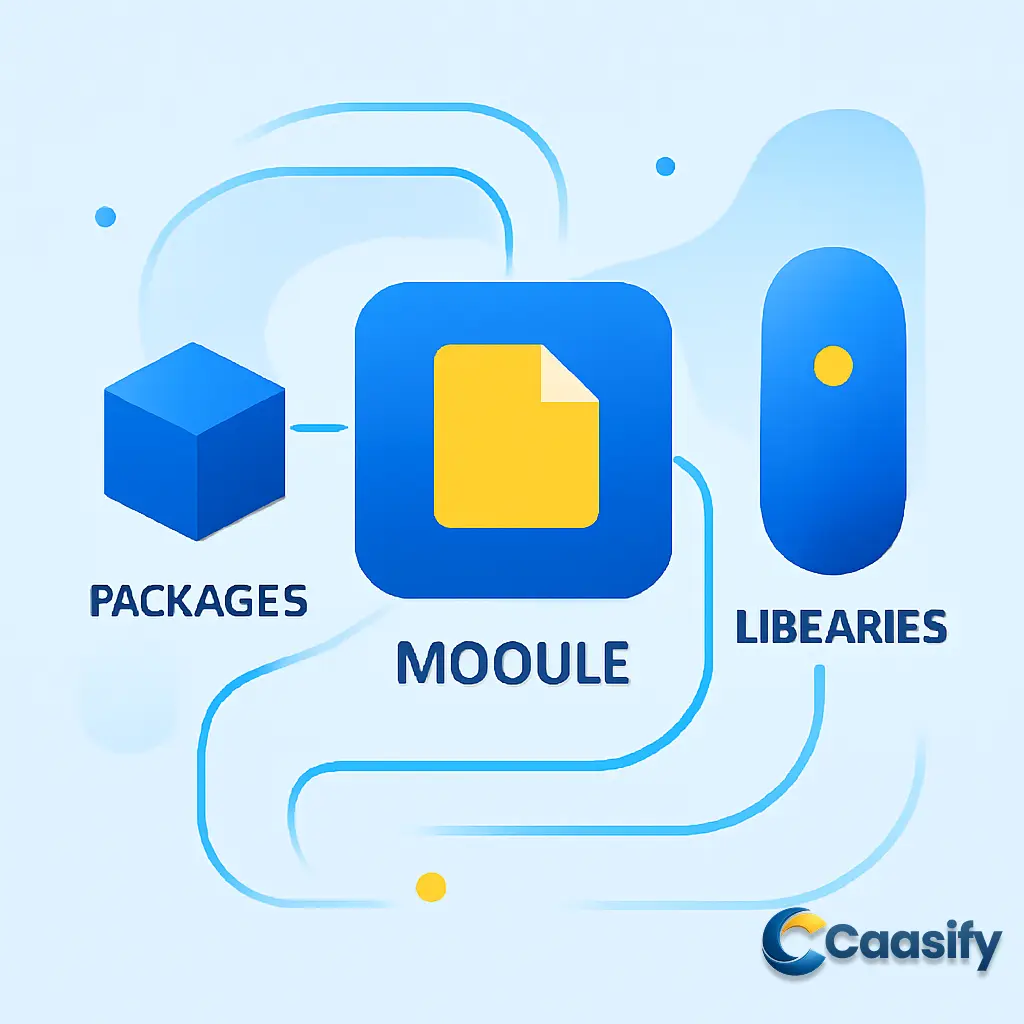
    In the world of Python, you’ve probably heard the terms “module,” “package,” and “library” thrown around quite a bit. At first, they might seem interchangeable—kind of like calling all cars “vehicles.” But here’s the thing, each one has its own job in the Python world, and understanding how they work will help you get a better grip on Python programming. Let’s break it down in a way that makes sense.

    The Module: The Building Block

    First up, we’ve got modules. Think of a module like a single puzzle piece. It’s the simplest part of Python, and it’s as easy as a single Python file with that familiar .py extension. Inside that file, you’ll find Python code—functions, classes, and variables. These are all things you can bring into other Python scripts and reuse. It’s like finding a recipe you want to try and just pulling the ingredients from a cookbook you already have.

    Here’s the thing—when you import a module, Python doesn’t just copy the code. No, it pulls it into the script’s “namespace,” so you can easily reuse the code without rewriting it over and over. For example, let’s say you’ve got a file named math_operations.py. That file is a module. When you import it into your script, you can call its functions, use its classes, and reference its variables, just like that. It’s a time-saver and helps keep your code nice and clean.

    The Package: Grouping Modules Together

    Next, let’s talk about packages. A package is a bit like a storage box, but a special one. Imagine you’ve got several puzzle pieces that all fit together to make one big picture. Each piece on its own might be useful, but to get the most out of them, you’ll need to group them. A package is a collection of related modules, all neatly organized into a folder.

    To make a directory a package, you need a special file inside it called init.py. This file is like a sign that tells Python, “Hey, this is a package!” Without it, Python won’t know how to handle the folder. So, let’s say you’re building a package for user authentication. Inside your auth_package/ folder, you could have modules for login, registration, password encryption, and so on. When you import the package, Python knows exactly where to go for each module you need. It’s like having a folder that organizes all your project files in one place—much easier to manage, right?

    The Library: The Whole Toolbox

    Now, let’s talk about libraries. This one’s a bit trickier because it’s the broadest of the three. A library is like a big toolbox filled with pre-written code ready to use. Libraries are designed to save you time and effort—they contain modules and packages that do specific tasks, so you don’t have to reinvent the wheel every time.

    You can think of the Python Standard Library as the ultimate example of this. It’s full of modules and packages that cover everything from working with files and dates to interacting with the operating system. And here’s the cool part: libraries can be made up of just one module or many interconnected modules and packages. So while every package is part of a library, not every library has multiple packages. Some libraries are just a single module but still packed with tons of useful functions.

    Wrapping It Up

    To sum it all up: modules, packages, and libraries are all ways to organize Python code, but they work at different levels. A module is like a single file with Python code. A package is a folder that holds multiple related modules. And a library is the biggest collection, combining modules and packages designed to do specific tasks. Understanding these concepts will help you organize your Python code so it’s clean, easy to manage, and much more scalable.

    So, the next time you dive into a Python project, you’ll know exactly how to break things down into modules, group them into packages, and maybe even grab a whole library to make your life a little easier.

    Make sure to use init.py to designate a package directory!Python Modules, Packages, and Libraries

    How to Check For and Install Modules?

    Alright, let’s talk about how to check if a Python module is already installed and how to install it if it’s not. You probably already know that modules are one of Python’s coolest features—they’re like little blocks of code that you can use over and over again, so you don’t have to do the same work more than once. But how do you actually get access to them? You guessed it—by using the trusty import statement. When you import a module, Python runs its code and makes the functions, classes, or variables inside it available to your script. This is where the magic happens—your script can now use all the cool features that the module brings.

    Let’s start with built-in modules. Python comes with a bunch of these already installed as part of the Python Standard Library. These modules give you access to important system features, so you can do things like handle files, do math, or even work with networking—pretty handy, right? And the best part? You don’t have to install anything extra to use them. They’re already there, ready to go as soon as you install Python.

    Check if a Module is Installed

    Before you go looking to install a module, why not check if it’s already on your system? It’s kind of like checking your kitchen to see if you already have the ingredients before heading to the store—you don’t want to buy something you already have. A quick way to check is by trying to import the module in an interactive Python session.

    First, open up your terminal or command line and launch the Python interpreter. You can do this by typing python3 and hitting Enter. Once you’re in the Python interpreter (you’ll see >>>), you can check if a module is installed by just trying to import it.

    For example, let’s check if the math module, which is part of the Python Standard Library, is installed. Try this:

    import math

    Since math is built into Python, you won’t see any errors, and you’ll be right back at the prompt. That means it’s all good to go. Nice and easy, right?

    Now, let’s check for something that’s not built-in, like matplotlib, which is a popular library for data visualization. It’s not part of the standard library, so you’ll need to check if it’s already installed:

    import matplotlib

    If matplotlib isn’t installed, Python will throw an ImportError and tell you it couldn’t find the module, like this:

    Traceback (most recent call last):
    File “<stdin>”, line 1, in <module>
    ImportError: No module named ‘matplotlib’

    This means that matplotlib isn’t installed yet, and you’ll need to install it before you can use it in your projects. Don’t worry though—it’s a pretty easy fix!

    How to Install the Module Using pip?

    When a module isn’t installed, you can install it with pip, which is Python’s package manager. Think of pip like your personal shopper for Python packages. It grabs the package from PyPI (Python Package Index) and sets it up for you. To install matplotlib, first, you need to exit the Python interpreter by typing:

    exit()

    Or, if you’re on Linux or macOS, you can use the shortcut CTRL + D. On Windows, press CTRL + Z and then Enter.

    Once you’re back in your regular terminal, you can run this command to install matplotlib:

    $ pip install matplotlib

    What happens next? Well, pip will connect to the PyPI repository, grab matplotlib and all the other packages it needs, and install them into your Python environment. You’ll see some progress updates in the terminal while this happens—just sit back and relax while it does its thing.

    How to Verify the Installation?

    Once the installation is finished, it’s always a good idea to double-check and make sure everything went smoothly. To do this, hop back into the Python interpreter by typing:

    $ python3

    Then, try importing matplotlib again:

    import matplotlib

    If everything went well, the import should succeed, and you’ll be returned to the prompt without any errors. That means matplotlib is now installed and ready for use. You’re all set to start using it to create some awesome data visualizations in your Python programs!

    Python Standard Library Documentation

    Basic Importing Syntax

    Let me take you on a journey through the world of Python imports, where things like modules, packages, and functions come together to make your coding life a lot easier. When you’re working with Python, you don’t need to start from scratch every time you need a certain functionality. Enter modules: reusable chunks of Python code that you can bring into your scripts. And the magic word that lets you do this is import.

    You’ve probably seen it before, but there’s more to it than just bringing in a module. The basic idea here is that when you want to use a module in your Python program, you need to bring it into your script’s scope. To do this, you use the import statement. Python offers a variety of ways to structure this import statement, and knowing how and when to use each one can help you write cleaner, more efficient code.

    How to Use import module_name?

    The simplest and most common way to import a module in Python is by using the import keyword followed by the module’s name. This method loads the entire module into your program. Once you import the module, you can access its contents—like functions, classes, and variables—by referencing them through dot notation.

    Let’s take the math module as an example. You can import it like this:

    import math

    This means that you now have access to all of the module’s functions, classes, and variables. Let’s say we want to calculate the hypotenuse of a right triangle. You can do that using math.pow() and math.sqrt() like this:

    import math
    a = 3
    b = 4
    a_squared = math.pow(a, 2)
    b_squared = math.pow(b, 2)
    c = math.sqrt(a_squared + b_squared)
    print(“The hypotenuse of the triangle is:”)
    print(c)
    print(“The value of Pi is:”)
    print(math.pi)

    Here’s the cool part: When you run this, you get the hypotenuse of the triangle (5.0) and the value of Pi (3.141592653589793). The math.pow(), math.sqrt(), and math.pi are all part of the math module. If you’d written sqrt() instead of math.sqrt(), Python would’ve thrown an error because the function sqrt wouldn’t be found in your main script’s namespace. By using import module_name, you’re keeping things clear and explicit.

    How to Use from module_name import function_name?

    Sometimes, you don’t need everything that a module offers—maybe you just need one or two specific items. This is where from ... import comes in handy. With this method, you import only the functions, classes, or variables that you need, and you can use them without the module prefix.

    Let’s rewrite our previous example, but this time we’ll import just the sqrt and pi items from the math module:

    from math import sqrt, pi
    a = 3
    b = 4 # Instead of math.pow(), we can use the built-in exponentiation operator (**)
    a_squared = a**2
    b_squared = b**2
    # Calculate the hypotenuse
    c = sqrt(a_squared + b_squared)
    print(“The hypotenuse of the triangle is:”)
    print(c)
    print(“The value of Pi is:”)
    print(pi)

    Now we can use sqrt and pi directly, without needing to write math.sqrt() or math.pi. This makes your code a little cleaner and more readable. However, keep in mind that if you import many items from different modules, it can get confusing to track where each function or variable is coming from. So, while it’s convenient, be sure to balance convenience with clarity.

    How to Import All Items with from module_name import *?

    Here’s where things get a little tricky. Python lets you import everything from a module all at once using the wildcard *. While this might look like a shortcut, it’s generally discouraged, and here’s why.

    from math import *
    c = sqrt(25)
    print(pi)

    In this case, everything from the math module is dumped into your script’s namespace. You can use sqrt() and pi directly, but you lose a lot of clarity. This is called “namespace pollution,” and it can lead to a few issues:

    Namespace Pollution: You might find it hard to distinguish between what’s defined in your script and what came from the module. This can cause confusion, especially when you return to your code later.
    Reduced Readability: Anyone else reading your code will have to guess where each function came from. Is sqrt() from math? Or is it from somewhere else? Explicitly writing math.sqrt() clears this up immediately.
    Name Clashes: Imagine you define a function called sqrt() in your script, and then you use from math import *. Now, Python’s sqrt() from the math module would silently overwrite your own function. This can lead to subtle bugs that are hard to track down.

    For these reasons, it’s best to avoid wildcard imports and stick with more explicit methods like import module_name or from module_name import function_name.

    How to Use import module_name as alias?

    Now, let’s say you’re working with a module that has a long name, or maybe it clashes with something you’ve already named in your script. This is where Python’s as keyword comes in handy. You can create an alias (a shorter name) for the module.

    This is super common in data science, where libraries like numpy, pandas, and matplotlib are often imported with common aliases to make things more concise. Here’s how you can do it:

    import numpy as np
    import matplotlib.pyplot as plt
    # Create a simple array of data using numpy
    x = np.array([0, 1, 2, 3, 4])
    y = np.array([0, 2, 4, 6, 8])
    # Use matplotlib.pyplot to create a plot
    plt.plot(x, y)
    plt.title(“My First Plot”)
    plt.xlabel(“X-axis”)
    plt.ylabel(“Y-axis”)
    plt.show()

    Instead of typing numpy.array() every time, you can just use np.array(). Similarly, plt.plot() is a lot faster to type than matplotlib.pyplot.plot(). This makes your code cleaner and easier to write, especially when working with popular libraries that are used a lot, like numpy and matplotlib.

    So, there you have it: different ways to import modules in Python, each with its specific use case. Just remember to import only what you need, avoid wildcard imports, and use aliases for convenience!

    Python Import System Overview

    How does Python’s Module Search Path (sys.path) Work?

    Ever found yourself wondering how Python knows exactly where to find that module you just tried to import? You know, when you type import my_module, and somehow Python just figures out where it is? Well, there’s a reason for that—and it’s all thanks to Python’s module search path. This search path is like a treasure map for Python, showing it where to look for the module you want to use. It’s a list of directories that Python checks when you try to import something. When you give Python a module name, it goes through these directories one by one. Once it finds a match, it stops right there and imports it. That’s how your code can access all those cool functions, classes, and variables hidden in your modules.

    Let me break down the process for you so you can understand how it all works under the hood.

    The Current Directory

    The first place Python looks is the directory where your script is located. This is probably the most familiar situation for you. Let’s say you have a Python file called my_script.py, and in the same directory, you have my_module.py. When you type import my_module in my_script.py, Python will look in the current directory for my_module.py and load it in. It’s like looking for your keys in the pocket of the jacket you’re wearing. No need to go anywhere else; they’re right there with you.

    PYTHONPATH Directories

    Now, let’s say you have some custom modules that you use across several projects. Instead of keeping them scattered all over the place, you can create a special environment variable called PYTHONPATH. This is like creating a central library or folder where Python can look for modules no matter what project you’re working on.

    Python will check the directories listed in PYTHONPATH when it doesn’t find the module in the current directory. So, if you have a module stored somewhere on your system that you use often, you can add its location to PYTHONPATH, and Python will know where to look for it each time.

    Standard Library Directories

    If Python doesn’t find your module in the first two places, it moves on to the standard library directories. These are the default places where Python keeps its built-in modules and libraries—things like math, os, and json. Imagine Python’s built-in modules are like the tools in your toolbox. You don’t need to go out and buy them every time. They’re always there, ready to be used. Python checks these directories automatically, so you don’t need to worry about installing them. They’re bundled with Python itself!

    These directories Python looks through are stored in a variable called sys.path. It’s like Python’s personal checklist for where to find modules. If you’re ever curious or need to troubleshoot, you can peek inside sys.path to see exactly where Python is looking for modules on your system.

    You can actually see this list for yourself by running a bit of Python code like this:

    import sys
    import pprint
    print(“Python will search for modules in the following directories:”)
    pprint.pprint(sys.path)

    When you run this, Python will give you a list of directories that it checks in order, and you’ll see exactly where it’s looking. Here’s what the output might look like:

    Python will search for modules in the following directories:
    [‘/root/python-code’, ‘/usr/lib/python312.zip’, ‘/usr/lib/python3.12’, ‘/usr/lib/python3.12/lib-dynload’, ‘/usr/local/lib/python3.12/dist-packages’, ‘/usr/lib/python3/dist-packages’]

    As you can see, the first directory in the list is usually the folder where your script is located. After that, Python checks the standard library directories and a few other system locations where Python packages are stored.

    So, why does all of this matter? Well, understanding how Python searches for modules is super helpful when things go wrong. If you ever get an error saying Python can’t find a module, checking sys.path can help you troubleshoot. If the directory that holds your module isn’t listed, you might need to update PYTHONPATH or modify sys.path to point to the right directory.

    Now you’ve got a behind-the-scenes look at how Python works its magic, and hopefully, this makes your coding journey a little bit smoother!

    Python Modules Documentation

    How to Create and Import Custom Modules?

    Picture this: you’re working on a Python project, and the code is starting to pile up. It’s getting harder to keep track of everything, right? You need a way to keep things neat, modular, and easy to maintain. Well, here’s the good news—Python has this awesome feature called modules that lets you create your own reusable chunks of code. You can think of them like little building blocks, each one handling a specific task. When you put these blocks together, you get a clean, well-organized structure for your project.

    Let’s dive into how you can create and import your own custom modules, making your Python projects more organized and easier to scale.

    Let’s imagine you’re building an app. You’ve got a folder structure set up like this:

    my_app/
    ├── main.py
    └── helpers.py
    

    In this setup, helpers.py contains some utility functions that you want to use in your main application script, main.py. The best part? Any Python file can be a module, so helpers.py can be easily imported into other Python files. It’s like having a toolbox full of functions and variables that you can grab whenever you need them.

    Let’s take a peek inside helpers.py. Here’s what’s inside:

    # helpers.py
    # This is a custom module with a helper function
    def display_message(message, is_warning=False):
    if is_warning:
    print(f”WARNING: {message}”)
    else:
    print(f”INFO: {message}”)

    # You can also define variables in a module
    APP_VERSION = “1.0.2”

    Here’s what we have: a function called display_message() that takes a message and prints it out. If you pass True for the is_warning parameter, it prints a warning message. Otherwise, it prints an info message. We also have a variable called APP_VERSION, which stores the version of your app.

    Now, let’s say you want to use this functionality inside your main script, main.py. Since both helpers.py and main.py are in the same folder, Python can easily find helpers.py and import it without any extra effort. This is because Python looks for modules in the current directory first. No complicated setup required!

    Here’s how you can import the helpers.py module into main.py:

    # main.py
    # Import our custom helpers module
    import helpers# You can also import specific items using the ‘from’ keyword
    from helpers import APP_VERSION
    print(f”Starting Application Version: {APP_VERSION}”)# Use a function from the helpers module using dot notation
    helpers.display_message(“The system is running normally.”)
    helpers.display_message(“Disk space is critically low.”, is_warning=True)print(“Application finished.”)

    In main.py, you first import the entire helpers module with import helpers. Then, you use from helpers import APP_VERSION to bring just the APP_VERSION variable directly into the current namespace, so you don’t need to use the helpers prefix every time you access it.

    Next, you call the display_message() function from helpers.py using helpers.display_message(). And just like that, the message is printed to the screen.

    Here’s what the output looks like when you run main.py:

    Starting Application Version: 1.0.2
    INFO: The system is running normally.
    WARNING: Disk space is critically low.
    Application finished.

    Just like that, you’ve created your own module, imported it into your main script, and used the functions and variables from it. This approach keeps your code clean, easy to read, and—most importantly—easy to maintain.

    As your application grows and you add more features, you can continue organizing your code into more modules. Each module could handle a specific task, and they all work together to create a larger, more complex program. This is the foundation of writing maintainable Python code. It’s all about separating concerns, reducing duplication, and making sure your code is easy to understand and update.

    So there you have it—creating and importing custom modules in Python. By following this structure, your code stays organized, making it easier for you and your team to manage as your project grows.

    Remember, using modules makes your code more scalable and maintainable!
    Python Modules and Packages

    Circular Imports

    Imagine you’re building a Python web application. Everything is running smoothly, but then, suddenly, you hit a frustrating roadblock. You’re trying to import one module into another, but Python just won’t cooperate and throws you a dreaded ImportError. What’s going on? Well, this is a pretty common issue that many developers face—circular imports. So, what exactly is a circular import, and why does it happen? Let me walk you through it.

    What is a Circular Import and Why Does it Happen?

    Let’s say we have two modules: Module A and Module B. Module A needs something from Module B, and at the same time, Module B needs something from Module A. What Python ends up doing is something like this:

    1. It starts loading Module A.
    2. While loading Module A, it hits an import statement that asks for Module B.
    3. Python pauses loading Module A and starts loading Module B.
    4. But wait! While loading Module B, Python finds another import statement that asks for Module A again, which is still only partially loaded.

    This creates a loop—a circular dependency—that Python just can’t handle. It’s like a situation where you’re saying, “I’ll scratch your back if you scratch mine,” but no one is really helping anyone out. This results in an ImportError.

    Let’s Look at a Practical Example: Circular Import in a Web Application

    To make this clearer, let’s dive into a real-world scenario. Imagine you’re working on a web app with two separate modules: models.py for handling database models, and services.py for managing business logic. Here’s how the files might look:

    # models.py
    from services import log_user_activityclass User:
    def __init__(self, name):
    self.name = name def perform_action(self):
    # A user action needs to be logged by the service
    print(f”User {self.name} is performing an action.”)
    log_user_activity(self)# services.py
    from models import Userdef log_user_activity(user: User):
    # This service function needs to know about the User model
    print(f”Logging activity for user: {user.name}”)def create_user(name: str) -> User:
    return User(name)# Example usage
    if __name__ == ‘__main__’:
    user = create_user(“Alice”)
    user.perform_action()

    What’s happening here? Well, models.py is importing log_user_activity from services.py, and services.py is importing User from models.py. If you try to run services.py, you’ll get this error:

    ImportError: cannot import name ‘User’ from partially initialized module ‘models’ (most likely due to a circular import)

    It’s a classic case of Python getting stuck in a loop, trying to load both modules at the same time, but not being sure which one to load first.

    Strategies to Resolve Circular Imports

    Now, we’re in a bit of a bind, but don’t worry! There are a few ways to break the loop and resolve circular imports.

    Refactoring and Dependency Inversion

    One way to solve circular imports is to refactor your code. This usually means breaking things up into smaller, more manageable pieces. A circular dependency can arise when one module is doing too much, or when a class or function is in the wrong place.

    For this example, you could move log_user_activity to a new logging.py module. This way, services.py no longer needs to import models.py, and you’ve broken the circular loop.

    Alternatively, you can use a principle called dependency inversion, where instead of directly calling the service from one module, you have models.py dispatch an event, and services.py listens for that event and handles the logging asynchronously.

    Local Imports (Lazy Imports)

    Another fix is to delay importing the module until it’s actually needed. This is called a local import or lazy import. You import the module only inside the function that needs it, so Python won’t hit the circular import issue during initialization.

    Here’s how you can modify models.py to use a local import:

    # models.py
    class User:
    def __init__(self, name):
    self.name = name def perform_action(self):
    # Import is moved inside the method
    from services import log_user_activity
    print(f”User {self.name} is performing an action.”)
    log_user_activity(self)

    Now, log_user_activity won’t be imported until the perform_action method is called, breaking the circular import when Python first starts. However, a heads-up: while this works, it can make it harder to track dependencies, and it can slightly slow things down the first time the import happens.

    Using TYPE_CHECKING for Type Hints

    If the circular import is only affecting your type hinting (meaning you’re not actually using the module during runtime), Python’s typing module provides a useful constant called TYPE_CHECKING. This constant is only evaluated during static type checking, so it won’t affect your code during runtime.

    In services.py, you can use TYPE_CHECKING to avoid a circular import:

    # services.py
    from typing import TYPE_CHECKING# The import is only processed by type checkers if TYPE_CHECKING:
    if TYPE_CHECKING:
    from models import Userdef log_user_activity(user: ‘User’):
    print(f”Logging activity for user: {user.name}”)def create_user(name: str) -> ‘User’:
    # We need a real import for the constructor
    from models import User
    return User(name)

    Here, User is only imported for type hinting when using tools like mypy for static analysis. Python doesn’t attempt to import it during runtime, so the circular import issue is avoided. However, you’ll still need a local import when creating a new User during runtime.

    Wrapping Up

    Circular imports can be tricky, but they’re not unbeatable. By refactoring your code to better structure your modules, using local imports to delay the problem, or using TYPE_CHECKING for type hints, you can untangle those messy loops. And just like that, your Python projects will stay clean, maintainable, and scalable.

    For more details, check the article on Circular Imports in Python (Real Python).

    The __all__ Variable

    Imagine you’re working on a Python project and building a module full of functions, classes, and variables to make your app run smoothly. Some of these, like public functions, are meant to be shared with others, but others, like your internal helpers, should stay private. So, how do you make sure only the right parts of your module are shown? That’s where Python’s __all__ variable comes in, and trust me, it’s more important than you think.

    What is the all Variable?

    When you create a Python module, it’s easy to get carried away with all the cool things you can define inside. But here’s the catch: if you need to share that module with others, you don’t want them to see every little detail—especially not the functions or variables that are meant to stay private to your module.

    Here’s the deal: __all__ is a special list you can create inside your Python module. This list defines which names (functions, classes, or variables) will be available when someone imports your module using the wildcard import statement (from module import * ). With __all__, you control exactly what gets shared with the outside world.

    Let’s Look at an Example

    Let’s say you’re working with a file called string_utils.py, a module that has both public functions (that you want others to use) and private helper functions (that should stay hidden). Without __all__, when someone does from string_utils import *, they’ll pull everything into their namespace—both public and private items. That could get pretty messy, right? You definitely don’t want your internal helper functions exposed.

    Here’s what the module might look like before we define __all__:

    # string_utils.py (without __all__)
    # Internal helper constant _VOWELS = “aeiou”
    def _count_vowels(text: str) -> int: # Internal helper to count vowels
    return sum(1 for char in text.lower() if char in _VOWELS)def public_capitalize(text: str) -> str: # Capitalizes the first letter of a string
    return text.capitalize()def public_reverse(text: str) -> str: # Reverses a string
    return text[::-1]

    Now, if someone decides to use from string_utils import *, they’ll end up importing everything: _VOWELS, _count_vowels, public_capitalize, and public_reverse. That means unnecessary internal details, like _VOWELS, which should never be used outside the module, will be exposed.

    The messy import:

    from string_utils import * # Imports everything

    This leads to “namespace pollution,” where your private functions and variables now become part of the global namespace, making it confusing for anyone using your code. We don’t want that!

    The Fix: Define all

    The good news? Python gives us __all__ to avoid this chaos. By defining __all__, we tell Python exactly which functions or classes should be exposed, keeping the rest private. Here’s how you can clean things up:

    # string_utils.py (with __all__)
    __all__ = [‘public_capitalize’, ‘public_reverse’] # Only expose these functions# Internal helper constant _VOWELS = “aeiou”
    def _count_vowels(text: str) -> int: # Internal helper to count vowels
    return sum(1 for char in text.lower() if char in _VOWELS)def public_capitalize(text: str) -> str: # Capitalizes the first letter of a string
    return text.capitalize()def public_reverse(text: str) -> str: # Reverses a string
    return text[::-1]

    Now, when someone uses from string_utils import *, only the functions public_capitalize and public_reverse will be brought into their namespace. The internal helpers like _VOWELS and _count_vowels stay hidden, ensuring your module’s internal structure stays private and clean.

    The clean import:

    from string_utils import * # Only public_capitalize and public_reverse are imported

    Why is all Important?

    Using __all__ is particularly useful when you’re building libraries or larger applications. It’s essential for ensuring your module presents a clean, intentional API. While using the wildcard import (from module import *) is generally discouraged in production code because it can be confusing, __all__ ensures that only the items you want to expose are accessible.

    By defining __all__, you keep your module neat and well-organized. It makes your code more readable and maintainable, especially for other developers who might be using or contributing to your project. They’ll know exactly what to expect when they import your module, without accidentally using internal functions or variables that are meant to stay private.

    Wrapping It Up

    In short, __all__ is an essential tool for managing what your Python module shows to the outside world. It lets you control what’s exposed and ensures your code stays clean, clear, and easy to maintain. Whether you’re working on small scripts or big libraries, knowing how to use __all__ will help keep your Python code organized, structured, and efficient.

    For more details on Python modules and packages, check out Understanding Python Modules and Packages (2025)

    Namespace Packages (PEP 420)

    Imagine you’re building a large Python application, one that needs to support plugins from different sources. You want each plugin to add its own special features, but you also want everything to come together seamlessly as one unified package when the app runs. This is where Python’s namespace packages come in.

    In the past, if you wanted to group multiple Python modules together into one package, you’d create a folder with an __init__.py file. This little file told Python, “Hey, treat this folder as a package!” But Python didn’t always make it easy for packages to span multiple folders. That is, until PEP 420 came along and changed things. PEP 420 introduced the idea of implicit namespace packages, letting you structure your app in a more modular way. With this, each plugin or component can live in separate directories but still be treated as part of the same package. Pretty cool, right?

    So, What Exactly is a Namespace Package?

    Think of it like a puzzle—each piece (or sub-package) might be in a different part of your house (your file system), but when you put them together, they form the big picture. In a namespace package, Python combines modules or sub-packages located across multiple directories at runtime, making them appear as one logical unit. This is super helpful when you’re building complicated applications with components, like plugins, that need to work together as part of the same namespace.

    A Practical Example: Building a Plugin-Based Application

    Let’s think of a real-world example: you’re building an app called my_app that supports plugins. Each plugin in this system is responsible for adding its own modules to a shared namespace, such as my_app.plugins. This allows the main app to keep its functionality separate from each plugin, while still letting everything work together. Sounds like the perfect setup for a big, modular app, right?

    Imagine your file structure looks like this:

    project_root/
        ├── app_core/
        │   └── my_app/
        │       └── plugins/
        │           └── core_plugin.py
        ├── installed_plugins/
        │   └── plugin_a/
        │       └── my_app/
        │           └── plugins/
        │               └── feature_a.py
        └── main.py

    Now, here’s the catch—neither my_app nor my_app/plugins has the usual __init__.py file, which would normally tell Python to treat the directories as packages. So, how does Python know to treat these directories as part of the same my_app.plugins namespace? Enter PEP 420, which makes implicit namespace packages possible.

    Python’s Clever Way of Handling Namespace Packages

    With PEP 420, Python doesn’t need an __init__.py file in every directory. Instead, Python treats directories with the same structure (even if they’re in different locations) as parts of the same logical package. So, if both app_core/my_app/plugins and installed_plugins/plugin_a/my_app/plugins are in your Python path, Python will automatically combine them under my_app.plugins.

    This means you can easily import components from both places without worrying about conflicts or duplication.

    Here’s how you’d set it up in your main.py:

    import sys # Add both plugin locations to the system path
    sys.path.append(‘./app_core’)
    sys.path.append(‘./installed_plugins/plugin_a’)# Import from the shared namespace
    from my_app.plugins import core_plugin
    from my_app.plugins import feature_a# Use the imported modules
    core_plugin.run()
    feature_a.run()

    In this example, even though core_plugin and feature_a are in different directories, Python treats them as part of the same my_app.plugins namespace. The cool part? You don’t have to worry about paths or complicated imports—Python handles that for you.

    Why Do Namespace Packages Matter?

    The real benefit of namespace packages comes down to flexibility and modularity. When you’re building an extensible system—like a plugin architecture—you want to make it easy to add new features without messing up the existing system. With namespace packages, you get exactly that. Each plugin can operate on its own, adding its modules, and the core app doesn’t have to change. It’s like having an open-door policy for plugins while keeping everything tidy inside the main structure of the app.

    In our example, my_app can easily integrate multiple plugins, each adding its own pieces to the my_app.plugins namespace. And because Python does all the hard work behind the scenes, adding or removing plugins becomes as simple as pointing to a new folder.

    The Big Picture: Cleaner, More Flexible Code

    In the end, namespace packages aren’t just a cool feature—they’re essential for big, modular applications. They let you organize your code however you like, knowing Python will bring everything together into one smooth package when it’s time to run the app. Whether you’re working with a massive plugin system or just need to organize your code into separate modules, PEP 420 has your back.

    By supporting packages that span multiple directories, Python opens up all kinds of options for organizing complex systems, making your codebase cleaner and more scalable. It’s all about flexibility, and namespace packages give you the tools to build applications that grow without breaking the structure.

    For more details on this concept, check out PEP 420: Implicit Namespace Packages.

    The importlib Module

    Picture this: you’re working on a project, and you want to load new modules, but here’s the twist—they need to be imported only when the time is right, based on some external condition. You need more flexibility than Python’s usual import statement gives you. That’s where the importlib module comes in, like a trusty helper, ready to load modules whenever you need them.

    Normally, when you use the import statement, you’re telling Python to load a module at the start, and you’re pretty much stuck with it. But what if you want your Python application to decide which modules to load only while the program is running? That’s where importlib comes in—a superhero for flexible, modular systems. It lets you import modules dynamically, based on things like configuration files or runtime conditions.

    What Does importlib Do?

    The importlib module gives you a handy tool called importlib.import_module(). This function takes the name of a module as a string, like "my_module", and imports it when you need it. This makes it perfect for systems that need to load components based on external conditions, like loading plugins or reading configurations. Instead of manually importing every module at the top of your file, you can make the decision dynamically, whenever you need them.

    Practical Use Case 1: Plugin Architectures

    Imagine you’re creating a system where the main app doesn’t know what plugins it will need in advance. You want the system to be flexible enough to accept new plugins just by adding new files to a directory. Well, importlib is the perfect tool for this.

    Let’s say your plugin system treats each plugin as just a Python file. The application should be able to find and load these plugins at runtime as needed. Here’s a simple example of how to set this up:

    import os
    import importlibdef load_plugins(plugin_dir=”plugins”):
    plugins = {}
    # Loop through the files in the plugin directory
    for filename in os.listdir(plugin_dir):
    if filename.endswith(“.py”) and not filename.startswith(“__”):
    module_name = filename[:-3] # Remove the .py extension
    # Dynamically import the module using importlib
    module = importlib.import_module(f”{plugin_dir}.{module_name}”)
    plugins[module_name] = module
    print(f”Loaded plugin: {module_name}”)
    return plugins

    In this case, imagine your plugin_dir contains a few Python files, like csv_processor.py and json_processor.py. When the app runs, it scans the directory, loads the plugins, and gets them ready to go.

    You can use these plugins in your main application code like this:

    plugins = load_plugins()
    plugins[‘csv_processor’].process()

    So, importlib makes it possible for your app to load plugins on the fly, without needing to explicitly import every single one beforehand. This lets you easily add or remove features just by dropping new Python files into the plugins directory.

    Practical Use Case 2: Dynamic Loading Based on Configuration

    Now, imagine a scenario where the modules your application uses depend on a configuration file. For example, your app might let users choose which data format to use, and you want to load the correct module based on their choice. This makes your system more adaptable and lets you add new features without changing the code—just update the configuration.

    Here’s how you could do that using importlib:

    You have a configuration file (config.yaml) that specifies which module to load:

    # config.yaml
    formatter: “formatters.json_formatter”

    Then, in your main.py, you can load this module dynamically:

    import yaml
    import importlib# Load configuration from the YAML file
    with open(“config.yaml”, “r”) as f:
    config = yaml.safe_load(f)# Get the formatter module path from the config
    formatter_path = config.get(“formatter”)try:
    # Dynamically import the specified formatter module
    formatter_module = importlib.import_module(formatter_path)
    # Get the format function from the dynamically imported module
    format_data = getattr(formatter_module, “format_data”)
    # Use the dynamically loaded function
    data = {“key”: “value”}
    print(format_data(data))
    except (ImportError, AttributeError) as e:
    print(f”Error loading formatter: {e}”)

    In this example, the module path (like formatters.json_formatter) is read from the configuration file, and the module is loaded dynamically using importlib.import_module(). This way, you don’t need to touch the code every time you want to add a new formatter. You just change the configuration, and your app loads the new module automatically.

    Why This is Powerful

    Imagine the possibilities: you’re building a scalable, flexible system and you want to give your users the freedom to customize their experience—whether they want to load a new plugin, change a feature, or update their settings. With importlib, you can create apps that adapt to these changes dynamically, giving you flexibility and keeping your codebase clean and maintainable.

    The importlib module is a powerhouse for building systems that need to load modules dynamically based on external factors or runtime decisions. Whether you’re building a plugin-based architecture or a user-configurable system, importlib lets you import Python modules only when you need them—no more, no less.

    In short, if you’re working on a modular or flexible Python application, importlib should be one of your go-to tools. It lets you load modules based on external conditions, making your application more adaptable and easier to scale. It’s perfect for systems that need to stay modular, evolve over time, or even rely on user-driven configurations.

    Python’s importlib Documentation

    What are Common Import Patterns and Best Practices?

    Alright, you’ve got the hang of installing and importing Python modules—awesome! But here’s the thing: as your projects grow, keeping your code clean and organized becomes just as important as making it work. If you want your code to be easy to read, maintain, and professional, following best practices for importing modules is key. These conventions not only make your code clearer but also help prevent common headaches down the road. Plus, it’s all laid out for you in the official PEP 8 style guide.

    Place Imports at the Top

    Let’s start with the basics. The first best practice is pretty simple: put all your import statements at the top of your Python file. Sounds easy, right? But this small detail has a big payoff. By putting your imports up top, right after any module-level comments, but before any code, you give anyone reading your script a clear picture of what dependencies are involved—no hunting for imports halfway through the file. It’s like setting up a neat, organized bookshelf before you start placing books.

    Group and Order Your Imports

    A well-organized import section doesn’t just look good, it works better. PEP 8 has a handy system for grouping imports into three

    This helps maintain clarity and efficiency in larger projects.

    Troubleshooting Import Issues

    Even the most experienced Python developers run into import issues now and then. You can follow all the best practices, but sometimes things just don’t go as planned. The key to keeping things running smoothly is understanding why these errors happen and knowing how to fix them quickly. Let’s look at some of the most common import issues you might run into and how to resolve them.

    How to Fix ModuleNotFoundError or ImportError: No module named ‘…’ Errors?

    This is one of the most frustrating errors that developers often face. It happens when Python can’t find the module you’re trying to import. Here are some reasons this error might happen and how to fix them:

    • The module is not installed

      This one’s easy to miss. Maybe you forgot to install the module in the first place. To fix this, just install it using pip, Python’s package manager. You can do this from your terminal:

      $ pip install <module_name>

      Just replace <module_name> with the name of the missing module. Once it’s installed, you should be good to go!

    • A typo in the module name

      We’ve all done it—typing the module name wrong. Maybe you typed matplotlip instead of matplotlib. A simple typo can cause this error. The lesson here? Always double-check your spelling before hitting run!

      import matplotlib # Correct spelling

    • You are in the wrong virtual environment

      This trips up a lot of people, especially when switching between global Python environments and virtual environments. If you installed the module in a different environment than the one you’re using, Python won’t be able to find it. Make sure you activate the correct virtual environment before running your script:

      $ source myenv/bin/activate # Activates your virtual environment

      Once you’re in the right environment, your import should work just fine.

    How to Fix ImportError: cannot import name ‘…’ from ‘…’ Errors?

    Now, this one’s a bit trickier. It means Python found the module, but couldn’t find the function, class, or variable you tried to import from it. So, why does this happen?

    • A typo in the function, class, or variable name

      Maybe you misspelled the function or class you were trying to import. For example, if you wrote squareroot instead of sqrt from the math module, you’ll get an error. Make sure you’re using the exact name:

      from math import sqrt # Correct function name

    • Incorrect case

      Python is case-sensitive. This means MyClass is not the same as myclass. Double-check that you’re matching the capitalization exactly as it appears in the module:

      from MyModule import MyClass # Correct case

    • The name does not exist

      Sometimes, the function, class, or variable you’re trying to import has been renamed, moved, or removed in a newer version of the library. If you’re seeing this error, the best thing to do is check the official documentation for updates on the module’s structure.

    • Circular import

      This one can be a real headache. A circular import happens when two or more modules depend on each other. For example, Module A tries to import Module B, but Module B also tries to import Module A. This creates an infinite loop that Python can’t handle. It results in one module failing to initialize, causing an ImportError. The best fix here is to refactor your code to break the circular dependency. Trust me, it’s worth the effort!

    How to Fix Module Shadowing Errors?

    Here’s a sneaky one: module shadowing. This doesn’t always cause an immediate error, but it can lead to some strange behavior. It happens when you create a Python file with the same name as a built-in Python module.

    For example, let’s say you have a file named math.py in your project, and you try to import the standard math module. Guess what? Python will actually import your local math.py file instead of the standard one! This can lead to unpredictable issues.

    Here’s how to avoid it:

    • Never name your scripts after existing Python modules—especially those from the standard library or popular third-party packages. It’s a classic mistake that can cause things to go haywire.
    • If you’ve already run into this issue, simply rename your file to something more specific and unique. For example, if your file is called math.py, rename it to my_math_functions.py. This will prevent Python from getting confused and ensure it finds the correct module.

    By following these steps and keeping an eye out for these common import issues, you’ll be able to troubleshoot like a pro. You’ll save time, avoid headaches, and keep things moving smoothly as you work on your Python projects!

    Make sure to always double-check module names for typos or incorrect paths.Python Importing Modules: A Complete Guide

    Using AI to Streamline Python Module Imports

    You know the feeling, right? You’re deep into your Python project, trying to pull everything together, and then—bam! You realize you’ve forgotten the exact name of a module, misspelled it, or you’re stuck wondering which library is the right fit for a task. It’s a common issue, but here’s the thing—AI-powered tools are here to make your life easier. They can help automate and simplify many tedious aspects of module management, so you can focus on what really matters: writing code. Let’s look at how AI can help streamline Python module imports and fix some of these annoying problems.

    Automated Code Completion and Suggestions

    One of the first ways AI steps in is through smart code completion. Tools like GitHub Copilot, which works with IDEs like Visual Studio Code, analyze the context of your code in real-time. By context, I mean AI doesn’t just autocompletes based on what you’ve typed—it understands your intent based on variable names, comments, and surrounding code logic.

    For example, imagine you’re working with a pandas DataFrame but haven’t imported pandas yet. No problem! The AI picks up on this, suggests the correct import, and even adds it to the top of your file. It’s like having an assistant who’s always one step ahead of you.

    Here’s how it works:

    You type:

    df = pd.DataFrame({‘col1’: [1, 2], ‘col2’: [3, 4]})

    And the AI automatically suggests:

    import pandas as pd

    This feature helps you avoid missing any imports, especially for libraries like pandas, which often come with specific aliases like pd.

    Error Detection and Correction

    Now, let’s talk about some real-life scenarios where AI can really help. If you’ve ever run into an ImportError or ModuleNotFoundError, you know how frustrating it can be. These errors usually mean that Python can’t find the module you tried to import, and that’s where AI shines. It acts like an instant proofreader for your import statements. AI learns from tons of code, so it can easily spot mistakes like typos, missing dependencies, or incorrect module names.

    Here’s how AI helps:

    Correcting Typos

    We’ve all misspelled something, right? Like when you accidentally typed matplotib instead of matplotlib. No need to worry—AI catches these typos:

    Your incorrect code:

    import matplotib.pyplot as plt

    AI suggests: “Did you mean ‘matplotlib’? Change to ‘import matplotlib.pyplot as plt’”

    Fixing Incorrect Submodule Imports

    Sometimes, you’ve got the module name right, but the path to the function is off. This happens more often than you’d think, and AI is quick to spot it:

    Your incorrect code:

    from pillow import Image

    AI suggests: “‘Image’ is in the ‘PIL’ module. Change to ‘from PIL import Image’”

    Resolving Missing Modules

    If a library isn’t installed in your environment, AI’s got you covered:

    Your code:

    import seaborn as sns

    IDE/AI Tooltip:

    ModuleNotFoundError: No module named ‘seaborn’

    Suggestion: Run $ pip install seaborn in your terminal. It’s like having a helping hand that ensures everything you need is right there, ready to go.

    Discovering New Modules and Dependencies

    But the magic of AI doesn’t stop at fixing errors. It’s also a great tool when you’re figuring out which library to use. Sometimes, you don’t know which Python library is best for a particular task. That’s where AI assistants like ChatGPT, Google Gemini, or Claude come in. You can simply describe what you need in natural language, and AI will recommend libraries that fit the bill.

    Finding a Library for a Specialized Task

    Let’s say you’re working on a web scraping project, but the site you’re targeting uses JavaScript to load its content. Here’s the prompt you might give to AI:

    Your prompt:

    “I need to scrape data from a modern website that loads its content using JavaScript. What Python library should I use instead of just Requests and BeautifulSoup?”

    AI response: “For websites requiring JavaScript rendering, Selenium or Playwright are great choices. Playwright is more modern and often faster. Here’s how you can import it and get started…”

    Comparing and Contrasting Libraries

    What if you’re torn between two libraries? AI can break down the differences for you and even show you examples of how they work. For example:

    Your prompt:

    “What are the main differences between FastAPI and Flask for building a REST API in Python? Show me the ‘Hello World’ example for each, including imports.”

    AI response:

    Flask Example:

    from flask import Flask
    app = Flask(__name__)@app.route(‘/’)
    def hello_world():
    return ‘Hello World’if __name__ == ‘__main__’:
    app.run()

    FastAPI Example:

    from fastapi import FastAPI
    app = FastAPI()@app.get(‘/’)
    def read_root():
    return {‘message’: ‘Hello, World!’}

    AI gives you the rundown and code snippets, so you don’t have to guess which library might be better for your needs.

    Discovering Data Visualization Tools

    If you’re working with data visualization, AI can also help you pick the right tool. Say you’re creating interactive plots in a Jupyter Notebook and need something for a 3D scatter plot. You might ask AI for advice:

    Your prompt:

    “I’m working in a Jupyter Notebook and need to create an interactive 3D scatter plot. Which Python library is best for this?”

    AI response: “For interactive 3D plots in a Jupyter Notebook, Plotly is an excellent choice. It creates rich, interactive visualizations with just a few lines of code. You’ll need to import plotly.express…”

    Conclusion

    AI is changing how Python developers approach module imports. Whether it’s recommending the best libraries, helping with import statements, or fixing those annoying typos, AI is becoming an indispensable tool in your development toolkit. With AI-powered assistants, you can code smarter, not harder—improving both your efficiency and the quality of your work.

    Python Import Guide (2025)

    Conclusion

    In conclusion, understanding how to work with Python modules, packages, and libraries is essential for building efficient and scalable applications. By mastering how to install, import, and manage these elements, you can ensure better code organization and reusability. Best practices such as resolving circular imports, handling dependencies, and using dynamic loading techniques will help you structure large applications with ease. As Python continues to evolve, staying updated on new practices and tools for managing modules will ensure your projects remain flexible and maintainable. By leveraging the power of third-party libraries and custom modules, you can create Python applications that are both powerful and adaptable.Snippet: Mastering Python modules, including installation, importation, and management, is key to building scalable and efficient Python applications.

    Master Python Programming: A Beginner’s Guide to Core Concepts and Libraries (2025)

  • Best Lightweight Image Viewers for Linux: feh, sxiv, viu, ristretto, qimgv, nomacs

    Best Lightweight Image Viewers for Linux: feh, sxiv, viu, ristretto, qimgv, nomacs

    Introduction

    When it comes to managing images on Linux, choosing the right viewer can make a significant difference in both performance and ease of use. Lightweight options like feh, sxiv, viu, ristretto, qimgv, and nomacs offer varying features that cater to different needs, from terminal-based viewing to full graphical interfaces. Whether you’re looking for speed, minimal system usage, or an intuitive GUI, these tools provide flexible solutions for every user. In this article, we’ll dive into the strengths of each image viewer, comparing their key features, installation methods, and commands to help you find the best fit for your Linux setup.

    What is feh?

    feh is a fast and lightweight image viewer designed for Linux. It is ideal for minimal environments, such as low-end systems or remote servers. It opens images very quickly, uses minimal system resources, and can be controlled via the command line, making it a versatile choice for users who want a no-frills, efficient image viewing experience.

    Top 5 Image Viewers for Linux

    Picture this: you’re looking for that one perfect image on your Linux system. Maybe it’s for work or just a personal favorite you’ve been hanging onto. Either way, you don’t want a slow, clunky viewer getting in your way. You need something quick, simple, and lightweight—no unnecessary features slowing you down. Fortunately, Linux has some fantastic image viewers that can do exactly that. Let’s jump into the top five choices that are perfect for any need, whether you’re working with a minimal setup or just need something reliable.

    feh – Lowest RAM, Terminal Only

    Feh is as no-nonsense as it gets. Think of it as the stealthy ninja of Linux image viewers: fast, efficient, and sleek. It’s perfect for those who want only the essentials—a way to view images, and nothing more.

    Installing feh on Ubuntu is as easy as can be:

    $ sudo apt install feh

    Now, let’s say you’ve got an image named image.jpg sitting in your folder. Want to quickly open it? Just type:

    feh image.jpg

    And boom, there it is. Feh is all about speed. It opens images in a flash, even on older devices like the Raspberry Pi 4, and it uses barely any memory—just 5MB after loading a high-res 4K image! Whether you’re browsing images on a cloud server or rocking a minimalist terminal setup, feh won’t slow you down. It’s like the Ferrari of image viewers—super fast, no extra baggage.

    sxiv – Keyboard-Driven Thumbnail Grid

    Next up is sxiv, a tool designed for those who love the speed and control of the keyboard. If you’re a power user who likes managing things without reaching for the mouse, sxiv is your best friend. It’s perfect for quickly navigating through large image collections.

    To get sxiv installed on Ubuntu, run:

    $ sudo apt install sxiv

    Once installed, you can open all the JPEGs in your folder by typing:

    sxiv *.jpg

    Here’s where the magic happens: sxiv lets you zip through images with just your keyboard. Use the arrow keys to browse, hit Enter to open an image full-screen, and you’re off to the races. No mouse needed. Want a slideshow of all those JPEGs? Just type:

    sxiv -a *.jpg

    With sxiv, everything happens fast, and you don’t even need to take your hands off the keyboard. It’s ideal for people who want to blaze through images without slowing down.

    viu – ASCII/Kitty Graphics Inside SSH

    For those working remotely or on headless servers, viu is a game-changer. It lets you preview images directly in your terminal, and it’s not just some basic text display—it uses ASCII art or Kitty graphics, so the images look great even in a minimal setup.

    To install viu on Ubuntu, just run:

    cargo install viu

    When you’re logged into a remote system via SSH, and you want to quickly preview an image like image.png, just type:

    viu image.png

    Viu uses true color ANSI escape codes, giving you detailed image previews even in the most minimal terminal. You can also view multiple images at once or set up a slideshow—all in the terminal, making it perfect for headless or remote environments.

    Ristretto – Minimal GUI on Xfce/LXQt

    If you want a clean, simple graphical interface, Ristretto might be exactly what you need. It’s a lightweight viewer that focuses solely on the image, providing a smooth experience without distractions. Ideal for desktop environments like Xfce or LXQt, Ristretto delivers everything you need and nothing you don’t.

    Installing it on Ubuntu is simple:

    $ sudo apt install ristretto

    Once you’ve got it set up, just run:

    ristretto image.jpg

    The image opens in a clean window, and you can zoom, go full-screen, or easily navigate through your images. Ristretto uses minimal system resources, making it a solid choice for older computers or lightweight desktop setups. If you want something fast, simple, and resource-efficient, Ristretto is the way to go.

    qimgv – Qt-Based GUI (Wayland Friendly)

    Last but certainly not least is qimgv. This image viewer is built using the Qt framework, which means it’s sleek, responsive, and works perfectly on Wayland, making it a great choice for modern Linux systems.

    To install qimgv via Snap:

    $ sudo snap install qimgv

    Once installed, simply type:

    qimgv

    From here, you’ll be greeted by a clean, customizable interface. qimgv allows you to adjust keyboard shortcuts, tweak display settings, and even drag and drop images for easy browsing. It supports animated image formats like GIF and APNG, which makes it a versatile tool for both static and moving images. Plus, it works beautifully with Wayland, so it’s an excellent fit for modern Linux setups.

    These five image viewers are tailored to different needs, whether you prefer minimalist terminal tools like feh, keyboard-driven tools like sxiv, or feature-packed GUI applications like qimgv. There’s something for everyone—whether you’re working on a minimal setup or need a reliable, full-featured tool. Pick the one that best fits your style and start browsing images faster and more efficiently than ever!

    For more information on image viewers, check out the original article.The Best Lightweight Image Viewers for Linux

    Top 5 CLI Image Viewers

    Here you are, deep in your Linux setup, diving through countless folders filled with images. Whether you’re working on cloud servers or digging through old backups, you need something fast that won’t drag your system down. The thing is, you don’t want extra stuff slowing you down—just a lightweight, quick tool that does the job. That’s where CLI image viewers come in. Let’s explore some of the top choices that provide speed and efficiency without any unnecessary fluff.

    1. feh – Fast and Lightweight Image Viewer

    Let’s kick things off with feh—a tool that gets the job done fast and with little effort. If you’re someone who likes things simple, feh is like your trusty Swiss army knife for Linux image viewing.

    Let’s say you’re on a cloud server, or even working on something like a Raspberry Pi 4, and you need to view an image fast. You don’t want your system to slow down, right? Feh comes to the rescue, loading JPEG, PNG, and WebP images in less than 100 milliseconds—even on older devices. And here’s the kicker—it uses practically no memory. After opening a 4K image, it only uses about 5MB of RAM.

    Want to install feh? Easy! Just run:

    $ sudo apt install feh

    Now, let’s say you have an image named example_image.jpg, and you want to open it quickly. All you need to do is type:

    feh example_image.jpg

    Simple, right? You can zoom in, zoom out, navigate using arrow keys, or exit with the ‘q’ key. Want to see a slideshow of all your JPEG images? Try this:

    feh -Z -F *.jpg

    This command opens all your images in fullscreen mode with auto-zoom enabled. For even more options, you can use:

    feh –index

    This presents all images in a grid for quick selection. Need a contact sheet? You got it:

    feh –montage

    Feh is all about speed—quick, minimal, and efficient.

    2. sxiv – Simple Image Viewer

    Next up, we have sxiv—the minimalist’s dream. If you’re someone who likes being fast and efficient, but without any extra fluff, sxiv is for you. It’s like a keyboard-driven powerhouse for image viewing.

    If performance is key for you, sxiv is built to be quick and lightweight. Much like feh, it loads JPEG, PNG, and WebP images in under 100ms, making it perfect for low-powered systems like the Raspberry Pi.

    To install sxiv, run:

    $ sudo apt install sxiv

    Now, to see all JPEGs in a folder, just type:

    sxiv -t *.jpg

    Want to start a slideshow of all your JPEG images? Just type:

    sxiv -a *.jpg

    It’s that easy! No mouse needed. The interface is all about keyboard shortcuts. You can zoom, pan, and delete images, all using the keyboard—think of it as a little workout for your fingers.

    3. viu – Terminal Image Viewer for Linux

    For those working in headless environments or who just love working entirely from the terminal, viu is a real game-changer. It lets you view images directly in your terminal window, and it’s not just a basic display—viu uses ASCII art or Kitty graphics for displaying images. That means you can actually view them, even while connected via SSH or on systems that don’t have a GUI.

    To install viu on Ubuntu, run:

    cargo install viu

    Then, to open an image, just type:

    viu image.png

    You can also view all JPEG images in a folder by typing:

    viu *.jpg

    Viu even handles animated GIFs, which is pretty cool for a terminal-based tool. Want to adjust the image width? No problem:

    viu -w 80 image.jpg

    Viu is perfect for headless environments or situations where a graphical display just isn’t practical.

    4. Ristretto – Minimal GUI on Xfce/LXQt

    Let’s switch gears and talk about Ristretto. If you prefer a clean, no-nonsense graphical interface, Ristretto might be exactly what you’re looking for. It’s perfect for desktop environments like Xfce or LXQt, and it’s designed to be fast, efficient, and light on system resources.

    To install Ristretto on Ubuntu, simply run:

    $ sudo apt install ristretto

    Once it’s installed, open an image with:

    ristretto image.jpg

    The image opens in a clean, focused window, and you can zoom in, go full screen, and easily navigate through your images. Ristretto is a perfect balance of simplicity and performance, especially if you’re using a lightweight desktop environment or an older system.

    5. qimgv – Qt-Based GUI (Wayland Friendly)

    Last, but definitely not least, we have qimgv. Built using the Qt framework, qimgv provides a modern and responsive experience for image viewing. It works seamlessly with Wayland, making it a great choice for the latest Linux setups.

    To get started with qimgv, run:

    $ sudo snap install qimgv

    Once installed, launch it by typing:

    qimgv

    From here, you’ll enjoy a sleek, intuitive interface with lots of customization options. qimgv lets you adjust keyboard shortcuts, display settings, and even drag and drop images for easy management. It also supports animated GIFs and integrates well with both Wayland and X11.

    So there you have it. Whether you prefer the simplicity of feh, the keyboard-driven efficiency of sxiv, or the polished interface of qimgv, there’s an image viewer here for every Linux user. Find the one that works for you, and start viewing your images faster, easier, and with style!

    feh – Fast and Lightweight Image Viewer

    feh – Fast and Lightweight Image Viewer

    Imagine you’re in the middle of an intense Linux project, sifting through a ton of images on your system. Whether you’re working with cloud servers or going through old backups, you need something fast, efficient, and that won’t slow you down. That’s where feh comes in, like a trusty sidekick always ready to get the job done without any extra hassle.

    Feh is a fast and lightweight image viewer, perfect for those who don’t need all the extra features that come with heavier image viewers. Picture this: you’re on a Raspberry Pi 4 or an old laptop, and you just need to open an image, zoom in quickly, and keep moving. Feh is your go-to tool for just that.

    Standout Features of feh

    Let’s dive into why feh is loved by so many:

    • Ultra-fast startup: When you open an image, it’s like—boom! It’s right there. Whether it’s a JPEG, PNG, or WebP image, feh opens them in under 100 milliseconds. Even on devices that aren’t the strongest, like the Raspberry Pi 4, that’s a huge win.
    • Extremely lightweight: It only uses 5MB of RAM when opening a 4K image. Can you imagine? It’s perfect for working with minimal systems or remote servers. Even with high-resolution images, it barely uses any memory, but still gives you smooth image viewing.
    • Flexible viewing modes: With feh, you’re not stuck with just one way of viewing. Want to do a slideshow? Just type:

    feh -Z -F *.jpg

    The -Z automatically zooms each image to fit the window, and -F makes sure it’s in fullscreen mode. Need a contact sheet? Feh has you covered. Want thumbnails of your images for easy navigation? There’s an option for that too.

    • Scriptable and automation-friendly: You know how much time you can save by automating tasks. Well, feh integrates perfectly into shell scripts and file managers. Whether it’s batch processing or setting up custom keybindings, you can make feh work for you without lifting a finger every time.
    • No desktop environment required: You’re using a barebones window manager or X11 forwarding, and bam—feh still runs like a charm. No need for a full graphical desktop.
    • Minimal dependencies: It installs quickly, with no heavy libraries, so you don’t have to wait forever for everything to load. It’s streamlined and fuss-free.
    • Customizable interface: Feh even lets you tweak things like window size, background color, and image sorting through command-line flags or configuration files. Want it to match your vibe? It’s all in your hands.

    How to Install feh

    Getting feh up and running on your system is a breeze. Depending on your Linux distribution, you just have to run the following commands:

    • For Debian/Ubuntu:

    sudo apt install feh

    • For Fedora/RHEL:

    sudo dnf install feh

    • For Arch:

    sudo pacman -S feh

    And voilà, you’re good to go!

    How to Use feh

    Now, let’s take a look at some commands that will help you get the most out of feh. Whether you’re a casual viewer or a pro, there’s something here for everyone.

    Open a Single Image

    When you want to open just one image in a simple, distraction-free window, use:

    feh example_image.jpg

    You can zoom in and out with the + and – keys. Need to switch images? Just use the arrow keys. Press q to quit when you’re done. Simple and fast.

    Slideshow of All JPEGs (Fullscreen, Auto-Zoom)

    Want to view a whole set of images as a slideshow in fullscreen? Here’s the command:

    feh -Z -F *.jpg

    • -Z zooms each image to fit the window.
    • -F puts the images in fullscreen mode.

    You can navigate using the arrow keys or press Enter to auto-advance the slideshow. By default, each image stays on screen for 0.5 seconds, but you can change that with the -D flag.

    Thumbnail Browser for All Images

    This command brings up a grid of all your images, perfect for when you want to quickly sift through a folder:

    feh –index

    You can scroll through the thumbnails with the arrow keys, and when you find the one you want, hit Enter to open it.

    Montage (Contact Sheet) View

    If you’re looking to create a visual summary of a bunch of images, feh has a montage feature. Here’s the command:

    feh –montage

    You can customize the layout with --thumb-width and --thumb-height to adjust the number of rows and columns. This is perfect for creating a printable contact sheet or visual overview.

    Slideshow Mode (With Navigation)

    For a more interactive slideshow, use this command:

    feh –slideshow

    You can navigate through the images using the arrow keys, pause/resume the slideshow with the spacebar, and quit with q. Want the slideshow to advance automatically every 2 seconds? Use:

    feh –slideshow -D 2

    Additional Tips

    Here are a few extra tricks to make your image-viewing experience even better:

    • Recursive Folder Viewing (-r): This option lets you open all images in the current folder and its subdirectories.
    • Random Order (-z): Want to keep things interesting? Shuffling the order of images with -z is a fun way to browse.
    • Background Setting (–bg-scale): This one sets your images as the background, scaling them to fit your screen.

    By now, you’ve probably realized that feh is more than just a lightweight image viewer. It’s a fast, highly customizable, and powerful tool that can handle everything from basic image viewing to complex automation tasks. Whether you’re a casual user or a power user, feh has everything you need to make image viewing smooth, quick, and effortless on Linux.

    For more information, check out the official feh Manual and Documentation.

    How to Install feh

    Alright, let’s say you’ve decided that feh is the perfect lightweight image viewer for your Linux setup. Whether you’re using it for a streamlined, no-frills experience or adding it to your automation toolchain, installing feh is super simple. It’s like picking the perfect tool for the job—no complicated setup, just a few easy steps, and you’re good to go.

    Here’s the deal: no matter which Linux distribution you’re using, installing feh only takes a few seconds.

    Debian/Ubuntu

    If you’re using Debian or Ubuntu, getting feh installed couldn’t be easier:

    $ sudo apt install feh

    One simple command, and bam, feh is ready to use! Whether you’re setting it up on your personal laptop or a server, this is the fastest way to get feh up and running using the APT package manager.

    Fedora/RHEL

    If you’re on Fedora or RHEL (maybe you like the red hat vibe, or your system needs something a bit more enterprise-level), just use DNF like this:

    $ sudo dnf install feh

    Just like with the Debian/Ubuntu install, it’s that simple—tailored for DNF users. You’ll have it up and running in no time, ready for all your image-viewing needs.

    Arch

    Now, for all the Arch fans out there who love their minimal setups, here’s your command:

    $ sudo pacman -S feh

    Arch Linux knows how to keep things sleek and efficient, and feh is no different. With Pacman, it’s another quick installation process to get you started.

    No matter what Linux distribution you’re using, these commands will have feh installed and ready to go. A few seconds, and you’ll have a fast, minimal, and super-efficient image viewer—just what you need when you want speed without all the extra fluff. That’s what I call easy!

    For more information about the feh package, you can visit the official Arch Linux page.

    Feh package details on Arch Linux

    How to Use feh

    Alright, so you’ve got feh installed on your Linux system. You’re ready to view images, but maybe you’re not quite sure how to get the most out of this lightweight powerhouse. Let’s dive into some of the commands that’ll make your image-viewing experience smoother than ever. Whether you’re managing a single image or browsing through a massive collection, feh has you covered with its fast and customizable features.

    Open a Single Image

    Command:

    $ feh example_image.jpg

    This command is like a magic trick for opening a single image with zero fuss. When you type in the command, feh pops up your image in a clean, no-frills window. Simple, right? You can zoom in and out with the + and – keys. Want to navigate through your images? Just use the arrow keys to move to the next or previous picture in the folder. When you’re done, press q to exit. This method is perfect for when you just need to quickly check out a single image and don’t want any distractions—pure, simple focus.

    Slideshow of All JPEGs (Fullscreen, Auto-Zoom)

    Command:

    $ feh -Z -F *.jpg

    Now, imagine you’re showing a group of JPEGs and want them to fill the entire screen, automatically zoomed to fit. Enter the command above. -Z does the auto-zoom, and -F takes you full screen. This is the best way to see your images in their full glory without manually resizing anything. Once the images are loaded, you can use the left or right arrow keys to navigate, or if you’re feeling fancy, press Enter to start an automatic slideshow. By default, each image transitions every 0.5 seconds, but if that’s too quick (or too slow), you can adjust the interval with the -D flag.

    Thumbnail Browser for All Images

    Command:

    $ feh –index

    When you have a folder full of images, scrolling through each one individually can be a pain. This is where the –index flag saves the day. It opens a grid of thumbnails for all the images in your current directory, which is like flipping through the pages of a photo album. You can scroll using the arrow keys and hit Enter to open the image in full. It’s perfect for when you need to find a specific image quickly, like when you’re looking for that one vacation photo buried in a sea of hundreds.

    Montage (Contact Sheet) View

    Command:

    $ feh –montage

    Let’s say you want to create a visual summary of your images—like a contact sheet that shows all your photos in a single window. That’s what this command does. It arranges all the images in your directory into a neat montage. You can even adjust the layout by changing the number of rows and columns with –thumb-width and –thumb-height options. For instance, you could arrange your images in a 2×2 grid for a simple overview. This is a super handy feature if you need to print or export a collection of images in a compact format.

    Slideshow Mode (With Navigation)

    Command:

    $ feh –slideshow

    Sometimes, you need to view your images as a slideshow but want the option to control the flow. This command starts a slideshow of all the images in your folder, but here’s the cool part: you can navigate forward or backward with the arrow keys. Hit spacebar to pause and resume the show, or q to quit. If you prefer, add -D 2 to automatically advance to the next image every 2 seconds. Imagine you’re browsing through a gallery of family pictures—this is a super smooth way to do it without manually clicking through each one.

    Additional Tips for a Customized Experience

    The feh magic doesn’t stop there. There are a bunch of other options you can mix and match to fine-tune your experience:

    • Recursive Folder Viewing (-r): This option lets you open all images in the current folder and its subdirectories. It’s like saying, “Show me everything, even the stuff hidden away in folders I forgot about.”
    • Random Order (-z): Spice things up by shuffling the order of your images! It’s a fun way to experience your photo collection if you don’t want to follow the same old routine.
    • Background Setting (–bg-scale): This is for when you want to set an image as your background. It scales the image to fit the screen, and suddenly, your desktop looks amazing.

    And of course, you can always check the feh man page for even more advanced options and customizations. The possibilities are endless—whether you’re viewing a single image or automating a whole image-processing workflow, feh is fast, flexible, and totally customizable to your needs.

    So, whether you’re running feh on a powerful desktop or a low-powered Raspberry Pi, you’re all set to browse images effortlessly. It’s the perfect blend of speed, simplicity, and control—just the way you like it!

    For more advanced usage, visit the feh man page.

    sxiv – Simple Image Viewer

    Imagine you’re working late at night, managing a cluttered folder of images, and you’re looking for a way to quickly sort through them. Your current viewer is slow, heavy, and clunky, wasting both your time and system resources. That’s when sxiv comes in like a breath of fresh air. This isn’t just any image viewer; sxiv is a super-fast, lightweight tool designed specifically for Linux users who want a simple yet efficient way to view images without all the unnecessary bells and whistles.

    What makes sxiv stand out is its focus on speed and minimalism. It’s for those of us who don’t need a fancy interface or extra features—we just want something that works, and works fast. Whether you’re using sxiv on a high-end machine or a humble device like the Raspberry Pi 4, this tool won’t weigh you down.

    Standout Features of sxiv

    Here’s why sxiv is loved by so many:

    • Ultra-fast loading: The moment you hit the enter key, sxiv opens JPEG, PNG, and WebP images in under 100 milliseconds. Yes, that’s faster than you can blink. Imagine opening a high-resolution 4K image, and instead of waiting for it to load, it’s already there. This quick loading time is ideal when you’re in a rush or need to access images without those annoying delays. It’s especially handy on low-powered devices or in environments like automated workflows where time is important.
    • Minimal memory usage: If you’re working with limited resources, sxiv has your back. After opening a high-res image, it consumes only about 5 MB of RAM. That’s basically nothing, especially when compared to some heavier image viewers that gobble up your system’s memory. This makes sxiv the perfect choice for systems with limited resources—whether you’re running a cloud server, a virtual machine, or even an older laptop. You won’t have to sacrifice performance just to view images.
    • Flexible viewing modes: Whether you’re organizing your personal photo collection or setting up a slideshow for an event, sxiv gives you options.
      • Slideshow Mode: With the command $ sxiv -a *.jpg you can view a series of images in full-screen mode, automatically transitioning from one image to the next.
      • Montage Mode: Need to get an overview of your images? This mode displays them in a grid layout, giving you a quick visual preview of everything in the folder.
      • Thumbnail Browsing: The -t option presents images as thumbnails, making it easier to scroll through large collections and pick out the one you’re after.
    • Keyboard-driven interface: Forget about the mouse. With sxiv, everything is controlled by simple keyboard shortcuts. Zoom in, pan, rotate, delete, mark, or move through images—just with a few keystrokes. The speed of this keyboard-driven navigation is perfect for those who need to quickly go through hundreds of images without using a mouse. It’s especially helpful in environments where you’re dealing with large collections, or even using sxiv in automated processes.
    • Scriptable and extensible: One of the reasons sxiv is favored by power users is its ability to integrate seamlessly into shell scripts and custom commands. You can automate repetitive tasks like batch renaming, moving, or processing images directly from the viewer. Want to add a custom script to process images before viewing them? You can do that. This flexibility makes sxiv indispensable for users who want a tool that fits into their workflow seamlessly.
    • Lightweight and dependency-free: Another reason sxiv is loved by Linux users is that it’s ridiculously easy to install and run. It has minimal dependencies, which means you don’t have to worry about bloated libraries or complex installations. Whether you’re on a barebones window manager or a headless setup, sxiv works perfectly. It’s all about simplicity, allowing you to focus on the task at hand without any distractions or complicated setups.
    • Customizable appearance: Let’s say you like things your way. With sxiv, you can tweak the interface to your liking. Adjust the background color, change the thumbnail sizes, or even modify the status bar. It’s all about providing you with the flexibility to customize the viewer to your specific needs, whether that means a dark theme for late-night work or larger thumbnails for easier navigation.

    Installing sxiv

    Getting sxiv up and running is a breeze. Depending on your Linux distribution, you can install it in a few quick steps:

    • Debian/Ubuntu: $ sudo apt install sxiv
    • Fedora/RHEL: $ sudo dnf install sxiv
    • Arch: $ sudo pacman -S sxiv

    That’s it! Once it’s installed, you’re ready to start browsing images without all the unnecessary complexity.

    How to Use sxiv

    Now that sxiv is installed, let’s walk through some of the most useful commands you’ll be using to view and manage your images. Each one is designed to give you control over how you experience your photos, with options that cater to everything from single-image views to massive collections.

    • Open a single image: Command: $ sxiv image1.jpg

      This command opens one image at a time. You can zoom in and out using the + and – keys, and navigate to the next or previous image with the arrow keys. When you’re done, just press q to quit. It’s quick and distraction-free—perfect for when you want to focus on a single image.

    • Browse images in a directory: Command: $ sxiv -t *.jpg

      Here, you can browse through all the JPEG images in the current directory, displayed as thumbnails. You can scroll through the thumbnails with the arrow keys and select an image to view in full. This is great for quickly finding a specific image without having to open them one by one.

    • Start a slideshow: Command: $ sxiv -a *.jpg

      Want a full-screen slideshow? This command will take you through all the JPEGs in the directory, one after another. You can adjust the speed of the slideshow by adding a delay with -d.

    • Create a montage: Command: $ sxiv -m 2×2 *.jpg

      If you want to display your images in a grid, this command will arrange them in a 2×2 layout. You can adjust the number of images per row and column as needed. Perfect for printing or just getting a visual summary of a folder.

    • Navigate using keyboard shortcuts: In sxiv, you can move between images using the j and k keys for next and previous images, respectively. Press q to exit the application when you’re done.

    So, whether you’re browsing through a few images or managing a large collection, sxiv delivers a fast, customizable, and efficient experience that’s perfect for Linux power users. With its ultra-fast loading, minimal memory usage, and keyboard-driven interface, sxiv is an invaluable tool for anyone looking to quickly and easily manage their images—no matter the size of the collection. It’s simple, fast, and gets the job done with ease.

    Linux Kernel Documentation

    How to Install sxiv

    So, you’ve decided to try sxiv, the super-fast, lightweight image viewer for Linux. Whether you’re a seasoned Linux user or just starting out, sxiv is about to make your life a whole lot easier. The best part? Getting it set up is incredibly simple. All you need is the right command for your distribution, and you’re all set.

    Debian/Ubuntu

    If you’re running Debian or Ubuntu, installing sxiv is super easy. Just open up your terminal and type:

    $ sudo apt install sxiv

    That’s it! This command uses the APT package manager to download and install sxiv on your system. It’s so easy, you won’t even need to think about extra configurations—sxiv will be up and running faster than you can grab your favorite cup of coffee.

    Fedora/RHEL

    For those of you running Fedora or RHEL systems, the process is just as smooth. All you need to do is:

    $ sudo dnf install sxiv

    Once you hit Enter, DNF handles everything for you, ensuring that sxiv is installed and ready to go. It’s the perfect tool for Fedora or RHEL users who want to simplify their image-viewing experience.

    Arch

    And if you’re an Arch user, you’re in luck—installing sxiv on Arch Linux is just as simple. Run this command in your terminal:

    $ sudo pacman -S sxiv

    With Pacman doing its thing, sxiv will be ready for immediate use, giving you access to one of the fastest and lightest image viewers out there.

    Once you’ve run the appropriate command, sxiv is all set up and ready to serve as your new go-to tool for viewing images. Whether you’re using sxiv for a minimalist desktop or a powerful automation workflow, it’s a reliable and efficient solution for managing your images on Linux. Now go ahead, open those images, and experience the speed and simplicity sxiv brings to the table!

    For more details, check out the Arch Linux sxiv package.

    Arch Linux sxiv package details

    How to Use sxiv

    Imagine you’ve got a huge folder of images on your Linux system, and you’re in a rush to find that one perfect photo. You need a tool that’s fast, lightweight, and super-efficient, but you also want the process of browsing through those images to feel easy and smooth. Well, that’s where sxiv comes in—an image viewer made for speed and simplicity, with just the right level of flexibility to give you full control.

    Open a Single Image

    Let’s say you just want to view one image, no distractions or fancy stuff. You don’t want to open some heavy program, just something that does the job quickly. That’s when you fire up sxiv like this:

    $ sxiv image1.jpg

    With this command, the image image1.jpg will pop up in the sxiv viewer. You can zoom in or out using the + and – keys, or move through other images in the same folder using the arrow keys. Want to quit? Just hit q—easy, right? No fuss, no distractions.

    Browse Images in a Directory

    Okay, maybe you’ve got more than one image, and you want to see more than just one. sxiv makes browsing through your collection super simple. Just use this command:

    $ sxiv -t *.jpg

    This opens a thumbnail view of all the JPEG images in your current folder. With the -t option, you get a quick preview of everything. If you’re dealing with more formats, no problem—you can adjust the command to target specific file types, like .png or .gif. This is especially handy when you’ve got a lot of images and need to find the one that stands out in the crowd.

    Start a Slideshow

    Sometimes, you just want to sit back and let the images roll by, no clicking or dragging. sxiv has you covered. Just type:

    $ sxiv -a *.jpg

    This starts a slideshow of all your JPEG images in the folder. Once the show starts, each image will automatically show one after the other. You can even adjust the speed by adding -d, followed by the time delay in seconds between each image. Want to see each image for just a couple of seconds? Try:

    $ sxiv -a -d 2 *.jpg

    Now, each image will stay on the screen for 2 seconds before moving to the next one.

    Create a Montage

    Let’s say you’ve got a bunch of images, and you want to see them all at once in a neat grid. That’s where the montage feature comes in:

    $ sxiv -m 2×2 *.jpg

    This creates a montage of your images, neatly arranged in a 2×2 grid. You can change the grid size by adjusting the 2×2 part to fit your needs. This is great when you want a quick overview of your images, especially if you’re getting them ready for printing or just need a summary of the folder’s contents.

    Special Features of sxiv

    But sxiv doesn’t just stop at the basics—it’s packed with some cool features that make it way more than just your regular image viewer.

    Modal Navigation

    With sxiv, you don’t need to touch the mouse. Just press j to go to the next image, or k to go back. It’s all about fast, efficient browsing without switching between the keyboard and mouse. If you’re dealing with a huge collection, this will save you time, especially when you’re trying to get through tons of images quickly.

    Thumbnail Caching

    The first time you run sxiv, it will generate thumbnails for all the images in the folder and save them in ~/.cache/sxiv. This means that next time you open that same folder, it will load faster because the thumbnails are already saved—no need to regenerate them. If you’ve ever had to wait for image previews to load, you know how much time this saves.

    GIF Animation Support

    Now, for those of you who love animated images, sxiv can handle GIF animations, too. Thanks to the libgif library, you can view animated GIFs directly in sxiv without needing any extra software. If you’re looking through a collection of animated images, you’ll see them come to life right inside the viewer.

    All these features come together to make sxiv an incredibly flexible image viewer. Whether you’re just opening an image, browsing through a folder, or creating a montage, sxiv is fast, efficient, and super easy to use. If you’re a Linux user looking for a lightweight, customizable viewer that can handle everything from simple image viewing to more advanced tasks, sxiv is definitely worth trying.

    For more details, you can check the sxiv Image Viewer Guide.

    viu – Terminal Image Viewer for Linux

    Imagine you’re working in a headless environment, maybe you’re connected to a Linux server via SSH, and you need to quickly preview an image without leaving your terminal. The challenge? You don’t want to load up a full-blown graphical image viewer that eats up system resources. That’s when viu comes in—a lightweight, super-efficient image viewer designed exactly for this situation.

    viu is built for speed, simplicity, and versatility. Developed in Rust, it’s perfect for environments where every bit of resource counts, like when you’re on a server, working remotely over SSH, or just prefer to keep things simple without a full desktop environment. Instead of launching a full GUI, viu does something pretty cool—it renders images directly in your terminal using true color (24-bit) ANSI escape codes. This means you can see your images as vibrant, colorful previews, right there in the terminal window.

    Standout Features of viu

    Terminal Image Display

    The first thing you’ll notice about viu is its ability to show images directly in your terminal. No need for a GUI, just pure color goodness in 24-bit. This feature is a game-changer for minimal setups, such as those where graphical interfaces aren’t an option. Whether you’re working on a server or remotely over SSH, viu lets you view images without the overhead that comes with a full GUI. It’s like magic for your terminal, right?

    Ultra-Fast Performance

    But viu isn’t just about looking good—it’s also really fast. It opens JPEG, PNG, and WebP images in less than 100 milliseconds, even on low-powered devices like the Raspberry Pi 4. This is perfect when you’re in a rush or using hardware that doesn’t have a lot of power to spare. You get instant image rendering, even with a hefty 4K image file.

    Broad Format Support

    And here’s the thing: viu doesn’t just support the basics. It works with a wide range of formats, including JPEG, PNG, WebP, GIF, BMP, and more. Whether you’re working with static images or animations, viu has you covered.

    Slideshow, Montage, and Thumbnails

    Now, let’s say you’ve got a whole bunch of images to go through. Maybe you’re browsing a folder full of photos or need a quick overview of a project. Here’s where viu really shines with its powerful features:

    • Slideshow Mode (-a) – Want to go through your images automatically? No problem. viu lets you cycle through them one after the other in slideshow mode. It’s perfect when you’ve got multiple files to review, and you don’t want to click through each one.
    • Montage Creation – Need to see multiple images at once? viu can create a montage and display them in a neat grid layout. This is great for making an overview or a contact sheet of your images.
    • Thumbnail Grid View (-t) – This shows your images as thumbnails, which is awesome when you’ve got a large number of images to go through. It helps you find the one you need without scrolling through endless lists.

    No GUI Required

    One of the coolest features of viu is that it doesn’t need a GUI. So, whether you’re using Linux on a server or operating remotely, you won’t waste any resources on unnecessary graphical interfaces. It’s the perfect tool for minimal setups where you don’t need to burden your system with the overhead of a full graphical application.

    Lightweight and Minimal Dependencies

    We all love a tool that doesn’t weigh down the system, and viu is exactly that. Written in Rust, it’s lightweight and has minimal dependencies. This means it starts up quickly, doesn’t need complex libraries, and doesn’t run unnecessary background processes. It’s just you and your images—no extra fluff.

    Customizable Output

    Another nice touch with viu is the customization options. You can tweak things like image width, height, and even transparency. This is helpful when you want to adjust how images fit in your terminal or customize the layout to suit your needs. It’s all about making sure your images are shown in the best way for you.

    Animated GIF Support

    And here’s a fun bonus for those who love GIFs—viu supports animated GIFs. It’s perfect for when you need to preview animated images directly in the terminal without having to open another program. If your workflow involves GIF animations, you’ll love how easy it is to preview them.

    So, whether you need to preview static images, browse large directories, or automate image previewing tasks, viu is ready to help. It’s the perfect solution for Linux users who need speed, flexibility, and efficiency—all while keeping things simple in the terminal. viu gives you the tools you need for managing images in a minimal environment, without slowing down your system. It’s fast, flexible, and doesn’t waste resources—just the way a great terminal tool should be.

    A review of ANSI escape codes for terminal image display

    How to Install viu

    Imagine you’re working in a terminal environment and you need to quickly view some images. You don’t want to load up a heavy graphical viewer that eats up all your resources. That’s where viu comes in—a fast, lightweight image viewer that works right in your terminal. The best part? Installing it is super easy and doesn’t involve any complicated steps. Let’s go through how you can get viu up and running on your Linux system.

    For Debian or Ubuntu users, installing viu is a piece of cake. All you need to do is type:

    $ sudo apt install viu

    This command uses the APT package manager to pull viu and all its necessary files. There’s no complicated setup—just run the command, and you’re ready to go.

    If you’re on Fedora or RHEL, don’t worry—viu is just as easy to install. For these systems, you’ll use the DNF package manager to install it. Here’s the command:

    $ sudo dnf install viu

    With that, viu installs quickly, and you’re all set to start using it.

    For all the Arch Linux users out there, you’re in luck too. Just use Pacman, your trusty package manager, and you can install viu in no time with this command:

    $ sudo pacman -S viu

    Once the installation is complete, viu is ready to go. Now, you can start viewing images directly in your terminal, whether you’re using a minimal environment, working via SSH, or just prefer a lightweight image viewer without the graphical overhead. viu has you covered.

    Check out more on using a terminal image viewer at Using a terminal image viewer.

    How to Use viu

    Imagine you’re sitting in front of your Linux terminal, maybe working remotely through SSH, and you need to check out an image. But here’s the twist—you don’t want the overhead of a GUI-based tool because you’re all about speed and efficiency. That’s where viu, the terminal-based image viewer, comes in. It’s fast, minimal, and gets the job done with style, all while staying light on your system’s resources.

    Here’s the thing: viu isn’t like traditional image viewers. It works directly in your terminal, so you don’t need a full desktop environment. Let’s dive into some of the most practical commands for using viu to view, browse, and manage your images—all while staying within that lightweight terminal environment you love.

    Open a Single Image in the Terminal

    First up, let’s keep it simple. Want to open just one image? All you need is this command:

    $ viu image.jpg

    Replace image.jpg with whatever image you want to open, and bam! The image shows up directly in your terminal. It works with all sorts of formats—.png, .jpg, .webp, you name it.

    Preview Multiple Images (e.g., All JPEGs in a Folder)

    Got a folder full of JPEGs and you need to preview them? No problem. Just run:

    $ viu *.jpg

    This command will open all the JPEG images in the directory, one by one, directly in your terminal. And hey, if you’re dealing with other formats, just change that .jpg to .png or .webp—it’s that easy!

    Show Images as a Slideshow

    Want to sit back and let your images scroll through automatically? Enter slideshow mode. It’s as easy as:

    $ viu -a *.jpg

    This command uses the -a flag to turn on slideshow mode, advancing through all the images in your directory. By default, it moves every 0.5 seconds, but you can tweak the timing with additional options to speed things up or slow it down.

    Display Images as Thumbnails

    If you’re dealing with a ton of images and need to quickly scroll through to find the one you want, thumbnail browsing is the way to go. Use this command:

    $ viu -t *.jpg

    The -t flag brings up a thumbnail grid, which is a super handy way to preview lots of images at once. It’s perfect when you want to quickly locate that one perfect photo in a sea of files. Just change the file type if you need to view .png or .gif images instead.

    Create a Montage (e.g., 2×2 Grid)

    Now, let’s say you want to see a bunch of images in a grid, like a contact sheet. You can do that with viu as well. Here’s the magic:

    $ viu -m 2×2 *.jpg

    The -m flag allows you to arrange the images in a grid. In this case, you’ll get a 2×2 grid of images. If you need a bigger or smaller grid, just change 2×2 to whatever you need—3×3 or even 4×4, for instance. This makes it easy to get a quick visual summary of multiple images at once.

    Adjust Image Width or Height in the Terminal

    Sometimes you might want to control how big the image appears in your terminal window. You can tweak the dimensions with the -w and -h flags:

    $ viu -w 80 image.jpg # Set width to 80 characters

    $ viu -h 40 image.jpg # Set height to 40 characters

    The -w flag adjusts the width, while -h adjusts the height. Perfect if you want to control the display size and fit the image better into your terminal window.

    Display Images Recursively from Subdirectories

    If you’ve got images scattered in multiple subdirectories, viu can handle that too. Just use the -r flag:

    $ viu -r .

    This command will dig through all the subdirectories and display any images it finds, saving you the hassle of manually navigating through each folder. Whether you’re in a deep file structure or just want to see everything at once, this command’s got your back.

    These commands should give you a solid foundation for working with images in viu. Whether you’re viewing single images, setting up a slideshow, or managing a massive collection of photos, viu provides an incredibly efficient and flexible way to view your images—all directly in the terminal. It’s fast, it’s lightweight, and it’s exactly what you need when you don’t want the bloat of a GUI.

    Ubuntu Command Line Tutorial

    Top GUI Image Viewers for Linux

    Let’s take a journey through the world of Linux image viewers, where lightweight, speed, and simplicity reign supreme. Whether you’re managing images in a headless server environment or browsing through your local files, Linux has some excellent image viewers that do more than just display pictures—they make your image handling experience seamless, fast, and super efficient. Here’s a quick dive into two of the top choices: Ristretto and qimgv.

    Ristretto – Simple and Fast Image Viewer

    Picture this: you’re working on your Xfce desktop (or really any other desktop environment), and you need to open an image quickly. You don’t want to get bogged down by heavy software that drains your system’s resources. Enter Ristretto, the no-nonsense image viewer designed with simplicity and speed in mind.

    Standout Features of Ristretto:

    • Instant Startup: Ristretto opens images like it’s on turbo mode, loading JPEG, PNG, WebP, GIF, and TIFF images in less than 100 ms. Even if you’re working on something like a Raspberry Pi 4, it won’t slow down.
    • Minimal Resource Usage: It uses under 30 MB of RAM, which makes it perfect for lightweight desktops and systems with limited resources.
    • Clean Interface: No distractions here. You get just the image, with no extra toolbars or clutter. It’s pure simplicity.
    • Fast Thumbnail Browsing: Need to scroll through a whole directory? No problem. Ristretto offers a quick thumbnail strip for fast navigation, so you can zip through images without getting bogged down.
    • Keyboard Shortcuts: Navigate through images with the arrow keys, zoom in and out with +/- keys, hit F11 for fullscreen, and press Delete to remove an image. Super quick and functional.
    • Slideshow Mode: Want to review a bunch of images? Just hit a button, and you’ve got a full-screen slideshow. You can even adjust the delay between images.
    • Basic Editing Actions: Rotate, flip, or zoom using simple keyboard shortcuts.
    • Integration with File Managers: Simply double-click an image in file managers like Thunar, Nautilus, or PCManFM, and it opens right in Ristretto. It’s that simple!

    Installing Ristretto is a breeze with these commands for your distribution:

    • Debian/Ubuntu: $ sudo apt install ristretto
    • Fedora/RHEL: $ sudo dnf install ristretto
    • Arch: $ sudo pacman -S ristretto

    How to Use Ristretto:

    • Open a Single Image: ristretto example_image.jpg
    • Open Multiple Images: ristretto example_image1.jpg example_image2.jpg
    • Open All Images in a Directory: ristretto .
    • Open Images by Pattern: ristretto *.jpg
    • Slideshow Mode: ristretto -s .
    • Create a Montage: ristretto -m .

    qimgv – Modern Image Viewer

    Now let’s take a look at qimgv, a newer, modern image viewer that adds customization and support for animated images, all while staying lightweight and super fast. Whether you’re on a desktop environment or working remotely, qimgv adapts to your needs.

    Standout Features of qimgv:

    • Highly Customizable: Want your viewer to match your workflow exactly? qimgv has a bunch of options to change keyboard shortcuts, image display settings, and UI elements.
    • Modern Interface: Built with Qt 5/6 and Wayland, qimgv offers a polished, responsive interface. Whether you’re using GNOME, KDE, or Xfce, it fits right in and delivers a smooth experience.
    • GIF and APNG Support: Unlike other viewers, qimgv supports animated formats like GIF and APNG. It’s perfect for users who need to view animations on the fly.
    • Fast and Lightweight: Despite its modern features, qimgv stays efficient, offering a smooth experience even on lower-end hardware like older laptops or embedded systems.
    • Open Source: As an open-source project, qimgv encourages contributions from the community, meaning you can tweak, modify, and expand it to fit your needs.

    Installing qimgv is as easy as Ristretto:

    • Debian/Ubuntu: $ sudo apt install qimgv
    • Fedora/RHEL: $ sudo dnf install qimgv
    • Arch: $ sudo pacman -S qimgv

    How to Use qimgv:

    • Open a Single Image: qimgv image.jpg
    • Browse Images in a Directory: qimgv -t *.jpg
    • Start a Slideshow: qimgv -a *.jpg
    • Create a Montage: qimgv -m 2×2 *.jpg

    Both Ristretto and qimgv offer a lot to users. Whether you prefer Ristretto’s simplicity or qimgv’s customization, both provide efficient, fast, and reliable solutions for managing images on Linux. Whether you’re working on a Raspberry Pi, managing a server, or enjoying a lightweight image viewer on your desktop, these tools offer the perfect mix of speed and performance.

    For more information, visit the Best Linux Image Viewers (2024) article.

    Ristretto – Simple and Fast Image Viewer

    Imagine you’re deep into your Linux system—maybe you’re working with a Raspberry Pi or juggling a bunch of image files on your laptop. You don’t need anything flashy, just something that gets the job done fast, with no extra baggage. That’s where Ristretto steps in. It’s lightweight, fast, and designed to give you just what you need without slowing you down.

    Originally the go-to viewer for the Xfce desktop environment, Ristretto doesn’t just stop there. It works seamlessly across all Linux desktop environments, making it a great choice whether you’re using GNOME, KDE, or something else.

    Standout Features of Ristretto:

    • Instant Startup: Let’s say you’re on a tight schedule. You’ve got images in JPEG, PNG, WebP, GIF, BMP, TIFF, and SVG formats. No worries—Ristretto opens them all in under 100 ms. It’s perfect for low-powered devices like a Raspberry Pi 4 or even older laptops.
    • Minimal Resource Usage: Ristretto is efficient—using less than 30 MB of RAM after launch. So, even on lightweight desktops or systems with limited resources, you get a smooth experience without slowing down the rest of your system.
    • Clean, Uncluttered Interface: You know the drill—sometimes, you just want to look at an image, not deal with extra buttons or panels. Ristretto has a minimal UI that lets the image take center stage. All the essential controls are there, but without the unnecessary clutter.
    • Fast Thumbnail Browsing: When you’ve got tons of images to scroll through, Ristretto gives you a thumbnail strip to quickly jump between them. It’s a big time-saver when managing large collections of files.
    • Keyboard Shortcuts: You’re a keyboard person, right? Ristretto lets you zoom in/out with +/-, flip through images using the arrow keys, hit F11 to go fullscreen, or press Delete to toss an image in the trash. Fast and functional, and no mouse required.
    • Slideshow Mode: Just need to review a bunch of images? Hit the slideshow button, and you’ve got a fullscreen slideshow. You can even customize the delay between each image to your liking.
    • Basic Editing Actions: Need to rotate or zoom in on something? Ristretto allows you to perform basic editing like rotate, flip, and zoom with simple shortcuts. You can also drag and drop images into Ristretto to open them.
    • Integration with File Managers: Double-click on an image in Thunar, Nautilus, or PCManFM, and Ristretto opens it instantly. You’re already navigating your files, so why not keep it all in one place?
    • Wayland and X11 Support: Whether you’re using Wayland or the older X11, Ristretto works smoothly across both systems. No compatibility issues here—just a fast image viewer, no matter your Linux setup.
    • No Heavy Dependencies: Unlike some other tools that require bloated libraries, Ristretto keeps it lightweight. It installs quickly, even on minimal Linux setups, and doesn’t bring along unnecessary overhead.

    How to Install Ristretto:

    Getting Ristretto onto your system is simple, no matter which distribution you’re using. Just pick the right command for your Linux setup:

    • Debian/Ubuntu: $ sudo apt install ristretto
    • Fedora/RHEL: $ sudo dnf install ristretto
    • Arch: $ sudo pacman -S ristretto

    How to Use Ristretto:

    You’ve got it installed—now let’s put it to work! Here’s how you can start using Ristretto right away:

    • Open a Single Image: ristretto example_image.jpg Simply replace example_image.jpg with the image file name you want to open.
    • Open Multiple Images: ristretto example_image1.jpg example_image2.jpg Need to open more than one image at once? No problem, just list them all.
    • Open All Images in a Directory: ristretto . This command will open every image in the current directory.
    • Open Images with a Specific Pattern: ristretto *.jpg Open all .jpg files in the folder. You can replace the pattern to match other file types too.
    • Open Images from a Specific Directory: ristretto /path/to/images Just type in the full path to your images folder.
    • Open Images in Subdirectories: ristretto -r . Use the -r flag to open images not just in the current folder, but in all subdirectories.
    • Open the Last Viewed Image: ristretto –last-viewed When you want to quickly pick up where you left off, this command brings you back to the last image you viewed.
    • Start a Slideshow: ristretto -s . Hit the slideshow mode with the -s flag to continuously view all the images in your directory.
    • Create a Montage: ristretto -m . The -m flag allows you to display all your images in a montage—a single, consolidated image.

    With all these amazing features, Ristretto truly shines as a fast, efficient, and lightweight image viewer. Whether you’re reviewing one picture or managing hundreds, Ristretto ensures that you’re not waiting for your images to load, and it does so without bogging down your system. It’s the perfect choice for those who want to focus on the task at hand, without distractions or resource hogs—just a clean, simple interface and images that load in a flash.

    For more details, visit the Ristretto Image Viewer Overview.

    How to Install Ristretto

    So, you’ve decided to give Ristretto a try—the fast, no-nonsense image viewer that’s perfect for Linux users who want a clean, lightweight experience. Whether you’re using Debian, Ubuntu, Fedora, or Arch, getting Ristretto up and running is super easy. It’s like getting your favorite coffee—quick, simple, and satisfying.

    Here’s how you can install it on your system, depending on which Linux distribution you’re using:

    Debian/Ubuntu:

    sudo apt install ristretto

    If you’re on a Debian-based system like Ubuntu, this command will take care of everything for you. APT (your trusty package manager) will download Ristretto and all the dependencies it needs to run smoothly. It’s as easy as grabbing a coffee and hitting Enter.

    Fedora/RHEL:

    sudo dnf install ristretto

    For Fedora or RHEL systems, use the DNF package manager to install Ristretto. This command makes sure that everything needed for a smooth experience gets downloaded.

    Arch:

    sudo pacman -S ristretto

    If you’re on Arch or Manjaro, use Pacman. This powerful package manager will get Ristretto installed quickly, so you can start viewing images with minimal hassle.

    Once you’ve run the command for your system, Ristretto will be all set. Whether it’s your go-to viewer for daily use or just a simple tool for quick image views, you’re ready to go. Enjoy an efficient, fast experience without all the unnecessary bloat. You’ll be browsing your images in no time—no waiting around!

    Enjoy your fast, no-nonsense image viewer experience!

    Ristretto Official Guide

    How to Use Ristretto

    Using Ristretto, the lightweight image viewer, is as simple as a few well-chosen commands. Whether you’re organizing an image collection or just casually browsing through your favorite photos, Ristretto gives you all the tools you need to view, manage, and organize your images efficiently. Here’s how to quickly get started with this straightforward, fast tool on Linux:

    Open a Single Image

    Let’s say you have a specific image in mind, and you’re in a hurry to see it. No worries, just use this command:

    $ ristretto example_image.jpg

    This command opens example_image.jpg from your current directory. You can replace example_image.jpg with the file name of any image you want to view. It’s the simplest way to enjoy a single image without distractions.

    Open Multiple Images

    Want to see more than one image at a time? Simply list them like this:

    $ ristretto example_image1.jpg example_image2.jpg

    You can keep adding as many images as you like. This is perfect when you need to open several images quickly—maybe you’re comparing photos or looking through a set.

    Open All Images in a Directory

    If you’re working in a folder full of images and want to view them all without opening each one manually, just use:

    $ ristretto .

    Here, the dot (.) represents the current directory. This command will open every image in that folder, so you can quickly flip through them.

    Open Images with a Specific Pattern

    Need to look at all JPEGs, but not all files in the folder? Use a simple pattern:

    $ ristretto *.jpg

    This command will open all images ending in .jpg in the current directory. You can swap out .jpg for .png, .gif, or any other pattern, making it super easy to filter files.

    Open Images from a Specific Directory

    Maybe your images are scattered across multiple folders, or you want to quickly access a different one. Use:

    $ ristretto /path/to/images

    Replace /path/to/images with the full directory path, and Ristretto will open all images in that folder. It’s perfect for when you don’t want to navigate through a bunch of directories manually.

    Open Images with a Specific Extension

    If you’ve got a folder full of images and only want to view a specific type, here’s your command:

    $ ristretto *.png

    This command opens every .png image in the current directory. Just swap .png with whatever extension you need (like .jpg or .gif), and Ristretto will handle the rest.

    Open Images in a Directory and Subdirectories

    Have images tucked away in subfolders? No problem. This command will find and open images not just in your current directory, but in all subdirectories:

    $ ristretto -r .

    The -r flag tells Ristretto to search through subdirectories and load every image it finds. Perfect for when you’ve got a deep folder structure and want to browse everything.

    Open the Last Viewed Image

    Sometimes, you just want to jump back to the last image you were viewing. Here’s the easy way:

    $ ristretto –last-viewed

    With this command, Ristretto will open the most recent image you’ve viewed, saving you from the hassle of finding it again manually.

    Start a Slideshow

    Want to let your images flow one after the other? Start a slideshow like this:

    $ ristretto -s .

    The -s flag triggers slideshow mode, cycling through the images in the directory. You can pause it with the spacebar or stop it with Esc. It’s a great way to quickly preview multiple images without having to open them individually.

    Create a Montage (Contact Sheet)

    Sometimes, you need to see multiple images at once for comparison. For this, Ristretto has a montage feature:

    $ ristretto -m .

    The -m flag arranges all images in the current directory into a montage format—a single, compact view. This is perfect when you need a visual overview of multiple images, like when you’re comparing similar shots or preparing an image for print.

    These are just a few of the many ways you can use Ristretto to open, browse, and organize your images quickly and easily. With these commands, you’ll be able to handle any image-viewing task in no time—whether you’re looking at just one picture or managing a whole collection. Ristretto is fast, efficient, and straightforward, making it an excellent tool for Linux users who want to view their images without the fuss.

    For more details, you can refer to the Ristretto Lightweight Image Viewer for Linux tutorial.

    qimgv: The Ultimate Image Viewer for Linux

    If you’re on Linux and need an image viewer that combines speed, flexibility, and power, let me introduce you to qimgv. This lightweight and efficient viewer is built for those who don’t just want to view images—they want to experience them with total control, all while maintaining top-notch performance even on older or low-powered devices. Whether you’re working with static images or animated GIFs, qimgv delivers it all with a smooth, responsive interface that adapts to your needs.

    Standout Features of qimgv

    • Highly Customizable: Picture this: you’re deep into a project and want your tools to fit your style perfectly. With qimgv, you can adjust everything from keyboard shortcuts to image display settings. It’s like having a viewer that knows exactly how you work, ensuring an optimal experience tailored to your unique preferences. Whether you need to tweak the interface or adjust how the images appear, qimgv lets you customize it all.
    • Modern Interface: The interface is sleek, modern, and responsive, seamlessly integrating with Qt 5/6 and Wayland. No matter if you’re using a simple window manager or a full-blown desktop environment, qimgv ensures your system gets the best of both worlds—performance and style. The interface adapts to match the way you work, so it’s intuitive and visually appealing.
    • GIF and APNG Support: Not only does qimgv handle your usual image formats, but it also steps up its game by supporting GIF and APNG formats. If you work with animated images, qimgv is a perfect fit, showing those moving pictures smoothly and without needing any extra software or plugins. It’s like bringing animations into the picture without extra hassle.
    • Fast and Lightweight: Despite all its features, qimgv is designed to be lightning-fast and light on resources. Even on devices like the Raspberry Pi 4 or older computers, it won’t slow you down. It’s built to ensure that even low-powered devices can handle large image files or a vast number of them without breaking a sweat.
    • Open Source: As an open-source project, qimgv is not only built by a community but also invites you to be part of that process. Want to contribute, or perhaps modify it to suit your own needs? Go for it! qimgv keeps evolving with community input, making it adaptable and always improving.

    How to Install qimgv

    Getting qimgv up and running on your system is a breeze. Depending on your Linux distribution, you can install it with just one command:

    • Debian/Ubuntu: $ sudo apt install qimgv
    • Fedora/RHEL: $ sudo dnf install qimgv
    • Arch: $ sudo pacman -S qimgv

    Once you run the right command, qimgv will be installed and ready to go.

    How to Use qimgv

    qimgv packs a punch with its features, but using it is as simple as a few commands. Here are some of the most practical ways you can start using qimgv to its full potential:

    • Open a Single Image: Want to take a quick look at an image? Easy: qimgv image.jpg Replace image.jpg with the file name of your choice, and qimgv will open it in a snap.
    • Browse Images in a Directory: Need to view multiple images at once? Use: qimgv -t *.jpg This command will open all .jpg images in the directory and show them as thumbnails. You can browse through them easily and quickly without opening each image one by one.
    • Start a Slideshow: For a hands-free image viewing experience, use: qimgv -a *.jpg This will automatically cycle through all the .jpg images in your folder. Want to change the speed of the slideshow? You can adjust the time between images by adding the -d flag, like this: qimgv -a -d 2 *.jpg This will make each image appear for 2 seconds before switching to the next.
    • Create a Montage: Sometimes, you need to view multiple images in a single layout. To create a 2×2 grid, use: qimgv -m 2×2 *.jpg You can adjust the grid size to your liking, whether you want more images or a bigger grid.

    Additional Features of qimgv

    • Modal Navigation: Want to flip through images using just your keyboard? Press j for the next image, k for the previous one, and q to quit. It’s fast, and it keeps you from having to pick up the mouse.
    • Thumbnail Caching: When you first open a directory, qimgv generates thumbnails for all the images and stores them in the ~/.cache/qimgv directory. This speeds up the process for future uses, as the thumbnails are already ready to go.
    • GIF Animation Support: If you’re dealing with GIFs, qimgv supports them natively, thanks to the libgif library. No need for extra tools—just use qimgv and watch the animations directly within the viewer.

    With its speed, customizability, and powerful features, qimgv is the perfect choice for anyone looking to view, browse, and manage images on Linux. Whether you’re dealing with static images or animated GIFs, creating montages, or setting up slideshows, qimgv has you covered. It’s fast, it’s flexible, and it’s open-source—what more could you ask for?

    qimgv’s source code is open and you can contribute to its development!

    GNU qimgv project page

    How to Install qimgv

    Let’s say you’ve just set up your Linux system, and now you’re ready to dive into the world of image viewing. You need something fast, lightweight, and easy to use, right? That’s where qimgv comes in—your new favorite image viewer for Linux. It’s not just any viewer; it’s the one that’ll make opening, browsing, and managing your images a breeze. So, how do you get this nifty tool installed? It’s simple, really.

    Installing qimgv on Your Linux System

    No matter what Linux distribution you’re using, getting qimgv up and running is a smooth and easy process. It’s all about using the right package manager for your system.

    Debian/Ubuntu:

    If you’re running a Debian or Ubuntu system, you can quickly install qimgv using the APT package manager. Just type in the following:

    $ sudo apt install qimgv

    Once you hit enter, APT will take care of everything—downloading the necessary files and setting up qimgv for you.

    Fedora/RHEL:

    On Fedora or Red Hat-based systems, it’s a similar deal. You’ll want to use the DNF package manager for a quick install:

    $ sudo dnf install qimgv

    Arch:

    For those of you using Arch Linux or Arch-based distributions (like Manjaro), the process is just as easy. Pacman is the way to go here:

    $ sudo pacman -S qimgv

    Ready to Go

    Once you’ve run the appropriate command for your system, qimgv will be installed, and you’re all set! Now you can enjoy fast and efficient image viewing—whether you’re managing a collection of pictures or just need a sleek viewer that’s quick to launch and easy on your system’s resources.

    Make sure to check the official documentation for any further updates on installation and usage.

    GNU Linux Tools Documentation

    How to Use qimgv

    Let’s say you’re sitting down at your Linux system, ready to dive into a collection of images. You’ve got qimgv open, and you’re eager to get started—whether it’s a single image you need to view, a whole folder of pictures to browse, or maybe even some animated GIFs to enjoy. With qimgv, it’s all about making your image viewing experience as smooth as possible. Here are some of the most practical commands you’ll want to know to get started.

    Open a Single Image

    It’s a simple task, really. Let’s say you have a file called image.jpg sitting in your current directory. You just type:

    $ qimgv image.jpg

    That’s it! qimgv opens the image in no time, giving you a distraction-free viewing experience. You can swap out image.jpg with whatever image you’re working with. You can even throw in any file type you need, whether it’s .png, .jpeg, or .webp.

    Browse Images in a Directory

    Now, let’s say you’ve got a whole bunch of JPEGs in a directory, and you want to browse through them. Instead of opening them one by one, qimgv lets you do this quickly with thumbnails. Just run:

    $ qimgv -t *.jpg

    This command pulls up all the .jpg files in your current directory, displaying them as thumbnails. The best part? You can change the *.jpg part to match any other file type you’re after—like *.png for those pretty images you’ve got, or *.gif for your animated gems.

    Start a Slideshow

    Sometimes you want to just sit back and let the images flow. Well, qimgv lets you do exactly that with its slideshow feature. Run:

    $ qimgv -a *.jpg

    This command starts a slideshow of all the JPEG images in your folder. You can control how fast they switch by adjusting the speed. For instance, if you want a 2-second delay between images, you can do this:

    $ qimgv -a -d 2 *.jpg

    Now, you’ve got your slideshow moving at your preferred pace!

    Create a Montage

    Maybe you’ve got a bunch of images, and you want to compare them side-by-side in a neat, organized way. qimgv makes this easy with its montage feature. Run:

    $ qimgv -m 2×2 *.jpg

    This command arranges your .jpg files into a 2×2 grid. Want a bigger grid? No problem—change the 2×2 to 3×3 (or whatever you need) and qimgv will do the rest. Perfect for quickly glancing at multiple images at once!

    Modal Navigation

    Here’s the thing—qimgv supports some pretty smooth keyboard shortcuts. Instead of clicking around with your mouse, you can zip through images at lightning speed. Press j to move to the next image, press k to go back to the previous one. And when you’re done, just press q to quit. This is a real time-saver, especially if you’re looking at a huge collection of images and want to browse quickly.

    Thumbnail Caching

    When you open qimgv for the first time, it generates and saves thumbnails of your images in the ~/.cache/qimgv folder. What does this mean for you? It means faster load times when you open qimgv again. Those thumbnails are ready to go, so you won’t have to wait for them to be generated all over again. Perfect for those big image libraries!

    Support for Animated GIFs

    Got a GIF? No problem—qimgv has your back. Thanks to the libgif library, you can view animated GIFs right within the app. No need for any extra software—just load it up and watch the animation play in all its glory.

    With qimgv, you’ve got a fast, efficient, and highly customizable image viewer at your fingertips. Whether you’re browsing a few images or managing a whole folder, creating slideshows, or enjoying GIFs, qimgv makes it all easy. It’s lightweight, fast, and ready to take your image viewing experience to the next level on Linux.

    For more details, check out the full Linux Image Viewer Overview.

    Nomacs – A Fast and Feature-Rich Image Viewer

    Picture this: You’ve just scanned through a long list of images on your Linux machine, and now you need a reliable way to view and manage them. That’s where Nomacs comes in. It’s a no-nonsense, fast, and feature-packed image viewer that makes it easy to handle everything from single images to large collections. Whether you’re a casual user or a power user, Nomacs brings all the right tools to the table, ready to enhance your image viewing experience. Here’s how.

    Standout Features of Nomacs

    Fast Image Loading

    You know that feeling when you click on an image, and it takes what feels like forever to load? Nomacs doesn’t waste any time. It’s optimized for speed, letting you open images quickly—even large files or directories filled with multiple images. So, if you’re juggling a bunch of high-res photos, Nomacs keeps up, delivering them without any noticeable delay.

    Thumbnail View

    Imagine you have a folder bursting with images and need to find that one perfect photo. Instead of opening them one by one, Nomacs gives you the thumbnail view. This grid of small previews allows you to navigate your entire directory quickly. Finding that perfect shot has never been easier.

    Slideshow Mode

    Maybe you’ve got a collection of images that needs to be presented in a dynamic, engaging format. Nomacs has you covered with a fully customizable slideshow mode. You can tweak the time delay between each image to match your pace, whether you’re using it for a personal gallery or a professional presentation. All you have to do is click, and it’s showtime!

    Image Editing

    Sometimes, an image just needs a little tweak. Whether you need to rotate, flip, or zoom in on a specific detail, Nomacs lets you make these quick adjustments without needing to jump into heavy-duty editing software. Just a few clicks, and your image is exactly how you want it.

    Support for Multiple Formats

    You’re not limited to just one type of image with Nomacs. It supports a wide range of formats, including JPEG, PNG, GIF, BMP, TIFF, and more. So, whether you’re working with a standard photo or a more obscure format, Nomacs is ready to handle it.

    Customizable Interface

    Everyone has their own preferences, right? Some like dark themes, some like light. Nomacs understands that and offers a highly customizable interface. From adjusting layout elements to changing the theme, you can tweak it until it feels just right for you.

    Multi-Language Support

    No matter where you are in the world, Nomacs speaks your language. With support for multiple languages, this image viewer is accessible to users across different regions, ensuring everyone can use it comfortably.

    How to Install Nomacs

    Installing Nomacs is a breeze. You can install it with just a few simple commands depending on your Linux distribution:

    • Debian/Ubuntu: $ sudo apt install nomacs
    • Fedora/RHEL: $ sudo dnf install nomacs
    • Arch Linux: $ sudo pacman -S nomacs

    Once it’s installed, you can start viewing your images without delay. It’s that easy.

    How to Use Nomacs

    Now that you’ve got Nomacs installed, let’s dive into some of its most useful commands for managing your images. Whether you’re viewing one picture or organizing an entire gallery, these commands will help you get the job done quickly.

    Open a Single Image

    If you’re just looking at one image, you can easily open it with: nomacs example_image.jpg

    Just replace example_image.jpg with the file name of your choice, and voilà! The image is ready for you to enjoy.

    Open Multiple Images

    What if you need to open more than one image? Simple! Just list the image names like this: nomacs example_image1.jpg example_image2.jpg

    This command will open both images side by side in Nomacs. You can add as many filenames as you like, making it easy to view multiple files at once.

    Open All Images in a Directory

    If you’re ready to browse an entire folder of images, use this command: nomacs .

    The dot (.) tells Nomacs to open all images in the current directory. You don’t have to hunt through files individually—just open them all at once.

    Open Images with a Specific Pattern

    Need to open all images of a certain type, like JPEGs? Just use a pattern like this: nomacs *.jpg

    Replace *.jpg with any pattern you need, and Nomacs will open all matching files in your directory.

    Start a Slideshow

    If you’ve got a set of images you want to display in sequence, start a slideshow: nomacs -s *.jpg

    The -s flag starts the slideshow mode, showing each image in your directory one after the other. You can control how fast the slideshow moves by adding a delay: nomacs -s -d 2 *.jpg

    This command will set the slideshow to advance every 2 seconds, giving you control over the pace.

    Create a Montage

    If you want to see several images at once, Nomacs lets you create a montage—a neat grid of images arranged together. Use this command to create a 2×2 grid: nomacs -m 2×2 *.jpg

    You can adjust the grid size by changing the 2x2 to another layout, like 3x3, depending on your needs.

    With Nomacs, you’ve got a fast, powerful image viewer that’s ready for anything—from simple viewing to more advanced tasks like slideshows and montages. Whether you’re organizing a large collection or just tweaking a few images, Nomacs is designed to make your life easier and more efficient on Linux.

    For more information, you can visit the official Nomacs site.
    Nomacs Official Site

    How to Install Nomacs

    Let’s say you’ve decided to try Nomacs, that fast and feature-packed image viewer for Linux. The good news? Installing it is super easy! Nomacs is available in the official repositories of most Linux distributions, so you can easily grab it using your system’s package manager. Here’s how to get it up and running, depending on what Linux distribution you’re using:

    For Debian/Ubuntu:

    If you’re using a Debian-based system like Ubuntu, you can install Nomacs with a single command:

    $ sudo apt install nomacs

    This will tell your package manager to grab Nomacs and all its necessary dependencies, setting it up in no time.

    For Fedora/RHEL:

    On Fedora and Red Hat-based systems, you’ll use the DNF package manager. Just run:

    $ sudo dnf install nomacs

    It’ll handle the installation and get Nomacs working smoothly on your system.

    For Arch Linux:

    Arch users, don’t worry—you’re covered too! With pacman on Arch and its derivatives, simply type:

    $ sudo pacman -S nomacs

    Once that command runs, Nomacs will be installed and ready for use.

    After running the appropriate command for your Linux distribution, Nomacs will be installed and ready to use. Whether you’re managing a huge collection of images or just need something simple for a quick view, you’ll have a reliable, efficient tool at your fingertips. Enjoy browsing those images!

    Note: For more information on GPG installation and usage, check the official documentation.GPG Installation and Usage

    How to Use Nomacs

    Imagine you’re sitting at your desk, surrounded by a mountain of images you need to organize, view, and maybe even edit. You’re staring at your Linux desktop, and you’re thinking, “There must be a better way to handle all of this!” That’s where Nomacs comes in. It’s a powerful and versatile image viewer, ready to change how you interact with your image files. It’s not just a simple viewer—it’s a tool that can handle everything from browsing through directories to creating dynamic montages. Ready to get started? Let’s dive into the key features and commands that’ll make you a Nomacs pro.

    Open a Single Image

    Sometimes, you just need to open one image to admire or make adjustments. No need to complicate things. To open a single image, all you need is this simple command:

    nomacs example_image.jpg

    In this case, example_image.jpg is the image you want to view. Say you have an image named sunset.jpg sitting in your directory. You’d type:

    nomacs sunset.jpg

    And just like that, sunset.jpg opens in Nomacs. Simple, right?

    Open Multiple Images

    Let’s say you’re dealing with several images—maybe you’re comparing different versions of a design or browsing through vacation photos. Instead of opening them one by one, you can load multiple images at once:

    nomacs example_image1.jpg example_image2.jpg

    You can list as many images as you like, separated by spaces. For example, to open image1.jpg, image2.jpg, and image3.jpg at the same time, you’d just type:

    nomacs image1.jpg image2.jpg image3.jpg

    No more waiting—open them all at once!

    Open Images in a Directory

    Now, picture this: You’ve got a whole folder of images, and you don’t want to type each filename manually. No problem! With Nomacs, just type:

    nomacs .

    The dot (.) represents the current directory, so this command opens every image in that folder, letting you easily browse through the collection. Perfect for when you’re working with a large number of files in a single location.

    Open Images with a Specific Pattern

    Sometimes, you might want to filter out certain images. Maybe you only want to view .jpg files, or you need to select .png files. With Nomacs, you can use a pattern to match specific files:

    nomacs *.jpg

    This will open every .jpg image in the current directory. You can easily swap out *.jpg for other file types, like .png or even image.* to match any image format. It’s like a fast track for browsing.

    Start a Slideshow

    Want to sit back and let Nomacs do the heavy lifting? With slideshow mode, you can kick back and watch your images cycle automatically. To start a slideshow of all .jpg images, use:

    nomacs -s *.jpg

    This opens all .jpg images in a slideshow. But here’s where you can get fancy—adjust the speed of the slideshow with the -d option:

    nomacs -s -d 2 *.jpg

    This command sets the slideshow to advance every 2 seconds, so you don’t have to manually click through each image.

    Create a Montage

    Sometimes you need a little more than just a single image or slideshow. You need a montage, a grid of images all in one place. Whether you’re trying to compare shots side by side or simply need to display multiple images at once, Nomacs makes it easy. For a 2×2 grid of .jpg images, use:

    nomacs -m 2×2 *.jpg

    This will create a montage of your .jpg images in a 2×2 grid layout. Want more images per row or column? Adjust the 2×2 part of the command to something like 3×3 for a larger grid. It’s a great way to visualize a set of images without opening them individually.

    And there you have it—Nomacs in a nutshell. Whether you’re browsing through your images one by one, setting up a slideshow for a presentation, or creating montages for comparison, Nomacs gives you all the tools you need to manage and view your images effectively. With these simple commands, you can streamline your workflow and make image management a breeze on your Linux system.

    For more detailed information, check out the official documentation of Nomacs.Nomacs Official Documentation

    Feature Comparison Table for Top Open Source Image Viewers for Linux

    Imagine you’re standing in a room filled with all sorts of images, from family photos to design drafts, to snapshots from your latest project. You’ve got your Linux system ready, but you’re wondering: Which image viewer should I use to browse these files quickly and efficiently? Well, no worries—whether you’re a CLI enthusiast, prefer a slick GUI, or need support for animated GIFs, there’s a perfect tool for you. Here’s a quick breakdown of some of the top open-source image viewers for Linux—from feh to Nomacs—and their standout features.

    Feature Breakdown:

    feh

    • Interface: Command-line interface (CLI)
    • Animated GIF Support: Yes, including basic playback
    • EXIF View: Provides EXIF data information in CLI
    • Slideshow: Yes, flexible slideshow options
    • Batch Operations: Montage (contact sheet) view
    • Wayland Support: Limited to X11 only
    • Additional Features: Lightweight, scripting support, basic image editing (rotate, zoom, flip), and customizable actions for advanced users

    If you’re someone who loves the power of the command line, feh is your go-to tool. Whether you’re dealing with a single image or managing a large collection, feh‘s lightweight design makes it a true workhorse. And if you love flexibility, you’ll enjoy its support for scripting to automate your image-related tasks. Plus, it’s great for those moments when you just need a quick look at a contact sheet montage.

    sxiv

    • Interface: CLI
    • Animated GIF Support: Yes
    • EXIF View: Minimal EXIF support
    • Slideshow: Yes, basic slideshow capabilities
    • Batch Operations: Delete or copy images
    • Wayland Support: Available only for X11 setups
    • Additional Features: Modal navigation, thumbnail caching, GIF animation, fast performance

    For those who love fast, keyboard-driven control, sxiv is your perfect match. It’s quick and responsive, especially when you need to go through a large collection. Thumbnail caching speeds up the process, while the modal navigation makes moving through images feel like second nature. Just don’t expect heavy-duty batch processing, but if you want GIFs and a snappy interface, sxiv is all you need.

    viu

    • Interface: CLI for terminal use
    • Animated GIF Support: Yes
    • EXIF View: Not supported
    • Slideshow: Yes, basic functionality
    • Batch Operations: No batch operations
    • Wayland Support: Exclusively supports terminal environments
    • Additional Features: Ultra-fast image rendering, supports a wide range of image formats, terminal-based display, montage viewing

    Picture this: You’re working remotely on a headless server and need an ultra-fast, no-frills image viewer. Enter viu! It’s the CLI image viewer designed to run in your terminal. Fast and capable of handling various formats, including GIFs, it’s ideal when you need a fast and lightweight solution without worrying about a GUI.

    Ristretto

    • Interface: GUI
    • Animated GIF Support: Yes
    • EXIF View: Full EXIF support
    • Slideshow: No built-in slideshow features
    • Batch Operations: Allows batch operations, file manager integration
    • Wayland Support: Fully compatible with both Wayland and X11
    • Additional Features: Instant startup, minimal resource usage, clean interface, fast thumbnail browsing, keyboard shortcuts, slideshow, basic editing

    If you’re looking for a GUI-based tool that combines simplicity with speed, Ristretto is a stellar choice. It loads images quickly—great for low-resource setups like your Raspberry Pi. It also integrates seamlessly with file managers like Thunar for easy access, and the keyboard shortcuts make it a joy to use.

    qimgv

    • Interface: GUI
    • Animated GIF Support: Yes (GIF and APNG formats)
    • EXIF View: Yes, full EXIF data viewing
    • Slideshow: Yes, slideshow capabilities
    • Batch Operations: Can rename files in bulk
    • Wayland Support: Fully supports Wayland
    • Additional Features: Highly customizable user interface, fast/lightweight, modern interface, advanced format support

    qimgv is a perfect balance of performance and customization. Whether you’re looking to rename files in bulk or explore animated GIFs in APNG format, it’s got you covered. The modern interface will fit right into your Linux desktop, while its Wayland support ensures it stays up-to-date with the latest technologies.

    Nomacs

    • Interface: GUI
    • Animated GIF Support: Yes
    • EXIF View: Full EXIF support
    • Slideshow: Yes
    • Batch Operations: Batch processing via plugins
    • Wayland Support: Fully compatible with Wayland
    • Additional Features: Plugin system, image comparison tools, multi-platform support, robust image management

    Looking for something multi-platform and feature-packed? Nomacs brings you batch processing, image comparison tools, and a host of customizable features. Whether you need to view a few images or handle complex workflows, Nomacs has the tools you need.

    Which One Should You Choose?

    It all depends on what you need. If you’re a CLI enthusiast, feh, sxiv, and viu might be your best bet for efficiency and speed. If you prefer a GUI experience, you can’t go wrong with Ristretto, qimgv, or Nomacs—each offering their own unique set of features, from customizable interfaces to batch operations.

    Nomacs shines if you need image comparison and plugin support, while qimgv wins points for GIF/APNG support and Wayland compatibility. For those on lightweight systems, feh and sxiv are perfect—especially if you’re working with older hardware or a headless server.

    In the end, there’s a Linux image viewer for every need, whether it’s managing large image directories, viewing images quickly, or performing advanced editing and batch processing tasks. The choice is yours!

    feh: Lightweight Image Viewer for Linux

    When you need to manage your image collection on Linux, sxiv (Simple X Image Viewer) is a great choice. It’s sleek, fast, and perfect for users who want a lightweight image viewer that still performs well. Getting sxiv up and running on your system is really easy—no complex setups involved. Whether you’re using Debian, Ubuntu, Fedora, RHEL, or Arch Linux, you can have sxiv installed in just a few simple steps.

    If you’re using Debian or any Ubuntu-based system, all you need is the APT package manager. Just type this command:

    $ sudo apt install sxiv

    This will smoothly download and install sxiv for you, and there’s no need for extra configuration. The best part? You’ll be ready to view your images quickly.

    For Fedora or RHEL-based systems, you’ll use the DNF package manager. Just run:

    $ sudo dnf install sxiv

    This gets sxiv installed fast, without any hassle, so you can start using it right away.

    If you’re on Arch Linux, Pacman will do the job. The command here is:

    $ sudo pacman -S sxiv

    And that’s it! You’ll be all set on Arch with just one command. Once you’ve run the right command for your system, you’re ready to enjoy sxiv as your go-to image viewer. Whether you’re browsing through a bunch of images or opening an entire folder of photos, sxiv is perfect for making your image management fast and easy—ideal for any Linux user who wants a simple yet powerful tool.

    For more details on sxiv installation and management on Arch Linux, check out the official guide.sxiv installation and management on Arch Linux

    When you’re diving into the world of Linux image viewers, a few key questions tend to pop up. Don’t worry, I’ve got you covered. Let’s break it down.

    What is the simplest image viewer for Linux? If you’re all about simplicity and speed, feh and sxiv are the real MVPs. These terminal-based viewers are super efficient, and you don’t have to worry about messing with a bunch of settings. With just one command, you can open images in no time. These are perfect for anyone who just wants to focus on the image without all the extra features.

    Now, if you’re looking for something a bit more graphical, Ristretto is a solid choice. It has a clean, minimalist interface that gets straight to the point, plus it opens almost instantly. It’s great for anyone who prefers a GUI but still values speed and simplicity.

    What image viewer works best on low-end Linux machines? Low-end systems can be tricky, but don’t worry, I’ve got solutions! For terminal-based image viewers, you can’t go wrong with feh, sxiv, or viu. These are designed to use very few system resources, so they won’t take up much of your RAM. They work great on older hardware where every bit of memory matters. If you prefer a GUI, Ristretto is a good pick. It strikes the right balance of speed and low memory usage, making it perfect for older machines or lightweight desktop environments.

    How do I open an image from the Linux terminal? If you love using the terminal, here’s how you can open an image with different viewers:

    • For terminal-based image viewing (no GUI required), run:
      $ viu image.jpg
      This will display the image directly in your terminal. Perfect for those headless or minimal setups.
    • For a lightweight GUI experience, use:
      $ feh image.jpg
      Or:
      $ ristretto image.jpg
      Both will open your image in a separate window with a simple, no-frills interface.
    • If you want a terminal-based viewer with some extra features, try:
      $ sxiv image.jpg
      It’s efficient, customizable, and offers keyboard navigation for easy browsing.

    Can I use a GUI image viewer without installing a desktop environment? Great question! Yes, you can! You don’t need a full desktop environment like GNOME or KDE to run GUI image viewers like feh, Ristretto, qimgv, or Nomacs. All you need is a basic X11 or Wayland session, which you can start with a command like
    $ startx or use a minimal window manager. This means you can enjoy a graphical image viewer without the bloat of a full desktop environment, making it perfect for lightweight setups. It’s like getting the best of both worlds—GUI without the extra weight.

    So, whether you’re just looking for something quick and simple or a more feature-packed experience, there’s a Linux image viewer for every need and system setup. Whether you’re working in the terminal with feh or using a more graphical interface like qimgv, there’s plenty to explore!

    Note: You can find more details in the Ubuntu Desktop Applications Guide.

    Conclusion

    In conclusion, choosing the best lightweight image viewer for Linux ultimately depends on your needs and system setup. For terminal enthusiasts, tools like feh, sxiv, and viu provide fast, minimal, and efficient solutions, while those seeking a GUI experience can turn to options like Ristretto, qimgv, and Nomacs for their user-friendly interfaces and advanced features. Each viewer offers unique advantages, whether it’s speed, flexibility, or ease of use, making it crucial to select the right one for your workflow. With this guide, you should now have a better understanding of the best options available for managing your images on Linux. As Linux continues to evolve, expect even more optimized and feature-rich image viewers to emerge, making it easier for users to find the perfect match for their needs.

    Docker system prune: how to clean up unused resources

  • Master File Size Operations in Python with os.path.getsize, pathlib, os.stat

    Master File Size Operations in Python with os.path.getsize, pathlib, os.stat

    Introduction

    When working with Python, handling file sizes efficiently is essential for optimizing your projects. Whether you’re using os.path.getsize, pathlib, or os.stat, each method offers unique advantages for retrieving file sizes with precision. In this article, we explore these tools and how they can be applied to manage file operations effectively. We’ll also discuss error handling techniques for scenarios like missing files or permissions issues and provide practical tips for converting file sizes from bytes to more readable formats like KB or MB. By mastering these Python tools, you can ensure smooth file management and compatibility across different platforms.

    What is Python file size handling methods?

    This solution provides different ways to check the size of files in Python, using methods like os.path.getsize(), pathlib, and os.stat(). These methods allow users to retrieve file sizes, handle errors gracefully, and convert raw byte counts into more readable formats like KB or MB. The article highlights how to use these methods effectively for tasks like file uploads, disk space management, and data processing.

    Python os.path.getsize(): The Standard Way to Get File Size

    Let’s say you’re working on a Python project, and you need to quickly figure out the size of a file. You don’t need all the extra details, just the size. That’s where the trusty os.path.getsize() function comes in. Think of it as your easy-to-use tool in Python’s built-in os module for grabbing the file size—simple and fast. It’s not complicated at all; it does just one thing, and it does it really well: you give it a file path, and it gives you the size in bytes. That’s all. Nice and easy, right?

    Why is this so helpful? Well, imagine you need to check if a file’s size is over a certain limit. Maybe you’re trying to see if it’ll fit on your disk or if it’s too big to upload. With os.path.getsize(), you get exactly what you need: a quick number that tells you the size of the file in bytes. No extra info, no confusing details. Just the size, plain and simple.

    Here’s how you might use it in a real Python scenario:

    import os
    file_path = ‘data/my_document.txt’
    file_size = os.path.getsize(file_path)
    print(f”The file size is: {file_size} bytes”)

    In this example, we’re checking the size of my_document.txt in the data directory. The os.path.getsize() function tells us the file is 437 bytes.

    The file size is: 437 bytes

    It’s a fast, reliable way to get the file’s size, and it’s one of those tools that every Python developer has on hand when working with files. Whether you’re checking file sizes, managing disk space, or making sure uploads don’t exceed the limit, os.path.getsize() is a solid, no-fuss choice.

    Python os.path documentation

    Get File Size with pathlib.Path (Modern, Pythonic Approach)

    Let’s take a little trip into the world of Python, where managing file paths turns into something super easy. Here’s the deal: back in Python 3.4, something pretty awesome happened—pathlib made its debut. Before that, handling file paths in Python was a bit of a hassle, kind of like working with raw strings that required a lot of extra work. But then, pathlib showed up like a shiny new tool, and suddenly, working with file paths became so much smoother.

    Imagine you’re not dealing with those old, clunky strings anymore. Instead, you’re using Path objects, which make everything much more organized and easy to follow. It’s like upgrading from a messy desk full of sticky notes to a neatly organized workspace. What’s even better is that pathlib doesn’t just manage paths—it makes it a breeze to check things like file sizes. No more extra steps or complicated functions. Everything you need is right there.

    Here’s the thing: with pathlib, everything’s wrapped up in one neat object, which makes your code cleaner, easier to read, and let’s be honest, a lot more fun to write. You don’t have to deal with paths in bits and pieces anymore. The Path object pulls everything together in one spot. Need to get the size of a file? Simple! You don’t need a separate function to handle it. Just use the .stat() method on the Path object, and from there, you can easily access the .st_size attribute to grab the file size.

    It’s like having a built-in map that leads you straight to the file size, no detours or getting lost.

    Let’s see how easy it is to use pathlib for this:

    from pathlib import Path
    file_path = Path(‘data/my_document.txt’)
    file_size = file_path.stat().st_size
    print(f”The file size is: {file_size} bytes”)

    Output:

    The file size is: 437 bytes

    In this example, we’re checking the size of my_document.txt from the data directory. And voilà! Pathlib gives us the file size as 437 bytes, and all we had to do was call a method on the Path object.

    By using pathlib, you’re not just getting the job done—you’re making your code more elegant and readable. It’s like saying goodbye to low-level file handling and saying hello to high-level, Pythonic operations. So, as you dive deeper into your Python projects, keep pathlib close—it’s the clean, modern way that lets you focus on the fun stuff without getting bogged down in the details.

    Python pathlib Documentation

    How to Get File Metadata with os.stat()

    Imagine you’re deep into a Python project, and you need more than just the file size. You want the full picture, right? Well, that’s where os.stat() steps in to save the day. While os.path.getsize() gives you a quick look at a file’s size—like seeing a thumbnail on your phone—os.stat() goes all in and shows you everything. It provides a full “status” report on the file, including not just the size, but also its creation time, when it was last modified, and even its permissions. It’s like getting a complete profile on your file, with all the important details that matter when you’re auditing, logging, or checking if a file has been messed with.

    Here’s the cool part—while you still get the file size in the st_size attribute, os.stat() takes things a step further. You can also take a peek into the file’s history. Need to know when the file was created or last modified? Easy! The st_mtime attribute shows when the file was last changed, and st_ctime tells you when it was first created. It’s like having a digital diary for your file. Whether you’re tracking file changes, managing files, or making sure nothing shady is happening behind the scenes, os.stat() has your back.

    Let me show you how simple it is. You can easily grab the file size and the last modification time with just a few lines of code:

    import os
    import datetime
    file_path = ‘data/my_document.txt’
    stat_info = os.stat(file_path)
    # Get the file size in bytes
    file_size = stat_info.st_size
    # Get the last modification time
    mod_time_timestamp = stat_info.st_mtime
    mod_time = datetime.datetime.fromtimestamp(mod_time_timestamp)
    # Output the file size and last modified time
    print(f”File Size: {file_size} bytes”)
    print(f”Last Modified: {mod_time.strftime(‘%Y-%m-%d %H:%M:%S’)}”)

    Output:

    File Size: 437 bytes
    Last Modified: 2025-07-16 17:42:05

    In this example, the file my_document.txt is located in the data directory, and it’s 437 bytes in size. The last time it was touched was on July 16th, 2025, at 5:42:05 PM. This is the kind of file info you need when you’re keeping track of file changes, ensuring security, or just staying on top of things.

    By using os.stat(), you’re not just getting a simple number. You’re getting a full set of metadata that lets you manage your files like a pro.

    Python os.stat() Method

    Make File Sizes Human-Readable (KB, MB, GB)

    Picture this: you have a file size sitting at a number like 1,474,560 bytes. Now, you might be thinking, “Okay, great, but… is that big or small?” Right? For most users, a raw number like that doesn’t really give them a clear idea. Is it manageable, or is it something that could slow things down? That’s when converting that massive byte count into a more familiar format—like kilobytes (KB), megabytes (MB), or gigabytes (GB)—becomes really useful. Turning file sizes into something easier to read can make your application feel way more user-friendly.

    Here’s the thing: converting those bytes into readable units isn’t complicated at all. We just need a simple helper function to handle the math for us. The basic idea is to divide the number of bytes by 1024 (since 1024 bytes make a kilobyte) and keep going until the number is small enough to make sense. We’ll work our way through kilobytes (KB), megabytes (MB), gigabytes (GB), and so on, until we get a size that’s easy to understand.

    Let me show you the function that does all of this:

    def format_size(size_bytes, decimals=2):
      if size_bytes == 0:
        return “0 Bytes”
      # Define the units and the factor for conversion (1024)
      power = 1024
      units = [“Bytes”, “KB”, “MB”, “GB”, “TB”, “PB”]
      # Calculate the appropriate unit
      import math
      i = int(math.floor(math.log(size_bytes, power)))
      # Format the result
      return f”{size_bytes / (power ** i):.{decimals}f} {units[i]}”

    So, here’s how this function works. First, it checks if the file size is zero (to avoid confusion with a “0” value). If it’s not zero, it figures out the correct unit—whether it’s KB, MB, or something else—by dividing the size by 1024 repeatedly. It even uses a bit of math wizardry (math.log()) to determine the right power. Finally, it gives you a nice, formatted size with the correct unit.

    Let’s see how we can use this function. Imagine you have a file called large_file.zip and you want to get its size in a more readable format. Here’s how you do it:

    import os
    file_path = ‘data/large_file.zip’
    raw_size = os.path.getsize(file_path)
    readable_size = format_size(raw_size)
    print(f”Raw size: {raw_size} bytes”)
    print(f”Human-readable size: {readable_size}”)

    Output:

    Raw size: 1474560 bytes
    Human-readable size: 1.41 MB

    In this case, the file large_file.zip is 1,474,560 bytes. But with our format_size() function, we turn that into a more digestible 1.41 MB. See how much easier that is to understand? You’re turning technical data into something everyone can grasp.

    This simple change to your code not only makes things look better but also makes your program more intuitive. By converting raw byte sizes into human-friendly formats, you’re making the user experience smoother, more professional, and way more polished. And trust me, users will definitely appreciate it.

    For more details, check out the full tutorial on converting file sizes to human-readable form.

    Convert File Size in Human-Readable Form

    Error Handling for File Size Operations (Robust and Safe)

    Imagine this: you’re running your Python script, happily fetching file sizes, when suddenly—bam! You hit a wall. The script crashes because it can’t find a file, or maybe it’s being blocked from reading it because of annoying permission settings. You know the drill—stuff like this always seems to happen when you least expect it, and it can quickly throw your whole project off track.

    But here’s the thing: with a little bit of planning ahead and some simple error handling, you can keep your program from crashing and make everything run a lot smoother—for both you and your users. So, let’s walk through some of the most common file-related errors and how to handle them with ease.

    Handle FileNotFoundError (Missing Files)

    Ah, the classic FileNotFoundError. We’ve all been there. You try to access a file, only to find it’s not where you thought it would be. Maybe it was moved, deleted, or you simply mistyped the path. Python, being the helpful tool that it is, will raise a FileNotFoundError. But what happens if you don’t catch it? Your program crashes, and all that work goes down the drain.

    Here’s where the magic of a try...except block comes in. Instead of letting your script break, you can catch the error and show a helpful message, like this:

    import os
    file_path = ‘path/to/non_existent_file.txt’
    try:    file_size = os.path.getsize(file_path)
        print(f”File size: {file_size} bytes”)
    except FileNotFoundError:    print(f”Error: The file at ‘{file_path}’ was not found.”)

    By wrapping your file access code in this block, you can handle the error smoothly, keeping your program running. This gives users a helpful heads-up when something goes wrong, and it’s a lot less stressful than dealing with crashes!

    Handle PermissionError (Access Denied)

    Now, let’s imagine another situation. You’ve got the file, you know it’s there, but your script can’t access it. Maybe it’s a protected file, or maybe it’s locked by the operating system. What does Python do? It raises a PermissionError, of course.

    You might think, “No big deal, just let the program continue.” But without handling it, your script might try to access the file anyway, making the problem harder to troubleshoot. Instead, we can catch this error and give the user a nice, clear message about what went wrong:

    import os
    file_path = ‘/root/secure_file.dat’
    try:    file_size = os.path.getsize(file_path)
        print(f”File size: {file_size} bytes”)
    except FileNotFoundError:    print(f”Error: The file at ‘{file_path}’ was not found.”)
    except PermissionError:    print(f”Error: Insufficient permissions to access ‘{file_path}’.”)

    This way, instead of leaving the user guessing why the file can’t be accessed, you give them the exact cause and, hopefully, a way to fix it.

    Handle Broken Symbolic Links (Symlinks)

    Ah, symbolic links—those tricky pointers to other files or directories. They can be super useful when you need to link files from different places. But here’s the catch: if a symlink points to a file that doesn’t exist anymore, it’s broken. And if you try to get the size of a broken symlink using os.path.getsize(), you’ll run into an OSError.

    The good news? You don’t just have to sit back and let your script crash. You can catch that error and handle it in a way that helps you troubleshoot the issue. Here’s how:

    import os
    symlink_path = ‘data/broken_link.txt’
    try:    file_size = os.path.getsize(symlink_path)
        print(f”File size: {file_size} bytes”)
    except FileNotFoundError:    print(f”Error: The file pointed to by ‘{symlink_path}’ was not found.”)
    except OSError as e:    print(f”OS Error: Could not get size for ‘{symlink_path}’. It may be a broken link. Details: {e}”)

    In this example, if the symlink is broken, Python raises an OSError, and you handle it by showing a helpful error message. This way, you can fix broken links without letting your program crash.

    On some operating systems, a broken symlink might trigger a FileNotFoundError instead of an OSError. So, it’s good to keep in mind how symlinks behave depending on your system.

    Wrapping It Up

    By anticipating these common errors and handling them with try...except blocks, you can make your script a lot more resilient. Instead of crashing unexpectedly, your program will catch issues and give users clear, helpful feedback. This makes your application more robust and improves the overall experience for everyone.

    Whether you’re dealing with missing files, permission problems, or broken symlinks, having a solid error-handling strategy is essential to building reliable, user-friendly applications. So go ahead—add those try...except blocks, and watch your script handle any bumps in the road like a pro!

    Python Error Handling Techniques (2025)

    Method Comparison (Quick Reference)

    Let’s say you’re working on a project where you need to find out how big a file is. Sounds pretty simple, right? But as you dig a bit deeper into Python, you’ll realize there are different ways to get the file size. Each method has its strengths, and the trick is knowing when to use each one. So, let’s go over some common ways to get file sizes in Python and figure out which one works best for your situation.

    Single-File Size Methods

    When you just need to get the size of one file, Python offers a few ways to do it. Here’s a breakdown of the most commonly used options, each with its pros and cons.

    os.path.getsize(path)

    First up is the classic os.path.getsize(path). This is the go-to method for a quick, simple way to grab the size of a file in bytes. Think of it as the fast, no-frills option for file size retrieval. It’s perfect when you just need the size and don’t care about anything else. You’ll get the file size in bytes, and that’s it. No extra details, no fuss.

    import os
    file_path = ‘data/my_document.txt’
    file_size = os.path.getsize(file_path)
    print(f”The file size is: {file_size} bytes”)

    This method doesn’t bog you down with extra information, making it the best choice for quick checks. However, if you need more than just the size, you might want to look elsewhere.

    os.stat(path).st_size

    Next, we have os.stat(path).st_size. This one is like the swiss army knife of file size retrieval. It doesn’t just give you the size; it brings a bunch of extra details with it. Along with the file size, you also get info like the file’s last modification time, creation time, permissions, and more—all thanks to a single system call.

    If you’re doing anything that involves tracking file changes, auditing, or managing files beyond just checking the size, this is the method to go with.

    import os
    file_path = ‘data/my_document.txt’
    stat_info = os.stat(file_path)
    file_size = stat_info.st_size
    mod_time = stat_info.st_mtime
    print(f”File Size: {file_size} bytes”)
    print(f”Last Modified: {mod_time}”)

    Not only do you get the size, but you also get useful information that helps with file management.

    pathlib.Path(path).stat().st_size

    If you prefer clean, modern Python code, you’ll love pathlib. Introduced in Python 3.4, pathlib makes working with file paths feel like a walk in the park. Instead of dealing with raw strings, you work with Path objects, which makes things more organized and intuitive.

    When it comes to file size, pathlib.Path(path).stat().st_size gives you the same results as os.stat(path).st_size, but with a smoother syntax. It fits right in with Python’s modern, object-oriented style.

    from pathlib import Path
    file_path = Path(‘data/my_document.txt’)
    file_size = file_path.stat().st_size
    print(f”The file size is: {file_size} bytes”)

    It’s cleaner and more readable, and it integrates well with other methods in pathlib. The performance is pretty close to os.stat(), so it’s a great option if you want your code to be neat and easy to follow.

    Directory Totals (Recursive Methods)

    Now, let’s say you want to get the total size of a whole directory, including all its files and subdirectories. Things get a bit more complicated, especially if you have a lot of files. But don’t worry, there are tools for that too!

    os.scandir()

    When it comes to processing large directory trees, os.scandir() is the performance champion. It’s fast, efficient, and perfect for large file systems. It works by using a queue/stack approach, allowing you to process files as quickly as possible. It also uses DirEntry to minimize the number of system calls, which really speeds things up.

    import os
    from collections import deque
    def get_total_size(path):
        total = 0
        dq = deque([path])
        while dq:
            current_path = dq.popleft()
            with os.scandir(current_path) as it:
              for entry in it:
                if entry.is_file():
                    total + =entry.stat().st_size
                elif entry.is_dir():
                    dq.append(entry.path)
        return total

    This method is perfect when you need to process a large number of files quickly. If performance is critical, os.scandir() is the way to go.

    pathlib.Path(root).rglob(‘*’)

    On the other hand, if you care more about clean, readable code, pathlib.Path(root).rglob('*') is a fantastic choice. It’s concise, easy to understand, and great for writing elegant, Pythonic code. It’s an iterator-based approach that makes traversing directories simple and clean.

    from pathlib import Path
    def get_total_size(path):
        total = 0
        for file in path.rglob(‘*’):
            if file.is_file():
                total + =file.stat().st_size
        return total

    While pathlib might have a little extra overhead due to object creation, it’s usually close enough for most tasks. It’s perfect for anyone who values readability and easy maintenance.

    So, Which One Should You Choose?

    It all depends on what you need. If you’re working with a simple file and just need its size, os.path.getsize() is the fastest and simplest option. But if you need more information, like modification times or permissions, os.stat() is your go-to method.

    If you’re writing new code and want something cleaner and more Pythonic, pathlib is definitely worth considering. It integrates well with Python’s other tools and gives your code a modern touch.

    When it comes to directories, if you’re working with huge directories and need maximum performance, os.scandir() is your best friend. But if you care more about readability and maintainability, pathlib.Path().rglob() is a solid choice.

    At the end of the day, it’s about balancing performance with readability, and Python gives you the tools to do both.

    For a more detailed look at pathlib, check out the full Real Python – Pathlib Tutorial.

    Performance Benchmarks: os.path.getsize() vs os.stat() vs pathlib

    Imagine you’re in the middle of a project, and you need to figure out how to get the size of a file. Seems simple enough, right? But as you dive deeper into Python, you’ll realize there are a few different ways to go about it. The thing is, while they all ultimately rely on the same system function, stat(), each method has its own little quirks. There’s a bit of overhead here, a little speed difference there, and some extra metadata in some cases. So, how do you know which one to use? Let’s break it down and explore how to choose the right one, especially when performance matters.

    Single-File Size Methods

    When you’re dealing with a single file, there are three main methods to grab its size: os.path.getsize(), os.stat(), and pathlib.Path.stat(). They all do the same thing at their core—retrieve the file size—but each one does it in a slightly different way. Let’s dive in.

    os.path.getsize(path)

    If you’re after the simplest, fastest method, os.path.getsize() is your best friend. It’s like the trusty old workhorse that just does its job and doesn’t make a fuss. This method gives you just the size in bytes—no frills, no extra metadata. It’s perfect for when all you care about is the size of a file, and you don’t need any other details like modification times or permissions.

    import os
    file_path = ‘data/my_document.txt’
    file_size = os.path.getsize(file_path)
    print(f”The file size is: {file_size} bytes”)

    Simple, fast, and perfect for quick checks where you don’t need anything else. But if you need more than just the size, you’ll have to look at the other options.

    os.stat(path).st_size

    Now, let’s turn to os.stat(). This one’s a bit more versatile—it returns not just the file size but a whole bunch of other metadata too. You get things like the file’s last modification time, permissions, and more, all in one go. It’s slower than os.path.getsize() because it’s doing more work, but it’s ideal when you need more than just a file’s size.

    import os
    file_path = ‘data/my_document.txt’
    stat_info = os.stat(file_path)
    file_size = stat_info.st_size
    mod_time = stat_info.st_mtime
    print(f”File Size: {file_size} bytes”)
    print(f”Last Modified: {mod_time}”)

    It’s great if you’re logging file changes, checking permissions, or need to track more detailed file info. It’s a little slower due to the extra work, but the extra data is often worth it.

    pathlib.Path(path).stat().st_size

    Finally, we have pathlib, which is the newer, Pythonic way of doing things. If you’re building new projects, you’ll love this one. It brings object-oriented elegance to file handling, making the code more readable and maintainable. The functionality is nearly identical to os.stat(), but it’s cleaner and integrates better with other parts of Python.

    from pathlib import Path
    file_path = Path(‘data/my_document.txt’)
    file_size = file_path.stat().st_size
    print(f”The file size is: {file_size} bytes”)

    It’s easy to use and makes your code look modern and polished. It’s got nearly the same performance as os.stat(), but with a little more style. Just be mindful—if you’re calling it repeatedly in tight loops, you might notice a tiny performance hit compared to os.stat() due to the overhead of object creation. But for most cases, it’s hardly noticeable.

    Benchmark 1: Repeated Single-File Size Calls

    Let’s compare these methods to see just how they perform when called repeatedly. We’ll measure the time it takes for each method to get the size of the same file over and over again. This helps us isolate the overhead and figure out which method is the most efficient.

    import os
    from pathlib import Path
    import timeTEST_FILE = Path(‘data/large_file.bin’)
    N = 200_000 # increase/decrease based on your machine# Warm-up (prime filesystem caches)
    for _ in range(5_000):
    os.path.getsize(TEST_FILE)# Measure os.path.getsize()
    start = time.perf_counter()
    for _ in range(N):
    os.path.getsize(TEST_FILE)
    getsize_s = time.perf_counter() – start# Measure os.stat()
    start = time.perf_counter()
    for _ in range(N):
    os.stat(TEST_FILE).st_size
    stat_s = time.perf_counter() – start# Measure pathlib.Path.stat()
    start = time.perf_counter()
    for _ in range(N):
    TEST_FILE.stat().st_size
    pathlib_s = time.perf_counter() – startprint(f”getsize() : {getsize_s:.3f}s for {N:,} calls”)
    print(f”os.stat() : {stat_s:.3f}s for {N:,} calls”)
    print(f”Path.stat(): {pathlib_s:.3f}s for {N:,} calls”)

    The results typically show that os.path.getsize() and os.stat() perform nearly the same, with pathlib.Path.stat() being a tiny bit slower due to the extra object-oriented overhead. But honestly, for most use cases, the difference is measured in microseconds—so unless you’re running these methods millions of times in a tight loop, it won’t really matter.

    Benchmark 2: Total Size of a Directory Tree

    Now, let’s talk about directories. If you want to calculate the total size of a directory—especially one with lots of subdirectories—the cost of traversing the entire directory becomes a big factor. Here’s how two different methods compare when calculating directory size.

    Using os.scandir() (Fast, Imperative)

    If you need speed, os.scandir() is the way to go. It’s built for maximum throughput, making it ideal for large directory trees. It uses an imperative loop with a queue/stack approach and minimizes system calls by using DirEntry. This is your high-performance option.

    import os
    from collections import dequedef du_scandir(root: str) -> int:
    total = 0
    dq = deque([root])
    while dq:
    path = dq.popleft()
    with os.scandir(path) as it:
    for entry in it:
    try:
    if entry.is_file(follow_symlinks=False):
    total += entry.stat(follow_symlinks=False).st_size
    elif entry.is_dir(follow_symlinks=False):
    dq.append(entry.path)
    except (PermissionError, FileNotFoundError):
    continue
    return total

    Using pathlib.Path.rglob(‘*’) (Readable, Expressive)

    For a more readable approach, pathlib is the way to go. It’s a little slower than os.scandir() because it creates objects for each file, but it’s much easier to read and understand.

    from pathlib import Pathdef du_pathlib(root: str) -> int:
    p = Path(root)
    total = 0
    for child in p.rglob(‘*’):
    try:
    if child.is_file():
    total += child.stat().st_size
    except (PermissionError, FileNotFoundError):
    continue
    return total

    Which Method Should You Choose?

    It all depends on your needs:

    • For simple, quick file size retrievals, use os.path.getsize()—it’s fast and minimal.
    • If you need more metadata, such as modification times or permissions, go with os.stat().
    • For modern, Pythonic code, especially in new projects, pathlib.Path.stat() is the way to go. It’s more readable, and the performance difference is almost negligible in most cases.

    For directories:

    • For maximum throughput, especially in large directories, use os.scandir().
    • For code clarity and readability, pathlib.Path.rglob('*') is the better choice.

    Python gives you plenty of options, but knowing which method to choose can help you get the job done faster and more efficiently. Just remember, the choice depends on whether you prioritize speed or readability!

    Python Documentation: File Handling

    Cross-Platform Nuances (Linux, macOS, Windows)

    Alright, let’s take a moment to dive into something that can be a bit of a headache when you’re dealing with cross-platform development. Imagine you’re working on a project that needs to handle file metadata, like file sizes or permissions. Seems easy enough, right? But here’s the thing: when you start moving across different operating systems like Windows, Linux, and macOS, things get tricky. The way file metadata is handled can vary quite a bit between these platforms. And if you’re not careful, those differences can cause your code to misbehave. Let’s break down some of the key nuances and how you can tackle them head-on.

    st_ctime Semantics

    Imagine you’re building an app that tracks when files were created. Seems like a straightforward task, but on different systems, the definition of “creation time” changes.

    On Windows (think NTFS), the st_ctime attribute represents the creation time of the file. Pretty simple, right? You know when the file was born.

    But on Unix-based systems like Linux and macOS, st_ctime refers to the inode change time. Wait, what? That’s not the time the file was created, but the last time the file’s metadata (like permissions) was changed. So, when you query st_ctime on these systems, you’re not getting the file’s birthdate, but more like a “last changed” timestamp for the file’s details.

    So what do you do? To make sure you’re clear and your users aren’t confused, it’s a good idea to explicitly name these timestamps. You might call it “created” on Windows and “changed” on Unix-based systems. Better yet, implement logic that adjusts the label depending on the platform. That way, you’ll keep things clear and avoid any mix-ups.

    Permissions & Modes

    Here’s where it gets a little more interesting—file permissions. On Unix-like systems (Linux and macOS), file permissions are tracked with the st_mode attribute. This field is a bit like a treasure chest, holding details about the file’s permissions—what can be read, written, or executed, and who can access it. It even encodes the file type, whether it’s a regular file or a directory, all in the same field. The st_uid and st_gid fields also tell you the file’s owner and the group that owns it.

    But on Windows, things are a bit different. The file permissions are based on a different model, and the system doesn’t directly support POSIX-style permission bits. So, things like the owner/group fields or the execute bit aren’t as meaningful as they are on Unix. A read-only file in Windows might just show up as the absence of the write bit, which could be confusing if you expect it to behave like a Linux file.

    If your code depends on precise permission checks, you’ll want to use Python libraries that help you handle these platform-specific differences. It’s like bringing along a guidebook for the file system of each OS.

    Symlink Handling

    Now, what about symlinks (symbolic links)? They can be a real pain when working cross-platform. On Windows, creating symlinks may require you to have administrative privileges, or you might need to enable Developer Mode. That’s right—symlinks aren’t as simple as just creating a file that points somewhere else. You might run into roadblocks if you’re trying to handle symlinks in a Windows environment.

    On Unix-based systems, symlinks are a lot more common. But here’s the catch: if a symlink points to a file that no longer exists, you’ll get a FileNotFoundError or OSError when trying to access it. So, to make sure your code doesn’t crash when dealing with broken symlinks, always check if the symlink target exists first. It’s like checking if a map leads to an actual destination before following it.

    Timestamps & Precision

    Now let’s talk timestamps—the when of a file’s life. Depending on the file system and operating system, timestamps can have different levels of precision.

    On Windows (NTFS), timestamps are typically recorded with a 100-nanosecond precision. That’s pretty sharp, right? Meanwhile, on Linux (ext4) and macOS (APFS), these systems support even more precise timestamps, usually with nanosecond resolution. You could say they’re the perfectionists of the file world.

    But FAT file systems, which are often found on older systems or external drives, aren’t quite as precise. They round timestamps to the nearest second, which can lead to some slight inaccuracies when comparing modification times.

    When your app relies on precise modification times, these differences can be a big deal. You’ll want to be mindful of these platform-specific quirks, especially if you’re working with time-sensitive data.

    Other Practical Quirks

    • Path Limits: In legacy Windows systems, there’s a limit to how long a file path can be, typically around 260 characters (MAX_PATH), unless long path support is enabled. This can trip up your code if you’re working with files that have long names or deeply nested directories. Make sure your code can handle these cases gracefully when working with Windows paths.
    • Case Sensitivity: Windows file systems are case-insensitive by default. This means “File.txt” and “file.txt” are considered the same file. However, macOS file systems are often case-insensitive as well, but Linux file systems? They’re case-sensitive. That means “File.txt” and “file.txt” would be considered different files on Linux. This can lead to subtle issues if you’re running code on multiple platforms, so keep that in mind when comparing file paths.
    • Sparse/Compressed Files: On systems like NTFS (Windows) and APFS (macOS), sparse or compressed files can make the reported file size (st_size) bigger than the actual data stored on disk. Essentially, the operating system reports the logical size, which can be misleading if you’re concerned with actual disk usage.

    Writing Portable Code

    To deal with all these platform-specific differences and ensure your code runs smoothly everywhere, you’ll need to add some platform checks. Here’s an example that handles some of the key points we’ve discussed:

    import os, sys, stat
    from pathlib import Path
    p = Path(‘data/example.txt’)
    info = p.stat()  # follows symlinks by default
    # Handling different st_ctime semantics
    if sys.platform.startswith(‘win’):
        created_or_changed = ‘created’  # st_ctime is creation time on Windows
    else:
        created_or_changed = ‘changed’  # inode metadata change time on Unix
    print({‘size’: info.st_size, ‘ctime_semantics’: created_or_changed})
    # If you need to stat a symlink itself (portable):
    try:
        link_info = os.lstat(‘link.txt’)  # or Path(‘link.txt’).lstat()
    except FileNotFoundError:
        link_info = None
    # When traversing trees, avoid following symlinks unless you intend to:
    for entry in os.scandir(‘data’):
        if entry.is_symlink():
            continue  # or handle explicitly
            # Use follow_symlinks=False to be explicit:
        if entry.is_file(follow_symlinks=False):
                size = entry.stat(follow_symlinks=False).st_size

    With just a few checks, you can ensure your code works across different systems, avoiding the common pitfalls. Whether you’re working with symlinks, permissions, or timestamps, this little bit of care can save you from hours of debugging later on.

    So, the next time you’re building a project that needs to run across different platforms, keep these cross-platform nuances in mind. It might seem like a small detail, but it can make all the difference when it comes to creating portable and resilient Python code.

    For more details, refer to the VFS (Virtual File System) Overview document.

    Real-World Use Cases

    Let’s talk about something every developer has had to deal with at some point: file size checks. Whether you’re working with web applications, machine learning, or monitoring server disks, file sizes are a constant companion. But what happens when you need to deal with files that are too big or need to be processed in specific ways? Well, that’s where Python comes to the rescue. Let’s look at a few real-world scenarios where handling file sizes efficiently can make all the difference.

    File Size Checks Before Upload (Web Apps, APIs)

    Imagine you’re building a web app that lets users upload files. Now, imagine those files are large—too large. If you don’t manage this from the get-go, you’re looking at wasted bandwidth and unhappy users. Here’s the scenario: you’re working on an app that allows users to upload images, and you want to make sure that each file is no bigger than 10MB. For PDFs, it could be a 100MB limit. Simple, right?

    So here’s the process: on the client-side, you can check the file size before the upload even begins. If it exceeds the limit, you stop the process right there. But don’t stop there. On the server-side, you need to double-check once the file lands in your system. This is where os.stat() or Path.stat() can come in handy, ensuring no file skips the size check after upload. Additionally, you’ll want to log error messages to provide users with helpful feedback, like “Hey, your file is too large,” and make sure that your metrics are tracking any unusual upload patterns.

    Check out this Python snippet that gets you started with client-side size checks:

    from pathlib import PathMAX_BYTES = 10 * 1024 * 1024 # 10 MB
    p = Path(‘uploads/tmp/user_image.jpg’)
    size = p.stat().st_size
    if size > MAX_BYTES:
    raise ValueError(f”Payload too large: {size} > {MAX_BYTES}”)

    With just this little chunk of code, you’ve already ensured that users won’t be uploading giant files that eat up your server’s bandwidth.

    Disk Monitoring Scripts (Cron Jobs, Storage Quotas)

    Behind the scenes, in many operational systems, there are always people (or rather, scripts) keeping an eye on disk space. Disk space monitoring is critical—especially when dealing with logs and user-generated content, which can fill up a server’s storage without you even noticing. To avoid your disk space reaching its maximum capacity and causing a catastrophic crash, systems use cron jobs that keep track of storage usage and notify administrators when they’re nearing their limits.

    With Python, this task becomes a breeze. Using os.scandir(), you can efficiently loop through directories, calculate total disk usage, and track whether the usage crosses any set thresholds—say, 80% or 95%. And let’s be honest, the more granular the info, the better, right? You don’t just want to know that space is filling up—you want to know exactly where the space is going.

    Here’s how you can keep track of disk usage:

    import shutil
    from datetime import datetimeused = shutil.disk_usage(‘/’)
    print({
    ‘ts’: datetime.utcnow().isoformat(),
    ‘total’: used.total,
    ‘used’: used.used,
    ‘free’: used.free,
    })

    This little script will give you a snapshot of your disk usage, and you can easily expand it to send alerts when you’re about to hit a limit.

    Preprocessing Datasets for ML Pipelines (Ignore Files Under a Threshold)

    In the world of machine learning, data is king. But not all data is equally valuable. Some of it, frankly, isn’t worth your time—like those tiny files that are either corrupted or incomplete. If you’re processing a large dataset for training, it’s wise to filter out small, meaningless files that could slow things down. For instance, you might set a minimum file size threshold of 8KB to avoid reading a bunch of tiny, useless files.

    You can even combine the file size check with a file-type filter, making sure only relevant data enters the training pipeline. Tracking the number of files that were kept versus skipped can also be handy for ensuring that your data processing is reproducible. You never know when a failed training run could be traced back to those pesky small files.

    Here’s a quick snippet using pathlib to skip tiny files:

    from pathlib import PathMIN_BYTES = 8 * 1024 # Skip files smaller than 8KBkept, skipped = 0, 0
    for f in Path(‘data/train’).rglob(‘*.jsonl’):
    try:
    if f.stat().st_size >= MIN_BYTES:
    kept += 1
    else:
    skipped += 1
    except FileNotFoundError:
    continueprint({‘kept’: kept, ‘skipped’: skipped})

    By integrating a simple check like this, you’re speeding up your pipeline and making sure only the best data is getting through.

    Edge Cases to Consider: Large Files on 32-Bit Systems

    Now, let’s venture into the world of legacy systems—specifically those old 32-bit systems. Remember them? They’re a bit slow to the punch when it comes to handling large files. Why? Well, because they can’t handle files larger than 2GB correctly due to limitations in the integer size. Modern 64-bit systems have no such issue, but for older machines, you have to be cautious. If you’re dealing with large media files—like a hefty video file—you want to make sure that the file size is handled correctly, even on older systems.

    Here’s an example for checking large video files:

    import ossize = os.stat(‘data/huge_video.mkv’).st_size
    print(f”Size in GB: {size / (1024 ** 3):.2f} GB”)

    This will correctly report the size of large files, whether you’re on a modern or older system.

    Recursively Walking Directory Size

    Okay, so let’s say you’re not dealing with a single file anymore. Now, you’ve got a whole directory, maybe with nested subdirectories, and you need to figure out how much disk space it’s taking up. This can’t be done with just os.path.getsize()—you’ll need to walk through the directory, file by file, summing up the total size.

    Here’s a handy trick to walk through directories, skip symlinks, and calculate the total size:

    import osdef get_total_size(path):
    total = 0
    for dirpath, _, filenames in os.walk(path):
    for f in filenames:
    try:
    fp = os.path.join(dirpath, f)
    if not os.path.islink(fp): # Skip symlinks
    total += os.path.getsize(fp)
    except (FileNotFoundError, PermissionError):
    continue
    return total

    Network-Mounted Files (Latency & Consistency)

    When working with files on network-mounted systems like NFS or cloud storage, file metadata retrieval can get a bit tricky. You might encounter higher latency, or worse, the file size reported might be out of sync with the actual file data if there’s any kind of network hiccup.

    The key here is to handle those potential delays and errors gracefully. For example, you might cache metadata or retry on failures, ensuring that your system doesn’t throw a fit when the network decides to be slow.

    Here’s how you can handle errors with NFS:

    import ostry:
    size = os.path.getsize(‘/mnt/nfs_share/data.csv’)
    print(f”Size: {size} bytes”)
    except (OSError, TimeoutError) as e:
    print(f”NFS access failed: {e}”)

    By handling these edge cases and quirks, your code becomes more reliable across different platforms and use cases, whether you’re dealing with file uploads, monitoring disk space, or traversing directories. Just a little care in handling errors and edge cases goes a long way in making sure your applications run smoothly.

    Check out the full article on Working with Files in Python for more details.

    Edge Cases to Consider

    Large Files on 32-Bit Systems

    Picture this: you’re working on a Python project, and you need to handle large video files—maybe you’re managing a media library or processing large datasets. Everything seems fine until, out of nowhere, Python reports the file sizes all wrong. Welcome to the world of 32-bit systems, where certain files, especially those over 2GB or 4GB, can get misreported due to integer overflows. You see, these systems struggle with file sizes larger than 2GB, often because the file size APIs can’t handle them properly. But fear not—modern Python versions usually handle this issue with 64-bit integers, so the file sizes can be accurately reported, even if you’re dealing with the biggest media files.

    Still, what if you’re working with legacy systems, or—dare I say it—embedded devices? These older systems might not be so forgiving. To be safe, always test on such environments and make sure large files are handled correctly.

    Here’s a simple way to check that your file size is correctly reported, even with those giant video files:

    import os
    size = os.stat(‘data/huge_video.mkv’).st_size
    print(f”Size in GB: {size / (1024 ** 3):.2f} GB”)

    This little snippet ensures that your large files are correctly measured, regardless of whether you’re running Python on a modern or legacy system.

    Recursively Walking Directory Size

    Now, imagine you’re tasked with calculating the total size of a directory, and not just any directory—one with nested subdirectories and files everywhere. It’s not as simple as just using os.path.getsize(). Nope, this requires a bit more effort. To sum up the sizes of all files in a directory, you’ll need to traverse the entire directory tree.

    But wait—there’s more! When you start traversing directories, you’ll inevitably encounter symbolic links (symlinks). These can be tricky because if you’re not careful, they can cause infinite loops—like a maze that keeps going on forever. That’s where a bit of Python wizardry comes in. You can tell your code to skip symlinks unless you explicitly need to follow them. It’s a good idea to use try/except blocks to gracefully handle permission issues or missing files. After all, who wants their script to fail just because a file isn’t where it was supposed to be?

    Here’s a quick example of how to use os.walk() to safely calculate the total size of a directory while skipping symlinks:

    import os
    def get_total_size(path):
        total = 0
        for dirpath, _, filenames in os.walk(path):
            for f in filenames:
              try:
                fp = os.path.join(dirpath, f)
                if not os.path.islink(fp):          # Skip symlinks
                    total += os.path.getsize(fp)
                except (FileNotFoundError, PermissionError):
                        continue          # Handle missing files or permission errors gracefully
        return total

    This will walk through all the files in the directory, carefully avoiding any symlinks and handling those pesky permission errors along the way. Now, you’re all set to accurately calculate the size of even the most complex directory structures!

    Network-Mounted Files (Latency & Consistency)

    Here’s the thing: not all file systems are created equal. When working with files stored on network file systems (NFS), SMB, or cloud-mounted volumes (like Dropbox or Google Drive), the behavior of file size retrieval can be unpredictable. You might notice some strange things happening—maybe the file size is reported incorrectly or, worse, you get an error if the network mount disconnects.

    This happens because network file systems are slower and can be inconsistent. The metadata retrieval might lag behind the actual file content, which can cause problems when you’re relying on the file size for processing. To avoid these issues, the best practice is to cache file metadata whenever possible. You’ll also want to implement retry logic to handle any transient failures, like network glitches or brief disconnections. And, to ensure that things run smoothly, always check the type of network mount (NFS, SMB, etc.) before assuming that the file retrieval will behave just like it does with local disks.

    Here’s how you can handle the potential issues with network-mounted files:

    import os
    try:
        size = os.path.getsize(‘/mnt/nfs_share/data.csv’)
        print(f”Size: {size} bytes”)
    except (OSError, TimeoutError) as e:
        print(f”NFS access failed: {e}”)

    This simple snippet will help you deal with those unreliable network-mounted file systems and keep your scripts running smoothly even when the network decides to take a nap.

    Wrapping It Up

    By handling edge cases like large files on 32-bit systems, recursively walking directory sizes, and dealing with network-mounted file systems, you can make sure your Python scripts are robust and ready for anything. Whether you’re tracking down that elusive 2GB video file on an old system or calculating the size of a massive directory while skipping symlinks, these Python techniques will help you build resilient and reliable code. So, next time you’re dealing with these challenges, remember that a little careful planning goes a long way toward keeping your application running smoothly.

    Working with Files in Python

    AI/ML Workflow Integrations

    Filter Dataset Files by Size Before Model Training

    Imagine you’re working on a machine learning project. Your model is ready to be trained, but you’re hit with an annoying issue: the dataset files are all over the place. Some are too small, others are way too big, and both extremes are messing with your training process. Tiny files, like corrupted JSONL shards, might be just a few bytes, while large files could stretch to gigabytes, potentially eating up all your system’s memory, especially if you’re training on a GPU.

    So, how do you deal with this? Easy! You set up a size filter. By filtering out files that are either too small or too large, you streamline the training process, saving precious time and memory. It’s like cleaning up your desk before starting a new project—getting rid of the clutter makes everything smoother. You can even keep track of how many files you’re keeping or skipping, and integrate metrics into your system to monitor the quality of the data that’s being fed into your model.

    Let’s break it down with a quick Python example. Here’s how to make sure only the files within your acceptable size range are processed:

    from pathlib import Path
    MIN_B = 4 * 1024 # 4KB: likely non-empty JSONL row/chunk
    MAX_B = 200 * 1024**2 # 200MB: cap to protect RAM/VRAM
    kept, skipped = 0, 0
    valid_paths = []
    for f in Path(‘datasets/train’).rglob(‘*.jsonl’):
        try:
            s = f.stat().st_size
            if MIN_B <= s <= MAX_B:
                valid_paths.append(f)
                kept += 1
            else:
                skipped += 1
        except (FileNotFoundError, PermissionError):
            skipped += 1
    print({‘kept’: kept, ‘skipped’: skipped, ‘ratio’: kept / max(1, kept + skipped)})

    This snippet ensures you’re only working with the files that matter, speeding up the process and cutting down on unnecessary overhead. By filtering the data this way, your model’s performance will be smoother, and the memory usage will be far more manageable.

    Automate Log Cleanup with an AI Scheduler (n8n + Python)

    Next up, let’s talk about logs. Oh, the endless logs. If you’re working in production, logs, traces, and checkpoints can pile up quickly. And if you’re not careful, they can fill up your disk space faster than you can say “low storage warning.” So, how do we stay on top of it all? We automate the cleanup process!

    Here’s where tools like n8n and Python come into play. You can set up a cron job in n8n that triggers a Python script to periodically scan through log directories. The script will identify files that exceed a certain size threshold and then—depending on the logic you set up—decide whether to delete, archive, or keep those files. You’ll even have an auditable log of the whole process, making sure nothing slips through the cracks.

    Here’s a snippet that demonstrates how to identify and report large log files:

    import os, json, time
    THRESHOLD = 500 * 1024**2 # 500 MB
    ROOTS = [‘/var/log/myapp’, ‘/var/log/nginx’]
    candidates = []
    now = time.time()
    for root in ROOTS:
        for dirpath, _, files in os.walk(root):
            for name in files:
                fp = os.path.join(dirpath, name)
                try:
                    st = os.stat(fp)
                    if st.st_size >= THRESHOLD:
                        candidates.append({
                            ‘path’: fp,
                            ‘size_bytes’: st.st_size,
                        ‘mtime’: st.st_mtime,
                        ‘age_days’: (now – st.st_mtime) / 86400,
                    })
            except (FileNotFoundError, PermissionError):
                    continue
    print(json.dumps({‘candidates’: candidates}))

    This little gem scans log files, checks their size, and gives you a list of potential candidates for cleanup. Automating this not only saves you from the nightmare of running out of disk space but also helps keep things neat and compliant with audit standards. Plus, you get to spend less time clicking through files and more time focusing on the important stuff!

    Size Validation in Streaming/Batch Ingestion Pipelines

    In the world of data ingestion, whether it’s Apache Kafka, S3 pulls, or BigQuery exports, size validation plays a key role in protecting your pipeline from inefficient or faulty data. Imagine you’re processing a batch of incoming files, and suddenly, you hit a massive file that eats up all your memory. It could happen, right? But with the right size guard in place, you can prevent this.

    Before the data even begins processing, size checks will ensure that each message or blob is within a reasonable range. If it’s too big or too small, it gets rejected or quarantined for review. You can even add backoff and retry mechanisms to prevent transient spikes from causing issues.

    Here’s an example of how you might handle that with Python:

    import os
    def accept(path: str, min_b=1_024, max_b=512 * 1024**2):
        try:
            s = os.stat(path).st_size
            return min_b <= s <= max_b
        except FileNotFoundError:
            return False
    for blob_path in get_next_blobs(): # your iterator
        if not accept(blob_path):
            quarantine(blob_path) # move aside, alert, and continue
        continue
        process(blob_path) # safe to parse and load

    By adding size validation right at the start, you’re protecting the integrity of your system. It ensures parsers aren’t overwhelmed by huge files, helps you maintain a steady flow of data, and makes the whole process more predictable. And the best part? You get to track the size and performance over time, which makes your SLAs and forecasting much more accurate.

    Data Processing and Integration in Machine Learning Workflows

    Conclusion

    In conclusion, mastering file size operations in Python is essential for efficient coding and smooth project management. Whether you choose os.path.getsize, pathlib, or os.stat, each method has its own strengths that make handling file sizes simple and effective. By leveraging pathlib for cleaner, more readable code and implementing error handling techniques for missing files or permission issues, you can optimize your file operations. Additionally, converting file sizes from bytes to human-readable formats like KB or MB ensures better usability and memory management.As Python continues to evolve, expect further improvements in libraries and tools to make file operations even more efficient and user-friendly. By staying on top of these best practices, you can ensure that your Python projects are always up to date, functional, and cross-platform compatible.Master these Python file handling techniques today to boost performance and keep your workflows running smoothly.

    SEO Strategies for Boosting Website Visibility and Traffic

  • Optimize LLMs with LoRA: Boost Chatbot Training and Multimodal AI

    Optimize LLMs with LoRA: Boost Chatbot Training and Multimodal AI

    Introduction

    LoRA (Low-Rank Adaptation) is revolutionizing how we fine-tune large language models (LLMs), especially for tasks like chatbot training and multimodal AI. By targeting just a small subset of model parameters, LoRA drastically reduces computational costs and speeds up the fine-tuning process, making it more accessible for organizations with limited resources. This approach is particularly useful for adapting models to specific industries, such as customer service or healthcare, without the need for retraining the entire model. In this article, we explore how LoRA is optimizing LLMs for more efficient and scalable AI applications.

    What is LoRA?

    LoRA is a method that helps improve large language models by only changing small parts of them instead of the entire model. This makes the process faster and cheaper by using smaller, trainable pieces of the model instead of retraining everything. It helps fine-tune models for specific tasks without needing a lot of computing power, making it suitable for businesses or individuals with limited resources.

    Why Full Fine-Tuning Is So Resource-Intensive

    Imagine you’re working with a model that has a massive 65 billion parameters, and you need to update every single one of them to fine-tune the model for a specific task. Sounds like a big job, right? That’s because it really is. This process, called full fine-tuning, requires updating all those billions of parameters, and the computational power needed to handle it is huge. So, let’s break down what that really means.

    First, you’re going to need a lot of compute power. Imagine trying to run a marathon on a treadmill—except the treadmill is powered by multiple GPUs or even TPUs, which are like the Ferrari engines of the computing world. These powerful machines can handle the intense workload that comes with fine-tuning large models. Without that kind of muscle, the fine-tuning process would slow down or even stop entirely.

    Then, there’s the massive memory and storage capacity needed. Fine-tuning a model with 65 billion parameters means dealing with enormous chunks of data that need to be stored and processed. You’d need a ton of memory, like needing an entire warehouse to store all your favorite books—except these books are really heavy! It’s a lot to manage and requires a lot of space and power to handle it.

    But it doesn’t stop there. You’ll also need lots of time. This process takes a long time because you’re not just tweaking a couple of things—you’re working with billions of parameters, adjusting and optimizing them. And as you can imagine, the longer it takes, the higher the cost. Let’s face it, nobody likes to pay extra unless it’s absolutely necessary.

    And then comes the tricky part: setting up all the infrastructure. Fine-tuning doesn’t just need power, memory, and time, but also a system that’s well-built and well-managed. Setting all this up is no small task—it’s like trying to build a rocket ship to Mars, but in the world of cloud computing. If you don’t have a dedicated team to manage it or the right tools, it can quickly become a huge headache.

    Now, what if you don’t have access to all this heavy-duty infrastructure? For individuals, startups, or even large enterprises with limited resources, all this can seem completely out of reach. High-end equipment like NVIDIA H100 GPUs or big cloud GPU clusters can cost a lot, and managing them is no easy task either.

    But here’s the good news: there’s a solution that doesn’t break the bank. Cloud-based services like AI Cloud Solutions offer scalable GPU access, so you don’t have to spend a fortune on physical hardware. You can access powerful GPUs like the NVIDIA RTX 4000 Ada Generation and H100, specifically designed to handle AI and machine learning tasks.

    With AI Cloud Solutions, you can:

    • Launch a GPU-based virtual server for fine-tuning large language models (LLMs) in minutes. No more waiting around for days to set up.
    • Choose your GPU based on your needs. For heavy training, pick a powerful GPU; for lighter tasks, go for something more budget-friendly.
    • Scale resources up or down depending on what phase you’re in. For example, use extra power during fine-tuning, and then scale back during inference to save on resources and reduce costs.
    • Forget about hardware management. AI Cloud Solutions takes care of everything, so you don’t have to worry about managing servers or setting up GPU clusters.
    • Optimize costs by paying only for what you use. This is way cheaper than investing in infrastructure that’s just sitting there unused most of the time.

    Let’s say you’re fine-tuning a 67 billion parameter model for a specific domain like customer support queries. You can easily launch an AI Cloud Solutions server with an NVIDIA H100 GPU, set up your training pipeline with popular tools like Hugging Face Transformers or PEFT libraries, and once the fine-tuning is done, simply shut the server down. No need for big, expensive hardware. This method offers a flexible, cost-effective solution, especially when you compare it to the traditional way of investing in and managing physical servers.

    So, in the world of model fine-tuning, LoRA (Low-Rank Adaptation) and cloud services are like the dynamic duo you didn’t know you needed. They make LLMs more accessible and efficient, cutting through the complexities of traditional full fine-tuning, saving you time, effort, and a whole lot of money.

    PEFT: Smarter Fine-Tuning

    Imagine you’ve got a super-smart machine learning model that’s already been trained on billions of data points and is already performing pretty well. Now, let’s say you want to fine-tune this model for a specific task, like chatbot training, but you don’t want to tear the whole thing apart and start from scratch. You might be thinking, “That sounds like a lot of work, right?” Well, here’s the thing: with Parameter-Efficient Fine-Tuning (PEFT), you don’t have to redo everything. Instead, you focus on tweaking just a small set of parameters, leaving the rest of the model as it is. It’s like fixing a few parts in a car engine without taking the whole thing apart.

    This method makes fine-tuning faster, cheaper, and way less memory-intensive than the traditional approach, where you’d need to update every little detail in the model. Just think about trying to update every single piece in a 65-billion-parameter model—PEFT saves you from that heavy lifting. Instead of reworking the whole model, you’re just adding a few smart layers to make it even better. It’s like giving an expert a few specialized tools rather than sending them back to school to learn everything from scratch.

    What’s even better? PEFT can get you pretty close to—or even better than—the results of full fine-tuning, but without all the extra hassle. You save time and cut down on the computational costs while still achieving nearly the same (or even better) performance. It’s a win-win.

    Now, let’s dive into how PEFT actually works. There are different methods out there, each with its own perks. You’ve got adapters, prefix tuning, and one of the most popular and efficient ones: LoRA (Low-Rank Adaptation). But today, we’re focusing on LoRA because it’s gained wide adoption for its efficiency and scalability.

    LoRA lets you fine-tune massive models, like LLMs (Large Language Models), with way fewer computational resources. So, if you’re an organization on a tight budget or don’t have access to expensive hardware, LoRA is your superhero. It helps slash the need for pricey equipment and makes model fine-tuning more accessible. And it’s not just for LLMs—LoRA also plays a big role in multimodal AI, helping models that work with both text and images. You can scale LoRA to adapt models quickly and efficiently, without needing to overhaul the whole system. It’s a huge time-saver and makes scaling AI models easier for just about anyone.

    In short, LoRA allows you to fine-tune your models in a fraction of the time and at a fraction of the cost, making it a powerful and efficient tool for creating more specialized models. Perfect for chatbot training, and really any application where you need quick, efficient adaptation.

    LoRA: Low-Rank Adaptation

    What is LoRA?

    Let me take you on a little journey through the world of LoRA—or as it’s officially called, Low-Rank Adaptation. Picture this: you have a huge language model—think of it like a giant book with thousands of pages. You’ve spent ages training it, but now you need to adapt it to a specific task, and time’s ticking. So, how do you tackle this?

    Full fine-tuning, for example, would be like reading the entire book—every single page. You’d go through everything, from the introduction all the way to the last chapter, making changes wherever needed. But here’s the thing: full fine-tuning takes forever and uses up a ton of resources. You’re spending loads of time and energy just to update everything, even the parts you don’t really need to touch.

    Now, imagine you could just skip to the most important parts of the book—the highlighted sections that matter for your task. Instead of slogging through the entire thing, you’re diving straight into the chapters that contain the crucial information. That’s exactly what LoRA does. It focuses only on the key parts of the model that need fine-tuning, and it doesn’t waste time on the rest. By updating only a small portion of the parameters, LoRA cuts down the amount of work needed. It’s faster, cheaper, and way more efficient.

    So, how does it work? Well, LoRA introduces small, trainable matrices into the model to help approximate the changes that need to happen. This process uses something called low-rank decomposition, which is just a fancy way of saying that instead of updating the entire set of weights (which could involve billions of parameters!), LoRA targets only the most important pieces of the model. So, rather than tweaking every part of the model, you’re just making small, focused adjustments where they’re needed most.

    This technique brings a ton of benefits, especially when you’re working with large models:

    • Reduced Training Costs: Since you’re only focusing on a small part of the model, you don’t need as many resources for fine-tuning. You save time and money.
    • Lower GPU Memory Usage: Fewer parameters mean less memory usage, which makes it possible to run large models on hardware with limited resources. So, even if your hardware isn’t top-of-the-line, LoRA’s got your back.
    • Faster Adaptation: Fine-tuning becomes quicker and more efficient with LoRA, so you can adjust the model for new tasks without losing performance.

    In the end, LoRA is like giving a language model a shortcut—allowing it to adapt quickly and efficiently without all the hassle of full fine-tuning. It’s a game-changer, especially when full fine-tuning would be too heavy and time-consuming. So, whether you’re working on LLMs, chatbot training, or any other multimodal AI project, LoRA gives you a smarter, faster way to fine-tune those models.

    LoRA: Low-Rank Adaptation for Efficient Transfer Learning

    How LoRA Works (Technically Simplified)

    Let’s imagine you’ve got this huge language model, like a massive book, filled with thousands of pages. This book is already packed with knowledge, but now you need to fine-tune it for a specific task. The challenge? You don’t have the time to read every single page in this book, especially since it’s not just any book—this one has billions of words. So, what do you do?

    Here’s where LoRA (Low-Rank Adaptation) comes in. Instead of reading the whole book, LoRA helps you zoom in on the most important chapters, those key sections that matter for your task. It’s like you’re scanning for the highlights, rather than slogging through every page. This method saves time, energy, and a whole lot of resources.

    In deep learning models, we often deal with weight matrices, which represent the learned knowledge of the model. These matrices control how the input data is transformed at each layer of the network. Let’s take a Transformer model, for example (it’s widely used in natural language processing). In these models, a weight matrix might transform an input vector into different components, like a query, key, or value vector. Sounds complicated, right? Well, it is. Especially in big models like GPT-3, which has 175 billion parameters.

    If you were to perform full fine-tuning, you’d need to update every single one of these parameters. That’s a lot of work and requires a huge amount of computational resources. We’re talking massive GPU power, a ton of storage, and a long, long time to train—so it’s not exactly practical for smaller teams or those with limited resources.

    Now, enter LoRA. Instead of updating all the weights, LoRA keeps the original weights frozen, meaning they stay as they are. Instead, it adds small, trainable matrices—let’s call them A and B. These smaller matrices essentially approximate the updates that need to be made, dramatically reducing the computational load. It’s like you’re adding just a couple of smart tools to an already smart model, instead of overhauling the whole thing.

    You can see the formula here:

    ? ′ = ? + Δ ? = ? + ? ⋅ ?

    Where:

    • ? (W) is the original pre-trained weight matrix (stays the same).
    • ? (A) and ? (B) are the smaller, trainable matrices.
    • Δ ? = ? ⋅ ? (ΔW = A ⋅ B) is the low-rank approximation of the weight update.

    By training only these small matrices, you’re focusing on key changes without needing to adjust the entire matrix, which would take far more effort.

    Now, let’s break down how this works with the actual dimensions of the matrices. Imagine your original weight matrix ? (W) is shaped like 1024 × 1024, a pretty large matrix. Instead of updating this huge matrix, LoRA introduces two smaller matrices:

    • Matrix A: 1024 × 8
    • Matrix B: 8 × 1024

    So, by multiplying ? (A) and ? (B), you get a new matrix that has the same shape as ? (W) (1024 × 1024), but is made up of much smaller matrices. This massively reduces the number of parameters that need to be trained, making it a lot faster and easier to fine-tune.

    In this case, instead of needing to train all 1 million parameters, you’re only training 16,384 parameters, or about 1.6% of the full set. That’s a huge efficiency gain!

    So, what exactly is low-rank dimension ? (r)? It’s the number of independent rows or columns in a matrix. A full-rank matrix uses all of its capacity, which is expensive. On the other hand, a low-rank approximation assumes that only a small amount of information is needed to represent the most important changes. In LoRA, ? (r) is much smaller than the original matrix dimensions, and by choosing small values (like 4, 8, or 16), you reduce the number of parameters that need to be trained. This, in turn, lowers memory usage and speeds up the training process.

    Now, let’s talk about how the training flow works in LoRA. First, you start with a pretrained model, keeping all the original weights frozen. Then, LoRA is applied to certain parts of the model, such as the attention layers, by adding those small matrices ? (A) and ? (B). So, the new weight becomes:

    ? ′ = ? + ? ⋅ ?

    Then, you only train ? (A) and ? (B), which dramatically reduces the computational load. At inference time, these matrices ? (A) and ? (B) are either merged into the original weight matrix ? (W) or applied dynamically during inference, depending on the implementation.

    Here’s the kicker: LoRA is modular, meaning you can selectively apply it to certain parts of the model. For instance, you can choose to apply it only to the attention layers, rather than the entire network. This gives you greater control over the efficiency of the process.

    For example, let’s say you have a model with a 1024 × 1024 weight matrix (1 million parameters). A full update would involve training all 1 million parameters. But with LoRA, using a rank value of 8, you only need to train 16,384 parameters—again, just 1.6% of the total. This modular approach allows for substantial savings in computational resources and time.

    In the end, LoRA’s use of low-rank decomposition provides a much more efficient way to fine-tune large models. You’re saving resources, cutting down on time, and focusing only on the parameters that matter most. Whether you’re working with LLMs, multimodal AI, or chatbot training, LoRA helps you fine-tune quickly and effectively without the heavy cost and complexity of full fine-tuning.

    For further reading, refer to the official paper on LoRA: Low-Rank Adaptation for Efficient Transfer Learning (LoRA)

    Picture this: you’re standing in the middle of a huge, busy library. But instead of shelves of books, this one is filled with massive deep learning models. These models are built like Transformer-based architectures, which are famous for handling sequences, like the sentences you’re reading now. Each of these models contains thousands, sometimes even billions of parameters, all organized neatly inside what we call weight matrices. You can think of these weight matrices as the “brain” of the model, deciding how everything fits together and turning input data into something useful and meaningful.

    Let’s take the Transformer model as an example. It’s one of the big stars in natural language processing. Its weight matrices take an input—say, a sentence—and convert it into something the model can understand, such as query, key, and value vectors. It sounds pretty futuristic, right? Well, that’s how models like GPT-3, with its 175 billion parameters, operate. Now, imagine having to fine-tune a model that huge, meaning you’d need to update every single one of those billions of parameters for a new task like chatbot training. Feels like a huge task, doesn’t it? That’s because it really is. Fine-tuning models at that scale takes an enormous amount of computational power, memory, and time.

    So naturally, the question comes up: isn’t there a smarter way? And that’s where LoRA, or Low-Rank Adaptation, steps in. You can think of LoRA as your study cheat sheet for that massive textbook. Instead of rereading every page, you focus only on the chapters that actually matter for your goal. That’s what LoRA does for large models—it skips the unnecessary work and only updates the important parts, which makes everything faster and less resource-hungry.

    Now let’s dig into how LoRA actually does this clever trick. Instead of updating the entire weight matrix—which, as we said, is a huge burden—LoRA keeps the original weights frozen. Then, it adds a couple of smaller, trainable matrices, which we’ll call A and B. These little matrices handle the updates, and together, they approximate the changes needed without touching the entire model. Here’s the equation to show what’s happening:

    ?′ = ? + Δ? = ? + ? ⋅ ?

    Here’s what that means:

    • W is the original pre-trained weight matrix, which stays the same.
    • A and B are those new small, trainable matrices.
    • ΔW = A ⋅ B is the low-rank approximation, or the simplified version of the full update.

    Instead of messing with the entire model, LoRA only tweaks these small matrices, which saves a lot of computational work and makes training much faster.

    To see how it works in numbers, let’s imagine your original weight matrix W is 1024 by 1024—a pretty large matrix. When you apply LoRA, you bring in two smaller matrices: A, which might be 1024 by 8, and B, which might be 8 by 1024. Multiply A and B together, and you get a new matrix with the same shape as W, but it only takes a fraction of the parameters to train. That’s 16,384 parameters instead of 1 million—a huge drop in cost and effort.

    Now you might wonder, what does “low-rank” really mean here? In simple terms, the rank of a matrix refers to how many unique pieces of information (rows or columns) it holds. A full-rank matrix uses all its capacity, which makes it expensive to compute. But LoRA assumes you don’t actually need every bit of information to get great results. By using a smaller rank—say, 4, 8, or 16—it focuses only on the key information and skips the rest. This choice saves time, memory, and effort while keeping performance high.

    Here’s how training with LoRA works in practice. You start with a pre-trained model, and you don’t touch the original weights. Then, you apply LoRA to certain parts of the model, like its attention layers. The new weight becomes:

    ?′ = ? + ? ⋅ ?

    Next, you only train A and B, which cuts down on computation massively. When the model is used for predictions or inference, you can either merge these small matrices back into the main weights or apply them dynamically, depending on your setup.

    What makes LoRA even cooler is that it’s modular. You get to choose which parts of the model to fine-tune. Let’s say your weight matrix W has 1 million parameters. If you fine-tune the whole thing, that’s 1 million parameters to train. But with LoRA and a rank of 8, you only need to train 16,384 parameters, which is about 1.6% of the total. That’s a massive saving, and you can focus your resources only where you need them most.

    In the end, LoRA’s use of low-rank decomposition gives you a much more efficient way to fine-tune large models. It’s faster, lighter, and less costly, and it works beautifully for large language models (LLMs), multimodal AI systems, and chatbot training. With LoRA, you get the flexibility and power of fine-tuning, without the usual stress of high computational demands.

    LoRA: Low-Rank Adaptation of Large Language Models

    Real-World Applications

    Imagine you’re a doctor trying to answer complex patient questions. Instead of using a different language model for each healthcare situation, what if you could just adjust one general-purpose model to specialize in medical terms? That’s where LoRA (Low-Rank Adaptation) comes in. Instead of building a brand-new model for every field like healthcare, law, or finance, you can easily improve a pre-existing model by adding a LoRA adapter that’s trained on specific data. This way, you don’t have to start from scratch every time you need a new model. It’s a faster, smarter approach that helps the model focus on specific tasks, saving both time and resources.

    Let’s look at a few real-world examples:

    • Medical QA: Imagine you’re creating a medical assistant to answer patient questions. Instead of spending weeks retraining a model on every medical scenario, you can fine-tune a LoRA adapter using data like PubMed articles. This way, the model becomes specialized in medical terminology and can understand complex queries, without the need for extensive retraining. It’s a quick, efficient way to build a model that knows the ins and outs of medical language, all while saving on computing power.
    • Legal Assistant: Let’s say you work in a law firm. You need a model that helps with legal research, analyzing case files, and drafting documents. Instead of creating a brand-new model for every legal task, you can use LoRA to fine-tune a general model with data like court judgments and legal terms. With just a bit of fine-tuning, the model can handle legal language quickly and accurately, making it a useful tool for lawyers, paralegals, and other legal professionals.
    • Finance: In finance, precision and speed are everything. Let’s say you need to analyze financial reports or generate compliance documents. LoRA can help with that too. By training an adapter on financial data, you can get a model tailored to handle financial reporting needs. With LoRA, you don’t need to build a new model for every task. Instead, you get a model that works quickly and accurately, without the heavy lifting of full retraining.

    LoRA in Multimodal LLMs: Now, let’s get into something even more exciting: multimodal language models. These models process both text and images. With LoRA, you can enhance these models without having to retrain everything. Take models like LLaVA and MiniGPT-4. They combine a vision encoder (like CLIP or BLIP) with a language model to handle both text and images. When you apply LoRA to the text decoder (like LLaMA or Vicuna), the model becomes better at handling vision-language tasks. And here’s the best part: LoRA only adjusts the cross-modal reasoning part, leaving the rest of the model intact. That means you don’t need to waste resources training everything again—you’re just focusing on the key task. Super efficient, right?

    Let’s look at some companies using LoRA to make their systems smarter:

    • Image Captioning: Take Caption Health (now part of GE HealthCare). They use AI to interpret ultrasound images for medical diagnoses. Rather than retraining the whole model every time they need to update scanning protocols or integrate new patient data, they use LoRA. By fine-tuning large vision-language models with data like echocardiograms, they can update the model quickly and efficiently. No need for long retraining sessions—LoRA makes updates faster and more cost-effective.
    • Visual Question Answering (VQA): Abridge AI helps doctors by processing clinical notes and visuals (like lab charts) to find answers to their questions. With LoRA, they can fine-tune their models on medical chart datasets without the huge cost of full training. This makes the models smarter and more accurate, helping doctors get the right answers quickly without burning through costly computational resources.
    • Multimodal Tutoring Bots: Here’s an interesting one: Socratic by Google. This AI-powered tutoring bot helps students with their homework, including analyzing tricky diagrams like physics circuit diagrams. With LoRA, they can continuously improve the tutoring model based on specific educational content. They don’t need to retrain the entire system each time—they can fine-tune it for particular scenarios and keep improving over time.
    • Fine-Tuning MiniGPT-4: And if you’re working with a model that handles both text and images, like MiniGPT-4, LoRA can help there too. Imagine fine-tuning it with data from annotated graphs and scientific papers. With LoRA, the model learns to process both text and images, enabling it to explain scientific concepts visually. By using a LoRA adapter, you get all the benefits of a specialized model without the huge computational costs of full retraining.

    In short, LoRA isn’t just a nice feature—it’s a game-changer. Whether you’re working in healthcare, law, finance, or education, LoRA provides an efficient and scalable way to fine-tune large models for specific tasks without wasting resources. It lets you do more with less, without the burden of computational heavy lifting. So the next time you need to build a specialized model, remember: LoRA’s got your back!

    LoRA: Low-Rank Adaptation of Large Language Models

    Code Example: Fine-Tuning with LoRA (using Hugging Face PEFT library)

    Alright, let’s dive into how to fine-tune a model using LoRA (Low-Rank Adaptation) with the Hugging Face PEFT (Parameter-Efficient Fine-Tuning) library. By the end of this, you’ll not only understand how LoRA works, but you’ll also be able to use it to fine-tune a large language model (LLM) like GPT-2. We’re going to walk you through everything—from setting up the environment to fine-tuning and inference.

    Step 1: Environment Setup

    First, we need to get the right tools for the job. This is where the fun starts. Here are the commands to install the necessary libraries:

    $ pip install transformers datasets peft accelerate bitsandbytes

    These libraries are crucial for loading the models, datasets, and applying LoRA for fine-tuning. Be sure to install them all before you move forward.

    Step 2: Load a Base Model (e.g., GPT-2)

    Next, let’s get the model ready. For this demo, we’ll use GPT-2. But hey, if you’re feeling adventurous, you can easily swap it out for other models like LLaMA. Let’s load the model and tokenizer:

    from transformers import AutoModelForCausalLM, AutoTokenizer
    # Load GPT-2 model and tokenizer
    base_model_name = “gpt2”
    tokenizer = AutoTokenizer.from_pretrained(base_model_name)
    model = AutoModelForCausalLM.from_pretrained(base_model_name)
    # GPT-2 doesn’t have a pad token by default
    tokenizer.pad_token = tokenizer.eos_token
    model.resize_token_embeddings(len(tokenizer))

    Here, we load GPT-2 and make sure to assign a padding token because GPT-2 doesn’t have one by default. We also adjust the tokenizer to handle our model correctly.

    Step 3: Apply LoRA Using PEFT

    Now comes the fun part—applying LoRA! LoRA allows you to fine-tune models efficiently by adding small, trainable matrices. Here’s how to apply LoRA using the PEFT library:

    from peft import get_peft_model, LoraConfig, TaskType
    # Define the LoRA configuration
    lora_config = LoraConfig(
    r = 8, # Low-rank dimension
    lora_alpha = 32, target_modules=[“c_attn”], # Target GPT-2’s attention layers
    lora_dropout = 0.1, bias=”none”, task_type=TaskType.CAUSAL_LM # Causal Language Modeling task
    )
    # Apply LoRA to the model
    from peft import prepare_model_for_kbit_training
    model = get_peft_model(model, lora_config)
    # Check the number of trainable parameters
    model.print_trainable_parameters()

    In this step, we define the LoRA configuration by setting the rank (r), which determines how many parameters we’ll fine-tune, and lora_alpha, which helps control the scale of the adaptation. We also specify the task type (here, it’s for causal language modeling, perfect for our GPT-2 use case). After applying LoRA, we check how many parameters are trainable.

    Step 4: Dataset and Tokenization

    Now that we have the model ready, let’s get the data. We’ll use Hugging Face’s IMDb dataset as an example. The IMDb dataset is great for sentiment analysis since it has movie reviews labeled as positive or negative:

    from datasets import load_dataset
    # Load a small subset of the IMDb dataset
    dataset = load_dataset(“imdb”, split=”train[:1%]”)
    # Preprocess the data
    def tokenize(example):
        return tokenizer(example[“text”], padding=”max_length”, truncation=True, max_length=128)
    tokenized_dataset = dataset.map(tokenize, batched=True)
    tokenized_dataset.set_format(type=”torch”, columns=[“input_ids”, “attention_mask”])

    Here, we load a small part of the IMDb dataset to save time on training. We also process the text to ensure each review is tokenized to fit within 128 tokens. The tokenizer handles padding and truncation.

    Step 5: Training

    Now that the data is ready, let’s get to the training. We’ll use the Hugging Face Trainer to handle most of the heavy lifting for us, letting us focus on fine-tuning:

    from transformers import Trainer, TrainingArguments
    training_args = TrainingArguments(
    output_dir = “./lora_gpt2_imdb”, # Directory to save model
    per_device_train_batch_size = 8, # Batch size
    num_train_epochs = 1, # Number of training epochs
    logging_steps = 10, # Log every 10 steps
    save_steps = 100, # Save model every 100 steps
    save_total_limit = 2, # Keep only the last 2 checkpoints
    fp16=True, # Use mixed precision training
    report_to=”none” # No reporting to external services
    )
    trainer = Trainer(
    model=model, args=training_args, train_dataset=tokenized_dataset
    )
    trainer.train()

    In this step, we define the training parameters, like batch size, number of epochs, and how often we want to log progress. Then we start the training process by calling trainer.train().

    Step 6: Saving LoRA Adapters

    When training is done, you don’t need to save the whole model. Instead, you only need to save the LoRA adapter, which makes things more efficient and saves storage:

    # Save the LoRA adapter (not the full model)
    model.save_pretrained(“./lora_adapter_only”)
    tokenizer.save_pretrained(“./lora_adapter_only”)

    Here, we save only the fine-tuned LoRA adapter and the tokenizer. This lets us reuse the adapter in the future without retraining everything.

    Step 7: Inference (with or without Merging)

    After fine-tuning, you have two ways to use the model: with or without merging the LoRA adapter.

    Option 1: Using LoRA Adapters Only

    If you need to switch tasks quickly, you can use the LoRA adapter without merging it into the base model. This lets you switch between tasks faster, but it needs a bit more setup during inference:

    from peft import PeftModel, PeftConfig
    # Load the base model again
    base_model = AutoModelForCausalLM.from_pretrained(“gpt2”)
    tokenizer = AutoTokenizer.from_pretrained(“gpt2”)
    # Load the LoRA adapter
    peft_model = PeftModel.from_pretrained(base_model, “./lora_adapter_only”)
    peft_model.eval() # Inference
    prompt = “Once upon a time”
    inputs = tokenizer(prompt, return_tensors=”pt”)
    outputs = peft_model.generate(**inputs, max_new_tokens=50)
    print(tokenizer.decode(outputs[0], skip_special_tokens=True))

    This option loads the base model again and applies the LoRA adapter for inference. It’s great for quickly switching between tasks.

    Option 2: Merging LoRA into Base Weights (for Export/Deployment)

    If you’re preparing to deploy the model or export it for production, you can merge the LoRA adapter into the base model’s weights. This makes inference simpler and faster:

    # Merge LoRA into the base model’s weights
    merged_model = peft_model.merge_and_unload()
    # Save the merged model (optional)
    merged_model.save_pretrained(“./gpt2_with_lora_merged”)
    # Inference with the merged model
    outputs = merged_model.generate(**inputs, max_new_tokens=50)
    print(tokenizer.decode(outputs[0], skip_special_tokens=True))

    Here, we merge the LoRA adapter into the base model’s weights for more efficient inference during deployment.

    Recap of Steps

    Here’s a quick recap of what we did:

    • Setup: Installed the necessary libraries.
    • Base Model: Loaded a pre-trained model like GPT-2.
    • LoRA Config: Applied the LoRA configuration using PEFT.
    • Training: Fine-tuned the model using Hugging Face’s Trainer.
    • Saving: Saved only the LoRA adapter for efficiency.
    • Inference: Performed inference either with or without merging the LoRA adapter.

    And that’s it! You can try this tutorial with other models like LLaMA or experiment with int8/4-bit quantization to save GPU memory during training. The beauty of LoRA is that it makes fine-tuning large models like LLMs much more efficient and affordable. So, go ahead and dive in—LoRA’s ready to help you fine-tune your models!

    LoRA: Low-Rank Adaptation of Large Language Models (2021)

    Limitations and Considerations

    As powerful as LoRA (Low-Rank Adaptation) is, offering a super efficient and cost-effective way to fine-tune large models, it’s not always the perfect solution for every situation. There are a few things you need to think about before diving in. Let’s go over some of the key points to help you figure out if LoRA is the right choice for your project.

    Task-Specific Limitations

    One thing you’ll notice with LoRA is that it’s very specialized. Think of it like a highly trained chef who’s an expert at making just one perfect dish. If you fine-tune a model for a specific task—like sentiment analysis—the adapter will be super good at that task. But if you ask it to switch to something else, like text summarization or answering questions, it might not perform as well. Each task requires a different adapter, which means managing multiple adapters can get a bit tricky.

    If you’re running multiple tasks, each with its own adapter, it’s kind of like juggling several projects at once. You get more flexibility, but it also makes things more complicated and harder to manage, especially if you’re trying to keep track of many tasks at the same time.

    Batching Complications

    Now, let’s say you’re handling multiple tasks at once, each with its own adapter. It sounds easy, right? But things get tricky when you need to batch everything together for processing. Each task requires different weight updates, so you can’t easily combine them into one simple step.

    And here’s where it gets even trickier: if you’re working with a real-time system, like in chatbot training or multimodal AI applications, speed is key. Serving different users with different needs means combining all those adapters in a single step might slow things down. It’s kind of like trying to juggle a lot of things at once—you’re getting more flexibility but losing some speed in the process.

    Inference Latency Trade-offs

    Let’s talk about inference—the point where the model makes predictions. LoRA is great for fine-tuning, but it has some trade-offs when it comes to making predictions. If you merge the LoRA adapter with the base model to speed up inference, you might run into a problem: You lose flexibility. Merging the adapters will make things faster, but it’ll make it harder to switch between tasks.

    But if you decide not to merge the adapter, you’ll have the flexibility to switch between tasks, but your inference speed might slow down. So, you’re stuck with a choice: speed or flexibility. It all comes down to your needs. If you need quick task switching, you might be okay with a little slower speed. If speed is your priority, merging the adapters might be the better option.

    Adapter Management Challenges

    When you’re working with multiple LoRA adapters, things can get even more complicated, especially if you’re using them for multi-task learning. Each adapter is like a new layer that customizes the model for a specific task. But when you have several adapters, managing how they work together is like running a complicated orchestra. You’ve got to make sure each adapter is applied the right way without interfering with the others.

    Managing multiple adapters, ensuring they don’t mess with each other’s performance, and making sure everything is running smoothly can be a real challenge. It’s like juggling multiple tasks at once. And when you need to scale up—like managing a lot of users or running a big system—this complexity only gets bigger. The larger your system, the harder it becomes to keep everything running smoothly.

    Wrapping It Up

    So, while LoRA is an awesome tool for fine-tuning large language models (LLMs), especially when you’re working with multimodal AI or chatbot training, there are some important trade-offs you should consider. Task-specific limitations, the difficulty of batching tasks, the choice between inference speed and flexibility, and managing multiple adapters all play a role.

    By keeping these limitations in mind and planning ahead—whether it’s managing adapters, deciding on inference, or thinking about task-specific fine-tuning—you can make the most of LoRA’s power while navigating these challenges. It’s all about finding the right balance between efficiency and flexibility to suit your needs.

    It’s important to keep the task-specific limitations in mind when using LoRA for multi-task learning.

    LoRA: Low-Rank Adaptation of Large Language Models (2021)

    Future of LoRA and PEFT

    Machine learning is moving quickly, and as more people want to use large language models (LLMs) on devices with limited resources, there’s an increasing need for ways to fine-tune models more efficiently. This is where LoRA (Low-Rank Adaptation) comes in—it’s a breakthrough that’s changing the way we fine-tune LLMs. But here’s the exciting part: LoRA’s story is just getting started, and there are some big developments ahead that will make it even more scalable and useful.

    Use with Quantized Models (QLoRA)

    Let’s start with a big one—QLoRA. Here’s the deal: LoRA is already a pretty efficient tool. It helps reduce the number of parameters we need to fine-tune, making the process faster and less resource-heavy. But what if we could make it even more efficient? That’s exactly what QLoRA does. It takes LoRA and combines it with quantization, making the already-efficient model even faster and lighter.

    Normally, LoRA keeps the base model in full precision (like FP16 or BF16). But QLoRA takes it even further by quantizing the base model to 4-bit precision, cutting memory usage without losing accuracy. This is huge for large models like LLaMA 65B. Before QLoRA, fine-tuning such massive models would need top-tier hardware. Now, you can fine-tune them on regular GPUs, even those in laptops or smaller devices. It’s like taking a giant model and making it run smoothly on your personal machine.

    Adapter Composition and Dynamic Routing

    As LLMs keep growing and getting more complex, we need more flexibility in how they handle different tasks. LoRA is answering that need with two cool features: adapter composition and dynamic routing.

    Adapter Composition

    Think of adapter composition like building something with Lego blocks. Imagine you have different blocks designed for different purposes, but you want to combine them into one structure. With LoRA’s new adapter composition, you can mix different adapters, each designed for a specific task, into one unified model.

    For example, let’s say you have a model trained on medical data for diagnosis. But you also want it to handle sentiment analysis. Instead of building two separate models, you can combine the medical adapter with the sentiment adapter. This approach means the model can tackle all kinds of tasks without needing to start over each time. It’s like your model has a versatile toolkit, ready for anything.

    Dynamic Routing

    Here’s where things get even more interesting. Imagine if your model could automatically figure out which adapter to use based on the task it needs to do. That’s the power of dynamic routing. When a request comes in—whether it’s for medical diagnosis, legal research, or customer support—the system can figure out what’s needed and immediately apply the most relevant LoRA adapter.

    This kind of flexibility makes LoRA a real game-changer for creating general-purpose AI systems. The ability to switch between tasks quickly means the model can handle multiple roles without slowing down. It’s a big step forward for multimodal AI, where efficiency and accuracy come together.

    Growing Ecosystem: PEFT Library, LoRA Hub, and Beyond

    LoRA is not growing in isolation—it’s part of a thriving open-source ecosystem that makes it easier to experiment, share, and deploy LoRA-based models. Let’s check out some of the tools helping this ecosystem grow.

    Hugging Face PEFT Library

    One of the standout tools in this ecosystem is the Hugging Face PEFT Library. It’s a game-changer for developers because it makes applying LoRA to Hugging Face-compatible models super easy. Instead of dealing with tons of code, this library takes care of all the heavy lifting for you. Whether you’re using LoRA, Prefix Tuning, or Prompt Tuning, this Python package makes the process quick and simple. It’s perfect for anyone—from researchers to developers—who wants to try out parameter-efficient fine-tuning without reinventing the wheel.

    LoRA Hub

    Another exciting tool is the LoRA Hub. Think of it like a community-driven marketplace for LoRA adapters. Users can upload and download pre-trained adapters for different models, making it super easy to switch things up or customize adapters for specific tasks. If you don’t want to spend the time training your own model, you can grab an adapter from the Hub and get started right away. This initiative really makes LoRA more accessible to more developers and businesses.

    Integration with Model Serving Frameworks

    If you’re planning to deploy your fine-tuned models, LoRA makes it easy. It integrates smoothly with popular model-serving frameworks like Hugging Face Accelerate, Transformers, and Text Generation Inference (TGI). This means you can deploy your LoRA-based models without having to change the base setup. It makes the deployment process faster and simpler, so you can focus on building your app.

    The Road Ahead

    Looking ahead, the future of LoRA is looking bright. With advancements like QLoRA, adapter composition, and dynamic routing, LoRA’s efficiency, flexibility, and scalability are only going to improve. Whether you’re applying LoRA to LLMs in healthcare, law, finance, or multimodal AI, it’s becoming a must-have tool for making large-scale fine-tuning more accessible and affordable.

    So, if you’re ready to dive into parameter-efficient fine-tuning, LoRA is paving the way for smarter, more efficient, and scalable AI systems. Whether you’re running on powerful servers or your laptop, LoRA is the key to unlocking the full potential of large language models without the huge computational cost.

    LoRA: Low-Rank Adaptation for Efficient Fine-Tuning

    Frequently Asked Questions (FAQs)

    Q1: What is LoRA in simple words?

    A: Imagine you’re trying to teach a huge AI model, like a language model with billions of parameters. Instead of changing every tiny part of the model, LoRA (Low-Rank Adaptation) helps you adjust only the most important parts. This saves you a ton of time and resources. It’s like adjusting a few knobs on a complicated machine instead of rebuilding the whole thing. LoRA uses small, adjustable matrices to focus on the key areas of the model, making it way faster and more cost-effective than traditional fine-tuning, which adjusts everything. So, in short: faster, cheaper, and more efficient!

    Q2: Why is LoRA useful?

    A: LoRA is a lifesaver when you need to make big AI models work for specific tasks without using up a lot of resources. Instead of retraining the entire giant model, you’re just tweaking a small part, which makes the whole process way quicker and more efficient. This is especially helpful when you’re working with large language models (LLMs) or running on machines with limited power—like low-cost GPUs or edge devices. In short, LoRA helps you get the job done without breaking the bank—or your hardware.

    Q3: Can I use LoRA with Hugging Face models?

    A: Absolutely! If you’re already using Hugging Face, you’re in luck. The Hugging Face PEFT library makes it super easy to add LoRA to popular models like LLaMA, BERT, or T5. It’s as simple as adding a few lines of code, and boom—you’re all set to fine-tune these models with LoRA. Whether you’re training chatbots or working on other NLP tasks, LoRA integrates smoothly, saving you time and letting you focus on getting those models to do exactly what you need them to.

    Q4: What are some real-life uses of LoRA?

    A: LoRA isn’t just a cool concept—it’s being used in real-world applications. Let’s take a look at a few examples:

    • Chatbot Training: Think of a customer service chatbot. LoRA helps fine-tune these chatbots so they can understand and respond more accurately to customer queries, making them smarter and faster in real-time conversations.
    • Image-to-Text Models: Ever wondered how a machine can describe a picture? LoRA makes models that convert images into text (like captions or answers to questions about images) much more efficient.
    • Industry-Specific Adaptations: In healthcare, finance, or education, LoRA helps large models perform even better for specialized tasks. For example:
      • In healthcare, it could help a model interpret complex medical reports or assist with radiology diagnoses.
      • In education, LoRA helps fine-tune models to explain tricky diagrams like physics circuits, improving the learning experience for students.

    Q5: Is LoRA better than full fine-tuning?

    A: Here’s the deal—whether LoRA is better than full fine-tuning depends on what you’re trying to do. If you want to save on resources but still need solid performance, LoRA is often the perfect choice. It can give you results almost as good as full fine-tuning—but without the huge computational cost. For many everyday tasks, LoRA performs well with minimal overhead. However, if you’re dealing with very complex tasks where deep model adaptation is necessary, full fine-tuning might be the way to go. But in most cases, LoRA strikes the perfect balance between performance and efficiency, making it a top choice for developers everywhere.

    LoRA: Low-Rank Adaptation of Large Language Models

    Conclusion

    In conclusion, LoRA (Low-Rank Adaptation) is transforming the fine-tuning process for large language models (LLMs), making it more efficient, cost-effective, and accessible. By focusing on adjusting only a small subset of parameters, LoRA reduces training time, memory usage, and computational resources, making it a game-changer for tasks like chatbot training and multimodal AI applications. This method allows for easy domain-specific adaptations without retraining the entire model, making it perfect for industries like customer service and healthcare. As LoRA continues to evolve, its scalability and adaptability will further enhance its role in fine-tuning LLMs, opening new possibilities for AI development.Looking ahead, LoRA’s impact will only grow as more industries adopt this approach to streamline model customization and optimization for specific tasks.

    RAG vs MCP Integration for AI Systems: Key Differences & Benefits

  • Unlock Ovis-U1: Master Multimodal Image Generation with Alibaba

    Unlock Ovis-U1: Master Multimodal Image Generation with Alibaba

    Introduction

    Unlocking the potential of Ovis-U1, Alibaba’s open-source multimodal large language model, offers exciting possibilities for tasks like text-to-image generation and image editing. With its 3 billion parameters, Ovis-U1 delivers impressive results by leveraging diverse datasets to generate high-quality visuals from textual inputs. Although it’s a powerhouse for multimodal understanding, its current lack of reinforcement learning means there’s still room for growth in performance optimization. Whether you’re testing it on Caasify or HuggingFace Spaces, this model has the potential to revolutionize how we approach image generation and editing. In this article, we explore how Ovis-U1 is setting new standards for multimodal AI capabilities.

    What is Ovis-U1?

    Ovis-U1 is an open-source AI model that can understand both text and images. It can generate images from text descriptions and also edit images. This model is trained using various datasets to improve its ability to handle different types of tasks like understanding images, creating new ones from text, and altering existing ones. It’s accessible for use on platforms like Caasify or HuggingFace Spaces.

    Training Process

    Imagine you’re about to start a journey where you’re teaching a model to turn text into images, edit them, and understand all sorts of different data types—pretty cool, right? Well, this model goes through a series of steps to fine-tune its skills and get ready for some serious tasks. Let’s break it down step by step, and I’ll guide you through how everything comes together.

    Stage 0: Refiner + Visual Decoder

    In the beginning, things are pretty simple. The model starts with a random setup, almost like a blank canvas, getting ready to learn how to create images. This stage is all about laying the groundwork. The refiner and the visual decoder work together to turn the information from the large language model (LLM) into images, based on text descriptions. Basically, the model starts learning how to turn your words into images that make sense. Think of it like teaching someone how to color in a paint-by-numbers set—they’re just starting, but they’re getting ready to do more complex stuff later.

    Stage 1: Adapter

    Now, the model moves on to Stage 1, where things get more exciting. This is where it starts training the adapter, which is a key part of helping the model line up visual data with text. Picture the adapter like a bridge connecting the world of words and images. It starts from scratch and then learns to link text with pictures. At this stage, the model works on understanding, text-to-image generation, and even image editing. The result? It gets better at understanding and linking text to images, making it more accurate at generating images from descriptions and editing them. It’s like moving from just coloring by numbers to making your own creative art pieces.

    Stage 2: Visual Encoder + Adapter

    Next, in Stage 2, the model fine-tunes the relationship between the visual encoder and the adapter. This is like an artist refining their technique, improving how they blend visual data with the text. The model hones in on understanding all three tasks: text-to-image generation, image editing, and understanding. It improves how it processes different kinds of data, making everything flow more smoothly. It’s like going back to a rough draft of a painting and adding more detail to make it clearer and more precise.

    Stage 3: Visual Encoder + Adapter + LLM

    By the time we get to Stage 3, things get a bit more technical. The focus shifts to really understanding the data. This is where deep learning starts to shine. The model’s parameters—the visual encoder, the adapter, and the LLM—are all trained to focus on understanding how text and images work together. At this stage, the model starts to get the subtle details, really grasping how text and images relate to each other. It’s like teaching the model to not just see the image and text, but to truly understand the deeper connections between them. Once this stage is done, these parameters are locked in place, making sure the model’s understanding is solid for the future.

    Stage 4: Refiner + Visual Decoder

    In Stage 4, the model starts really mastering text-to-image generation. The focus here shifts to fine-tuning the refiner and visual decoder so they can work even better with optimized text and image data. Imagine it like perfecting the brushstrokes on a painting. This stage builds on what was done in Stage 3, making the images more detailed and coherent. As the model improves, the images it generates from text get sharper, looking even more polished and visually appealing.

    Stage 5: Refiner + Visual Decoder

    Finally, in Stage 5, everything comes together. This stage is all about perfecting both image generation and editing. The model is fine-tuning its ability to handle both tasks with high accuracy and quality. It’s like putting the final touches on a masterpiece. After this final round of adjustments, the model is ready to generate and edit images with precision, handling all types of multimodal tasks. Whether it’s creating images from text or editing existing ones, the model is now ready to handle it all.

    And that’s the journey of how the Ovis-U1 model gets trained. It goes through these detailed stages to get better and better, preparing itself to handle everything from text-to-image generation to image editing and understanding complex multimodal data. Sure, it takes time, but each step ensures the model gets more capable, until it’s ready to tackle even the toughest challenges.

    Advances in Deep Learning (2025)

    Data Mix

    Here’s the deal: when you’re training a multimodal large language model like Ovis-U1, you can’t just throw random data at it and hope for the best. The success of the model depends a lot on the quality of the training data. To make sure Ovis-U1 could handle a wide range of tasks, a carefully chosen set of datasets was put together. These datasets went through a lot of fine-tuning to make sure everything was in tip-top shape for the task at hand.

    Multimodal Understanding

    • Datasets Used: COYO, Wukong, Laion-5B, ShareGPT4V, CC3M
    • Additional Information: To get started, the researchers cleaned up the data using a solid preprocessing pipeline. Imagine it like an artist wiping away any smudges before they begin a painting. They made sure the captions were clear, helpful, and easy to understand. They also made sure the data was balanced, meaning they made sure each type of data was fairly represented to avoid bias. This step was super important for helping the model learn to process both text and images in the best way possible.

    Text-to-Image Generation

    • Datasets Used: Laion-5B, JourneyDB
    • Additional Information: When it was time to focus on text-to-image generation, the Laion-5B dataset came into play. Think of it like a treasure chest filled with image-text pairs that are top-quality. The researchers didn’t just pick random images though; they filtered out the ones with low aesthetic scores. Only images with a score of 6 or higher were chosen to make sure they looked good. To make this dataset even better, they used the Qwen2-VL model to write detailed descriptions for each image, leading to the creation of the Laion-aes6 dataset. This gave the model even more high-quality image-text pairs to learn from.

    Image+Text-to-Image Generation

    • Datasets Used: OmniEdit, UltraEdit, SeedEdit
    • Additional Information: Things get even more interesting when we move to image editing. The datasets OmniEdit, UltraEdit, and SeedEdit were brought in to help the model become better at editing images based on text instructions. By training with these specialized datasets, the model got better at not just creating images from scratch, but also editing and improving existing images based on new descriptions. So, let’s say you want to tweak an image, like changing the background or adding a new object—the model got pretty good at that, becoming a pro at editing images, not just generating them.

    Reference-Image-Driven Image Generation

    • Datasets Used: Subjects200K, SynCD, StyleBooth
    • Additional Information: In the next phase, it was all about customization. The researchers introduced Subjects200K and SynCD, helping the model understand how to generate images based on specific subjects. It’s like telling the model, “I want an image of a mountain,” and it actually creates just that. On top of that, they used StyleBooth to teach the model how to generate images in different artistic styles. So now, not only could the model generate images of specific subjects, but it could also do it in any artistic style you wanted. It’s like giving the model a creative boost, allowing it to combine subjects and styles on demand.

    Pixel-Level Controlled Image Generation

    • Datasets Used: MultiGen_20M
    • Additional Information: Now we’re getting into the really detailed stuff. The MultiGen_20M dataset helped the model work at a pixel level, giving it fine control over image generation. This is where the model learned to tackle tricky tasks, like turning edge-detected images (canny-to-image) into complete pictures, converting depth data into images, and even filling in missing parts of an image (called inpainting). Plus, the model learned to extend images beyond their original borders (outpainting). All of these abilities helped the model generate highly detailed images, even when the input wasn’t complete or was a bit abstract. It’s like the model learning how to fill in the gaps, both literally and figuratively.

    In-House Data

    • Datasets Used: Additional in-house datasets
    • Additional Information: And just when you thought it couldn’t get more interesting, the team added in some in-house datasets to give the model even more specialized training. These included style-driven datasets to help the model generate images with specific artistic styles. And that’s not all—there were also datasets for tasks like content removal, style translation, de-noising, colorization, and even text rendering. These extra datasets made the model more adaptable, allowing it to handle a range of image tasks, whether it was removing unwanted elements or translating one style into another. The model got so good at editing, it could do things like remove objects from an image or make a black-and-white image come to life with color.

    With all these carefully chosen datasets and preprocessing techniques, Ovis-U1 became a powerhouse at multimodal understanding. It wasn’t just about generating and editing images—it could do so with amazing accuracy and flexibility. And that’s how a carefully curated mix of datasets sets up the Ovis-U1 model for success in handling complex tasks like multimodal image generation and editing. Quite the adventure, don’t you think?

    LREC 2024 Dataset Resources

    What About RL?

    As the authors wrapped up their research paper, they couldn’t help but mention one key thing that was missing in the Ovis-U1 model. As advanced as the model is, it doesn’t yet include a reinforcement learning (RL) stage. You might be wondering, what’s the big deal with RL? Well, let me explain.

    RL is actually a game-changer when it comes to making large models like Ovis-U1 perform better, especially when it comes to making sure these models match human preferences. It’s not just an extra feature; it’s something the model really needs to improve.

    Let’s put it this way: RL lets the model learn from its actions over time, adjusting based on feedback, kind of like how you’d adjust your strategy after a few tries at a game. By learning from what works and what doesn’t, the model can fine-tune its responses to better match what users actually want. Without RL, Ovis-U1 might have trouble evolving and adapting the way we need it to, which could limit how well it performs in real-world tasks. That’s a pretty big deal, especially for such a powerful multimodal large language model, don’t you think?

    But here’s the twist: the challenge doesn’t just stop at adding RL. The tricky part is figuring out how to align models like Ovis-U1 with human preferences in the right way. It’s a tough puzzle that researchers are still trying to solve, and it’s something that’s crucial for making AI models work more naturally across a wide range of tasks. The stakes are high because, as AI keeps evolving, figuring out how to integrate human feedback and training is key to making the models more reliable and effective.

    Speaking of possibilities, we recently took a close look at the MMADA framework, which introduces something really interesting: UniGRPO. This new technique has caught our attention because it offers a way to improve model performance in ways that could actually help solve the RL problem. Imagine if we applied something like UniGRPO to Ovis-U1—the model could improve by learning from real-world feedback, making it even more adaptable and powerful. The potential here is pretty exciting.

    But enough of the theory—what do you think? Do you think that adding reinforcement learning could be just the fix Ovis-U1 needs to reach its full potential? We’d love to hear what you think, so feel free to drop your thoughts in the comments below. Now that we’ve explored the model architecture in detail, let’s see how Ovis-U1 performs in action. Let’s dive into running it on a cloud server and see what happens!

    Reinforcement Learning for Smart Systems

    Implementation

    Alright, let’s jump into the fun part—getting the Ovis-U1 model up and running! But before we dive into generating those amazing images, we’ve got a few steps to get through first. The first thing you’ll need to do is set up a cloud server with GPU support. After all, models like Ovis-U1 need some serious computing power to work their magic. Once your server is up and running, you can move on to cloning the Ovis-U1-3B repository and installing all the packages we need. Let’s go through it step by step with the exact commands you’ll need to make it happen.

    Step 1: Install git-lfs for Handling Large Files

    The first thing you’ll need is Git Large File Storage (git-lfs) because the Ovis-U1 model repository contains some pretty large files. You can’t just upload and download massive files without a system to manage them, right? So, to get started, just run this command to install git-lfs:

    $ apt install git-lfs

    Step 2: Clone the Ovis-U1-3B Repository

    Once git-lfs is ready, it’s time to clone the Ovis-U1-3B repository from HuggingFace Spaces. This is where all the magic happens—the repository contains all the code and resources you’ll need to run the model. To clone it, just run this command:

    $ git-lfs clone https://huggingface.co/spaces/AIDC-AI/Ovis-U1-3B

    Step 3: Change Directory into the Cloned Repository

    After cloning the repository, you’ll need to go to the directory where all the files are now stored. You can do that by running:

    $ cd Ovis-U1-3B

    Step 4: Install pip for Python Package Management

    Next up, let’s make sure you have pip installed. Pip is the package manager we’ll use to install everything we need to run the model. If it’s not installed yet, no problem—just run this command to get it:

    $ apt install python3-pip

    Step 5: Install Required Python Packages from requirements.txt

    In the repository, you’ll find a requirements.txt file that lists all the Python packages needed to get the model working. You won’t have to go searching for them individually, just run this simple pip command, and pip will take care of it for you:

    $ pip install -r requirements.txt

    Step 6: Install Additional Python Packages for Wheel and Spaces

    There are a couple more packages you’ll need to install to make sure everything runs smoothly, especially for managing large files and optimizing the setup. Run these commands to get them installed:

    $ pip install wheel spaces

    Step 7: Install PyTorch with CUDA 12.8 Support and Upgrade Existing Installations

    Since PyTorch is the engine behind Ovis-U1’s deep learning powers, we need to install the right version that supports CUDA 12.8 to take full advantage of GPU power. This will help everything run smoothly and at top speed. Run this command to install it:

    $ pip3 install torch torchvision torchaudio –index-url https://download.pytorch.org/whl/cu128 –upgrade

    Step 8: Install xformers for Optimized Transformer Operations

    Now we’re getting to the nitty-gritty. To make transformer operations faster and more efficient, you’ll want to install the xformers library. Just run this:

    $ pip install -U xformers

    Step 9: Install flash_attn for Attention Mechanism Optimization

    To make the model’s attention mechanism sharper and quicker, you need flash_attn. This package helps the model focus on the right parts of the input. Here’s the command to install it:

    $ pip install flash_attn==2.7.4.post1

    Step 10: Run the Main Application Script

    Finally, once all the installations are done, it’s time to run the main application script and start seeing everything come together. To get it going, just run:

    $ python app.py

    And just like that, you’ll have Ovis-U1 up and running on your cloud server! Now you can start exploring its capabilities, like generating images from text and tackling other multimodal tasks. If setting up a cloud server sounds like a bit too much, you can also test out the model on HuggingFace Spaces, where everything is ready for you—no need to worry about the infrastructure. So, go ahead and dive in, and get ready to see the model in action!

    Ovis-U1 Model on HuggingFace Spaces

    Conclusion

    In conclusion, Ovis-U1 is a cutting-edge multimodal large language model from Alibaba, designed to tackle tasks like text-to-image generation and image editing. With its 3 billion parameters and diverse training datasets, Ovis-U1 delivers impressive results in generating images from text and refining visuals. While the model shows great promise, its current lack of reinforcement learning leaves room for further optimization. Still, users can explore its capabilities on platforms like Caasify and HuggingFace Spaces.Looking ahead, advancements in reinforcement learning and continued model refinements are likely to unlock even more powerful features, making Ovis-U1 a game-changer in the world of multimodal AI. Stay tuned for future updates and developments as the field continues to evolve.

    RF-DETR: Real-Time Object Detection with Speed and Accuracy (2025)

  • Master SQL Group By and Order By: Unlock Window Functions for Data Insights

    Master SQL Group By and Order By: Unlock Window Functions for Data Insights

    Introduction

    “Mastering SQL, including GROUP BY, ORDER BY, and window functions, is essential for organizing and analyzing large datasets. These powerful SQL clauses help users group data by shared values and sort results efficiently, making it easier to generate meaningful reports. By understanding the application of these functions, along with advanced techniques like multi-level grouping and performance optimization, you can unlock deeper insights from your data. In this article, we’ll guide you through the core concepts and practical examples to enhance your SQL skills and help you work smarter with data.”

    What is GROUP BY and ORDER BY clauses in SQL?

    These SQL clauses are used to organize and summarize data. GROUP BY groups rows based on shared values, often used with aggregate functions like sum or average. ORDER BY sorts the results in ascending or descending order. Both can be used together to first group data and then sort the grouped results, making it easier to analyze large data sets and generate reports.

    Prerequisites

    Alright, let’s get started! But before we jump in, just a quick heads-up: if you’re still using Ubuntu 20.04, it’s time to upgrade. It’s reached its end of life (EOL), meaning there won’t be any more updates or security fixes. You’ll want to switch to Ubuntu 22.04 for a more secure, up-to-date system. Don’t worry, though—the commands and steps are basically the same, so you’ll be all set!

    Now, to follow along with this tutorial, you’ll need a computer running a relational database management system (RDBMS) that uses SQL. It might sound technical, but really, it just means you’ll be using something like MySQL to store and manage your data. For this tutorial, we’re assuming you’ve already got a Linux server running. The instructions we’re using were tested on Ubuntu 22.04, 24.04, or 25.04, but any similar version should work just fine.

    Before jumping into SQL, make sure your server’s set up correctly. You’ll need a non-root sudo user (which means you’re using a non-administrative account for safety) and a firewall running to keep things secure. If you’re not sure how to set all this up, no worries—just check out our guide on Initial Server Setup with Ubuntu for a step-by-step guide.

    Next, you’ll need MySQL 8.x installed on your server. You can install it by following our “How to Install MySQL on Ubuntu” guide. If you’re just testing things out or want a temporary setup, you can also fire up a quick Docker container using the mysql:8 image. Both options work just fine!

    A quick note: The commands we’re using in this tutorial are made specifically for MySQL 8.x. But don’t worry if you’re using a different database, like PostgreSQL or SQL Server. The SQL commands we’ll be using are pretty portable, so you’ll be able to use the same basic commands—like SELECT, GROUP BY, and ORDER BY—with just a few small adjustments.

    Now, to start getting some hands-on practice, you’ll need a database and a table with sample data. If you haven’t set that up yet, no problem! Just head over to the section on “Connecting to MySQL and Setting Up a Sample Database,” where we’ll show you exactly how to create your database and table. From there, we’ll use this sample database and table throughout the tutorial for all our examples.

    Connecting to MySQL and Setting up a Sample Database

    Let’s say you’re working on a movie theater database project, and you’re all set to dive into SQL. The first thing you need to do is connect to your SQL database, which is probably hosted on a remote server. Don’t worry, it’s easier than it sounds! You’ll start by connecting to your server using SSH from your local machine. All you need is the server’s IP address, and you’ll run this command:

    $ ssh sammy@your_server_ip

    Once you’re connected, you’ll log into MySQL. This is like stepping into the world where all the SQL magic happens. Just replace “sammy” with your actual MySQL user account name:

    $ mysql -u sammy -p

    Now that you’re inside, it’s time to create a new database to hold your movie theater data. Let’s call it movieDB. Just run this command and, voilà, your database is created:

    CREATE DATABASE movieDB;

    If everything went smoothly, you should see this confirmation message:

    Query OK, 1 row affected (0.01 sec)

    Next, you need to tell MySQL that you want to work with the movieDB database. Run this command to select it:

    USE movieDB;

    Once you do this, you’ll see:

    Database changed

    This means you’re all set and ready to start building your movie theater database.

    Now, here’s where the fun starts! Let’s create a table in this database. This table will hold all the details about your movie showings. Imagine you’re setting up a space to track the movie name, time, genre, and the number of guests attending each showing. The table will have seven columns, and they’ll look like this:

    • theater_id: This is the primary key, a unique number for each movie showing. Each showing gets a unique number so we know exactly which one we’re talking about.
    • date: This stores the actual date of the movie, in the format YYYY-MM-DD (year-month-day).
    • time: Here, we track the exact showing time, formatted as HH:MM:SS (hour:minute:second).
    • movie_name: The name of the movie, but only up to 40 characters.
    • movie_genre: This tells us what genre the movie belongs to (like Action, Drama, etc.), with a 30-character limit.
    • guest_total: The number of people who came to watch the movie.
    • ticket_cost: The price of the ticket for that showing. This uses a decimal format to properly capture prices like $18.00.

    Here’s the SQL command you’ll use to create the table:

    CREATE TABLE movie_theater (
    theater_id int,
    date DATE,
    time TIME,
    movie_name varchar(40),
    movie_genre varchar(30),
    guest_total int,
    ticket_cost decimal(4,2),
    PRIMARY KEY (theater_id)
    );

    Once the table is created, it’s time to add some data. To simulate actual movie showings, let’s insert a few sample records to represent different movies and their details:

    INSERT INTO movie_theater (theater_id, date, time, movie_name, movie_genre, guest_total, ticket_cost)
    VALUES
    (1, ‘2022-05-27′, ’10:00:00’, ‘Top Gun Maverick’, ‘Action’, 131, 18.00),
    (2, ‘2022-05-27′, ’10:00:00’, ‘Downton Abbey A New Era’, ‘Drama’, 90, 18.00),
    (3, ‘2022-05-27′, ’10:00:00’, ‘Men’, ‘Horror’, 100, 18.00),
    (4, ‘2022-05-27′, ’10:00:00’, ‘The Bad Guys’, ‘Animation’, 83, 18.00),
    (5, ‘2022-05-28′, ’09:00:00’, ‘Top Gun Maverick’, ‘Action’, 112, 8.00),
    (6, ‘2022-05-28′, ’09:00:00’, ‘Downton Abbey A New Era’, ‘Drama’, 137, 8.00),
    (7, ‘2022-05-28′, ’09:00:00’, ‘Men’, ‘Horror’, 25, 8.00),
    (8, ‘2022-05-28′, ’09:00:00’, ‘The Bad Guys’, ‘Animation’, 142, 8.00),
    (9, ‘2022-05-28′, ’05:00:00’, ‘Top Gun Maverick’, ‘Action’, 150, 13.00),
    (10, ‘2022-05-28′, ’05:00:00’, ‘Downton Abbey A New Era’, ‘Drama’, 118, 13.00),
    (11, ‘2022-05-28′, ’05:00:00’, ‘Men’, ‘Horror’, 88, 13.00),
    (12, ‘2022-05-28′, ’05:00:00’, ‘The Bad Guys’, ‘Animation’, 130, 13.00);

    Once you run this, you’ll get a confirmation that everything was inserted correctly:

    Query OK, 12 rows affected (0.00 sec)

    Now that your database is all set up with data, you’re ready to start practicing SQL queries, like sorting and aggregating the data. We’ll dive into that in the next sections, but for now, you’ve got a solid foundation!

    For more information, check out the official MySQL documentation.MySQL Documentation 8.0

    Using GROUP BY

    Imagine you’re in charge of a movie theater’s marketing campaign, and you need to figure out how each movie genre performed based on attendance. The numbers are all over the place, but you need to make sense of them. This is where SQL’s GROUP BY statement comes in—think of it as sorting through a messy pile of papers and grouping them by similar topics. It helps you see the bigger picture by organizing your data, making it much easier to analyze.

    So here’s the deal with GROUP BY: it groups rows that have the same value in a particular column. But it doesn’t just group the rows—it also lets you perform calculations like sums, averages, or counts on the grouped data. It’s like having a team of experts go through your data and give you a neat summary, just what you need to make smart, data-driven decisions.

    You’ll usually use it along with an aggregate function like SUM(), AVG(), or COUNT(). These functions take multiple rows of data and summarize them into a single value. For example, you can calculate the total attendance or the average attendance for each movie genre, and that one value will give you all the insight you need.

    Here’s how it works: Let’s say you want to find out the average number of guests for each movie genre over the weekend. You want to know, on average, how many people attended showings for Action, Drama, Horror, and Animation films. To do this, you’ll use GROUP BY to group the data by movie genre. Here’s the SQL query:

    SELECT movie_genre, AVG(guest_total) AS average
        FROM movie_theater
        GROUP BY movie_genre;

    When you run this, the result will look something like this:

    +————-+———-+
    | movie_genre | average |
    +————-+———-+
    | Action | 131.0000 |
    | Drama | 115.0000 |
    | Horror | 71.0000 |
    | Animation | 118.3333 |
    +————-+———-+

    From this, you can see that Action movies are bringing in the most guests, on average. It’s a good way to measure how successful your campaign is and adjust your strategy based on the results.

    But wait, there’s more! What if you’re also curious about how many times each movie was shown over the weekend? The COUNT() function comes in handy here. It counts the number of entries in each group, which is super helpful if you want to know how often each movie was shown. Here’s the query:

    SELECT movie_name, COUNT(*) AS showings
        FROM movie_theater
        GROUP BY movie_name;

    The results might look like this:

    +————————-+———-+
    | movie_name | showings |
    +————————-+———-+
    | Top Gun Maverick   | 3   |
    | Downton Abbey A New Era | 3   |
    | Men | 3 |
    | The Bad Guys   | 3   |
    +————————-+———-+

    Now you know exactly how many times each movie was shown. For example, “Top Gun Maverick” had 3 showings, and the same goes for every other movie. This kind of information helps you plan for future screenings. If a movie has fewer showings, it might mean it’s not as popular, or maybe it just had limited availability. A movie with multiple showings likely means it was a hit, and you might want to show it even more next time.

    By using GROUP BY with COUNT(), you make your analysis more structured and insightful. Instead of browsing through random rows of data, this combo helps you summarize it clearly, showing you how many times each movie was shown. This can help you optimize movie scheduling and make sure you’re giving enough time to the most popular movies.

    Next up, what if you want to know how much money the theater made each day? The SUM() function is perfect for this. It multiplies the number of guests by the ticket price to calculate the total revenue for each day. Here’s the query:

    SELECT date, SUM(guest_total * ticket_cost) AS total_revenue
        FROM movie_theater
        GROUP BY date;

    This will give you a result like this:

    +————+—————+
    | date | total_revenue |
    +————+—————+
    | 2022-05-27 | 7272.00 |
    | 2022-05-28 | 9646.00 |
    +————+—————+

    On May 27th, the theater made $7,272, and on May 28th, that number jumped to $9,646. This info helps you analyze how ticket pricing and showtimes affect revenue and can guide your decisions for the future.

    And don’t forget about the MAX() function! It helps you figure out which showtime for “The Bad Guys” brought in the most guests. Maybe people love a good morning show, but are they willing to pay a little more for an evening one? Here’s how you can find out:

    SELECT time, MAX(ticket_cost) AS price_data
        FROM movie_theater
        WHERE movie_name = “The Bad Guys” AND guest_total > 100
        GROUP BY time;

    The result might look like this:

    +———-+————+
    | time | price_data |
    +———-+————+
    | 09:00:00 | 8.00 |
    | 05:00:00 | 13.00 |
    +———-+————+

    So, the early show at 9:00 AM had a lower ticket price but still attracted a good crowd. The 5:00 PM showing had a higher ticket price, but the attendance didn’t drop. This can give you valuable insight into when families are more likely to attend and how ticket prices impact their decisions.

    Finally, let’s talk about the difference between GROUP BY and DISTINCT. Both can help you filter out duplicates, but they work a bit differently. GROUP BY lets you summarize data, while DISTINCT just removes duplicates. For example, if you want a list of unique movie names without any calculations, you can use:

    SELECT DISTINCT movie_name
        FROM movie_theater;

    This will return each movie name only once, even if it’s been shown multiple times. It’s kind of like using GROUP BY without any aggregation:

    SELECT movie_name
        FROM movie_theater
        GROUP BY movie_name;

    Both queries return the same result, but DISTINCT is a simpler and quicker option when you only need unique values without performing any calculations.

    Now that you know how to group and summarize your data with SQL’s GROUP BY clause, you’re ready to learn how to sort your results using the ORDER BY clause. This will help you present your data in the exact order you want, making your analysis even clearer.

    SQL GROUP BY and Aggregate Functions

    SQL GROUP BY with AVG Function

    Let’s say you’re responsible for analyzing how different movie genres performed at a local theater, and you need to figure out how well each genre was received by the audience. Things like which genre brought in the most people or which movie had the most excited viewers. So, how do you figure that out? Well, this is where SQL’s GROUP BY clause and the AVG() function come into play.

    Imagine you’re creating a report to calculate the average number of guests per movie genre over a weekend. You want to know, on average, how many people attended showings for Action movies, Drama films, Horror flicks, and Animation features.

    To do this, the first thing you’ll need to do is run a simple SELECT statement to pull all the unique genres from the movie theater data. After that, you can calculate the average number of attendees for each genre using the AVG() function. You’ll also use the AS keyword to give this new calculated column a friendly name—let’s call it “average.” Finally, the GROUP BY clause is your go-to tool to group the data by movie genre. This ensures that the average guest count is calculated separately for each genre, rather than just one big lump sum. Here’s the SQL query you’ll use to do all of this:

    SELECT movie_genre, AVG(guest_total) AS average FROM movie_theater GROUP BY movie_genre;

    When you run this query, the result will look something like this:

    +————-+———-+
    | movie_genre | average |
    +————-+———-+
    | Action | 131.0000 |
    | Drama | 115.0000 |
    | Horror | 71.0000 |
    | Animation | 118.3333 |
    +————-+———-+

    So, what can we learn from this? For starters, Action movies had the highest average attendance, with 131 guests per showing. You might want to dive into why Action films are so popular—maybe it’s the fast-paced thrillers or the big-name stars. On the other hand, Horror movies had the lowest average attendance, with only 71 people per showing. Maybe the audience isn’t always in the mood for a scare, or maybe the showtimes weren’t ideal.

    Using GROUP BY with AVG() helps you break down large data sets into smaller, easier-to-understand chunks. You can compare genres and get insights into what worked and what didn’t. This info is super helpful when making decisions about future movie releases, adjusting marketing strategies, or picking the best times to schedule movies. It’s a simple but powerful way to understand your audience’s preferences and see how different genres perform overall.

    So, the next time you’re tasked with figuring out how certain genres are doing, just remember: GROUP BY and AVG() are your trusted tools, helping you make sense of the numbers and guiding your next move.

    SQL GROUP BY with AVG Function

    SQL GROUP BY with COUNT Function

    Picture this: you’re running a movie theater, and the weekend screenings were a big hit. But how do you know which movies had the most showings, and which ones might need more time on the big screen next time? Here’s the deal—you can figure that out by using SQL, specifically the COUNT() function along with GROUP BY. This dynamic duo can help you analyze how many times each movie was shown during a specific period—like over the weekend—and give you valuable insights into movie performance.

    Let’s break it down. Imagine you’re curious about how often each movie was shown, let’s say, over the course of two days. To do this, we use the COUNT() function. This function counts how many rows match a certain condition. So, in this case, we’re counting how many times each movie appears in your database—basically, how many showtimes each movie had. Pretty simple, right?

    Now, you’ll need the GROUP BY clause. This part groups the data by a particular column—in this case, the movie_name. So instead of just getting a random list of numbers, you’ll see them grouped by each unique movie title, which helps you easily figure out how many times each movie was shown.

    Let’s take a look at this simple SQL query:

    SELECT movie_name, COUNT(*) AS showings
    FROM movie_theater
    GROUP BY movie_name;

    When you run this, you’ll get something like this:

    +————————-+———-+
    | movie_name | showings |
    +————————-+———-+
    | Top Gun Maverick | 3 |
    | Downton Abbey A New Era | 3 |
    | Men | 3 |
    | The Bad Guys | 3 |
    +————————-+———-+

    What do we see here? Each movie in the list was shown three times during the period we looked at. This kind of information is pure gold when making decisions. For example, if a movie has fewer showings, it could mean it’s not as popular or maybe just didn’t have as many slots available. On the other hand, a movie with multiple showings could mean it was a big hit, and you might want to give it more screen time next time.

    By using GROUP BY with COUNT(), you can make your analysis more structured and insightful. Instead of just flipping through random rows of data, this combo lets you organize it neatly, showing you how many times each movie was shown. It helps you schedule movies smarter and ensures you’re meeting demand by adjusting showtimes based on popularity.

    In the end, SQL’s GROUP BY and COUNT() functions aren’t just about crunching numbers—they’re about making smarter decisions and planning movie showtimes that keep your theater running smoothly and your audience happy.

    SQL GROUP BY with COUNT Function

    SQL GROUP BY with SUM Function

    Imagine this: you’re managing a movie theater, and you want to figure out how much money the theater made over the course of two specific days. It’s not about guessing or making rough estimates—you need the exact numbers to see how each day performed financially. So, how do you get those numbers? Well, this is where SQL’s SUM() function comes into play. It’s like the calculator of the SQL world, helping you add up numbers and return a single, neatly summed-up result.

    Here’s how it works: Let’s say you have a list of movies, along with the number of guests who attended each showing and how much each ticket cost. To get the total revenue for each day, you’ll need to multiply the number of guests (guest_total) by the ticket price (ticket_cost). It’s basic math, but in SQL, we make it easier by using the SUM() function to do the math for us.

    The formula to calculate the revenue for each showing looks like this: SUM(guest_total * ticket_cost). This makes sure each movie showing’s guest count gets multiplied by its ticket price, and then everything is added up for each day.

    To make it easier to understand, we can label that calculated column with something simple, like ‘total_revenue’. That’s where the AS clause comes in. You can give your result a name so it’s clear when you see it in the output.

    Let’s go through the SQL query that does all this:

    SELECT date, SUM(guest_total * ticket_cost) AS total_revenue FROM movie_theater GROUP BY date;

    When you run this, you’ll see something like this:

    +————+—————+
    | date | total_revenue |
    +————+—————+
    | 2022-05-27 | 7272.00 |
    | 2022-05-28 | 9646.00 |
    +————+—————+

    This tells you exactly what you need to know: On May 27th, the theater made $7,272 in ticket sales, and on May 28th, that number jumped to $9,646. Pretty useful, right? With this breakdown, you can see how the theater performed on different days, helping you make decisions like adjusting pricing or figuring out what days to schedule more screenings.

    By using GROUP BY with SUM(), you’re not just looking at raw numbers—you’re summarizing them, making it easier to understand and act on. You can apply this same method to any metric, whether you’re calculating sales, attendance, or anything else, to get a clearer picture of what’s going on over time.

    In short, SQL lets you take your data and turn it into useful summaries that can help shape decisions and strategies—whether you’re running a theater or analyzing anything else that needs aggregating and sorting.

    Note: Make sure your data is properly formatted before applying the SQL query.

    SQL GROUP BY with SUM Function Example

    SQL GROUP BY with WHERE Clause and MAX Function

    Picture this: you’re managing a movie theater, and you’re checking out how well your latest blockbuster, The Bad Guys, is doing. Now, you’re curious to figure out what time of day families are most likely to show up, and, more importantly, how ticket prices are affecting attendance. You need a way to measure this, right? Well, this is where SQL comes in. With the power of GROUP BY, the WHERE clause, and the MAX() function, you can get all the insights you need, with just a few lines of code.

    Let’s set the scene. You want to find out how the timing of the showings and the ticket price affect the number of people showing up for The Bad Guys. You’ll use the MAX() function to figure out the highest ticket price for each showtime, helping you see how different price points impact attendance. To make it clearer, let’s give that column a simple name—let’s call it price_data. Sound good?

    Now, to make sure you’re only focusing on The Bad Guys and not any other random movies, you’ll need to narrow down the data. That’s where the WHERE clause comes in. By adding a filter for the movie_name column, you’re ensuring that only The Bad Guys rows are considered. But we’re not done yet—let’s add another filter using the AND operator. You only want to focus on the showings where the number of guests (guest_total) was over 100. Why? Because you’re only interested in the shows with a decent crowd, not the nearly empty theaters.

    Once you’ve got everything set up, you’re ready to move on to the fun part: the GROUP BY clause. This is where you’ll group your results by the time of day, so you can see how the timing of the showings affects things. By grouping by time, you can unlock insights into how the showtimes are impacting attendance and revenue.

    Here’s the SQL query that does all of this:

    SELECT time, MAX(ticket_cost) AS price_data
    FROM movie_theater
    WHERE movie_name = “The Bad Guys” AND guest_total > 100
    GROUP BY time;

    When you run this, you’ll get something like this:

    +———-+————+
    | time     | price_data |
    +———-+————+
    | 09:00:00      | 8.00 |
    | 05:00:00      | 13.00 |
    +———-+————+

    So, here’s what we see: For The Bad Guys, the 9:00 AM showing had a ticket price of $8.00, while the 5:00 PM showing was $13.00. Even though the evening show had a higher price, it attracted more people—interesting, right? It seems that families are willing to pay a bit more for that prime evening slot. But here’s where it gets even more interesting. Let’s look at the late-night 10:00 PM showing, which had a ticket price of $18.00 but only attracted 83 guests. It seems families aren’t too keen on paying a premium for late-night showings.

    This data tells a clear story: Families seem to prefer more affordable or earlier evening showtimes. This insight could be a game-changer for your scheduling strategy. If you’re managing the theater, this info could help you adjust your showtimes and ticket prices to boost attendance. You might want to offer more matinee and early evening showings of The Bad Guys—and likely see an increase in ticket sales.

    By using GROUP BY with the MAX() function and the WHERE clause for filtering, you’ve just uncovered valuable patterns in ticket pricing and audience behavior. This is a smart way to use SQL, not just for pulling data, but for making better business decisions.

    SQL Server Group By with MAX Function

    GROUP BY vs. DISTINCT

    Imagine you’re managing a movie theater and you want to pull up a list of the movies that have played recently. You have a huge database of movie showings, but each movie is listed multiple times because of different showtimes. Now, you want to clean up the list so that you only see each movie title once, without all the repeats. What do you do?

    This is where SQL comes in with two really handy tools: GROUP BY and DISTINCT. Both of these can help you remove duplicates from your results, but they work a little differently.

    Let’s first talk about GROUP BY. This is the go-to option in SQL when you want to group rows together based on common values in a column. It’s especially useful when you’re using functions like SUM(), AVG(), or COUNT(). Think of GROUP BY like a way to gather similar rows and calculate something for each group. For example, if you want to calculate the total number of guests for each movie genre, GROUP BY makes that happen.

    But here’s the thing: sometimes you don’t need any calculations. Sometimes, you just want a list of unique values. That’s where DISTINCT comes in. When you use DISTINCT, SQL knows that you just want the unique records from a column. It’s super useful when you’re not looking for details, just the unique values in your data.

    Let’s break this down with an example. Let’s say you want to see the unique movie names in your theater database. If you run this SQL query with DISTINCT, SQL will return only the unique movie titles:

    SELECT DISTINCT movie_name FROM movie_theater;

    And voilà! You get this:

    +————————-+
    | movie_name |
    +————————-+
    | Top Gun Maverick |
    | Downton Abbey A New Era |
    | Men |
    | The Bad Guys |
    +————————-+

    See how DISTINCT takes care of those duplicates? It’s like a nice, clean sweep—no repeats, no extra work.

    But here’s the twist: you could also use GROUP BY to get the same list of unique movies. The difference is, GROUP BY is usually used when you want to do some sort of aggregation, but it can still group your data without any calculations.

    Here’s how you would do it with GROUP BY:

    SELECT movie_name FROM movie_theater GROUP BY movie_name;

    And you’ll get the exact same result:

    +————————-+
    | movie_name |
    +————————-+
    | Top Gun Maverick |
    | Downton Abbey A New Era |
    | Men |
    | The Bad Guys |
    +————————-+

    Here’s the key takeaway: both queries give you the same result, but for different reasons. GROUP BY is more suited for when you want to aggregate or summarize your data, while DISTINCT is perfect when you just want a quick list of unique values—no calculations necessary.

    So, next time you want to get rid of duplicates in your SQL queries, remember this: if you’re grouping your data for calculations, GROUP BY is your go-to. But if you just want to clean up the list without any extra work, go with DISTINCT. Both get the job done, but it’s all about how much effort you want to put into it.

    GROUP BY vs DISTINCT Comparison

    Using ORDER BY

    Imagine you’re running a movie theater, and you’ve got a big stack of data to sort through. You need to organize how the movies are listed in your reports—maybe by the number of guests who attended or by the names of the movies. This is where the ORDER BY statement in SQL comes in, and honestly, it’s one of the most helpful commands you’ll use.

    At its core, ORDER BY is like the sorting hat of your SQL queries—it organizes your data based on the columns you pick. Whether you’re working with numbers or text, ORDER BY arranges your results in either ascending or descending order. By default, it sorts in ascending order, but if you want to flip the order, just add the DESC keyword to make it reverse.

    Let’s say you’ve got a list of guests who attended different movie showings, and you want to sort the list by how many guests showed up. You’d write something like this:

    SELECT guest_total FROM movie_theater ORDER BY guest_total;

    And voilà! You’ll get a list, neatly arranged from the smallest to the biggest guest count:

    +————-+
    | guest_total |
    +————-+
    | 25 |
    | 83 |
    | 88 |
    | 90 |
    | 100 |
    | 112 |
    | 118 |
    | 130 |
    | 131 |
    | 137 |
    | 142 |
    | 150 |
    +————-+

    Now, if you want to flip the list and see the numbers from the largest to the smallest, just add DESC at the end of your query:

    SELECT guest_total FROM movie_theater ORDER BY guest_total DESC;

    This way, you can quickly spot the biggest showings, making it easier to figure out which movies might need more screenings or if certain times should be adjusted.

    But ORDER BY doesn’t stop at numbers. You can also use it to sort text columns. For example, if you want to sort movie names alphabetically, just specify the column you want—like movie_name. Let’s say you want to list the movies that were shown at exactly 10:00 PM, sorted in reverse alphabetical order. You’d use this query:

    SELECT movie_name FROM movie_theater WHERE time = ’10:00:00′ ORDER BY movie_name DESC;

    This query will give you:

    +————————-+
    | movie_name |
    +————————-+
    | Top Gun Maverick |
    | The Bad Guys |
    | Men |
    | Downton Abbey A New Era |
    +————————-+

    Here, you’ve sorted the movies alphabetically in descending order, making it easy to see the most popular or the most recently added movie at the top of your list.

    But what if you want to combine sorting with grouping? Maybe you want to see the total revenue for each movie but sorted from lowest to highest. You can do this by combining GROUP BY with ORDER BY. Imagine you realize some guest data was missing—maybe there were special groups of 12 people who didn’t get counted in the guest totals. No worries, you can add those extra 12 guests per showing back in and then calculate the total revenue for each movie. Here’s how you can do it:

    SELECT movie_name, SUM((guest_total + 12) * ticket_cost) AS total_revenue FROM movie_theater GROUP BY movie_name ORDER BY total_revenue;

    Now, the result will look something like this:

    +————————-+—————+
    | movie_name | total_revenue |
    +————————-+—————+
    | Men | 3612.00 |
    | Downton Abbey A New Era | 4718.00 |
    | The Bad Guys | 4788.00 |
    | Top Gun Maverick | 5672.00 |
    +————————-+—————+

    This query shows how the movies performed financially, adjusting for the missing groups, and sorts the total revenue from lowest to highest. You can see that Top Gun Maverick brought in the most money, while Men brought in the least. This is super helpful when deciding which movies to promote more in marketing campaigns or which ones need more screenings.

    In this section, we’ve covered the power of ORDER BY to sort both numbers and text, using WHERE clauses to filter specific data, and combining GROUP BY with ORDER BY to analyze aggregated results. This simple yet effective approach will help you quickly analyze and sort large datasets, letting you make better, data-driven decisions.

    With ORDER BY, sorting your data is easy, and combining it with GROUP BY or other filters just makes your analysis even more powerful!

    SQL ORDER BY Keyword Explained

    Combining GROUP BY with ORDER BY

    Imagine you’re working with a movie theater’s data, and you’ve got a problem. It turns out that the total guest count for some movie showings was off because a few large groups of 12 people each had reserved tickets—but they were missed in the count. Now, you need to fix that and get a clear picture of the total revenue each movie brought in.

    Here’s the twist: you need to calculate the total revenue for each movie by taking into account those missing 12 guests per showing, and you also want to sort the movies based on the total revenue generated. So, how do you go about doing this? Well, let’s break it down step by step with some good ol’ SQL.

    First, you’ll grab the number of guests attending each showing. But, of course, you need to adjust the guest counts to reflect the 12 missing people per showing. How do we do that? Simple: we add 12 to the guest_total for each showing using the + operator. But there’s more—we also need to calculate the total revenue, which means multiplying the updated guest count by the ticket cost (ticket_cost). That’ll give us the total revenue for each movie showing.

    To make sure the calculation is clear, we’ll wrap everything in parentheses—this is important for making sure the math happens in the right order. After we’ve done the math, we’ll use the AS clause to give the result a name, something like total_revenue, so it’s easy to reference in the output.

    Next up: the GROUP BY statement. Since we want to calculate the revenue per movie, we’ll group the data by movie_name. That way, we get a total for each movie. Then, to put the results in order, we’ll use ORDER BY to sort the results based on total_revenue in ascending order—so the least profitable movie comes first and the highest last.

    Here’s the SQL query that makes all this magic happen:

    SELECT movie_name, SUM((guest_total + 12) * ticket_cost) AS total_revenue
        FROM movie_theater
        GROUP BY movie_name
        ORDER BY total_revenue;

    Now, let’s take a look at the output:

    +————————-+—————+
    | movie_name        | total_revenue        |
    +————————-+—————+
    | Men            |   3612.00        |
    | Downton Abbey A New Era        |   4718.00        |
    | The Bad Guys            |   4788.00        |
    | Top Gun Maverick            |   5672.00        |
    +————————-+—————+

    In this result, you can clearly see the total revenue for each movie, with those extra 12 guests added in. And what’s cool is that the data is sorted in ascending order—starting with Men, which generated the least revenue, and ending with Top Gun Maverick, which made the most. You’ll also notice that The Bad Guys and Downton Abbey A New Era are close in revenue, with just a small difference between them.

    This example isn’t just about making the numbers add up, though. It shows how to combine the power of GROUP BY and ORDER BY with an aggregate function like SUM(). It also gives you a quick way to manipulate data—like adding 12 guests to each showing—while also sorting the results in a meaningful way. Whether you’re working with financial data, attendance numbers, or sales figures, being able to group and sort data like this helps you extract valuable insights from large datasets.

    It’s important to understand the use of aggregate functions and sorting data when dealing with large datasets.

    Understanding SQL GROUP BY with ORDER BY

    Real-World BI Example: Aggregating and Sorting with Multiple Clauses

    Picture this: you’re working at a movie theater chain, and the marketing team has asked you to uncover the most popular movie genres for evening showings. But here’s the twist—they only want to know about genres that attracted more than 150 guests. And of course, you need to show how much revenue these genres are generating. Sounds like a complex task, right? But don’t worry—SQL is here to help, combining a few clever clauses to do all the heavy lifting for you.

    In the world of SQL, queries often go beyond the basics of retrieving data. They evolve into powerful tools for business intelligence (BI), where you combine different clauses to filter, aggregate, and sort data. Think of these queries as the backbone of your analytics dashboards, helping decision-makers in your company spot trends, identify key areas for growth, and make smart business moves. So, let’s dive into one such SQL query example that combines WHERE, GROUP BY, HAVING, and ORDER BY to answer a crucial question: which movie genres bring in the most revenue during the evening?

    The task is to focus on evening showtimes, between 5 PM and 11 PM, and to find the top five revenue-generating movie genres that pulled in more than 150 guests. The SQL query below does just that:

    — Top 5 revenue-generating genres for evening shows
    SELECT movie_genre, SUM(guest_total * ticket_cost) AS revenue
    FROM movie_theater
    WHERE time BETWEEN ’17:00:00′ AND ’23:00:00′
    GROUP BY movie_genre
    HAVING SUM(guest_total) > 150
    ORDER BY revenue DESC
    LIMIT 5;

    Now, let’s break this down and see how each clause plays its part:

    • WHERE Clause: This filters the showings to only include movies that are scheduled between 5 PM and 11 PM. This is like putting a filter on your lens, so you’re only looking at the evening showtimes that matter.
    • GROUP BY Clause: This groups the data by the movie_genre column. Essentially, it says, “Let’s look at each movie genre separately.” So, instead of analyzing each movie individually, we’re now grouping them by genre for a broader view.
    • HAVING Clause: After grouping, you don’t want to look at genres that didn’t do well. The HAVING clause filters out genres that didn’t bring in at least 150 guests. Think of this as a way to exclude the quieter, less popular genres from your analysis.
    • ORDER BY Clause: Once you’ve aggregated the data, the ORDER BY clause sorts the results by revenue, from the highest to the lowest. So, you get a neat list, starting with the genre that made the most money during those evening hours.
    • LIMIT Clause: Finally, the LIMIT 5 ensures you’re only seeing the top five genres. No need to scroll through a long list when you only need the best performers.

    Here’s what the output might look like after running the query:

    +————————-+—————+
    | movie_genre | revenue |
    +————————-+—————+
    | Action | 12,000.00 |
    | Drama | 10,500.00 |
    | Animation | 8,500.00 |
    | Comedy | 7,800.00 |
    | Thriller | 6,500.00 |
    +————————-+—————+

    From this output, you can see the genres that generated the most revenue between 5 PM and 11 PM, with the top genre being Action. It’s like discovering that, yes, families and moviegoers flock to high-energy films like Action more than other genres during those prime evening hours.

    But there’s a twist—depending on the SQL system you’re using, things may look a little different.

    For example, in PostgreSQL, you might need to account for NULL values by adding NULLS LAST to your ORDER BY clause. This ensures that any missing values are sorted at the end of your results. In SQL Server, instead of LIMIT 5, you’d use TOP (5) in your SELECT statement. Here’s the syntax for SQL Server:

    SELECT TOP (5) movie_genre, SUM(guest_total * ticket_cost) AS revenue
    FROM movie_theater
    WHERE time BETWEEN ’17:00:00′ AND ’23:00:00′
    GROUP BY movie_genre
    HAVING SUM(guest_total) > 150
    ORDER BY revenue DESC;

    Finally, this kind of aggregated query isn’t just about finding answers; it’s incredibly valuable for business intelligence applications. Imagine using this data in machine learning models that predict customer preferences or help optimize movie schedules. By knowing the most profitable genres during certain time slots, businesses can tweak future schedules and promotions to maximize attendance. Maybe, you discover that Action movies do great on Friday evenings but not so much on Sunday afternoons. Armed with this insight, you can target your marketing and scheduling for maximum impact.

    SQL is more than just a tool for answering questions. It helps uncover insights that can lead to better decisions, all by combining different clauses like WHERE, GROUP BY, HAVING, and ORDER BY. It’s like fitting pieces of a puzzle together to uncover the full picture.

    Note: This type of SQL query is incredibly powerful for business intelligence applications and can be leveraged in machine learning models to enhance decision-making.
    Business Intelligence Insights

    Advanced Usage

    Imagine you’re managing a massive movie theater database, handling not just one or two movies, but hundreds, spanning years of showings, varying ticket prices, and attendance numbers. You’re tasked with analyzing this enormous dataset, figuring out how to organize and make sense of it all. But here’s the kicker: you need to make sure your insights come quickly, even with vast amounts of data. So, how do you make that happen? You need some advanced SQL techniques that go beyond the basics. Enter window functions, advanced aggregation, and performance optimization.

    Window Functions vs. GROUP BY

    You’ve probably already used GROUP BY for summarizing data, right? It’s your trusty sidekick when you need to calculate totals or averages, such as summing up ticket sales by genre. But what if you want to get an aggregate, say, a running total, but still keep the detailed data intact? That’s where window functions come into play. These powerful tools allow you to calculate aggregates across rows without collapsing them into groups, meaning you can keep both the individual row information and the overall totals.

    Imagine you’re working on a dashboard for movie theater performance, where you want to show a running total of guests for each movie genre. You want to track how the number of guests has accumulated over time, but without losing the row-by-row breakdown. Here’s how you’d do that using a window function:

    — Running total of guests by genre without collapsing rows
    SELECT movie_name, movie_genre, guest_total, SUM(guest_total) OVER (PARTITION BY movie_genre ORDER BY date) AS running_total
    FROM movie_theater;

    What this query does is, first, it partitions your data by movie_genre, and then, it orders the data by the date column. For each row, it calculates the sum of guest_total so far (the running total). You get the granular data, like how many guests attended each showing, and the cumulative sum for the genre, without losing any detail. It’s like having your cake and eating it too—both per-row data and the aggregated total, all in one.

    ROLLUP, GROUPING SETS, and CUBE

    Now, let’s say you need to create more complex summaries—something beyond basic groupings. You want multi-level summaries, like finding the total guests for each movie genre, each date, and maybe even a grand total. This is where things get really interesting. SQL has tools like ROLLUP, GROUPING SETS, and CUBE to help you handle these advanced aggregations. They allow you to calculate multiple levels of aggregation with a single query.

    For example, in MySQL, using ROLLUP would look like this:

    SELECT movie_genre, date, SUM(guest_total) AS total_guests
    FROM movie_theater
    GROUP BY movie_genre, date WITH ROLLUP;

    With ROLLUP, you’re getting a summary that includes the total number of guests per genre and per date, as well as an overall total for all genres and dates. It’s a handy tool when you need to understand hierarchies in your data.

    On the flip side, PostgreSQL supports GROUPING SETS, which lets you create different combinations of groupings in a single query. Here’s how you might use it:

    SELECT movie_genre, date, SUM(guest_total) AS total_guests
    FROM movie_theater
    GROUP BY GROUPING SETS ((movie_genre, date), (movie_genre), (date), ());

    This query calculates multiple groupings: one by both movie_genre and date, another just by movie_genre, another just by date, and a grand total. It’s the Swiss army knife of grouping—super flexible for various analysis scenarios.

    Performance and Index Tuning

    Now, here’s the thing: As your data grows, so do your queries. Large aggregations and sorting can slow things down. When you’re dealing with massive datasets, performance optimization becomes crucial. Here are a few techniques to speed things up:

    • Composite Indexes: When you’re using GROUP BY or ORDER BY, matching the order of columns in your index to the columns in your query can significantly reduce query execution time. It’s like having the right tool for the job.
    • Covering Indexes: Make sure your indexes cover all the columns referenced in your query. If your index includes every column the query uses, the database can perform an “index-only scan,” meaning it doesn’t even have to touch the table. Super fast!
    • EXPLAIN Plans: This is your diagnostic tool. In MySQL, use EXPLAIN, or in PostgreSQL, use EXPLAIN ANALYZE, to analyze how your query is being executed. It’ll show you where the bottlenecks are, like whether your query is using temporary tables or performing a file sort. Fix those issues, and you’ll have a query that runs faster than a high-speed train.

    For example, this query will give you insights into how well your GROUP BY query is performing:

    EXPLAIN SELECT movie_genre, SUM(guest_total) FROM movie_theater GROUP BY movie_genre ORDER BY SUM(guest_total) DESC;

    By checking the execution plan, you can see whether MySQL is using optimal strategies, like indexing, or if there’s room for improvement.

    Collation and NULL Ordering

    Different databases handle sorting and collation in slightly different ways, so when you’re moving queries between engines, it’s important to understand these nuances. For example, MySQL will by default sort NULL values first in ascending order, but you can force them to appear last using this trick:

    ORDER BY col IS NULL, col ASC;

    In PostgreSQL, you can control this more explicitly, using NULLS FIRST or NULLS LAST in your ORDER BY clause. SQL Server has its own quirks, but it sorts NULL as the lowest value by default. So, make sure you test your queries across databases to avoid unexpected results when you’re porting queries between MySQL, PostgreSQL, and SQL Server.

    ONLY_FULL_GROUP_BY Strict Mode in MySQL

    One last thing: If you’re using MySQL, you might run into ONLY_FULL_GROUP_BY, which enforces strict SQL rules. In this mode, any non-aggregated column in a SELECT query must also appear in the GROUP BY clause. This ensures you’re following SQL standards and helps avoid ambiguous queries.

    For example, in strict mode, this query would fail:

    SELECT movie_genre, movie_name, AVG(guest_total) FROM movie_theater GROUP BY movie_genre;

    To fix it, you either need to add movie_name to the GROUP BY clause or wrap it in an aggregate function like MIN() or MAX().

    Cross-Engine Behavior Comparison

    When you’re working with SQL, it’s essential to understand how different database engines handle GROUP BY and ORDER BY. Let’s take a look at how MySQL, PostgreSQL, and SQL Server each approach these operations:

    • NULL Ordering: MySQL defaults to sorting NULL values first, PostgreSQL lets you control NULLS FIRST or NULLS LAST, while SQL Server sorts NULL as the lowest value.
    • Window Functions: All three engines support window functions, but PostgreSQL and SQL Server offer the most comprehensive implementations. This makes them particularly valuable for analytics.
    • Multi-level Aggregates: PostgreSQL and SQL Server go beyond MySQL with advanced features like CUBE and GROUPING SETS, allowing more complex aggregations with a single query.
    • Strict Grouping: All three engines now enforce strict SQL grouping rules, which help ensure your queries are unambiguous and follow standards.
    • Index Optimization: Proper indexing is essential for performance, but each database engine has its unique approach. SQL Server and PostgreSQL are great at handling indexing for large datasets, while MySQL relies heavily on composite indexes.

    In the end, understanding how each database engine handles these nuances can help you write efficient, portable, and accurate SQL queries. It’s all about optimizing your SQL skills to handle data in the most effective way possible. Happy querying!

    For more details, refer to the PostgreSQL SELECT Documentation.

    When to Use ORDER BY vs. GROUP BY in SQL

    Imagine you’re the head of a movie theater chain, and you’ve just received a massive dataset. It’s filled with movie names, genres, ticket costs, and the number of guests that attended each showing. Your job? To make sense of this data and extract useful insights to improve ticket sales, plan future movie schedules, and optimize marketing strategies. Now, you know you can rely on SQL to help you sort through the data, but here’s the thing—GROUP BY and ORDER BY are two of your best friends when it comes to organizing and analyzing data. But… they each have their own special roles.

    Using GROUP BY for Aggregating Data

    Let’s say you want to understand how the different genres are performing at your theater. You’re curious about how many guests, on average, are showing up to each movie genre. This is where GROUP BY steps in. It allows you to group your data based on a column (like movie genre) and perform aggregations, such as calculating the average number of guests per genre.

    For example, if you wanted to know how well different genres are performing in terms of guest attendance, you could use the following SQL query:

    SELECT movie_genre, AVG(guest_total) AS average_guests
    FROM movie_theater
    GROUP BY movie_genre;

    This query groups the data by movie_genre and calculates the average number of guests (AVG(guest_total)) for each genre. The result? A nice summary of how each movie genre is performing at your theater. For example, you might find that Action movies are bringing in a lot more people than Drama or Animation films.

    Using ORDER BY for Sorting Data

    But here’s the thing: grouping data is just the beginning. What if you want to present the results in a specific order? Maybe you’re wondering which movie had the highest attendance. This is where ORDER BY comes in. It’s the perfect tool when you want to sort your results in a particular sequence, whether that’s alphabetically, numerically, or by a custom rule.

    Let’s say you want to know which movie had the highest number of guests. You can sort your results using ORDER BY like this:

    SELECT movie_name, guest_total
    FROM movie_theater
    ORDER BY guest_total DESC;

    In this query, ORDER BY guest_total DESC sorts the movies by guest attendance in descending order. The movie with the highest attendance will appear at the top of the list. It’s important to note that ORDER BY doesn’t change the structure of the data—it doesn’t group the rows like GROUP BY does—it just arranges the data in a specified order.

    Combining GROUP BY and ORDER BY for Enhanced Analysis

    But what if you need to do both? What if you want to group your data by movie genre, calculate some totals (like revenue), and then sort those results by the highest revenue? That’s when combining GROUP BY and ORDER BY becomes powerful.

    Let’s imagine you want to calculate the total revenue for each movie. You want to sum up the ticket sales (number of guests * ticket price) for each movie, and then sort those movies by the total revenue, from highest to lowest.

    Here’s how you could write that query:

    SELECT movie_name, SUM(guest_total * ticket_cost) AS total_revenue
    FROM movie_theater
    GROUP BY movie_name
    ORDER BY total_revenue DESC;

    In this query:

    • GROUP BY movie_name: This groups the data by each movie.
    • SUM(guest_total * ticket_cost): This calculates the total revenue for each movie by multiplying the guest count by the ticket price.
    • ORDER BY total_revenue DESC: This sorts the results, placing the movies with the highest revenue at the top.

    With this, you not only get the aggregated total revenue per movie, but you also get it in an easy-to-read format where the most profitable movies are displayed first. This is incredibly useful when you’re analyzing business performance or deciding which movies to promote more.

    Key Takeaways

    • Use GROUP BY: When you need to calculate and analyze data based on groups. For example, calculating averages, sums, or counts for specific categories (like movie genres).
    • Use ORDER BY: When you need to organize your results in a specific sequence—whether it’s alphabetical, numerical, or by custom order. It’s great for sorting data without altering the underlying structure.
    • Use Both: When you need to perform aggregation (like sums or averages) and then sort the results to identify trends or highlight key insights, such as in revenue analysis.

    By understanding when and how to use GROUP BY and ORDER BY, you can ensure that your SQL queries are both efficient and effective. You’ll be able to extract meaningful insights from your data and present them in a way that’s easy to interpret. Whether you’re working with movie theater data or any other dataset, knowing how to use these clauses together will help you make more informed business decisions.

    SQL GROUP BY vs ORDER BY

    Combining GROUP BY with HAVING

    Let’s picture a scenario at your local movie theater. You’re in charge of analyzing movie performance—specifically, you want to understand how popular each movie genre is based on guest attendance. The data you’ve gathered is huge, covering different times, dates, and movie genres, and you need to make sense of it. But there’s a catch: You’re not just interested in raw data. You want to focus on movie genres that had above-average attendance. This is where GROUP BY and HAVING come into play.

    What’s the Difference Between WHERE and HAVING?

    To begin with, think of WHERE as the gatekeeper before the data gets grouped. It’s like checking your list at the door before the party starts—only letting in people who meet a specific condition. On the other hand, HAVING works after the grouping happens, meaning it filters out results that don’t meet the criteria after all the data has been grouped and summarized. This is crucial when you’re dealing with aggregate functions like SUM, AVG, or COUNT.

    When to Use HAVING

    You’ll want to use HAVING when you need to apply a condition to the result of an aggregate function, such as SUM(), AVG(), COUNT(), MAX(), or MIN(). So, if you’ve already grouped your data (say, by movie genre) and calculated averages, totals, or counts, you can use HAVING to filter that data further. It’s the tool that lets you zero in on the more interesting trends after you’ve already done the heavy lifting with GROUP BY.

    Let’s break it down with an example. Imagine you want to figure out which movie genres attracted an average of more than 100 guests per showing. You would need to use HAVING because you’re working with an aggregated value, the average of guests per genre.

    Here’s how the SQL query might look:

    SELECT movie_genre, AVG(guest_total) AS avg_guests
    FROM movie_theater
    GROUP BY movie_genre
    HAVING AVG(guest_total) > 100;

    This query does a few things:

    • It groups the data by movie_genre.
    • It calculates the average number of guests (AVG(guest_total)).
    • It filters out any genres that didn’t average more than 100 guests per showing with HAVING AVG(guest_total) > 100.

    The output might look something like this:

    movie_genre   avg_guests
    Action   131.0000
    Drama   115.0000
    Animation   118.3333

    Now, you can clearly see that Action, Drama, and Animation movies are the heavy hitters. You’ve successfully filtered out genres that didn’t perform as well in terms of guest attendance.

    HAVING vs. WHERE

    Now, you might be wondering: Why HAVING instead of WHERE? Well, WHERE works before the grouping takes place. It’s like telling your friend, “Only invite people to the party if they’re on the guest list.” HAVING, on the other hand, tells you, “After the party starts, let’s kick out the people who aren’t contributing to the vibe.”

    So, if you want to filter based on aggregate values (like the total number of showings or the average number of guests), HAVING is your go-to. But, if you want to apply conditions before any grouping or aggregation takes place, that’s where WHERE comes in.

    Let’s take a closer look at COUNT() in action. Suppose you want to find out which movies were shown more than twice. You can use COUNT() to tally the number of times each movie has been shown, then use HAVING to filter out movies with fewer than three showings.

    Here’s the SQL for that:

    SELECT movie_name, COUNT(*) AS total_showings
    FROM movie_theater
    GROUP BY movie_name
    HAVING COUNT(*) > 2;

    The output might be something like this:

    movie_name   total_showings
    Top Gun Maverick   3
    Downton Abbey A New Era   3
    Men   3
    The Bad Guys   3

    In this example, all the movies in the sample dataset were shown three times, but this query becomes really useful when you’re dealing with a larger dataset, where some movies may have been shown only once or twice. HAVING lets you filter those out and focus on the more significant data points.

    Key Points to Remember About HAVING

    • Use HAVING when you need to filter based on aggregate values like SUM(), AVG(), COUNT(), MAX(), or MIN().
    • Use HAVING when you want to apply conditions after the rows have been grouped and aggregated, making it perfect for refining your analysis.
    • Difference from WHERE: WHERE filters individual rows before any grouping happens, while HAVING filters after aggregation—essential for dealing with grouped data.

    By combining HAVING with GROUP BY, you get more control over your aggregated data, allowing you to filter results based on specific criteria. This gives you the power to refine reports, analyze trends, and make data-driven decisions with precision.

    Make sure to use HAVING when dealing with aggregated data after grouping, as WHERE won’t work in these scenarios.Understanding GROUP BY and HAVING Clauses in SQL

    Common Errors and Debugging

    Let’s picture a scenario at your local movie theater. You’re in charge of analyzing movie performance—specifically, you want to understand how popular each movie genre is based on guest attendance. The data you’ve gathered is huge, covering different times, dates, and movie genres, and you need to make sense of it. But there’s a catch: You’re not just interested in raw data. You want to focus on movie genres that had above-average attendance. This is where GROUP BY and HAVING come into play.

    What’s the Difference Between WHERE and HAVING?

    To begin with, think of WHERE as the gatekeeper before the data gets grouped. It’s like checking your list at the door before the party starts—only letting in people who meet a specific condition. On the other hand, HAVING works after the grouping happens, meaning it filters out results that don’t meet the criteria after all the data has been grouped and summarized. This is crucial when you’re dealing with aggregate functions like SUM, AVG, or COUNT.

    When to Use HAVING

    You’ll want to use HAVING when you need to apply a condition to the result of an aggregate function, such as SUM(), AVG(), COUNT(), MAX(), or MIN(). So, if you’ve already grouped your data (say, by movie genre) and calculated averages, totals, or counts, you can use HAVING to filter that data further. It’s the tool that lets you zero in on the more interesting trends after you’ve already done the heavy lifting with GROUP BY.

    Let’s break it down with an example. Imagine you want to figure out which movie genres attracted an average of more than 100 guests per showing. You would need to use HAVING because you’re working with an aggregated value, the average of guests per genre.

    Example SQL Query

    SELECT movie_genre, AVG(guest_total) AS avg_guests
    FROM movie_theater
    GROUP BY movie_genre
    HAVING AVG(guest_total) > 100;

    This query does a few things:

    • It groups the data by movie_genre.
    • It calculates the average number of guests (AVG(guest_total)).
    • It filters out any genres that didn’t average more than 100 guests per showing with HAVING AVG(guest_total) > 100.

    Output

    movie_genre    avg_guests
    Action    131.0000
    Drama    115.0000
    Animation    118.3333

    Now, you can clearly see that Action, Drama, and Animation movies are the heavy hitters. You’ve successfully filtered out genres that didn’t perform as well in terms of guest attendance.

    HAVING vs. WHERE

    Now, you might be wondering: Why HAVING instead of WHERE? Well, WHERE works before the grouping takes place. It’s like telling your friend, “Only invite people to the party if they’re on the guest list.” HAVING, on the other hand, tells you, “After the party starts, let’s kick out the people who aren’t contributing to the vibe.”

    So, if you want to filter based on aggregate values (like the total number of showings or the average number of guests), HAVING is your go-to. But, if you want to apply conditions before any grouping or aggregation takes place, that’s where WHERE comes in.

    COUNT() Example

    Let’s take a closer look at COUNT() in action. Suppose you want to find out which movies were shown more than twice. You can use COUNT() to tally the number of times each movie has been shown, then use HAVING to filter out movies with fewer than three showings.

    SQL Query for COUNT()

    SELECT movie_name, COUNT(*) AS total_showings
    FROM movie_theater
    GROUP BY movie_name
    HAVING COUNT(*) > 2;

    The output might be something like this:

    movie_name    total_showings
    Top Gun Maverick    3
    Downton Abbey A New Era    3
    Men    3
    The Bad Guys    3

    In this example, all the movies in the sample dataset were shown three times, but this query becomes really useful when you’re dealing with a larger dataset, where some movies may have been shown only once or twice. HAVING lets you filter those out and focus on the more significant data points.

    Key Points to Remember About HAVING

    • Use HAVING when you need to filter based on aggregate values like SUM(), AVG(), COUNT(), MAX(), or MIN().
    • Use HAVING when you want to apply conditions after the rows have been grouped and aggregated, making it perfect for refining your analysis.
    • Difference from WHERE: WHERE filters individual rows before any grouping happens, while HAVING filters after aggregation—essential for dealing with grouped data.

    By combining HAVING with GROUP BY, you get more control over your aggregated data, allowing you to filter results based on specific criteria. This gives you the power to refine reports, analyze trends, and make data-driven decisions with precision.

    Make sure to carefully decide whether to use WHERE or HAVING based on the stage of your data processing. SQL HAVING Clause Overview

    Frequently Asked Questions (FAQs)

    When you dive into SQL, you’ll come across two powerful clauses: GROUP BY and ORDER BY. They’re both key players in organizing your data, but they do it in different ways. So, let’s break down the difference between them and how to use them effectively.

    What is the difference between GROUP BY and ORDER BY in SQL?

    GROUP BY and ORDER BY serve very different purposes in SQL, and knowing when to use each will make your queries much more efficient.

    GROUP BY: This clause is used when you want to group rows that have the same values in specified columns. It’s usually paired with aggregate functions like SUM(), AVG(), COUNT(), and others to perform calculations on grouped data.

    ORDER BY: This clause sorts the result set in ascending (ASC) or descending (DESC) order based on one or more columns, but it doesn’t change the structure of the data like GROUP BY does. It simply arranges the results for easier readability.

    Example:

    Here’s how GROUP BY groups data by genre and calculates average attendance for each genre:

    SELECT movie_genre, AVG(guest_total) AS average_attendance
    FROM movie_theater
    GROUP BY movie_genre;

    This query groups the data by movie_genre and calculates the average number of guests for each genre.

    Now, let’s add ORDER BY to sort the data by average_attendance in descending order:

    SELECT movie_genre, AVG(guest_total) AS average_attendance
    FROM movie_theater
    GROUP BY movie_genre
    ORDER BY average_attendance DESC;

    This not only groups the data but also sorts the results by attendance, making it easier to see which genres had the highest average attendance.

    Can you use GROUP BY and ORDER BY together in SQL?

    Yes, you can use both GROUP BY and ORDER BY in the same query, and it’s quite common. Here’s how it works: GROUP BY groups the data into buckets, and then ORDER BY sorts the results based on a specific column.

    SELECT movie_name, SUM(guest_total * ticket_cost) AS total_revenue
    FROM movie_theater
    GROUP BY movie_name
    ORDER BY total_revenue DESC;

    In this example, the data is grouped by movie_name, then total_revenue is calculated, and finally, the results are sorted in descending order, showing the highest-grossing movies first.

    Does GROUP BY require an aggregate function in SQL?

    Almost always! The primary purpose of GROUP BY is to perform some kind of calculation on grouped data, and that’s usually done through an aggregate function.

    If you’re simply trying to get a list of unique values without performing any aggregation, you should use SELECT DISTINCT instead of GROUP BY.

    What is the default sorting order of ORDER BY in SQL?

    The default sorting order for ORDER BY is ascending (ASC). But if you need the results sorted in descending order, you can explicitly specify that with the DESC keyword.

    Examples:

    Ascending order (default):

    SELECT guest_total
    FROM movie_theater
    ORDER BY guest_total;

    This sorts the guest_total column in ascending order, starting from the smallest number.

    Descending order:

    SELECT guest_total
    FROM movie_theater
    ORDER BY guest_total DESC;

    This sorts guest_total in descending order, starting from the largest number.

    How do you group by multiple columns in SQL?

    To group by more than one column, you simply list each column in the GROUP BY clause, separated by commas. This will create subgroup aggregations based on the multiple columns.

    SELECT movie_genre, date, COUNT(*) AS showings
    FROM movie_theater
    GROUP BY movie_genre, date
    ORDER BY date, movie_genre;

    This query counts how many times each genre was shown on each date, then sorts the results first by date, then by movie_genre.

    What is the difference between GROUP BY and DISTINCT in SQL?

    GROUP BY: This clause groups rows and is typically used with aggregate functions to compute metrics for each group. It’s perfect for cases like calculating total revenue or average guest count for each genre.

    DISTINCT: This eliminates duplicate rows from your result set and doesn’t perform any aggregation.

    Example using DISTINCT:

    SELECT DISTINCT movie_name
    FROM movie_theater;

    This returns only the unique movie names from the database.

    Equivalent using GROUP BY:

    SELECT movie_name
    FROM movie_theater
    GROUP BY movie_name;

    Both queries give you the unique movie names, but GROUP BY is often used when you want to perform aggregations, while DISTINCT is more straightforward when you just need unique records.

    Key takeaway: Use GROUP BY when you need to calculate things like sums, averages, or counts for categories, and use DISTINCT when you just need to eliminate duplicates without performing any aggregation.

    For more details, check out the SQL GROUP BY Tutorial.

    Conclusion

    In conclusion, mastering SQL’s GROUP BY, ORDER BY, and window functions is essential for efficiently organizing and analyzing data. By leveraging GROUP BY to group rows and ORDER BY to sort data, you can generate detailed reports and gain valuable insights into data trends. Using advanced techniques like window functions and multi-level grouping further enhances your ability to work with large datasets and optimize performance. As SQL continues to evolve, these tools will remain crucial for any data-driven professional looking to improve data analysis and reporting.To stay ahead in the world of data analysis, understanding these SQL techniques and applying them correctly will continue to be vital. By refining your skills with SQL’s most powerful functions, you can unlock new insights and improve decision-making across various database environments.In short, mastering SQL’s GROUP BY, ORDER BY, and window functions is key to unlocking powerful data insights and optimizing your workflows.

    SQL GROUP BY vs ORDER BY (2025)