Blog

  • Master CI CD Setup with GitHub Actions and Snyk in Cloud

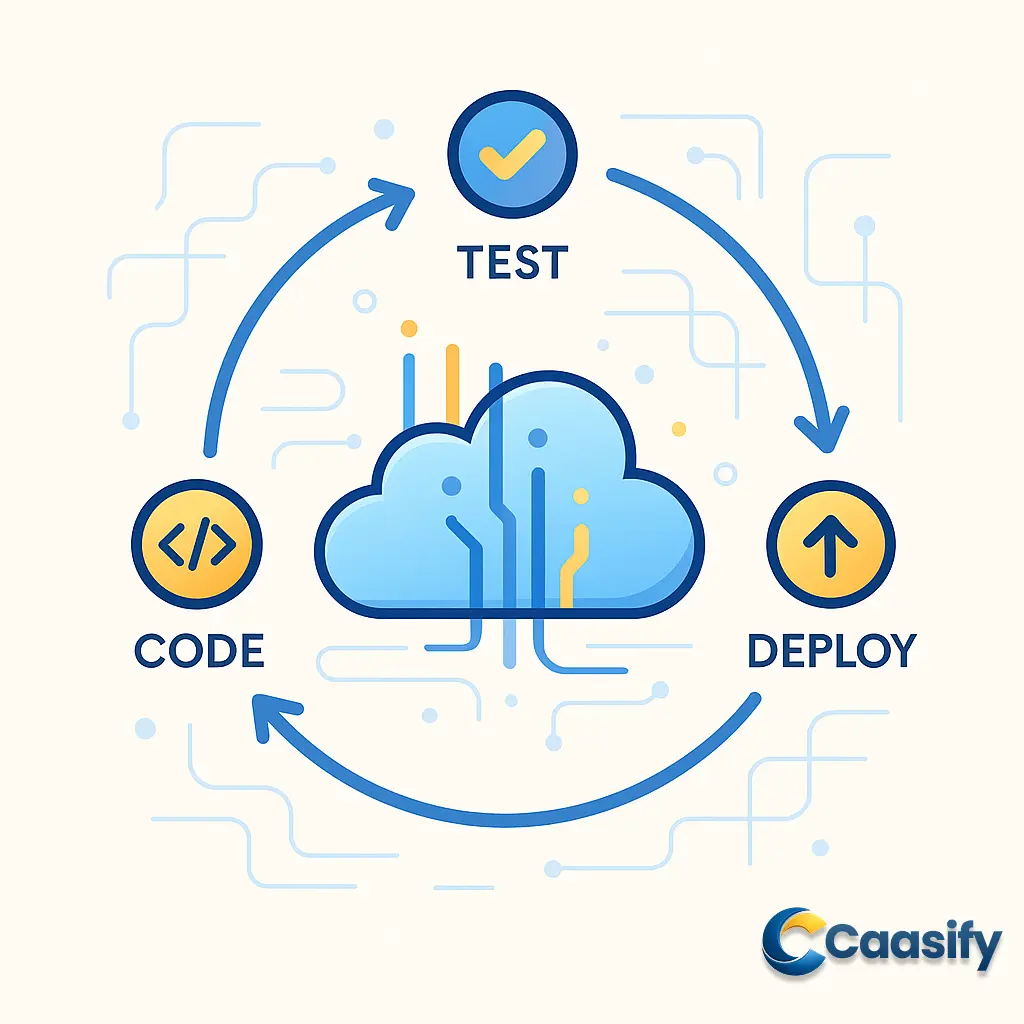
    Master CI CD Setup with GitHub Actions and Snyk in Cloud

    Introduction

    Setting up a reliable CI CD pipeline with GitHub Actions and Snyk in the cloud helps automate integration, testing, and deployment with ease. CI CD is an essential DevOps practice that streamlines code delivery, reduces human error, and speeds up software releases. In this guide, you’ll learn how to connect GitHub Actions for automation, integrate Snyk for continuous security checks, and deploy applications effortlessly on a cloud platform. By the end, you’ll have a secure, scalable, and fully automated workflow that simplifies modern cloud-based development.

    What is Continuous Integration and Continuous Deployment (CI/CD)?

    CI/CD is a method that helps developers automatically test and deliver software updates without manual steps. It ensures that any changes made to an application’s code are quickly checked, built, and deployed so users always get the latest version. This approach makes software development faster, more reliable, and easier to manage, reducing human effort while keeping the system running smoothly.

    Understanding Continuous Integration and Continuous Deployment

    Imagine you’re part of a busy tech team that’s trying to roll out new features while keeping everything running smoothly, kind of like changing the tires on a car that’s still moving. That’s where CI/CD, short for Continuous Integration and Continuous Deployment, steps in. Think of it as your team’s built-in autopilot for software work. It helps automate and simplify how code is written, tested, and released so everything gets done faster, easier, and with fewer problems.

    The beauty of ci cd is that it keeps the development process steady while making sure quality and reliability never get left behind.

    Now, let’s make it simple. Continuous Integration (CI) is all about pulling everyone’s work together, quite literally. Each time a developer updates something, CI merges that new code into a shared place for everyone to use. The moment it’s added, an automated system jumps in to run builds and tests. It’s a bit like having a smart helper who checks your work right away to make sure nothing breaks. If something does clash, CI points it out early so developers can fix it quickly. This early warning system keeps bugs from piling up and helps maintain a clean, solid codebase that’s always ready for upgrades.

    Then we have Continuous Deployment (CD), which pushes things even further. If CI is the checker, CD is the delivery guy. Once your code passes all the tests and reviews, CD automatically sends it off to staging or production. No waiting, no manual steps. You could compare it to a fast delivery service that drops new updates into users’ hands almost instantly. This kind of setup helps cut down on human mistakes, speeds up releases, and makes it possible for users to see new features or fixes right away. With CD, releasing updates becomes so normal and safe that it can happen several times a day and still leave you with time to relax.

    Together, CI and CD build what developers call a pipeline. It’s basically an automatic loop that builds, checks, and releases code all in one go. Each time someone changes the code, the pipeline makes sure it’s reviewed, verified, and safely shared with users. This doesn’t just make development faster and more reliable, it also helps teams work better together. It creates a space where everyone’s always improving things, one small update at a time.

    Now, picture all this running in the cloud, where apps grow, adapt, and scale up automatically. That’s where the real strength of ci cd comes through. In cloud development, flexibility matters most. Apps have to handle new demands quickly, scale up when traffic spikes, and push updates without shutting down. CI/CD fits right in, letting developers deploy new features instantly, adjust resources when needed, and roll out updates across servers anywhere in the world. It’s like having a global control panel where your app can be updated almost instantly.

    And here’s what makes it even better. This kind of automation frees developers from repetitive chores so they can focus on what actually matters, which is building cool stuff. With tools like GitHub Actions managing builds and Snyk watching over security, teams can spend less time on the routine and more time creating and improving. When companies combine CI/CD pipelines with their cloud systems, they get faster builds, smoother testing, and quicker delivery, all while keeping stability and performance high.

    So, in the end, CI/CD isn’t just a technical process. It’s more like a way of thinking. It’s about trusting automation, staying flexible, and creating a system where software almost runs itself. It’s how modern developers keep up in a fast-moving world, delivering strong, reliable updates at the pace of innovation, AWS Continuous Integration Overview.

    Overview of Caasify’s App Platform

    Picture this: you’re a developer racing against time, coffee in one hand and a bug tracker open on the other screen, trying to push an update before your next meeting. You want to build, deploy, and scale your app, but you really don’t want to spend your whole day stuck in server settings or fixing network problems. That’s where Caasify’s App Platform comes in to save the day, almost like your trusty sidekick.

    It’s a Platform-as-a-Service, or PaaS, that takes care of all the tough behind-the-scenes stuff like managing infrastructure, handling scaling, and setting up environments, so you can focus on what you actually enjoy, which is writing code.

    The great thing about this cloud platform is that it’s like a clean, creative workspace where everything just clicks. Imagine not having to think about what’s happening underneath the hood. No more late-night stress over crashed servers or tangled network configurations. You write your code, hit deploy, and the platform handles everything else. It’s simple, fast, and efficient — kind of like that perfect cup of coffee that keeps you going.

    Now, while most people think of the App Platform as just an easy way to deploy apps quickly, here’s the real secret: it’s not just a deployment tool. It’s way more than that. The real magic happens when it works hand in hand with CI/CD pipelines, which are the real workhorses of modern software development.

    Think of these pipelines like conveyor belts in a high-tech workshop, constantly testing, combining, and delivering your code updates the moment you make a change. No manual uploads, no missed steps, just smooth and steady automation that keeps your workflow running without interruptions.

    With CI/CD, the platform makes sure that new features, bug fixes, and performance updates go straight from your keyboard to production without delay. You can imagine it as your personal quality checker that never gets tired, always testing, always making sure everything’s working perfectly before shipping the latest version of your app.

    Since everything runs automatically, it cuts down on mistakes and saves you from repetitive, time-consuming work. It’s the kind of setup that makes developers wonder how they ever worked without it.

    This level of automation really shines when you’re working on big projects or in teams that roll out updates frequently. Instead of constantly managing releases or worrying about scheduling deployments, the App Platform takes care of it all for you. It keeps an eye on your repository, instantly spots when new code is added, runs tests to make sure nothing’s broken, and then smoothly sends the update to your live environment. It’s like having a super-efficient assistant who’s always watching, always ready, and never needs a break.

    Because of this, downtime becomes almost a thing of the past, performance stays steady, and your app keeps growing and improving all the time. It’s like your project is alive, constantly learning and getting better. That’s the real strength of automation working side by side with the cloud.

    And here’s what’s even better: this article isn’t just theory. It’s a hands-on walkthrough that shows you exactly how to set up CI/CD pipelines on Caasify’s App Platform so you can see this automation in action.

    You’ll learn how to connect your source code repository, create automation triggers using tools like GitHub Actions, and add security checks with Snyk to make your pipeline strong and reliable.

    By the time you’re done, you’ll not only know how CI/CD works but also how to use it to build a smooth, secure, and stress-free deployment system. The goal is to help you automate your workflow so your cloud apps deploy faster, run better, and keep improving effortlessly with Caasify’s App Platform, What Is CI/CD (Red Hat).

    Prerequisites

    Before you start setting up a Continuous Integration and Continuous Deployment (CI/CD) pipeline on the Caasify App Platform, there are a few things you’ll need to get ready first. Think of it like getting your kitchen ready before you start cooking. You wouldn’t grab a pan before checking if you’ve got your ingredients, right?

    These prerequisites are the key ingredients that help make your setup smooth and make sure your automation pipeline runs without a hitch. Getting them set up now will save you from those “why isn’t this working?” moments later.

    Caasify Account

    Let’s start with the first big one — your Caasify account. You’ll need an active account before you can do anything else. It’s your ticket to the App Platform, where you’ll build, deploy, and scale your cloud apps. This account is your main control center. It helps you manage resources, connect repositories, and automate deployments without having to deal with servers by hand.

    If you’re new here, don’t stress. Signing up is quick. Once your account is created, verify your details and set up billing or resource limits. Then, spend a few minutes getting familiar with the dashboard. It’s like your command center for everything that happens in your app’s life cycle. Once you’ve got that sorted, you’re ready to start connecting your development tools and getting your pipeline set up.

    Version Control Accounts

    Next, let’s talk about version control accounts. This is where platforms like GitHub, GitLab, or DockerHub come in. These are the homes for your app’s source code, like digital libraries that store every version of your project. They make it easy for developers to work together, track changes, and roll things back if something breaks.

    By linking these repositories to your App Platform, you’re basically setting up a direct connection between your code and your deployment system. Every time you push new changes, the platform can automatically test and deploy your updates. No manual uploads, no skipped steps. It’s a pretty smart setup.

    Before moving on, make sure your app’s code is already pushed and neatly organized in your chosen repository. That’ll make the rest of the process much simpler.

    Snyk (Optional but Recommended)

    Now, the next step isn’t a must-have, but it’s a really good idea. I’m talking about Snyk. Think of it as your project’s bodyguard, constantly checking for weaknesses in your app’s dependencies before they can cause trouble.

    Setting up a Snyk account gives your CI/CD pipeline an extra layer of security. When you connect Snyk with your version control platform, it can automatically scan every new code commit for security issues. It’s like having a security check that never takes a break. The idea is to catch problems early before they sneak into production.

    If keeping your app safe matters to you (and it should), adding Snyk is definitely worth it.

    Node.js Environment

    Since this guide walks you through setting up a Node.js app using GitHub Actions, you’ll also need to have Node.js (version 14.x or higher) installed on your system. This is the engine that keeps everything running under the hood.

    To check if you’re ready, open your terminal and run these commands:

    $ node –version
    $ npm –version

    If you see version numbers pop up, you’re good to go. If not, just grab the latest version of Node.js from the official website.

    Here’s what you’re installing:

    • Node.js lets you run JavaScript outside your browser.
    • npm (Node Package Manager) helps you manage all the packages your app depends on.

    Together, they’re the foundation of your build and testing setup.

    Final Setup

    Once you’ve got all of this ready — a verified Caasify account, a working version control repository, an optional Snyk setup for security, and a running Node.js environment — you’re all set to start building your CI/CD pipeline.

    With these pieces in place, you’re setting yourself up for a faster, smoother, and safer configuration process. From here on, every step of your automation journey will be more efficient, giving you the strong foundation you need to create a reliable, fully automated cloud deployment workflow.

    Node.js Official Overview

    Step 1: Create a New Application

    Alright, this is where things start getting exciting. If you already have an application running, you can skip ahead, but if you’re starting fresh, grab your favorite drink because we’re about to build something from scratch.

    The goal here is to make a working app that fits perfectly with a ci cd pipeline on the Caasify App Platform. Let’s begin with the basics. We’re going to create an app that runs smoothly, performs well, and can later be plugged into an automated deployment setup.

    If you’re new to Node.js, don’t worry, it’s not as tough as it sounds. Think of Node.js as the engine that powers your web app. It’s built on Chrome’s V8 engine (yep, the same one your browser uses) and helps developers build fast and scalable network applications.

    By the end of a simple Node.js tutorial, you’ll have a working app ready to test and deploy. You might even feel a little proud because, well, you just built a backend system yourself!

    If you’re already confident with coding, you can use any language you like—Python, Go, Java, or something else. The main thing is to make sure whatever you build can connect with your ci cd setup later on.

    Once your app’s source code is ready, it’s time to check that all the important files are in place. These files are what make your project work correctly, helping it build, test, and run without trouble. Let’s go through them one by one.

    App.js – The Core of Your Application

    This is where the main part of your app lives. The App.js file acts like the conductor of an orchestra, making sure everything—routes, logs, and error handling—works together perfectly.

    Here’s an example of a simple Express.js setup:

    var express = require(‘express’);
    var path = require(‘path’);
    var logger = require(‘morgan’);
    var indexRouter = require(‘./routes/index’);
    var app = express();// view engine setup
    app.set(‘views’, path.join(__dirname, ‘views’));
    app.set(‘view engine’, ‘pug’);
    app.use(logger(‘dev’));
    app.use(express.json());
    app.use(‘/’, indexRouter);// error handler
    app.use(function(err, req, res, next) { … });module.exports = app;

    Here’s what’s going on in this setup:

    • Express acts as the main framework, handling requests and responses.
    • Pug is used as the view engine to help render templates nicely.
    • Middleware like logger and express.json() handles logging requests and parsing JSON data, keeping things organized.
    • Finally, there’s an error handler, your safety net for catching unexpected issues.

    This simple setup forms the base of your Node.js app. You can later extend it with routes, databases, and more advanced logic as your project grows.

    Test.js – Your App’s Safety Net

    This file is your personal quality check. It makes sure your app behaves as expected even when you’re not keeping an eye on it. In ci cd pipelines, automated testing is your best friend. It helps ensure that new changes don’t break features that were already working fine.

    Here’s an example test using Mocha and Supertest:

    const assert = require(‘assert’);
    const request = require(‘supertest’);
    const app = require(‘../app’);describe(‘Express App’, function () {
      it(‘responds to GET / with status code 200’, function (done) {
        request(app)
          .get(‘/’)
          .expect(200)
          .end(function (err, res) {
            if (err) return done(err);
            done();
          });
      });
    });

    This test checks if your app responds properly to a GET request on the home route (/) with a 200 status code, basically confirming that your app is running fine. Automated tests like this are vital in ci cd setups because they catch bugs early before your code reaches production.

    Package.json – The Brain of Your Project

    If your app were alive, the package.json file would be its brain. It tells the system what dependencies to load, what scripts to run, and how everything connects. Here’s an example:

    {
     “name”: “app”,
     “version”: “0.0.0”,
     “private”: true,
     “scripts”: {
      “start”: “node ./bin”,
      “test”: “mocha”
     },
     “dependencies”: {
      // Dependencies here..
     },
     “devDependencies”: {
      // Dev dependencies here..
     }
    }

    Here’s what it does:

    • The scripts section defines your app’s main commands. npm start runs the app, and npm test launches your testing setup.
    • The dependencies and devDependencies sections keep track of all the tools and libraries your app needs so that it behaves the same way no matter where it’s deployed.

    This file makes it easy to share and rebuild your environment, which is super handy when working with teams or setting up github actions in your automation process.

    Package-lock.json – Your App’s Record Keeper

    The package-lock.json file is like your app’s bookkeeper. It keeps a record of every dependency, including the exact version numbers and sub-dependencies. This makes sure that when your app gets installed on another computer or deployed in the cloud, it behaves exactly the same way every time.

    {
     “name”: “app”,
     “version”: “0.0.0”,
     “lockfileVersion”: 3,
     “requires”: true,
     “packages”: {
      “”: {
       “name”: “app”,
       “version”: “0.0.0”,
       “devDependencies”: {
        // Dev dependencies here..
       }
      },
      “node_modules/xyz”: {
       // Modules here..
      }
     }
    }

    You don’t need to make this file yourself. npm does it automatically for you. If you don’t see it in your project folder, just run npm install, and it’ll appear.

    Pro tip: don’t try to edit this file manually. That’s a quick way to break things and end up with messy version issues.

    Before pushing your code to GitHub or another version control system, take a moment to test your app locally. Run it with npm start and make sure it builds without any errors. This step saves you from unnecessary headaches later when you plug your app into the ci cd pipeline. Think of it as taking your car for a short drive before heading on a long road trip.

    Once your app passes all checks, you’ll have a fully working Node.js application complete with configuration files, automated tests, and dependency tracking. It’s ready to integrate into a fully automated deployment setup on the Caasify App Platform.

    This marks the first major milestone in your journey to mastering automation with tools like snyk, github actions, and the cloud, Node.js Getting Started Guide.

    Step 2: Deploy Your Application on GitHub

    Alright, your app is ready, your files are nice and organized, and now it’s time for the next big step — putting your application on GitHub. Think of GitHub as your project’s new home in the cloud, a place where your code can live safely, be shared with teammates, and stay version-controlled so you never lose track of progress again.

    Hosting your app on GitHub isn’t just about storage — it’s about teamwork, automation, and setting things up for your CI/CD journey on the Caasify App Platform.

    Here’s the thing, GitHub isn’t just a simple place to store files. It’s more like a digital workshop where developers from all over the world build, experiment, and improve things together. With built-in version history, automation tools, and collaboration features, it keeps your work neat, traceable, and easy to manage.

    If you’re new to GitHub, don’t worry. Creating an account is simple. Just head to the GitHub website, click on “Sign up,” and follow the prompts. After a quick email verification, you’ll be good to go. Once your account is ready, you can start creating repositories — which are basically folders in the cloud that hold your project files and track every version of your work.

    Create a New Repository

    This is where your project officially gets its online home. On your GitHub dashboard, click the “New” button under the Repositories section. Give your repository a clear, descriptive name that makes sense for your project — something like nodejs-ci-cd-app works perfectly.

    You can also add a short description to explain what your project does — and believe me, future-you will thank you for that. Next, choose whether to make your repository public (which means anyone can see it) or private (which limits it to specific collaborators). If you’re working on a professional project, private is usually the safer choice.

    Tip: Initialize the repository with a README file. It’s a handy space to explain what your app is, how it works, and how others can use it.

    Link the Repository to Your Application Directory

    Now it’s time to connect your local project (the one sitting on your computer) to this new repository in the cloud. Open your terminal or command line and navigate to your project’s main folder. Once you’re there, run these commands one by one:

    $ git init
    $ git add .
    $ git commit -m “Initial commit”

    Here’s what’s happening — you’re setting up Git inside your local project, adding all your files to the new repository, and making your first commit. Think of it like writing the first entry in your project’s digital journal.

    Connect Your Local Repository to GitHub

    Now that your local repository is ready, let’s link it to the GitHub one you just created. Run the following commands:

    $ git remote add origin https://github.com/your-username/your-repository-name.git
    $ git branch -M main
    $ git push -u origin main

    Remember to replace your-username and your-repository-name with your actual GitHub information.

    Once you hit enter, your files will start uploading to GitHub. This is the big moment when your project moves from your computer to the cloud — making it accessible from anywhere. It’s also now ready to work smoothly with automation tools like GitHub Actions, which will soon handle your builds, tests, and deployments automatically.

    Verify Your Repository

    Here comes the satisfying part — checking your work online. Go back to GitHub, open your new repository, and you should see all your project files sitting there nicely.

    At this stage, your app is officially live on GitHub and version-controlled. That means every update, fix, or feature you add can be tracked, reviewed, and rolled back if needed. It’s like having a safety net and an unlimited “undo” button for your entire project.

    Committing your changes makes sure your code is securely stored and always ready for continuous integration with your tools. This step sets up the foundation for automation — keeping your CI/CD pipeline running smoothly every time you push new code.

    By hosting your app on GitHub, you’re doing more than saving files — you’re unlocking the door to a full automation system. The platform works perfectly with GitHub Actions, which can automatically test, build, and deploy updates to your Caasify App Platform setup.

    In short, this step is a major win. You’ve officially built the base for a CI/CD pipeline that will keep your development process clean, stable, and ready to scale in the cloud. Your code is now prepped for automation, teamwork, and the kind of efficiency that makes deployment feel almost effortless.

    GitHub Repository Quickstart (2025)

    Step 3: Create GitHub Actions

    Here’s where things start to get exciting. You’re about to teach your app how to handle things on its own. GitHub Actions is like that super-organized teammate who never forgets a single task. It’s a powerful automation tool that lets you build custom workflows right inside your repository so all the repetitive jobs like building, testing, and deploying just happen automatically.

    Learn more about GitHub Actions

    Step 4: Integrate Security Checks into Your Development Pipeline

    Alright, let’s talk about something every developer thinks about, even if they don’t always admit it: security. You’ve probably heard the saying, “It’s better to catch a problem early than fix it later,” right? Well, that’s especially true in software development. Adding security checks right into your ci cd pipeline is like having a guard dog that watches your code day and night. It finds vulnerabilities before they sneak into production and cause real problems.

    By including security in your automation process, you make sure potential risks are spotted early, long before they can affect your users or your app’s performance. Here’s the thing, automation isn’t just about working faster. It’s also about working smarter and safer. By setting up automatic vulnerability scans as part of your development pipeline, you’re not only automating deployments, you’re strengthening them. You’re turning your cloud environment into a smart, self-monitoring system that protects your code as it grows.

    Now, this is where GitHub Actions comes in handy. It’s like a toolbox full of ready-made workflows that focus on security and automation. You can easily plug these into your setup to make your builds safer. These workflows can automatically check your code, scan for weak dependencies, and find known security issues every time you build or deploy.

    One of the best tools for this job is snyk, which works perfectly with GitHub Actions to keep your project’s dependencies safe. Once you’ve got it running, snyk will constantly monitor your app for vulnerabilities, outdated packages, and insecure modules. It’s like having a digital security guard who never takes a break.

    Step 1: Create or Log In to Your Snyk Account

    If you already have a snyk account, just log in. If not, signing up only takes a few minutes. Once you’re in, you’ll land on your personal dashboard, which acts as your main control center. From there, you can manage projects, run scans, and check detailed reports on vulnerabilities. It’s like your own command center for keeping your code secure.

    Step 2: Connect Your Application Repository with Snyk

    Next, you’ll link snyk to your GitHub repository. This allows snyk to automatically check your code for security issues in real time. Every time you add or update a dependency, snyk cross-checks it with its massive database of known vulnerabilities. Think of it as a watchdog that immediately alerts you if something risky slips in.

    Step 3: Add Snyk Dependencies to Your Application

    Once you’ve connected everything, it’s time to install snyk in your project. Open your terminal and run:

    $ npm install snyk

    This installs snyk as a dependency, giving you access to its command-line tools. Once it’s installed, make sure to commit these changes to your repository. This ensures every team member and build environment has the same layer of protection built in from the start.

    Step 4: Set Up Snyk API Authentication in GitHub

    Before GitHub Actions can run snyk automatically, it needs a safe way to log in to your account. That’s where the API token comes in. Think of it as a secret password that lets GitHub and snyk talk securely.

    Go to your snyk dashboard and copy your API token. Then, open your GitHub repository, go to Settings, select Secrets, and add a new repository secret. Paste your token there and name it something like SNYK_AUTH_TOKEN.

    This keeps your credentials safe and hidden. Nobody can accidentally see or expose them in your code. It’s a clean, secure way to let your automation connect without risk.

    Step 5: Configure the Snyk GitHub Workflow

    Now it’s time to connect GitHub Actions with snyk. Open your GitHub repository, go to the Actions tab, and click New workflow.

    You have two ways to go from here:

    • Create your own workflow manually using a YAML file.
    • Use the prebuilt snyk action from the GitHub Marketplace, which is quicker if you want to start fast.

    If you choose to set it up manually, here’s what your YAML file might look like:

    name: Snyk Security Check
    on: pushjobs:
      snyk-security-check:
        name: Snyk Security Check
        runs-on: windows-latest    steps:
          – name: Checkout Repository
            uses: actions/checkout@master      – name: Set Up Node.js
            uses: actions/setup-node@master
            with:
              node-version: ’18’      – name: Install Dependencies
            run: npm install      – name: Snyk Auth
            run: npx snyk auth ${{ secrets.SNYK_AUTH_TOKEN }}      – name: Run Snyk Security Check
            run: npx snyk test

    This tells GitHub what to do every time you push code. It checks out your repository, installs Node.js, installs dependencies, logs into snyk, and runs a full security scan. The best part is that it’s all automatic — no extra clicks or commands needed.

    Step 6: Commit and Verify the Workflow

    After setting up your YAML file, commit it to your repository. To test it, make a small change to one of your files, like app.js, and push it.

    GitHub Actions will notice the update, trigger the snyk workflow, and start scanning your code for vulnerabilities. You can track the progress in the Actions tab. Once it’s done, GitHub will show a full report listing any vulnerabilities, their severity, and suggested fixes.

    By following these steps, you’ve added a strong security layer to your ci cd pipeline. From now on, every time you push new code, it’ll be automatically scanned, reviewed, and confirmed safe before going live.

    Bringing snyk and security checks into your workflow doesn’t just protect your code, it also builds a mindset of secure development. It helps your team catch problems early, avoid last-minute fixes, and keep peace of mind knowing your cloud deployments are safe and reliable.

    At this point, you’re not just building apps anymore. You’re building them confidently, securely, and smartly, OWASP DevSecOps Guidelines (2024) then continue of the article…

    Step 5: Create Your Application in the App Platform

    Alright, it’s time to make things happen. Your code is ready, your pipeline is set, and now it’s time to bring your work to life in the cloud using the Caasify App Platform. This step is where everything comes together, from building and deploying to automating your app for the world to see.

    Think of it like moving into a new digital space where Caasify handles all the heavy lifting while you focus on creating and improving.

    Here’s how you can take your project from your laptop to a live, running app in the cloud, one step at a time.

    Access the Caasify App Platform

    First, log in to your Caasify account. Picture it like stepping into mission control. The App Platform dashboard is your command center. From there, click Create, then select Apps. This is where the fun begins.

    When you start creating a new app, Caasify will ask you where your code is stored and how you’d like it deployed. It’s like giving directions to a chef before they start cooking your meal.

    Select Your Code Source

    Now, it’s time to tell Caasify where your code lives. Under “Create Resources from Source Code,” you’ll see options to connect your app directly to your repository.

    Here’s where your ci cd magic kicks in. Caasify works smoothly with version control tools like GitHub, GitLab, or Bitbucket, pulling your latest updates automatically every time you push new code.

    When you choose your repository, you’ll be asked to authenticate and grant Caasify access. Don’t worry, it’s all safe and secure. Once connected, pick the repository and branch you want to deploy from. This ensures Caasify always works with your most up-to-date version of the code.

    Use a Sample Application (Optional)

    If you don’t have a project ready yet, no problem. Caasify offers an option called “Other: Choose Sample App.”

    Think of this as a test drive. You can pick one of Caasify’s prebuilt sample applications to experiment with. It’s a great way to understand how the platform works before deploying your own app.

    These sample apps let you test deployment workflows, view live logs, and get a real sense of how cloud apps behave once they’re running. It’s a good way to learn without the stress of using your own code.

    Specify Source Path and Build Configuration

    Once you’ve connected your code, Caasify automatically detects your project type—whether it’s Node.js, Python, Ruby, or Go—and sets default build settings for you.

    That said, you still get full control. You can double-check or change the configuration before moving forward. Maybe you need a specific Node.js version, or you want to add environment variables or update build commands.

    When everything looks good, click Next to continue. Think of this step as customizing your setup before launch. Every detail helps your app run its best.

    Configure Application Resources and Dependencies

    Now we’re getting to the technical part. Here, you’ll fine-tune your app’s resources and dependencies.

    In this section, you can attach databases, set up caching, or connect storage as needed. You can also choose the right plan, balancing performance and cost based on your app’s expected traffic.

    You’ll have the option to configure things like memory, CPU power, and scaling. The best part about working in the cloud is flexibility. You can start small and scale up later automatically, without worrying about managing servers.

    Review and Finalize Deployment

    Before launching, Caasify will show you a Review page. This is your final checklist.

    Here, you’ll see all your configurations: the repository, runtime environment, environment variables, resource setup, and other details. Take a moment to double-check everything. It’s better to catch small issues now than after your app goes live.

    Deploy Your Application

    Once everything looks perfect, click Create Resources to kick off the deployment.

    This is where Caasify takes over. It pulls your code from the repository, builds your app, and deploys it into a live cloud environment. You can watch the progress in real-time through logs—it’s like watching your code come to life line by line.

    When it’s done, your app will be live! You’ll get a unique URL to access it right away, or you can connect your own domain if you’d like a more professional touch.

    Behind the scenes, Caasify is doing all the hard work—setting up servers, load balancers, and scaling systems to keep your app running smoothly. You don’t need to worry about infrastructure or downtime because it’s all automated.

    And just like that, you’ve deployed your application to the cloud using the Caasify App Platform. From now on, every time you push new changes to your connected repository, Caasify will rebuild and redeploy your app automatically, thanks to ci cd integration.

    That means continuous updates, smoother workflows, and no manual deployments. It’s fast, efficient, and perfect for developers who want to spend more time building and less time managing servers.

    Your app is now alive in the cloud—scalable, secure, and ready for whatever comes next, DevOps Capabilities Assessment Guide (2024).

    Step 6: Verify Your CI/CD Pipeline

    Alright, this is the big moment. You’ve spent all this time setting up your ci cd pipeline, and now it’s time to see if it actually does what it’s supposed to do. This step is all about checking that your automation works as planned. Think of it as the grand finale that proves your setup is alive and running smoothly.

    The goal here is simple: to see your changes flow from code to deployment on the Caasify App Platform without you lifting a finger. You can think of this as your pipeline’s very first real test drive. You’ve built it, fine-tuned it, and now it’s ready to hit the road.

    Make a Small Change to Trigger the Pipeline

    Let’s start small. Open up your application’s source code, specifically the app.js file. You’re going to make a tiny, noticeable change that will act as the trigger for your pipeline. Nothing major—just something that makes it easy to confirm when your app redeploys.

    For example, maybe your app currently prints a simple “Hello, World!” message. Classic, sure, but let’s make it a bit more fun. Change that line to:

    console.log(“Hello, Sea World!”);

    Now save the file, commit your change, and push it to your repository. If you’re doing this from your terminal, your commands will look something like this:

    $ git add app.js
    $ git commit -m “Updated message to verify CI/CD pipeline”
    $ git push origin main

    That’s it! You’ve just nudged your GitHub Actions workflow into motion and started your first automated deployment.

    Watch the Pipeline in Action

    Now sit back for a second and watch your automation do its thing. GitHub Actions will notice the new commit, automatically start the build process, and run through every step you defined in your YAML file.

    It’s kind of like watching a perfectly timed domino setup—the first tile falls, and everything else follows right after. Your workflow will install dependencies, build your app, run the tests, and finally deploy it to the cloud.

    To see it happen in real time, go to your repository’s Actions tab in GitHub. You’ll see each step logged as it happens. Watching those green checkmarks appear one after another is always satisfying—it’s a clear sign your pipeline is doing its job.

    Check Your App on Caasify

    Once the deployment finishes, it’s time to see your app live. Head to your Caasify Control Panel, go to the App Platform dashboard, and find your deployed application.

    Open its Console or visit its live URL. Give it a second to load, and look closely—do you see your new message, “Hello, Sea World!” showing up?

    If you do, congrats! That means your CI/CD pipeline is officially verified and working perfectly.

    From now on, every time you push a change to your repository, your app will automatically rebuild, test, and redeploy. No more manual uploads or forgotten updates.

    Why This Step Matters

    This test might seem small, but it proves something really important: your automation pipeline is working exactly as planned. Every new line of code you push will now move seamlessly from your local machine to your live cloud deployment—completely hands-free.

    You’ve built a bridge between your codebase and your live app, one that takes care of everything for you. This means less time on repetitive deployment tasks and more time for the fun parts—building features, fixing bugs, and trying out new ideas.

    By verifying your ci cd pipeline, you’ve tapped into one of the biggest advantages of modern development. You’re not just deploying code anymore—you’re running a fully automated, secure, and scalable workflow.

    With GitHub Actions and the Caasify App Platform working together, you’ve created a seamless system where code commits turn into live deployments in minutes. And with security tools like snyk guarding your builds, you can be confident that your app stays both fast and safe.

    GitHub CI/CD Guide (2025)

    So go ahead—make another tweak, push a new feature, or adjust your app’s layout. Your pipeline’s got you covered now, running quietly in the background, keeping everything updated and perfectly in sync.

    Conclusion

    Mastering CI CD with GitHub Actions and Snyk in the cloud gives developers a powerful way to automate builds, testing, and deployment. By combining CI CD workflows with tools like GitHub Actions for automation and Snyk for security, you can deliver reliable, secure, and scalable applications faster than ever. This setup not only streamlines your cloud-based deployments but also reduces manual work, improves code quality, and keeps your environments consistent.As automation and cloud technologies continue to evolve, CI CD pipelines will become even more intelligent, integrating deeper with AI-driven monitoring, predictive analytics, and self-healing systems. Now is the perfect time to refine your DevOps strategy and future-proof your workflow with CI CD, GitHub Actions, and Snyk in the cloud.Automate smarter, deploy faster, and keep your cloud applications secure with modern CI CD practices.

    Master Auto Scaling: Optimize Horizontal & Vertical Scaling on AWS, Azure, Google Cloud (2025)
  • Master Bidirectional RNN in Keras with LSTM and GRU

    Master Bidirectional RNN in Keras with LSTM and GRU

    Introduction

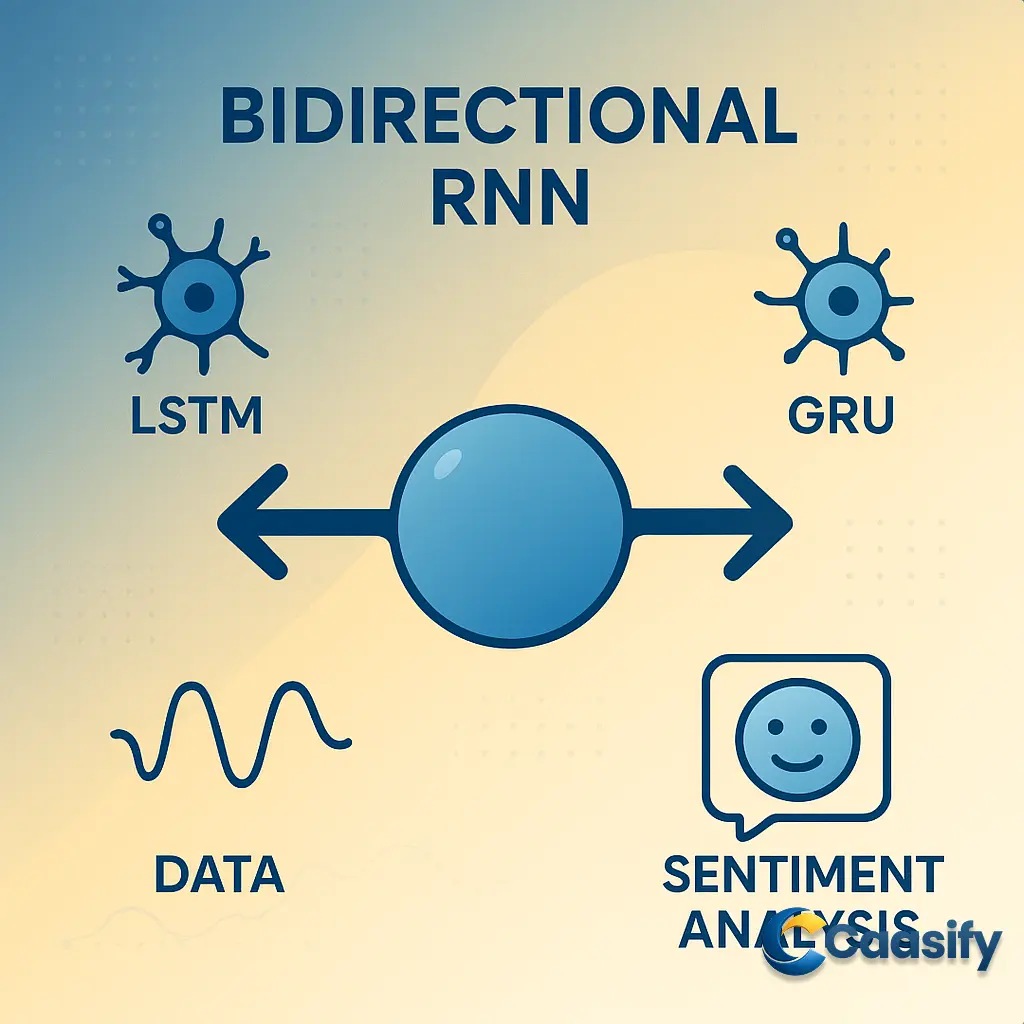
    Understanding how a bidirectional RNN works in Keras is key to mastering advanced deep learning models like LSTM and GRU. These neural network architectures excel at handling sequential data by learning from both past and future context, making them powerful tools for applications such as speech and handwriting recognition. In this guide, you’ll learn how to build and train a bidirectional RNN model using Keras, explore its inner workings, and see how it enhances sentiment analysis through bidirectional data processing.

    What is Bidirectional Recurrent Neural Network?

    A Bidirectional Recurrent Neural Network is a type of model that learns from information in both directions of a sequence — from start to end and from end to start. This helps it understand context more completely, making it useful for tasks like recognizing speech, reading handwriting, or analyzing emotions in text. By looking at both past and future words or signals, it can make more accurate predictions and better interpret meaning in sequential data.

    Prerequisites

    Before getting into this story about neural networks and data, let’s make sure you’re ready for it. You should already feel pretty comfortable with Python, nothing too complicated, just enough to get around loops, lists, and maybe a bit of TensorFlow magic. You should also have a basic understanding of Deep Learning ideas since we’re about to jump into the fun world of neural network structures. It’s kind of like building a digital brain, and you’ll definitely want to know the basics before connecting those neurons together.

    Now, here’s the thing, deep learning models really love power. They rely on strong computing performance the same way coffee keeps developers awake. So ideally, you’ll need a computer with a decent GPU, kind of like a turbo boost for your model. However, if your setup is a bit slower, that’s fine too. It’ll still work, just with longer training times. And if you don’t have a GPU, no worries. You can easily spin up a Cloud Server from Caasify, which gives you flexible computing resources that work great for deep learning experiments.

    Before moving forward, make sure your Python setup is working properly. If this is your first time setting things up, check out a simple beginner’s guide that walks you through installing Python, getting the needed libraries, and setting up your system for machine learning tutorials. Once everything’s ready, you’re all set to explore the exciting world of RNNs.

    Overview of RNNs

    Picture this: you’re watching a movie. Every scene connects to the next, creating a smooth story. That’s exactly what Recurrent Neural Networks (RNNs) are built for—they’re like storytellers in the AI world, making sense of data that unfolds over time. They handle sequential data, things like music, videos, text, or even sensor readings, where each moment depends on what came before it.

    For example, think about music. Each note sets the mood for the next one. Or imagine reading a sentence. You get the meaning because each word builds on the previous one. That’s the same logic RNNs use. They learn from a chain of inputs, remembering past information to guess or decide what comes next.

    Here’s a fun way to think about it: imagine you’re in a debate. To make your next point, you have to remember what the previous speaker said. That’s what RNNs do too—they “listen” to previous inputs and use that memory to decide their next move. Unlike regular neural networks that treat every input as a one-time thing, RNNs have loops that let information flow from one step to the next. This loop gives them a kind of short-term memory.

    One really nice feature of RNNs is parameter sharing. It’s like reusing your favorite recipe no matter how many times you bake. The same weights are used at each time step, which lets the network learn efficiently from sequences of different lengths. This also helps it recognize repeating patterns, like a recurring musical note or a common word that appears several times.

    When we “unfold” an RNN, we can picture it as a small network repeated over and over, each part connected through a hidden state. This simple design makes RNNs great for tasks like speech recognition, text generation, image captioning, and time-series forecasting. In short, RNNs are the backbone of many tools that deal with data that changes over time.

    For a deeper look into the math and mechanisms behind them, see Deep Learning Book (Goodfellow et al.).

    Conclusion

    Mastering a bidirectional RNN in Keras opens the door to creating smarter, more context-aware deep learning models. By combining the strengths of RNN, LSTM, and GRU architectures, developers can process sequential data in both directions, improving accuracy in tasks such as speech and handwriting recognition. This approach not only enhances model performance but also deepens the understanding of contextual relationships in data. As deep learning continues to evolve, bidirectional RNNs will play an even greater role in natural language processing, predictive modeling, and AI-driven analytics. Keep exploring Keras and its expanding ecosystem to stay ahead of emerging trends in neural network design and optimization.

    Master PyTorch Deep Learning Techniques for Advanced Model Control (2025)

  • Unlock AI Power with NVIDIA H200 GPU: Boost Large Language Models

    Unlock AI Power with NVIDIA H200 GPU: Boost Large Language Models

    Introduction

    The NVIDIA H200 GPU is revolutionizing AI development with its advanced memory technology, Transformer Engine support, and enhanced NVLink capabilities. Designed to handle the demands of large language models, it offers impressive performance for training and inference tasks. Whether you’re developing complex AI models or tackling massive datasets, the H200 provides the speed and efficiency needed for cutting-edge AI research. In this article, we’ll dive into the key features of the H200, its advantages over the H100, and how it’s shaping the future of AI applications.

    What is NVIDIA H200?

    The NVIDIA H200 is a powerful GPU designed for AI development. It features enhanced memory capacity, faster processing speeds, and advanced capabilities for running large AI models. This makes it ideal for training and inference tasks, especially for complex models like large language models. The H200 is a more efficient option than its predecessor, offering improved performance, though it comes at a higher cost.

    Machine Overview: NVIDIA H200

    Imagine you’re in the middle of a high-speed race, and you’re driving the fastest car on the track. That’s pretty much what the NVIDIA H200 is to the world of AI development—a super-powerful GPU built to break speed limits. When it was first released, it was considered the most powerful consumer GPU on the market, and guess what? It still holds that title, continuing to be a major player in the AI world. Think of it like the experienced champion in a race where every second counts, making it an essential tool for AI researchers and developers everywhere.

    Now, let’s take a moment to look at its backstory. The H200 didn’t just appear out of nowhere. It’s the next big step after the NVIDIA H100, which was already a huge upgrade compared to its predecessor, the NVIDIA A100. But here’s the thing—the H200 isn’t just a minor update. It builds on everything the H100 did well and takes it to the next level. This isn’t just about getting things done faster; it’s about doing them more efficiently, more accurately, and handling even bigger and more complex AI tasks.

    One of the coolest parts of the H200’s journey is the updated Hopper microarchitecture. Think of it like upgrading your car’s engine for more power. The H200 features a carefully tweaked version of this architecture, which means better performance and smoother processing for AI tasks. But that’s not all. It’s like going from a sports car with a good engine to a super-fast machine—because this GPU nearly doubles its memory capacity compared to the H100, using HBM3E (High Bandwidth Memory) technology. This means the H200 can handle more data-heavy tasks without even breaking a sweat.

    Now, here’s where it gets even better. Not only does the H200 have more memory, but it also offers a 1.4 times increase in memory bandwidth compared to the H100. It’s like widening a highway to let more traffic pass through at higher speeds. This boost in bandwidth means AI models and large datasets are processed faster and more efficiently, saving valuable time for developers who need results fast. When it comes to running massive AI models—especially large language models (LLMs)—the H200 becomes a powerhouse capable of handling complex calculations with ease.

    All these upgrades make the H200 the perfect choice for AI development, whether you’re running AI training sessions or diving deep into inference tasks. So, as we dig further into what makes this GPU stand out, one thing is clear: the H200 isn’t just keeping up with the fast-paced world of AI technology—it’s setting the pace. Let’s take a closer look at the features that really make this machine the Ferrari of GPUs.

    The H200 is built to handle the most demanding AI tasks with ease, setting new standards for performance and efficiency.NVIDIA Hopper Architecture Overview

    Features of the NVIDIA H200

    Picture this: you’re about to dive into the toughest AI project you’ve ever taken on, something that needs the best tech and top-notch performance. Enter the NVIDIA H200, a GPU that’s more like a powerhouse than just another piece of hardware. The H200 is loaded with several groundbreaking technologies, each one helping it earn its reputation as one of the most powerful GPUs out there for AI development. It’s like having a Swiss army knife for anyone who wants to push AI to its limits.

    One of the H200’s most impressive features is its use of HBM3E memory technology, created by Micron. This isn’t just any memory—it’s the fastest memory you can get in the cloud, meaning the H200 can hit an amazing 4.8 terabytes per second (TB/s) of memory bandwidth. That’s like having a super-fast expressway for data. Why does that matter? Well, when you’re dealing with AI tasks that need quick data processing, this kind of speed makes sure everything runs smoothly, with no delays.

    But that’s just the beginning. The H200 also packs a huge 141 gigabytes of memory, almost double what the H100 has. Imagine being able to handle twice as many tasks at once—that’s what this expanded memory lets you do. Whether you’re running on a single server or spreading the load across multiple systems, this extra memory ensures that even the biggest and most demanding AI models run smoothly, no matter how heavy the workload.

    Now, let’s talk about something pretty unique: the Fourth-Generation Tensor Cores with the Transformer Engine. If you’ve worked with AI, you know Tensor Cores are a big deal. They speed up computations, and in the H200, the technology has been supercharged. The next-gen Tensor Cores in the H200 are the same ones you find in the H100, but they’ve been fine-tuned to make them even more powerful. The Transformer Engine, specifically, is designed to speed up Transformer models on NVIDIA GPUs. It works by supporting 8-bit floating point (FP8) precision across different NVIDIA GPU architectures, like Hopper, Ada, and Blackwell. This upgrade boosts performance while using less memory, which is a game-changer when you’re dealing with large-scale AI models.

    Let’s not forget about security and multitasking—things that are super important in today’s fast-paced, multi-user environments. The H200’s second-generation Secure MIG (Multi-Instance GPU) technology divides the GPU into seven secure, separate instances, each with 16.5GB of memory. This is perfect for businesses that need to run multiple tasks or serve different users at the same time. You get the flexibility of having several virtual environments running at once, without losing any security or performance. It’s like having multiple lanes on a highway, with each lane having its own space to avoid traffic jams.

    Then, there’s the Fourth-Generation NVLink, which really steps up scalability. This technology makes it possible for multiple GPUs to talk to each other way faster, allowing bidirectional GPU I/O interactions to hit up to 900 gigabytes per second (GB/s) per GPU. This is over seven times faster than PCIe Gen5! If you’re working with complex AI tasks that need a lot of GPUs, NVLink makes sure everything communicates seamlessly and at lightning speed.

    Lastly, the H200 comes with Third-Generation NVSwitch, which supports Scalable Hierarchical Aggregation and Reduction Protocol (SHARP) in-network computing. If that sounds a bit complicated, here’s a simpler version: it helps boost the speed when you’re working with multiple GPU servers. In fact, it doubles the throughput for tasks that involve up to eight H100 or H200 GPU servers. This is essential when you’re running AI training on massive datasets, where every bit of processing speed matters.

    When you combine all of these features—advanced memory, faster processing, better scalability, and increased security—you get the NVIDIA H200, one of the most powerful tools in the AI development world. It’s built to handle the toughest AI workloads with ease, making it the go-to GPU for researchers, developers, and businesses who are looking to unlock the full potential of their AI projects.

    For more details, visit the official Micron press release.

    NVIDIA H200 vs NVIDIA H100

    Imagine two powerful race cars, both built for the same track, but one is designed with a little extra speed, better handling, and a stronger engine to go the distance. That’s basically the difference between the NVIDIA H200 and its predecessor, the H100. Both come from the same generation of microarchitecture, so it makes sense they share a lot of the same core features. They were both built to handle the heavy demands of AI and machine learning workloads, but when you start comparing them, it’s clear one stands out.

    The first thing that catches your eye is their GPU memory. Both the H200 and H100 offer some pretty impressive memory and bandwidth, but the H200 takes the lead here. It’s built to handle much larger datasets and more complex AI models without breaking a sweat. Think of it like having a bigger, faster truck to carry a heavier load. This extra memory is a big deal when you’re running large deep learning models or processing huge datasets for AI inference. The H200’s ability to tackle these heavy workloads makes it the obvious choice for tasks that need high memory.

    But there’s more! Another big difference between the two is how they handle power. The H200 can take on a higher maximum thermal design power (TDP) than the H100. What does this mean for you? Simply put, it means the H200 can handle more wattage without overheating, which is super important for long, intense AI sessions. Whether you’re running AI models around the clock or processing large-scale data, the H200’s improved cooling system keeps things cool under pressure, allowing it to perform at its best for much longer. The H100 just can’t quite keep up with that.

    Now, let’s dive into multitasking. If you’re running several tasks at once or need to support multiple users on the same system, you’ll see a big difference in how these GPUs handle things. The H200 can support significantly larger Multi-Instance GPU (MIG) configurations, which means you can run more GPU instances simultaneously. It’s like having more lanes on the highway for traffic to flow smoothly. Whether you’re managing a multi-user setup or handling several AI tasks in parallel, the H200’s bigger MIG capabilities offer better scalability and flexibility, making it a perfect choice for businesses dealing with demanding AI workloads.

    At the end of the day, both the H100 and H200 are top-of-the-line GPUs for AI development, but the H200 is built for those who need to push things further. With more memory, better thermal management, and stronger MIG support, it’s the GPU you’ll want when tackling the most challenging tasks in AI and machine learning. The H200 is ready to take on the toughest AI projects, while the H100, although still excellent, may be better suited for less demanding workloads. If you’re ready to go all-in with your AI development, the H200 is definitely the one to go for.

    The H200 outperforms the H100 in memory, power handling, and multitasking capabilities, making it the ideal choice for demanding AI workloads.NVIDIA H100 Tensor Core GPU Overview

    When to use the NVIDIA H200

    Let’s picture this: You’ve got two GPUs at your disposal—the NVIDIA H200 and its predecessor, the H100. Both are powerful, but the H200, like a supercharged race car, kicks things up a notch. It’s got more memory, more speed, and more power in terms of performance. But here’s the catch—just like any high-performance machine, it comes with a higher price tag. So, when should you go for the H200, and when can the H100 handle the job?

    First, let’s talk about speed. If your main goal is efficiency and performance, the NVIDIA H200 should be your first choice. The big increase in throughput means AI training and inference happen much faster compared to the H100. This speed boost is especially helpful when working with complex AI models, particularly large language models (LLMs). Speed and accuracy are key here, and with the H200, you’re pretty much guaranteed to get both. Plus, the updates to the Hopper microarchitecture in the H200 make it even better at handling demanding AI tasks, which is exactly what you need when you’re trying to train models or run large-scale computations.

    But—and this is important—let’s not forget about cost. As you can imagine, all that extra power comes at a higher price. If you’re on a tight budget, it’s worth taking a moment to assess the situation. If the H100’s memory capacity can handle your task, then it might be the more cost-effective choice. For smaller tasks or ones that don’t need the full power of the H200, sticking with the H100 makes sense. But if you’re dealing with a massive task, like running advanced LLMs or other complex AI operations, then the H200 is your best option.

    Now, let’s talk about computational expense. Every GPU has its limits, and it’s important to know if the GPU you’re using can handle the workload you’re giving it. The H200 really shines here with its 141 GB of memory, compared to the H100’s 80 GB. That’s a big advantage, especially for tasks that need a lot of memory, like processing huge AI models. For example, if you tried running a complex model like DeepSeek-R1 on an 8-GPU H100 setup, it just wouldn’t work. But the H200? No problem. An 8-GPU H200 setup can handle it easily, making sure your project keeps moving forward without issues.

    So, here’s the bottom line: when you’re choosing between the H100 and the H200, think about three key things—efficiency, cost, and memory capacity. The H200 is the winner for AI tasks that need top-tier performance, but if you’re working with a smaller budget or simpler tasks, the H100 might be the better choice. Each GPU has its strengths, but if you’re going all-in with your AI development, the H200 is definitely the one to pick.

    The H200 is especially beneficial for large-scale AI models that require more memory and processing power.NVIDIA Hopper Architecture Overview

    Conclusion

    In conclusion, the NVIDIA H200 GPU stands out as a top choice for AI development, offering powerful performance enhancements with its advanced memory technology, Transformer Engine, and faster NVLink. Its impressive memory capacity and throughput make it ideal for complex AI tasks, especially those involving large language models. While the H200 is a powerhouse for high-performance AI training and inference, cost considerations should guide its use, with the H100 remaining a solid alternative for those on a budget. As AI continues to evolve, the H200 is likely to play an even more significant role in driving the future of AI research and development. For tasks that demand the best in processing power, the NVIDIA H200 is the go-to GPU.Snippet for Search Results:
    The NVIDIA H200 GPU offers unmatched performance for AI development, ideal for large language models and complex AI tasks.

  • Master WAN 2.1 Video Models: Boost Text-to-Video and Image-to-Video Generation

    Master WAN 2.1 Video Models: Boost Text-to-Video and Image-to-Video Generation

    Introduction

    Wan 2.1 is revolutionizing video generation with its powerful video generative models, including text-to-video and image-to-video capabilities. This advanced, open-source tool leverages innovations like the 3D causal variational autoencoder and diffusion transformers to create high-quality videos from text or images. Whether you’re working in media production, scientific research, or content creation, mastering these models can significantly boost your video synthesis capabilities. In this article, we dive into how Wan 2.1’s architecture works and provide a step-by-step guide on implementing it using ComfyUI for efficient video generation.

    What is Wan 2.1?

    Wan 2.1 is a set of open-source models designed to generate realistic videos from text or images. These models can create high-quality videos by processing input prompts, such as text or images, and converting them into video sequences. The system is built to handle both spatial and temporal data, making it suitable for various applications like media production, scientific research, and digital prototyping. It includes different models for text-to-video and image-to-video tasks, offering flexibility in video generation.

    Introducing Wan 2.1

    So, here’s the deal—February 26th, 2025, is the day everything changed in the world of AI-driven video generation. That’s the day Wan 2.1 was released. This wasn’t just another tool; this was a major leap forward. Wan 2.1 brought us four game-changing video models, split into two categories: text-to-video and image-to-video. Think of it as giving your computer the superpower to turn ideas, or even a single image, into a full-blown video. Pretty cool, right?

    Now, in the text-to-video category, we had the T2V-14B and T2V-1.3B models. On the image-to-video side, there were the I2V-14B-720P and I2V-14B-480P models. Each one varies in size, with parameters ranging from a modest 1.3 billion to an eye-popping 14 billion parameters. No matter what kind of setup you have, Wan 2.1 has a model for you.

    The 14B model is the big guy, the heavy hitter, and the one you’d call in when you need something serious—think fast action or complex motion sequences. This model will generate videos at 720p resolution, while still keeping the physics of the video looking as real as possible. But hey, if you’re working with a more standard setup, or just want to get something done quicker, the 1.3B model is a great choice. It’s fast and efficient, and it’ll spit out a 480p video on basic hardware in about four minutes. Perfect if you’re working with limited resources or need quick turnaround times.

    Then, just one day later—on February 27th, 2025—something really cool happened. Wan 2.1 was fully integrated into ComfyUI. Now, if you don’t know what ComfyUI is, it’s this awesome, user-friendly, open-source, node-based interface for creating images, videos, and even audio with GenAI tech. It’s like a cheat code for content creation. With this integration, Wan 2.1 became way easier to use—no more complicated setups or configuring endless options. You just plug in, and boom, you’re making videos. It’s like taking a complicated task and turning it into a walk in the park.

    But the story doesn’t end there. A few days later, on March 3rd, 2025, Wan 2.1’s text-to-video (T2V) and image-to-video (I2V) models were added to Diffusers, one of the top Python libraries from Hugging Face. If you’re into AI, you know Diffusers is a big deal. It’s got all the tools and tricks you need to make generative models work smoothly, and now you’ve got even more power at your fingertips.

    And here’s where things get really interesting—Wan 2.1 isn’t just powerful; it’s efficient. One of the standout features is Wan-VAE (the Variational Autoencoder model). Compared to other video generation models, Wan-VAE is faster and more efficient, even though it uses fewer parameters. But don’t be fooled by that—it doesn’t skimp on quality. In fact, it keeps a peak signal-to-noise ratio (PSNR) that’s right up there with the top models, like Hunyuan video. That means Wan 2.1 is not only faster, but it also creates high-quality video outputs. It’s like finding the perfect balance between performance and quality. And that’s why it’s becoming one of the go-to tools in the world of video generative models.

    So, in a nutshell, Wan 2.1 is a game-changer. Whether you’re working with text or images, this powerful tool has your back. Thanks to its efficient design and seamless integration with platforms like ComfyUI and Diffusers, you can now create high-quality videos faster and easier than ever before. Whether you need high-motion video or something more accessible for smaller setups, Wan 2.1 offers a range of models to meet all your needs. It’s time to step up your video creation game with Wan 2.1.

    Wan 2.1: A New Era in Video Generation

    Prerequisites

    Alright, let’s jump into this tutorial! It’s divided into two main parts: the first part gives you the “big picture” by explaining the model’s architecture and training methodology, while the second part is all about getting hands-on with running the Wan 2.1 model. But before we dive in, here’s the deal: the first part of this tutorial might get updated once the full technical report for Wan 2.1 is released, so don’t be surprised if things change a bit down the road.

    Now, let’s focus on the first section—understanding the theory behind Wan 2.1. This is where things might get a little deep, but don’t worry, you’ve got this! To really get how Wan 2.1 works, it helps to have a basic understanding of deep learning fundamentals. Think of it like learning the rules before jumping into a game. We’ll be covering concepts like autoencoders, diffusion transformers, and flow matching. If these terms sound familiar, awesome! If not, no worries—getting to know these ideas will help you follow along with how the model works and how it all fits together. These concepts are the foundation that powers Wan 2.1, helping it turn text into video or transform static images into dynamic video sequences using its image-to-video and text-to-video models.

    But hey, if you’re more into rolling up your sleeves and diving straight into the action, feel free to skip the theory section and jump right into the implementation part! You can still follow along, but trust me, understanding the theory will make everything easier when you start running the model.

    Speaking of running the model, here’s where the real magic happens: for the implementation part, you’ll need a GPU. Yep, a Graphics Processing Unit is key to making the model run smoothly. Why? Well, the power of Wan 2.1 relies on the computational resources a GPU provides, especially when you’re working with video generative models that need heavy processing power. The GPU speeds things up, meaning faster results and smoother performance. If you don’t have direct access to a GPU on your local machine, don’t stress. You can sign up for a cloud server service that offers GPU resources. These cloud services let you set up a virtual machine with a GPU, so you can run Wan 2.1 like a pro. It’s like renting a powerful computer to do all the heavy lifting for you.

    But hey, if you’re just interested in running Wan 2.1 and aren’t too worried about the theory part, feel free to skip that section and jump straight into the implementation. No pressure—just dive right in!

    Survey on Generative Models for Deep Learning (2025)

    Overview

    Let’s start with the basics: autoencoders. Imagine you have a picture, and you want to shrink it down so it fits neatly into a much smaller space. But here’s the catch—you still want to be able to recreate that picture as closely as possible after compressing it. That’s what an autoencoder does. It’s a neural network that takes your image, compresses it into a smaller, simpler form (called a latent representation), and then reconstructs it as best as it can. Think of it like trying to pack a suitcase for a trip: you want to pack only the essentials, but still be able to unpack everything when you get to your destination.

    For example, if you give an autoencoder a handwritten digit, it’ll compress the image into a smaller form and recreate it without losing too much detail. Pretty neat, right? Now, if you take this concept one step further, you get Variational Autoencoders (VAEs). These are like the next-gen version of the regular autoencoder, but with a twist—they take data and encode it into a probabilistic latent space. Instead of just fitting data into a fixed point, VAEs let data exist as a range of possibilities. This means VAEs can generate all kinds of different, diverse data samples. So, if you’re working on generating images or videos, this is perfect because you need that flexibility and variety in the outputs. It’s like trying to generate multiple renditions of the same idea—say, making several versions of a movie scene from just a single description.

    Next up, let’s talk about causal convolutions. Imagine you’re trying to predict the next step in a movie scene. You know what’s happening now and what happened before, but you can’t look ahead to future scenes—you’re locked into the present and past. Causal convolutions help with this. They’re designed for temporal data, meaning they only consider what’s happened before a given point in time to make predictions. So, when you’re watching a movie, causal convolutions are the ones keeping track of the plot in order, not jumping ahead or spoiling things. This is crucial for tasks like generating audio, images, and, of course, video, because maintaining the sequence is key. In terms of dimensions: 1D for audio, 2D for images, and 3D for video data. Got it? Great!

    Now, let’s bring everything together with the Wan-VAE, which is a 3D Causal Variational Autoencoder. This is where the magic happens. Wan-VAE, as part of Wan 2.1, is an advanced model that incorporates 3D causal convolutions. What does that mean? It means it can handle both spatial and temporal dimensions of video sequences. This model is a beast—it can encode and decode 1080p video sequences of any length, no problem. Imagine trying to process a long video without running out of memory—it’s like watching an entire film without buffering. Wan-VAE doesn’t just make it happen; it maintains spatial and temporal consistency throughout the entire video sequence. So, no matter how long the video is, it’s all going to flow smoothly without losing any of that vital context.

    But here’s the challenge: when working with long videos, it’s easy to run into GPU memory overflow. Video files are big—especially when you’re talking about high-resolution frames and lots of frames over time. This is where feature cache and chunking come in. Instead of loading the entire video into memory at once (which can be a memory hog), Wan-VAE breaks it down into smaller chunks, like dividing a long book into manageable chapters. For instance, a 17-frame video (let’s say T=16) gets split into 5 chunks (1 initial frame + 16 frames divided by 4). Each chunk is processed individually, meaning you don’t overload the memory. It’s a smart system that ensures smooth performance without sacrificing quality. And to keep things efficient, each chunk is limited to 4 frames. This is all thanks to the temporal compression ratio, which ensures that time is processed efficiently.

    Now let’s switch gears to the text-to-video (T2V) models, a big part of Wan 2.1. These models are pretty amazing because they can take just a text prompt and turn it into a full-fledged video. So, if you type something like “A dog running through a park,” the model generates a video of exactly that! This is powered by Diffusion Transformers (DiTs), which are essentially transformer models applied to diffusion-based generative models. Here’s the cool part: diffusion models work by adding noise to training data, then learning how to remove it to generate new data. This gives the model a unique way to create content. On top of that, Flow Matching takes things up a notch. It’s a technique that makes sure transformations between simpler and more complex data are smooth and continuous. The result? Stable training, faster processing, and better overall performance.

    For text processing, Wan 2.1 uses the T5 Encoder (specifically UMT5), which is a powerful tool to embed the text into the model’s system. And to make sure it understands both simple and complex languages (like English and Chinese), it uses cross-attention mechanisms. This way, no matter the language, the text gets aligned with the visual output properly. It’s like giving the model a crash course in multilingual understanding. Pretty clever, right?

    Speaking of time, time embeddings play a huge role in making sure the video flows seamlessly. These time embeddings are like markers that help the model keep track of the progression of time in a video. To make things even more efficient, Wan 2.1 uses a shared MLP (Multi-Layer Perceptron). This helps process the time-related data while also keeping the number of parameters down, which speeds things up.

    And let’s not forget the image-to-video (I2V) models in Wan 2.1. These take a single image and, with the help of text prompts, create an entire video sequence. The process starts with a condition image, which is essentially the first frame. The model then builds upon this image to create subsequent frames, turning it into a full video. Along the way, guidance frames (frames filled with zeros) are used to keep the video generation on track. These frames provide structure, acting like scaffolding while the model works its magic.

    The 3D VAE helps compress the guidance frames into a latent representation, keeping everything consistent. To make sure the video matches the desired length and context, binary masks are applied. These masks tell the model which frames to preserve and which to generate. Once all that data is in place, it’s fed into the DiT model to create the video.

    Finally, the CLIP image encoder helps extract the essential features from the condition image, guiding the video generation process to ensure everything looks coherent and visually accurate. To top it off, global context MLP and decoupled cross-attention are used to ensure that the final video aligns perfectly with the input prompt and maintains visual quality throughout.

    And just like that, you’ve got a smooth, high-quality, contextually accurate video—starting from just an image and some text. It’s the future of content creation, and Wan 2.1 makes it all possible.

    WAN: Wide Attention Networks for Modeling Temporal and Spatial Information in Video

    A Refresher on Autoencoders

    Let’s break it down with a story. Imagine you’re looking at a picture—a handwritten number, let’s say. Now, you want to take that picture, shrink it down, and store it in a much smaller space. But, and here’s the trick, when you want to expand it back, you still want it to look as close to the original as possible. That’s what an autoencoder does. It’s a kind of neural network that’s designed to do exactly that: compress the data (in this case, the picture) into a tiny, manageable space, and then reconstruct it as best as possible.

    Here’s how it works. The autoencoder takes the image and squeezes it down into a latent representation, which is like a very compact version of the original data. But it doesn’t just squish it into a blob—this process helps the model learn to keep the important stuff. When you get the image back, there’s a bit of reconstruction happening, but the autoencoder makes sure that the details are preserved as much as possible. It’s like packing your suitcase: you fold everything neatly to save space, but when you unpack, everything still fits perfectly. And if you’re dealing with things like handwritten digits or even photographs, this is a great way to store and understand data efficiently.

    Autoencoders are particularly good at reducing data dimensionality, which means they’re awesome for compression and denoising tasks. It’s like turning a messy room into a neat, compact space without losing any important items. Whether it’s for image compression, cleaning up noisy data, or learning useful features for other tasks, autoencoders are your go-to solution.

    Now, let’s take this concept a step further and add a little twist. Enter Variational Autoencoders (VAEs). If autoencoders are about packing and unpacking, VAEs are like taking that suitcase and deciding to store a bunch of different ways things could fit in it. Rather than just squeezing things into a fixed space, VAEs take a probabilistic approach to the latent space. In other words, instead of one way to compress the data, VAEs explore a range of possible values.

    This means you don’t just get one reconstruction. You get a bunch of possibilities. It’s like getting several versions of a photograph instead of just one—a little blurry, a little more vibrant, a bit more stylized—each one is different, but still rooted in the original. For tasks like image or video generation, this is a game-changer. VAEs can generate new images or even entire video frames by sampling from that flexible latent space. And because they can smoothly transition between these points, they make it easy to create diverse, yet realistic outputs.

    This power of interpolation—that smooth flow between one point and another in the latent space—is a big part of what makes VAEs so powerful. Whether you’re creating new images, generating videos, or exploring new data possibilities, VAEs give you that flexibility to work with a wide range of outcomes while still keeping everything grounded in reality. This flexibility makes VAEs absolutely essential in the world of computer vision, image generation, and video synthesis.

    And that’s the magic of autoencoders and Variational Autoencoders—they’re not just about compressing or reconstructing data. They’re about creating new possibilities from the data you already have, opening up a whole new world of video generative models and creative AI potential.

    For a deeper dive, you can read more about Variational Autoencoders in Computer Vision here.
    Variational Autoencoders in Computer Vision

    A Refresher on Causal Convolutions

    Imagine you’re watching a video—a fast-paced action sequence. Now, picture yourself trying to predict what happens next, but you’re not allowed to look ahead at future scenes. Instead, you have to base your predictions solely on what’s happened before. Sounds tricky, right? This is where causal convolutions come into play, and trust me, they make all the difference.

    Causal convolutions are a special kind of convolution designed to work with temporal data—data that changes over time. Unlike your usual convolutions, which might take both past and future data into account to make predictions, causal convolutions only focus on the past. Let’s break that down: at any given moment (or time step), say t, causal convolutions only use data from previous time steps (like t-1, t-2, etc.) to predict the outcome. You might wonder, “Why not use future data too?” Well, the answer is simple: when working with data that needs to respect the order of events—like in forecasting, video generation, or even speech recognition—using future data could mess things up. Imagine trying to predict the next scene of a movie using spoilers! It just wouldn’t work, right? Causal convolutions keep things in order, ensuring that predictions are made based on what has happened, not what’s about to happen.

    Now, here’s where it gets interesting. Causal convolutions are super flexible and can be applied in different ways depending on the data you’re working with. Let’s explore how they work across various dimensions:

    • 1D Convolutions: These are used for one-dimensional data, like audio signals. Here, the model is listening to a sequence of sounds, like words in a sentence, and it needs to understand the patterns in how those sounds flow over time. For instance, in speech recognition, the model will analyze the audio data step-by-step, making sure that what comes next is based on what was said before.
    • 2D Convolutions: This is for two-dimensional data, like images. When processing an image, the model needs to look at the spatial relationships within that image—like the position of objects and how they interact. With causal convolutions, the model ensures that the sequence of frames in a video respects causality. It processes each frame based on what came before, preserving the integrity of the sequence.
    • 3D Convolutions: Here’s where the real magic happens. 3D convolutions are applied to three-dimensional data, like video. Now the model is dealing with both temporal (time) and spatial (space) dependencies at the same time. It needs to keep track of the sequence of frames while also considering the spatial relationships within each frame. For example, in video generation (think Wan 2.1 and image-to-video or text-to-video), the model needs to keep the timing intact across the frames while ensuring that the objects in the scene maintain their proper place and movement.

    This flexibility makes causal convolutions perfect for tasks that involve sequential data, like speech recognition, video generation, or real-time forecasting. The cool thing about causal convolutions is their ability to preserve the temporal order—you’ll never have to worry about accidentally jumping ahead to the future, which keeps everything in perfect sync. Whether it’s audio, images, or video, causal convolutions have got you covered, making sure everything moves in a logical, ordered way from one moment to the next.

    Now that you understand how causal convolutions work, it’s clear why they’re a game-changer for video generative models, like the ones in Wan 2.1. By maintaining that essential temporal structure, these models can create seamless, realistic content from text or images, making sure the past always informs the future in the most logical way possible.

    This concept is crucial for understanding advanced video generation models, especially in AI-driven media production.Causal Convolutions in Deep Learning

    Wan-VAE: A 3D Causal Variational Autoencoder

    Let’s picture a world where you can create videos that are as seamless and realistic as the movies you love to watch. Enter the Wan-VAE, a cutting-edge model from Wan 2.1 that’s changing the game in video creation. Imagine having a tool that’s not just able to work with one type of data at a time—like regular video models that handle either the visual or the temporal parts separately. Instead, Wan-VAE brings both spatial (the images in each frame) and temporal (how those frames change over time) data together, perfectly synchronized. This is where the magic happens.

    At the core of Wan-VAE is the use of 3D causal convolutions, a powerful technique that allows the model to handle both the time and space of video sequences at once. In the past, managing time and space in videos was like juggling two separate things—one focusing on how things looked in each frame, and the other on how things moved over time. But Wan-VAE is different. By combining both, it’s like having a single thing that perfectly fits both dimensions, creating a smooth and unified experience. When it comes to videos, this is huge because videos rely on both the images in the frames and the sequence of those frames over time.

    What makes Wan-VAE so special is how it handles high-definition videos, like 1080p sequences, without breaking a sweat. It can process long-duration videos without losing track of important details. Imagine watching a film without the scenes skipping or feeling out of sync. Every part of the story flows naturally because the model remembers everything that came before. That’s the beauty of the historical temporal information that Wan-VAE preserves. As it generates a video, it keeps the whole sequence in mind, ensuring consistency across frames. This ability to maintain context and keep transitions smooth is essential for making videos that feel real. You know how movies and TV shows just flow, from one scene to the next, without any noticeable jumps? Wan-VAE does exactly that—it keeps everything in sync so the transitions feel like they belong.

    What does this mean for you? Well, if you’re into video generation—whether that’s for creating content, exploring scientific simulations, or just experimenting with new AI technologies—Wan-VAE is your go-to tool. It can take a single image or even a text description and turn it into a video, all while maintaining both the spatial accuracy (how objects look and move in each frame) and the temporal flow (how things change from one frame to the next). It’s perfect for making realistic, smooth video sequences, no matter what input you give it.

    Thanks to the combination of 3D causal convolutions and variational autoencoding, Wan-VAE isn’t just another video tool—it’s a versatile powerhouse in the world of AI-driven video generation. Whether you’re working in entertainment, tech, or science, this model can help bring your ideas to life, one perfectly synced frame at a time.

    Wan-VAE: A 3D Causal Variational Autoencoder (2021)

    Feature Cache and Chunking

    Picture this: You’re trying to process a huge video, packed with high-resolution frames and all kinds of changes happening over time. You’re on a tight deadline, and your GPU is struggling to keep up with all that data. It’s like trying to pack a giant puzzle into a suitcase that’s way too small. Sound familiar? Well, this is where the Wan 2.1 model’s feature cache and chunking system comes to the rescue.

    Let me break it down for you. Processing long videos in a single go can easily cause GPU memory overflow. Why? Because video data—especially high-resolution frames—takes up a ton of memory, and when you add in how the frames relate to each other over time (that’s called temporal dependencies), it gets even trickier. But Wan 2.1 has a smart fix for this: the feature cache system. Instead of trying to store the entire video in memory at once, it only keeps the essential historical data. This way, the system can keep running without overloading your GPU’s memory. It’s like keeping just the important pieces of your puzzle on your desk instead of spreading all 1,000 pieces everywhere.

    Now, here’s where it gets even cooler. To handle these long videos without choking your system, Wan 2.1 breaks the video into smaller, easier-to-manage chunks. The video frames are set up in a “1 + T” format, where the first frame is followed by T more frames. This ensures the system processes the video sequence in bite-sized pieces, making it a lot easier to handle. For example, imagine you’ve got a 17-frame video—where T equals 16. In this case, the video gets split into 5 chunks (because 1 + 16/4 = 5). Each chunk is processed one by one, and each chunk has a single latent representation. This keeps things organized, reduces memory load, and prevents overflow. It’s like working through a 1,000-piece puzzle by breaking it into smaller sections, instead of dealing with all the pieces at once.

    But here’s the final touch: to really make sure your GPU doesn’t go into meltdown mode, Wan 2.1 limits how many frames are processed in each chunk. No chunk can have more than 4 frames. This is controlled by the temporal compression ratio, which is a clever way to measure how much the model is squeezing the time dimension. By limiting the frames in each chunk, it makes sure the balance between memory use and processing speed is just right. The result? Long videos get processed smoothly, without losing performance.

    This approach is absolutely key when you’re working with high-quality video generation models like Wan 2.1—especially when you’re dealing with complex tasks that need a lot of computing power. Thanks to the feature cache and chunking system, the model can scale up to handle longer videos without running into memory problems. It’s the kind of innovation that helps video generative models handle even the most demanding tasks without breaking a sweat.

    Temporal Caching Models for Video Processing

    Text-to-Video (T2V) Architecture

    Imagine telling a story with just a few sentences and having the computer turn it into a full video that perfectly matches what you described. That’s what the T2V models in Wan 2.1 can do. This AI-powered tool takes text prompts—basically any written description you give—and turns them into full video sequences. It’s like handing the computer a script, and having it create a movie right from that.

    This isn’t as simple as just pasting your text into a video editor. It’s a more complex process that combines two worlds—text and video. The system uses a bunch of deep learning techniques to figure out what your text means, and then turns it into something visual. It’s like when you read a book and picture the scenes in your mind, but here, the AI is doing the hard part of turning those imagined scenes into actual video.

    Let’s get into how this magic works.

    Diffusion Transformers (DiT) + Flow Matching

    At the core of this process is the Diffusion Transformer (DiT), which is a powerful tool based on diffusion models, commonly used to create realistic data. Here’s how it works: Imagine you start with a clean image, then slowly add random noise to it until it’s totally distorted. The trick is to reverse this—gradually remove the noise until it turns back into the original clean image. That’s the basic idea behind diffusion models.

    Wan 2.1 takes this a step further by adding Flow Matching, which improves how the model learns. It’s like teaching the model to smooth out rough transitions between the noisy version of the data and the complex, original version. This makes the model generate high-quality, realistic outputs more quickly and reliably. It speeds up the process, making it more stable, so when you give it a simple description, the model works fast and accurately, delivering a video that makes sense.

    T5 Encoder and Cross-Attention for Text Processing

    Now, let’s talk about how Wan 2.1 understands your text. To make sure your words actually turn into a video, Wan 2.1 uses the T5 Encoder (also called UMT5). This encoder turns your text prompt into something the AI can use to create visuals. Think of it like a translator between human language and video content.

    But here’s the cool part: the model doesn’t just read your text—it takes a deeper look using cross-attention mechanisms. This is where things get interesting. Instead of just taking your words at face value, the model focuses on the most important parts and figures out how to connect them with visuals. Whether you write in English, Chinese, or another language, the model makes sure the video always matches your prompt. So, if you ask it to make a video of a cat playing with a ball, it won’t get confused by extra details—it’ll focus on the right things and make sure the video matches exactly what you had in mind.

    Time Embeddings

    Now, let’s think about what really makes a video feel like a video. It’s not just the images in each frame—it’s the flow of time between them. To make sure everything moves smoothly, Wan 2.1 uses time embeddings. These are like time stamps that make sure the video flows correctly from one frame to the next. Imagine writing a story where every scene jumps all over the place. That wouldn’t make sense, right? Well, time embeddings make sure the model doesn’t lose track of where it’s going, keeping everything in order.

    These time embeddings are processed through a shared multi-layer perceptron (MLP), which helps streamline the whole process. By using a shared MLP, the system reduces the workload, which helps speed things up. Each transformer block in Wan 2.1 learns its own unique biases, allowing the model to focus on different parts of the data. For example, one block might focus on keeping the background consistent, while another ensures the characters move smoothly. This division of labor makes sure the final video doesn’t just look good, but feels right across both spatial features (how things look) and temporal features (how things move).

    Wrapping It Up

    Basically, the T2V models in Wan 2.1 bring text to life in a way that wasn’t possible before. By using Diffusion Transformers, Flow Matching, and other advanced techniques, Wan 2.1 can turn simple text descriptions into high-quality video content. It’s the power of modern AI working behind the scenes to create smooth, realistic video sequences that can bring your ideas to life, whether for entertainment, content creation, or something else.

    So, next time you’ve got a brilliant video idea but don’t have the resources to film it, just write it down and let Wan 2.1 take care of the rest. You’ll be amazed at what it can create.

    Diffusion Models in Deep Learning

    Image-2-Video (I2V) Architecture

    Let’s say you’ve got a beautiful picture of a calm mountain scene, and you want to turn it into a lively video where the clouds drift by, birds fly in the distance, and the sun slowly sets over the horizon. Sounds tricky, right? Well, this is exactly what the I2V models in Wan 2.1 can do. These models can transform a single image into a full video sequence, all powered by text prompts.

    The concept is pretty groundbreaking. Instead of starting with video footage, you begin with just one image, and the AI takes care of turning it into a complete video based on your description. You could type something like, “A beautiful sunset over the mountains,” and Wan 2.1’s I2V architecture will create a video that fits perfectly with that description. Let’s take a closer look at how this works.

    The Journey Begins with the Condition Image

    Everything kicks off with the condition image—this is the first frame of your video. Think of it as the blueprint, or the visual starting point. It sets the tone for the rest of the video. This image is carefully processed and serves as the reference point for the video. The model uses it to figure out how to animate the scene, a bit like taking a photo of a painting and asking the AI to turn that painting into a moving picture.

    Guidance Frames: Helping the AI See the Path

    Once the condition image is in place, the next step is adding guidance frames—these are frames filled with zeros, acting as placeholders. They help guide the AI by showing it what should come next. Think of them like a roadmap for the AI, helping it figure out how to transition smoothly from one frame to the next. This step is key for ensuring the video flows naturally.

    A 3D VAE to Preserve the Magic

    To keep the video looking great and staying true to the condition image, Wan 2.1 uses a 3D Variational Autoencoder (VAE). This clever piece of tech compresses the information in the guidance frames and turns it into a more manageable form—a latent representation. But here’s the cool part: the 3D VAE is special because it handles both space and time. So, not only does it make sure each frame looks good, but it also ensures the video flows smoothly between frames. This ensures that the video remains consistent and true to the original image while keeping everything in sync.

    The Magic of the Binary Mask

    To make sure the AI knows which parts of the video should stay the same and which parts need to change, we use a binary mask. It’s like a map for the model, telling it which frames should stay unchanged (marked as 1) and which frames need to be generated (marked as 0). It’s a bit like coloring in a coloring book, where some parts are already filled in and others still need to be colored. The mask ensures the AI keeps the unaltered parts of the image intact, while focusing on generating the new frames where needed.

    Adjusting for Smooth Transitions

    Once the mask is set, the next step is to adjust it. Mask rearrangement makes sure everything transitions smoothly. The AI reshapes the mask to match the model’s internal processes, allowing the video to flow seamlessly from one frame to the next. This step is really important because it ensures the video doesn’t feel like it’s jumping or glitching—it stays on track, looking natural.

    Feeding the DiT Model

    Now comes the fun part. All the information—the noise latent representation, the condition latent representation, and the rearranged binary mask—gets combined into a single input and sent to the DiT model, or Diffusion Transformer. This is where the magic happens. The DiT model takes all these elements and begins creating the final video. Using diffusion-based techniques, it turns noisy, disorganized input into clear, coherent video sequences.

    Adapting to Increased Complexity

    But here’s the thing: the I2V model processes more data than the usual T2V (Text-to-Video) models. To handle this extra load, Wan 2.1 adds a projection layer. This layer helps the model adjust and process all the extra information. It’s like giving a chef more ingredients—this layer makes sure everything mixes together smoothly, and the final result is perfect.

    CLIP Image Encoder: Capturing the Essence

    So how does the AI know what the image looks like in detail? Enter the CLIP (Contrastive Language-Image Pre-training) image encoder. This encoder dives deep into the condition image, picking up all the essential features and understanding the core visual elements. It’s like breaking down the painting into its colors, shapes, and textures—this allows the AI to replicate the image accurately across all the frames in the video.

    Global Context and Cross-Attention

    Finally, all those visual features are passed through a Global Context Multi-Layer Perceptron (MLP), which gives the AI a full, big-picture understanding of the image. The model now has a complete view of the image’s fine details and broader patterns. Then, the Decoupled Cross-Attention mechanism comes into play. This lets the DiT model focus on the most important parts of the image, keeping everything consistent as it creates new frames.

    So, in short, the I2V model in Wan 2.1 works like a well-coordinated orchestra: each part, from the condition image to the guidance frames and the cross-attention, works together to create a smooth, high-quality video. By using powerful tech like 3D VAEs, diffusion transformers, and cross-attention, Wan 2.1 can take a single image and turn it into a fully-realized, realistic video. It’s the future of AI-driven content creation, offering flexibility and efficiency for generating stunning videos from just a few words and images.

    AI-driven content creation insights (2025)

    Implementation

    Alright, let’s get into it! Wan 2.1 lets you dive into the world of AI-driven video generation with ComfyUI. We’re about to walk you through the setup, step by step. Imagine you’ve got a single image and you want to turn it into a video. Sounds tricky? Not with Wan 2.1. Let’s break it down and get that video rolling.

    Step 0: Install Python and Pip

    First things first—every great project starts with the right tools. For Wan 2.1, you’ll need Python and pip (which is Python’s package manager). If you don’t have them yet, don’t worry. Just open your terminal and run this simple command:

    $ apt install python3-pip

    And just like that, you’re ready to move to the next step.

    Step 1: Install ComfyUI

    Now, let’s set up ComfyUI, the open-source, node-based interface that lets you run Wan 2.1’s I2V model. This is where the magic happens—where text meets video. Install ComfyUI by running:

    $ pip install comfy-cli comfy install

    When the installation runs, it will ask you about your GPU. Just select “nvidia” when it asks, “What GPU do you have?” and you’re all set. It’s like telling the system, “Hey, I’ve got the power to make this work.”

    Step 2: Download the Necessary Models

    ComfyUI is installed, but now we need the models to make I2V work. These are the special tools that the system uses to turn your image into a video. To grab them, run the following commands:

    $ cd comfy/ComfyUI/models

    $ wget -P diffusion_models https://huggingface.co/Comfy-Org/Wan_2.1_ComfyUI_repackaged/resolve/main/split_files/diffusion_models/wan2.1_i2v_480p_14B_fp8_e4m3fn.safetensors

    $ wget -P text_encoders https://huggingface.co/Comfy-Org/Wan_2.1_ComfyUI_repackaged/resolve/main/split_files/text_encoders/umt5_xxl_fp8_e4m3fn_scaled.safetensors

    $ wget -P clip_vision https://huggingface.co/Comfy-Org/Wan_2.1_ComfyUI_repackaged/resolve/main/split_files/clip_vision/clip_vision_h.safetensors

    $ wget -P vae https://huggingface.co/Comfy-Org/Wan_2.1_ComfyUI_repackaged/resolve/main/split_files/vae/wan_2.1_vae.safetensors

    These commands will download everything you need—diffusion models, text encoders, vision processing, and variational autoencoders.

    Step 3: Launch ComfyUI

    With the models downloaded, it’s time to launch ComfyUI. You can do this by typing:

    $ comfy launch

    A URL will appear in your console. Keep that handy because you’ll need it to open the ComfyUI interface next.

    Step 4: Open VSCode

    Next, open Visual Studio Code (VSCode). You’ll want to connect it to your cloud server so you can manage everything remotely. In VSCode, click on “Connect to…” in the start menu and choose “Connect to Host…”

    Step 5: Connect to Your Cloud Server

    Now, let’s connect to your cloud server. In VSCode, click “Add New SSH Host…” and type in the SSH command to connect to your cloud server:

    $ ssh root@[your_cloud_server_ip_address]

    Press Enter, and a new window will pop up in VSCode, connected to your cloud server. Easy, right?

    Step 6: Access the ComfyUI GUI

    In your newly opened VSCode window, type this command to open the Simple Browser:

    > sim

    Then select “Simple Browser: Show” to open a browser window. Paste that ComfyUI URL from earlier into the Simple Browser, and now you’ll be able to interact with the ComfyUI interface directly in your browser.

    Step 7: Update the ComfyUI Manager

    Inside the ComfyUI interface, click the Manager button in the top-right corner. From the menu that appears, click “Update ComfyUI.” When prompted, restart ComfyUI. This keeps everything fresh and up to date.

    Step 8: Load a Workflow

    Now, it’s time to load your workflow. We’ll be using the I2V workflow, which is typically in JSON format. Download it through the ComfyUI interface, and get ready to set up your video generation.

    Step 9: Install Missing Nodes

    If you see a “Missing Node Types” error, don’t worry. Just go to Manager > Install missing custom nodes, and install the latest version of the nodes you need. Once installed, you’ll be asked to restart ComfyUI—click Restart and refresh the page.

    Step 10: Upload an Image

    With everything set up, it’s time for the fun part—uploading the image you want to turn into a video. This image will be the foundation for the generated video.

    Step 11: Add Prompts

    Now, let’s guide the model with prompts. You’ll use both positive and negative prompts. Here’s how they work:

    • Positive Prompt: This tells the AI what to include. For example: “A portrait of a seated man, his gaze engaging the viewer with a gentle smile. One hand rests on a wide-brimmed hat in his lap, while the other lifts in a gesture of greeting.”
    • Negative Prompt: This tells the model what to leave out. For instance: “No blurry face, no distorted hands, no extra limbs, no missing limbs, no floating hat.”

    These prompts guide the video generation, ensuring it matches your vision.

    Step 12: Run the Workflow

    Finally, click Queue in the ComfyUI interface to start generating the video. If any errors pop up, just double-check that you’ve uploaded the correct files into the workflow nodes.

    And there you go! Your video will begin to take shape, based on the image and prompts you’ve given it. You might even see your character waving in the video, just like you asked. Feel free to experiment with different prompts and settings to see how it affects the video. The more you tweak, the better you’ll get at mastering Wan 2.1 and its I2V model for creating stunning, dynamic videos.

    By following these steps, you’ll have successfully used ComfyUI to turn a static image into a vibrant video. It’s a game-changer for AI-driven content generation, combining the power of text-to-video and image-to-video capabilities, making it easier than ever to create high-quality video sequences with just a few clicks.

    ComfyUI Repackaged on Hugging Face

    Conclusion

    In conclusion, Wan 2.1 is a game-changing tool for video generation, offering advanced models like text-to-video and image-to-video that revolutionize the way we create content. By integrating technologies such as the 3D causal variational autoencoder and diffusion transformers, Wan 2.1 ensures high efficiency and seamless performance for video synthesis tasks. Whether you’re working in media production, research, or AI-driven content creation, mastering these models can significantly enhance your video generation capabilities. As the field of AI and video synthesis continues to evolve, staying updated with tools like Wan 2.1 will keep you ahead of the curve in the fast-paced world of digital content creation.For a deeper dive into maximizing Wan 2.1’s potential, follow our step-by-step guide and start generating high-quality videos from text or images with ease!

  • Boost Object Detection Accuracy with Data Augmentation: Rotation & Shearing

    Boost Object Detection Accuracy with Data Augmentation: Rotation & Shearing

    Introduction

    Data augmentation is a game-changing technique for enhancing object detection models. By applying transformations like rotation and shearing, models can handle variations in object orientation and perspective, making them more adaptable and accurate. Rotation allows models to recognize objects from different angles, while shearing simulates perspective distortions, expanding the dataset artificially and reducing overfitting. In this article, we’ll explore how rotation and shearing help object detection models improve, ensuring better performance and more accurate predictions in real-world scenarios.

    What is Rotation and Shearing?

    Rotation and shearing are image transformation techniques used to improve object detection models by artificially expanding the dataset. Rotation helps models recognize objects from different angles, while shearing simulates perspective changes, making models more adaptable to various viewpoints. These methods help models generalize better and reduce overfitting, ultimately enhancing performance in real-world scenarios.

    Prerequisites for Bounding Box Augmentation

    Before we dive into the exciting world of bounding box augmentation with rotation and shearing, let’s make sure we have the right basics covered. It’s like getting your tools ready before starting a big project—without the right tools, things could get a bit tricky! So, here are the key concepts you need to know to make sure everything goes smoothly:

    First up, image augmentation—this is where all the action happens. You’ve probably heard of transformations like rotation, flipping, and scaling, right? These are essential techniques used to expand the possibilities of your dataset without having to go out and gather a bunch of new images. For example, by rotating an image or flipping it upside down, we can simulate different camera angles or orientations. This helps our models learn to recognize objects no matter how they’re viewed. More variety means better learning!

    Now, let’s talk about bounding boxes—the unsung heroes of object detection. These little rectangular boxes are how we define and locate objects in images. Each box is defined by four coordinates: x_min, y_min, x_max, and y_max, which map to the top-left and bottom-right corners of the box. These boxes help the model “see” where the object is located in the image. When we apply transformations like rotation or shearing, we need to adjust the coordinates of these boxes so they still properly surround the object. It’s like giving the box a little makeover to fit its new look after the transformation.

    Next up, understanding coordinate geometry is a game-changer. Since augmentations change the structure of the image, you’ll need to know how the coordinates change during processes like rotation. Let’s say you’re rotating an image—well, as the image spins, the positions of the bounding box corners also need to be recalculated using some basic trigonometry. It’s kind of like figuring out where your favorite café is after taking a different route—it’s still there, but you need to find the new coordinates!

    And of course, Python and NumPy are your best friends here. These are the tools you’ll use to bring all these ideas to life in code. Python is the go-to language for machine learning and computer vision tasks, while NumPy handles all the heavy lifting when it comes to arrays and matrices. When you’re rotating or shearing, a lot of the math involves matrix multiplication and trigonometric functions, which NumPy does super efficiently. Think of it as your personal calculator for transforming the image data and bounding box coordinates with ease.

    By making sure you’ve got these basics covered, you’ll be ready to tackle rotation and shearing like a pro. With these foundations, you can confidently manipulate image data, keep those bounding boxes spot-on, and give your object detection model a boost. Ready to take on the challenges? Let’s get started!

    Make sure you understand how transformations affect both the image and the bounding box coordinates.

    Image Augmentation Techniques

    Rotation Theory and Transformation Matrix

    Alright, let’s talk about rotation. Now, I get it—rotation might sound like one of those tricky things when it comes to data augmentation. But trust me, once you get the basics, it’ll start to feel like second nature. We’ll kick things off with Affine Transformation. Sounds complicated, right? But don’t worry, we’ll break it down.

    An affine transformation is basically a neat trick for images: it shifts, rotates, or scales an image, but it keeps parallel lines parallel. So, if two lines in an image are parallel before the transformation, they’ll still be parallel afterward. Imagine you’re snapping a photo of two train tracks that run parallel to each other. No matter how much you tilt or stretch the image, the tracks will always stay parallel. That’s the power of affine transformations, and it’s why they’re so useful in computer graphics. You’ll see these transformations a lot, whether it’s scaling (making things bigger or smaller), translation (shifting the image around), or, of course, rotation.

    Now, let’s talk tools. To actually perform these transformations, we need something called a transformation matrix. It may sound fancy, but really, it’s just a mathematical tool that helps us shift and rotate things in a straightforward way. Think of it as a map that shows you exactly where to move each point in the image. When you multiply a point’s coordinates by this matrix, you get its new position after the transformation. It’s the backbone of how things are manipulated in computer graphics.

    Here’s how the math works. A transformation matrix is usually a 2×3 matrix, and you multiply it by a 3×1 matrix that holds the coordinates of the point you’re transforming. You can think of it like this:

    Transformation Matrix × Point Matrix = New Point Coordinates;

    For example, the point matrix would look something like this: [?, ?, 1]T. Now, ? and ? are your original coordinates, and the “1” is there to help with things like shifting (translations). When you multiply these matrices, you get a new set of coordinates for the point, now transformed.

    When it comes to rotation, specifically, we have a special transformation matrix that rotates a point around the center of an image by a certain angle, ? (theta). If you look at the rotation matrix, it looks something like this:

    [ cos(?)  -sin(?)  0 ]
    [ sin(?)  cos(?)  0 ]

    This magic matrix rotates the point by the angle you specify, spinning it around the center of the image. Simple enough, right?

    Here’s the best part: we don’t have to do this math by hand. Thankfully, libraries like OpenCV have already done the heavy lifting for us. The cv2.warpAffine() function in OpenCV handles these transformations, including rotation. It’s like a shortcut that lets us apply rotation to images and bounding boxes without worrying about all the complicated math. We can just focus on getting the results we want, without getting stuck on the theory behind it.

    Now that we have the theory down, it’s time to roll up our sleeves and dive into the fun part—actually implementing these rotations using OpenCV. But before we do that, we need to set up an initialization function, which will help us apply rotation to our images. Let’s get ready for that next step!

    Learning OpenCV 3 (2017)

    Rotating the Image using OpenCV

    Imagine you’ve got an image in front of you, and you want to rotate it around its center by a specific angle—say, 45 degrees. Seems simple enough, right? But how do we make sure the image rotates smoothly without cutting off any important parts or losing any details? Well, that’s where OpenCV and some clever math come into play.

    Let’s break it down. To rotate an image, you need something called a transformation matrix. It sounds fancy, but really, it’s just a tool that helps you figure out how to rotate your image. Now, OpenCV makes this whole process super easy with its getRotationMatrix2D function, but let’s go through it step by step so you understand exactly how it works.

    First things first: we need to know the size of the image. OpenCV makes it simple for us to get the height and width with this line:

    (h, w) = image.shape[:2]

    This gives us the height (h) and width (w) of the image. Now, to rotate the image correctly, we need to find the center of the image—because, let’s face it, rotating around the wrong point would just create chaos. So we calculate the center like this:

    (cX, cY) = (w // 2, h // 2)

    Great, now we have our starting point. Using these coordinates, we can generate the rotation matrix:

    M = cv2.getRotationMatrix2D((cX, cY), angle, 1.0)

    Here, angle represents the angle by which the image will rotate, and 1.0 is the scaling factor, which keeps the image size the same after rotation.

    Next, we apply the transformation to the image:

    image = cv2.warpAffine(image, M, (w, h))

    This rotates the image using the matrix we just created, and (w, h) ensures we keep the original dimensions of the image. But wait—here’s the catch. After rotation, some parts of the image might spill out of the original bounds. And if that happens, OpenCV will crop it, which isn’t great, especially if we’re working with important data.

    So, how do we fix that? Easy. OpenCV lets us adjust the image dimensions to fit the full rotated image, making sure nothing gets cropped. This clever solution comes from Adrian Rosebrock, a well-known figure in computer vision. By calculating the new dimensions, we make sure the rotated image fits perfectly within its new bounds, without losing anything.

    Calculating New Dimensions

    To prevent cropping, we need to figure out the new width and height after rotation because the rotated image usually takes up more space. This is where some simple trigonometry comes in handy. Using the rotation matrix, we calculate the new dimensions like this:

    cos = np.abs(M[0, 0])
    sin = np.abs(M[0, 1])
    nW = int((h * sin) + (w * cos))
    nH = int((h * cos) + (w * sin))

    Here, cos and sin are the cosine and sine of the rotation angle. With these, we can calculate how big the new image needs to be to avoid cutting anything off.

    Centering the Image

    Once we’ve got the new dimensions, we need to make sure the image stays centered, even after the rotation. The original center of the image is at (cX, cY), but after rotation, the center will shift to (nW / 2, nH / 2). To keep everything in place, we adjust the rotation matrix like this:

    M[0, 2] += (nW / 2) – cX
    M[1, 2] += (nH / 2) – cY

    This small tweak ensures the image stays aligned, even with the rotation.

    Final Function for Image Rotation

    Now that we’ve covered all the steps, let’s put it all together in a function that rotates the image, keeps everything intact, and centers it perfectly:

    def rotate_im(image, angle):
        “””Rotate the image.
        Rotate the image such that the rotated image is enclosed inside the tightest rectangle.
        The area not occupied by the pixels of the original image is colored black.
        Parameters    ———-
        image : numpy.ndarray        numpy image
        angle : float        angle by which the image is to be rotated
        Returns    ——-
        numpy.ndarray        Rotated Image
        “””

        # Grab the dimensions of the image and determine the center
        (h, w) = image.shape[:2]
        (cX, cY) = (w // 2, h // 2)

        # Get the rotation matrix (applying the negative of the angle to rotate clockwise)
        # and then grab the sine and cosine (i.e., the rotation components of the matrix)
        M = cv2.getRotationMatrix2D((cX, cY), angle, 1.0)
        cos = np.abs(M[0, 0])
        sin = np.abs(M[0, 1])

        # Compute the new bounding dimensions of the image
        nW = int((h * sin) + (w * cos))
        nH = int((h * cos) + (w * sin))

        # Adjust the rotation matrix to take into account translation
        M[0, 2] += (nW / 2) – cX
        M[1, 2] += (nH / 2) – cY

        # Perform the actual rotation and return the image
        image = cv2.warpAffine(image, M, (nW, nH))

        # Uncomment the following line if you want to resize the image back to the original dimensions
        # image = cv2.resize(image, (w, h))

        return image

    With this function, we can rotate any image by any angle and make sure it fits within the new bounding box without cutting off any important details. This method is not just efficient but also ensures that your object detection model won’t lose track of any object due to cropping. After all, we want our models to be as accurate as possible—even when working with rotated objects!

    Now you’ve learned how to rotate an image using OpenCV, calculate the new bounding box dimensions, and keep the image perfectly centered. You’re all set to apply these techniques to your data augmentation workflows, and your models will thank you for it!

    Image Rotation in OpenCV

    Handling Image Dimensions After Rotation

    Imagine this: you’ve just rotated an image by a certain angle, let’s say 45 degrees, and when you check the result, part of it seems to be missing. Frustrating, right? That’s because when an image is rotated, especially by an angle ? θ, the image’s bounding box can expand, and parts of the image might spill out of the original boundaries. In simple terms, after rotation, the image can grow beyond the edges, and OpenCV usually crops the parts that don’t fit within the original size. But, don’t worry, there’s a way around this!

    Here’s the thing—OpenCV provides a neat solution to fix this. It lets you adjust the image dimensions to make sure everything fits. By doing this, we can ensure the rotated image stays intact without any clipping. Think of it like expanding the frame of a photo to fit the whole picture, even after it’s been rotated.

    Now, the big question is: how do we calculate these new dimensions? Fortunately, math comes to our rescue—more specifically, some basic trigonometry. You see, when you rotate an image, the width and height of the rotated image change, and we can calculate exactly how much they’ll increase.

    If you picture this, imagine a blue rectangle—that’s your original unrotated image. When you rotate it by an angle ? θ, it becomes a red rectangle. But here’s the twist: after rotation, we need a new bounding box (the white outer rectangle) that fits the rotated image. And to figure out how big that new bounding box should be, we use trigonometric calculations.

    The new width ( ? ? nW) and height ( ? ? nH) of the rotated image can be calculated as:

    cos = np.abs(M[0, 0])
    sin = np.abs(M[0, 1])
    nW = int((h * sin) + (w * cos))
    nH = int((h * cos) + (w * sin))

    Here, cos ⁡ cos and sin ⁡ sin come from the rotation matrix, and these values help us adjust the width and height of the rotated image based on the angle of rotation. It’s like stretching a rubber band to fit the new shape.

    Now, let’s talk about the center of the image. When we rotate the image, we want to keep the center in the same spot, right? That’s important because we don’t want the rotation to move the content around too much. But after the image is rotated, the new dimensions ( ? ? nW and ? ? nH) are larger than the original dimensions. So, we need to adjust the image so that the center stays in the exact same spot. We do this by translating the image—basically shifting it a bit—so that the center aligns perfectly.

    This translation is done with the following adjustments to the rotation matrix:

    M[0, 2] += (nW / 2) – cX
    M[1, 2] += (nH / 2) – cY

    Here, ? ? cX and ? ? cY are the original center coordinates, and ? ? / 2 nW/2 and ? ? / 2 nH/2 are the new center coordinates after the rotation. This ensures that even though the image has expanded, it still rotates around the original center, and the content stays in place.

    By following these steps, we can rotate the image without losing any of its content. And guess what? You can also choose to resize the image back to its original dimensions if you want. But just keep in mind, resizing might introduce some scaling distortions, so it’s something to think about based on your needs.

    So there you have it! With these techniques, you can ensure that your images stay perfectly aligned, fully visible, and intact after rotation. No more worrying about parts of your image being cut off, and your object detection model will be as accurate as ever when working with rotated images!

    Image Rotation and Adjusting Dimensions

    Rotating Bounding Boxes

    Rotating bounding boxes might sound like a simple task at first, but if you’ve ever tried it, you know it can get a bit tricky. When you rotate an image, it’s not just about twisting the picture; the bounding boxes that enclose objects inside the image need to be rotated too. This can become quite a puzzle. But don’t worry, let’s walk through this process and break it down together.

    Picture this: you have an image with a nice rectangular bounding box surrounding an object. Now, you decide to rotate the image. When you do, the bounding box doesn’t stay the same—it tilts and shifts, which means that the object inside might not be fully enclosed anymore. So what do we do? We need to find a new bounding box that fits snugly around the rotated object. Think of this as finding a fresh, tight-fitting frame for a rotated picture.

    The trick is to first calculate the coordinates of the four corners of the tilted bounding box. While it’s possible to use just two of the corners to figure out the final bounding box, that involves some complex trigonometry. Instead, we use all four corners to make things easier and more accurate. It’s like using all the sides of a frame to make sure it perfectly fits the picture inside.

    Here’s how we start: we need a function to grab those four corner points. We can do this with the get_corners function. It’s pretty straightforward, and here’s what it looks like in Python:

    def get_corners(bboxes):
    “””Get corners of bounding boxes
    Parameters
    ———-
    bboxes: numpy.ndarray
    Numpy array containing bounding boxes of shape `N X 4` where N is the number of bounding boxes and the bounding boxes are represented in the format `x1 y1 x2 y2` Returns
    ——-
    numpy.ndarray
    Numpy array of shape `N x 8` containing N bounding boxes each described by their corner coordinates `x1 y1 x2 y2 x3 y3 x4 y4`
    “””
    width = (bboxes[:,2] – bboxes[:,0]).reshape(-1,1)
    height = (bboxes[:,3] – bboxes[:,1]).reshape(-1,1)
    x1 = bboxes[:,0].reshape(-1,1)
    y1 = bboxes[:,1].reshape(-1,1)
    x2 = x1 + width
    y2 = y1
    x3 = x1
    y3 = y1 + height
    x4 = bboxes[:,2].reshape(-1,1)
    y4 = bboxes[:,3].reshape(-1,1)
    corners = np.hstack((x1, y1, x2, y2, x3, y3, x4, y4))
    return corners

    With this function, you now have eight coordinates for each bounding box, describing the four corners. This makes the next step much easier—rotating the bounding boxes.

    To rotate the bounding boxes, we use another function: rotate_box. This function takes care of the actual rotation, adjusting the bounding box to fit the rotated image. The magic here happens with the transformation matrix. It uses a bit of matrix math to find where each corner moves after the rotation. Here’s how we apply it:

    def rotate_box(corners, angle, cx, cy, h, w):
    “””Rotate the bounding box.
    Parameters
    ———-
    corners : numpy.ndarray
    Numpy array of shape `N x 8` containing N bounding boxes each described by their corner coordinates `x1 y1 x2 y2 x3 y3 x4 y4`
    angle : float
    The angle by which the image is to be rotated
    cx : int
    The x coordinate of the center of the image (about which the box will be rotated)
    cy : int
    The y coordinate of the center of the image (about which the box will be rotated)
    h : int
    The height of the image
    w : int
    The width of the image
    Returns
    ——-
    numpy.ndarray
    Numpy array of shape `N x 8` containing N rotated bounding boxes each described by their corner coordinates `x1 y1 x2 y2 x3 y3 x4 y4`
    “””
    corners = corners.reshape(-1, 2)
    corners = np.hstack((corners, np.ones((corners.shape[0], 1), dtype = type(corners[0][0]))))
    M = cv2.getRotationMatrix2D((cx, cy), angle, 1.0)
    cos = np.abs(M[0, 0])
    sin = np.abs(M[0, 1])
    nW = int((h * sin) + (w * cos))
    nH = int((h * cos) + (w * sin))
    # Adjust the rotation matrix to take into account translation
    M[0, 2] += (nW / 2) – cx
    M[1, 2] += (nH / 2) – cy
    # Apply the transformation to the corners
    calculated = np.dot(M, corners.T).T
    calculated = calculated.reshape(-1, 8)
    return calculated

    So now we’ve rotated the bounding boxes, but there’s one last step to take care of: finding the tightest possible enclosing box that can fit the rotated bounding box. This new bounding box must still align with the image axes, meaning its sides should stay parallel to the image itself.

    To find this smallest enclosing box, we use the get_enclosing_box function. It calculates the minimum and maximum values of the rotated corner coordinates, giving us a neat new bounding box. Here’s how it works:

    def get_enclosing_box(corners):
    “””Get an enclosing box for rotated corners of a bounding box
    Parameters
    ———-
    corners : numpy.ndarray
    Numpy array of shape `N x 8` containing N bounding boxes each described by their corner coordinates `x1 y1 x2 y2 x3 y3 x4 y4`
    Returns
    ——-
    numpy.ndarray
    Numpy array containing enclosing bounding boxes of shape `N X 4` where N is the number of bounding boxes and the bounding boxes are represented in the format `x1 y1 x2 y2`
    “””
    x_ = corners[:, [0, 2, 4, 6]]
    y_ = corners[:, [1, 3, 5, 7]]
    xmin = np.min(x_, 1).reshape(-1, 1)
    ymin = np.min(y_, 1).reshape(-1, 1)
    xmax = np.max(x_, 1).reshape(-1, 1)
    ymax = np.max(y_, 1).reshape(-1, 1)
    final = np.hstack((xmin, ymin, xmax, ymax, corners[:, 8:]))
    return final

    Once we’ve got the rotated bounding boxes and the tight enclosing box, we need to apply the rotation to both the image and the bounding boxes together. This is where everything comes together. By calling a final function, we can rotate the image, rotate the bounding boxes, and then adjust the bounding boxes to ensure they fit properly.

    def __call__(self, img, bboxes):
    angle = random.uniform(*self.angle)
    w, h = img.shape[1], img.shape[0]
    cx, cy = w // 2, h // 2
    img = rotate_im(img, angle)
    corners = get_corners(bboxes)
    corners = np.hstack((corners, bboxes[:, 4:]))
    corners[:, :8] = rotate_box(corners[:, :8], angle, cx, cy, h, w)
    new_bbox = get_enclosing_box(corners)
    scale_factor_x = img.shape[1] / w
    scale_factor_y = img.shape[0] / h
    img = cv2.resize(img, (w, h))
    new_bbox[:, :4] /= [scale_factor_x, scale_factor_y, scale_factor_x, scale_factor_y]
    bboxes = new_bbox
    bboxes = clip_box(bboxes, [0, 0, w, h], 0.25)
    return img, bboxes

    OpenCV Image Arithmetic Tutorial

    And there you have it! With all these functions working together, we can rotate the image and its bounding boxes accurately, ensuring that everything stays neat and in place. It’s like a puzzle where every piece, from the image to the bounding boxes, fits perfectly—no clipping, no lost data, just clean, rotated images and bounding boxes ready for action.

    Rotating Bounding Boxes

    Rotating bounding boxes might sound like a simple task at first, but if you’ve ever tried it, you know it can get a bit tricky. When you rotate an image, it’s not just about twisting the picture; the bounding boxes that enclose objects inside the image need to be rotated too. This can become quite a puzzle. But don’t worry, let’s walk through this process and break it down together.

    Picture this: you have an image with a nice rectangular bounding box surrounding an object. Now, you decide to rotate the image. When you do, the bounding box doesn’t stay the same—it tilts and shifts, which means that the object inside might not be fully enclosed anymore. So what do we do? We need to find a new bounding box that fits snugly around the rotated object. Think of this as finding a fresh, tight-fitting frame for a rotated picture.

    The trick is to first calculate the coordinates of the four corners of the tilted bounding box. You might think that calculating the final bounding box could be done with just two corners, but that would make the math a lot harder. With all four corners, the process becomes much simpler and much more accurate. You’ll see how it all comes together.

    Now, to help us with this, we use a function called get_corners. This function grabs the coordinates of the four corners of the bounding box, turning them into a neat, organized set of values we can work with. Here’s the Python code for it:

    def get_corners(bboxes):
    “””Get corners of bounding boxes
    Parameters
    ———-
    bboxes: numpy.ndarray
    Numpy array containing bounding boxes of shape `N X 4` where N is the number of bounding boxes and the bounding boxes are represented in the format `x1 y1 x2 y2` Returns
    ——-
    numpy.ndarray
    Numpy array of shape `N x 8` containing N bounding boxes each described by their corner coordinates `x1 y1 x2 y2 x3 y3 x4 y4`
    “””
    width = (bboxes[:,2] – bboxes[:,0]).reshape(-1,1)
    height = (bboxes[:,3] – bboxes[:,1]).reshape(-1,1)
    x1 = bboxes[:,0].reshape(-1,1)
    y1 = bboxes[:,1].reshape(-1,1)
    x2 = x1 + width
    y2 = y1
    x3 = x1
    y3 = y1 + height
    x4 = bboxes[:,2].reshape(-1,1)
    y4 = bboxes[:,3].reshape(-1,1)
    corners = np.hstack((x1, y1, x2, y2, x3, y3, x4, y4))
    return corners

    With these corners, we can now apply the rotation. This is where the fun part comes in—rotating the bounding boxes with the same angle we used for the image. But just rotating the corners isn’t enough; we need to adjust them based on the center of the image. So, we use a function called rotate_box to handle this. The function calculates how the corners move after the rotation and returns the new positions of those corners. Here’s the code for it:

    def rotate_box(corners, angle, cx, cy, h, w):
    “””Rotate the bounding box.
    Parameters
    ———-
    corners : numpy.ndarray
    Numpy array of shape `N x 8` containing N bounding boxes each described by their corner coordinates `x1 y1 x2 y2 x3 y3 x4 y4`
    angle : float
    The angle by which the image is to be rotated
    cx : int
    The x coordinate of the center of the image (about which the box will be rotated)
    cy : int
    The y coordinate of the center of the image (about which the box will be rotated)
    h : int
    The height of the image
    w : int
    The width of the image Returns
    ——-
    numpy.ndarray
    Numpy array of shape `N x 8` containing N rotated bounding boxes each described by their corner coordinates `x1 y1 x2 y2 x3 y3 x4 y4`
    “””
    corners = corners.reshape(-1, 2)
    corners = np.hstack((corners, np.ones((corners.shape[0], 1), dtype = type(corners[0][0]))))
    M = cv2.getRotationMatrix2D((cx, cy), angle, 1.0)
    cos = np.abs(M[0, 0])
    sin = np.abs(M[0, 1])
    nW = int((h * sin) + (w * cos))
    nH = int((h * cos) + (w * sin)) # Adjust the rotation matrix to take into account translation
    M[0, 2] += (nW / 2) – cx
    M[1, 2] += (nH / 2) – cy # Apply the transformation to the corners
    calculated = np.dot(M, corners.T).T
    calculated = calculated.reshape(-1, 8)
    return calculated

    After rotating the bounding boxes, the next step is to calculate the tightest enclosing box that will fully contain all the rotated corners. This box should be aligned with the image axes. To do this, we use the get_enclosing_box function. It finds the minimum and maximum coordinates along the x and y axes and forms the smallest box that can fit around the rotated object. Here’s how that function works:

    def get_enclosing_box(corners):
    “””Get an enclosing box for rotated corners of a bounding box
    Parameters
    ———-
    corners : numpy.ndarray
    Numpy array of shape `N x 8` containing N bounding boxes each described by their corner coordinates `x1 y1 x2 y2 x3 y3 x4 y4` Returns
    ——-
    numpy.ndarray
    Numpy array containing enclosing bounding boxes of shape `N X 4` where N is the number of bounding boxes and the bounding boxes are represented in the format `x1 y1 x2 y2`
    “””
    x_ = corners[:, [0, 2, 4, 6]]
    y_ = corners[:, [1, 3, 5, 7]]
    xmin = np.min(x_, 1).reshape(-1, 1)
    ymin = np.min(y_, 1).reshape(-1, 1)
    xmax = np.max(x_, 1).reshape(-1, 1)
    ymax = np.max(y_, 1).reshape(-1, 1)
    final = np.hstack((xmin, ymin, xmax, ymax, corners[:, 8:]))
    return final

    Now that we’ve got the new bounding boxes, the final task is to apply everything in one go: rotating the image, rotating the bounding boxes, and adjusting them so they fit perfectly inside the image. Here’s the code that combines all of these functions into one seamless process:

    def __call__(self, img, bboxes):
    angle = random.uniform(*self.angle)
    w, h = img.shape[1], img.shape[0]
    cx, cy = w // 2, h // 2
    img = rotate_im(img, angle)
    corners = get_corners(bboxes)
    corners = np.hstack((corners, bboxes[:, 4:]))
    corners[:, :8] = rotate_box(corners[:, :8], angle, cx, cy, h, w)
    new_bbox = get_enclosing_box(corners)
    scale_factor_x = img.shape[1] / w
    scale_factor_y = img.shape[0] / h
    img = cv2.resize(img, (w, h))
    new_bbox[:, :4] /= [scale_factor_x, scale_factor_y, scale_factor_x, scale_factor_y]
    bboxes = new_bbox
    bboxes = clip_box(bboxes, [0, 0, w, h], 0.25)
    return img, bboxes

    In this final method, we rotate both the image and its bounding boxes, ensuring everything is properly adjusted. The bounding boxes are resized, clipped, and kept in check to ensure nothing falls outside the image boundaries. With these steps, we’ve got a clean, rotated image and bounding boxes that maintain their precision and alignment.

    That’s it! You now have a neat, efficient way to handle bounding box rotations, keeping everything accurate and tightly aligned, no matter how you twist and turn your images.

    For more information, you can refer to the Rotation-Invariant Object Detection paper.

    Combining Image and Bounding Box Rotation Logic

    Let’s dive into one of the trickier aspects of image augmentation: rotating both images and their bounding boxes. It’s not as simple as it sounds, but don’t worry—I’ve got you covered. When we rotate an image, the bounding boxes (the rectangular areas around the objects) need to rotate along with it. But, of course, we can’t just rotate the image and leave the boxes floating out of place. We need a way to make both changes happen smoothly together.

    So, here’s the challenge: you’ve rotated the image, but what happens to the bounding box? The trick is to carefully calculate its new position after the image has been rotated. You might think, “Okay, that’s easy enough,” but the real challenge comes in when the bounding box, which started as a perfect rectangle, gets tilted. Now it’s not just about rotating the box, but finding the smallest enclosing box that still fits snugly around the rotated object, and this box has to stay axis-aligned (meaning its sides remain parallel to the image edges).

    Imagine you have an image with a rectangle drawn around an object. After rotation, the box gets tilted. Now, you need to find a new, tight box that completely surrounds the rotated one, keeping it neat and aligned. We’re looking for the outermost box—the one that will tightly fit around the rotated object without any gaps.

    Step One: Getting the Rotated Bounding Box

    To calculate this, we need to figure out where all four corners of the rotated bounding box land. You might think you could get away with just using two corners, but that would require a lot of complicated trigonometry. Instead, we’ll take the easy route: use all four corners. This method is way more reliable and, honestly, much simpler. Here’s the Python function that does it:

    def get_corners(bboxes):
        “””Get corners of bounding boxes
        Parameters
        ———-
        bboxes: numpy.ndarray
        Numpy array containing bounding boxes of shape `N X 4` where N is the number of bounding boxes and the bounding boxes are represented in the format `x1 y1 x2 y2`
        Returns
        ——-
        numpy.ndarray
        Numpy array of shape `N x 8` containing N bounding boxes each described by their corner coordinates `x1 y1 x2 y2 x3 y3 x4 y4`
        “””
        width = (bboxes[:, 2] – bboxes[:, 0]).reshape(-1, 1)
        height = (bboxes[:, 3] – bboxes[:, 1]).reshape(-1, 1)
        x1 = bboxes[:, 0].reshape(-1, 1)
        y1 = bboxes[:, 1].reshape(-1, 1)
        x2 = x1 + width
        y2 = y1
        x3 = x1
        y3 = y1 + height
        x4 = bboxes[:, 2].reshape(-1, 1)
        y4 = bboxes[:, 3].reshape(-1, 1)
        corners = np.hstack((x1, y1, x2, y2, x3, y3, x4, y4))
        return corners

    With these corners, we can now apply the rotation. This is where the fun part comes in—rotating the bounding boxes with the same angle we used for the image. But just rotating the corners isn’t enough; we need to adjust them based on the center of the image. So, we use a function called rotate_box to handle this. The function calculates how the corners move after the rotation and returns the new positions of those corners. Here’s the code for it:

    def rotate_box(corners, angle, cx, cy, h, w):
        “””Rotate the bounding box.
        Parameters
        ———-
        corners : numpy.ndarray
        Numpy array of shape `N x 8` containing N bounding boxes each described by their corner coordinates `x1 y1 x2 y2 x3 y3 x4 y4`
        angle : float
        The angle by which the image is to be rotated
        cx : int
        The x coordinate of the center of the image (about which the box will be rotated)
        cy : int
        The y coordinate of the center of the image (about which the box will be rotated)
        h : int
        The height of the image
        w : int
        The width of the image
        Returns
        ——-
        numpy.ndarray
        Numpy array of shape `N x 8` containing N rotated bounding boxes each described by their corner coordinates `x1 y1 x2 y2 x3 y3 x4 y4`
        “””
        corners = corners.reshape(-1, 2)
        corners = np.hstack((corners, np.ones((corners.shape[0], 1), dtype=type(corners[0][0]))))
        M = cv2.getRotationMatrix2D((cx, cy), angle, 1.0)
        cos = np.abs(M[0, 0])
        sin = np.abs(M[0, 1])
        nW = int((h * sin) + (w * cos))
        nH = int((h * cos) + (w * sin))
        # Adjust the rotation matrix to take into account translation
        M[0, 2] += (nW / 2) – cx
        M[1, 2] += (nH / 2) – cy
        # Apply the transformation to the corners
        calculated = np.dot(M, corners.T).T
        calculated = calculated.reshape(-1, 8)
        return calculated

    Step Three: Finding the Tightest Enclosing Box

    Now that we’ve got the rotated bounding boxes, we need to find the smallest enclosing box that can contain the rotated objects. The get_enclosing_box function does this by calculating the minimum and maximum x and y values of the corners, and using those to define the new bounding box. Here’s how it works:

    def get_enclosing_box(corners):
        “””Get an enclosing box for rotated corners of a bounding box
        Parameters
        ———-
        corners : numpy.ndarray
        Numpy array of shape `N x 8` containing N bounding boxes each described by their corner coordinates `x1 y1 x2 y2 x3 y3 x4 y4`
        Returns
        ——-
        numpy.ndarray
        Numpy array containing enclosing bounding boxes of shape `N X 4` where N is the number of bounding boxes and the bounding boxes are represented in the format `x1 y1 x2 y2`
        “””
        x_ = corners[:, [0, 2, 4, 6]]
        y_ = corners[:, [1, 3, 5, 7]]
        xmin = np.min(x_, 1).reshape(-1, 1)
        ymin = np.min(y_, 1).reshape(-1, 1)
        xmax = np.max(x_, 1).reshape(-1, 1)
        ymax = np.max(y_, 1).reshape(-1, 1)
        final = np.hstack((xmin, ymin, xmax, ymax, corners[:, 8:]))
        return final

    Step Four: Applying Rotation and Bounding Box Adjustments

    Now that we’ve got the math and logic down, we can apply the rotation to both the image and the bounding boxes in one smooth process. This is where the __call__ function comes in. It combines everything: rotating the image, adjusting the bounding boxes, and ensuring everything is resized and clipped properly. Here’s how it looks:

    def __call__(self, img, bboxes):
        angle = random.uniform(*self.angle)
        w, h = img.shape[1], img.shape[0]
        cx, cy = w // 2, h // 2
        img = rotate_im(img, angle)
        corners = get_corners(bboxes)
        corners = np.hstack((corners, bboxes[:, 4:]))
        corners[:, :8] = rotate_box(corners[:, :8], angle, cx, cy, h, w)
        new_bbox = get_enclosing_box(corners)
        scale_factor_x = img.shape[1] / w
        scale_factor_y = img.shape[0] / h
        img = cv2.resize(img, (w, h))
        new_bbox[:, :4] /= [scale_factor_x, scale_factor_y, scale_factor_x, scale_factor_y]
        bboxes = new_bbox
        bboxes = clip_box(bboxes, [0, 0, w, h], 0.25)
        return img, bboxes

    This function does everything for you: it rotates the image and bounding boxes, resizes the image back to its original size, and clips any boxes that might have gone beyond the image boundaries. By using this approach, both the image and the bounding boxes stay perfectly aligned and accurate.

    In short, with this series of steps, you can rotate your images and bounding boxes without losing any important data, ensuring that the object detection model remains sharp and precise. It’s like a well-coordinated dance: the image and bounding boxes move in perfect harmony!

    Efficient Object Detection

    Shearing Concept and Transformation Matrix

    Imagine you’re looking at a perfectly rectangular image. Now, what if I told you that we could stretch that image sideways, like pulling the edges of a piece of paper, but without changing the content inside? That’s exactly what shearing does—it transforms a rectangle into a parallelogram. This is done by adjusting the x-coordinates of the pixels, based on something called the shearing factor (denoted as alpha). Think of it like giving your image a gentle nudge from the side.

    When applying a horizontal shear, each pixel’s x-coordinate is adjusted by a factor related to its y-coordinate. The formula looks like this:

    ?′ = ? + ? ⋅ ?

    Where ? (alpha) is the shearing factor. So, the higher the alpha, the more pronounced the sideways stretch. But here’s the cool part: this change only affects the x-coordinate, and the y-coordinate stays untouched. This means we can stretch the image sideways, but the height remains the same.

    Defining the RandomShear Class

    Now that we understand the basics, let’s turn this idea into something we can use in our code. We’ll create a class called RandomShear that applies this horizontal shear effect to an image. The shear factor can either be a fixed value, or we can randomly select a range, depending on how unpredictable we want the transformation to be. This allows us to apply the shear in a controlled yet random way.

    Here’s how we define the RandomShear class:

    class RandomShear(object):
    “””Randomly shears an image in the horizontal direction. Bounding boxes with less than 25% of their area remaining after transformation are dropped.
    The resolution of the image is maintained, and the remaining areas, if any, are filled with black color. Parameters
    ———-
    shear_factor: float or tuple(float)
    If a **float**, the image is sheared horizontally by a factor drawn randomly from a range (-`shear_factor`, `shear_factor`).
    If a **tuple**, the `shear_factor` is drawn randomly from values specified by the tuple. Returns
    ——-
    numpy.ndarray
    Sheared image in the numpy format of shape `HxWxC`.
    numpy.ndarray
    Transformed bounding box coordinates, in the format `n x 4`, where `n` is the number of bounding boxes, and the 4 values represent the coordinates `x1, y1, x2, y2` of each bounding box.
    “””
    def __init__(self, shear_factor=0.2):
    self.shear_factor = shear_factor
    # If the shear_factor is given as a tuple, ensure it’s valid.
    if isinstance(self.shear_factor, tuple):
    assert len(self.shear_factor) == 2, “Invalid range for shear factor”
    else:
    # For a single float value, create a range from negative to positive shear_factor.
    self.shear_factor = (-self.shear_factor, self.shear_factor)

    The RandomShear class randomly selects a shear factor from a given range and applies the horizontal shear effect accordingly.

    Augmentation Logic for Shearing

    So now that we have our shear factor, the next task is to apply this transformation to both the image and the bounding boxes around objects. The idea is to adjust the x-coordinates of the bounding boxes based on the shearing factor, and to do that, we use the following formula:

    ?′ = ? + ? ⋅ ?

    This formula tells us how much to shift each point in the x-direction, depending on its position along the y-axis. When you apply this transformation, both the image and the bounding boxes will shift together, creating a nice shearing effect.

    Now, let’s dive into the __call__ function, which carries out the actual shearing:

    def __call__(self, img, bboxes):
    shear_factor = random.uniform(*self.shear_factor) # Select a random shear factor from the defined range.
    w, h = img.shape[1], img.shape[0] # Get the width and height of the image

    # If the shear factor is negative, flip the image horizontally before applying shear and flip it back later.
    if shear_factor < 0:
    img, bboxes = HorizontalFlip()(img, bboxes)

    # Define the transformation matrix for horizontal shear.
    M = np.array([[1, abs(shear_factor), 0], [0, 1, 0]]) # Shear matrix

    # Calculate the new image width considering the shear factor.
    nW = img.shape[1] + abs(shear_factor * img.shape[0])

    # Apply the horizontal shear to the bounding boxes. The x-coordinates are adjusted based on the shear factor.
    bboxes[:, [0, 2]] += ((bboxes[:, [1, 3]]) * abs(shear_factor)).astype(int)

    # Apply the shear transformation to the image.
    img = cv2.warpAffine(img, M, (int(nW), img.shape[0]))

    # If the shear factor was negative, flip the image and boxes back to their original positions.
    if shear_factor < 0:
    img, bboxes = HorizontalFlip()(img, bboxes)

    # Resize the image back to its original dimensions to maintain the resolution.
    img = cv2.resize(img, (w, h))

    # Calculate the scale factor based on the new width of the image.
    scale_factor_x = nW / w

    # Adjust the bounding box coordinates to account for the resizing.
    bboxes[:, :4] /= [scale_factor_x, 1, scale_factor_x, 1]

    return img, bboxes

    Handling Negative Shear

    Here’s where it gets interesting: when the shear factor is negative, the image skews in the opposite direction, which can cause the bounding boxes to shrink or get misaligned. Normally, the bottom-right corner of the bounding box moves to the right in positive shear, but in negative shear, the direction is reversed.

    So, how do we handle this? The answer is simple: before applying the shear, we flip the image horizontally, apply the shear, and then flip it back. This ensures that the bounding boxes are still aligned and the image transformation remains consistent.

    The logic behind handling negative shear looks like this:

    if shear_factor < 0:
    img, bboxes = HorizontalFlip()(img, bboxes) # Flip the image horizontally before applying shear

    By flipping the image and bounding boxes back and forth, we ensure that the shearing effect works smoothly even when the shear factor is negative.

    Wrapping It All Up

    And that’s how the RandomShear class works its magic! By applying both positive and negative shearing transformations, we can effectively distort images and their bounding boxes. This transformation is incredibly useful in data augmentation, especially for object detection models, as it helps them become more robust to real-world scenarios where objects may be skewed or stretched. By maintaining the integrity of the bounding boxes and the resolution of the image, we ensure that the model can still perform accurately, even when the image has been transformed.

    For more information, check out the article on Image Augmentation Techniques for Deep Learning.

    Implementing Horizontal Shear in Images

    Imagine you’re looking at a picture, and then, out of nowhere, you give it a sideways stretch. Not just any stretch, but one where the left and right sides of the image start to pull away, like the image is being skewed horizontally. That’s shearing in action—a transformation that tweaks the x-axis, changing the horizontal layout of the image. Instead of just stretching it out, you’re pulling it in such a way that the pixels shift based on where they are on the y-axis. Sounds like a fun little magic trick, right?

    Here’s how it works: Each pixel’s x-coordinate is adjusted with this formula: ? ′ = ? + ? ⋅ ?

    Where:

    • ? is the original x-coordinate,
    • ? is the y-coordinate, and
    • ? (alpha) is the shearing factor—this decides how much the pixel shifts horizontally.

    Let’s break this down further.

    Implementing the Shear Transformation

    Alright, so let’s take the magic of shearing and put it to work in code. We’re going to create a function called __call__ that not only shears the image but also takes care of its bounding boxes. Bounding boxes are like the invisible frames around objects in an image. When the image shifts, those frames need to shift too, right?

    Here’s the full process in code:

    def __call__(self, img, bboxes):
    shear_factor = random.uniform(*self.shear_factor) # Randomly select the shear factor
    w, h = img.shape[1], img.shape[0] # Get the width and height of the image
    # If the shear factor is negative, flip the image horizontally before applying shear, and flip it back later.
    if shear_factor < 0:
    img, bboxes = HorizontalFlip()(img, bboxes)
    # Define the transformation matrix for horizontal shear.
    M = np.array([[1, abs(shear_factor), 0], [0, 1, 0]]) # Shear matrix
    # Calculate the new width of the image considering the shear factor.
    nW = img.shape[1] + abs(shear_factor * img.shape[0])
    # Apply the shear transformation to the bounding boxes by modifying the x-coordinates.
    bboxes[:, [0, 2]] += ((bboxes[:, [1, 3]]) * abs(shear_factor)).astype(int)
    # Apply the shear transformation to the image.
    img = cv2.warpAffine(img, M, (int(nW), img.shape[0]))
    # If the shear factor was negative, flip the image and boxes back to their original positions.
    if shear_factor < 0:
    img, bboxes = HorizontalFlip()(img, bboxes)
    # Resize the image back to its original dimensions to avoid distortion.
    img = cv2.resize(img, (w, h))
    # Calculate the scaling factor based on the new width of the image.
    scale_factor_x = nW / w
    # Adjust the bounding box coordinates to account for the resizing.
    bboxes[:, :4] /= [scale_factor_x, 1, scale_factor_x, 1]
    return img, bboxes

    In this function:

    • Random Shear Factor Selection: We randomly pick a shear factor, which controls how much the image and bounding boxes shift.
    • Image Flip for Negative Shear: If the shear factor is negative (meaning the image should shift to the left instead of the right), we flip the image horizontally first. Then, after the shear is applied, we flip it back.
    • Transformation Matrix: We use a shearing matrix that shifts the pixels along the x-axis based on their vertical position.
    • Bounding Box Adjustment: The x-coordinates of the bounding boxes are modified to reflect the shearing, ensuring the boxes still contain the objects.
    • Resizing: Once the shearing transformation is complete, we resize the image back to its original size to avoid any distortions.
    • Bounding Box Rescaling: Finally, we adjust the bounding box coordinates to match the new image size.

    Handling Negative Shear

    Here’s an interesting twist: What happens if we apply a negative shear? This means the image gets skewed in the opposite direction. When the shear is positive, the bottom-right corner of the bounding box shifts further right. But in the case of negative shear, the corner moves to the left. This could throw off the bounding box calculations, making things a bit tricky.

    To handle this, we flip the image before applying the shear. This turns the negative shear into a positive one, and once we’ve applied the transformation, we flip the image back to its original orientation. This way, even negative shears won’t cause misalignment.

    Here’s the trick we use to make it all work:

    if shear_factor < 0:
    img, bboxes = HorizontalFlip()(img, bboxes) # Flip the image before applying shear

    This clever trick ensures that the shearing transformation works smoothly, even when we’re dealing with negative shear values.

    Wrapping Up Shearing

    So there you have it! Horizontal shearing, when done right, is a powerful tool for data augmentation. By applying both positive and negative shearing transformations, you can make your object detection models more robust to real-world images that might appear skewed or distorted. The RandomShear class we created ensures that both the image and its bounding boxes are properly transformed, keeping everything aligned and accurate. This way, you can make sure your model can handle anything, whether it’s a slight stretch or a full-on skew.

    Data Augmentation Techniques for Deep Learning

    Handling Negative Shear Transformations

    Negative shearing. Now that sounds like an interesting challenge, doesn’t it? Imagine you’re looking at a picture, and you want to stretch it horizontally, but not in the usual direction. Instead, you decide to pull the sides inward, creating a negative effect. That’s negative shearing in action, and it can get a little tricky when it comes to keeping everything aligned, especially the bounding boxes around objects in the image. So, how do we make sure everything stays on track?

    The Problem with Negative Shear

    In a regular, positive shear, things are pretty straightforward. You shift the bottom-right corner (x2) of the bounding box further to the right, causing the image to stretch horizontally. The x-coordinate moves, and the y-coordinate stays the same. Simple, right?

    But then comes the tricky part: Negative shear. This time, the bottom-right corner (x2) shifts to the left instead of the right. And guess what? This isn’t as simple as reversing the direction. The whole bounding box formula, which assumes the x2 corner moves further to the right, breaks down. Suddenly, the boxes start shrinking or misaligning.

    This, of course, is a problem when you’re trying to adjust the bounding boxes after the shear. So, what do we do? The solution lies in a simple trick—flip the image.

    Solution for Negative Shear

    Instead of wrestling with complicated math and trying to figure out how to adjust the bounding boxes in real-time, we can just flip the image. Here’s the genius of it: if we flip the image horizontally before applying the shear, the negative shear becomes a positive shear. Let’s walk through the steps.

    • Flip the Image and Bounding Boxes: First, we flip the image and its corresponding bounding boxes horizontally. This turns the negative shear into a positive one because it changes the direction of the shear.
    • Apply the Positive Shear: Now that we’ve flipped the image, we can apply the shear as we normally would for a positive shear. The bottom-right corner now moves rightward, as expected.
    • Flip Back the Image and Bounding Boxes: Once the shear is applied, we flip the image and bounding boxes back to their original orientation. Voilà! The image has undergone a negative shear, but it looks just as it should, and the bounding boxes are still in place.

    This method is elegant and avoids a lot of extra work. Instead of recalculating the bounding boxes with complex trigonometry, we simply flip, apply the shear, and then flip back.

    Code Implementation for Negative Shear

    Let’s take this strategy and see how it plays out in code:

    if shear_factor < 0:    img, bboxes = HorizontalFlip()(img, bboxes)       # Flip the image horizontally before applying shear
    # Apply the shear transformation
    M = np.array([[1, abs(shear_factor), 0], [0, 1, 0]])       # Shear matrix
    nW = img.shape[1] + abs(shear_factor * img.shape[0])       # New width of the image after shear
    # Apply the shear transformation to the bounding boxes
    bboxes[:, [0, 2]] += ((bboxes[:, [1, 3]]) * abs(shear_factor)).astype(int)
    # Apply the shear transformation to the image
    img = cv2.warpAffine(img, M, (int(nW), img.shape[0]))
    # Flip the image and bounding boxes back to their original positions
    if shear_factor < 0:    img, bboxes = HorizontalFlip()(img, bboxes)
    # Resize the image back to its original dimensions
    img = cv2.resize(img, (w, h))
    # Adjust the bounding boxes to match the new image size
    scale_factor_x = nW / w
    bboxes[:, :4] /= [scale_factor_x, 1, scale_factor_x, 1]
    return img, bboxes

    Explanation of Code

    • Horizontal Flip: Before we apply the shear, we flip the image and its bounding boxes horizontally. This step reverses the direction of the shear so we can apply a standard positive shear.
    • Shear Transformation: With the flipped image, we apply the shear using the standard transformation matrix. This shifts the x-coordinates of the bounding boxes accordingly.
    • Reverting the Flip: After the shear is applied, we flip the image and bounding boxes back to their original positions. This restores the image to its correct orientation.
    • Resizing: The image is resized back to its original size to prevent any distortions caused by the shear.
    • Bounding Box Rescaling: Finally, we rescale the bounding boxes to fit the new image size, ensuring they align with the transformed image.

    Why This Works

    By flipping the image before applying the shear, we effectively convert a negative shear into a positive one. This simple trick makes sure the bounding boxes behave as expected, and everything stays aligned with the image. There’s no need for complex calculations or adjustments; just flip, shear, and flip back. It’s a clean and efficient solution that works every time.

    Conclusion on Shearing

    Negative shear doesn’t have to be a headache. With this simple technique of flipping the image, you can handle shearing transformations—whether positive or negative—without a hitch. The best part? Your data augmentation remains consistent, and your object detection model stays sharp, even when images get distorted. This method ensures that your bounding boxes and images always align, no matter what kind of shear you throw at them. So, next time you encounter a negative shear, remember: a flip here, a shear there, and you’re good to go!

    2D Image Transformations

    Testing Rotation and Shear Augmentations

    Now that we’ve put together the powerful rotation and shear augmentations, it’s time to test them. The goal? To make sure they’re doing what we expect them to do. These augmentations are a key part of improving the robustness of object detection models. Why? Because they simulate real-world transformations that help the model better generalize to different perspectives and orientations, which is crucial for success in real-world applications.

    Let’s Dive into the Testing Process

    Before we start, let’s gather everything we need. Think of this as the preparation before you jump into a project. First, we need to import the right tools and set up our augmentation functions for both rotation and shear. Once that’s done, we’ll apply these augmentations to an image along with its bounding boxes. The code snippet below shows exactly how this all comes together:

    from data_aug.bbox_utils import *
    import matplotlib.pyplot as plt# Initialize rotation and shear augmentation functions
    rotate = RandomRotate(20)
    shear = RandomShear(0.7)# Apply rotation and shear to the image and its bounding boxes
    img, bboxes = rotate(img, bboxes)
    img, bboxes = shear(img, bboxes)# Visualize the transformed image with bounding boxes
    plt.imshow(draw_rect(img, bboxes))

    Breaking Down the Code

    Importing Necessary Libraries: We start by importing the required functions from the data_aug.bbox_utils module. Plus, we’re bringing in matplotlib.pyplot, which helps us display the transformed image. The magic happens with the draw_rect function, which overlays bounding boxes on the image—so we can visually inspect how well the augmentations were applied.

    Setting Up Augmentation Functions: Here’s where the magic begins. The RandomRotate class is initialized with a 20-degree angle. So, we’re telling the program, “Hey, let’s rotate this image by a random 20-degree angle.” Then, the RandomShear class is initialized with a shear factor of 0.7. This factor controls how much the image will be shifted horizontally. These values give us control over how much rotation and shear we want to apply to the image.

    Applying the Augmentations: This part is straightforward: First, the rotate function is applied to the image and bounding boxes, then the shear function follows. These operations simulate random rotations and shear distortions, teaching the model how to recognize objects even if the images are rotated or skewed. In real-world scenarios, objects might not always appear straight, so this helps the model learn to adjust.

    Displaying the Result: After applying the transformations, we use plt.imshow to display the image. With the bounding boxes drawn over the transformed image, we can now visually check how well the rotation and shear augmentations have worked. If the bounding boxes are still properly aligned after the transformation, we know everything is functioning correctly.

    Final Step: Resizing

    We’ve done the heavy lifting with rotation and shear, but there’s one last transformation we need to talk about: Resizing. Unlike rotation and shear, resizing is more of an input preprocessing step than an augmentation itself. But, it’s still crucial. Resizing ensures that the dimensions of the image and bounding boxes are adjusted to fit the desired input size for the model.

    While resizing doesn’t alter the underlying content of the image in the same way rotation and shear do, it’s still a vital step in ensuring the model can process images at the right scale. It’s like fitting a square peg into a round hole—resizing makes sure everything fits just right before feeding it to the model for training or testing.

    Augmentation Techniques in Deep Learning

    Conclusion

    In conclusion, applying data augmentation techniques like rotation and shearing plays a vital role in improving object detection models. By artificially expanding the dataset through transformations, models become more resilient and adaptable to real-world scenarios. Rotation helps models recognize objects from various angles, while shearing simulates perspective distortions, enhancing the model’s ability to handle different viewpoints. These techniques not only reduce overfitting but also ensure better model accuracy by properly adjusting bounding boxes and maintaining accurate annotations. Looking ahead, as object detection continues to evolve, we can expect even more innovative augmentation strategies to further enhance model performance and flexibility.

    Unlock YOLOv12: Boost Object Detection with Area Attention, R-ELAN, FlashAttention (2025)

  • Create Custom OpenAI Gym Environments: Build Chopper Game with Coding

    Create Custom OpenAI Gym Environments: Build Chopper Game with Coding

    Introduction

    Creating custom environments in OpenAI Gym is a powerful way to build interactive simulations for machine learning. In this tutorial, we’ll guide you through coding a simple game where a chopper must avoid birds and collect fuel tanks to survive. We’ll cover the essential steps, from defining the observation and action spaces to implementing key functions like reset and step functions for dynamic gameplay. Along the way, we’ll show you how to render the environment for visualization, making it easy to monitor the chopper’s performance and improve its learning. Let’s dive in and build your custom OpenAI Gym environment!

    What is Custom Environment in OpenAI Gym?

    This solution helps users create a custom learning environment in OpenAI Gym for reinforcement learning. It allows developers to design unique tasks or games, like controlling a chopper while avoiding birds and collecting fuel. The environment is built using Python, and users can define the behavior of their AI agents through actions and observations within the game-like setup.

    Prerequisites

    Alright, before we dive into the fun stuff, there are a couple of things we need to set up. First, let’s talk about Python. To follow along with this tutorial, you’ll need a machine that has Python installed. Don’t worry, it’s easy enough to do! If you already have it, great. If not, a quick search will point you in the right direction.

    Now, you don’t need to be a Python expert, but having a basic understanding of things like variables, loops, and functions will make everything a whole lot easier as we go along. If you’re new to Python, no stress! Just make sure you’re comfortable with the basics so you can follow along smoothly. These concepts will come in handy when we start with the environment setup and coding the actions for our Chopper.

    Next up, we’ll need OpenAI Gym installed. This is a crucial tool, and it’s where the magic happens. OpenAI Gym is a toolkit that lets us build and test reinforcement learning environments. Essentially, it provides a space where we can teach our Chopper (and other agents) how to interact with the environment, make decisions, and get better over time.

    To install it, you’ll use Python’s package manager, pip. Just type $ pip install gym in your terminal, and you should be good to go.

    One important thing to note is that OpenAI Gym must be installed on the machine or cloud server you’re using. If you’re running everything locally, make sure your Python version is compatible with the Gym package.

    If you need help with the installation, the official documentation has a detailed guide to walk you through it. Once OpenAI Gym is up and running, you’re all set to start building your custom environment, which is exactly what we’ll be doing in this tutorial.

    OpenAI Gym Documentation

    Dependencies/Imports

    Alright, before we get to building our custom environment, there are a few things we need to install. Think of these as the tools we need in our toolbox—without them, we can’t really get the job done. These dependencies will help us handle images, work with arrays, and interface smoothly with OpenAI Gym. They’re absolutely essential for tasks like rendering images, managing graphical data, and handling the OpenAI Gym environment itself.

    Let’s start by installing the libraries that we’ll use for image handling and more. First up, we’ll need to install these two libraries:

    !pip install opencv-python
    !pip install pillow

    These libraries are key to working with images. OpenCV (opencv-python) is an open-source computer vision library. It gives us powerful tools to manipulate images and videos. We’ll use it to render the elements in our custom environment, like the Chopper, birds, and fuel tanks. Next, we have Pillow (pillow), a fork of the Python Imaging Library (PIL). This one’s all about image processing—making sure we can load and work with image files and formats easily.

    Once that’s set up, we move on to the next step: importing the libraries in our Python script. Here’s a list of what we’ll need:

    import numpy as np    # NumPy: Used for handling arrays and performing math operations
    import cv2       # OpenCV: Essential for computer vision tasks like image manipulation
    import matplotlib.pyplot as plt      # Matplotlib: Helps us visualize images and data plots
    import PIL.Image as Image         # Pillow (PIL): Used for handling image files and formats
    import gym               # OpenAI Gym: The framework for creating and interacting with custom environments
    import random                 # Random: Generates random numbers and decisions for the environment
    from gym import Env, spaces           # OpenAI Gym’s Env and spaces: Tools for creating custom environments
    import time                  # Time: Used for controlling frame delays when rendering

    And don’t forget—there’s also a specific font from OpenCV that we’ll need to display text on our images. This will help us show important details, like fuel levels or scores, right on the environment’s canvas:

    font = cv2.FONT_HERSHEY_COMPLEX_SMALL

    These libraries are the foundation of our environment. They let us manipulate images, define the behavior of our Chopper, handle the elements in the environment, and more. Be sure everything is installed correctly before moving on. Once we’ve got this all set up, we’ll be ready to start crafting the magic that is our custom environment.

    Be sure everything is installed correctly before moving on.

    OpenCV Python Applications: Recipes for Beginners

    Description of the Environment

    Imagine you’re playing a game where your job is to keep a chopper flying for as long as you can. That’s the basic idea behind the environment we’re building in this tutorial. It’s inspired by the classic “Dino Run” game that pops up in Google Chrome whenever your internet decides to take a nap. You know the one—the little dinosaur that just keeps running forward, and you need to help it jump over cacti and dodge birds. The longer the dino lasts and the farther it runs, the higher the score. In reinforcement learning terms, that’s basically how the reward system works.

    Now, here’s where it gets interesting: in our version of the game, the character isn’t a dinosaur. Nope, we’re switching it up with a chopper pilot. The goal? Get the chopper as far as possible without crashing into birds or running out of fuel. If the chopper hits a bird, the game ends—just like in the original Dino Run. And if the chopper runs out of fuel, that’s game over too. We’re definitely raising the stakes!

    But don’t worry, we’re not just leaving the chopper stranded in the sky. To keep it flying, there are floating fuel tanks scattered around the environment. When the chopper collects these, it gets refueled—though we’re not going for total realism here. The fuel tanks will refill the chopper to a full capacity of 1000 liters, just enough to keep the game exciting.

    Now, here’s the deal—this environment is a proof of concept. It’s not going to be the most visually stunning game you’ve ever seen, but it gives you a solid starting point to work with. You can take this basic concept and make it your own, adding new challenges or making the game more complex. The sky’s the limit!

    The first big decision we need to make when designing this environment is what kind of observation and action space the agent will use. Think of the observation space as how the chopper “sees” the environment. It can either be continuous or discrete, and this choice affects how the agent interacts with the world around it.

    In a discrete action space, the environment is divided into fixed areas or cells. Picture a grid world where each cell represents a specific position the agent could be. The agent can only be in one of these cells at any time, and each cell has a set of rules or actions associated with it. So, for example, in a grid-based game, the agent might be able to move left, right, or jump—but it can’t do anything more complicated, like jump higher or jump lower.

    Now, contrast that with a continuous action space, which gives much more freedom. Here, the agent’s position is described using real numbers. This means the agent can move freely—kind of like in a game like Angry Birds, where you don’t just pull back a slingshot and let it go. Instead, you control how far back you stretch the slingshot, adjusting the force and direction of the shot. This gives you a lot more control over what the agent does.

    So why does this matter? Well, whether you go with a continuous or discrete action space will change how your agent behaves and interacts with the environment. It’s a pretty important decision that shapes the whole feel of your game. Whether you want simple, predefined actions or a more flexible, dynamic setup, this choice sets the tone for everything!

    Reinforcement Learning Environment Design

    Something went wrong while generating the response. If this issue persists please contact us through our help center at help.openai.com.Edit

    Elements of the Environment

    Alright, now that we’ve got the action space and the observation space all figured out, let’s move on to defining the elements that will fill our custom environment. Imagine this step as setting up the characters and props for a game—a Chopper, some Birds, and Fuel Tanks. These are the main players that will interact with our main character, the Chopper, throughout the game. To keep things organized, we’ll create a separate class for each element, and they’ll all inherit from a common base class called Point.

    Point Base Class

    So, what’s this Point class all about? Think of it as the blueprint for every object in the game world. The Point class defines any arbitrary point on our observation image (that’s the game screen, of course). Every element, whether it’s the Chopper, a Bird, or a Fuel Tank, will be treated as a point that we can move around within the game.

    Let’s break down the parts that make this class work:

    • Attributes:
      • (x, y): These are the coordinates of the point on the screen, telling us exactly where it is.
      • (x_min, x_max, y_min, y_max): These values define the boundaries within which the point can move. We wouldn’t want our elements to fly off the screen, right? If they go out of bounds, the values get “clamped” back to the limits we set.
      • name: This is just the name of the point—something like “Chopper,” “Bird,” or “Fuel.”
    • Methods:
      • get_position(): This function returns the current coordinates of the point.
      • set_position(x, y): This one sets the point’s position to the (x, y) coordinates we give it, making sure it stays within the screen’s boundaries.
      • move(del_x, del_y): If we want to move the point by a certain amount, this method does the trick.
      • clamp(n, minn, maxn): A handy helper method that ensures a value stays within the minimum and maximum limits. It’s like a safety net for our points.

    Here’s how we implement the Point class in code:

    class Point(object):
       def __init__(self, name, x_max, x_min, y_max, y_min):
          self.x = 0
          self.y = 0
          self.x_min = x_min
          self.x_max = x_max
          self.y_min = y_min
          self.y_max = y_max
          self.name = name

       def set_position(self, x, y):
          self.x = self.clamp(x, self.x_min, self.x_max – self.icon_w)
          self.y = self.clamp(y, self.y_min, self.y_max – self.icon_h)

       def get_position(self):
          return (self.x, self.y)

       def move(self, del_x, del_y):
          self.x += del_x
          self.y += del_y
          self.x = self.clamp(self.x, self.x_min, self.x_max – self.icon_w)
          self.y = self.clamp(self.y, self.y_min, self.y_max – self.icon_h)

       def clamp(self, n, minn, maxn):
          return max(min(maxn, n), minn)

    Defining the Chopper, Bird, and Fuel Classes

    With the Point base class in place, it’s time to define our game elements: the Chopper, Birds, and Fuel Tanks. These elements will each inherit from the Point class and bring their own unique characteristics to the game.

    Chopper Class

    The Chopper class is the star of the show—it’s the character that the player controls. We start by giving it an image (think of it as choosing a costume for our character) and then resizing that image so it fits perfectly in the game world. This class uses OpenCV to read and process the Chopper’s image.

    Here’s the code for the Chopper class:

    class Chopper(Point):
       def __init__(self, name, x_max, x_min, y_max, y_min):
          super(Chopper, self).__init__(name, x_max, x_min, y_max, y_min)
          self.icon = cv2.imread(“chopper.png”) / 255.0 # Read and normalize the image
          self.icon_w = 64 # Width of the icon
          self.icon_h = 64 # Height of the icon
          self.icon = cv2.resize(self.icon, (self.icon_h, self.icon_w)) # Resize the icon

    Bird Class

    Next up, the Birds. These guys are the Chopper’s enemies—they swoop in and try to take the Chopper down. Just like the Chopper, they have their own image, which we read and resize. The Bird class is very similar to the Chopper class but with a different image.

    Here’s the Bird class:

    class Bird(Point):
       def __init__(self, name, x_max, x_min, y_max, y_min):
          super(Bird, self).__init__(name, x_max, x_min, y_max, y_min)
          self.icon = cv2.imread(“bird.png”) / 255.0 # Read and normalize the image
          self.icon_w = 32 # Width of the bird icon
          self.icon_h = 32 # Height of the bird icon
          self.icon = cv2.resize(self.icon, (self.icon_h, self.icon_w)) # Resize the bird icon

    Fuel Class

    Finally, we have the Fuel Tanks. These floating tanks provide a way for the Chopper to refuel and keep flying. Like the Bird and Chopper, the Fuel Tank has an image and dimensions. The only difference is that these icons will be floating up from the bottom of the screen for the Chopper to collect.

    Here’s the Fuel class:

    class Fuel(Point):
       def __init__(self, name, x_max, x_min, y_max, y_min):
          super(Fuel, self).__init__(name, x_max, x_min, y_max, y_min)
          self.icon = cv2.imread(“fuel.png”) / 255.0 # Read and normalize the image
          self.icon_w = 32 # Width of the fuel icon
          self.icon_h = 32 # Height of the fuel icon
          self.icon = cv2.resize(self.icon, (self.icon_h, self.icon_w)) # Resize the fuel icon

    Summary

    We’ve now laid the foundation for our game environment. The Chopper, Birds, and Fuel are all set up, each represented by its own class that inherits from the Point class. The Point class handles the essentials—positioning, moving, and rendering—while the specific elements like the Chopper, Birds, and Fuel tanks each bring their own flavor to the game.

    This structure is key for managing how these elements interact with each other in the environment. With these components, we’re one step closer to building a fully interactive game where the Chopper dodges Birds and collects Fuel to survive. The real fun begins when we start defining how these elements move and interact in the game world!

    Custom Environment Creation (Gymnasium 2025)

    Point Base Class

    Let’s start by talking about the Point class. This class is the backbone of our environment—it defines the basic properties for any object that will appear on the screen, such as the Chopper, Birds, and Fuel Tanks. Imagine it like the coordinates on a map—it’s the foundation that ensures everything behaves the way it’s supposed to in our custom environment.

    Attributes of the Point Class:

    • (x, y): These are the coordinates that tell us where the point (or element) is located on the screen. The x value controls how far left or right the element is, and the y value handles its position up or down.
    • (x_min, x_max, y_min, y_max): These define the boundaries for where the element can be placed. It’s like saying, “You can only move between these walls!” If we try to set a point outside these boundaries, the position will be adjusted, or “clamped,” to fit within the screen.
    • name: This is simply a label for each point. For instance, we’ll name our points things like “Chopper,” “Bird,” or “Fuel.” It’s like giving a nickname to each element in the game so we can keep track of them.

    Member Functions of the Point Class:

    • get_position(): This method gives us the current coordinates of the point (basically the location on the map). It’s like asking, “Where am I right now?”
    • set_position(x, y): This method sets the position to specific coordinates on the screen. But don’t worry, it makes sure the position stays within the allowed area, thanks to the clamp function.
    • move(del_x, del_y): Here’s where the action happens! We can move the point by a specified number of steps (del_x for horizontal and del_y for vertical). After moving, it checks if the new position is still within the boundaries—just like a friendly reminder not to step outside the lines.
    • clamp(n, minn, maxn): This is the magic that keeps things in check. If a position is too far out of bounds, this function brings it back, so it never goes past the boundaries we set.

    Code Implementation of the Point Class:

    class Point(object):
    def __init__(self, name, x_max, x_min, y_max, y_min):
    self.x = 0 # Initial x-coordinate of the point
    self.y = 0 # Initial y-coordinate of the point
    self.x_min = x_min # Minimum x-coordinate (boundary)
    self.x_max = x_max # Maximum x-coordinate (boundary)
    self.y_min = y_min # Minimum y-coordinate (boundary)
    self.y_max = y_max # Maximum y-coordinate (boundary)
    self.name = name # Name of the point (e.g., “Chopper”, “Bird”)

    def set_position(self, x, y):
    # Set the position, ensuring it stays within the boundaries
    self.x = self.clamp(x, self.x_min, self.x_max – self.icon_w)
    self.y = self.clamp(y, self.y_min, self.y_max – self.icon_h)

    def get_position(self):
    # Return the current position of the point as a tuple (x, y)
    return (self.x, self.y)

    def move(self, del_x, del_y):
    # Move the point by a certain amount (del_x, del_y)
    self.x += del_x
    self.y += del_y
    # Ensure the new position stays within the boundaries
    self.x = self.clamp(self.x, self.x_min, self.x_max – self.icon_w)
    self.y = self.clamp(self.y, self.y_min, self.y_max – self.icon_h)

    def clamp(self, n, minn, maxn):
    # Ensure the value n is within the range of minn and maxn
    return max(min(maxn, n), minn)

    Explanation of the Code:

    The __init__ function sets up the basic attributes. It starts the position at (0, 0) and defines the boundaries for where the point can move, using x_min, x_max, y_min, and y_max. The name attribute helps us identify the point.

    When we use the set_position method, it takes the new position (x, y) and adjusts it with the help of the clamp method to make sure it stays within the boundaries. The get_position method just returns the current location of the point—basically a “Where am I?” check.

    The move method updates the position by adding del_x and del_y to the current coordinates. After the move, it checks if the new position is still within the defined boundaries, ensuring the point doesn’t wander off-screen.

    Lastly, the clamp function makes sure that if a point is out of bounds, it gets adjusted back to a valid spot. No one wants to see their elements disappear off the edge of the screen, right?

    Defining the Chopper, Bird, and Fuel Classes

    Now that we’ve got the Point class down, we can start defining the specific classes for the Chopper, Birds, and Fuel Tanks. Each of these classes will inherit from Point, which means they’ll have all the positioning and movement functionality we just set up.

    Chopper Class

    The Chopper class is the star of the show. It’s the character that the player controls in the game. We’ll assign it an image (think of it as the Chopper’s avatar) and then resize it to fit in the game world. We use OpenCV to load and resize the Chopper’s image.

    Here’s the code for the Chopper class:

    class Chopper(Point):
    def __init__(self, name, x_max, x_min, y_max, y_min):
    super(Chopper, self).__init__(name, x_max, x_min, y_max, y_min)
    self.icon = cv2.imread(“chopper.png”) / 255.0 # Read and normalize the image
    self.icon_w = 64 # Width of the icon
    self.icon_h = 64 # Height of the icon
    self.icon = cv2.resize(self.icon, (self.icon_h, self.icon_w)) # Resize the icon

    Bird Class

    Next up, the Birds. These are the enemies in our game, the ones that the Chopper needs to avoid. Like the Chopper, the Bird class also has an image and size, but its icon is different to reflect its nature.

    Here’s the Bird class:

    class Bird(Point):
    def __init__(self, name, x_max, x_min, y_max, y_min):
    super(Bird, self).__init__(name, x_max, x_min, y_max, y_min)
    self.icon = cv2.imread(“bird.png”) / 255.0 # Read and normalize the image
    self.icon_w = 32 # Width of the bird icon
    self.icon_h = 32 # Height of the bird icon
    self.icon = cv2.resize(self.icon, (self.icon_h, self.icon_w)) # Resize the bird icon

    Fuel Class

    Finally, we have the Fuel Tanks. These are scattered around the game, waiting to be collected by the Chopper to refuel. Just like the Bird and Chopper, the Fuel class is initialized with an image that represents it on screen.

    Here’s the Fuel class:

    class Fuel(Point):
    def __init__(self, name, x_max, x_min, y_max, y_min):
    super(Fuel, self).__init__(name, x_max, x_min, y_max, y_min)
    self.icon = cv2.imread(“fuel.png”) / 255.0 # Read and normalize the image
    self.icon_w = 32 # Width of the fuel icon
    self.icon_h = 32 # Height of the fuel icon
    self.icon = cv2.resize(self.icon, (self.icon_h, self.icon_w)) # Resize the fuel icon

    Summary

    Now, we’ve got the building blocks for our game! The Chopper, Birds, and Fuel Tanks are all set up as individual classes, each inheriting from the Point class. This allows us to control their positions, movements, and interactions within the environment.

    With this structure in place, we’re ready to move on to the next step: creating a dynamic world where these elements will interact, and the Chopper can dodge Birds and collect Fuel Tanks to stay airborne. It’s time to bring this environment to life!

    Python Object-Oriented Programming Guide

    Chopper Class

    Picture this: you’re in control of a Chopper flying through a challenging landscape, dodging birds and collecting floating fuel tanks to stay alive. Sounds fun, right? Well, that’s exactly what our Chopper class does! It’s the main character in our game, the agent that drives all the action. But how does it interact with the environment? How does it move and respond to the world around it? That’s where the magic of coding comes in.

    Inheriting from the Point Class

    The Chopper class inherits from the Point class, which is like giving it a solid foundation to stand on. It inherits all the tools it needs to control its position and movement within the game world, just like any other object in the environment. But the Chopper isn’t just about where it is—it’s about what it looks like, how big it is, and how it moves. Let’s dive into what makes the Chopper class tick.

    Key Components of the Chopper Class:

    • icon: The Chopper needs to have an image, of course! This icon attribute represents the Chopper’s visual appearance in the game. Using OpenCV (the computer vision magic tool), we load the Chopper image with cv2.imread(“chopper.png”). But here’s a cool trick: we normalize the pixel values by dividing them by 255.0 to bring them into a nice, neat range of [0, 1]. This helps the system process the image efficiently.
    • icon_w and icon_h: These are the width and height of the Chopper’s image. Right now, we’ve got it set to 64×64 pixels, but you could easily change this if you wanted the Chopper to be a bit bigger or smaller. It’s all about customization, right?
    • cv2.resize(self.icon, (self.icon_h, self.icon_w)): This line of code ensures that the Chopper’s image fits perfectly within the game. Images come in all sorts of shapes and sizes, but we want our Chopper to be the right size to play smoothly with the environment. So, we resize it to the exact dimensions we set earlier (64×64 pixels).

    Code Implementation of the Chopper Class:

    class Chopper(Point):
    def __init__(self, name, x_max, x_min, y_max, y_min):
    super(Chopper, self).__init__(name, x_max, x_min, y_max, y_min) # Load and normalize the Chopper image
    self.icon = cv2.imread(“chopper.png”) / 255.0 # Define the dimensions of the Chopper’s icon
    self.icon_w = 64
    self.icon_h = 64 # Resize the Chopper’s icon to the specified width and height
    self.icon = cv2.resize(self.icon, (self.icon_h, self.icon_w))

    Explanation of the Code:

    • Inheritance: Here’s the cool part: the Chopper class inherits all the positioning and movement functionalities from the Point class. That means it already knows how to track its location and move around within the boundaries. Pretty neat, right?
    • Loading and Normalizing the Image: To make the Chopper look good on the screen, we load the image using cv2.imread(“chopper.png”) (that’s the file for the Chopper’s image). Then, we divide by 255.0 to bring the pixel values into the range of [0, 1], which is the magic number for processing images.
    • Resizing the Image: Since images come in all sizes, we need to resize the Chopper’s image so it fits just right. We use cv2.resize(self.icon, (self.icon_h, self.icon_w)) to make sure the Chopper icon is the perfect 64×64 pixels.

    The Big Picture: In the game, Chopper is the agent that you control. It needs to move, avoid birds, and collect fuel tanks to keep going. This class defines what the Chopper looks like, how it moves, and ensures that it stays within the visible bounds of the game screen. It inherits from the Point class, so it automatically knows how to keep track of its position and how to move around. But, it goes a step further by giving the Chopper a unique appearance, making it a true character in the game.

    And there you have it—the Chopper class is ready to go, looking good, moving smoothly, and ready for action. Now, it’s all about bringing this flying hero to life in the custom environment we’ve been building!

    Understanding Object-Oriented Programming in Python

    Bird Class

    Imagine you’re flying the Chopper, soaring through the game world. You feel the wind in your virtual hair as you dodge fuel tanks, but suddenly, out of nowhere—wham!—a bird swoops in front of you. If you’re not quick enough to avoid it, your journey comes to an abrupt end. The Bird class is the villain in our game, adding that extra challenge. It’s the pesky obstacle that the Chopper has to avoid to keep flying and earning rewards.

    Inheriting from the Point Class

    Just like the Chopper, the Bird class inherits from the Point class. So, it inherits all the cool abilities of the Point class to track its position and move within the environment. But the Bird isn’t just about where it’s placed. It has its own unique traits, like its image and how it behaves during the game.

    Key Components of the Bird Class:

    • icon: The icon represents the bird’s image on the screen. Using OpenCV, we load the bird image with cv2.imread("bird.png") and then normalize it. This normalization (dividing by 255.0) ensures that the image can be processed correctly, no matter its original format.
    • icon_w and icon_h: These two attributes determine how big the bird is on screen. We’ve set the bird’s size to 32×32 pixels, which you can change if you want a larger or smaller bird. You’re in control!
    • cv2.resize(self.icon, (self.icon_h, self.icon_w)): This is the magic that resizes the bird’s image to the perfect 32×32 pixel size. It ensures the bird fits perfectly within the visual scale of the game, and doesn’t look out of place next to the Chopper or the fuel tanks.

    Code Implementation of the Bird Class:

    class Bird(Point):
    def __init__(self, name, x_max, x_min, y_max, y_min):
    super(Bird, self).__init__(name, x_max, x_min, y_max, y_min) # Load and normalize the Bird image
    self.icon = cv2.imread(“bird.png”) / 255.0 # Define the dimensions of the Bird’s icon
    self.icon_w = 32
    self.icon_h = 32 # Resize the Bird’s icon to the specified width and height
    self.icon = cv2.resize(self.icon, (self.icon_h, self.icon_w))

    Explanation of the Code:

    • Inheritance: The Bird class inherits from the Point class. This means that, just like the Chopper, the bird knows where it is and how to move around within the environment. It benefits from the same functionality, ensuring that all game elements behave in the same consistent way. This makes things a lot easier when you’re managing multiple objects in the game.
    • Loading and Normalizing the Image: The bird’s image is loaded from the file using cv2.imread("bird.png"). But here’s the neat part: we normalize the image’s pixel values by dividing them by 255.0. This is a standard step in image processing, making sure that all the values fit within the proper range and are processed without errors.
    • Resizing the Image: The bird’s image is resized to match the dimensions we’ve set—32×32 pixels. We use cv2.resize() to adjust the size. This ensures that the bird fits seamlessly into the game world, and doesn’t overpower the other elements, like the Chopper.

    The Big Picture:

    The Bird class adds a real challenge to our game world. Its behavior is simple: it moves, it can collide with the Chopper, and if it does, the game ends. But how it moves, how it looks, and how it interacts with the Chopper are all defined by this class. By inheriting from the Point class, it shares the same basic positioning functionality as the other game elements, but it has its own unique properties—its image, its size, and how it contributes to the gameplay.

    Now, whenever the Chopper encounters a bird, the game gets a bit more intense, a little more exciting, and a lot more fun. So, make sure you steer clear of those birds while you’re flying your Chopper through the world!

    Make sure to adjust the size and behavior of the bird to match the overall feel of your game.OpenCV and Image Processing

    Fuel Class

    Imagine you’re zooming through the game world, dodging birds and trying to stay in the air. But wait—your fuel’s running low! You need to find a fuel tank before you run out of energy and fall from the sky. That’s where the Fuel class comes into play. It’s the hero that keeps the Chopper flying, offering that vital boost to keep your journey going.

    The Role of the Fuel Class

    The Fuel class is a key part of our custom environment. It’s what lets the Chopper refuel, giving it the ability to keep moving, dodging, and surviving. Like other game elements, the Fuel class is derived from the Point class, so it inherits the same abilities to manage its position and movement within the game. However, it also has unique properties that make it distinct—like how it looks and how it interacts with the Chopper.

    Key Components of the Fuel Class:

    • icon: The icon is what represents the fuel on the screen. It’s the image that you’ll see floating around in the environment. We load the fuel image using OpenCV‘s cv2.imread() function. Then, we normalize it by dividing each pixel value by 255.0—this step is necessary to make sure the image is processed properly and fits into the game environment.
    • icon_w and icon_h: These two attributes determine the size of the fuel icon on the screen. For our game, we’ve set the fuel icon to 32×32 pixels. Of course, you can adjust the size if you prefer a bigger or smaller fuel icon. It’s all about finding the right balance for your game.
    • cv2.resize(self.icon, (self.icon_h, self.icon_w)): This line of code resizes the fuel icon to ensure that it fits the specified dimensions (32×32 pixels). Resizing ensures that all the elements in the game, including the fuel, align properly and look consistent in terms of visual scale.

    Code Implementation of the Fuel Class:

    class Fuel(Point):
        def __init__(self, name, x_max, x_min, y_max, y_min):
            super(Fuel, self).__init__(name, x_max, x_min, y_max, y_min)
            # Load and normalize the Fuel image
            self.icon = cv2.imread(“fuel.png”) / 255.0
            # Define the dimensions of the Fuel icon
            self.icon_w = 32
            self.icon_h = 32
            # Resize the Fuel icon to the specified width and height
            self.icon = cv2.resize(self.icon, (self.icon_h, self.icon_w))

    Explanation of the Code:

    Inheritance: The Fuel class inherits from the Point class, which means it gets all the cool positioning and movement features right off the bat. This inheritance ensures that the fuel behaves like the other game elements, like the Chopper and Birds, while also adding its own special qualities like its image and size.

    Loading and Normalizing the Image: The fuel image is loaded using cv2.imread("fuel.png"), and we normalize the pixel values by dividing by 255.0. This normalization is necessary for the image to display correctly in the game environment and ensures that it’s processed properly by the system.

    Resizing the Image: We then resize the fuel icon to the desired size (32×32 pixels) using the cv2.resize() function. This makes sure that the fuel looks just the right size in the game, fitting in with the other elements like the Chopper and the Birds.

    The Big Picture:

    The Fuel class is more than just a simple game element—it’s what keeps the Chopper from running out of energy and falling from the sky. Its unique attributes, like the icon and its size, are what make the fuel stand out in the game environment. By inheriting from the Point class, the Fuel class ensures it behaves consistently with other game elements, making the game world feel cohesive and dynamic.

    And let’s not forget the strategy it introduces: The Chopper has to collect the fuel in order to stay in the game. So, every time a fuel tank appears, it becomes a race against time. Can you get to it before the fuel runs out? That’s where the excitement lies!

    Remember to adjust the size of the fuel icon to fit your game’s aesthetic.OpenCV Documentation (2025)

    Back to the ChopperScape Class

    Alright, let’s dive back into the heart of the action with the ChopperScape class. In this part, we’re going to implement two of the most crucial functions for our environment: reset and step. These functions are the backbone of how the game state is controlled and how the Chopper interacts with the environment. Plus, we’ll introduce some helper functions that make rendering the environment and updating its elements a breeze.

    Reset Function: Starting Fresh

    Think of the reset function as the game’s way of hitting the “refresh” button. Every time you reset, the game goes back to square one, and everything gets set to its initial state. Fuel levels? Reset. Rewards? Back to zero. The Chopper? It’s back in its starting position, ready to face the challenge once again.

    The reset function takes care of all the variables that track the state of the game. It handles things like fuel consumption, the cumulative reward, and the number of elements like birds and fuel tanks on the screen. When the environment resets, only the Chopper starts the game fresh—everything else (like the birds and fuel tanks) will be spawned dynamically as the game progresses.

    So, here’s the deal: We initialize the Chopper at a random position within the top-left section of the screen. We do this by picking a random point within the top 5-10% of the screen’s width and 15-20% of its height. This ensures the Chopper starts in a valid location, without overlapping with any other elements.

    We also define a helper function called draw_elements_on_canvas, which is responsible for rendering all game elements, like the Chopper, birds, and fuel, onto the canvas. If an element goes beyond the screen’s boundaries, the helper function makes sure it’s clamped back within the limits. And, of course, it also displays essential information like the remaining fuel and current rewards, so you can always see how you’re doing in the game.

    Finally, the reset function returns the updated canvas—this is what you’ll see when you start a new episode.

    Here’s the code for reset and its helper method draw_elements_on_canvas:

    def draw_elements_on_canvas(self):
        # Initialize the canvas with a white background
        self.canvas = np.ones(self.observation_shape) * 1

        # Draw the Chopper and other elements on the canvas
        for elem in self.elements:
            elem_shape = elem.icon.shape
            x, y = elem.x, elem.y
            self.canvas[y : y + elem_shape[1], x:x + elem_shape[0]] = elem.icon

        # Display the remaining fuel and rewards on the canvas
        text = ‘Fuel Left: {} | Rewards: {}’.format(self.fuel_left, self.ep_return)
        self.canvas = cv2.putText(self.canvas, text, (10, 20), font, 0.8, (0, 0, 0), 1, cv2.LINE_AA)

    def reset(self):
        # Reset the fuel consumed to its maximum value
        self.fuel_left = self.max_fuel

        # Reset the total reward to 0
        self.ep_return = 0

        # Initialize counters for the birds and fuel stations
        self.bird_count = 0
        self.fuel_count = 0

        # Determine a random starting position for the Chopper
        x = random.randrange(int(self.observation_shape[0] * 0.05), int(self.observation_shape[0] * 0.10))
        y = random.randrange(int(self.observation_shape[1] * 0.15), int(self.observation_shape[1] * 0.20))

        # Initialize the Chopper object
        self.chopper = Chopper(“chopper”, self.x_max, self.x_min, self.y_max, self.y_min)
        self.chopper.set_position(x, y)

        # Add the Chopper to the elements list
        self.elements = [self.chopper]

        # Reset the canvas and draw the elements on it
        self.canvas = np.ones(self.observation_shape) * 1
        self.draw_elements_on_canvas()

        # Return the updated canvas as the observation
        return self.canvas

    Rendering the Game

    Now that we’ve reset the environment, it’s time to render it, so we can see the game in action. The render function lets us visualize the environment in two modes:

    • Human Mode: This mode displays the game in a pop-up window, just like how it would look during gameplay.
    • RGB Array Mode: This mode returns the environment as a pixel array. It’s especially useful if we want to process the environment in other applications or for testing purposes.

    Here’s the code for the render function:

    def render(self, mode=”human”):
        # Ensure that the mode is either “human” or “rgb_array”
        assert mode in [“human”, “rgb_array”], “Invalid mode, must be either ‘human’ or ‘rgb_array’”

        if mode == “human”:
            # Display the environment in a pop-up window
            cv2.imshow(“Game”, self.canvas)
            cv2.waitKey(10) # Update the display with a short delay

        elif mode == “rgb_array”:
            # Return the canvas as an array of pixel values
            return self.canvas

    Closing the Game

    When the game is done or the environment is no longer needed, we need to close any open windows and clean up. The close function takes care of that by using OpenCV’s cv2.destroyAllWindows() to close any active game windows.

    Here’s the code for close:

    def close(self):
        # Close all OpenCV windows
        cv2.destroyAllWindows()

    Testing the Environment

    Now that we’ve got the reset and render functions set up, we can test how the environment looks when it’s first reset. To do that, we create a new instance of the ChopperScape class and visualize the initial observation:

    $ env = ChopperScape() # Create a new instance of the environment
    $ obs = env.reset() # Reset the environment and get the initial observation
    $ screen = env.render(mode=”rgb_array”) # Render the environment as an RGB array
    $ plt.imshow(screen) # Display the environment as an image

    With this, you’ll see the initial state of the environment: the Chopper, the fuel, and maybe even some birds, all positioned and ready to start the game!

    These functions are key to making our game interactive and fun. The reset function ensures that we can start fresh each time, while the render function lets us see the action unfold. Together, they provide a flexible and dynamic way to test different scenarios, visualize the environment, and guide the Chopper through the challenges that await.

    These functions are essential for a smooth game experience.Python OpenCV: Using cv2.imshow() to Display Images

    Reset Function

    The reset function is the cornerstone of our reinforcement learning environment, where it does more than just reset the game—it breathes life into the entire experience, preparing the environment for a fresh start. Every time you hit the reset button, the environment goes back to square one, and everything gets set to its initial state. Fuel levels? Reset. Rewards? Back to zero. The Chopper? It’s back in its starting position, ready to face the challenge once again.

    The reset function takes care of all the variables that track the state of the game. It handles things like fuel consumption, the total rewards (also known as the episodic return), and the number of elements like birds and fuel tanks on the screen. The idea is to ensure that when we begin a new episode, the environment is in a pristine state, letting the agent—our trusty Chopper—start with a clean slate and tackle each challenge anew.

    Resetting the Chopper and the Environment

    So, where does the Chopper come into play when we reset? Well, it all begins with positioning the Chopper at a random spot on the screen. We don’t want the agent to always start in the same spot—where’s the fun in that? Instead, we place it in a random area in the top-left corner of the screen. Specifically, we position it within an area that takes up about 5-10% of the screen’s width and 15-20% of its height. This gives the Chopper a chance to face slightly different challenges each time the game resets.

    Rendering the Environment

    Now, it’s time to visualize the environment. We can’t just let the Chopper float in space; we need to know where it is and what else is around it. That’s where the helper function draw_elements_on_canvas comes in. This function does the magic of placing all the game elements—like the Chopper, Birds, and Fuel Tanks—on the canvas. It carefully arranges them at the correct positions, so the agent knows where everything is.

    But here’s the kicker: If any element dares to venture outside the screen’s boundaries, this function will clamp it back to a valid position, keeping everything in sight and in order. No flying off-screen! And while we’re at it, it also displays key game information, like the fuel left and the current rewards on the canvas, so you can always keep track of your progress.

    Once the canvas is updated with all the elements and essential info, the reset function returns the canvas as the observation, which is like the game’s first frame after you hit reset. It’s the moment the game prepares to start the adventure again.

    Here’s the code that makes this all happen:

    def draw_elements_on_canvas(self):
        # Initialize the canvas with a white background
        self.canvas = np.ones(self.observation_shape) * 1
        # Draw all elements (Chopper, Birds, Fuel) on the canvas
        for elem in self.elements:
            elem_shape = elem.icon.shape
            x, y = elem.x, elem.y
            self.canvas[y : y + elem_shape[1], x:x + elem_shape[0]] = elem.icon
        # Display the remaining fuel and rewards on the canvas
        text = ‘Fuel Left: {} | Rewards: {}’.format(self.fuel_left, self.ep_return)
        self.canvas = cv2.putText(self.canvas, text, (10, 20), font, 0.8, (0, 0, 0), 1, cv2.LINE_AA)def reset(self):
        # Reset the fuel consumed to its maximum value
        self.fuel_left = self.max_fuel
        # Reset the total reward (episodic return) to 0
        self.ep_return = 0
        # Initialize counters for the number of birds and fuel stations
        self.bird_count = 0
        self.fuel_count = 0
        # Determine a random starting position for the Chopper within the top-left corner
        x = random.randrange(int(self.observation_shape[0] * 0.05), int(self.observation_shape[0] * 0.10))
        y = random.randrange(int(self.observation_shape[1] * 0.15), int(self.observation_shape[1] * 0.20))
        # Initialize the Chopper object at the random position
        self.chopper = Chopper(“chopper”, self.x_max, self.x_min, self.y_max, self.y_min)
        self.chopper.set_position(x, y)
        # Add the Chopper to the list of elements in the environment
        self.elements = [self.chopper]
        # Reset the canvas to a blank image and redraw the elements
        self.canvas = np.ones(self.observation_shape) * 1
        self.draw_elements_on_canvas()
        # Return the updated canvas as the observation for the environment
        return self.canvas

    Viewing the Initial Observation

    Once the environment has been reset, it’s time to see how things look. The initial observation is essentially the game’s “first frame” after a reset. To view it, we use matplotlib.pyplot.imshow(), which displays the canvas with all the elements and information laid out.

    Here’s how you can visualize the initial state of the environment after resetting:

    env = ChopperScape() # Create a new instance of the ChopperScape environment
    obs = env.reset() # Reset the environment to get the initial observation
    plt.imshow(obs) # Display the environment as an image

    Render Function

    Okay, now let’s talk about how to render the game—this is how we see everything in action during gameplay. The render function comes with two modes:

    • Human Mode: This mode pops up a window where you can watch the game unfold. It’s like watching a live stream of the action.
    • RGB Array Mode: This mode returns the game as a pixel array, which is super useful if you want to process the environment for machine learning or testing.

    Here’s the code for render:

    def render(self, mode=”human”):
        # Validate the mode input to ensure it is either “human” or “rgb_array”
        assert mode in [“human”, “rgb_array”], “Invalid mode, must be either ‘human’ or ‘rgb_array’”
        if mode == “human”:
            # Display the environment in a pop-up window for human visualization
            cv2.imshow(“Game”, self.canvas)
            cv2.waitKey(10) # Update the display with a short delay
        elif mode == “rgb_array”:
            # Return the environment as an array of pixel values
            return self.canvas

    Closing the Window

    When you’re done with the game and no longer need the environment, you can clean up any open windows with the close function. It’s like turning off the lights when you’re done with the game session:

    def close(self):
        # Close all OpenCV windows after the game is finished
        cv2.destroyAllWindows()

    With these functions, you can easily reset the environment, visualize it in different modes, and cleanly shut everything down when you’re done. These steps are essential for reinforcing the agent’s learning process, allowing it to interact, adapt, and improve with each reset and step. Whether you’re testing or debugging, these functions give you the flexibility to manage the game and see how the agent’s performance evolves.

    These functions give you the flexibility to manage the game and see how the agent’s performance evolves.

    OpenAI Gymnasium Environment API (2025)

    Render Function

    In the world of reinforcement learning, there are two functions that hold the game together: reset and step. These aren’t just any functions; they’re the heart and soul of how the environment evolves and how the agent learns. If you’re familiar with the OpenAI Gym, you already know that every environment must be able to reset, restoring it to its starting state, and then proceed to step forward, allowing the agent to take action and learn from its results. So, what do these functions really do? Well, the reset function gets things going by setting the environment up from scratch, and the step function is where the agent makes its moves, updating the environment and collecting rewards along the way.

    Let’s dive into these critical functions and see how they come to life in our ChopperScape environment, focusing especially on how to reset the environment and how we visualize everything through rendering.

    Reset Function

    Imagine you’re about to play a new round of your favorite game. You hit reset, and suddenly, everything is set back to its starting point—everything’s wiped clean, and the game restarts, ready for you to tackle it again. That’s essentially what the reset function does in reinforcement learning. It resets all the variables that track the state of the environment—fuel consumption, rewards, and the elements in the game—giving you a fresh starting point for the next episode.

    In our case, when the reset function is called, the only thing on the screen is the Chopper in its initial state. It’s like a fresh game where the agent gets to start over. We place the Chopper at a random position in the top-left area of the screen, specifically between 5-10% of the image’s width and 15-20% of its height. This randomness adds variety and helps train the agent to adapt to different starting points every time it begins.

    Rendering the Environment

    Now that everything is reset and ready, it’s time to render the environment and actually see what’s happening. To do that, we have a helper function called draw_elements_on_canvas. This function takes care of positioning all the game elements—the Chopper, Birds, and Fuel Tanks—on the canvas. If any of the elements go off-screen, this function clamps them back within the valid screen area, so nothing ever vanishes into thin air. It also takes care of displaying crucial game information like how much fuel the Chopper has left and how many rewards it’s earned.

    After updating everything on the canvas, the reset function returns this updated canvas as the current observation of the environment. This is the starting point from which the agent will begin learning and taking actions.

    Here’s the code for the reset function and the draw_elements_on_canvas helper function:

    def draw_elements_on_canvas(self):
        # Initialize the canvas with a white background
        self.canvas = np.ones(self.observation_shape) * 1

        # Draw all elements (Chopper, Birds, Fuel) on the canvas
        for elem in self.elements:
            elem_shape = elem.icon.shape
            x, y = elem.x, elem.y
            self.canvas[y : y + elem_shape[1], x:x + elem_shape[0]] = elem.icon

        # Display the remaining fuel and rewards on the canvas
        text = ‘Fuel Left: {} | Rewards: {}’.format(self.fuel_left, self.ep_return)
        self.canvas = cv2.putText(self.canvas, text, (10, 20), font, 0.8, (0, 0, 0), 1, cv2.LINE_AA)

    def reset(self):
        # Reset the fuel consumed to its maximum value
        self.fuel_left = self.max_fuel

        # Reset the total reward (episodic return) to 0
        self.ep_return = 0

        # Initialize counters for the number of birds and fuel stations
        self.bird_count = 0
        self.fuel_count = 0

        # Determine a random starting position for the Chopper within the top-left corner
        x = random.randrange(int(self.observation_shape[0] * 0.05), int(self.observation_shape[0] * 0.10))
        y = random.randrange(int(self.observation_shape[1] * 0.15), int(self.observation_shape[1] * 0.20))

        # Initialize the Chopper object at the random position
        self.chopper = Chopper(“chopper”, self.x_max, self.x_min, self.y_max, self.y_min)
        self.chopper.set_position(x, y)

        # Add the Chopper to the list of elements in the environment
        self.elements = [self.chopper]

        # Reset the canvas to a blank image and redraw the elements
        self.canvas = np.ones(self.observation_shape) * 1
        self.draw_elements_on_canvas()

        # Return the updated canvas as the observation for the environment
        return self.canvas

    Viewing the Initial Observation

    Once we’ve reset everything, it’s time to see the results. The initial observation is like taking a snapshot of the environment right after the reset. To view it, we use matplotlib.pyplot.imshow(), which shows us exactly how things look before the agent takes any action.

    Here’s how you can visualize it:

    env = ChopperScape() # Create a new instance of the ChopperScape environment
    obs = env.reset() # Reset the environment to get the initial observation
    plt.imshow(obs) # Display the environment as an image

    Render Function

    Now, let’s talk about rendering the environment during gameplay. The render function is what lets us see the environment unfold as the Chopper interacts with it. It comes with two modes:

    • Human Mode: This displays the game in a pop-up window, letting you watch it just like you would while playing it yourself.
    • RGB Array Mode: This returns the environment as a pixel array, which can be useful for processing the environment during machine learning training or testing.

    Here’s the code for the render function:

    def render(self, mode=”human”):
        # Ensure the mode is either “human” or “rgb_array”
        assert mode in [“human”, “rgb_array”], “Invalid mode, must be either ‘human’ or ‘rgb_array’”

        if mode == “human”:
            # Display the environment in a pop-up window for human interaction
            cv2.imshow(“Game”, self.canvas)
            cv2.waitKey(10) # Update the display with a short delay

        elif mode == “rgb_array”:
            # Return the environment as an array of pixel values
            return self.canvas

    Closing the Window

    When you’re done, there’s the close function to clean up the environment. It ensures that any windows we opened to render the game get closed properly, just like turning off the lights when you’re done with a game session:

    def close(self):
        # Close all OpenCV windows after the game is finished
        cv2.destroyAllWindows()

    Now you’ve got everything in place! With the reset, render, and close functions, you’ve got full control over the game. You can reset the environment, see the results as the game progresses, and cleanly close things down when you’re done. This makes testing and refining the agent’s learning process a lot easier, and as the agent learns, you’ll see it navigate the environment with increasing skill.

    For more details on Deep Q-Learning, check out the Deep Q-Learning (2015) paper.

    Step Function

    Now that we’ve set the stage with the reset function, it’s time to dive into one of the most important parts of the game—the step function. This function is where the magic happens, where the environment responds to the agent’s actions, and the game moves forward from one state to the next. It’s like the heartbeat of the game, pushing everything forward. Every time the agent takes an action, the step function updates the environment, keeps track of the rewards, and checks the conditions to see if the episode is over.

    Breaking Down the Transition Process

    The step function can be broken down into two major parts:

    1. Applying actions to the agent – This is where we define what the Chopper (our agent) can do and how its movements affect its position on the screen.
    2. Managing the environment’s non-RL actors – These include Birds and Fuel Tanks, which aren’t directly controlled by the agent but still interact with it in various ways. They spawn, move around, and can potentially collide with the Chopper.

    Actions for the Agent (Chopper)

    In our game, the Chopper has a set of five actions it can choose from. Each action changes the Chopper’s position on the screen, and here’s how they work:

    • Move right: The Chopper moves right on the screen.
    • Move left: The Chopper moves left.
    • Move down: The Chopper moves down.
    • Move up: The Chopper moves up.
    • Do nothing: The Chopper stays in its current position.

    Each of these actions is represented by an integer:

    • 0: Move right
    • 1: Move left
    • 2: Move down
    • 3: Move up
    • 4: Do nothing

    To make it easier to understand, we define a helper function, get_action_meanings(), which translates these integer values into human-readable actions. This is especially useful when debugging or tracking the agent’s progress.

    Here’s the code for the get_action_meanings() function:

    def get_action_meanings(self):
    return {0: “Right”, 1: “Left”, 2: “Down”, 3: “Up”, 4: “Do Nothing”}

    Before applying any action, we validate whether it’s a valid one. If not, we raise an error.

    # Assert that the action is valid
    assert self.action_space.contains(action), “Invalid Action”

    Once the action is validated, we apply it to the Chopper. Each action moves the Chopper by 5 units in the direction specified. For instance, if the action is “Move right”, the Chopper moves 5 units right. If the action is “Do nothing”, well, the Chopper just stays put.

    Here’s how the action is applied:

    # Apply the action to the chopper
    if action == 0:
    self.chopper.move(0, 5) # Move right
    elif action == 1:
    self.chopper.move(0, -5) # Move left
    elif action == 2:
    self.chopper.move(5, 0) # Move down
    elif action == 3:
    self.chopper.move(-5, 0) # Move up
    elif action == 4:
    self.chopper.move(0, 0) # Do nothing

    Managing the Environment’s Non-RL Actors

    After we apply the Chopper’s action, we turn our attention to the non-RL actors in the environment: the Birds and Fuel Tanks. These elements aren’t directly controlled by the agent, but they still play an essential role in the game by interacting with the Chopper.

    Birds: These pesky creatures spawn randomly from the right edge of the screen. They have a 1% chance of appearing every frame, and once they spawn, they move left by 5 units every frame. If a Bird collides with the Chopper, the game ends. Otherwise, they disappear once they hit the left edge of the screen.

    Fuel Tanks: These little life-savers spawn from the bottom edge of the screen, also with a 1% chance per frame. They move up by 5 units every frame. If the Chopper collides with a Fuel Tank, it gets refueled to full capacity. But if the Fuel Tank hits the top edge of the screen without interacting with the Chopper, it disappears.

    Detecting Collisions

    To check if two objects have collided—say, the Chopper and a Bird or Fuel Tank—we need to compare their positions. We define a helper function, has_collided(), to check if their positions overlap. If the distance between the two objects is less than half the sum of their widths and heights, a collision occurs. If not, they’re still in the clear.

    Here’s the has_collided() function:

    def has_collided(self, elem1, elem2):
    x_col = False
    y_col = False
    # Get the current positions of the two elements
    elem1_x, elem1_y = elem1.get_position()
    elem2_x, elem2_y = elem2.get_position() # Check for horizontal collision
    if 2 * abs(elem1_x – elem2_x) <= (elem1.icon_w + elem2.icon_w):
    x_col = True # Check for vertical collision
    if 2 * abs(elem1_y – elem2_y) <= (elem1.icon_h + elem2.icon_h):
    y_col = True # Return True if both x and y collide
    if x_col and y_col:
    return True
    return False

    Implementing the Step Function

    Now that we’ve defined how to apply actions to the Chopper and how to handle the Birds and Fuel Tanks, it’s time to bring everything together in the step function. This function takes an action, updates the environment, and returns the new state, along with a reward and information about whether the episode is done.

    Here’s the full step function implementation:

    def step(self, action):
    # Flag that marks the termination of an episode
    done = False # Assert that it is a valid action
    assert self.action_space.contains(action), “Invalid Action” # Decrease the fuel counter by one for every step
    self.fuel_left -= 1 # Set the reward for executing a step
    reward = 1 # Apply the action to the chopper
    if action == 0:
    self.chopper.move(0, 5) # Move right
    elif action == 1:
    self.chopper.move(0, -5) # Move left
    elif action == 2:
    self.chopper.move(5, 0) # Move down
    elif action == 3:
    self.chopper.move(-5, 0) # Move up
    elif action == 4:
    self.chopper.move(0, 0) # Do nothing # Spawn a bird at the right edge with a 1% probability
    if random.random() < 0.01:
    spawned_bird = Bird("bird_{}".format(self.bird_count), self.x_max, self.x_min, self.y_max, self.y_min)
    self.bird_count += 1
    bird_x = self.x_max
    bird_y = random.randrange(self.y_min, self.y_max)
    spawned_bird.set_position(self.x_max, bird_y)
    self.elements.append(spawned_bird) # Spawn a fuel tank at the bottom edge with a 1% probability
    if random.random() < 0.01:
    spawned_fuel = Fuel("fuel_{}".format(self.bird_count), self.x_max, self.x_min, self.y_max, self.y_min)
    self.fuel_count += 1
    fuel_x = random.randrange(self.x_min, self.x_max)
    fuel_y = self.y_max
    spawned_fuel.set_position(fuel_x, fuel_y)
    self.elements.append(spawned_fuel) # Update the positions of the elements and handle collisions
    for elem in self.elements:
    if isinstance(elem, Bird):
    if elem.get_position()[0] <= self.x_min:
    self.elements.remove(elem)
    else:
    elem.move(-5, 0) if self.has_collided(self.chopper, elem):
    done = True
    reward = -10
    self.elements.remove(self.chopper) if isinstance(elem, Fuel):
    if elem.get_position()[1] <= self.y_min:
    self.elements.remove(elem)
    else:
    elem.move(0, -5) if self.has_collided(self.chopper, elem):
    self.elements.remove(elem)
    self.fuel_left = self.max_fuel # Increment the episodic return (reward)
    self.ep_return += 1 # Redraw elements on the canvas
    self.draw_elements_on_canvas() # End the episode if the Chopper runs out of fuel
    if self.fuel_left == 0:
    done = True return self.canvas, reward, done, []

    Understanding Machine Learning and Artificial Intelligence for Gamified Environments

    In this code, the step function does everything: it applies the agent’s action, updates the environment, checks for collisions, and computes the reward. The Chopper moves, the Birds and Fuel Tanks spawn and move, and if any collisions occur, the episode ends.

    This function is the dynamic core that makes the ChopperScape environment come to life, creating an engaging learning process for the agent. Each step is an opportunity for the Chopper to navigate through the environment, earn rewards, avoid obstacles, and hopefully, stay alive long enough to accumulate high rewards!

    Seeing It in Action

    Now that we’ve set up the mechanics of our environment, it’s time to see it in action. Picture this: we have a Chopper pilot in the game, but this time, there’s no strategy involved. Instead, our agent will be taking random actions, and we get to watch how the environment reacts. Every action the Chopper takes will change the game state, and we can see it happen step by step. Think of it like watching a chaotic flight through a landscape filled with birds, fuel tanks, and a ticking fuel meter!

    Initial Setup: Let’s Get the Show on the Road

    We start by importing the necessary display tools to render the game. These come from the IPython library, which is super useful when you’re working with Jupyter Notebooks or similar environments. It allows us to easily see the game’s output right in the notebook itself.

    from IPython import display

    Once that’s ready, we initialize the ChopperScape environment by creating an instance of the class and then resetting it. This makes sure everything starts fresh, with the Chopper in its starting position and all game variables like fuel and score reset to their starting values.

    env = ChopperScape()
    obs = env.reset()

    The Agent Takes Control

    Now, here’s where things get interesting: we start a loop where the Chopper will take random actions. Instead of making decisions like a human player would, our agent just picks a random action from the environment’s action space. Every time it does, the step function takes over. The step function processes the action, updates the environment, and gives us the new game state, reward, and more.

    Here’s how the loop looks:

    while True:
        # Take a random action
        action = env.action_space.sample()

        # Apply the action and get the new state, reward, done flag, and info
        obs, reward, done, info = env.step(action)

    So, at every step, the Chopper picks a direction, whether it’s moving left, right, up, down, or even doing nothing. The step function processes that action, updates the environment, and returns the new observation, reward, and whether the game is over (done).

    Rendering the Game

    Once the agent has taken its action, we render the environment to show what’s going on. This visually updates the game’s state, including the Chopper’s position, the birds flying around, and any fuel tanks in the area.

    # Render the game
    env.render()

    The rendering happens after each action, so we can see the changes in real-time. It’s like hitting ‘refresh’ after every decision the agent makes, letting us track how well the Chopper is doing as it moves through the environment.

    Ending the Episode

    The game isn’t endless—there’s always a point where the episode ends. If the Chopper crashes into a bird or runs out of fuel, the episode will end. When that happens, the done flag will turn True, and the loop will break, signaling the end of the game.

    if done == True:
        break

    Finally, once the game is over, we close the environment to clean up any resources that were used during the gameplay.

    env.close()

    Watching the Agent in Action

    And there you have it! By running this process, you can watch the agent, through its random actions, navigate the environment. It’s like a visual experiment where we can see how each decision impacts the Chopper’s survival—whether it’s dodging birds, collecting fuel tanks, or simply running out of fuel. Watching this in real-time helps us monitor how well the agent is performing and gives us a glimpse into how its learning will evolve over time.

    In short, you get a fully interactive visualization of how the environment behaves with each random action the agent takes, giving you valuable insights into the agent’s decision-making process and the environment’s dynamics. It’s like watching a game unfold with a pilot who’s just flying blind, trying to survive the chaos!

    Understanding agent-environment interactions (2025)

    Conclusion

    In conclusion, creating custom environments in OpenAI Gym offers an exciting way to design and experiment with interactive simulations, like our Chopper game. By setting up the observation and action spaces, coding the reset and step functions, and adding key elements like birds and fuel tanks, you can build a dynamic learning environment for your agent. This tutorial also explored how to render the game for real-time visualization, helping you track progress and improve the agent’s performance. As you advance, consider expanding your environment with new challenges or features, like a life system, to push the boundaries of what your agent can learn. OpenAI Gym is a powerful tool, and with continuous experimentation, the possibilities are endless.Start building your own environments today and let your agent’s learning journey unfold!

    Custom Environment Creation (Gymnasium 2025)