Category: Uncategorized

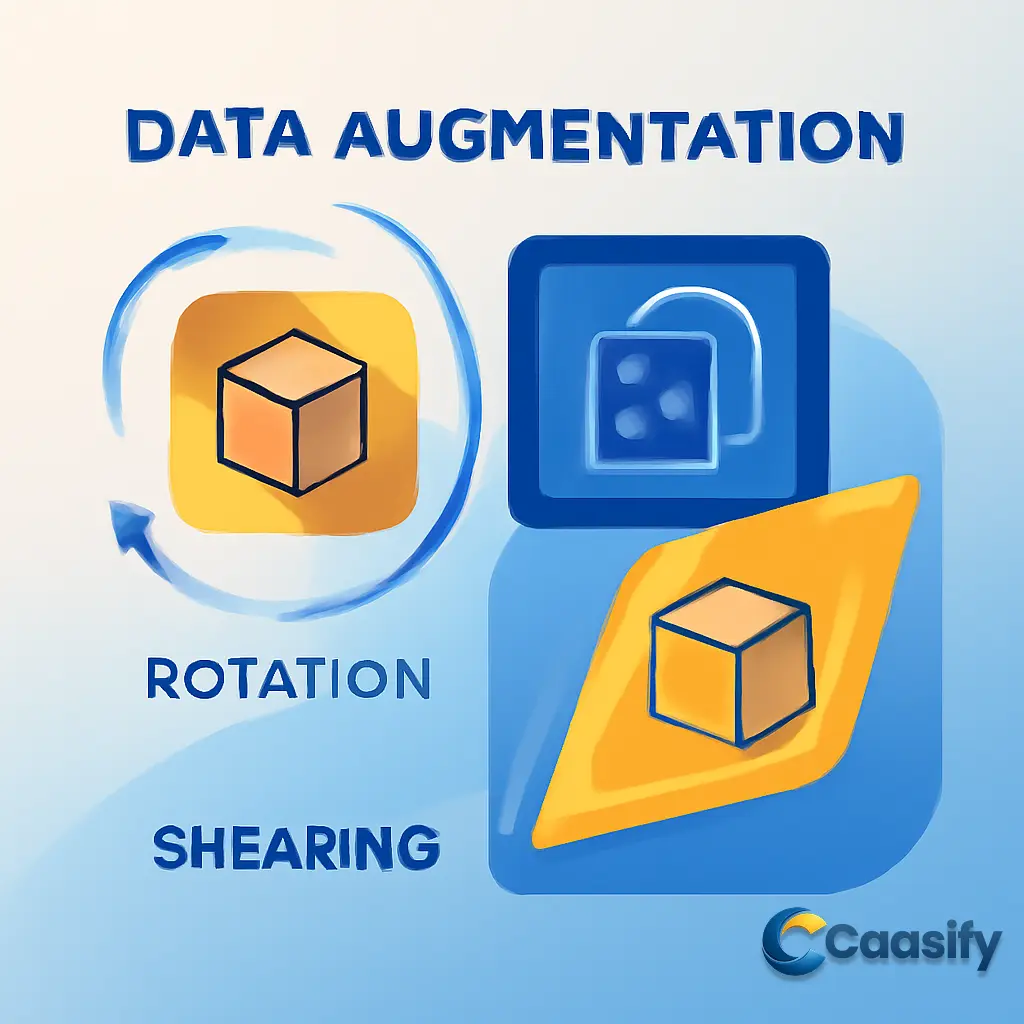
  • Boost Object Detection with Data Augmentation: Master Rotation & Shearing

    Boost Object Detection with Data Augmentation: Master Rotation & Shearing

    Introduction

    To improve object detection accuracy, data augmentation techniques like rotation and shearing play a key role. These transformations help models recognize objects from multiple angles and perspectives, making them more robust in real-world scenarios. Rotation prevents overfitting by allowing the model to handle varying object orientations, while shearing simulates perspective distortions that are commonly seen in images. In this article, we’ll explore how to effectively implement these techniques and adjust bounding boxes to ensure accuracy, ultimately enhancing the performance and reliability of object detection models.

    What is Rotation and Shearing Techniques?

    Rotation and shearing are image transformation techniques used in data augmentation to improve object detection models. These techniques help the model recognize objects from different angles and perspectives, making it more adaptable and accurate in real-world situations. Rotation ensures the model can detect objects in various orientations, while shearing simulates perspective distortions. Both techniques expand the dataset artificially, reducing overfitting and increasing the model’s robustness without requiring additional labeled data.

    Prerequisites

    Before you jump into the exciting world of bounding box augmentation using rotation and shearing, there are a few concepts and tools you’ll want to get familiar with. Think of them as the secret ingredients that will bring your object detection magic to life. Let’s break it down, step by step.

    Basic Understanding of Image Augmentation

    Imagine you have a big pile of images you want to use to train your object detection model. But there’s a catch—you don’t have enough images to cover every possible situation. That’s where image augmentation steps in. It’s like taking what you’ve got and making it better. By applying transformations like rotation, flipping, and scaling, you can expand your dataset, making your model smarter and more adaptable.

    But here’s the thing—you need to understand how each transformation changes your images. For example, when you rotate an image or flip it upside down, how does that affect the objects in the picture? You need to know this to make sure your transformations work smoothly.

    Bounding Boxes

    Now, let’s talk about the star of the show in object detection: bounding boxes. These are the labels that tell the model what objects are in the image. A bounding box is defined by its top-left and bottom-right corners, usually represented as coordinates (x_min, y_min, x_max, y_max). You’ll spot them as rectangular outlines drawn around objects in the images.

    When you apply transformations like rotation or shearing, these boxes change shape and position. So, knowing how to adjust them is super important. If you don’t adjust the boxes correctly, your model might get confused, and that’s definitely something we want to avoid.

    Coordinate Geometry

    When you start twisting and turning images with rotation or skewing them with shearing, you’ll quickly notice that everything in the image shifts around. So how do you figure out where everything ends up after you spin or stretch the picture? That’s where a bit of coordinate geometry comes in.

    It’s about understanding how points (like the corners of your bounding boxes) are positioned in 2D space. When you rotate or shear an image, you’ll need to know how to calculate the new positions of these points so that the bounding boxes line up correctly with the objects. Think of it like a treasure map: knowing where the “X” is helps you find the hidden treasure—and in this case, that “X” is the correctly aligned bounding box.

    Python and NumPy

    Finally, we come to the dynamic duo of programming for this task: Python and NumPy. These two are your best friends when handling image data. Python is a super versatile language, perfect for writing scripts to apply transformations to your images and update the bounding box coordinates. NumPy goes a step further by making numerical operations like matrix multiplications and array manipulations a piece of cake.

    Whether you’re rotating an image or adjusting bounding box dimensions, NumPy makes the math behind it all smooth and efficient. Getting comfortable with these tools will help you apply the augmentations described here without breaking a sweat.

    With these building blocks in place, you’re all set to start applying rotation and shearing augmentations to make your object detection models even stronger. Ready to jump in? Learning OpenCV 3 (2018)

    GitHub Repo

    Imagine you’re deep into your machine learning project, working on making your object detection models even better. You’re testing out data augmentation techniques like rotation and shearing, and you’re eager to see the results. Well, here’s where the magic happens: the GitHub repository.

    Inside this treasure trove, you’ll find everything you need. The repository is filled with the full data augmentation library, including all the rotation and shearing techniques discussed earlier in the article. But that’s not all. It also has other handy functions to help with object detection, making sure your bounding boxes stay perfectly aligned with your transformed images. So, if you’ve been wondering how to keep everything in check as your images twist and turn, this is the place to go.

    You know the deal—image transformations can get a bit messy if you’re not careful. But here’s the good news: the code in this repository has got you covered. It’s all set up and ready to go, and you can use it as-is or adjust it to suit your specific needs. Want to give your rotation technique a little extra twist or experiment with the shearing factor? Go ahead, the code is your playground.

    But wait, that’s not even the best part. The real magic of this repository is how it can help improve your object detection models. Whether you’re training on new datasets or fine-tuning performance, the tools here give you the flexibility to increase the accuracy and robustness of your models.

    And if you’re not sure how to get started, don’t worry. The repository comes with clear, easy-to-follow documentation that shows you exactly what to do. You’ll find step-by-step instructions on how to apply the transformations, and before you know it, you’ll be adding rotation and shearing to your image augmentation toolkit like a pro.

    So, whether you’re looking to experiment or just streamline your workflow, the repository is the perfect place to start. Go ahead, give it a try, and watch how these techniques transform your object detection models.

    Scikit-image GitHub Repository

    Rotation

    Let’s set the scene: You’re working on an object detection project, and now, you need to make your model smart enough to recognize objects from various angles. But how do you teach it to look at objects in different orientations? Well, that’s where rotation comes into play, and trust me, it’s not as simple as just flipping a picture. Rotation in data augmentation is one of the trickier moves because when you twist an image, everything in the picture moves—objects, pixels, and even the bounding boxes that outline the objects. Suddenly, it’s not just about moving the objects, but also about keeping track of their boundaries, making sure everything lines up perfectly. And you’re about to see how it all works.

    Now, picture this: You’ve got an image, and you want to rotate it, say by an angle θ. The trick to rotating any image is something called an affine transformation. Sounds fancy, right? But at its core, it’s just a mathematical process that lets us stretch, scale, and, you guessed it, rotate images while keeping lines parallel. It’s like the image gets a little stretch and twist, but nothing is skewed or distorted—just neatly turned. We do this using something called a transformation matrix, which sounds like a high-tech device from a spy movie, but in reality, it’s just a 2×3 matrix that helps us figure out where to move each point in the image. You take the original coordinates of a point, mix them with this matrix, and out pops a new position for that point after rotation.

    So, imagine you’re rotating an image with OpenCV. The magic happens when you use the cv2.getRotationMatrix2D function. Here’s how you break it down in code:

    def __init__(self, angle = 10):
    self.angle = angle
    if type(self.angle) == tuple:
    assert len(self.angle) == 2, “Invalid range”
    else:
    self.angle = (-self.angle, self.angle)

    In this snippet, you define the rotation angle. The cool part is you can set a single value or even a range, so the rotation can vary each time. It’s like giving your model a bit of unpredictability, which is exactly what you want for robust object detection.

    After that, we use OpenCV to get the rotation matrix. The matrix knows how to rotate the image around its center. It’s like you’re spinning the image on a spinning wheel right in the center of the picture.

    (h, w) = image.shape[:2]
    (cX, cY) = (w // 2, h // 2)
    M = cv2.getRotationMatrix2D((cX, cY), angle, 1.0)

    Once the matrix is ready, we apply the transformation with another OpenCV function, cv2.warpAffine, which takes the image and the matrix and applies the transformation.

    image = cv2.warpAffine(image, M, (w, h))

    Now here’s the catch—when you rotate an image, it doesn’t just stay neatly in its original box. The corners can stretch out, and OpenCV will cut off the parts that go outside the original bounds. So, your nice, clean image might end up looking like it lost a chunk of its edges. That’s a problem, and we need to fix it.

    We want to make sure the whole rotated image fits within its new box. To do this, we calculate the new width and height after rotation, making sure the entire image stays intact. Here’s where trigonometry comes in handy. We use the cosine and sine of the angle to figure out how big the new box should be:

    cos = np.abs(M[0, 0])
    sin = np.abs(M[0, 1])
    nW = int((h * sin) + (w * cos))
    nH = int((h * cos) + (w * sin))

    So now, we’ve figured out the new size of the image, but what about the position? We can’t let our image just float around in the new box. We need it to stay centered, which means we have to adjust the image’s position within the new bounds. We shift it back to the center by adjusting the transformation matrix:

    M[0, 2] += (nW / 2) – cX
    M[1, 2] += (nH / 2) – cY

    Finally, we wrap this up into a neat function called rotate_im. This function takes the image and the rotation angle, applies the rotation, and returns the rotated image without any unwanted cropping or misalignment.

    def rotate_im(image, angle):
    “””Rotate the image.
    Rotate the image such that the rotated image is enclosed inside the tightest rectangle.
    The area not occupied by the pixels of the original image is colored black.

    Parameters
    ———-
    image : numpy.ndarray
    numpy image
    angle : float
    angle by which the image is to be rotated

    Returns
    ——-
    numpy.ndarray
    Rotated Image
    “””
    (h, w) = image.shape[:2]
    (cX, cY) = (w // 2, h // 2)
    M = cv2.getRotationMatrix2D((cX, cY), angle, 1.0)
    cos = np.abs(M[0, 0])
    sin = np.abs(M[0, 1])
    nW = int((h * sin) + (w * cos))
    nH = int((h * cos) + (w * sin))
    M[0, 2] += (nW / 2) – cX
    M[1, 2] += (nH / 2) – cY
    image = cv2.warpAffine(image, M, (nW, nH))
    return image

    And there you go! With this function, you can rotate any image without worrying about losing important parts or misaligning objects. Your object detection model will now be able to recognize objects in all sorts of orientations—thanks to rotation and a little bit of math!

    Scikit-Image Documentation on Image Transformation

    Rotating the Image

    Imagine you’re working on an object detection project, and you want your model to be able to recognize an object no matter which angle it’s seen from. Sounds simple enough, right? But here’s the thing: rotating an image isn’t as easy as just spinning it around. It’s a whole dance between math, pixels, and bounding boxes. Let me walk you through the magic of rotation, one of the trickiest tricks in data augmentation.

    The first thing you need to do is rotate your image by an angle θ, around its center. To make this happen, we use something called a transformation matrix. Now, don’t get too scared; a transformation matrix is just a fancy way of calculating how every point in your image moves after a rotation. It’s like having a set of instructions for how to shift each pixel when the image gets twisted.

    We kick off the rotation process using OpenCV’s cv2.getRotationMatrix2D. Here’s how the math looks in code:

    (h, w) = image.shape[:2]
    (cX, cY) = (w // 2, h // 2)
    M = cv2.getRotationMatrix2D((cX, cY), angle, 1.0)

    In this snippet, h and w are the height and width of the image. (cX, cY) represents the center of the image, and the angle you want to rotate it by. This rotation matrix (M) is the secret sauce that helps us move every point in the image around its center.

    Next up, we apply the rotation with the help of cv2.warpAffine, a function that applies the rotation matrix to the image. But here’s where it gets tricky. When you rotate an image, it’s not like just spinning a square on your desk; the edges of the image might end up hanging outside the original frame. We might end up cutting off parts of the image!

    image = cv2.warpAffine(image, M, (w, h))

    The original width and height (w, h) are the dimensions we want the rotated image to fit into, but if the image rotates too far, parts of it could be cut off. Now, we don’t want to lose any valuable data, right? That’s where the real challenge comes in: we need to figure out how to make the new image big enough to fit the rotated version without losing any pieces.

    To handle this, we tweak the dimensions of the image. How do we do that? You guessed it, a little trigonometry! By using the cosine and sine of the angle we rotate by, we can calculate the new size of the image, ensuring that everything fits. Here’s how it looks in code:

    cos = np.abs(M[0, 0])
    sin = np.abs(M[0, 1])
    nW = int((h * sin) + (w * cos))
    nH = int((h * cos) + (w * sin))

    In these lines, nW and nH represent the new width and height of the image. This is the magic formula that guarantees your rotated image will fit into its new frame without getting cut off. It’s like resizing your canvas to fit a rotated painting.

    But even after we’ve figured out the new dimensions, we have one last detail to sort out: centering. If we simply rotate the image, the whole thing might shift off-center. But we want the image to stay perfectly aligned, right? So, we adjust the transformation matrix to make sure the center of the image stays in the exact same spot, no matter how much the dimensions change:

    M[0, 2] += (nW / 2) – cX
    M[1, 2] += (nH / 2) – cY

    By doing this, we shift the image so its new center aligns with the original center. This small step makes sure everything stays in place after the rotation.

    Finally, we wrap all of this up into one neat little function called rotate_im. This function takes the image and the angle as inputs, applies the rotation, and returns the perfectly rotated image:

    def rotate_im(image, angle):
            “””Rotate the image.
            Rotate the image such that the rotated image is enclosed inside the tightest rectangle.
            The area not occupied by the pixels of the original image is colored black.
            Parameters    ———-
            image : numpy.ndarray numpy image
            angle : float angle by which the image is to be rotated
            Returns          ——-
            numpy.ndarray Rotated Image  “””
            (h, w) = image.shape[:2]
            (cX, cY) = (w // 2, h // 2)
            M = cv2.getRotationMatrix2D((cX, cY), angle, 1.0)
            cos = np.abs(M[0, 0])
            sin = np.abs(M[0, 1])
            nW = int((h * sin) + (w * cos))
            nH = int((h * cos) + (w * sin))
            M[0, 2] += (nW / 2) – cX
            M[1, 2] += (nH / 2) – cY
            image = cv2.warpAffine(image, M, (nW, nH))
            return image

    With this function, you can now rotate any image by the angle you choose, ensuring that the image stays centered and no data gets cropped out. Whether you’re working with object detection or just need to rotate images for some other task, this approach ensures that your images stay intact and perfectly aligned. Rotate away, and let your model recognize objects from all angles!

    Online Learning for Image Recognition

    OpenCV Rotation Side-Effect

    You know, when you rotate an image, there’s one annoying issue that tends to pop up: parts of the image can get cropped. This happens because, as the image rotates, it might extend beyond its original boundaries. It’s like spinning a square on a table—parts of it will start hanging off the edges, right? So, how do we fix that? How can we make sure we don’t lose any part of the image while rotating it?

    Well, here’s the good news: OpenCV has got our backs! It provides a simple solution with a built-in argument that lets us adjust the size of the final image. Instead of sticking to the original dimensions, we can resize the image to fit the entire rotated version, ensuring no precious pixels get cropped off.

    This idea comes from Adrian Rosebrock’s work on PyImageSearch, where he goes into detail about the calculations needed for this. The main problem we’re dealing with here is figuring out the new image dimensions after rotation. And you guessed it—the answer lies in a bit of trigonometry. We can use the properties of rotation to calculate the new width and height that will fully fit the rotated image.

    Let’s break it down, shall we? Picture this: you have a rectangle that you want to rotate by an angle θ. As the image turns, its original shape gets stretched. The challenge here is that the outermost corners of the rectangle will need more space than before. So, we need a bounding box (that outer white rectangle in the diagram) that’s bigger than the original image to completely enclose the rotated version.

    Here’s how we calculate the new dimensions:

    First, take the cosine and sine of the rotation angle. Then, use these trigonometric values to adjust both the width and height of the image.

    cos = np.abs(M[0, 0])
    sin = np.abs(M[0, 1])

    # Compute the new bounding dimensions of the image
    nW = int((h * sin) + (w * cos))
    nH = int((h * cos) + (w * sin))

    What’s happening here is that cos and sin represent the horizontal and vertical effects of the rotation on the original image. By multiplying these with the original dimensions (w and h for width and height), we calculate the new width (nW) and height (nH) that will fully contain the rotated image.

    These new dimensions ensure that after rotation, the image will fit perfectly within its new frame, and nothing will be cropped. We’re basically expanding the image’s size just enough to make sure all the corners stay in place.

    So, with this trigonometric magic, we make sure that the rotated object fits inside the image’s new boundary without losing any important details. This method is especially important in object detection tasks, where accuracy is key. When you’re working with bounding boxes that need to adjust to the rotation, you want to make sure that nothing gets missed. And this is the trick to making it work!

    PyImageSearch OpenCV Image Rotation Guide

    Rotating the Bounding Box

    When it comes to image augmentation, rotating the bounding box is often one of the toughest challenges. Unlike simply rotating the whole image, where everything spins evenly, rotating a bounding box is more like trying to fit a tilted rectangle into a straight-edged box. This means not only do you have to rotate the box, but also adjust the position and shape of the object within the image. It’s like trying to fit a square peg into a round hole, but with a bit more math involved.

    Let’s walk through how we can tackle this tricky task step by step.

    Rotating the Bounding Box

    Imagine this: you’re rotating an image. When you rotate the image, the bounding box around an object, which is normally defined by its top-left and bottom-right corners, rotates too. This results in a tilted bounding box. But we need more than just the rotated box. We need to find the smallest rectangle that can fully enclose this tilted box while still staying aligned with the sides of the original image.

    To make it clearer, let’s break it down with a visual. Think about the first box, which is neatly aligned, and then you rotate it. The goal now is to capture all four corners of the rotated box to calculate its new dimensions. You could technically calculate the final bounding box using just two corners, but that involves some tricky trigonometric math. It’s much easier—and cleaner—to work with all four corners of the box. This gives us a much simpler way to compute the final size of the bounding box.

    Getting the Four Corners of the Bounding Box

    The next step is to grab the coordinates of all four corners of the bounding box. To do this, we write a handy function called get_corners. This function takes in the original bounding boxes and gives us the coordinates of all the corners. Here’s how it works:

    def get_corners(bboxes):
    “””Get corners of bounding boxes. Parameters
    ———-
    bboxes: numpy.ndarray
    Numpy array containing bounding boxes of shape `N X 4`, where N is the number of bounding boxes and the bounding boxes are represented by the format `x1 y1 x2 y2`. Returns
    ——-
    numpy.ndarray
    Numpy array of shape `N x 8` containing N bounding boxes, each described by their corner coordinates `x1 y1 x2 y2 x3 y3 x4 y4`.
    “””
    width = (bboxes[:, 2] – bboxes[:, 0]).reshape(-1, 1)
    height = (bboxes[:, 3] – bboxes[:, 1]).reshape(-1, 1)
    x1 = bboxes[:, 0].reshape(-1, 1)
    y1 = bboxes[:, 1].reshape(-1, 1)
    x2 = x1 + width
    y2 = y1
    x3 = x1
    y3 = y1 + height
    x4 = bboxes[:, 2].reshape(-1, 1)
    y4 = bboxes[:, 3].reshape(-1, 1)
    corners = np.hstack((x1, y1, x2, y2, x3, y3, x4, y4))
    return corners

    After running this function, each bounding box will be described by eight coordinates: x1, y1, x2, y2, x3, y3, x4, y4. These are the four corners of the bounding box before rotation, and they’ll be super useful when we start rotating them.

    Rotating the Bounding Box Using the Transformation Matrix

    Now, it’s time to rotate the bounding box. To do this, we’ll use a transformation matrix—a key tool in geometry and image manipulation. We define another function, rotate_box, which rotates the corners of the bounding box by a specified angle. Here’s how it looks in action:

    def rotate_box(corners, angle, cx, cy, h, w):
    “””Rotate the bounding box. Parameters
    ———-
    corners: numpy.ndarray
    Numpy array of shape `N x 8` containing N bounding boxes, each described by their corner coordinates `x1 y1 x2 y2 x3 y3 x4 y4`.
    angle: float
    Angle by which the image is to be rotated.
    cx: int
    X-coordinate of the center of the image (about which the box will be rotated).
    cy: int
    Y-coordinate of the center of the image (about which the box will be rotated).
    h: int
    Height of the image.
    w: int
    Width of the image. Returns
    ——-
    numpy.ndarray
    Numpy array of shape `N x 8` containing N rotated bounding boxes each described by their corner coordinates `x1 y1 x2 y2 x3 y3 x4 y4`.
    “””
    corners = corners.reshape(-1, 2)
    corners = np.hstack((corners, np.ones((corners.shape[0], 1), dtype=type(corners[0][0]))))
    M = cv2.getRotationMatrix2D((cx, cy), angle, 1.0)
    cos = np.abs(M[0, 0])
    sin = np.abs(M[0, 1])
    nW = int((h * sin) + (w * cos))
    nH = int((h * cos) + (w * sin))
    M[0, 2] += (nW / 2) – cx
    M[1, 2] += (nH / 2) – cy
    calculated = np.dot(M, corners.T).T
    calculated = calculated.reshape(-1, 8)
    return calculated

    Here, the rotate_box function does the heavy lifting. It applies the rotation matrix to the corners of the bounding box and ensures that the rotated box stays centered by adjusting the translation accordingly.

    Calculating the Tightest Bounding Box

    Now, let’s talk about the final step—calculating the tightest bounding box that can fully enclose the rotated bounding box. We use a function called get_enclosing_box for this task. This function looks at the rotated corner coordinates and computes the smallest rectangle that can fully contain them.

    Here’s the code for that:

    def get_enclosing_box(corners):
    “””Get an enclosing box for rotated corners of a bounding box. Parameters
    ———-
    corners: numpy.ndarray
    Numpy array of shape `N x 8` containing N bounding boxes, each described by their corner coordinates `x1 y1 x2 y2 x3 y3 x4 y4`. Returns
    ——-
    numpy.ndarray
    Numpy array containing enclosing bounding boxes of shape `N x 4`, where N is the number of bounding boxes and the bounding boxes are represented in the format `x1 y1 x2 y2`.
    “””
    x_ = corners[:, [0, 2, 4, 6]]
    y_ = corners[:, [1, 3, 5, 7]]
    xmin = np.min(x_, 1).reshape(-1, 1)
    ymin = np.min(y_, 1).reshape(-1, 1)
    xmax = np.max(x_, 1).reshape(-1, 1)
    ymax = np.max(y_, 1).reshape(-1, 1)
    final = np.hstack((xmin, ymin, xmax, ymax, corners[:, 8:]))
    return final

    This function is crucial because it helps us determine the minimum and maximum values for the x and y coordinates of the rotated bounding box, which we then use to define the smallest enclosing rectangle.

    Putting It All Together

    Finally, we need a function that brings everything together—the __call__ function. This function takes the image and bounding boxes, applies the rotation, and returns the transformed image and bounding boxes.

    def __call__(self, img, bboxes):
    angle = random.uniform(*self.angle)
    w, h = img.shape[1], img.shape[0]
    cx, cy = w // 2, h // 2
    img = rotate_im(img, angle)
    corners = get_corners(bboxes)
    corners = np.hstack((corners, bboxes[:, 4:]))
    corners[:, :8] = rotate_box(corners[:, :8], angle, cx, cy, h, w)
    new_bbox = get_enclosing_box(corners)
    scale_factor_x = img.shape[1] / w
    scale_factor_y = img.shape[0] / h
    img = cv2.resize(img, (w, h))
    new_bbox[:, :4] /= [scale_factor_x, scale_factor_y, scale_factor_x, scale_factor_y]
    bboxes = new_bbox
    bboxes = clip_box(bboxes, [0, 0, w, h], 0.25)
    return img, bboxes

    Rotation-based Image Augmentation Techniques

    Rotating the Bounding Box

    When it comes to image augmentation, rotating the bounding box is often one of the toughest challenges. Unlike simply rotating the whole image, where everything spins evenly, rotating a bounding box is more like trying to fit a tilted rectangle into a straight-edged box. This means not only do you have to rotate the box, but also adjust the position and shape of the object within the image. It’s like trying to fit a square peg into a round hole, but with a bit more math involved. Let’s walk through how we can tackle this tricky task step by step.

    Rotating the Bounding Box

    Imagine this: you’re rotating an image. When you rotate the image, the bounding box around an object, which is normally defined by its top-left and bottom-right corners, rotates too. This results in a tilted bounding box. But we need more than just the rotated box. We need to find the smallest rectangle that can fully enclose this tilted box while still staying aligned with the sides of the original image. To make it clearer, let’s break it down with a visual. Think about the first box, which is neatly aligned, and then you rotate it. The goal now is to capture all four corners of the rotated box to calculate its new dimensions. You could technically calculate the final bounding box using just two corners, but that involves some tricky trigonometric math. It’s much easier—and cleaner—to work with all four corners of the box. This gives us a much simpler way to compute the final size of the bounding box.

    Getting the Four Corners of the Bounding Box

    The next step is to grab the coordinates of all four corners of the bounding box. To do this, we write a handy function called get_corners. This function takes in the original bounding boxes and gives us the coordinates of all the corners. Here’s how it works:

    def get_corners(bboxes):
    “””Get corners of bounding boxes.
    Parameters
    ———-
    bboxes: numpy.ndarray
    Numpy array containing bounding boxes of shape `N X 4`, where N is the
    number of bounding boxes and the bounding boxes are represented by the
    format `x1 y1 x2 y2`.
    Returns
    ——-
    numpy.ndarray
    Numpy array of shape `N x 8` containing N bounding boxes, each described by
    their corner coordinates `x1 y1 x2 y2 x3 y3 x4 y4`.
    “””
    width = (bboxes[:, 2] – bboxes[:, 0]).reshape(-1, 1)
    height = (bboxes[:, 3] – bboxes[:, 1]).reshape(-1, 1)
    x1 = bboxes[:, 0].reshape(-1, 1)
    y1 = bboxes[:, 1].reshape(-1, 1)
    x2 = x1 + width
    y2 = y1
    x3 = x1
    y3 = y1 + height
    x4 = bboxes[:, 2].reshape(-1, 1)
    y4 = bboxes[:, 3].reshape(-1, 1)

    corners = np.hstack((x1, y1, x2, y2, x3, y3, x4, y4))
    return corners

    After running this function, each bounding box will be described by eight coordinates: x1, y1, x2, y2, x3, y3, x4, y4. These are the four corners of the bounding box before rotation, and they’ll be super useful when we start rotating them.

    Rotating the Bounding Box Using the Transformation Matrix

    Now, it’s time to rotate the bounding box. To do this, we’ll use a transformation matrix—a key tool in geometry and image manipulation. We define another function, rotate_box, which rotates the corners of the bounding box by a specified angle. Here’s how it looks in action:

    def rotate_box(corners, angle, cx, cy, h, w):
    “””Rotate the bounding box.
    Parameters
    ———-
    corners: numpy.ndarray
    Numpy array of shape `N x 8` containing N bounding boxes, each described by
    their corner coordinates `x1 y1 x2 y2 x3 y3 x4 y4`.
    angle: float
    Angle by which the image is to be rotated.
    cx: int
    X-coordinate of the center of the image (about which the box will be rotated).
    cy: int
    Y-coordinate of the center of the image (about which the box will be rotated).
    h: int
    Height of the image.
    w: int
    Width of the image.
    Returns
    ——-
    numpy.ndarray
    Numpy array of shape `N x 8` containing N rotated bounding boxes each described by
    their corner coordinates `x1 y1 x2 y2 x3 y3 x4 y4`.
    “””
    corners = corners.reshape(-1, 2)
    corners = np.hstack((corners, np.ones((corners.shape[0], 1), dtype=type(corners[0][0]))))

    M = cv2.getRotationMatrix2D((cx, cy), angle, 1.0)
    cos = np.abs(M[0, 0])
    sin = np.abs(M[0, 1])

    nW = int((h * sin) + (w * cos))
    nH = int((h * cos) + (w * sin))

    M[0, 2] += (nW / 2) – cx
    M[1, 2] += (nH / 2) – cy

    calculated = np.dot(M, corners.T).T
    calculated = calculated.reshape(-1, 8)
    return calculated

    Here, the rotate_box function does the heavy lifting. It applies the rotation matrix to the corners of the bounding box and ensures that the rotated box stays centered by adjusting the translation accordingly.

    Calculating the Tightest Bounding Box

    Now, let’s talk about the final step—calculating the tightest bounding box that can fully enclose the rotated bounding box. We use a function called get_enclosing_box for this task. This function looks at the rotated corner coordinates and computes the smallest rectangle that can fully contain them. Here’s the code for that:

    def get_enclosing_box(corners):
    “””Get an enclosing box for rotated corners of a bounding box.
    Parameters
    ———-
    corners: numpy.ndarray
    Numpy array of shape `N x 8` containing N bounding boxes, each described by
    their corner coordinates `x1 y1 x2 y2 x3 y3 x4 y4`.
    Returns
    ——-
    numpy.ndarray
    Numpy array containing enclosing bounding boxes of shape `N x 4`, where N is the
    number of bounding boxes and the bounding boxes are represented in the format `x1 y1 x2 y2`.
    “””
    x_ = corners[:, [0, 2, 4, 6]]
    y_ = corners[:, [1, 3, 5, 7]]

    xmin = np.min(x_, 1).reshape(-1, 1)
    ymin = np.min(y_, 1).reshape(-1, 1)
    xmax = np.max(x_, 1).reshape(-1, 1)
    ymax = np.max(y_, 1).reshape(-1, 1)

    final = np.hstack((xmin, ymin, xmax, ymax, corners[:, 8:]))
    return final

    This function is crucial because it helps us determine the minimum and maximum values for the x and y coordinates of the rotated bounding box, which we then use to define the smallest enclosing rectangle.

    Putting It All Together

    Finally, we need a function that brings everything together—the call function. This function takes the image and bounding boxes, applies the rotation, and returns the transformed image and bounding boxes.

    def __call__(self, img, bboxes):
    angle = random.uniform(*self.angle)
    w, h = img.shape[1], img.shape[0]
    cx, cy = w // 2, h // 2
    img = rotate_im(img, angle)

    corners = get_corners(bboxes)
    corners = np.hstack((corners, bboxes[:, 4:]))

    corners[:, :8] = rotate_box(corners[:, :8], angle, cx, cy, h, w)
    new_bbox = get_enclosing_box(corners)

    scale_factor_x = img.shape[1] / w
    scale_factor_y = img.shape[0] / h
    img = cv2.resize(img, (w, h))
    new_bbox[:, :4] /= [scale_factor_x, scale_factor_y, scale_factor_x, scale_factor_y]
    bboxes = new_bbox
    bboxes = clip_box(bboxes, [0, 0, w, h], 0.25)
    return img, bboxes

    This function performs the entire rotation process: rotating the image, adjusting the bounding boxes, recalculating their positions, and ensuring that the image is scaled properly. It even makes sure the bounding boxes stay in the correct position after the rotation, maintaining their alignment with the objects in the image. And there you have it—rotation of bounding boxes handled seamlessly!

    Bounding Box Rotation for Image Augmentation (2022)

    Shearing

    Imagine you’re looking at an image, and you want to skew it, but not in the usual way. Instead of just stretching or squeezing it, you decide to make it look like it’s leaning to one side. That’s shearing. It’s one of those cool tricks in image augmentation that makes your object detection models much stronger. The goal? To help your model recognize objects, even when they’re viewed from weird angles, which happens all the time in the real world.

    The Shear Transformation

    Let’s break it down: when you shear an image, you’re shifting its pixels horizontally. It’s like taking a picture and pushing it sideways. For every pixel at a point (x, y), we change its x-coordinate by adding some value of alpha * y. That “alpha” is our shearing factor. The bigger the value of alpha, the more the image will tilt. So, imagine if alpha were 0.1 – the image would barely lean. But if alpha were 1.5, it would look like the whole scene is tipping over.

    This horizontal transformation doesn’t mess with the vertical direction. The height of the image stays the same, but the shape of the objects inside it gets skewed. And this kind of change? It’s a game-changer for object detection models. It teaches the model to handle and recognize objects, even when they appear tilted or slanted.

    Now, let’s see how we can perform this transformation using a class called RandomShear:

    class RandomShear(object):
    “””Randomly shears an image in the horizontal direction.
    Bounding boxes with an area of less than 25% in the transformed image are dropped.
    The resolution of the image is maintained, and any remaining empty areas are filled
    with black color.
    Parameters
    ———-
    shear_factor: float or tuple(float)
    If a float, the image is sheared horizontally by a factor drawn randomly from a
    range (-`shear_factor`, `shear_factor`). If a tuple, the `shear_factor` is drawn
    randomly from values specified in the tuple.
    Returns
    ——-
    numpy.ndarray
    Sheared image in the numpy format of shape `HxWxC`.
    numpy.ndarray
    Transformed bounding box coordinates in the format `n x 4`, where `n` is the
    number of bounding boxes, and 4 represents `x1, y1, x2, y2` of the bounding box.
    “””
    def __init__(self, shear_factor=0.2):
    self.shear_factor = shear_factor
    if type(self.shear_factor) == tuple:
    assert len(self.shear_factor) == 2, “Invalid range for shear factor”
    else:
    self.shear_factor = (-self.shear_factor, self.shear_factor) shear_factor = random.uniform(*self.shear_factor)

    In this class, we set the shear_factor—that’s the value that controls how much the image skews. It can either be a fixed value, or we can let it pick a random number within a range. This randomness helps make the model even stronger because it learns to handle different distortions.

    Augmentation Logic

    So how exactly do we apply the shear to the image? Well, the logic is pretty straightforward. We tweak the x-coordinates of the bounding box corners, using that formula: x = x + alpha * y. The image itself will lean, and the bounding boxes need to keep up, adjusting their x-coordinates to stay aligned with the new positions of the objects.

    Here’s how the magic happens:

    def __call__(self, img, bboxes):
    shear_factor = random.uniform(*self.shear_factor)
    w, h = img.shape[1], img.shape[0]
    if shear_factor < 0:
    img, bboxes = HorizontalFlip()(img, bboxes)
    M = np.array([[1, abs(shear_factor), 0], [0, 1, 0]])
    nW = img.shape[1] + abs(shear_factor * img.shape[0])
    bboxes[:, [0, 2]] += ((bboxes[:, [1, 3]]) * abs(shear_factor)).astype(int)
    img = cv2.warpAffine(img, M, (int(nW), img.shape[0]))
    if shear_factor < 0:
    img, bboxes = HorizontalFlip()(img, bboxes)
    img = cv2.resize(img, (w, h))
    scale_factor_x = nW / w
    bboxes[:, :4] /= [scale_factor_x, 1, scale_factor_x, 1]
    return img, bboxes

    Here’s what’s happening:

    • Random Shear Factor: The shear_factor is randomly chosen within a range (we can control that range).
    • Horizontal Flip (if needed): If the shear factor is negative, we flip the image horizontally before shearing. This ensures the bounding boxes don’t shrink incorrectly.
    • Transformation Matrix (M): This matrix applies the horizontal shear. It changes the x-coordinates based on the y-values, and we use OpenCV’s cv2.warpAffine function to apply this to the image.
    • Bounding Box Adjustment: The bounding box coordinates are modified based on the shear factor, so the bounding boxes stay aligned with their objects.
    • Rescaling: After shearing the image, we resize it back to its original dimensions. This keeps the image’s resolution intact.

    Handling Negative Shear

    Now, here’s a little twist—negative shearing. When we shear negatively, the bottom-right corner of the bounding box (usually referred to as x2) might move in the opposite direction. This can mess with the bounding box, causing it to shrink or become misaligned.

    So, what do we do about it? We use a neat trick: flip the image and bounding boxes first, apply the positive shear, and then flip them back. This lets us apply the shear as if it were positive and keeps the bounding boxes in check.

    Here’s the fix:

    if shear_factor < 0:
    img, bboxes = HorizontalFlip()(img, bboxes)
    # Apply the positive shear transformation
    M = np.array([[1, abs(shear_factor), 0], [0, 1, 0]])
    nW = img.shape[1] + abs(shear_factor * img.shape[0])
    bboxes[:, [0, 2]] += ((bboxes[:, [1, 3]]) * abs(shear_factor)).astype(int)
    img = cv2.warpAffine(img, M, (int(nW), img.shape[0]))
    # Flip back the image and bounding boxes after the shear
    if shear_factor < 0:
    img, bboxes = HorizontalFlip()(img, bboxes)
    # Resize image to original dimensions
    img = cv2.resize(img, (w, h))

    Testing the Shear Augmentation

    Now that everything’s set up, it’s time to test it. You can combine the shear with rotation, which is a great way to push your object detection models to handle more variations. Here’s how you test it:

    from data_aug.bbox_utils import *
    import matplotlib.pyplot as plt
    rotate = RandomRotate(20)
    shear = RandomShear(0.7)
    img, bboxes = rotate(img, bboxes)
    img, bboxes = shear(img, bboxes)
    plt.imshow(draw_rect(img, bboxes))

    In this test:

    • The RandomRotate class rotates the image and bounding boxes.
    • The RandomShear class applies the horizontal shear to the rotated image and bounding boxes.
    • Finally, draw_rect shows the transformed image with bounding boxes to confirm everything’s still aligned.

    Wrapping It Up

    So, that’s shearing in a nutshell! By applying both positive and negative shearing transformations, you’re teaching your object detection models to handle various perspectives and distortions. And by adjusting the bounding boxes to fit the new shape, you ensure that everything stays in sync. With this powerful augmentation technique, your models will be better equipped to recognize objects no matter how they’re tilted or skewed! ImageNet Large-Scale Visual Recognition Challenge (2017)

    Testing it out

    Alright, we’ve just finished implementing both the rotation and shearing augmentations. Now comes the fun part—testing them out! This is where we get to see the magic happen and make sure everything works just like we want. We need to check if the transformations are applied properly to both the image and its bounding boxes, keeping everything lined up and intact. Let’s dive into how we do that.

    Picture this: we’ve got an image, and on that image, there are bounding boxes outlining different objects. Now, we want to see how these bounding boxes react when we rotate the image or shear it. You can think of it like taking a photo, rotating it at a random angle, and then giving it a little tilt to one side. But the real challenge is making sure the bounding boxes still match up with the objects, even after all that twisting and turning.

    Here’s a simple setup to test it:

    from data_aug.bbox_utils import *
    import matplotlib.pyplot as plt
    rotate = RandomRotate(20)   # Initialize the rotation augmentation with a 20-degree range.
    shear = RandomShear(0.7)   # Initialize the shearing augmentation with a shear factor of 0.7.

    # Apply rotation and shear augmentations to the image and bounding boxes.
    img, bboxes = rotate(img, bboxes)
    img, bboxes = shear(img, bboxes)

    # Visualize the result by drawing the bounding boxes on the image.
    plt.imshow(draw_rect(img, bboxes))

    Let’s break it down:

    Rotation Augmentation: The RandomRotate class is set up with a 20-degree range. This means the image—and everything in it—gets rotated by a random angle between -20 and +20 degrees. It’s like taking that photo, spinning it a bit, and checking how the objects still fit within their boxes.

    Shearing Augmentation: Next, we’ve got the RandomShear class with a shear factor of 0.7. This factor controls how much the image gets skewed horizontally. The larger the factor, the more dramatic the tilt! Shearing changes the image’s shape but keeps its size intact. It’s like pulling one side of the photo to the left and watching everything stretch.

    Bounding Box Adjustment: Now, the real magic happens. After we apply the transformations, we use the draw_rect function to visualize the bounding boxes on top of the transformed image. This makes sure that, even after rotating and shearing, the bounding boxes still fit snugly around the objects. It’s like making sure the frame around your picture doesn’t get distorted when you rotate or stretch it.

    Visualization: Finally, the command plt.imshow(draw_rect(img, bboxes)) takes care of displaying the final image with the bounding boxes. It’s like pulling up the curtain to reveal your masterpiece. This lets us see if everything’s still aligned and properly adjusted.

    And here comes the twist—Resizing:

    Once the rotation and shearing are done, there’s one more step to handle: resizing. While rotation and shearing are more about transforming the image, resizing is a little different—it’s like prepping the image to fit the model’s requirements. It adjusts the image’s dimensions to make sure it matches what the model expects for training or inference.

    Even though resizing isn’t strictly a data augmentation technique, it’s crucial for standardizing the size of the images before they’re passed to the model. Think of it like making sure all the puzzle pieces are the same size before you try to fit them together.

    With rotation, shearing, and resizing, we now have a solid set of image augmentations. These transformations don’t just tweak the images, making them more varied, but also help your object detection models become more robust. By introducing these different distortions, your model learns to recognize objects from various angles, distortions, and scales—just like how you might encounter them in the real world.

    Data Augmentation for Object Detection

    Conclusion

    In conclusion, data augmentation techniques like rotation and shearing are essential tools for improving object detection models. By introducing variations in object orientation and perspective, these transformations help models become more robust and reliable in real-world scenarios. Rotation prevents overfitting by ensuring the model can recognize objects from different angles, while shearing simulates perspective changes commonly found in images. When applied correctly, these augmentations significantly enhance model performance and accuracy. Looking ahead, as the demand for more adaptable and accurate object detection models grows, incorporating these techniques will continue to be a crucial part of optimizing machine learning workflows.With rotation and shearing in your data augmentation toolkit, your models will be better equipped to handle a wide range of challenges and provide more reliable predictions.

    Boost Object Detection with Data Augmentation: Rotation & Shearing Techniques

  • Boost Object Detection with Data Augmentation: Rotation & Shearing Techniques

    Boost Object Detection with Data Augmentation: Rotation & Shearing Techniques

    Introduction

    “Data augmentation is a powerful technique that boosts the performance of object detection models, especially through rotation and shearing. These transformations allow models to recognize objects from various angles, helping to reduce overfitting and making them more adaptable to real-world scenarios. In this article, we dive into how rotation and shearing work to improve object detection, and explore the crucial task of adjusting bounding boxes to maintain accuracy while avoiding excessive distortion. By mastering these data augmentation techniques, your object detection models will be better equipped to handle diverse and dynamic environments.”

    What is Data Augmentation with Rotation and Shearing?

    Data augmentation techniques like rotation and shearing help improve object detection models by artificially expanding the dataset. Rotation allows the model to recognize objects from different angles, while shearing simulates perspective distortions, making the model more adaptable to real-world scenarios. These techniques enhance model accuracy, reduce overfitting, and improve performance by ensuring the model can handle various object orientations and perspectives.

    Prerequisites

    Alright, before we dive into the world of bounding box augmentation with rotation and shearing, let’s take a quick moment to get comfortable with a few key concepts that will make everything a lot easier to understand. Trust me, once you get the hang of these, the whole process will be a lot smoother. Here’s the rundown on what you need to know:

    • Basic Understanding of Image Augmentation: Now, you don’t need to be a wizard to get this, but knowing a bit about image transformations like rotation, flipping, and scaling is pretty important. Imagine you’re training a model to recognize objects in pictures. If you keep showing it the same angle of the object over and over, it’s not going to learn much. So, we mix it up with techniques like rotation and flipping. This way, the model starts recognizing objects from all kinds of angles. Cool, right? Basically, image augmentation is like giving the model a variety pack of images to learn from, which helps it generalize better and work well in the real world.
    • Bounding Boxes: This one is a big deal. Bounding boxes are the unsung heroes of object detection. They’re just rectangles that wrap around the objects in an image, defined by four coordinates: x_min, y_min, x_max, and y_max. These coordinates tell us where an object is and how big it is. So, when we mess with an image—like rotating or shearing it—we need to make sure the bounding boxes are updated too. After all, we don’t want the model looking in the wrong spot when it tries to detect the object, right?
    • Coordinate Geometry: Okay, I know this might sound a little fancy, but stick with me. When we apply transformations like rotation or shearing, the positions of our bounding boxes change too. Think of it like moving a piece of paper around—when you rotate it, the corners (or the bounding box) move. Understanding coordinate geometry—basically, how coordinates work in space—will help you keep track of where the bounding boxes end up. It’ll let you calculate the new positions after you rotate or shear the image, so the bounding boxes don’t get left behind.
    • Python and NumPy: Here’s where the fun begins! You’ll need to get your hands dirty with Python, and knowing a bit about NumPy will be super helpful. Python is the language that powers all the magic behind image processing, and NumPy is the trusty sidekick that helps with the heavy lifting. It makes things more efficient by handling numerical operations, like matrix manipulations and those coordinate calculations we just talked about. Think of NumPy as the tool that makes everything run smoothly when you’re adjusting those bounding boxes and applying those image transformations.

    By getting comfortable with these core concepts—image augmentation, bounding boxes, coordinate geometry, and Python with NumPy—you’ll be all set to dive into bounding box augmentation with rotation and shearing. With this knowledge in your back pocket, you’ll be ready to roll!

    Image Augmentation Techniques

    GitHub Repo

    Alright, here’s where things get interesting. All the cool stuff we’ve been chatting about, like data augmentation with rotation and shearing, is neatly packed in the GitHub repository linked to this article. It’s basically the treasure chest where all the practical magic happens. Inside this repo, you’ll find the full augmentation library that brings all the concepts we’ve discussed to life, and trust me, it has everything you’ll need.

    In the repository, there’s a goldmine of code, examples, and all the other resources you’ll need to apply these data augmentation techniques on your own. Whether you’re adding rotation or shearing to your object detection models, you’ll have all the tools you need to make it happen. Think of it as your personal toolkit for testing, experimenting, and integrating these powerful methods into your own projects.

    So, what are you waiting for? Dive into the repository, explore the full set of tools, and get ready to apply these techniques to level up your model’s performance. Let’s roll up our sleeves and jump into the implementation details—your object detection model is about to get a serious upgrade!

    Make sure to check out the full repository for all the resources you’ll need!Data Augmentation Techniques for Deep Learning (2025)

    Rotation

    Rotation is like that one tricky puzzle piece in the data augmentation world. At first, it might seem simple, but once you get into it, you’ll see why it’s considered one of the most challenging techniques. Let’s break it down, starting with the basics.

    Imagine you’re holding a square piece of paper. Now, if you rotate it, the shape stays the same, but its position changes, right? That’s essentially what rotation does to an image—it changes the position of pixels while keeping their relative arrangement intact. But here’s the catch: when you rotate an image, you can easily lose parts of it if you’re not careful with how you apply the transformation. That’s where affine transformations come in.

    In computer graphics, we use a special tool called a transformation matrix to manage these types of transformations. It’s like a GPS that tells each point where to go after the transformation. For rotation, we use a 2×3 matrix, and by multiplying the coordinates of each point by this matrix, we get the new position for every pixel after the image has been rotated. This is key for transformations like rotation, scaling, and translation. Now, if all of this sounds a bit technical, don’t worry—it’ll make sense as we dive deeper.

    Luckily, OpenCV, our trusty helper, does a lot of the heavy lifting for us. Instead of manually writing out the complex math for rotation, OpenCV provides us with an easy-to-use function, cv2.warpAffine, that does the job for us. So, let’s start by setting up our rotation function.

    def __init__(self, angle=10):
        self.angle = angle
        if type(self.angle) == tuple:
            assert len(self.angle) == 2, “Invalid range”
        else:
            self.angle = (-self.angle, self.angle)

    Now, you might wonder: “How do we rotate the image?” Well, it all starts with calculating the center of the image, because that’s where the rotation will happen. Once we know where the center is, we can define our transformation matrix using OpenCV’s getRotationMatrix2D function. It takes three parameters: the center, the angle of rotation, and a scaling factor (which we’ll keep at 1.0 for now).

    (h, w) = image.shape[:2]
    (cX, cY) = (w // 2, h // 2)
    M = cv2.getRotationMatrix2D((cX, cY), angle, 1.0)

    But here’s where things get interesting. After applying the transformation matrix, we use cv2.warpAffine to rotate the image. But—plot twist!—because the image gets rotated, it often ends up being larger than the original size, which means parts of it might get cut off. OpenCV will try to fit the rotated image within the original dimensions, and that’s not always ideal.

    image = cv2.warpAffine(image, M, (w, h))

    Now, let’s fix this issue. If we want to ensure that no part of the image is cropped, we need to calculate the new dimensions of the rotated image using a bit of trigonometry. Here’s the fun part: we’re essentially finding out how much the image has grown in size due to rotation. We use the sine and cosine of the rotation angle to calculate the new width and height of the bounding box that will contain the rotated image.

    cos = np.abs(M[0, 0])
    sin = np.abs(M[0, 1])
    nW = int((h * sin) + (w * cos))
    nH = int((h * cos) + (w * sin))

    This step ensures that our rotated image has enough space to fit without losing any data. Next, we adjust the transformation matrix to account for the new image center, so the rotation happens around the middle of the image.

    M[0, 2] += (nW / 2) – cX
    M[1, 2] += (nH / 2) – cY

    Finally, we’re ready to implement the rotation in the function rotate_im. This function ensures that the rotated image fits within the tightest bounding box, and any extra space is filled with black pixels.

    def rotate_im(image, angle):
        “””Rotate the image. Rotate the image such that the rotated image is enclosed inside the tightest rectangle. The area not occupied by the pixels of the original image is colored black.
        Parameters ———-
        image : numpy.ndarray Numpy image
        angle : float Angle by which the image is to be rotated
        Returns ——-
        numpy.ndarray Rotated Image
        “””
        # Grab the dimensions of the image and then determine the center
        (h, w) = image.shape[:2]
        (cX, cY) = (w // 2, h // 2)
        # Grab the rotation matrix (applying the negative of the angle to rotate clockwise),
        # then grab the sine and cosine (i.e., the rotation components of the matrix)
        M = cv2.getRotationMatrix2D((cX, cY), angle, 1.0)
        cos = np.abs(M[0, 0])
        sin = np.abs(M[0, 1])
        # Compute the new bounding dimensions of the image
        nW = int((h * sin) + (w * cos))
        nH = int((h * cos) + (w * sin))
        # Adjust the rotation matrix to take into account translation
        M[0, 2] += (nW / 2) – cX
        M[1, 2] += (nH / 2) – cY
        # Perform the actual rotation and return the image
        image = cv2.warpAffine(image, M, (nW, nH))
        return image

    And just like that, you’ve got a solid foundation for rotating images in object detection tasks. With this method, the image remains intact, and the bounding boxes are properly adjusted to match the new rotated coordinates. Pretty cool, right? You’ve just unlocked the key to one of the most challenging data augmentation techniques: rotation!

    Rotation Transformation Explained

    Rotating the Image

    Let’s dive into the first step of rotating an image, which is actually a little more complex than it sounds. Picture this: You’re holding a piece of paper, and you give it a twist. That’s essentially what we’re doing when we rotate an image. But there’s more to it than just turning it around. We’re going to rotate the image by an angle θ right around its center, and for that, we need a specific tool—a transformation matrix.

    Now, don’t let that sound too intimidating. A transformation matrix is just a fancy way to describe how we move every pixel in the image to a new location when it gets rotated. The cool part is, OpenCV, the powerful library we’re using, helps us handle the heavy lifting here. We won’t have to manually calculate every single point; OpenCV provides a handy function called getRotationMatrix2D that does the job for us.

    So, first things first, we need to grab the height and width of our image and calculate its center. Here’s how we do that:

    (h, w) = image.shape[:2]
    (cX, cY) = (w // 2, h // 2)
    M = cv2.getRotationMatrix2D((cX, cY), angle, 1.0)

    With this, we’ve got the transformation matrix, M, which holds all the details needed to rotate our image by the given angle around the center.

    Now, let’s talk about how we actually rotate the image. The next step is to apply this matrix to the image using OpenCV’s warpAffine function. This function takes care of the affine transformation (that’s just the fancy term for rotating and shifting) and applies it to our image.

    image = cv2.warpAffine(image, M, (w, h))

    You might wonder: “But what if the image gets too big after rotation?” Great question. Since the image is being rotated, it might end up exceeding the original boundaries, which can result in parts of it being cropped. No worries though—OpenCV has a solution for this. It provides an option to automatically calculate the new dimensions for the rotated image, so we don’t lose any of the content. The trick here is calculating the exact dimensions that will fit the rotated image perfectly without cutting anything off.

    Here’s where things get fun. We’re going to use some basic trigonometry to figure out how big our rotated image needs to be. Imagine our image is a rectangle. After rotating it, the width and height of the image will change, and we need to adjust the bounding box that holds the entire image.

    To visualize this, picture a blue rectangle that represents the original image, and a red rectangle that represents the image after it’s been rotated by an angle θ. The outermost white rectangle (the new bounding box) will need to stretch to fit the rotated image.

    Now, let’s do the math. We can use sine and cosine to compute the new width and height of the rotated image:

    cos = np.abs(M[0, 0])
    sin = np.abs(M[0, 1])
    nW = int((h * sin)         + (w * cos))
    nH = int((h * cos)         + (w * sin))

    We’ve now got the new width (nW) and height (nH) for the rotated image. But wait—there’s one more thing. The center of the image needs to stay the same. Since we’re rotating around the center, even though the image is getting bigger, we need to ensure that the center remains in place. To do that, we need to adjust our transformation matrix so it includes the correct translation to move the image back to its new center.

    M[0, 2] += (nW / 2)         – cX
    M[1, 2] += (nH / 2)         – cY

    Now, with these adjustments made, we can finally rotate the image. The rotation will happen smoothly, and the rotated image will fit within the new bounding box without losing any parts. And here’s the magic code that does it all:

    def rotate_im(image, angle):
        “””
        Rotate the image.
        Rotate the image such that the rotated image is enclosed inside the tightest rectangle.
        The area not occupied by the pixels of the original image is colored black.
        Parameters                ———-
            image : numpy.ndarray        Numpy image
            angle : float        Angle by which the image is to be rotated
        Returns        ——-
            numpy.ndarray        Rotated Image “””
        # Grab the dimensions of the image and then determine the center
        (h, w) = image.shape[:2]
        (cX, cY) = (w // 2, h // 2)
        # Grab the rotation matrix (applying the negative of the angle to rotate clockwise),
        # then grab the sine and cosine (i.e., the rotation components of the matrix)
        M = cv2.getRotationMatrix2D((cX, cY), angle, 1.0)
        cos = np.abs(M[0, 0])
        sin = np.abs(M[0, 1])
        # Compute the new bounding dimensions of the image
        nW = int((h * sin)         + (w * cos))
        nH = int((h * cos)         + (w * sin))
        # Adjust the rotation matrix to take into account translation
        M[0, 2] += (nW / 2)         – cX
        M[1, 2] += (nH / 2)         – cY
        # Perform the actual rotation and return the image
        image = cv2.warpAffine(image, M, (nW, nH))
        return image

    In this function, we first calculate the rotation matrix, then apply the necessary translations to ensure that the rotated image fits within the correct dimensions. With this approach, you can rotate any image, and it will maintain its integrity, meaning no pixel gets left behind.

    And that’s the beauty of it—rotation becomes a seamless part of data augmentation for object detection, allowing your model to learn better and generalize to images with varying orientations. Whether you’re training a model to detect cars or cats, rotation helps your model handle those tricky tilted images.

    Remember, OpenCV’s warpAffine function handles affine transformations, which means the rotation and translation are done efficiently and smoothly.
    If the image is rotated beyond its original bounds, OpenCV can automatically adjust the image size to fit the new dimensions.
    Rotation is an essential part of image data augmentation, especially for improving machine learning models that need to recognize objects from multiple orientations.
    Geometric Transformations in OpenCV

    Rotating the Bounding Box

    Rotating the bounding box in an image is one of those challenges that sounds simpler than it actually is. Imagine you’re looking at a rectangular object, like a book, and you tilt it at an angle. The book’s edges are no longer parallel to the sides of the table, right? That’s exactly what happens when we rotate a bounding box—it tilts, and now we need to figure out how to transform it into a neat rectangle that’s still aligned with the original sides of the image.

    Here’s the thing: to get a rotated bounding box, we need the coordinates of all four corners. Sure, you could technically work with just two corners, but that would involve diving into complex trigonometry. And who wants to do that? Instead, we’ll grab all four corners of the tilted box, which simplifies the math. It might seem like more work upfront, but it makes everything a lot easier to handle in the end.

    So, let’s break this down. First, we write a function called get_corners to grab the coordinates of all four corners of the bounding box. We’re using NumPy to handle the calculations, and here’s what that function looks like:

    def get_corners(bboxes):
    “””Get corners of bounding boxes.
    Parameters
    ———-
    bboxes: numpy.ndarray
    Numpy array containing bounding boxes of shape `N X 4` where N is the
    number of bounding boxes and the bounding boxes are represented in the
    format `x1 y1 x2 y2`.
    Returns
    ——-
    numpy.ndarray
    Numpy array of shape `N x 8` containing N bounding boxes each described by their
    corner coordinates `x1 y1 x2 y2 x3 y3 x4 y4`.
    “””
    width = (bboxes[:, 2] – bboxes[:, 0]).reshape(-1, 1)
    height = (bboxes[:, 3] – bboxes[:, 1]).reshape(-1, 1)
    x1 = bboxes[:, 0].reshape(-1, 1)
    y1 = bboxes[:, 1].reshape(-1, 1)
    x2 = x1 + width
    y2 = y1
    x3 = x1
    y3 = y1 + height
    x4 = bboxes[:, 2].reshape(-1, 1)
    y4 = bboxes[:, 3].reshape(-1, 1)
    corners = np.hstack((x1, y1, x2, y2, x3, y3, x4, y4))
    return corners

    With this, we now have all four corner coordinates, and we’re ready to move on to the next step: rotating the bounding box itself.

    To rotate the bounding box, we use the transformation matrix from OpenCV, and here’s where it gets really cool. We create the rotate_box function that rotates our bounding box based on the angle we give it. The matrix uses the image center as the anchor point, so when the box rotates, it stays centered on the image. Here’s the magic that happens in the rotate_box function:

    def rotate_box(corners, angle, cx, cy, h, w):
    “””Rotate the bounding box.
    Parameters
    ———-
    corners : numpy.ndarray
    Numpy array of shape `N x 8` containing N bounding boxes each described by their
    corner coordinates `x1 y1 x2 y2 x3 y3 x4 y4`.
    angle : float
    Angle by which the image is to be rotated.
    cx : int
    x coordinate of the center of the image (about which the box will be rotated).
    cy : int
    y coordinate of the center of the image (about which the box will be rotated).
    h : int
    Height of the image.
    w : int
    Width of the image.
    Returns
    ——-
    numpy.ndarray
    Numpy array of shape `N x 8` containing N rotated bounding boxes each described by their
    corner coordinates `x1 y1 x2 y2 x3 y3 x4 y4`.
    “””
    corners = corners.reshape(-1, 2)
    corners = np.hstack((corners, np.ones((corners.shape[0], 1), dtype=type(corners[0][0]))))
    M = cv2.getRotationMatrix2D((cx, cy), angle, 1.0)
    cos = np.abs(M[0, 0])
    sin = np.abs(M[0, 1])
    nW = int((h * sin) + (w * cos))
    nH = int((h * cos) + (w * sin))
    # Adjust the rotation matrix to take into account translation
    M[0, 2] += (nW / 2) – cx
    M[1, 2] += (nH / 2) – cy
    # Perform the actual rotation and return the image
    calculated = np.dot(M, corners.T).T
    calculated = calculated.reshape(-1, 8)
    return calculated

    Now, the bounding box is rotated, but there’s still one last step: we need to find the smallest box that will fit around the rotated bounding box. This is where the function get_enclosing_box comes in handy. It calculates the minimum and maximum values for the corners and gives us the tightest bounding box that fits the rotated object.

    def get_enclosing_box(corners):
    “””Get an enclosing box for rotated corners of a bounding box.
    Parameters
    ———-
    corners : numpy.ndarray
    Numpy array of shape `N x 8` containing N bounding boxes each described by their
    corner coordinates `x1 y1 x2 y2 x3 y3 x4 y4`.
    Returns
    ——-
    numpy.ndarray
    Numpy array containing enclosing bounding boxes of shape `N x 4` where N is the
    number of bounding boxes, and the bounding boxes are represented in the format `x1 y1 x2 y2`.
    “””
    x_ = corners[:, [0, 2, 4, 6]]
    y_ = corners[:, [1, 3, 5, 7]]
    xmin = np.min(x_, 1).reshape(-1, 1)
    ymin = np.min(y_, 1).reshape(-1, 1)
    xmax = np.max(x_, 1).reshape(-1, 1)
    ymax = np.max(y_, 1).reshape(-1, 1)
    final = np.hstack((xmin, ymin, xmax, ymax, corners[:, 8:]))
    return final

    At this point, we have the full bounding box that can fully enclose the rotated object. All that’s left is to integrate these functions into one that handles the entire process. This function, called __call__, applies a random rotation to the image, rotates the bounding boxes, and makes sure they stay in the right scale and within the image boundaries. Here’s how it all comes together:

    def __call__(self, img, bboxes):
    angle = random.uniform(*self.angle)
    w, h = img.shape[1], img.shape[0]
    cx, cy = w // 2, h // 2
    img = rotate_im(img, angle)
    corners = get_corners(bboxes)
    corners = np.hstack((corners, bboxes[:, 4:]))
    corners[:, :8] = rotate_box(corners[:, :8], angle, cx, cy, h, w)
    new_bbox = get_enclosing_box(corners)
    scale_factor_x = img.shape[1] / w
    scale_factor_y = img.shape[0] / h
    img = cv2.resize(img, (w, h))
    new_bbox[:, :4] /= [scale_factor_x, scale_factor_y, scale_factor_x, scale_factor_y]
    bboxes = new_bbox
    bboxes = clip_box(bboxes, [0, 0, w, h], 0.25)
    return img, bboxes

    With this final function, we’ve built a robust method to rotate bounding boxes and ensure they’re correctly adjusted for object detection tasks. Whether you’re detecting cars, faces, or any other objects, this technique will help your model handle rotated images like a pro.

    Rotating Images and Rectangles with OpenCV

    Shearing

    Imagine you’re looking at a beautiful, straight rectangular image. But now, you want to give it a little twist—literally. You’re about to apply a transformation known as shearing. This one might sound simple at first, but believe me, it can take the image from just a regular rectangle to something that looks like it’s been slanted off into a new dimension. Instead of keeping the original rectangular shape, you’re going to stretch or compress it into a parallelogram. It’s kind of like tilting a sheet of paper at an angle—you still see the whole thing, but it’s not the same clean rectangle it started as.

    Now, to make this transformation happen, we use something called a transformation matrix. In the case of horizontal shearing, this matrix modifies the pixel coordinates according to the formula x = x + alpha * y. Here’s the kicker: alpha represents the shearing factor. This value controls how much you slant the image horizontally. The process shifts the x-coordinates of the image’s pixels, all based on their y-coordinate values. It’s like sliding the whole image to one side, while keeping the vertical position the same. The result? A beautifully slanted image.

    To put this into action, let’s define a class, RandomShear, which will handle the shearing process in code:

    class RandomShear(object):
    “””Randomly shears an image in the horizontal direction.
    Bounding boxes with an area of less than 25% in the transformed image are discarded.
    The resolution is preserved, and any remaining empty space is filled with black.
    Parameters
    ———-
    shear_factor : float or tuple(float)
    If **float**, the image is sheared horizontally by a factor randomly drawn
    from a range (-`shear_factor`, `shear_factor`).
    If **tuple**, the `shear_factor` is randomly selected from the values specified in the tuple.
    Returns
    ——-
    numpy.ndarray
    Sheared image in numpy array format with shape `HxWxC`.
    numpy.ndarray
    Transformed bounding box coordinates in the format `n x 4` where `n` is
    the number of bounding boxes, and each box is represented by `x1, y1, x2, y2`.
    “””
    def __init__(self, shear_factor=0.2):
    self.shear_factor = shear_factor
    if type(self.shear_factor) == tuple:
    assert len(self.shear_factor) == 2, “Invalid range for scaling factor”
    else:
    self.shear_factor = (-self.shear_factor, self.shear_factor)
    shear_factor = random.uniform(*self.shear_factor)

    Now that we have our class defined, let’s break down the augmentation logic. Since we’re focusing on horizontal shearing, we only need to modify the x-coordinates of the bounding box corners using the equation x = x + alpha * y. This will stretch or compress the bounding box horizontally, all based on our shearing factor.

    Next, we apply this transformation in the __call__ method within the RandomShear class. Here’s how we do that:

    def __call__(self, img, bboxes):
    shear_factor = random.uniform(*self.shear_factor)
    w, h = img.shape[1], img.shape[0]
    if shear_factor < 0:
    img, bboxes = HorizontalFlip()(img, bboxes)
    M = np.array([[1, abs(shear_factor), 0], [0, 1, 0]])
    nW = img.shape[1] + abs(shear_factor * img.shape[0])
    bboxes[:, [0, 2]] += ((bboxes[:, [1, 3]]) * abs(shear_factor)).astype(int)
    img = cv2.warpAffine(img, M, (int(nW), img.shape[0]))
    if shear_factor < 0:
    img, bboxes = HorizontalFlip()(img, bboxes)
    img = cv2.resize(img, (w, h))
    scale_factor_x = nW / w
    bboxes[:, :4] /= [scale_factor_x, 1, scale_factor_x, 1]
    return img, bboxes

    This method applies a random shear factor to the image and bounding boxes. It also resizes the image to maintain its original dimensions. If the shear factor is negative, it flips the image horizontally, applies the shear, and then flips it back to preserve the bounding box coordinates. Pretty neat, right? This ensures that the shearing is done correctly, no matter which direction it’s headed.

    But here’s where it gets really interesting—negative shear. You might wonder how this works. In positive shearing, the x2 coordinate of the bounding box moves further to the right, stretching the box. However, in negative shearing, the x2 coordinate doesn’t necessarily move to the left as much as you’d think. To handle this tricky situation, we apply the shear transformation in the positive direction first, flip the image horizontally, and then apply the shear again. This way, we can “reverse” the effect without dealing with complicated trigonometric calculations.

    Here’s how the flip is done in code:

    if shear_factor < 0:
    img, bboxes = HorizontalFlip()(img, bboxes)

    Now, for the grand finale, it’s time to test our augmented images. We’ve already applied rotation and shearing, so let’s run them on an image and see what happens:

    from data_aug.bbox_utils import *
    import matplotlib.pyplot as plt
    rotate = RandomRotate(20)
    shear = RandomShear(0.7)
    img, bboxes = rotate(img, bboxes)
    img, bboxes = shear(img, bboxes)
    plt.imshow(draw_rect(img, bboxes))

    With this code, we apply the random rotation and shearing transformations to our image and its bounding boxes. Then, we visualize the results, drawing the bounding boxes on top of the transformed image. Voila! You can see how your augmented image now handles rotation and shearing.

    And that’s how you handle shearing in image augmentation. It’s a crucial step in making sure your object detection models can handle images from any angle, no matter how they’re tilted or stretched.

    Image Processing and Augmentation for Deep Learning (2025)

    Shearing

    Imagine you’re looking at a beautiful, straight rectangular image. But now, you want to give it a little twist—literally. You’re about to apply a transformation known as shearing. This one might sound simple at first, but believe me, it can take the image from just a regular rectangle to something that looks like it’s been slanted off into a new dimension. Instead of keeping the original rectangular shape, you’re going to stretch or compress it into a parallelogram. It’s kind of like tilting a sheet of paper at an angle—you still see the whole thing, but it’s not the same clean rectangle it started as.

    Now, to make this transformation happen, we use something called a transformation matrix. In the case of horizontal shearing, this matrix modifies the pixel coordinates according to the formula x = x + alpha * y. Here’s the kicker: alpha represents the shearing factor. This value controls how much you slant the image horizontally. The process shifts the x-coordinates of the image’s pixels, all based on their y-coordinate values. It’s like sliding the whole image to one side, while keeping the vertical position the same. The result? A beautifully slanted image.

    To put this into action, let’s define a class, RandomShear, which will handle the shearing process in code:

    class RandomShear(object):
    “””Randomly shears an image in the horizontal direction.
    Bounding boxes with an area of less than 25% in the transformed image are discarded.
    The resolution is preserved, and any remaining empty space is filled with black.
    Parameters
    ———-
    shear_factor : float or tuple(float)
    If float, the image is sheared horizontally by a factor randomly drawn
    from a range (-shear_factor, shear_factor).
    If tuple, the shear_factor is randomly selected from the values specified in the tuple.
    Returns
    ——-
    numpy.ndarray
    Sheared image in numpy array format with shape HxWxC.
    numpy.ndarray
    Transformed bounding box coordinates in the format n x 4 where n is
    the number of bounding boxes, and each box is represented by x1, y1, x2, y2.
    “””
    def __init__(self, shear_factor=0.2):
    self.shear_factor = shear_factor
    if type(self.shear_factor) == tuple:
    assert len(self.shear_factor) == 2, “Invalid range for scaling factor”
    else:
    self.shear_factor = (-self.shear_factor, self.shear_factor)
    shear_factor = random.uniform(*self.shear_factor)

    Now that we have our class defined, let’s break down the augmentation logic. Since we’re focusing on horizontal shearing, we only need to modify the x-coordinates of the bounding box corners using the equation x = x + alpha * y. This will stretch or compress the bounding box horizontally, all based on our shearing factor.

    Next, we apply this transformation in the __call__ method within the RandomShear class. Here’s how we do that:

    def __call__(self, img, bboxes):
    shear_factor = random.uniform(*self.shear_factor)
    w, h = img.shape[1], img.shape[0]
    if shear_factor < 0:
    img, bboxes = HorizontalFlip()(img, bboxes)
    M = np.array([[1, abs(shear_factor), 0], [0, 1, 0]])
    nW = img.shape[1] + abs(shear_factor * img.shape[0])
    bboxes[:, [0, 2]] += ((bboxes[:, [1, 3]]) * abs(shear_factor)).astype(int)
    img = cv2.warpAffine(img, M, (int(nW), img.shape[0]))
    if shear_factor < 0:
    img, bboxes = HorizontalFlip()(img, bboxes)
    img = cv2.resize(img, (w, h))
    scale_factor_x = nW / w
    bboxes[:, :4] /= [scale_factor_x, 1, scale_factor_x, 1]
    return img, bboxes

    This method applies a random shear factor to the image and bounding boxes. It also resizes the image to maintain its original dimensions. If the shear factor is negative, it flips the image horizontally, applies the shear, and then flips it back to preserve the bounding box coordinates. Pretty neat, right? This ensures that the shearing is done correctly, no matter which direction it’s headed.

    But here’s where it gets really interesting—negative shear. You might wonder how this works. In positive shearing, the x2 coordinate of the bounding box moves further to the right, stretching the box. However, in negative shearing, the x2 coordinate doesn’t necessarily move to the left as much as you’d think. To handle this tricky situation, we apply the shear transformation in the positive direction first, flip the image horizontally, and then apply the shear again. This way, we can “reverse” the effect without dealing with complicated trigonometric calculations.

    Here’s how the flip is done in code:

    if shear_factor < 0:
    img, bboxes = HorizontalFlip()(img, bboxes)

    Now, for the grand finale, it’s time to test our augmented images. We’ve already applied rotation and shearing, so let’s run them on an image and see what happens:

    from data_aug.bbox_utils import *
    import matplotlib.pyplot as plt
    rotate = RandomRotate(20)
    shear = RandomShear(0.7)
    img, bboxes = rotate(img, bboxes)
    img, bboxes = shear(img, bboxes)
    plt.imshow(draw_rect(img, bboxes))

    With this code, we apply the random rotation and shearing transformations to our image and its bounding boxes. Then, we visualize the results, drawing the bounding boxes on top of the transformed image. Voila! You can see how your augmented image now handles rotation and shearing.

    And that’s how you handle shearing in image augmentation. It’s a crucial step in making sure your object detection models can handle images from any angle, no matter how they’re tilted or stretched.

    For further reading, you can check the Transformations in Image Processing tutorial.

    Testing it out

    Alright, so now that we’ve worked our magic on the Rotate and Shear augmentations, it’s time to see if they really do what we expect. After all, you wouldn’t want to put all that effort into these transformations and then find out they don’t quite work. So, let’s test them out, shall we?

    Here’s how we can apply both rotation and shearing to an image and its corresponding bounding boxes.

    from data_aug.bbox_utils import *
    import matplotlib.pyplot as plt

    # Initialize the rotation and shear augmentation classes with specific parameters
    rotate = RandomRotate(20)
    shear = RandomShear(0.7)

    # Apply the rotation and shear transformations to the image and bounding boxes
    img, bboxes = rotate(img, bboxes)
    img, bboxes = shear(img, bboxes)

    # Visualize the result by drawing bounding boxes on the transformed image
    plt.imshow(draw_rect(img, bboxes))

    Now, let me break this down for you. Here’s what each part of the code is doing:

    RandomRotate(20): This is where we set up our rotation magic. We tell it to randomly rotate the image within a range of 20 degrees. That means the image will get a random tilt within that 20-degree range, and the bounding boxes will follow suit. Pretty cool, right?

    RandomShear(0.7): Next, we apply the shearing effect. The image will get stretched or squished horizontally, with a shear factor chosen randomly between -0.7 and 0.7. That can either make things lean left or right, depending on the random factor.

    Finally, we use matplotlib.pyplot to show off the results. The draw_rect function is there to draw the bounding boxes around the objects in the newly transformed image, letting us visually inspect the effects of the augmentations.

    And there you have it! After applying the rotation and shearing transformations, you can visually see how the bounding boxes update. The idea is that your model should now be more adaptable. It’s learned how to handle objects that are rotated or slanted, giving it an edge when detecting objects from different angles and perspectives.

    But we’re not done just yet. There’s still one more trick up our sleeve: Resizing. Now, resizing isn’t really an “augmentation” in the true sense—it’s more of a preprocessing step. But it’s super important because it ensures all the images we feed into our model are the same size, which makes the learning process smoother. After resizing, the images are standardized and ready to go, just like any good recipe where all the ingredients need to be measured just right.

    So, after testing these data augmentation techniques—rotation, shearing, and resizing—you’ve got a model that can recognize objects, no matter how they’re rotated, sheared, or resized. Your model is now robust enough to handle all kinds of crazy transformations you throw its way.

    After resizing, the images are standardized and ready to go, just like any good recipe where all the ingredients need to be measured just right.

    Data Augmentation for Deep Learning (2016)

    Conclusion

    In conclusion, data augmentation techniques like rotation and shearing are vital tools for improving the performance of object detection models. By allowing models to recognize objects from different angles and perspectives, these transformations reduce overfitting and increase adaptability to real-world scenarios. It’s crucial to adjust bounding boxes accurately after applying these techniques to maintain model precision and avoid excessive distortion. As object detection continues to evolve, incorporating these data augmentation strategies will help build more robust and adaptable models. Looking ahead, ongoing advancements in AI will likely bring even more sophisticated augmentation methods, further enhancing model performance and versatility in dynamic environments.Snippet: Enhance object detection models by using data augmentation techniques like rotation

    Master Data Augmentation for Object Detection with Rotation and Shearing (2025)

  • Master Ridge Regression: Reduce Overfitting in Machine Learning

    Master Ridge Regression: Reduce Overfitting in Machine Learning

    Introduction

    Ridge regression is a powerful technique in machine learning, designed to combat overfitting by applying an L2 penalty to the model’s coefficients. This helps to stabilize coefficient estimates, especially in cases with correlated features or multicollinearity. Unlike Lasso regression, Ridge doesn’t eliminate any features but instead shrinks their impact, leading to a more reliable and generalized model. When combined with hyperparameter tuning, particularly the regularization strength (α), Ridge regression helps achieve optimal model performance across a wide range of applications, from finance to healthcare. In this article, we explore how Ridge regression works and its role in improving machine learning models.

    What is Ridge Regression?

    Ridge Regression is a method used in machine learning to prevent overfitting by reducing the impact of large coefficients in a model. It achieves this by adding a penalty term to the model’s cost function, which shrinks the coefficients of features, helping the model generalize better to new data. Unlike other methods like Lasso, Ridge doesn’t eliminate any features, making it suitable for situations where all features are important but need to be controlled to avoid instability.

    Prerequisites

    Alright, so you’re ready to jump into Ridge regression, but before we dive into the deep end, there are a few things you’ll want to be familiar with. Think of this like getting your gear together before you head out on a hike—you don’t want to find yourself stuck on tricky terrain without the right tools.

    First up, let’s talk math. You’ll need to have a solid grasp of matrices and eigenvalues. I know, I know—those terms might bring back some memories of high school math, but trust me, they’re pretty important. They’re like the scaffolding of the building behind Ridge regression. These mathematical tools help us understand how the algorithm works. So, if you’re feeling a bit rusty, now’s a good time to brush up—whether that’s flipping through your old math book or checking out some online tutorials!

    Next, we have optimization techniques. When you’re building a model, you’ll need to deal with cost functions. And yeah, I know “cost functions” might sound like something only accountants worry about, but they’re actually your best friend in machine learning. It’s kind of like using GPS to find the best route, except instead of getting to a destination, you’re trying to minimize errors and find the smoothest path to the perfect model.

    Now, here’s the tricky part: overfitting. Picture this—imagine you memorize a list of trivia answers and ace the quiz, but when you try to apply that knowledge to real-world situations, you freeze. That’s overfitting! It happens when your model does great on training data but struggles with new, unseen data. It’s like your model is over-prepared, focusing too much on specifics and not enough on the bigger picture. That’s where Ridge regression comes to the rescue. By applying something called regularization (specifically, L2 penalties), we prevent the model from obsessing over tiny details in the data. Think of it as a filter that keeps the model from becoming overly specific—kind of like finding a recipe that works well no matter what ingredients you throw in.

    Speaking of tools, you’ll also want to get comfortable with some Python libraries like NumPy, pandas, and scikit-learn. These are the go-to tools for data manipulation, building models, and evaluating how well they perform. You don’t need to be a coding genius, but the more hands-on experience you get, the easier it will be to apply Ridge regression and get your data working for you.

    One more thing: you’ll need to know how to split your data into training and testing sets. Think of this as a practice round before the main event—training data helps you teach the model, while testing data helps you see how it performs in the real world. Cross-validation is also important—it’s like running a few dry runs to see how your model behaves on different chunks of data. This ensures your model isn’t just lucky on one set of data.

    Oh, and when it comes to hyperparameter tuning (like adjusting the regularization strength in Ridge regression), take your time. It’s a bit like perfecting a recipe—finding just the right balance makes a huge difference. Tweaking these settings helps improve your model’s accuracy and keeps it from overfitting, so it stays sharp without becoming too rigid.

    Then, you’ll want to get familiar with performance metrics like and RMSE. Think of these like your model’s report card. shows how well the model explains the data, and RMSE tells you how far off your predictions are on average. Understanding these metrics helps you figure out if your model is performing well or if it needs a little tweaking. The better you understand them, the better you’ll be at improving your model.

    Finally, understanding basic linear regression concepts like fitting a line (or hyperplane) to data is key. These are the building blocks of Ridge regression, so if you’re already familiar with linear regression, you’re halfway there. Ridge regression is just a more advanced version, designed to handle situations with too many predictors or highly correlated predictors. So, by solidifying these core concepts, you’ll be all set to dive into Ridge regression and use it to build some awesome, real-world machine learning models. Once you have the basics down, you’ll be ready to tweak your models and solve all kinds of problems that come your way.

    Mathematical Foundations of Regression Techniques (2023)

    What Is Ridge Regression?

    Imagine you’re trying to predict house prices based on things like size, location, and age. You’ve gathered all the data, and now you’re using a basic linear regression model to draw a straight line that best fits your data points. Seems pretty straightforward, right? Well, here’s the catch: sometimes, your model ends up focusing way too much on the data it’s trained on. It performs great on that data but fails when faced with new data. That, my friend, is the dreaded overfitting problem.

    Let’s back up a bit. In regular linear regression, the goal is to find the best spot—what we call a hyperplane (or a straight line, if you’re working with just two features). This hyperplane should minimize the total sum of squared errors between the actual values (what you know) and the predicted values (what the model guesses). The model calculates the error for each data point, squaring them to give more weight to bigger mistakes. It’s like saying, “Hey, that big mistake you made? You’re going to pay more for it!”

    Now, this works perfectly when there’s a clear, straightforward relationship between the features and the target variable. But things start to go sideways when you throw in a lot of features (predictors) or some of those features are super correlated with each other. This can lead to chaos. The model may start overfitting, meaning it gets way too cozy with the training data. It’s like memorizing answers to a quiz without actually understanding the material. The model performs well on the training data but chokes when you present it with new data.

    What happens here is the model’s coefficients—the numbers it assigns to each feature—become inflated. You can think of these coefficients as weights that tell your model how important each feature is when predicting the target. If these numbers get too big, the model becomes way too sensitive to small changes in the data, picking up on noise that doesn’t really matter. The result? A model that’s way too complicated, capturing every little detail, even the ones that shouldn’t matter at all.

    That’s where Ridge regression comes in. Ridge is like the calm voice of reason for your model, telling it to chill out and stop sweating the small stuff. What Ridge does is apply a penalty to the size of the coefficients. Basically, it tells the model, “Hey, shrink those coefficients down a bit.” By doing this, Ridge regularization prevents the coefficients from getting too large, stabilizing the model and helping it generalize better. It forces the model to focus on the important relationships between features and ignore the unnecessary noise.

    So, instead of a model that’s all over the place, Ridge regression gives you a smoother, more reliable model that can make predictions with a steady hand. It’s like taking a test where you don’t just memorize the answers but actually understand how to apply what you’ve learned. Ridge makes sure the relationships the model learns aren’t too specific to the training data, which means it’ll do a much better job with new, unseen data.

    In short, Ridge regression is your best friend when you want to keep your model balanced and prevent it from becoming too complex and overfitted. By adding a penalty to the size of the coefficients, Ridge helps the model generalize better, leading to more accurate predictions when it really matters.

    <a href="https://scikit-learn.org/stable/modules/linear_model.html#ridge-regre_

    How Ridge Regression Works?

    Imagine you’re trying to predict house prices based on a bunch of features like size, location, and age. You’ve built your linear regression model, and it looks great on the training data. But then, when you apply it to new data, your model starts spitting out strange, unreliable predictions. What went wrong? It’s probably that your model has overfitted—it’s too focused on the training data, catching every little variation, including random noise. And that’s where Ridge regression comes in to save the day!

    Now, let’s break it down. Ridge regression is like an upgraded version of linear regression. It takes the basic idea of fitting a line to the data, but adds something special: a penalty term. This penalty shrinks the coefficients (the weights of your features), making sure they don’t get too big and start chasing after noise in the data. Think of it like telling your model, “Hey, stop focusing on all those little quirks in the data and look at the big picture.” This helps the model generalize better, which is exactly what you want when making predictions on fresh, unseen data.

    In more technical terms, Ridge regression tweaks the cost function (you know, the thing your model tries to minimize) by adding a regularization term. This term is controlled by a parameter called α (alpha). You can think of α as a dial—you turn it up when you want to apply a stronger penalty to those big coefficients. If α is too low, the penalty does almost nothing, and you’re back to overfitting. If it’s too high, the model gets too simple, cutting out important details and missing key patterns. It’s all about finding the sweet spot.

    Here’s where the magic happens: the regularization term is added to the original equation for linear regression. In plain English, Ridge modifies the way it calculates the best-fitting line. The normal equation for linear regression is β = (XᵀX)⁻¹Xᵀy, where X is the feature matrix, y is the target variable, and β represents the coefficients. Ridge changes this by adding a little twist—an extra αI term to the equation, where I is the identity matrix. This has the effect of shrinking the coefficients β, stopping them from getting too large and avoiding overfitting. You can think of this like tightening the screws just enough to keep everything in place, but not so much that you strip the threads.

    Now, let’s dive a bit deeper into some cool stuff about Ridge regression. When you add that αI term, something neat happens with the eigenvalues (those numbers that show how spread out the data is). The eigenvalues of the new matrix, (XᵀX + αI), end up being bigger or equal to those of the original matrix, XᵀX. Why does this matter? Because it stabilizes the matrix, making it easier to solve and preventing those wild, huge coefficients that can mess everything up.

    Then, there’s the bias-variance trade-off. As you shrink the coefficients, you add a bit of bias (because you’re making the model simpler), but here’s the kicker: this bias is balanced out by a big reduction in variance. To put it simply, Ridge regression helps your model avoid being too sensitive to every little quirk in the training data. It stops the model from overreacting to tiny changes, making it much better when it encounters new, unseen data.

    Finally, let’s talk about α again. This parameter controls how much Ridge regression penalizes the model’s coefficients. If you set α too high, the model gets too simple (underfitting), which means it might miss important patterns in the data. If α is too low, the penalty weakens, and you risk overfitting again. So, finding the sweet spot for α is key—too much shrinkage, and your model becomes too basic; too little, and it gets lost in the noise. Think of tuning α like adjusting the seasoning for your favorite recipe—you don’t want it bland (underfitting), but you don’t want it too spicy either (overfitting).

    At the end of the day, Ridge regression keeps your model in check, making sure it’s strong enough to capture the important patterns in your data, but not so sensitive that it gets distracted by random fluctuations. It’s all about finding that sweet spot where your model is stable, accurate, and ready to handle new data with confidence.

    Ridge Regression Overview and Connections

    Practical Usage Considerations

    Let’s say you’ve been tasked with building a machine learning model to predict house prices. You’ve decided to go with Ridge regression, which is great for handling overfitting and multicollinearity. But here’s the catch—understanding how Ridge regression works is just part of the process. To get the best results, you need to take a good look at your data, fine-tune your model, and carefully check the results. Each of these steps is key to making sure your model works well and performs well on new data.

    Data Scaling and Normalization

    One of the most common mistakes people make when using Ridge regression is not properly scaling or normalizing their data. Ridge works by adding a penalty to large coefficients, but if the features in your data have very different scales, things can go sideways. Imagine this: one feature has values in the thousands, while another ranges from 0 to 1. The larger-scale feature will dominate the penalty term, meaning Ridge will shrink its coefficient way more than the smaller one. This makes your model biased and unreliable.

    To fix this, it’s super important to standardize or normalize your data before applying Ridge regression. Think of it as making sure everyone’s playing by the same rules. By adjusting your data so each feature has the same average and variance (usually zero average, one variance), you make sure Ridge applies the same amount of shrinkage to every feature. Without this, your model could give too much weight to some features and ignore others, just because of their scale. Trust me, doing this step right is a game-changer when it comes to making sure your model is balanced and reliable.

    Hyperparameter Tuning

    Next up, let’s talk about hyperparameter tuning, which is super important in Ridge regression. Specifically, we’re talking about the regularization parameter α (alpha). This is the dial that controls how much Ridge penalizes those coefficients. If you turn it up too high, the model might become too simple (this is called underfitting) and miss out on important patterns in the data. If you turn it too low, the model could end up overfitting, paying too much attention to random noise. So, how do you find the sweet spot?

    Cross-validation is your go-to tool here. It involves testing a range of α values—usually on a logarithmic scale—and checking how well the model performs on different subsets of the data. This helps you find the perfect balance, ensuring your model is detailed enough to capture the important stuff but simple enough to avoid overfitting. It’s like tuning a guitar—you just need to find that perfect setting to make everything sound right!

    Model Interpretability vs. Performance

    Here’s where things get a bit tricky: Ridge regression doesn’t do feature selection like Lasso regression or ElasticNet do. It keeps all your features in the model and just shrinks their coefficients by different amounts. While this is great for preventing overfitting, it can make the model harder to understand. You see, Ridge doesn’t get rid of any features; it just reduces the size of the coefficients. This means some irrelevant features stay in the model, even if they don’t contribute much.

    This can be a problem if you need to clearly explain which features matter most. For example, if you’re looking for a simpler, more interpretable model, Ridge might not be the best choice. In those cases, Lasso or ElasticNet could be better because they eliminate unimportant features by setting their coefficients to zero, making the model more streamlined and easier to understand.

    Avoiding Misinterpretation

    A lot of people think that Ridge regression is a tool for feature selection, but that’s actually not the case. It might seem like Ridge could help you figure out which features matter most because it shrinks some coefficients more than others. But here’s the catch: Ridge doesn’t actually set any coefficients to zero. It just shrinks them, meaning it doesn’t remove irrelevant features from the model.

    If your goal is to simplify the model by getting rid of unnecessary features, Ridge won’t do the job. For that, Lasso or ElasticNet are better options, since they actually remove irrelevant features by zeroing out their coefficients.

    Wrapping It Up

    To wrap it up, Ridge regression is a great tool for handling overfitting and multicollinearity, but it requires some careful attention. You need to make sure your data is properly scaled or normalized, choose the right regularization parameter (α), and understand the limitations of the model when it comes to feature selection and interpretability. If you nail those steps, Ridge regression can work wonders, giving you a stable, generalized model that performs well on different datasets.

    But keep in mind, every tool has its quirks, and Ridge is no exception. By taking the time to fine-tune your model, you’ll make sure it’s not only accurate but also clear and strong enough to tackle whatever new data you throw at it.

    Journal of Machine Learning Research – Ridge Regression Overview

    Ridge Regression Example and Implementation in Python

    Let’s walk through a scenario where we’re using Ridge regression to predict house prices. We’ve got features like the size of the house, number of bedrooms, age, and location metrics. The goal is simple: predict how much a house will cost based on these features. But here’s the twist—some of these features, like house size and number of bedrooms, are likely to be correlated with each other. You know, bigger houses tend to have more bedrooms. So, we need to keep that in mind when building our model.

    Import the Required Libraries

    Before we dive into the data, we need to gather some tools—kind of like how a chef needs their knives and cutting board before cooking. To do that, we import the necessary Python libraries:

    import numpy as np
    import pandas as pd
    from sklearn.model_selection import train_test_split, GridSearchCV
    from sklearn.preprocessing import StandardScaler
    from sklearn.linear_model import Ridge
    from sklearn.metrics import r2_score, mean_squared_error

    These libraries are like our kitchen setup—they help us prepare the data, build the model, and evaluate how well it works.

    Load the Dataset

    Next up, we need to load some data. For this example, we’re going to create synthetic data to simulate a real-world housing dataset. Normally, you’d load your data from a CSV, but here we’re generating random data to mimic the relationships we expect in the real world.

    np.random.seed(42)
    n_samples = 200
    df = pd.DataFrame({
       “size” : np.random.randint(500, 2500, n_samples),
       “bedrooms” : np.random.randint(1, 6, n_samples),
       “age” : np.random.randint(1, 50, n_samples),
       “location_score” : np.random.randint(1, 10, n_samples)
    })
    # Price formula with added noise
    df[“price”] = (
       df[“size”] * 200 + df[“bedrooms”] * 10000 – df[“age”] * 500 + df[“location_score”] * 3000 + np.random.normal(0, 15000, n_samples)
        # Add noise
    )

    This dataset is like a toy version of a real housing dataset. We’ve got the size of the house, number of bedrooms, age, and a location score, and we’re generating a price based on these features. Plus, there’s a little noise to make it more realistic.

    Split Features and Target

    Now, let’s separate the features (like house size and number of bedrooms) from the target variable (the house price). This step is like preparing your ingredients before cooking—you need to know what’s going into the dish.

    X = df.drop(“price”, axis=1).values
    y = df[“price”].values

    Train-Test Split

    We’re going to split the data into two parts: one for training the model and the other for testing it. This is like practicing with some ingredients before actually cooking the final meal.

    X_train, X_test, y_train, y_test = train_test_split(X, y, test_size=0.2, random_state=42)

    We keep 20% of the data aside for testing, ensuring that we can evaluate how well the model does with unseen data.

    Standardize the Features

    Here’s a crucial step—scaling the data. Ridge regression applies a penalty to the coefficients, but if your features have wildly different scales, it can cause problems. Think of it like trying to bake a cake with ingredients that are all over the place in size. You want everything to be uniform.

    scaler = StandardScaler()
    X_train_scaled = scaler.fit_transform(X_train)
    X_test_scaled = scaler.transform(X_test)

    Now, each feature has the same mean and variance, which means Ridge regression will treat them equally when applying the penalty.

    Define a Hyperparameter Grid for α (Regularization Strength)

    Ridge regression has this parameter α (alpha) that controls the strength of the penalty. It’s like adjusting how much salt you put in your dish—too little, and your model might overfit; too much, and it could underfit. So, we need to tune α to find the right balance.

    param_grid = {“alpha” : np.logspace(-2, 3, 20)}  # 0.01 → 1000
    ridge = Ridge()

    We’ll test a range of α values to see which one works best.

    Perform a Cross-Validation Grid Search

    To figure out the best α, we use cross-validation. This is like testing different cooking methods to see which one makes the best dish. We try several values of α and see how well the model does.

    grid = GridSearchCV(ridge, param_grid, cv=5,  # 5-fold cross-validation
       scoring=”neg_mean_squared_error”, n_jobs=-1)
    grid.fit(X_train_scaled, y_train)
    print(“Best α:”, grid.best_params_[“alpha”])

    Cross-validation helps us find that sweet spot where the model isn’t too simple or too complex. The result tells us the best α, which in this case turns out to be 0.01. This means a small penalty works best with our data.

    Selected Ridge Estimator

    Now that we’ve found the best α, we can fit our model using this optimal parameter. Think of it like using the best recipe you’ve discovered.

    best_ridge = grid.best_estimator_
    best_ridge.fit(X_train_scaled, y_train)

    Evaluate the Model on Unseen Data

    It’s time to see how our model performs. We use R² and RMSE as our evaluation metrics. R² tells us how well the model explains the variation in house prices, while RMSE shows the average prediction error.

    y_pred = best_ridge.predict(X_test_scaled)
    r2 = r2_score(y_test, y_pred)
    mse = mean_squared_error(y_test, y_pred)  # Returns Mean Squared Error
    rmse = np.sqrt(mse)  # Take square root of MSE to get RMSE
    print(f”Test R² : {r2:0.3f}”)
    print(f”Test RMSE: {rmse:,.0f}”)

    With a R² of 0.988, our model explains 98.8% of the variation in house prices. The RMSE of $14,229 means that, on average, our price predictions are off by about $14,000. Given the complexities of real estate, this is pretty solid.

    Inspect the Coefficients

    Finally, let’s look at the coefficients to see which features influence the house price the most. Ridge regression has shrunk the coefficients, but none of them were eliminated.

    coef_df = pd.DataFrame({
       “Feature” : df.drop(“price”, axis=1).columns,
       “Coefficient” : best_ridge.coef_
    }).sort_values(“Coefficient”, key=abs, ascending=False)
    print(coef_df)

    The output reveals that house size is the most influential factor, adding about $107,713 for each standard unit increase in size. The number of bedrooms adds about $14,358 per bedroom, while the age of the house reduces its value by around $8,595 per year. Finally, the location score adds about $5,874 for each increase in the score.

    Conclusion

    Ridge regression is a powerful tool for handling complex datasets, like predicting housing prices. It keeps your model stable and prevents overfitting by shrinking coefficients, and with proper scaling, hyperparameter tuning, and evaluation, it can make accurate predictions even with noisy, real-world data. Whether you’re predicting house prices or tackling other machine learning problems, Ridge regression is ready to take on the challenge.

    Ridge Regression Documentation

    Advantages and Disadvantages of Ridge Regression

    Imagine you’re a data scientist, sitting in front of your computer, ready to tackle a new machine learning problem. You’re working on a model to predict housing prices, and you’re thinking about using Ridge regression. But, like any good decision-maker, you know you need to weigh the pros and cons first. Ridge regression has its share of advantages, but it’s not without its limitations. So, let’s walk through these, step by step, to help you decide when and how to use it in your projects.

    Advantages of Ridge Regression

    Prevents Overfitting

    Here’s the thing about overfitting—it’s a sneaky problem. You build a model, and it performs fantastically on your training data. But when it encounters new, unseen data, it falls flat. That’s where Ridge regression steps in. Ridge helps by applying an L2 penalty to the model’s coefficients. This penalty shrinks the coefficients, making them smaller and less likely to overfit. It’s like putting the brakes on your model, ensuring it doesn’t get too excited about fitting to noise or random fluctuations in the training data. In simple terms, it helps your model generalize better to new data. This is especially handy when you’re working with complex models and smaller datasets, which are prime targets for overfitting.

    Controls Multicollinearity

    Have you ever dealt with multicollinearity? It’s like a messy dinner table where everyone’s talking over each other, making it hard to hear any one voice. In machine learning, this happens when your features (or predictors) are highly correlated with one another. It makes the model unstable and unreliable. Ridge regression comes to the rescue by stabilizing the coefficient estimates. It makes sure each predictor is properly accounted for without the model getting too sensitive to small variations. This makes Ridge regression a great choice when your data has correlated features—it cleans up the noise and helps the model make sense of everything.

    Computational Efficiency

    Now, let’s talk about efficiency. In the world of machine learning, speed matters. You don’t want to be waiting forever for your model to train. The good news? Ridge regression is computationally efficient. Why? It provides a closed-form solution—meaning once you’ve computed the necessary components (like the design matrix), you can easily derive the coefficients using matrix algebra. Plus, Ridge regression is implemented in libraries like scikit-learn, so it’s fast and ready to go. It’s the perfect tool when you need something quick and efficient for your project.

    Keeps Continuous Coefficients

    Unlike Lasso regression, which eliminates features by setting some coefficients to zero, Ridge regression keeps all features in the game. The coefficients are just shrunk, not dropped entirely. This is valuable when multiple features are important for the prediction. For example, let’s say both the size and number of bedrooms in a house contribute to its price. Instead of discarding one, Ridge lets both features stay, but it reduces their influence proportionally. This means that even small features still have their place, making Ridge a solid choice when you want to preserve all predictors in your model.

    Disadvantages of Ridge Regression

    No Automatic Feature Selection

    But here’s the catch: Ridge regression doesn’t automatically do feature selection. This means that if you have irrelevant or less impactful features in your dataset, Ridge will keep them around. All features, regardless of their importance, remain in the model, just with their coefficients shrunk. This might be fine in many cases, but if you need to get rid of unnecessary features, Ridge isn’t the right tool. For feature selection, Lasso regression or ElasticNet would be better, as they can zero out coefficients and remove the irrelevant ones.

    Hyperparameter Tuning Required

    Now, let’s talk about hyperparameter tuning. If you’ve ever worked with Ridge regression, you know that the regularization parameter α (alpha) controls the strength of the penalty. Finding the optimal α isn’t always straightforward. It often requires testing different values using cross-validation. Cross-validation involves running the model with different α values, testing it, and seeing how it performs on validation data. While this process helps you get the best α, it can be time-consuming and computationally expensive. So, if you’re using Ridge regression, be prepared to invest some time in tuning it.

    Lower Interpretability

    Another challenge with Ridge regression is that it can reduce the interpretability of your model. Since Ridge doesn’t eliminate any features, all your features stay in the model, with their coefficients just being reduced. This makes it harder to understand exactly what’s going on under the hood, especially when you have a lot of features. In comparison, models like Lasso regression make things clearer by performing feature selection, leaving you with a simpler, more interpretable model. If interpretability is key for your project, you might want to consider using Lasso or ElasticNet instead. But, if you’re okay with a more complex model, you can always use tools like SHAP (SHapley Additive exPlanations) or feature importance plots to help shed light on which features are contributing the most to the predictions.

    Risk of Adding Bias

    Finally, there’s the risk of introducing bias. If α is set too high, Ridge regression might shrink the coefficients too much, which leads to underfitting. In this case, your model becomes too simplistic and fails to capture important patterns in the data. To avoid this, you’ll need to carefully monitor your model’s performance as you adjust α, watching for a point where the model becomes too biased and no longer performs well. It’s a fine balance—you want the model to be regularized enough to prevent overfitting, but not so much that it misses the nuances of your data.

    Conclusion

    So, what’s the bottom line? Ridge regression is a powerhouse when it comes to tackling overfitting, managing multicollinearity, and maintaining computational efficiency. It’s perfect for situations where you want to keep all your features in play, without worrying too much about irrelevant ones. But, like any tool, it comes with trade-offs. It doesn’t automatically perform feature selection, requires careful tuning of α, and might reduce your model’s interpretability. By understanding these advantages and disadvantages, you can use Ridge regression more effectively and make better decisions in your machine learning projects.

    A Complete Guide to Ridge Regression in Machine Learning

    Ridge Regression vs. Lasso vs. ElasticNet

    Imagine you’re a data scientist, sitting in front of your laptop, trying to decide on the best way to handle your complex machine learning task. You’ve got a dataset with a mix of features, some of which are highly correlated, and you need a technique that can help you avoid overfitting while keeping your model accurate. But, here’s the dilemma: Ridge regression, Lasso regression, and ElasticNet all promise to help, but they each approach the problem differently. So, let’s walk through these three techniques and figure out which one is right for you.

    The Three Contenders: Ridge Regression, Lasso, and ElasticNet

    When it comes to regularization techniques, the three heavyweights are Ridge regression, Lasso regression, and ElasticNet. These methods all aim to solve the same problem: overfitting. Overfitting is when your model gets so focused on fitting the training data that it performs poorly on new, unseen data. The trick is to apply a penalty to the coefficients in your model, reducing their influence and keeping the model from becoming too complex. But, each method does this in its own unique way, and knowing the differences can make all the difference when deciding which one to use.

    Penalty Type and Coefficients

    Let’s start with the basics: how do these techniques apply their penalties? Well, Ridge regression uses an L2 penalty. It takes the sum of the squared coefficients and adds it to the cost function, shrinking all the coefficients. The key here is that none of the coefficients are eliminated—they’re just made smaller, leading to a more stable model.

    Lasso regression, on the other hand, uses an L1 penalty. This not only shrinks the coefficients but can actually set some of them to zero. This is a big deal because it effectively eliminates those features from the model, performing feature selection.

    Now, ElasticNet brings the best of both worlds. It combines the L1 and L2 penalties, allowing it to shrink some coefficients to zero (like Lasso), while also keeping others shrunk (like Ridge). This makes ElasticNet a flexible choice when you need both shrinkage and feature selection in your model.

    Feature Selection

    Here’s where things get interesting. Ridge regression doesn’t eliminate any features. All of them stay in the model, and their coefficients are just reduced in size. This is great when you want to keep everything in, even if some features don’t have a massive impact on the outcome.

    Lasso regression, however, is quite selective. It sets some coefficients to zero, effectively tossing out the less useful features. This makes it perfect for high-dimensional data, where you might have tons of features, but only a handful are really important.

    ElasticNet is a bit of a hybrid. It’s like the middle ground between Ridge and Lasso. It can perform feature selection but also allows for some coefficients to stay in the game without being eliminated. This makes it ideal for situations where you have correlated features and need both shrinkage and feature selection.

    Handling Correlated Features

    When your features are highly correlated, Ridge regression shines. It doesn’t pick and choose between them. Instead, it distributes the penalty evenly across the correlated features, allowing all of them to stay in the model. This is particularly useful when you believe that multiple features work together to predict the target variable.

    Lasso, on the other hand, has a tendency to select just one feature from a group of correlated features, discarding the rest. This can be a problem if you want to keep all those features in the model, as Lasso only picks one.

    ElasticNet finds a balance between the two. It allows the model to select groups of correlated features, making it the best option when you need to handle multicollinearity and want some features removed but not all of them.

    Interpretability

    Here’s the fun part. If interpretability is key for your analysis, you might find Lasso regression a bit more straightforward. Because Lasso tends to give you a sparse model with fewer features, it’s easier to understand the relationship between the features and the outcome.

    Ridge regression, however, isn’t as easy to interpret. Since it keeps all the features in the model, it’s harder to tell which ones are having the biggest impact on the predictions. But, this might not be a problem if you’re less concerned with interpretability and more focused on getting a good prediction.

    ElasticNet offers an intermediate solution. It retains most of the features but eliminates irrelevant ones. It’s not as simple as Lasso, but it provides a clearer picture than Ridge when it comes to feature importance.

    Hyperparameters

    Now, let’s talk about the hyperparameters. Ridge and Lasso both require you to tune the regularization strength, λ (lambda), which controls how much the penalty should shrink the coefficients. Finding the right value for λ is important because too much regularization can make the model too simple (underfitting), while too little can lead to overfitting.

    ElasticNet introduces an extra layer of complexity with an additional hyperparameter: α (alpha). This controls the balance between the L1 and L2 penalties. So, while Ridge and Lasso are simpler in this regard, ElasticNet gives you more flexibility in fine-tuning the model.

    Common Use Cases and Limitations

    When you have many predictors and are dealing with multicollinearity, Ridge regression is your best bet. It works well when you don’t need to eliminate any features and just want to control their influence.

    Lasso regression is great for high-dimensional datasets where feature selection is necessary. Think of gene selection or text classification tasks, where you have lots of features, but only a few are actually important.

    ElasticNet is a go-to in fields like genomics and finance, where you might be dealing with correlated predictors and need both feature selection and shrinkage.

    Choosing the Right Method

    So, which one should you choose? If you have many predictors and multicollinearity and don’t need to eliminate any features, go with Ridge regression. If feature selection is a must, especially in high-dimensional datasets, then Lasso is the way to go. But, if you’re dealing with correlated features and want the best of both worlds—shrinkage and feature selection—ElasticNet might be your perfect match.

    By understanding the strengths and weaknesses of each, you’ll be able to make a more informed decision about which regularization technique to apply to your machine learning model.

    Ridge, Lasso, and ElasticNet Regression

    Applications of Ridge Regression

    Imagine you’re tasked with making predictions that could have a major impact—whether it’s managing a financial portfolio, diagnosing a patient, forecasting market trends, or analyzing text for sentiment. But there’s a catch: you’re working with a huge, complex dataset where the relationships between the data points aren’t always straightforward. You need a method that can keep your model stable, reliable, and able to handle all the intricacies of this data. Here’s where Ridge regression comes into play. It’s not just another tool; it’s the steady hand guiding your model through the murky waters of overfitting and multicollinearity.

    Let’s take a journey through some of the most exciting places Ridge regression shows up in the real world, helping professionals make more accurate predictions.

    Finance and Economics: Stabilizing the Unpredictable

    In the finance world, the stakes are high. One bad prediction can lead to big losses, so stability is crucial. Imagine trying to build a model to optimize a portfolio or assess risks across different financial instruments. You might think, “I’ve got a set of reliable predictors, but why do my coefficients keep fluctuating wildly?” That’s where Ridge regression comes in. It stabilizes those estimates by applying an L2 penalty to the coefficients, shrinking their size to prevent them from getting too large. This means the model doesn’t become overly sensitive to tiny variations in the data, which is exactly what you want when making investment decisions. Ridge regression helps you make more reliable forecasts by ensuring the model generalizes well to unseen data, which is essential for financial predictions where uncertainty reigns.

    Healthcare: Keeping Predictions Reliable

    In healthcare, predictive models are critical—think disease diagnosis or predicting a patient’s prognosis. These models have to be spot-on, as mistakes can lead to incorrect diagnoses or treatment plans. But there’s a catch: healthcare data often comes with noisy fluctuations, making the models prone to overfitting. This is where Ridge regression becomes a lifesaver. By applying a penalty to large coefficients, it reduces variance and prevents the model from clinging too tightly to the peculiarities of the training data. This gives healthcare professionals the stability they need to rely on their models, ensuring better, more accurate diagnoses and prognosis predictions. In essence, Ridge regression provides the consistency that the healthcare field demands to make sound, data-driven decisions.

    Marketing and Demand Forecasting: Navigating the Sea of Correlated Data

    In marketing, there’s a treasure trove of data—customer behavior, demographics, past purchasing patterns, and more. But here’s the thing: a lot of that data is correlated. For instance, the number of items a customer buys could be tied to their income and previous purchases. These correlations can confuse the model, making it hard to figure out what really drives outcomes like sales or customer churn. That’s where Ridge regression steps in, helping to manage this multicollinearity by shrinking the coefficients of correlated features. With Ridge, no single feature takes over the model’s predictions, leading to more reliable and balanced forecasting. So whether you’re predicting sales, customer behavior, or click-through rates, Ridge regression ensures your marketing strategies are built on solid, well-rounded predictions.

    Natural Language Processing: Preventing Overfitting in Text Data

    Now, let’s dive into Natural Language Processing (NLP), where things get tricky. Picture this: you’re working on a sentiment analysis model that sifts through thousands of words, phrases, and n-grams. Some of these features are crucial to understanding sentiment, while others are just noise—irrelevant words or phrases that could lead the model astray. In NLP tasks, Ridge regression is incredibly useful. By applying that same penalty on the coefficients, Ridge prevents the model from overfitting to irrelevant features. It focuses on what really matters: the subtle nuances of language that define sentiment. So when Ridge regression is used, you don’t get lost in the weeds. Instead, you get a model that’s accurate without being overly sensitive to the noise in the data. It’s like finding the perfect balance between capturing meaning and avoiding distractions.

    In Conclusion: The Versatile Power of Ridge Regression

    When you think about Ridge regression, think of it as your reliable ally in the world of complex, high-dimensional data. Whether you’re in finance, healthcare, marketing, or even NLP, Ridge is a go-to tool that keeps your model from becoming too focused on the quirks of training data. It tames multicollinearity, prevents overfitting, and stabilizes coefficient estimates, making it perfect for predictive modeling in real-world scenarios. By using Ridge regression, you can build models that not only perform well on the data they’re trained on but also stand the test of time when new, unseen data comes into play.

    So, no matter your industry, Ridge regression can help you predict more accurately, make better decisions, and ultimately, stay ahead of the curve. Ridge Regression in Predictive Analytics (2020)

    FAQ SECTION

    Q1. What is Ridge regression?

    So, let’s say you’re working on a machine learning project where you need to predict something important, like housing prices or patient outcomes, but you’ve got this massive dataset with a bunch of features. Here’s the problem: some of those features are likely to be closely related to one another. That’s where Ridge regression comes in. It’s a technique that applies an L2 regularization to your model—think of it as a way of tightening the reins on the coefficients. When we say “L2 regularization,” we mean it penalizes the size of the coefficients by squaring them, which makes them smaller and more manageable. Why do we do this? Well, it helps with multicollinearity (fancy word for when your predictors are too cozy with each other), and it helps reduce overfitting, which is when your model becomes too specific to the training data and fails to perform well on new data. So, by shrinking the coefficients, Ridge regression keeps your model stable and more general, giving you better predictions when you face new data.

    Q2. How does Ridge regression prevent overfitting?

    Here’s where it gets a bit more interesting. Overfitting is like when your model becomes a perfectionist—it fits the training data so well, it even picks up on the noise and tiny fluctuations that aren’t relevant. The problem? Your model performs great on the training data but fails when new data comes in, because it’s too tightly tuned to the original data. So, Ridge regression helps by applying that L2 penalty we just talked about. The penalty makes sure the model’s coefficients don’t get too large and crazy. By penalizing those large weights, Ridge introduces a little bias (meaning it won’t fit the training data perfectly), but in doing so, it dramatically reduces the variance, or the sensitivity to random noise. This balance of bias and variance helps your model generalize better, making it much more reliable when you test it on new, unseen data.

    Q3. What is the difference between Ridge and Lasso Regression?

    Alright, here’s the showdown: Ridge regression and Lasso regression are both powerful regularization techniques, but they’ve got slightly different ways of doing their magic. Ridge uses L2 regularization—so it shrinks all the coefficients, but none of them actually get eliminated. All the features stay in the model, just with smaller coefficients. On the flip side, Lasso regression uses L1 regularization, which doesn’t just shrink coefficients; it can actually drive some of them to zero, effectively performing feature selection. This means Lasso can automatically get rid of irrelevant features by making their coefficients zero, whereas Ridge keeps all features but shrinks their coefficients to a more manageable size. In short: Ridge shrinks, Lasso shrinks and eliminates.

    Q4. When should I use Ridge Regression over other models?

    You’ve got a dataset with many features, right? But some of them are probably highly correlated, making your model prone to instability. That’s where Ridge regression really shines. If you’ve got a situation where the signal (the good stuff you want to predict) is spread across many predictors, but you don’t necessarily want to discard any of them, Ridge is the way to go. It’s like trying to juggle—Ridge helps you keep all the balls in the air without dropping any, while making sure they don’t fly out of control. But, if you need to eliminate some of those balls (or features, in machine learning terms), then you might want to look into Lasso regression or ElasticNet, which can perform feature selection.

    Q5. Can Ridge Regression perform feature selection?

    Here’s the thing: Ridge regression doesn’t actually perform feature selection. It doesn’t eliminate any features from your model. What it does is shrink the coefficients of each feature—so, while it reduces their impact, it doesn’t kick any features out of the party. If you’re looking to cut down your feature set and leave only the most important ones, you’ll need to turn to Lasso or ElasticNet instead. They have a built-in feature selection mechanism that removes features by setting their coefficients to zero.

    Q6. How do I implement Ridge Regression in Python?

    It’s pretty simple, actually. First, you’ll need to import a few things. Here’s how you do it:

    from sklearn.linear_model import Ridge

    Now, you’ll create your Ridge regression model, and specify the regularization strength (α). You can think of α like the dial you turn to control how much penalty you want to apply to the coefficients. A higher α will shrink those coefficients more. For example:

    model = Ridge(alpha=1.0)

    Once that’s done, you fit the model to your training data:

    model.fit(X_train, y_train)

    Then, you can make predictions on your test set:

    y_pred = model.predict(X_test)

    The great thing is that scikit-learn handles the L2 penalty internally, so you don’t have to worry about manually adding it to your cost function. If you’re doing something like classification instead of regression, you can use LogisticRegression with penalty='l2' to add that regularization into the logistic model.

    So, there you have it—implementing Ridge regression in Python is quick and easy, and it’ll make your machine learning models more stable and reliable.

    Ridge Regression Docu_

    Conclusion

    In conclusion, Ridge regression is a vital tool in machine learning for preventing overfitting and handling multicollinearity. By applying an L2 penalty to the model’s coefficients, it ensures better generalization and more stable predictions, especially when dealing with complex datasets. Unlike Lasso regression, Ridge doesn’t eliminate features but instead shrinks their influence, making it ideal for situations where all features are important. Proper hyperparameter tuning, particularly selecting the optimal regularization strength (α), is crucial for maximizing model performance. Whether you’re working in finance, healthcare, marketing, or natural language processing, Ridge regression provides a solid foundation for building more reliable machine learning models. Looking ahead, as machine learning continues to evolve, Ridge regression will remain an essential method for improving model accuracy and generalization in various applications.

    Master Ridge Regression: Prevent Overfitting in Machine Learning

  • Fix Network Performance: Optimize MTU, iperf3, and mtr Tools

    Fix Network Performance: Optimize MTU, iperf3, and mtr Tools

    Introduction

    To resolve network performance issues effectively, it’s essential to optimize tools like iperf3, mtr, and MTU settings. These powerful diagnostic tools help identify and fix network asymmetry, which can lead to slow speeds and unreliable connections. In this tutorial, we’ll walk through the process of using iperf3 and mtr to diagnose network issues caused by MTU misconfigurations, TCP pooling, and other factors. By adjusting MTU settings and implementing precise testing techniques, network administrators can significantly improve performance, streamline troubleshooting, and ensure smoother operations.

    What is Network Performance Diagnostic Tools?

    This solution involves using specialized tools to diagnose and resolve network performance issues, such as asymmetric bandwidth, latency variations, and packet loss. The process includes running network tests with tools like iperf3 and mtr to identify the causes of network asymmetry. It also involves adjusting settings like the MTU to improve performance, and working with service providers to optimize network routing. The goal is to enhance network stability and optimize data transfer efficiency.

    Step 1 – Identifying the Issue

    Alright, let’s jump right in! You’re dealing with network performance problems, and your first job is to establish a solid starting point—a baseline. It’s like setting the starting line in a race. You’ve got to know where you’re starting from before you can figure out how far you’ve come or if you’ve hit any bumps along the way. Here, we’re talking about checking how your network is doing and whether it’s hitting the expected speeds.

    Picture this: you’re working with a bare metal GPU node and a Premium Dedicated Cloud Server (PDS), both in the same AMS (Amsterdam) region. Your goal is to measure the maximum throughput between these two network nodes. Now, here’s the twist: the expected throughput should be 10 Gbps. That’s the speed you’re aiming for since that’s the max that a Premium Dedicated Cloud Server can handle. By running a few tests and comparing the actual throughput to this target, you’ll get a pretty good idea of whether anything’s wrong with the network.

    Test Procedure:

    1. First, set up a bare metal GPU node in the AMS region.
    2. Next, deploy your Premium Dedicated Cloud Server (PDS) in the same AMS region.
    3. Then, fire up an iperf3 server instance on your bare metal GPU node.
    4. Finally, set up an iperf3 client instance on the PDS.

    Using iperf3 for Bandwidth Testing

    Now, let’s talk about how to measure that bandwidth and get a real sense of what’s going on. The tool you’ll be using is iperf3—think of it like the Swiss Army knife for network testing. It’s going to help you measure real-time bandwidth and give you a snapshot of how much data can flow between these two points on the network.

    Here’s how you do it:

    • On the bare metal GPU node (this is where your iperf3 server will live), run this command to start the server:

    $ iperf3 -s

    • On the Premium Dedicated Cloud Server (PDS) (acting as the iperf3 client), run this command to start testing the connection:

    $ iperf3 -c  -P 10 -t 30

    Let’s break down what’s happening here:

    • -c : This tells iperf3 to connect to the server. You’ll swap out <server-b-ip> with the actual IP address of the server running on your bare metal GPU node.
    • -P 10: This tells iperf3 to use 10 parallel streams. Imagine this as simulating 10 people trying to access the server at the same time. This mimics real-world conditions where multiple connections are happening all at once.
    • -t 30: This sets the test duration to 30 seconds. It’s enough time to really measure the bandwidth and catch any potential bottlenecks or issues in the network.

    Once you run these commands, you’ll get a detailed view of the available bandwidth between the two nodes. This gives you valuable insight into whether the network is performing as expected or if something’s slowing it down. If the bandwidth doesn’t meet your expectations, it could point to a deeper issue that needs further investigation. Either way, these tests give you the starting point for a more thorough diagnostic process, helping you zoom in on the root cause of any performance hiccups.

    Test your network’s throughput regularly to ensure optimal performance.

    RFC 791: Internet Protocol

    Step 2 – Running Advanced Network Diagnostics

    Imagine this: You’ve set up everything for a smooth-running network, but something’s still off. Maybe the speeds are slower than expected, or the connection keeps dropping. You know there’s an issue somewhere, but it’s hidden, like trying to find a needle in a haystack. So, what do you do? You bring in the big guns—My Traceroute, or mtr, a tool that tracks your network’s every move and helps you uncover any hidden problems.

    Think of mtr as your network detective. It’s like sending out a team of probes down the path your data takes, carefully looking for clues along the way. The great part about mtr is that it gives you real-time feedback on each hop, showing you exactly where delays or packet loss might occur. So, if something’s slowing you down or going wrong, mtr will point you straight to the problem.

    Let’s say you’re tracing the route from a bare metal GPU node to a Premium Dedicated Cloud Server (PDS). To do this, run the following command:

    $ mtr -rwbzc100 <server-a-ip>

    Here’s what each part of the command does:

    • -r: This activates “report mode,” meaning mtr collects all the data and then exits. It doesn’t just keep running interactively. Instead, you get a clean snapshot of the network’s performance right then and there.
    • -w: This is the “wide report format,” and it adds extra details to the output. It gives you more insights, like additional stats, so you get a fuller picture of what’s going on.
    • -b: This shows both IP addresses and hostnames for each hop. It doesn’t just give you the raw numbers; it tells you which routers (or hosts) are involved, which is super useful if you need to identify specific devices or services along the way.
    • -z: This shows the Autonomous System (AS) numbers for each hop. An AS number tells you which network the hop belongs to, so you can tell if your data is traveling through different ISPs or cloud providers. This might give you clues if traffic is taking a weird detour.
    • -c100: This sends 100 probe packets to each hop, making sure you gather a solid set of data. The more data you collect, the better your averages will be, helping you get a clearer view of the network’s performance.

    Once you run this command, you’ll start to see the results. The key thing to look for is any sign of packet loss or high latency. If a hop shows delays or packet loss, that’s your red flag. It might be caused by congestion or even misrouting in the network—both of which can seriously mess with your network’s speed and reliability.

    Now, let’s say you want to run a similar trace, but this time, you’re going from your Premium Dedicated Cloud Server (PDS) back to your bare metal GPU node. The command is the same, just swap the destination IP:

    $ mtr -rwbzc100 <server-b-ip>

    If, along the way, you notice packet loss at a specific hop, and it doesn’t get better further down the route, it’s time to zoom in on that hop. That’s probably where the problem is—a router struggling to keep up, or maybe it’s misconfigured, causing the traffic to get stuck.

    The cool thing about using mtr is that it helps you pinpoint exactly where the issue is. You can’t fix what you don’t see, right? So, with mtr, you’ll focus your troubleshooting on the exact hop or router causing the issue. That’s how you start solving network performance problems—one hop at a time!

    Remember, the results will vary depending on your network’s state and any potential issues along the way.
    What is MTR and Why Use It?

    Step 3 – Diagnosing the Root Cause

    Diagnosing network asymmetry is like solving a mystery. The clues are there, but the cause can sometimes be tricky to find, hidden behind a few layers of complexity. You might have one or more issues that are all contributing to the problem, making it tough to pinpoint just one thing. But don’t worry, I’m going to guide you through some of the most common causes of network asymmetry so you can start figuring it out and get your network back to smooth sailing.

    TCP Connection Pooling and Thread Limits

    First up, let’s talk about one of the trickiest suspects: how some tools handle TCP connections. You know how it is when you’re testing the speed of your network, and something feels off? One common issue here is that many speed testing tools treat downloads and uploads differently. It’s like the system is playing favorites.

    Take speedtest-cli, for example. By default, this tool uses 34 parallel TCP connections for downloads but only 6 for uploads. Think about it—34 streams for downloads and only 6 for uploads. It’s no surprise that your downloads seem much faster than your uploads, even if your network is fully capable of handling both at the same speed. This difference in the number of connections can make your speed readings a bit misleading, giving downloads an unfair advantage. It’s a classic case of the tool not treating both directions the same way, and that can throw off your measurements.

    MTU (Maximum Transmission Unit) Misconfiguration

    Next, let’s talk about MTU—the Maximum Transmission Unit. MTU controls the maximum size of a data packet that can travel through the network. It’s like trying to send a package through the mail: if it’s too big, it won’t fit through the system, and it’ll get broken down into smaller pieces. If the MTU is set too high, it leads to packet fragmentation, meaning the packets get split up and have to be reassembled at the other end.

    This fragmentation isn’t just a hassle—it also slows everything down. Why? Because those smaller pieces take extra time to reassemble. So, if your MTU is too high, you’re adding unnecessary weight to the network, reducing its efficiency and causing performance issues.

    Now here’s the kicker: if you’re using VPN tunnels, like WireGuard, this issue can get worse. VPNs add extra overhead because they’re encrypting and tunneling the data. So, if your MTU is already too big, the encryption process just makes things slower. Lowering the MTU ensures the data fits properly into the network, so it can be transmitted more efficiently. This cuts down on fragmentation and helps your network run much smoother.

    Network Provider Policies & Peering Agreements

    But sometimes, the problem might not even be in your hands. External factors like traffic shaping and peering agreements between ISPs or cloud providers can mess with your network’s performance. It’s like having a traffic light in the middle of your data’s path, stopping it for no good reason.

    Traffic shaping is when an ISP or cloud provider deliberately prioritizes certain types of traffic over others. They might give download traffic more priority, which could explain why your downloads are flying, but uploads are dragging. This technique is meant to help manage network resources, but it can throw off the balance of your network’s performance.

    And then, there’s peering agreements. These are deals between ISPs and cloud providers on how they route traffic between networks. If these agreements aren’t optimized or are misconfigured, your data might take a less-than-ideal route, causing delays or performance issues.

    Wrapping It All Together

    So, what does all this mean for you? Now that you know what might be causing the issues—whether it’s TCP connection pooling, MTU misconfigurations, or external network policies—you’ve got a much better idea of where to start troubleshooting. By addressing these issues, you’ll be able to get your network running more smoothly and efficiently. It’s like tuning up a car’s engine: you just need to tweak the right parts to make everything work properly again. Once you’ve sorted out the underlying causes, you can be pretty sure your network will perform better, and along the way, you’ll have learned a thing or two!

    Understanding MTU Misconfigurations and Network Performance
    Understanding MTU Misconfigurations and Network Performance

    Step 4 – Implementing Fixes

    Fix 1: Adjust MTU Settings

    Here’s the thing: one of the best ways to fix network performance issues is by adjusting the MTU, or Maximum Transmission Unit. It’s like adjusting the size of the pipes in your plumbing system—if they’re too small, water (or data) gets stuck; if they’re too big, things get messy and inefficient. In networking, MTU defines the maximum size of a data packet that can travel through your network interface.

    If you’re using VPN tunnels, like WireGuard, you might run into problems when the MTU is set too high. This can cause packet fragmentation—basically, the data gets split into smaller chunks because it’s too big for the network to handle all at once. And that’s not good for performance. So, by lowering the MTU, you can ensure smoother data flow and prevent this fragmentation.

    Here’s how to adjust the MTU for WireGuard on both the bare metal GPU node and the Cloud Server (PDS):

    Setting MTU to 1400

    To start, try setting the MTU to 1400. This is a safe size that ensures packets don’t exceed the limit, reducing fragmentation and improving performance.

    $ ip link set dev wg0 mtu 1400

    Lowering MTU to 1300

    If you’re still having trouble, or if your network needs a smaller MTU to work more efficiently, you can lower the MTU to 1300. VPNs like WireGuard add extra encryption overhead, which can mess with the network’s ability to send large packets. Lowering the MTU helps ensure that these packets fit comfortably into the network’s “pipes.”

    $ ip link set dev wg0 mtu 1300

    You should always start with the optimal MTU settings, then fine-tune from there. If the MTU is too high, packet fragmentation can slow everything down, especially when using VPNs that already add some overhead. Lowering the MTU can make a huge difference in reducing delays and improving overall network performance.

    Fix 2: Use an Alternative Testing Tool (iPerf3)

    If you’re serious about diagnosing network issues, it’s time to ditch the old tools like speedtest-cli and bring in the big guns—iperf3. Unlike speedtest-cli, which uses public speed test servers, iperf3 lets you run tests on your own network, providing a more accurate and controlled measurement of performance.

    To get started with iperf3, follow these steps:

    On the Client (Cloud Server – PDS):

    Run the following command to start testing the connection. This will connect to the iperf3 server and begin measuring the bandwidth:

    $ iperf3 -c <server-b-ip> -P 10 -t 60

    Let’s break that down:

    • -c <server-b-ip>: This tells iperf3 which server to connect to. You’ll plug in the IP address of the server you set up on the bare metal GPU node.
    • -P 10: This option uses 10 parallel streams to simulate multiple simultaneous connections. This is key to saturating the network link and getting a more accurate measurement.
    • -t 60: This sets the test duration to 60 seconds, giving you enough time to gather enough data for a stable and reliable measurement.

    On the Server (bare metal GPU node):

    On the server side, run this command to start the iperf3 server and wait for connections from the client:

    $ iperf3 -s

    By using iperf3 instead of speedtest-cli, you gain much more control over the testing environment. It’s like having your own private testing lab, ensuring that you’re measuring the true performance of your internal network, free from the interference of external factors like public speed test servers.

    Fix 3: Contact ISP and Cloud Provider

    But what if the problem isn’t on your end? Sometimes, the network asymmetry comes from external factors—like your ISP or cloud provider. Both of these can implement traffic shaping and routing policies that affect the balance of download and upload speeds.

    Traffic Shaping:

    Think of it like a traffic cop directing the flow of cars on the highway—except in this case, the “cop” is your ISP or cloud provider. Some providers give priority to download traffic over uploads, which can cause your uploads to crawl while downloads zoom by. If this is the case, it might be worth reaching out to your ISP or cloud provider to ask about their policies and whether they’re affecting your upload performance.

    Route Optimization:

    Another thing to consider is how your data is being routed. If your network is experiencing slowness, it could be because the traffic isn’t taking the most efficient route. You can contact your ISP or cloud provider and request a route optimization check. This will ensure that your traffic takes the fastest, most direct path possible, reducing delays and improving network performance.

    By working with your ISP or cloud provider, you can often resolve issues that are outside your control and get your network back on track. If traffic shaping or inefficient routing is at play, addressing these factors can make a significant difference in balancing your network’s performance across the board.

    Now that you have a toolkit full of fixes—adjusting the MTU, using iperf3, and working with your provider—you’re well-equipped to tackle network asymmetry. Just remember: the key is to dig deeper, test your assumptions, and make adjustments as needed. You’ll have your network running smoothly in no time!

    How Traffic Shaping Affects Network Performance

    Step 5 – Re-testing Performance

    Now that you’ve rolled up your sleeves and made all the necessary changes to fix those tricky network performance issues, it’s time to take a deep breath and check how things are going. Think of it like taking a car for a spin after some engine repairs. You want to make sure the adjustments worked and see if your network is running smoothly. Re-testing is your chance to measure how much better things are and make sure everything is working at top speed.

    Here’s what you should be looking for during the re-testing phase:

    Upload Speeds Should Improve Significantly

    You’ve made some changes, like adjusting the MTU or using tools like iperf3 to improve performance. Now, the goal is to see those upload speeds pick up. You should notice a noticeable increase in how fast your uploads are, especially if they’ve been slow before. Using iperf3 or other bandwidth testing tools will help you confirm this improvement. The real win here is when your upload speeds either match or at least come close to what you expected—this means your network is now supporting symmetrical data transfer, both ways.

    Packet Loss in mtr Results Should Be Minimized

    Let’s talk about mtr now. If you’ve been using mtr to trace network routes, it’s time to check whether those earlier signs of packet loss have been cleared up. You should notice fewer packets getting lost along the way, especially at those intermediate hops. Packet loss earlier could have been a sign of network congestion or misrouting. Now that you’ve applied your fixes, those issues should be gone, leading to a more stable and reliable network. This will improve the overall communication of your network, making it more dependable.

    Network Asymmetry Should Be Reduced

    Lastly, the ultimate goal of all these tweaks, tests, and changes is to reduce network asymmetry. Network asymmetry is that frustrating situation where your download speeds are blazing fast, but your upload speeds lag behind, right? After adjusting the MTU, running more precise tests with iperf3, and applying other fixes, you should see a significant reduction in that speed gap. The network should now behave more evenly, with less difference between your upload and download speeds. The result? A more balanced and efficient network that works smoothly in both directions.

    By carefully analyzing the results of your re-tests, you’ll be able to confidently figure out whether the network performance issues have been resolved. If the improvements aren’t quite what you expected, don’t panic! You may just need to revisit some of the previous steps—maybe tweak the settings further or look into external factors like traffic shaping from your ISP. Whatever it takes, you’ll have that network running like a well-oiled machine in no time!

    Network Performance Troubleshooting Guide

    Conclusion

    In conclusion, optimizing network performance with tools like iperf3, mtr, and adjusting MTU settings is essential for diagnosing and resolving issues related to asymmetric performance. By following the steps outlined in this tutorial, network administrators can effectively identify common causes of network slowdowns, such as MTU misconfigurations and TCP connection pooling. With precise adjustments and the right diagnostic tools, users can enhance network performance, reduce troubleshooting time, and ensure smoother, more efficient operations. As network demands continue to grow, mastering these tools and techniques will be crucial for maintaining optimal infrastructure. Moving forward, keep an eye on emerging tools and practices that will further improve network reliability and speed in increasingly complex environments.

    Master MySQL: Create Tables and Insert Data with SQL Commands

  • Run Python Scripts on Ubuntu: A Step-by-Step Guide

    Run Python Scripts on Ubuntu: A Step-by-Step Guide

    Introduction

    Style Guide:Subject Matter: A modern, clean illustration depicting the process of running Python scripts on Ubuntu. The focal point is a simplified, symbolic server or computer icon in the center, surrounded by abstract shapes representing code and virtual environments. The Python icon can subtly integrate into the design, symbolizing the running of Python scripts.Artistic Style: Flat design with minimalistic geometric shapes and smooth gradients. Use blue and yellow tones to create a professional yet vibrant atmosphere. The server is surrounded by abstract, wave-like lines that represent networks and the internet, adding a dynamic flow to the image.Color Palette: Soft blue for the background, with yellow tones to highlight central elements (like the server or Python script icon). Use gentle gradients for a modern feel and a clean, crisp look. Ensure the colors are balanced for a professional yet inviting vibe.Details and Lighting: Keep the lighting minimal, with subtle reflections on the central icons to enhance their modern, clean look. The design should maintain a sense of depth without heavy shadows or 3D effects. The icons and shapes should appear slightly elevated, using soft gradients to suggest light and shadow in a simple, non-distracting way.Perspective and Framing: The composition should feel slightly isometric to add depth while maintaining a flat, 2D aesthetic. The central server or computer icon should be in the foreground, with abstract shapes of code and environment layers extending outward in the background. The image frame should be 1024×1024 to ensure clarity and sharpness in digital use.Mood and Atmosphere: The overall atmosphere should feel professional, streamlined, and modern. The image should evoke a sense of clarity, order, and efficiency, symbolizing the ease of managing Python scripts on Ubuntu in a clean and organized digital workspace.

    What is Python script execution on Ubuntu?

    This solution explains how to run Python scripts on Ubuntu, covering the setup of the Python environment, creating scripts, managing dependencies with virtual environments, and executing scripts with commands or by making them directly executable. It provides steps for ensuring the correct Python version is used and how to handle common errors that may arise during execution.

    Prerequisites

    Alright, let’s get started on this! To follow along with this tutorial, you’ll need a server running Ubuntu, a non-root user with sudo privileges, and an active firewall. If you’re not sure how to set this up, no worries—I’ve got you covered with the “Initial Server Setup” guide for Ubuntu. It’s also super important that you’re using a supported version of Ubuntu. Make sure you’re on a recent version like Ubuntu 24.04, 22.04, or 20.04. If you’re still using Ubuntu 18.04 or earlier, it’s time to upgrade because those versions are no longer supported. A quick search can help you upgrade to the latest version, and trust me, you’ll want to do that for all the security and cool features. You’ll also need to be comfortable with the Linux command line. If you’re new to it, check out a guide on using the Linux command line—it’s a skill worth having. Once you’ve got that in place, open up your terminal and run this command to make sure everything’s up to date:

    $ sudo apt-get update

    This will ensure your system is running the latest versions and security updates from your repositories.

    Run Python Script on Ubuntu

    Now let’s dive into the fun part—running a Python script on Ubuntu. The journey has five simple steps:

    1. Set up the Python environment
    2. Create the Python script
    3. Install required packages
    4. Run the Python script
    5. Make the script executable

    Don’t worry, we’ll go through each step together!

    Setup Python Environment

    First, let’s make sure Python 3 is ready to go. Ubuntu 24.04 comes with Python 3 installed by default, so you’re already halfway there. But let’s double-check to make sure it’s installed. Open your terminal and run this command:

    $ python3 –version

    If Python 3 is already installed, you’ll see the version number pop up. If it’s not, don’t worry! You can easily install it by running:

    $ sudo apt install python3

    Next, we’ll need the pip package installer. Pip is like a toolbox for Python—it helps you install all the extra packages you’ll need for your scripts. To install pip, run this:

    $ sudo apt install python3-pip

    Create Python Script

    Now that Python is all set up, it’s time to create your script. First, navigate to the directory where you want to store your script:

    $ cd ~/path-to-your-script-directory

    Then, create a new Python file by typing this:

    $ nano demo_ai.py

    This will open up a blank text editor where you can write or paste your Python code. Here’s a simple script you can use:

    from sklearn.tree import DecisionTreeClassifier
    import numpy as np
    import random# Generate sample data
    x = np.array([[i] for i in range(1, 21)]) # Numbers 1 to 20
    y = np.array([i % 2 for i in range(1, 21)]) # 0 for even, 1 for odd# Create and train the model
    model = DecisionTreeClassifier()
    model.fit(x, y)# Function to predict if a number is odd or even
    def predict_odd_even(number):
    prediction = model.predict([[number]])
    return “Odd” if prediction[0] == 1 else “Even”if __name__ == “__main__”:
    num = random.randint(0, 20)
    result = predict_odd_even(num)
    print(f”The number {num} is an {result} number.”)

    This script creates a decision tree classifier using the scikit-learn library. The classifier learns to predict whether a number is odd or even, based on randomly generated data. Once the model is trained, it makes a prediction for a randomly chosen number. After writing the script, don’t forget to save and exit the text editor.

    Install Required Packages

    Next up, we need to install the packages we’ll be using in the script. The first one is NumPy, which helps with working with numbers. Before we dive in, here’s a little tip: starting from Python 3.11 and pip 22.3, there’s a new rule called PEP 668. This rule marks Python environments as “externally managed,” which means that if you try installing packages like scikit-learn and numpy directly, you might run into an error unless you’re using a virtual environment.

    So, to avoid that, let’s go ahead and create a virtual environment. This way, we can keep our Python packages separate from the system environment and avoid any conflicts later on. First, install the venv package by running:

    $ sudo apt install python3-venv

    Now, create the virtual environment by running this command:

    $ python3 -m venv python-env

    Activate it with:

    $ source python-env/bin/activate

    When you activate the virtual environment, your terminal prompt will change to show the name of your environment like this:

    (python-env) ubuntu@user:

    Now, you can install the required packages by running:

    $ pip install scikit-learn numpy

    The random module is part of Python’s standard library, so you don’t need to install it separately.

    Run Python Script

    With everything set up, you’re ready to run your Python script! Inside your working directory, type this command:

    $ python3 demo_ai.py

    Once you hit enter, you should see an output like this:

    (python-env) ubuntu@user:~/scripts/python demo_ai.py The number 5 is an Odd number.

    Make the Script Executable

    [OPTIONAL] Here’s a cool trick: you can make the script executable, meaning you won’t need to type python3 every time you run it. To do this, open your Python script again with:

    $ nano demo_ai.py

    At the very top of the file, add this shebang line:

    #!/usr/bin/env python3

    Save and close the file. Then, make the script executable by running this:

    $ chmod +x demo_ai.py

    Now, you can run your script like any other command:

    $ ./demo_ai.py

    How to Handle Both Python 2 and Python 3 Environments

    If you have both Python 2 and Python 3 installed on your system, it can be a bit tricky to manage. But don’t worry—it’s not too hard. Just use explicit commands for simple scripts and dedicated virtual environments for your projects. This way, you avoid version conflicts and package issues.

    IMPORTANT NOTE: Python 2 is no longer supported and hasn’t received security updates since 2020. Always use Python 3 and venv for new projects. You should only use Python 2 if you absolutely have to for legacy apps.

    How to Identify System Interpreters

    If you want to check which versions of Python are installed and where your system’s python command is pointing, run these commands:

    # Check for Python 3
    $ python3 –version
    # Check for Python 2
    $ python2 –version

    If you get a “command not found” error for Python 2, that means only Python 3 is installed.

    How to Explicitly Run Scripts

    You can control which version of Python runs your script by calling it directly. Here’s how:

    • To run a script with Python 3: $ python3 your_script_name.py
    • To run a script with Python 2: $ python2 your_script_name.py

    How to Manage Projects with Virtual Environments (Best Practice)

    Using a virtual environment is the best way to keep things organized. It creates a separate folder with its own version of Python and its own set of libraries, which helps prevent that dreaded “dependency hell,” where different projects clash over package versions.

    How to Create a Python 3 Environment with venv

    The venv module is built into Python 3 and is the go-to tool for creating virtual environments. To get started, first make sure venv is installed:

    $ sudo apt update
    $ sudo apt install python3-venv

    Then, create and activate your virtual environment like this:

    # Create the environment folder
    $ python3 -m venv my-project-env
    # Activate the virtual environment
    $ source my-project-env/bin/activate

    Once activated, your terminal prompt will change, and now the python and pip commands will automatically use the Python 3 interpreter.

    How to Create a Python 3 Environment with virtualenv

    For older projects, you might need the virtualenv package. To install it and set up an environment, run:

    $ sudo apt install python3 python3-pip virtualenv

    If you’re using Ubuntu 20.04 or later, you might need to enable the “universe” repository or download Python 2 manually if it’s not available. Create and activate the virtual environment with these commands:

    # Create the environment, specifying the Python 2 interpreter
    $ virtualenv -p /usr/bin/python2 my-legacy-env
    # Activate the environment
    $ source my-legacy-env/bin/activate

    Once activated, the python and pip commands will point to Python 2. If you want to exit the environment, just run deactivate.

    Understanding Shebang Lines

    The shebang line is the first line in a script that tells the operating system which interpreter to use when running the script as an executable. For Python 3, it looks like this:

    #!/usr/bin/env python3

    For Python 2, it’s:

    #!/usr/bin/env python2

    To make sure the shebang works, you need to make the script executable by running:

    $ chmod +x your_script.py

    Now, you can run the script directly with:

    $ ./your_script.py

    And if you want to run it from anywhere, just move it to a directory in your PATH, like /usr/local/bin.

    Troubleshooting: Common Errors and Solutions

    Errors happen—it’s part of the process. Here are some common ones and how to fix them:

    Permission Denied
    Cause: You’re trying to run a script directly, but it doesn’t have the “execute” permission.
    Solution: Run this:

    $ chmod +x your_script.py

    Now you can run the script with:

    $ ./your_script.py

    Command Not Found
    Cause: Ubuntu can’t find the Python interpreter.
    Solution: Install Python 3 by running:

    $ sudo apt update
    $ sudo apt install python3

    You can also install a package that makes the python command point to Python 3:

    $ sudo apt install python-is-python3

    No Such File or Directory
    Cause: You’re trying to run a script that doesn’t exist in your current directory, or you made a typo.
    Solution: Check if you’re in the right directory by running pwd (print working directory) and ls to list the files. If you’re in the wrong directory, use cd to go to the right one.

    Initial Server Setup Guide for Ubuntu

    Conclusion

    In conclusion, running Python scripts on Ubuntu is a straightforward process once you understand the key steps involved. By setting up the Python environment, creating scripts, installing necessary packages, and managing dependencies with virtual environments, you can efficiently execute Python code. Whether you are using the python3 command or making your scripts executable with a shebang line, the flexibility of Ubuntu offers great advantages for Python developers. As you become more familiar with handling multiple Python versions and troubleshooting common errors, you’ll be well-equipped to take full advantage of Ubuntu’s powerful capabilities.Looking ahead, keeping up with Python updates and new virtual environment practices will continue to enhance your workflow, making Python on Ubuntu even more efficient and scalable in the future.Snippet for search results: Learn how to run Python scripts on Ubuntu with this easy-to-follow guide, including environment setup, script creation, and troubleshooting.

    Master Python Script Execution on Ubuntu with Python3 and Virtual Environments

  • Master Ruby Programming: Write Your First Interactive Ruby Program

    Master Ruby Programming: Write Your First Interactive Ruby Program

    Introduction

    Getting started with Ruby programming is an exciting journey, and this guide will help you master it step-by-step. Ruby, known for its simplicity and readability, is the perfect language for beginners eager to write interactive programs. In this tutorial, you’ll learn how to write a basic Ruby program that greets the user by name. We’ll cover key Ruby methods like puts and gets, as well as how to handle user input and solve common challenges such as newline characters. By the end, you’ll be able to create a personalized, interactive program using Ruby with ease.

    What is Interactive Ruby Program?

    This solution involves creating a simple Ruby program that asks users for their name and prints a personalized greeting. The program uses basic Ruby methods like ‘puts’ for output and ‘gets’ to capture user input. After processing the input, the program outputs a custom message, such as ‘Hi, [name]! I’m Ruby!’

    Prerequisites

    Alright, let’s get you ready to dive into the world of Ruby! But before we jump into writing some fun Ruby code, you need to make sure your computer is all set up to run Ruby programs. Think of it like getting your workspace ready before starting a big project. You need to have all the tools you’ll need in place first.

    If you haven’t set up a local Ruby development environment yet, don’t stress! You can easily follow one of the helpful tutorials below to guide you through the whole process of installing and setting up Ruby on your computer:

    Each of these tutorials will walk you step-by-step through the installation process. By the time you’re finished, your computer will be ready for Ruby, and you’ll be all set to start writing some real Ruby code. It’s like getting your toolbox ready before you start building—everything in place and ready to go!

    Step 1 — Writing the Basic “Hello, World!” Program

    Alright, now that we’re ready to start coding, let’s kick things off with a classic: the “Hello, World!” program. It’s like your first handshake with a new language. In this case, Ruby is our new friend, and we’re going to get to know it by writing just a few lines of code.

    First things first, you need to open a command-line text editor. One of the easiest ones to use is nano. So, go ahead and open your terminal, and type this command to create a new file:

    $ nano hello.rb

    Once you’re inside the file, it’s time to start coding. The first line of code you’ll write is:

    puts “Hello, World!”

    Now, let’s take a moment to break this down and see what’s going on here. The puts method is like saying to Ruby, “Hey, print this on the screen for me.” It’s a built-in Ruby function that’s always available, so you don’t need to search for it or add anything special. Next, you see "Hello, World!"—this is a string. In Ruby, a string is just a sequence of characters, and it’s wrapped in quotation marks to tell Ruby where the string starts and ends.

    When you run the program, Ruby reads the puts line, grabs the string "Hello, World!", and displays it on the terminal. It’s simple, but also a little magical. This is your first step into Ruby—learning how it handles things like printing text on the screen.

    Just so you know, puts is a default method in Ruby, which means you can use it any time without doing anything extra. But here’s the fun part: Ruby also lets you create your own methods, so you’re not limited to just what’s built-in. The possibilities are endless!

    Once you’ve typed that line of code, it’s time to save and exit the nano editor. To do this, press CTRL + X, and when it asks if you want to save, press Y to confirm and hit ENTER to lock in your changes.

    And there you go—you’ve just written your first Ruby program. It’s time to run it and see the output for yourself! When you run the program, you should see the text “Hello, World!” pop up on your terminal screen. Pretty cool, right?

    Ruby Quickstart Guide

    Step 2 — Running a Ruby Program

    Alright, so you’ve written your very first Ruby program—a simple “Hello, World!” message. Now, it’s time to hit the play button and see it in action. Here’s where the fun begins! First, open your terminal, that trusty black screen where all the magic happens, and type in this command:

    $ ruby hello.rb

    Once you press Enter, the program will come to life, and you should see something like this pop up on your screen:

    Hello, World!

    Now, here’s the cool part. Let’s break down exactly what’s happening behind the scenes when you run that command. When you type ruby followed by your file name, you’re basically calling on the Ruby interpreter. Think of it like inviting Ruby to a party and telling it to run the show. The Ruby interpreter reads your file (hello.rb), understands what’s inside, and then gets to work running the code. In this case, the interpreter processes the line where you’ve told it to puts "Hello, World!".

    Note: puts is a built-in Ruby method—meaning it’s always ready to go whenever you are. This method prints whatever you give it to the screen, and in this case, it’s printing the string "Hello, World!".

    Now, you might wonder, why the quotation marks around "Hello, World!"? Well, they’re there to tell Ruby, “Hey, this is a string!” Strings are just sequences of characters, and those quotation marks are Ruby’s way of marking where the string starts and ends. However, here’s the thing—those quotation marks don’t get printed to the screen. Ruby knows not to show them, so when the program runs, you only see the words “Hello, World!” and not the quotes.

    By running this simple program, you’ve just taken the first step in understanding how Ruby works. You’ve learned how Ruby takes instructions and carries them out using its built-in functions. You’re on your way to mastering how Ruby interacts with your commands and runs your code. Keep going, because you’re already making progress with Ruby!

    Ruby Programming Documentation

    Step 3 — Prompting for Input

    So, now that you’ve written your first Ruby program and seen the “Hello, World!” message on the screen, you might be thinking, “This is cool, but it’s a bit static, don’t you think?” Well, you’re absolutely right! Let’s make it a bit more interactive. Instead of just printing the same message every time, let’s have the program ask the user for their name and then use that name in the greeting. Sounds fun, right?

    To do this, we’re going to create a new file called greeting.rb. So, let’s open up nano in the terminal:

    $ nano greeting.rb

    Now, let’s get to the fun part! First, add this line of code to prompt the user to enter their name:

    puts “Please enter your name.”

    Here, you’re using the puts method again, but this time, it’s asking the user to type something. The puts method always displays whatever text you give it on the screen. It’s like a little helper that communicates with the user.

    Next, you’ll capture the user’s input. Add this line right after the prompt:

    name = gets

    Now let’s break down what happens here. The gets method tells Ruby, “Hold up, wait for the user to type something and press the ENTER key.” Once they do that, Ruby grabs everything they typed—yep, every keystroke, including the ENTER key—and stores it as a string. This string gets assigned to a variable called name, and Ruby keeps that stored in memory until it’s needed later. Pretty cool, right?

    Now it’s time to personalize the greeting! Add this line to print a message using the name you just captured:

    puts “Hi, #{name}! I’m Ruby!”

    Here’s the magic: this line uses Ruby’s string interpolation feature. Normally, you’d just print out the word “name,” but with string interpolation, Ruby actually pulls the value of name from memory and includes it directly in the message. So instead of saying “Hi, name! I’m Ruby!” it says something like “Hi, Sammy! I’m Ruby!” You’re basically telling Ruby, “Hey, take whatever name the user entered and plug it into this greeting.”

    Once you’ve written this code, it’s time to save and exit nano. To do that, press CTRL+X, then press Y to confirm saving, and hit ENTER to finalize it.

    Now let’s run the program! Back in your terminal, type:

    $ ruby greeting.rb

    Your program will prompt you to enter your name. Go ahead, type it in and hit ENTER. Here’s what you might see on the screen:

    Please enter your name. Sammy
    Hi, Sammy! I’m Ruby!

    But wait, what’s that? After your name, there’s an extra space, a weird little line break! That happens because the gets method also captures the ENTER key as a special character, which creates a new line. It’s not a big deal, but it’s not exactly what we want for a neat output.

    No worries though! We can fix it easily. Let’s open up the greeting.rb file again:

    $ nano greeting.rb

    Find the line where you capture the user’s input:

    name = gets

    Now, change it to this:

    name = gets.chomp

    Here’s the deal: the chomp method removes that pesky newline character (the ENTER key) from the end of the input. So, when the user hits ENTER, Ruby won’t add an extra line break at the end of their name.

    Once you’ve made that change, save and exit nano again by pressing CTRL+X, Y, and then ENTER.

    Now, run your program one last time:

    $ ruby greeting.rb

    This time, after you enter your name and hit ENTER, the output should look just right:

    Please enter your name. Sammy
    Hi, Sammy! I’m Ruby!

    And just like that, your Ruby program now interacts with users, takes their input, and prints a personalized message without any extra line breaks. You’ve done it! You’ve created a Ruby program that’s both functional and fun to use.

    Ruby Quickstart Guide

    Conclusion

    In conclusion, mastering Ruby programming begins with the fundamentals, and this tutorial has equipped you with the essential skills to write an interactive Ruby program. From creating a simple “Hello, World!” program to learning how to handle user input with methods like gets and puts, you’ve gained a solid foundation in Ruby. By addressing common challenges, such as newline characters, you’ve also learned how to fine-tune your program for better performance and user interaction. As you continue to explore Ruby, keep experimenting with new features and methods to enhance your programs further. The world of Ruby programming is vast, and this is just the beginning of your journey into building even more dynamic and powerful applications.

    Master Ruby on Rails with rbenv on Ubuntu 22.04