Category: Uncategorized

  • Master Paligemma Fine-Tuning with NVIDIA A100 GPU

    Master Paligemma Fine-Tuning with NVIDIA A100 GPU

    Introduction

    Fine-tuning PaliGemma with the powerful NVIDIA A100 GPU unlocks the full potential of this advanced vision-language model for AI-driven innovation. PaliGemma, an open-source framework, bridges visual and textual understanding by processing multimodal data through efficient GPU acceleration. With the A100’s parallel computing capabilities and 80GB high-bandwidth memory, developers can adapt and optimize models for domain-specific tasks, improving precision, scalability, and inference speed. This guide walks you through the setup, training configuration, and optimization process that make fine-tuning PaliGemma on NVIDIA A100 hardware both accessible and performance-driven.

    What is PaliGemma?

    PaliGemma is an open-source artificial intelligence model that can understand both pictures and text together. It looks at images and reads related text to generate meaningful responses, such as describing what’s in a photo or answering questions about it. The model can be customized or fine-tuned to perform better for specific tasks, like identifying objects or creating captions. This makes it useful for a wide range of everyday applications, including helping doctors read medical images, improving online shopping searches, and assisting visually impaired users by describing what they see.

    Model Training

    Alright, so here’s where we get into the fun part of setting up our paligemma model. The following steps show how to prepare it for conditional generation, where we decide which parts of the vision-language model will learn (trainable) and which parts will just chill (frozen).

    First, we’re going to set something called the requires_grad attribute for each parameter. When this is set to False, it basically tells the model, “Hey, don’t mess with these weights during backpropagation.” That means those parameters won’t get updated as the model learns. Think of it like locking certain parts of the model in place so they don’t change. This keeps the vision tower frozen, meaning it won’t get modified during training. Pretty neat, right?

    Now, the reason we do this is because the image encoder in paligemma has already been trained on a massive dataset and has learned tons of useful visual features. It already knows what shapes, objects, and scenes look like, so we don’t need to retrain that part.

    Then, we flip things around a bit. For the parameters we want the model to keep learning from, we set requires_grad to True. These are the ones that should adjust and optimize during training. Specifically, this makes the multi-modal projector trainable so it can keep improving how it blends image and text data.

    Here’s the plan: we’ll load up the paligemma model, freeze the image encoder and the projector, and focus on fine-tuning just the decoder. If you’re working with a special type of image dataset that’s quite different from what paligemma was originally trained on, you might actually skip freezing the image encoder. Sometimes it helps to let it keep learning too.

    # Freeze Vision Tower Parameters (Image Encoder)
    for param in model.vision_tower.parameters():
    param.requires_grad = False

    Enable Training for Multi-Modal Projector Parameters (Fine-Tuning the Decoder)

    for param in model.multi_modal_projector.parameters():
    param.requires_grad = True

    Now, let’s talk about why we freeze the image encoder and projector in the first place.

    • General Features: The vision tower, or image encoder, has already seen and learned from a massive and diverse image dataset like ImageNet. Because of that, it’s great at recognizing general features—edges, colors, shapes, and so on—that are useful for almost any kind of image.
    • Pre-Trained Integration: The multi-modal projector has also been trained to connect visual and text data efficiently. It already knows how to make sense of both image and word embeddings together, so we can rely on that existing knowledge without re-teaching it everything from scratch.
    • Resource Efficiency: Freezing these parts helps you save a ton of GPU memory and processing time, especially if you’re working on something like an NVIDIA A100 GPU. Since you’re training fewer parameters, the process becomes faster and more efficient overall.

    Now, you might wonder—why focus on fine-tuning the decoder?

    Task Specificity: The decoder is where all the magic happens for your specific task. Whether you’re teaching the vision-language model to answer questions, describe images, or generate captions, this is the part that turns visual understanding into actual words. By fine-tuning it, the model learns how to produce the right kind of output for your application.

    Next, let’s define something called the collate_fn function. This function’s job is to bundle everything together nicely before feeding it into the GPU. It collects the text, images, and labels, processes them into tokens, and makes sure everything is the right size and format. Then, it moves everything to the GPU for efficient training—because let’s face it, no one wants to wait forever for a model to run!

    def collate_fn(examples):
    texts = [“answer ” + example[“question”] for example in examples]
    labels = [example[“multiple_choice_answer”] for example in examples]
    images = [example[“image”].convert(“RGB”) for example in examples]

    tokens = processor(
    text=texts,
    images=images,
    suffix=labels,
    return_tensors=”pt”,
    padding=”longest”,
    )

    tokens = tokens.to(torch.bfloat16).to(device)
    return tokens

    Let’s break that down real quick. The function adds an "answer" prefix to each question just to give the model some structure. Then it pairs the question, image, and correct answer together. The processor handles tokenization and ensures that everything—text, images, and labels—is in the right tensor format for paligemma to understand. Finally, it moves all of that onto the GPU (like the NVIDIA A100) and converts it into torch.bfloat16 precision, which is super handy because it makes things faster while still keeping accuracy high. Variables like tokens and device keep things organized and on the right hardware.

    Earlier, the plan mentions freezing the projector, but the code enables training for model.multi_modal_projector.parameters(). Adjust based on your use case: freeze it if you want to rely on pre-trained alignment, or keep it trainable if your task needs further alignment.

    So, in short, this part of the setup is all about making sure your paligemma vision-language model knows exactly what to learn, what to skip, and how to process everything efficiently on your GPU.

    Read more about how the architecture of this vision-language model is structured in the detailed technical paper PaliGemma: A Versatile 3B VLM for Transfer

    Why Freeze the Image Encoder and Projector

    General Features:

    You know how the image encoder, often called the vision tower, has already been trained on a huge mix of images like those in ImageNet? During that early training, it basically learned to recognize all kinds of visual features, like shapes, textures, colors, and even how things fit together in space. Think of it like a person who’s seen millions of photos and now just “gets” what most images are about. These general skills become the foundation for many vision-language model tasks, like image captioning or question answering. Since it already knows so much, there’s no need to train it all over again from scratch. This means the model can use those pre-learned skills to quickly process new images without extra GPU power or time.

    Pre-Trained Integration:

    The multi-modal projector has also gone through its own deep training process to learn how to connect what it “sees” with what it “reads.” It’s like the translator between the image and the text parts of paligemma, making sure both sides understand each other perfectly. Its main job is to align visual features with language so that the vision-language model can produce meaningful, coherent answers or descriptions. Because this part has already been tuned to work really well, trying to retrain it doesn’t usually give you much improvement. In fact, it might just waste GPU cycles on the nvidia a100 and make the model less stable. So, keeping the projector frozen helps hold onto its already strong understanding while we focus training power on other parts that actually need it.

    Resource Efficiency:

    When you freeze both the vision tower and the multi-modal projector, you cut down massively on the number of trainable parameters. That’s a huge win because it means the model trains faster and uses fewer resources. Your GPU, especially if you’re running on an nvidia a100, will thank you for the lighter load. It also saves memory and time, which matters a lot when working with large or high-resolution image datasets. For developers fine-tuning paligemma or any other vision-language model, this setup keeps performance strong without the crazy cost or long wait times of retraining the whole thing.

    Read more about freezing vision encoders and using lightweight projectors in multimodal learning here: Harnessing Frozen Unimodal Encoders for Flexible Multimodal Alignment

    Why Fine-Tune the Decoder

    Task Specificity: So, here’s the thing—if you want your paligemma model to really shine at a specific job, like answering visual questions or generating image descriptions, you’ve got to fine-tune the decoder for that task. This isn’t just about tweaking numbers; it’s about helping the vision-language model understand the tone, structure, and little quirks of your dataset. Fine-tuning lets the model learn the exact patterns in your data, so when you run it on real-world examples, it gives results that make sense.

    For example, let’s say you’re using paligemma for visual question answering. Fine-tuning teaches the model how to better connect what it sees in an image with what it reads in the question. That way, instead of spitting out generic guesses, it starts producing answers that are actually relevant and accurate. Without this process, the model would just lean too much on what it learned during pre-training, and that often means vague or off-target results.

    Now, to make this happen, we use something called a collate_fn function. Don’t worry, it’s not as complicated as it sounds! This little helper is a key part of the data pipeline. What it does is gather all the data—your tokenized text, images, and labels—and packages them neatly into batches that the model can easily process. Think of it like a data organizer that makes sure everything is formatted the right way before handing it off to the GPU.

    By standardizing how your data gets formatted, padded, and moved to the GPU, this function makes training smoother and more consistent. That’s especially helpful when you’re working with large datasets, because consistency means fewer errors and faster learning.

    Here’s the implementation of the collate_fn function:

    def collate_fn(examples):     texts = [“answer ” + example[“question”] for example in examples]     labels = [example[‘multiple_choice_answer’] for example in examples]     images = [example[“image”].convert(“RGB”) for example in examples]     tokens = processor(text=texts, images=images, suffix=labels,                     return_tensors=”pt”, padding=”longest”)     tokens = tokens.to(torch.bfloat16).to(device)     return tokens

    So, what’s going on here? The function takes each example and does a few things step by step. It starts by pairing the question and answer text, converting all the images into RGB format (because paligemma expects that), and tokenizing the data using the paligemma processor. Then, it turns everything into tensors, which are basically GPU-friendly data packages.

    It also uses bfloat16 precision, which helps your nvidia a100 GPU run faster without sacrificing accuracy. This precision mode keeps the balance between performance and stability, making sure the vision-language model trains efficiently while handling all the heavy lifting.

    In short, this function keeps every batch of your training data tidy and ready for action. It’s the quiet hero behind the scenes, making sure your GPU training stays stable, efficient, and lightning-fast—especially when you’re fine-tuning large multimodal datasets that mix text and images.

    paligemma expects images converted to RGB before processing—skipping this can lead to inconsistent results.
    Read more about task-specific decoder fine-tuning techniques in this research study Making the Most of your Model: Methods for Fine-Tuning Pretrained Transformers

    The Quantized Model

    Alright, let’s talk about one of the coolest tricks you can pull when working with big models like paligemma on an nvidia a100 gpu. Loading the model in a quantized 4-bit format using QLoRA is a clever way to save tons of GPU memory while still keeping nearly the same performance. It’s like putting your model on a diet without losing any muscle. This setup makes inference and training way faster, especially when you’re dealing with huge vision-language models that normally eat up a lot of computational resources.

    When we use quantization, the model squeezes its weights into smaller bit formats so it fits nicely into GPU memory, and the best part is, you don’t lose accuracy or the model’s ability to handle complex tasks.

    Here’s how we set up the quantization and LoRA (Low-Rank Adaptation) parameters during fine-tuning. These configurations make sure the model stays efficient while also being flexible enough to learn from new datasets or adapt to different tasks.

    bnb_config = BitsAndBytesConfig( load_in_4bit=True, bnb_4bit_quant_type=”nf4″, bnb_4bit_compute_type=torch.bfloat16 )

    Let’s break that down a bit. Setting load_in_4bit=True means the model will load in 4-bit mode, which is a big deal when you’re trying to save GPU memory. The option bnb_4bit_quant_type="nf4" stands for “Normal Float 4,” and it’s a special quantization type that helps keep things stable during calculations. Finally, bnb_4bit_compute_type=torch.bfloat16 tells the model to do its math in bfloat16 precision, which is a nice balance between speed and accuracy. This combo is perfect for getting the most out of your gpu without overloading it.

    Now, let’s move on to LoRA, which basically teaches specific parts of the model new tricks without retraining the whole thing. It’s like updating just the brain cells that handle a new skill instead of re-learning everything from scratch.

    lora_config = LoraConfig( r=8, target_modules=[“q_proj”, “o_proj”, “k_proj”, “v_proj”, “gate_proj”, “up_proj”, “down_proj”], task_type=”CAUSAL_LM”, )

    Here’s what’s going on: r=8 sets the rank of the adaptation matrices, which controls how flexible the model becomes while fine-tuning. The target_modules list includes layers like q_proj, o_proj, k_proj, v_proj, gate_proj, up_proj, and down_proj—these are the layers responsible for attention and transformation inside the transformer. Adjusting them gives the model just enough flexibility to adapt to new data without retraining everything. Finally, task_type="CAUSAL_LM" tells the model that this setup is meant for causal language modeling, which is great for generating text in response to prompts.

    Now let’s load and combine everything together so paligemma can run smoothly on your nvidia a100 gpu:

    model = PaliGemmaForConditionalGeneration.from_pretrained( model_id, quantization_config=bnb_config, device_map={“”: 0} ) model = get_peft_model(model, lora_config) model.print_trainable_parameters()

    Here’s what’s happening behind the scenes. The PaliGemmaForConditionalGeneration.from_pretrained function loads the model with quantization and assigns it to the correct GPU device. The get_peft_model function then applies the LoRA configuration, injecting all the fine-tuning parameters into the model. Lastly, model.print_trainable_parameters() gives you a quick summary showing how many parameters are being trained versus how many are staying fixed.

    trainable params: 11,298,816 || all params: 2,934,765,296 || trainable%: 0.3849989644964099

    This output basically says, “Hey, only about 0.4% of the whole model is being fine-tuned.” That’s a super-efficient setup! It means you’re saving loads of GPU power and time while still getting strong, task-specific performance.

    So, in a nutshell, this quantized setup for paligemma is the best of both worlds. You get the speed and efficiency of quantization, the flexibility of LoRA, and the sheer power of your nvidia a100 gpu, all working together to make your vision-language model training faster, lighter, and smarter.

    Read more about efficient 4-bit quantization strategies for large language and vision-language models on modern GPUs like the NVIDIA A100 Optimizing Large Language Model Training Using FP4 Quantization

    Configure Optimizer

    Alright, let’s roll up our sleeves and talk about the part where we set up the optimizer for paligemma and tweak all those training details that really make a difference when you’re running on an nvidia a100 gpu. This section is all about defining the important hyperparameters—things like how many times the model will go through the dataset, how fast it learns, and how often it saves checkpoints. These settings decide how smoothly and efficiently your vision-language model learns. You can always adjust them depending on your dataset size, your GPU power, and what exactly you want your model to do. Getting this balance right is what helps your model stay stable and perform like a pro.

    Here’s the setup using the TrainingArguments class, which basically acts like the control panel for your whole training process:

    args=TrainingArguments(     num_train_epochs=2,     remove_unused_columns=False,     output_dir=”output”,     logging_dir=”logs”,     per_device_train_batch_size=16,     gradient_accumulation_steps=4,     warmup_steps=2,     learning_rate=2e-5,     weight_decay=1e-6,     adam_beta2=0.999,     logging_steps=100,     optim=”adamw_hf”,     save_strategy=”steps”,     save_steps=1000,     push_to_hub=True,     save_total_limit=1,     bf16=True,     report_to=[“tensorboard”],     dataloader_pin_memory=False )

    Now, let’s break this down so it all makes sense.

    • num_train_epochs=2: This means the model will go through the entire training dataset twice. You can bump it up if you want deeper fine-tuning or lower it to save GPU time.
    • remove_unused_columns=False: This keeps every column from the dataset intact while training, which helps if you’re using a custom collate function.
    • output_dir="output": This is the folder where your fine-tuned paligemma model and checkpoints will be saved.
    • logging_dir="logs": This is where all the logging info goes, so you can easily track training progress using TensorBoard.
    • per_device_train_batch_size=16: This defines how many samples your gpu processes at a time. You can adjust this if you’ve got more or less GPU memory, especially when training on an nvidia a100.
    • gradient_accumulation_steps=4: This one’s handy. It lets the model collect gradients over four steps before updating weights, so you can simulate a larger batch size without maxing out GPU memory.
    • warmup_steps=2: These first two steps slowly ramp up the learning rate to help stabilize training before the model starts full-speed optimization.
    • learning_rate=2e-5: This controls how fast your vision-language model learns. A smaller value means slow but steady progress, while a larger one speeds things up but might make training unstable.
    • weight_decay=1e-6: Think of this as the model’s built-in discipline—it prevents overfitting by discouraging overly large weights.
    • adam_beta2=0.999: This controls the smoothing for the optimizer (AdamW), helping the model make steady updates during training.
    • logging_steps=100: This tells the trainer to log progress every 100 steps so you can monitor how your model is learning over time.
    • optim="adamw_hf": This specifies the optimizer, in this case, Hugging Face’s version of AdamW, which is built for transformer-based models like paligemma.
    • save_strategy="steps" and save_steps=1000: These settings make the trainer save a checkpoint every 1,000 steps. It’s a lifesaver if something crashes or you want to resume later without losing progress.
    • push_to_hub=True: Once your fine-tuned model is ready, this will automatically push it to your Hugging Face account for safekeeping or sharing.
    • bf16=True: This enables Brain Float 16 precision, which saves GPU memory while keeping computations fast and accurate—a perfect match for an nvidia a100.
    • report_to=["tensorboard"]: This tells the trainer to send progress data to TensorBoard, so you can visualize training metrics like loss and accuracy over time.
    • dataloader_pin_memory=False: This controls how data is moved between CPU and GPU. Turning it off can sometimes make data transfer smoother, depending on your setup.

    Once all that’s configured, we fire up the Trainer class, which takes care of the heavy lifting like training loops, logging, evaluation, and checkpoint management.

    trainer = Trainer(     model=model,     train_dataset=train_ds,     # eval_dataset=val_ds,     data_collator=collate_fn,     args=args ) trainer.train()

    Here’s what’s happening. You’re passing in the model, your prepared training dataset (train_ds), and the data collator (collate_fn) that gets the data in shape before feeding it to the model. The Trainer then handles everything—computing loss, running backpropagation, updating gradients, and even logging the metrics for you.

    When you call trainer.train(), the fine-tuning process officially kicks off. The model starts learning from your data, the loss gets calculated and minimized over time, and with each epoch, the model becomes more accurate. By the end, you’ll have a version of paligemma that’s fine-tuned, smarter, and ready to handle your vision-language tasks with precision, all while running efficiently on your nvidia a100 gpu.

    Read more about optimizer configuration and hyperparameter tuning in deep learning training workflows On Empirical Comparisons of Optimizers for Deep Learning

    Prerequisites

    Before we dive into fine-tuning, let’s make sure everything’s ready to go. Setting up the right environment before working with paligemma is super important because it helps you get smooth, stable results when you start training your vision-language model on that powerful nvidia a100 gpu. Getting these basics right means you’ll spend less time troubleshooting and more time actually seeing progress.

    Environment Setup

    You’ll want to have access to GPUs for heavy-duty training—ideally something like the nvidia a100 or the H100. These beasts are built for deep learning, thanks to their massive parallel processing power and ultra-high memory bandwidth. In simple terms, they let you train large models faster and handle big image-text datasets without freezing up. If you’re working with limited GPU access, no worries! You can still fine-tune by using smaller models or cutting down the batch size, but that might make the process a bit slower.

    Dependencies

    Next up, let’s talk about the tools you’ll need. Make sure you install the main machine learning libraries—PyTorch, Hugging Face Transformers, and TensorFlow. PyTorch is the backbone here, giving you all the flexibility to build and train models with dynamic computation graphs. Hugging Face Transformers is your go-to for working with pre-trained models like paligemma. It makes things easy with APIs for tokenization, model loading, and fine-tuning. TensorFlow might pop in for certain parts of your workflow, especially when integrating other components.

    It’s best to install everything in a virtual environment to avoid version headaches, and try to keep your packages up to date so you don’t run into compatibility errors halfway through training.

    Dataset

    You’ll also need a solid multimodal dataset—that’s data made up of both images and text. Each image should have a matching caption, question, or annotation that connects visual content to text. This kind of pairing is what helps paligemma learn how to connect what it sees with what it reads. Whether your goal is image captioning, visual question answering, or object recognition, having clean and labeled data makes a world of difference. Don’t forget to split your dataset into training, validation, and test sets, so you can track how well your model is actually performing as it learns.

    Pre-trained Model

    Once your dataset is ready, you’ll want to grab the pre-trained paligemma checkpoint from the Hugging Face Model Hub or another trusted source. This checkpoint gives you a major head start because paligemma has already learned from tons of image-text pairs. It knows how to align what’s in a picture with the language that describes it. By fine-tuning it on your own task-specific dataset, you’re basically teaching it to specialize—like training a generalist to become an expert in your specific domain.

    Skills Required

    Now, on the skills side, you’ll need a decent handle on Python since most of the scripts and configs you’ll be working with are written in it. A good understanding of PyTorch will also help you navigate model architectures, training loops, and optimization strategies. And it really helps to understand the basics of how vision-language models work—how the image encoder processes visuals, how the text decoder generates responses, and how they talk to each other during training.

    When you’ve got your hardware ready, dependencies installed, dataset prepped, model checkpoint downloaded, and skills locked in, you’ll be all set to fine-tune paligemma like a pro. With everything running on an nvidia a100 gpu, your vision-language model training will be faster, smoother, and way more efficient.

    Read more about essential system, software and dataset requirements for fine-tuning large scale AI models The Ultimate Guide to Fine-Tuning LLMs from Basics to Breakthroughs

    Why A100-80G

    If you’re planning to fine-tune a vision-language model like paligemma, using an nvidia a100 gpu with 80GB of memory is honestly one of the smartest moves you can make. This thing isn’t your average GPU—it’s a powerhouse built specifically for massive, data-heavy deep learning jobs. Think of it as the muscle car of GPUs, designed for speed, endurance, and precision. It’s perfect whether you’re working on cutting-edge research or production-level AI tasks that need serious computing power.

    One of the biggest reasons the nvidia a100-80g stands out is its crazy-fast performance paired with a massive 80GB memory capacity. That much memory lets you handle huge datasets and complex model architectures without constantly hitting performance walls. It means you can process bigger batches and train more efficiently without worrying about your GPU choking halfway through a run. As a result, you’ll see faster training times, better stability, and models that reach their best accuracy much quicker.

    Here’s something that makes this GPU even cooler: it has the world’s fastest memory bandwidth, clocking in at over 2 terabytes per second. Yeah, you read that right—2TB every single second. That’s like downloading your entire movie collection multiple times per second. This ridiculous speed helps the GPU process enormous amounts of data in real time, which is exactly what you need when working with huge vision-language models like paligemma. With such high bandwidth, it can juggle multiple computations across different cores, keeping your data flowing fast between memory and compute units. The result? Training that runs super smooth and efficient, even with the heaviest workloads.

    Now, as AI models keep getting bigger and more complex—especially in areas like conversational AI, image recognition, and multimodal reasoning—the demand for scalable, high-performance GPUs is higher than ever. Traditional GPUs just can’t keep up when you’re dealing with models that have billions of parameters. That’s where the a100-80g steps in. It comes packed with Tensor Cores that use Tensor Float 32 (TF32) precision, giving you up to 20 times better performance than older GPUs like the NVIDIA Volta series. TF32 is a perfect balance—it’s fast, it’s precise, and it’s built for the kind of matrix math deep learning loves. That makes it great for handling all the heavy stuff like attention mechanisms, vision-language fusion, and huge model fine-tuning.

    With this combo of high speed, massive memory, and rock-solid scalability, the nvidia a100-80g lets you train and deploy AI models that used to be too big for most systems. Even massive transformer-based models like paligemma can run smoothly on it without running into those annoying “out of memory” errors that plague smaller GPUs.

    And here’s the icing on the cake: the a100-80g supports something called Multi-Instance GPU (MIG). Basically, you can split one big GPU into smaller, isolated sections so multiple people—or even multiple processes—can train models at the same time. It’s like turning one giant GPU into a small cluster. That makes it super flexible for experimenting or running multiple tasks without hogging resources.

    So yeah, the nvidia a100-80g isn’t just a GPU. It’s more like a complete AI engine. It’s got the memory, speed, and efficiency that every machine learning engineer dreams about. Whether you’re fine-tuning a massive vision-language model like paligemma or building something completely new, this GPU helps you get results faster, stay efficient, and focus on the fun part—making your models smarter instead of wrestling with hardware limits.

    Read more about how the NVIDIA A100 (80 GB) GPU revolutionizes performance for large-scale deep-learning workloads on modern hardware platforms Efficient Training of Large-Scale Models on A100 Accelerated Systems

    Install the Packages

    Alright, before we jump into fine-tuning paligemma, we’ve got to make sure everything under the hood is ready to go. That means installing the latest versions of the packages that keep your model training setup running smoothly. Think of this as setting up your workstation before you start building—you need the right tools for the job. These packages handle everything from speeding up computations on your nvidia a100 gpu to organizing your datasets and helping with efficient fine-tuning. Keeping them updated not only avoids annoying dependency issues but also gives you access to the latest performance boosts and fixes.

    Here’s what you’ll be installing:

    • Accelerate
    • BitsAndBytes
    • Transformers
    • Datasets
    • PEFT (Parameter-Efficient Fine-Tuning)

    Each of these plays a different but essential role in the fine-tuning process.

    Accelerate helps simplify training across multiple GPUs and even TPUs. It takes care of the complicated distributed and mixed-precision training setup so you can focus on the fun part—getting your vision-language model like paligemma to learn efficiently.

    BitsAndBytes is the secret sauce for saving GPU memory. It supports quantization-aware training, which means you can run models in smaller bit formats (like 4-bit or 8-bit). This is perfect when working on a massive model using a gpu because it helps fit everything neatly into memory without losing accuracy.

    Transformers, made by Hugging Face, is where the magic happens. It provides the pre-trained models, tools, and architecture you’ll use for paligemma. It’s basically your model’s core library, making it simple to load, customize, and fine-tune modern transformer models.

    Datasets makes your life easier by helping you load, clean, and split big datasets without breaking a sweat. You can handle everything from preprocessing to splitting your training and validation sets in just a few lines of code.

    PEFT focuses on making fine-tuning more efficient. Instead of retraining the entire model, it only updates a smaller set of parameters. This makes your fine-tuning faster, cheaper, and still just as accurate—especially useful when dealing with huge vision-language models.

    Here’s the quick setup command list to install everything properly:

    # Install the necessary packages $ pip install -q -U accelerate bitsandbytes git+https://github.com/huggingface/transformers.git $ pip install datasets -q $ pip install peft -q

    These commands pull the latest versions straight from PyPI, while Transformers is fetched from its GitHub repo to make sure you’ve got all the newest updates and experimental features ready to use.

    Once this step’s done, your environment will be all set up for large-scale fine-tuning on your nvidia a100 gpu. You’ll have a solid foundation for everything that comes next—loading your dataset, running tokenization, and training your paligemma model efficiently without technical hiccups.

    Read more about setting up your machine and installing core libraries for large-scale model training Hugging Face Accelerate: Installation Guide

    Access Token

    Once you’ve nailed the first step, it’s time to take care of the next big thing: exporting your Hugging Face access token. This little step might not look flashy, but it’s super important because the token is basically your VIP pass that lets you securely connect with the Hugging Face Hub. Without it, you won’t be able to download models like paligemma, push your fine-tuned results, or access private repositories directly through the API.

    Think of this access token as your personal security badge. It proves who you are when you talk to the Hugging Face platform and makes sure only you—or anyone else you authorize—can do things like grab pre-trained models, upload checkpoints, or pull restricted datasets.

    Keep this token secret. You definitely don’t want anyone else getting into your Hugging Face account.

    Here’s how you log in using your token:

    from huggingface_hub import login login(“hf_yOuRtoKenGOeSHerE”)

    Replace "hf_yOuRtoKenGOeSHerE" with your real token, which you can grab from your Hugging Face account settings under Access Tokens. Once you pop that in, you’re all set. The authentication will stay active, letting you smoothly interact with the Hub as you move through the rest of the fine-tuning process.

    After you’ve done this step, your setup will be fully connected and ready to pull down the paligemma model and any other resources you need. With the token in place, everything—from importing libraries and loading your dataset to saving model checkpoints on your nvidia a100 gpu—will run without any annoying permission issues or interruptions. It’s a quick fix that keeps your whole vision-language model fine-tuning workflow nice and seamless.

    Read more about generating and managing access tokens for secure model workflows on the Hugging Face Hub User Access Tokens – Hugging Face Hub

    Import Libraries

    Alright, now it’s time to roll up your sleeves and import all the libraries you’ll need to fine-tune the paligemma vision-language model. Each one has its own special job in the workflow, helping with everything from dataset handling to model setup and GPU optimization.

    Making sure you import everything properly is kind of like making sure you’ve got all your tools laid out before starting a big project—it sets you up for a smooth training process.

    import os
    from datasets import load_dataset, load_from_disk
    from transformers import PaliGemmaProcessor, PaliGemmaForConditionalGeneration, BitsAndBytesConfig, TrainingArguments, Trainer
    import torch
    from peft import get_peft_model, LoraConfig

    Let’s go through what each of these does and why they’re important.

    • os: This built-in Python module is like your helper for talking to your computer’s operating system. You can use it to handle file paths, environment variables, and directories. It makes saving model checkpoints or loading data a whole lot easier.
    • datasets: This one’s from Hugging Face, and it makes working with big datasets feel almost effortless. With tools like load_dataset and load_from_disk, you can easily pull in datasets from the Hugging Face Hub or load your own from your computer. This is especially handy when you’re dealing with multimodal data that includes both images and text—exactly what we need for fine-tuning paligemma.
    • transformers: This library is basically the heart of the whole thing. It lets you use state-of-the-art pre-trained models for text, images, or both. In our case, it gives us everything we need for working with the paligemma vision-language model.
      • PaliGemmaProcessor handles both text tokenization and image preprocessing. It takes your raw inputs and gets them ready for the model to understand.
      • PaliGemmaForConditionalGeneration is where the real magic happens—it defines the structure and function of the paligemma model that generates text based on visual input.
      • BitsAndBytesConfig helps you set up low-bit quantization, which saves GPU memory while keeping your model running smoothly on something like the nvidia a100 gpu.
      • TrainingArguments gives you an easy way to set training options like learning rate, batch size, and optimization strategy without diving too deep into code.
      • Trainer is your go-to for managing the training loop. It takes care of most of the heavy lifting, like running the training, logging progress, and saving checkpoints.
    • torch: Ah, good old PyTorch. This is your deep learning engine. It handles GPU operations, tensor computations, and all the behind-the-scenes math that makes your model learn. When you’re using a powerful GPU like the nvidia a100, torch makes sure everything runs fast and efficiently.
    • peft: This stands for Parameter-Efficient Fine-Tuning. It’s perfect for when you want to fine-tune big models without breaking your GPU’s spirit. Instead of updating every single parameter, it tweaks only a small, smart subset. That saves memory and time while keeping performance high.
      • get_peft_model wraps your base model with configurations that make parameter-efficient fine-tuning possible.
      • LoraConfig defines how the LoRA (Low-Rank Adaptation) technique works, helping your model learn new tasks without retraining everything from scratch.

    By getting all these libraries ready, you’re basically setting up a supercharged workspace for training your vision-language model. With this setup, every part of the process—from handling data to evaluating performance—runs smoothly and efficiently, especially when powered by an nvidia a100 gpu.

    Read more about importing essential libraries and setting up the development environment for your vision-language model fine-tuning workflow Hugging Face Transformers Guide

    Load Data

    Alright, let’s start by loading up the dataset that we’ll use to fine-tune the paligemma vision-language model. For this walkthrough, we’re grabbing the Visual Question Answering (VQA) dataset from Hugging Face. This dataset is perfect for multimodal learning, which basically means the model learns how to make sense of both pictures and text at the same time. It comes packed with image-question pairs and their correct answers, making it a great match for training powerful vision-language models like paligemma on your nvidia a100 gpu.

    Since this is just a tutorial, we’re keeping things lightweight by using only a small portion of the dataset to make training quicker and easier to manage. Of course, if you want better accuracy or plan to push the model further, you can always increase the dataset size or tweak the split ratio for more extensive fine-tuning.

    ds = load_dataset(‘HuggingFaceM4/VQAv2’, split=”train[:10%]”)

    Once the dataset is loaded, the next step is preprocessing. This part is kind of like tidying up your workspace before diving into the real work. Preprocessing ensures that we keep only the columns that matter most for training while tossing out anything that could clutter the model’s input. In the original dataset, there are columns like question_type, answers, answer_type, image_id, and question_id—but these don’t actually help the model predict answers, so we’ll go ahead and remove them.

    • question_type
    • answers
    • answer_type
    • image_id
    • question_id

    cols_remove = [“question_type”, “answers”, “answer_type”, “image_id”, “question_id”] ds = ds.remove_columns(cols_remove)

    After cleaning things up, we’ll split the dataset into two parts: one for training and one for validation. The training data helps the model learn patterns, while the validation data checks how well it performs on stuff it hasn’t seen before. This split helps avoid overfitting, which happens when the model memorizes the training examples instead of actually learning how to generalize.

    ds = ds.train_test_split(test_size=0.1) train_ds = ds[“train”] val_ds = ds[“test”]

    Here’s an example of what a single data entry might look like:

    {‘multiple_choice_answer’: ‘yes’, ‘question’: ‘Is the plane at cruising altitude?’, ‘image’: <PIL.JpegImagePlugin.JpegImageFile image mode=RGB size=640×480 at 0x7FC3DFEDB110>}

    So, in this case, the dataset has a question (“Is the plane at cruising altitude?”), the matching image (which might show an airplane mid-flight), and the correct answer (“yes”). It’s a simple structure but incredibly powerful for helping a model like paligemma learn how to connect visuals and language.

    By the end of this setup, your dataset will be nice and clean—structured in a way that makes fine-tuning smooth and efficient. With just the relevant features kept in, your model can focus on learning effectively without getting distracted by unnecessary data. That’s how you set the stage for a solid fine-tuning process on your nvidia a100 gpu.

    Read more about loading and preparing large-scale datasets for vision-language training workflows Hugging Face Datasets: Loading and Preparing Data

    Load Processor

    Okay, now let’s load the processor, which is basically the multitasker that handles both image preprocessing and tokenization before training your paligemma model. Think of it as the translator between your raw data (the pictures and text) and the model’s input format. Its job is to make sure everything—both visuals and text—is perfectly lined up so the vision-language model can actually understand and learn from it.

    from transformers import PaliGemmaProcessor
    model_id = “google/paligemma-3b-pt-224”
    processor = PaliGemmaProcessor.from_pretrained(model_id)

    Here, we’re bringing in the PaliGemmaProcessor from Hugging Face’s Transformers library and kicking it off using a pre-trained model ID. The model ID "google/paligemma-3b-pt-224" points to a specific version of paligemma that’s tuned for working with image inputs resized to 224×224 pixels. That size is kind of the sweet spot—it’s small enough to keep things fast and efficient on your nvidia a100 gpu, but still large enough to keep accuracy solid. It’s perfect for most vision-language tasks like image captioning, answering visual questions, or even understanding scenes.

    Now, there are actually several different versions of the paligemma model to choose from. Let’s go over them quickly:

    • 224×224 version — The go-to option for most tasks, balancing accuracy and efficiency really well.
    • 448×448 version — Better for when you need extra detail, though it does use more GPU memory.
    • 896×896 version — Built for super-detailed tasks like OCR or fine-grained segmentation where every pixel matters.

    For this guide, we’re sticking with the 224×224 version because it runs great on most setups and doesn’t eat up too much GPU memory. Of course, if your project needs ultra-sharp precision and you’ve got powerful hardware like an nvidia a100 gpu ready to go, the higher-resolution versions are totally worth exploring.

    Next, we’ll set the device to 'cuda' so the training and inference can actually use the GPU. Using a GPU is a game-changer—it massively speeds things up and keeps everything running smoothly, especially when working with huge models like paligemma. GPUs like the NVIDIA A100 or H100 are built for this kind of deep learning workload.

    We’ll also set the model to use bfloat16 precision, which is a special 16-bit floating-point format. It’s kind of like using shorthand—it saves memory but keeps almost the same accuracy as full 32-bit precision. This is a huge help when fine-tuning large models because it keeps performance high without slowing things down.

    Here’s the code that puts all this together:

    device = “cuda”
    image_token = processor.tokenizer.convert_tokens_to_ids(“”)
    model = PaliGemmaForConditionalGeneration.from_pretrained(model_id, torch_dtype=torch.bfloat16).to(device)

    Here’s what each line actually does:

    • device = "cuda" sets your model to run on the GPU for faster and more efficient computation.
    • image_token = processor.tokenizer.convert_tokens_to_ids("<image>") turns the special <image> token into a numeric ID so the model knows when it’s dealing with an image input.
    • model = PaliGemmaForConditionalGeneration.from_pretrained(...) loads the paligemma model with bfloat16 precision and sends it to your GPU so it’s ready to fine-tune or generate outputs.

    Once you’ve run this step, both your processor and model are fully ready to go. They’re primed to handle text and images together like pros, setting you up for smooth data prep and efficient training on your nvidia a100 gpu.

    Read more about how processors are used to prepare image and text data for multimodal models like this one Processors for Multimodal Models – Hugging Face

    Model Training

    Alright, here’s where things start to get exciting—we’re setting up the paligemma model for conditional generation. In this part, we’ll decide which parts of the model should learn new things (trainable) and which parts should stay put (frozen). The idea is to focus training on only what really needs fine-tuning while keeping the pre-trained knowledge safe and sound.

    To kick things off, we’ll tweak the requires_grad attribute for each parameter in the model. When you set this to False, it means those parameters won’t get updated during backpropagation. Basically, you’re telling the model, “Hey, don’t mess with these parts—they’re already smart enough.” This freezing trick is especially handy when your vision-language model has already been trained on massive datasets and knows how to pick out meaningful features.

    In the case of paligemma, we’re freezing the vision tower, which is just a fancy term for the image encoder. This part handles extracting all those rich, detailed features from images. Since it’s already been trained on huge datasets filled with visuals, it already has an excellent sense of how to “see.” By freezing it, we make sure those visual smarts don’t get accidentally overwritten while we fine-tune the rest of the model.

    After that, we move on to the multi-modal projector—the part that links images and text together. For this one, we’ll keep it trainable by setting requires_grad to True. This tells the model, “Go ahead and keep learning here,” so it can keep improving how it blends visual and textual features. Adjusting this component helps the model get even better at connecting what it sees in images with what it reads in text, which is key for fine-tuning tasks.

    Here’s the setup in code:

    # Freeze Vision Tower Parameters (Image Encoder) for param in model.vision_tower.parameters():     param.requires_grad = False

    # Enable Training for Multi-Modal Projector Parameters (Fine-Tuning the Decoder)
    for param in model.multi_modal_projector.parameters():
        param.requires_grad = True

    By setting things up this way, we’re telling the paligemma model to only train the parts that matter for the task. It’s a nice balance—it speeds up training, saves GPU memory, and still lets the model adapt to new data efficiently.

    Now, let’s talk about why we freeze some parts and fine-tune others.

    Why Freeze the Image Encoder and Projector?

    • General Features: The image encoder, or vision tower, has already been trained on a huge variety of images—millions of them, actually. It’s great at recognizing patterns like shapes, colors, and objects. Retraining it from scratch would just waste GPU time and energy.
    • Pre-Trained Integration: The multi-modal projector already knows how to mix text and image data together. It was trained for that, so it’s usually fine-tuned enough to keep doing its job well.
    • Resource Efficiency: Freezing these parts means fewer trainable parameters, which makes your nvidia a100 gpu work faster and smarter. It saves memory and shortens training time without sacrificing accuracy.

    Why Fine-Tune the Decoder?

    The decoder is the “talker” of the model—it’s what generates text based on the visual and textual information it receives. Unlike the image encoder, the decoder needs to adjust for the exact task you’re working on. Whether that’s answering image-based questions, writing captions, or describing objects, fine-tuning the decoder helps it produce spot-on, context-aware text.

    Next, let’s set up a function that prepares your data for training. We’ll call it collate_fn. This function bundles your dataset samples into batches that the GPU can process efficiently. It does three main things:

    1. Combines text and image data into a single, organized batch.
    2. Matches each question with its correct answer label.
    3. Moves everything to the GPU and converts it into bfloat16 precision to make things faster and more memory-friendly.

    Here’s the implementation:

    def collate_fn(examples):     texts = ["answer " + example["question"] for example in examples]     labels = [example[‘multiple_choice_answer’] for example in examples]     images = [example["image"].convert("RGB") for example in examples]     tokens = processor(text=texts, images=images, suffix=labels,             return_tensors="pt", padding="longest")     tokens = tokens.to(torch.bfloat16).to(device)     return tokens

    Here’s what’s happening in that function:

    • We add the prefix "answer " to each question to help the model understand the input format better.
    • Both the text and images get processed through the paligemma processor so everything’s tokenized and ready for the model.
    • The batch is converted into tensors with consistent shapes, and then it’s moved to the GPU for faster computation.

    Finally, we use bfloat16 precision (via torch.bfloat16) which keeps things running efficiently on your nvidia a100 gpu while still maintaining accuracy.

    By the time this step is done, your training data is all set up, perfectly formatted, and optimized for your vision-language model. The GPU will handle it like a pro, and you’ll be ready to start fine-tuning paligemma with smooth, efficient training runs.

    Read more about best practices for fine-tuning large models and managing trainable versus frozen parameters in model training pipelines The Ultimate Guide to Fine-Tuning LLMs: from Basics to Breakthroughs

    Conclusion

    Fine-tuning PaliGemma with the NVIDIA A100 GPU showcases how powerful hardware and advanced AI frameworks can redefine the boundaries of multimodal learning. By optimizing this vision-language model, developers can achieve higher accuracy, faster training, and better adaptation to specialized datasets. The A100 GPU’s architecture enables seamless large-scale processing, making fine-tuning efficient even for complex, data-heavy applications.

    This process not only enhances the performance of PaliGemma but also opens doors to innovation across industries such as healthcare, e-commerce, and education, where multimodal understanding is transforming real-world use cases. As AI and GPU technology continue to evolve, future iterations of models like PaliGemma will likely deliver even more refined and domain-aware capabilities.

    In short, mastering fine-tuning with NVIDIA A100 helps bridge the gap between general AI models and task-specific intelligence—paving the way for smarter, faster, and more adaptable vision-language systems.

    Master PaliGemma Fine-Tuning with NVIDIA A100-80G GPU (2025)
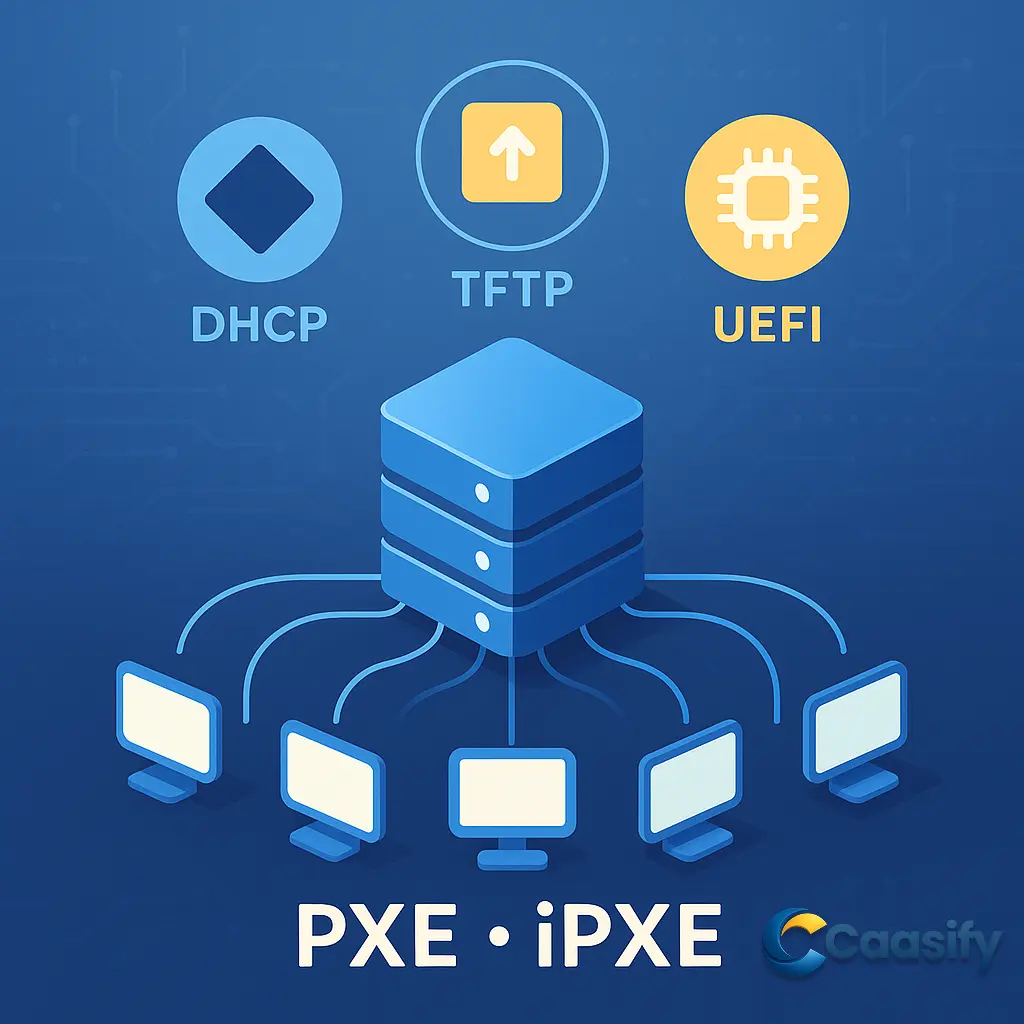
  • Master PXE and iPXE Setup: Configure DHCP, TFTP, UEFI Boot

    Master PXE and iPXE Setup: Configure DHCP, TFTP, UEFI Boot

    Introduction

    Setting up pxe, ipxe, dhcp, tftp, uefi for automated OS deployment can feel like wiring a digital assembly line for your servers. PXE and iPXE streamline network-based booting by using DHCP for configuration and TFTP for file transfers, while UEFI ensures secure, modern firmware compatibility. This guide walks you through configuring, securing, and optimizing PXE and iPXE environments to automate bare metal provisioning and improve IT performance.

    What is iPXE?

    iPXE is an open-source tool that lets computers start up and install an operating system directly over a network, without needing local storage or physical media like USB drives. It improves on traditional network boot methods by allowing faster, more flexible, and more secure connections using common internet protocols. This makes it easier for organizations to set up or reinstall servers automatically and manage large-scale computer systems efficiently.

    Prerequisites

    Alright, before diving into PXE and iPXE setups, let’s get comfy with some basics. You’ll want to really get how IP addressing, DHCP, and TFTP work, because these three are the backbone of PXE boot and iPXE boot operations when you’re setting up bare metal provisioning. Think of them as the teamwork trio that gets your machine talking to the network before an OS is even installed. DHCP, for example, is like the network’s friendly host handing out IP addresses and letting devices know where to grab their boot files. Meanwhile, TFTP (yep, that’s Trivial File Transfer Protocol) is the lightweight courier that delivers those boot files to kick off the startup process.

    You’ll also need a good handle on BIOS and UEFI boot systems. These two decide how your machine wakes up and gets going. Older systems rely on BIOS, but most newer ones use UEFI, which is way more flexible and secure. Understanding how BIOS differs from UEFI—especially when it comes to things like handling network cards, verifying boot files, and recognizing different file types—makes a huge difference when troubleshooting. UEFI even adds extra perks like Secure Boot and advanced options that can affect how PXE and iPXE behave.

    Now, let’s talk PXE and iPXE a bit more. PXE (you can think of it as the classic network boot method) sets the foundation, while iPXE comes in as its more powerful, modern cousin. PXE helps machines boot from the network, but iPXE takes it up a notch by adding cool features like scripting, HTTP-based transfers, and user authentication. Knowing the differences and how PXE’s server and client talk to each other will make setting things up way smoother and help you spot any compatibility hiccups between your hardware and software early on.

    If you’re working with bare metal servers—those dedicated machines without virtualization—understanding automated OS deployment will make your life much easier. In big enterprise or cloud setups, bare metal provisioning lets you use the full power of your hardware without any virtual layers slowing things down. That’s a huge deal for things like AI or ML training, running databases, or handling heavy compute tasks. You’ll also find it handy to know how automation tools like Kickstart, Preseed, or cloud-init scripts fit into the PXE or iPXE workflow. These tools are your secret weapons for cutting down repetitive manual setup work and making deployments faster and cleaner.

    Oh, and if you’re serious about troubleshooting, getting comfortable with iPXE commands, the Linux shell, and networking tools like Wireshark is a must. Wireshark is awesome—it lets you peek into network traffic, so you can see if your PXE client isn’t getting its DHCP response or if TFTP transfers are lagging. At the same time, being able to use iPXE’s command line tools gives you hands-on control to test connections, run scripts, or debug boot issues on the spot.

    Once you’ve mastered these basics, you’ll have the confidence and know-how to design, configure, and troubleshoot PXE and iPXE environments like a pro. That means smoother, faster, and more reliable automated OS deployments across your infrastructure, whether you’re working with BIOS or UEFI, tinkering with DHCP, or juggling TFTP servers.

    Read more about setting up network booting with PXE and iPXE, including dhcp and tftp details, via this guide: The Fundamentals of Network Booting

    Setting Up PXE and iPXE for Bare Metal Servers

    Alright, now that you’ve got a good idea of how pxe and ipxe work, it’s time to roll up your sleeves and actually set things up. We’re going to build a complete PXE/iPXE environment for bare metal provisioning, step by step, so you’ll know exactly what’s going on and why.

    First things first, your network needs to be in top shape. This setup relies heavily on a solid, stable, and well-organized network because every server has to chat smoothly with dhcp, tftp, and http services. You definitely don’t want those communications dropping mid-boot. So before anything else, make sure your network interfaces, routing, and firewall rules all line up nicely with your PXE design.

    Let’s talk prerequisites for setting up PXE and iPXE. Before you jump in, start with a strong, well-documented network foundation. The easiest way is to keep all your servers on the same LAN. That way, your PXE clients can talk directly to your PXE server without getting lost in translation. But hey, if your servers are scattered across subnets, no worries—you can set up a dhcp relay (also known as an IP Helper) to pass PXE and DHCP requests across networks.

    Using VLANs? Smart move. They help you separate provisioning traffic from everything else—like production or management traffic—so you don’t accidentally send a boot image to the wrong machine or expose sensitive network info.

    Once your network’s ready, check your bare metal servers. Make sure PXE boot is enabled in the BIOS or UEFI settings, and put the NIC (network card) at the top of the boot order. If you miss that step, your machine might skip right over network booting, leaving you scratching your head.

    Next, set up a DHCP server. It’s what hands out IP addresses and points your servers to the right boot file. Alongside that, you’ll need a TFTP server to handle file transfers for bootloaders and config files. And if you’re going big with iPXE, I recommend throwing in an HTTP server too. It’s much faster and more reliable than TFTP for large-scale or high-speed setups.

    Now, gather all your boot files. You’ll need things like pxelinux.0, bootx64.efi, and ipxe.efi, plus your OS images. Keep them all in one place on your PXE server, ideally one with a static IP address so your clients can always find it.

    A quick best practice before you go live—document everything. Write down IP ranges, server IPs, and where your services live. It might sound boring, but trust me, it’ll save you hours later. And don’t forget to test on a single machine before you deploy to production. Catching small mistakes early beats fixing big ones in a panic.

    Setting Up a PXE Server

    PXE needs two key services: DHCP and TFTP. DHCP gives your client an IP and tells it where to find the boot file, while TFTP actually delivers that file over the network.

    Installing and Configuring DHCP with PXE Options

    If your network doesn’t already have a DHCP service for PXE, you’ll need to install one. On Debian or Ubuntu, just run:

    $ sudo apt update && sudo apt install isc-dhcp-server

    On Red Hat-based systems like CentOS or AlmaLinux, use:

    $ sudo dnf install dhcp-server

    After installing, make sure the DHCP service starts automatically on boot. Now, open your DHCP config file (usually /etc/dhcp/dhcpd.conf) and set up your subnet, IP range, gateway, and DNS info. Also, don’t forget to include:

    allow booting;
    allow bootp;

    Here’s a quick example:

    subnet 192.168.1.0 netmask 255.255.255.0 {
        range 192.168.1.50 192.168.1.100;
        option routers 192.168.1.1;
        option domain-name-servers 192.168.1.1;
        …
    }

    Then, define PXE-specific options:

    next-server 192.168.1.10;

    Option 67 defines which boot file to use. For BIOS clients, it’s usually pxelinux.0. For UEFI clients, use something like bootx64.efi.

    If you’ve got both BIOS and UEFI clients, you can use a little conditional magic:

    if option arch = 00:07 {
        filename “bootx64.efi”; # UEFI x86-64
    } else {
        filename “pxelinux.0”;  # BIOS
    }

    Architecture codes like 00:07 mean x64 UEFI, 00:06 means x86 UEFI, and 00:00 or 00:09 are for BIOS.

    Now, start up the DHCP service:

    $ sudo systemctl start isc-dhcp-server

    Then check your logs (/var/log/syslog or /var/log/messages) to confirm it’s running smoothly.

    Installing and Configuring the TFTP Server

    Let’s get TFTP up and running. On Ubuntu or Debian, run:

    $ sudo apt install tftpd-hpa

    For Red Hat systems, use:

    $ sudo dnf install tftp-server

    Once installed, enable it, and make sure your firewall allows UDP port 69. Now, create the TFTP root directory (usually /var/lib/tftpboot):

    $ sudo mkdir -p /var/lib/tftpboot
    $ sudo chmod -R 755 /var/lib/tftpboot

    Next, drop in your PXE boot files:

    • pxelinux.0
    • ldlinux.c32, libcom32.c32, libutil.c32, menu.c32 (or vesamenu.c32)

    Then make a config directory for PXELINUX:

    $ mkdir -p /var/lib/tftpboot/pxelinux.cfg

    Inside it, create a file called default:

    DEFAULT menu.c32
    PROMPT 0
    TIMEOUT 600
    MENU TITLE PXE Boot Menu

    LABEL linux
      MENU LABEL Install Linux OS
      KERNEL images/linux/vmlinuz
      APPEND initrd=images/linux/initrd.img ip=dhcp inst.repo=http://192.168.1.10/os_repo/

    LABEL memtest
      MENU LABEL Run Memtest86+
      KERNEL images/memtest86+-5.31.bin

    LABEL local
      MENU LABEL Boot from local disk
      LOCALBOOT 0

    If your OS needs extra files, like a full installer ISO, you can host it over HTTP or NFS. Just mount the ISO and share it using your web or NFS server so clients can grab what they need.

    Now, restart TFTP:

    $ sudo systemctl restart tftpd-hpa

    Installing and Configuring iPXE

    Alright, now let’s spice things up with iPXE. It’s like PXE’s cooler big sibling that can handle HTTPS, scripting, and even booting straight from the cloud.

    You can grab iPXE binaries two ways:

    • Precompiled Binaries: Great for quick testing—use files like undionly.kpxe or ipxe.efi.
    • Compile from Source: Perfect if you want to customize, add HTTPS, or embed scripts.

    $ sudo apt install -y git make gcc binutils perl liblzma-dev mtools
    $ git clone https://github.com/ipxe/ipxe.git
    $ cd ipxe/src
    # Build BIOS PXE binary
    $ make bin/undionly.kpxe
    # Build UEFI PXE binary (x86_64)
    $ make bin-x86_64-efi/ipxe.efi

    If you want to add a startup script, include EMBED=script.ipxe in your make command.

    Now tweak your DHCP config to load iPXE next. For BIOS, set the filename to undionly.kpxe; for UEFI, use ipxe.efi.

    To stop infinite boot loops, tell DHCP how to recognize iPXE clients:

    if exists user-class and option user-class = “iPXE” {
        filename “http://192.168.1.10/”;
    } else {
        filename “undionly.kpxe”;
    }

    Next, install an HTTP server for iPXE. On Ubuntu, it’s simple:

    $ sudo apt install apache2

    Then, create an iPXE script under /var/www/html/ to tell clients what to do:

    #!ipxe
    kernel http://192.168.1.10/os_install/vmlinuz initrd=initrd.img nomodeset ro
    initrd http://192.168.1.10/os_install/initrd.img
    boot

    Finally, copy your OS install files (like vmlinuz and initrd.img) into /var/www/html/os_install/. You can even add big files like Linux ISOs or Windows PE images here for direct network booting.

    Before wrapping up, test your web server with curl or a browser to confirm everything’s reachable.

    Once that’s done, your PXE and iPXE setup is fully ready to roll. You’ll be deploying operating systems over the network like a pro—fast, automated, and completely hands-free.

    Learn how to configure bare metal provisioning with Foreman’s Bare Metal Provisioning Guide: PXE and iPXE workflows

    Creating iPXE Boot Scripts

    You know how sometimes you wish the whole boot process could just run itself? Well, that’s exactly where iPXE scripts come in. One of the coolest and most powerful things about iPXE is its scripting capability. These iPXE scripts let you, as an admin, build dynamic and automated boot setups that make provisioning servers way smoother. Basically, they take what’s normally a rigid, step-by-step boot process and turn it into something smart, flexible, and programmable. You can add conditions, build menus, and even automate full operating system installations without needing to sit there and babysit the process.

    Here’s how it works: writing an iPXE script is like creating a small story for your machine to follow. You make a simple text file packed with iPXE commands, and it always starts with a shebang line—#!ipxe. That line tells iPXE, “Hey, what follows are your instructions!” From there, you can build menus, tweak kernel parameters, choose operating systems, or automate installs however you like. This setup is a lifesaver when you’re managing lots of servers, since automation slashes setup time and saves you from doing the same steps over and over again.

    Core iPXE Commands

    Let’s talk about the basics of iPXE scripting. There are a few key commands you’ll see all the time, and they’re like the backbone of every script:

    • kernel – This tells iPXE which kernel or boot loader to grab and run. It’s basically the GPS for finding the boot image on the server.
    • initrd – This command loads the initial ramdisk (the temporary storage space used during boot). It’s what helps your hardware start up and mount the system before the real OS takes over.
    • boot – Think of this as the “go” button. Once iPXE has the kernel and initrd, this command actually starts the boot process and hands control to the kernel.
    • chain – This is for the clever folks who want to layer configurations. It hands control over to another script or bootloader, letting you build flexible, multi-stage boot setups.

    But that’s just scratching the surface. iPXE scripting also includes flow control commands like goto and ifopen, along with interactive menu commands such as menu, item, and choose. These make it possible to design scripts that don’t just boot blindly—they make choices, display menus, and react to user input. It’s like giving your servers a little personality.

    Another neat trick is embedding a small iPXE script that uses the chain command to load a remote file like boot.ipxe from a web server. This means all your boot configurations can live in one central place, so when you update that one file, every server automatically gets the new setup. No need to touch each machine.

    Example: Interactive Boot Menu

    Here’s a fun example: say you want an interactive boot menu. You can make a script file called menu.ipxe and drop it on your web server—or even embed it directly in the iPXE firmware. Check this out:

    #!ipxe
    console –x 1024 –y 768  # set console resolution (optional)
    menu iPXE Boot Menu
    item –key u ubuntu Install Ubuntu 22.04
    item –key m memtest Run Memtest86+
    choose –timeout 5000 target || goto cancel

    :ubuntu
    kernel http://192.168.1.10/boot/ubuntu/vmlinuz initrd=initrd.img autoinstall ds=nocloud-net;s=http://192.168.1.10/ubuntu-seed/
    initrd http://192.168.1.10/boot/ubuntu/initrd.img
    boot

    :memtest
    kernel http://192.168.1.10/boot/memtest86+
    boot

    :cancel
    echo Boot canceled or timed out. Rebooting…
    reboot

    Pretty cool, right? This script sets up a simple, easy-to-read menu that pops up during boot. You get two main choices here:

    • Ubuntu Installation: If you hit “u,” the script grabs the kernel and initrd from an HTTP server, then kicks off an automated Ubuntu installation. It uses cloud-init and the nocloud-net method to fetch all its configuration info. Translation: it installs everything by itself, no clicks required. Perfect for data centers or anyone managing dozens (or hundreds) of servers.
    • Memory Diagnostics: If you hit “m,” iPXE downloads and boots Memtest86+ right from the server. That way, you can test your machine’s RAM instantly without having to burn a CD or plug in a USB stick.

    If you don’t make a selection in 5 seconds (that’s set by the choose --timeout command), the script jumps to the :cancel section. It politely lets you know the boot was canceled or timed out, and then reboots automatically.

    This example really shows how iPXE makes booting faster and smarter. Instead of relying on old-school tftp file transfers like regular PXE, iPXE can pull files via HTTP, which is quicker and more reliable. It also supports web-based automation tools, so you can build complex setups that still feel seamless. Using options like autoinstall and ds=nocloud-net, iPXE can talk to cloud-init and dynamically inject setup data during the OS install—making everything truly hands-free.

    And don’t underestimate how powerful it is as a diagnostic tool. The Memtest option shows how you can use iPXE for hardware testing, letting you spot issues with system memory or other hardware before you even install the OS.

    At the end of the day, this little script captures what makes iPXE so awesome. It’s flexible, fast, and smart. You can manage boot operations remotely, automate all the tough stuff, and get your machines running with zero physical interaction. Whether you’re working with dhcp, tftp, or uefi systems, iPXE helps bring automation and control right to your fingertips.

    Want to dive deeper into creating scripts for iPXE and all the nitty-gritty details of network booting? Check out this guide on iPXE scripting and command reference

    Security Implications of Network Booting and Mitigations

    Let’s be honest, network booting is awesome, but if it’s not set up right, it can open some pretty scary holes in your infrastructure. Since pxe and ipxe both rely on the network and start before your operating system or security tools even kick in, bad actors can take advantage of that. For example, someone could pretend to be your dhcp or tftp server and sneak in a malicious boot image. That fake image might install backdoors or mess with firmware settings, and before you know it, they’ve got access across your entire network.

    To stop that from happening, you’ve got to build solid, layered defenses and make sure your provisioning setup is completely separated from your production traffic. Here are a few ways to make your PXE and iPXE setups safer:

    Use Separate VLANs

    Always keep your provisioning network apart from your main one. The easiest way to do this is by creating a dedicated VLAN or subnet just for PXE and iPXE boot traffic. That way, random users or infected machines on your production network won’t be able to snoop on or interfere with provisioning data. Plus, when your boot traffic is isolated, you can apply stricter firewall rules and keep a closer eye on things.

    Use iPXE with HTTPS

    If you can, have ipxe use HTTPS instead of plain HTTP or tftp when it’s fetching images or scripts. HTTPS encrypts the traffic so no one can tamper with it or spy on what’s being sent. It also helps verify that the client is talking to the real server, not a fake one pretending to be it. That’s a big win against man-in-the-middle attacks.

    Enable Client Authentication

    You can even have ipxe ask for authentication before letting systems start provisioning. It supports options like username and password logins, tokens, or even certificates. That way, only approved systems get access to boot files. And if you’re working in a high-security place, go one step further and use mutual TLS, where both the client and server verify each other before sharing anything sensitive.

    Configure Secure Boot

    If your servers use uefi, you should definitely turn on Secure Boot. It checks the digital signatures of your bootloaders and kernels before running them, which helps make sure only trusted files start up. Sure, it might make setup a bit trickier—especially if you’re working with custom or unsigned kernels—but the protection it gives is absolutely worth it.

    Implement DHCP Snooping

    In setups that use dhcp, you can protect against fake DHCP servers by enabling DHCP snooping on your switches. It basically tells the switch to only accept DHCP offers from trusted ports. That stops attackers from setting up rogue DHCP servers that could mislead clients or point them to bad tftp or http servers.

    When you put all these safeguards together, you build a pretty tough defense for network booting. Keeping things segmented, encrypted, and authenticated makes it way harder for attackers to get in. By checking every step of the boot process—from dhcp assignment all the way to bootloader execution—you can be confident that your PXE and iPXE setup is secure, trustworthy, and ready for safe automated deployments.

    For a deeper dive into securing network-boot environments and how to mitigate risks in PXE/iPXE setups, check out this resource: Best Security Practices for PXE and Pre-boot OS Deployment

    Common Issues and Troubleshooting Tips

    When you are working with PXE and iPXE setups, it is pretty common to hit technical snags that pause or slow the boot process. Because PXE booting depends on several parts talking to each other properly, such as DHCP, TFTP, HTTP, and the device’s firmware, the best way to fix problems is to check each step of the conversation and each file transfer carefully, one by one. The list below calls out the issues people see most often and shares practical tips that can help you spot what is wrong and get it fixed quickly.

    Issue Troubleshooting Tip
    PXE Boot Not Triggering Check the BIOS or UEFI settings on the client machine, and make sure the network card is allowed to boot and sits above the local disk in the boot order. Some systems also need you to turn on a setting named Network Stack or PXE Boot in the firmware menu, so look for those just in case.
    No DHCP Offer (PXE-E51) Make sure your DHCP service is running and that the client can reach it on the network. Also check that the service is listening on the right network segment that you are using right now. If the PXE client and server live on different subnets, set up a DHCP relay or an IP Helper on the router so it forwards those DHCP broadcasts properly.
    PXE Download Fails / TFTP Timeout (PXE-E32) Check that the TFTP service is up and that the firewall allows UDP port 69 to pass through. Verify every file path in your DHCP config, and make sure those paths point to real boot files on the TFTP server. In addition, confirm that the TFTP root directory allows read access for all clients so they can actually grab the files.
    Infinite Boot Loop (iPXE Chainloading) This one usually happens when your DHCP settings keep sending iPXE the same file again and again, which makes it reload itself forever. To fix the loop, change the DHCP rules to hand out a different filename when an iPXE client shows up, or embed an iPXE script that chains straight to an HTTP or HTTPS URL instead of using TFTP.
    iPXE Command Failed Check that the URL or file path in your iPXE script is correct and reachable from your network. Try the HTTP or HTTPS links in a web browser, and test TFTP transfers with a simple client to be sure. Also confirm that any web servers or repos you reference are visible from the provisioning network, since that often trips people up.
    UEFI Boot Issues Confirm that you are using the right binary, which is usually ipxe.efi for systems based on UEFI. Check Secure Boot settings, and either configure them correctly or turn them off for a moment if you are working with unsigned binaries during testing. In some cases the UEFI firmware version has network driver quirks, so updating the firmware can help a lot.
    TFTP Access Denied Make sure the TFTP root directory permissions allow reads for the TFTP service account, commonly nobody or tftp. Put the files in the correct directory, usually /var/lib/tftpboot or /tftpboot, and check that SELinux or AppArmor is not blocking access in the background.
    Slow PXE Boot Because TFTP uses UDP, it can be slow for big images. To speed things up, switch to iPXE with HTTP or HTTPS booting. Those protocols ride on TCP, which is faster and more reliable for large file transfers, and that usually cuts provisioning time for big operating system images.
    PXE VLAN Misconfiguration Check that the VLAN used for PXE booting is set up correctly and tagged across every switch on the path. Also make sure the DHCP relay forwards broadcast traffic from that PXE VLAN to the right server subnet. Use simple network tools to verify that VLAN tags stay consistent from hop to hop.
    Client Architecture Mismatch Make sure BIOS clients get BIOS bootloaders such as pxelinux.0, and that UEFI clients get UEFI ready files such as bootx64.efi or ipxe.efi. If you mix these up, you can end up with failed boots or surprise reboots right after initialization.

    Fixing PXE related problems can feel tricky because the boot flow depends on several services that all need to line up, so the best plan is to narrow things down in steps. To find the real cause quickly, work through the issue in stages, and keep notes as you go so you do not miss anything.

    Troubleshooting Workflow

    • Network Layer Verification: Check if the client gets an IP address at all, and make sure DHCP broadcasts and offers are flowing both ways without getting blocked.
    • File Transfer Validation: Confirm that the boot file actually downloads using TFTP, HTTP, or HTTPS, whichever your setup uses right now.
    • Execution Stage: Make sure the bootloader runs as expected and that the next steps, like loading the kernel, keep going without getting stuck.

    When Secure Boot is enabled, unsigned UEFI binaries such as custom iPXE builds may be blocked—temporarily disable Secure Boot for testing or use properly signed binaries.

    Tools that watch the network, like Wireshark, can be a huge help when you need to dig deeper. By capturing DHCP and TFTP traffic, you can see each message in order, spot dropped packets, and check that every response looks right. In more complex builds, comparing DHCP logs, general system logs, and iPXE command outputs side by side will point you straight to the failing step.

    By following these step by step checks and confirming each part of the flow, admins can sort out PXE and iPXE boot problems with confidence, and that helps keep bare metal provisioning reliable and consistent across the whole environment.

    For a comprehensive walkthrough on resolving network-boot issues such as dhcp failures, tftp timeouts, architecture mismatches, and VLAN mis-configuration in pxe/iPXE environments, see this detailed resource: Advanced Troubleshooting for PXE Boot Issues – Microsoft Learn

    FAQ SECTION

    How to install a bare metal server?

    To install a bare metal server, you first set up a pxe server or an ipxe boot setup that lets you install an operating system over the network in a clean and reliable way.

    This process starts when you go into the target server’s BIOS or UEFI settings and move network boot to the top so it is the first thing the machine tries. Once the system powers on, it asks for the installer across the network, usually by using DHCP to get an IP address and then using TFTP, HTTP, or HTTPS to grab the files it needs.

    • Fully hands-off mode using tools like preseed, Kickstart, or cloud-init.
    • Blended approach that mixes automation with a bit of manual input where it makes sense.

    This setup helps admins roll out many servers quickly with the same settings, which is a big help in large environments.

    What is iPXE vs PXE?

    PXE, short for Preboot eXecution Environment, is the classic network boot method that relies on tftp to send boot files from a server to a client. iPXE, on the other hand, is a more capable open-source take on pxe that adds modern protocol support like HTTP, HTTPS, iSCSI, and NFS, and it also brings in scripting so you can automate steps, add simple logic, and do flexible provisioning you cannot do with plain pxe.

    What is an iPXE file?

    An ipxe file can be either a script or a built binary that comes from the ipxe project, and both are used during network boot. In script form, it holds the step by step instructions that tell the client where to fetch kernel images, initrd files, or boot settings from network locations. In binary form, ipxe works as a standalone or a chainloaded bootloader, which can replace or extend a standard pxe firmware on a network card, and these binaries can be built from source with extras like embedded scripts or HTTPS support.

    What does PXE boot stand for?

    PXE stands for Preboot eXecution Environment, and it describes a standard way to boot a computer right from its network card without needing local storage. PXE makes this happen by downloading a bootloader from a remote server, using dhcp to hand out IP addresses and tftp to move the needed boot files, which is why it is popular for big rollouts and automated installs.

    What is the difference between PXE and gPXE?

    gPXE came along as an improved version of the original pxe idea and grew out of an older effort named Etherboot, and it added more ways to boot over the network plus friendlier setup options. However, gPXE was later replaced by ipxe, which went even further by bringing in HTTP and HTTPS, iSCSI, and scripting, and ipxe is now the go to choice that people keep updating and improving.

    What does PXE stand for in IT?

    In IT terms, pxe refers to the Preboot eXecution Environment spec that was first laid out by Intel, and it standardizes how a machine boots over the network by pairing dhcp and tftp to send boot files to the client. PXE makes it possible to manage and install operating systems from a central spot, which is why it is a core tool for data center builds and large fleets.

    Is iPXE a bootloader?

    Yes, ipxe is a bootloader, and it can load OS kernels, initrd images, and even full disk images by using many network protocols when needed. Unlike basic pxe loaders, ipxe supports handy features like HTTP and HTTPS transfers, simple interactive menus, and custom scripts, which makes it a great fit when you want flexible, automated, and remote friendly provisioning.

    What is the iPXE command line?

    After it starts, ipxe offers a powerful command line that lets admins run commands for setup, testing, and provisioning in real time. Common commands include, dhcp, which asks a dhcp server for an IP address, ifstat, which shows network stats, chain, which loads another script or boot file from a URL, and boot, which starts the boot with the loaded kernel and initrd. The ipxe command line is also useful for live debugging, script trials, and on the fly control of network boot behavior, which gives teams a lot of flexibility.

    What is the difference between PXE and UEFI?

    PXE is the network boot method that handles downloading and running a bootloader over the network, while uefi is the modern firmware that replaces older BIOS systems and provides the environment where pxe can run. Uefi includes built in support for network boot with pxe and HTTP and adds features like Secure Boot that checks the trust of bootloaders and operating systems before they run, so you get better security, quicker starts, and nicer hardware support.

    What is PXE, and how does it work?

    PXE is a standard network boot setup that lets client machines load their operating system from a central server instead of local media. The flow starts when a client set for pxe boot sends a dhcp broadcast asking for an IP address, the dhcp server replies with the IP and the details about the tftp server and the bootloader filename, the client then connects to the tftp server, downloads the named bootloader, like pxelinux.0 or ipxe.efi, and runs it to kick off the OS install or recovery, which removes the need for USB drives or DVDs and suits large rollouts.

    How is iPXE different from PXE?

    iPXE adds a lot on top of pxe by bringing in modern network protocols like HTTP, HTTPS, iSCSI, and NFS, plus scripting and smarter automation that can react to choices and inputs. While pxe only uses tftp for file transfers, which can be limited for speed and reliability, ipxe supports faster and safer TCP based downloads, and it allows script driven choices, user prompts, and ties into cloud APIs, which makes it ideal for big, flexible setups.

    What are the benefits of using iPXE scripts?

    • Automation: Put complex steps into code so you do not have to click through installs by hand.
    • Dynamic Boot Choices: Pick which OS or image to load based on hardware, MAC addresses, or values you set.
    • Security: HTTPS and login options help lock down transfers and verify who is who before any boot work happens, which is a strong pattern for mixed and fast changing environments.

    Can PXE and iPXE be used in hybrid cloud environments?

    Yes, both pxe and ipxe fit well in hybrid and multi cloud builds, and they let teams roll out on premises bare metal and plug into cloud systems for quick and automated provisioning. For example, ipxe can reach HTTP endpoints that live in the cloud, which makes it simple to tie private gear to cloud based boot services while keeping control in one place.

    How do I troubleshoot PXE boot issues?

    When you are fixing pxe boot problems, it helps to check a few key spots in order so you do not miss anything important.

    • DHCP: Make sure the dhcp server is up and set to hand out addresses and point to the right boot server.
    • TFTP Logs: Check that the tftp service has the right paths and permissions to serve boot files.
    • Firewall Configuration: Confirm the needed ports, usually UDP 67, 68, and 69 for dhcp and tftp, are open.
    • UEFI vs BIOS Compatibility: Match the boot files to the client firmware, so uefi clients use EFI files and BIOS clients use legacy pxe files.

    Always match boot files to the client’s firmware (UEFI vs BIOS) to avoid silent boot failures.

    By walking through each step of the pxe boot flow in a steady way, admins can spot whether the failure is in dhcp, in tftp.

    For a complete FAQ-style overview of network booting topics including pxe, ipxe, dhcp, tftp, and uefi, check out this guide: Comparing iPXE and PXE: Which Network Booting Protocol Is Right for You?

    What is Network Booting

    Network booting is basically when a computer or server loads its operating system and startup stuff straight from a network instead of using a local drive like a hard disk, SSD, or even a USB stick. You know, it’s like skipping the line and grabbing your files directly from the network instead of carrying them around on a flash drive. This is a big deal in modern IT setups, especially when you’re managing a lot of machines because doing manual installs on every single one would be a total time sink.

    In a typical pxe or ipxe setup, the client machine starts its boot process over the network by talking to a special boot server. That server holds the operating system images, kernel files, and config data it needs to get going. Using standard protocols like dhcp (Dynamic Host Configuration Protocol) and tftp (Trivial File Transfer Protocol), the client automatically grabs these files, loads them into memory, and kicks off the operating system.

    For companies running tons of bare metal servers, network booting is a lifesaver. It lets IT teams install, update, or rebuild systems remotely without touching the hardware. This really comes in handy in data centers and cloud environments where you might have thousands of systems to manage and need everything automated and consistent.

    It’s also great for fixing things fast. If a system’s local disk dies or the OS gets corrupted, admins can simply reload a clean image from the network and have the server back up without lifting a finger. On top of that, it helps keep everything standardized and secure since all systems boot from one central, up-to-date image instead of random local installs.

    Nowadays, network booting gets even better with modern tools like pxe and ipxe. These go beyond basic file transfers by supporting faster and smarter protocols like HTTP and HTTPS, and they let you use scripting to automate the entire boot process. So, instead of just booting, you’re basically orchestrating your deployments like a pro.

    In short, network booting is the unsung hero behind automated provisioning pipelines in both data centers and cloud setups. By freeing the boot process from local storage and keeping everything centralized, it gives you scalability, control, and a smooth, efficient way to manage servers across your whole infrastructure.

    For a detailed overview of how network booting works with protocols like pxe, dhcp, tftp, and uefi check out this guide The Fundamentals of Network Booting

    What is PXE

    PXE, short for Preboot eXecution Environment, is a neat little network boot trick that lets a computer start up straight from the network instead of depending on a hard drive, SSD, or even a USB stick. Think of it like skipping the USB shuffle and pulling what you need right off the network. PXE runs on a client-server setup, where a computer with PXE support talks to a PXE server to grab the files and settings it needs to kick off the operating system’s boot process.

    Intel came up with PXE back in 1998, and it quickly became the go-to method for booting over a network in big IT setups, data centers, and even cloud systems. The main idea behind PXE is to make system installation and provisioning super easy, especially when you’re working with bare metal servers that don’t have anything pre-installed. You can basically boot and install an entire system without touching a USB stick or inserting a disk—everything happens over the network.

    PXE teams up with dhcp (Dynamic Host Configuration Protocol) and tftp (Trivial File Transfer Protocol) to make the booting magic happen. When a PXE-enabled machine powers on, its network card sends out a dhcp broadcast, asking for network details and the location of the boot server. The DHCP server replies with an IP address, gateway, and info about the PXE server that’s holding the boot files. Then, the client downloads the bootloader (usually through TFTP) and runs it, which starts the OS installation or deployment over the network automatically.

    The best part about PXE is how it makes rolling out operating systems a breeze. In a big data center or enterprise environment, admins can configure hundreds or even thousands of machines to boot and install OSes all at once over the network. That means less waiting around, fewer mistakes, and a ton of saved time. PXE has become a backbone for automated provisioning systems where consistency and speed are everything.

    It also makes handling hardware problems or broken systems easier. Instead of reimaging a machine manually, you can just trigger a PXE boot and have it reinstall the OS or run a diagnostic utility remotely. It’s like giving your server a quick reset button over the network, which saves time and keeps everything running smoothly.

    So, when you think about it, PXE really bridges the gap between manual setups and full-blown automation. By using network connections to handle the whole boot and install process, it gives you a hands-free, streamlined way to keep large-scale and high-performance environments running efficiently.

    For a deeper dive into how PXE really works with DHCP, TFTP and UEFI environments, check out this guide: PXE (Preboot eXecution Environment) — OSDev Wiki

    What is iPXE

    iPXE is like the cool, open-source upgrade to the standard pxe (Preboot eXecution Environment) protocol. It takes what pxe does and gives it superpowers. Originally, it evolved from gPXE, which itself came out of an older project called Etherboot. The whole idea behind ipxe is to give you more flexibility, speed, and control when booting computers over a network, especially in places where you’ve got lots of machines and need fast, automated provisioning.

    Traditional pxe setups only speak the basic languages of dhcp and tftp, but ipxe steps things up with support for modern protocols like HTTP, HTTPS, iSCSI, NFS, and FTP. That means faster file transfers and more reliable connections, since it doesn’t rely just on tftp’s slower UDP-based system. With ipxe, you can boot directly from web servers, cloud storage, or local network shares, which makes deployment workflows way simpler and smoother.

    If you check out the ipxe GitHub page, you’ll find the full source code, documentation, and setup examples ready to go. Since ipxe is so customizable, you can build it into different formats—like EFI (Extensible Firmware Interface) applications, old-school pxe images, or even bootable ISOs and USBs. You can also embed it directly into your network card’s ROM (Read-Only Memory), which means your system can use ipxe right from startup without needing to chainload from a separate pxe environment.

    Embedding ipxe into the NIC ROM has some clear benefits. It cuts out the middle steps, removing the need to depend on other pxe servers and giving you instant access to advanced boot features as soon as your hardware powers on. This setup works great in enterprise gear or data centers where uptime and automation are everything.

    Let’s talk about that NIC ROM for a second. It’s a small chip sitting on your network card that holds low-level firmware instructions and drivers. Basically, it’s what lets your computer talk to the network before the operating system even loads. In a network boot, the NIC ROM handles reaching out to the boot server and pulling down the right bootloader or OS files. When ipxe lives in that ROM, it takes over this job and does it better—with more speed, customization options, and reliability than the older pxe firmware ever could.

    And here’s where it gets even more powerful. iPXE supports scripting and automation, so you can write ipxe scripts that include conditional logic, authentication, and dynamic configuration retrieval. This means you can create setups where machines boot automatically, grab the right OS, and configure themselves—perfect for zero-touch provisioning, cloud integrations, or multi-OS deployments.

    In short, ipxe is the modern, flexible replacement for legacy pxe. It’s open-source, highly adaptable, and packed with features that make it ideal for system admins, DevOps teams, and anyone managing large-scale or hybrid infrastructures. Whether you’re booting bare metal or virtual machines, ipxe gives you the speed, control, and automation that modern IT environments demand.

    For a detailed look into how iPXE extends PXE’s capabilities for network booting with advanced protocols and scriptin

    Core Components of PXE/iPXE Boot

    Both pxe and ipxe have a few key parts that work hand-in-hand to make network booting smooth and automated. Each piece plays a specific role in helping your computer talk to the network, grab the right boot files, and start loading or installing the operating system. Let’s walk through each part one by one.

    Dynamic Host Configuration Protocol (DHCP)

    The dhcp server is the one handing out IP addresses to computers asking to join the network. During a pxe or ipxe boot, it also gives extra info, like where to find the boot server and which boot file to download. This whole automatic setup saves you from manually assigning IPs and speeds things up a lot when you’re deploying lots of systems at once.

    Boot Loader

    The boot loader is the first piece of software your system loads into memory when starting up. Its main job is to get things ready for the operating system to start. In older pxe setups, you’d typically see something like pxelinux.0 from the Syslinux project. For ipxe, you might use fancier loaders like ipxe.lkrn (for kernel-based images) or undionly.kpxe (for chainloading). Once the boot loader is running, it fetches the kernel and configuration files it needs to keep the process moving.

    Boot Configuration Files

    These are the “recipe cards” for your boot process. They tell the system which kernel to load, which initramfs (initial RAM disk) to use, and what command-line options are needed to start up. They can also include environment settings, network details, and where to find installation media or scripts. Having these files set up right helps keep all your machines consistent, which is a big deal in data centers or automated provisioning environments.

    Operating System Images / Installation Media

    These are the actual files that put an operating system onto your hardware. They usually include the kernel, initrd (initial RAM disk), and whatever else is needed to start up. The OS images might live on a web server or a network storage system and get transferred during the boot. Depending on how you’ve set things up, the image might boot live, do a full install, or even handle system recovery.

    PXE Server

    The pxe server is basically the boss of the whole network boot operation. It coordinates everything, sends out the right configuration files, and makes sure each client gets the correct boot setup. In more advanced setups, this server might also handle tftp, HTTP, or NFS services to send out boot files and operating system images. It keeps everything centralized, which helps admins stay in control and keep things uniform.

    Trivial File Transfer Protocol (TFTP)

    tftp is a super lightweight file transfer system built for simple, no-fuss data transfers during the boot phase. When a pxe or ipxe boot kicks off, the client uses tftp to grab important files like the boot loader, config files, and kernel images. It doesn’t have fancy features like encryption or authentication, but it’s quick and resource-friendly, which is exactly what you need at this stage. Modern ipxe setups often mix in faster, safer options like HTTP or HTTPS for added performance.

    Network Boot Program (NBP)

    The Network Boot Program, or NBP, is the small executable that the client downloads and runs to get the boot sequence rolling. Once it’s downloaded—usually through tftp or HTTP—it takes charge from the firmware and starts loading the kernel or installing the OS. Common examples include pxelinux.0 for pxe and ipxe.lkrn or ipxe.efi for ipxe setups.

    When all these components are configured properly and working together, managing large-scale provisioning becomes surprisingly easy. With pxe and ipxe, admins can roll out OS installs, push firmware updates, and recover systems without breaking a sweat. The whole process is fast, reliable, and repeatable, making it a core part of any serious IT automation or data center strategy.

    For a complete breakdown of all the components behind PXE and iPXE booting—from dhcp and tftp to network boot programs—check out this detailed overview: The Fundamentals of Network Booting

    How PXE Works

    The PXE (Preboot eXecution Environment) boot process is like a team project where a few key players—the client’s firmware, a dhcp server, a tftp server, and sometimes other servers holding operating system files—all work together to boot a computer straight from the network. This setup means you don’t have to rely on local storage devices like hard drives or USB sticks. Let’s break down what happens, step by step.

    Client PXE Request

    When a machine set up for network booting starts up, its Network Interface Card (NIC) firmware jumps in right away. Inside that firmware, there’s something called the pxe ROM, and it takes charge early in the boot process. Its job is to reach out to the network and find a boot server.

    So, it sends a dhcp DISCOVER message across the network that includes special PXE options saying, “Hey, I can do a PXE boot and I need some help finding my boot files.” Basically, it’s asking both for an IP address and for directions to where it can get the boot files it needs to start up.

    DHCP Offer + PXE Information

    Once that message goes out, the dhcp server (or sometimes a proxy DHCP service) replies with a DHCP OFFER. This reply includes the important stuff, like the IP address for the client, subnet mask, gateway, and DNS info, plus some PXE-specific details. Those details usually tell the client which server holds the boot files (often the tftp server) and what file to download first, called the Network Bootstrap Program (NBP).

    For instance, the response might say:

    IP address 11.1.1.5 assigned.
    Boot file pxelinux.0 is available from boot server 11.1.1.1.

    Now, the client knows how to get online and where to grab its boot file.

    Client Downloads NBP via TFTP

    Next, the client uses tftp, which is a lightweight and simple file transfer protocol, to download the NBP file from the server. tftp works perfectly here because it’s small and reliable—just what you need when your system hasn’t even fully booted yet.

    The NBP file might be something like PXELINUX (from Syslinux), an iPXE image for more advanced setups, or a Windows Deployment Services (WDS) file in a Windows environment. At this point, the computer is still running under firmware control, not a full operating system, so keeping the process simple and stable is key.

    Execute NBP

    After the Network Bootstrap Program finishes downloading, the PXE firmware hands control over to it. This little program then takes the next steps: initializing hardware, grabbing more configuration files, and loading either the OS installer or the kernel itself.

    If PXELINUX is the NBP, it will grab a PXELINUX configuration file using tftp. That file might set up a boot menu, list multiple operating systems to install, or even load the kernel and initrd directly. Depending on the setup, the user might see a menu to pick from—like an installer or recovery tool—or the system could just jump straight into loading a preselected operating system image.

    OS Load

    The final stage depends on which NBP and OS you’re using. Here, the NBP (or its second-stage loader) loads the OS kernel into memory, followed by the initrd (initial RAM disk) that contains necessary drivers and startup scripts. Once that’s done, the operating system takes over, fires up the hardware, mounts the file systems, and completes the boot process. This is the point where the PXE phase ends and your system becomes fully operational.

    Overall, PXE booting is a smart and efficient way to get systems up and running over the network, especially for bare metal provisioning or mass server deployments. By working with dhcp and tftp in a well-organized sequence, PXE makes it possible to install, repair, or update operating systems remotely—no USB drives, no manual setup, and no need to even touch the machine.

    For a clear step-by-step explanation of how the PXE boot process works in a modern infrastructure—including the roles of DHCP, TFTP a

    How iPXE Improves on PXE

    You know how pxe (Preboot eXecution Environment) is already a handy way to boot computers over a network? Well, ipxe takes that idea and gives it a serious upgrade. It turns basic network booting into something faster, smarter, and more flexible. While pxe is great for getting things started, ipxe adds new tricks like better networking protocols, automation, and scripting that make it perfect for today’s IT setups.

    There are basically two main ways you can set up ipxe, depending on how much control you want and how your infrastructure is built.

    Native iPXE Configuration

    In this setup, you actually replace the original firmware or ROM on the computer’s Network Interface Card (NIC) with ipxe firmware. Once ipxe is built into the NIC’s ROM, it becomes part of the hardware itself, ready to go every time the system boots. This is perfect for places where network booting happens all the time and where administrators need consistent, reliable performance. The big win here is that ipxe starts automatically at every boot without depending on another boot process.

    Chain-Loading iPXE

    Now, if swapping firmware sounds like too much, there’s another way. With chain-loading, ipxe is loaded as a second step from your existing pxe setup. So first, the regular pxe firmware on the NIC starts the boot, and then it loads ipxe as an extension. Once ipxe is up, it takes control and gives you all the advanced options without having to mess with hardware. This method is great when you’re working in production environments where you can’t modify firmware or where different systems need to stay compatible.

    Once ipxe kicks in, it brings a whole bunch of cool new features that leave regular pxe in the dust.

    Expanded Protocol Support

    While pxe mainly relies on the old-school tftp (Trivial File Transfer Protocol), which can be slow, ipxe works with modern protocols like HTTP, HTTPS, FTP, NFS, iSCSI, and FCoE (Fibre Channel over Ethernet). These are faster, more reliable, and even more secure. For example, HTTPS ensures your boot process is encrypted, which keeps your data safe from snooping or tampering during network transfers.

    Advanced Scripting Engine

    One of ipxe’s best superpowers is its scripting engine. It lets you write scripts that automate and customize the boot process. You can make it boot differently based on the hardware, MAC address, or environment variables. You can even build menus, pull configurations on the fly, or connect to web APIs for real-time setup decisions. Basically, you can automate your whole OS deployment process and tie it right into your DevOps or cloud tools.

    Embedded Boot Scripts

    You can also bake scripts straight into the ipxe binary itself, which means your bootloader can run specific commands automatically, without needing extra config files. That’s super handy in big deployments where you want everything to stay consistent. You could have systems automatically download kernels, load initrd files, or start OS installs right after they power up—even if there’s no access to a network config server.

    Security and Authentication

    ipxe is much more security-conscious than the old pxe setup. It supports HTTPS to encrypt traffic, 802.1x authentication for identity checks, and cryptographic signatures to verify boot files. This makes it perfect for environments that need strict data security, like banks, government setups, or healthcare systems.

    Direct Boot from Cloud or Remote Storage

    Traditional pxe depends on tftp servers, but ipxe takes it further. It can pull operating system images or kernels directly from cloud storage, web servers, or NAS devices using HTTP, HTTPS, or iSCSI. This makes it way easier to integrate with modern automation tools and to boot physical or virtual machines across multiple locations.

    Enhanced Debugging and Command Utilities

    ipxe also gives you a built-in command-line interface with tools for control and troubleshooting. Commands like chain, imgfetch, and autoboot let you test things in real time. You can grab images, run scripts, and troubleshoot network problems without rebooting. It’s a huge time-saver when you’re trying to figure out why a boot isn’t working or when you need to check file access paths.

    In short, ipxe isn’t just a small upgrade to pxe—it’s a complete evolution built for modern infrastructure. It gives you speed, automation, security, and flexibility all in one.

    Example

    Here’s a quick look at how you might use ipxe to boot a custom Linux setup:

    #!ipxe
    dhcp  # get network config
    kernel http://192.168.1.10/boot/vmlinuz initrd=initrd.img ro console=ttyS0
    initrd http://192.168.1.10/boot/initrd.img
    boot

    In this example, the ipxe script gets a dhcp lease to set up the network, then grabs the kernel and initrd files over HTTP from a remote server, and starts the boot. It works a lot like a pxe boot, but with HTTP instead of tftp, which makes it faster and more reliable. You can even add kernel arguments like console=ttyS0 to send console output to a serial port, which is super helpful when you’re managing headless servers or remote machines.

    By combining speed, automation, and modern security, ipxe gives you a future-ready way to handle network booting and provisioning. It’s the kind of upgrade that makes life easier for anyone managing large-scale or automated IT systems.

    For a deeper look at how iPXE upgrades traditional pxe with scripting, modern protocols, and uefi-ready booting check out this resource: Comparing iPXE and PXE: Which Network Booting Protocol Is Right for You?

    PXE vs. iPXE – What’s the Difference?

    When you look at pxe and ipxe, they both do the same basic job, which is letting you boot an operating system or installer over the network. But here’s the thing—they’re not created equal. ipxe takes the simple, reliable foundation of pxe and turns it into something far more flexible, faster, and modern. Let’s go through what makes them different, one piece at a time.

    Feature PXE (Traditional) iPXE (Enhanced)
    Source Usually built right into the NIC firmware and often locked down by vendors, so you can’t change much. Fully open-source, meaning you can tweak it, replace the built-in pxe ROM, or even chain-load it from a regular pxe setup.
    Protocols for Boot Works only with dhcp and tftp to grab configuration and boot files. Handles a bunch of modern protocols like dhcp, tftp, HTTP, HTTPS, iSCSI, FTP, and NFS, giving you faster and more reliable transfers.
    Speed of File Transfer Uses tftp, which is UDP-based, and can get pretty slow, especially with big files. Uses HTTP or HTTPS, both TCP-based, which are way faster and better for large OS images.
    Boot Media Support Needs a pxe-capable NIC and depends completely on hardware-based network booting. Can boot from almost anything—pxe, built-in NIC ROM, USB drives, CDs, ISOs, or even in virtual environments.
    Scripting and Logic Doesn’t do automation. It just follows a fixed process written into the firmware. Comes with full scripting support, so you can use logic, menus, variables, and even link it to APIs or automation tools.
    Extended Features Pretty basic, just enough to boot over a LAN with no customization. Adds extras like Wi-Fi booting, VLAN tagging, IPv6, secure authentication (802.1x), and HTTPS booting for better flexibility and safety.
    UEFI Compatibility Works with uefi if the firmware supports it. Fully uefi-compatible through ipxe.efi, and it even supports HTTP boot and secure boot setups.
    Maintainers Maintained mostly by hardware vendors like Intel, so updates depend on them. Managed by a global open-source community that keeps improving it with updates and cross-platform support.

    Traditional pxe is great when you just need something simple, like setting up small operating system images or running straightforward installs. It’s steady and reliable, especially in static or older environments where you don’t need much automation. But it’s limited—no scripting, no fast protocols, and no flexibility.

    ipxe, on the other hand, really shines when you’re working at scale or dealing with modern infrastructure. It’s built for automation, cloud environments, and advanced provisioning. Thanks to its scripting engine, you can create intelligent boot workflows that change depending on hardware, fetch configurations on the fly, or show menus for users to pick what they want to boot.

    For instance, with ipxe scripting, you can write logic that detects specific network interfaces, grabs boot files from a central server, or checks authentication before it even loads an OS image. That means it’s not just booting—it’s thinking ahead and making decisions automatically.

    Because of this flexibility, ipxe fits perfectly into cloud orchestration systems, bare-metal provisioning setups, and hybrid environments where remote automation is key. It’s basically the evolution of pxe—smarter, faster, and way more customizable for today’s ever-
    For a detailed breakdown of the key differences between PXE and iPXE in network-boot environments, see this comparison: Comparing iPXE and PXE: Which Network Booting Protocol Is Right for You?

    Interaction with Modern Hardware and UEFI

    The move from the old-school BIOS firmware to the more modern Unified Extensible Firmware Interface (UEFI) completely changed how systems handle booting and getting hardware ready. This upgrade brought a bunch of benefits—faster startups, stronger security, and better flexibility when it comes to handling boot devices. Both pxe (Preboot eXecution Environment) and ipxe play nicely with uefi, but the way they work with it is a bit different, and that’s something you really want to keep in mind when setting up network booting.

    UEFI PXE Boot

    Unlike older BIOS setups that rely on files like .pxe or .kpxe to kick off a network boot, uefi systems need .efi files instead. These are special executables built for uefi, letting them work directly with its networking stack. UEFI PXE booting has native support for 64-bit addressing and can handle booting over both IPv4 and IPv6, which makes it perfect for larger enterprise setups or big data centers. The use of .efi files helps make sure boot images load securely, quickly, and consistently across modern hardware setups.

    Chainloading Between PXE and iPXE

    Sometimes you’ll see setups that use both pxe and ipxe together in something called chainloading. Basically, pxe gets the boot process started, and then it hands things off to ipxe for the rest. Picture this: the system first boots using uefi pxe, loads a simple boot environment, and then switches over to ipxe.

    This trick lets you use ipxe’s more advanced features—like HTTPS booting, scripting, and dynamic configuration—without having to change your NIC firmware. Chainloading is super useful in mixed or hybrid setups where the hardware can’t directly run ipxe or where vendors have their own restrictions.

    Native iPXE EFI Binaries

    In setups that are fully uefi-based, ipxe has you covered with its own EFI-compatible binaries like ipxe.efi. These let systems boot ipxe directly under uefi without using pxe first. That means no chainloading, fewer steps, and a faster, simpler boot process.

    Using the native EFI binary gives admins access to everything ipxe can do—HTTP and HTTPS support, built-in scripting, secure boot authentication—all while staying fully compatible with uefi’s framework.

    Configuration and Compatibility

    When you’re setting up uefi-based pxe or ipxe booting, you need to make sure your network cards (NICs) and firmware versions actually support the boot method you’re planning to use. Older or inconsistent uefi firmware can sometimes cause compatibility problems.

    Also, double-check that the BIOS or uefi settings on the machine have “Network Boot” or “PXE Boot” turned on under uefi mode. Many servers let you toggle between Legacy and UEFI booting, and getting that setting right makes a big difference.

    Application in GPU-Accelerated Bare Metal Server Environments

    In places like data centers where bare metal servers are used for GPU-heavy workloads—think AI, machine learning, or HPC (high-performance computing)—uefi booting really shines. Its modular design helps initialize modern GPUs more smoothly, integrates better with hardware, and supports the massive performance needs of these systems.

    Organizations running GPU-based bare metal servers often rely on ipxe automation to make their provisioning super efficient. They can use ipxe scripts with HTTPS authentication to deploy prebuilt AI environments or install drivers right over the network. This makes scaling up GPU nodes much faster and way more secure.

    For companies investing in GPU infrastructure, enabling full UEFI support is key. It allows the use of advanced features like Secure Boot, NVMe over Fabrics, and PCIe resource mapping for optimized performance and security.

    These capabilities not only speed up deployment but also keep systems secure and stable. Caasify makes this even easier by offering flexible cloud infrastructure tailored for GPU-powered bare metal servers. Their systems make it simple to set up, manage, and scale high-performance workloads used for AI, ML, and data processing.

    Understanding how uefi and ipxe work together helps administrators make the most of secure, automated, and lightning-fast network provisioning across complex environments.

    For a detailed walkthrough on how modern hardware works with UEFI and network booting including pxe and ipxe integration, check out this comprehensive guide: Network Boot for UEFI Devices with iPXE

    Conclusion

    Mastering pxe, ipxe, dhcp, tftp, and uefi setup gives IT professionals a powerful foundation for automated OS deployment. By understanding how PXE handles network-based provisioning and how iPXE expands it with scripting, secure protocols, and UEFI compatibility, administrators can streamline bare metal installation workflows and boost operational efficiency. These technologies not only simplify infrastructure management but also lay the groundwork for scalable, cloud-ready environments. As network booting continues to evolve, future innovations in iPXE scripting, Secure Boot integration, and dynamic provisioning will further enhance the speed, security, and flexibility of automated system deployment.

    Master Bare Metal Provisioning with PXE and iPXE for Network Booting (2025)

  • Optimize PyTorch GPU Performance with CUDA and cuDNN

    Optimize PyTorch GPU Performance with CUDA and cuDNN

    Introduction

    Optimizing PyTorch GPU performance with CUDA and cuDNN is essential for faster, more efficient deep learning workflows. These powerful frameworks help developers maximize GPU resources by improving memory management, automating device selection, and leveraging data parallelism. Whether you’re training large models or troubleshooting out-of-memory errors, understanding how PyTorch interacts with CUDA and cuDNN can dramatically enhance processing speed and model stability. This guide walks you through practical techniques to boost performance and achieve smoother, high-efficiency training results.

    What is PyTorch GPU Memory Management and Multi-GPU Optimization?

    This solution helps users run deep learning models more efficiently by teaching them how to manage and use multiple graphics cards with PyTorch. It explains how to split work across GPUs, move data between them, and prevent memory errors that can slow down or stop training. The guide also shows simple ways to free up unused memory and improve performance, so models can train faster and more smoothly without wasting computer resources.

    Prerequisites

    Before we jump into PyTorch 101: Memory Management and Using Multiple GPUs, let’s make sure you’re ready to roll. You’ll need a basic understanding of Python and how PyTorch works because those are the building blocks for everything we’re about to explore. Oh, and don’t forget—you’ve got to have PyTorch installed on your system since all the cool examples and code snippets depend on it.

    Now, if you’ve got access to a CUDA-enabled GPU or even a few GPUs, you’re in for a treat. It’s not strictly required, but it’s super handy for testing performance boosts and trying out those GPU parallelization tricks we’ll talk about later. Being familiar with GPU memory management is a plus too—it’ll make concepts like optimization and troubleshooting a lot clearer. And before you dive into the code, make sure you’ve got pip ready because you’ll need it to install some extra Python packages along the way.

    Moving tensors between CPU and GPU

    Alright, so every Tensor in PyTorch comes with this neat little to() function. Think of it as the Tensor’s moving van—it packs up your data and moves it to the right device, whether that’s your CPU or GPU. This is super important if you’re running multi-GPU setups, where you’ll need to keep track of where everything lives.

    The to() function takes a torch.device object as its input, which basically tells it where to go. You can use cpu if you want it on your processor, or something like cuda:0 if you’re targeting the first GPU. If you’ve got more GPUs, you can specify cuda:1, cuda:2, and so on. By default, PyTorch puts all new tensors on your CPU, but if you want GPU power (and who doesn’t?), you’ll need to move them manually.

    You can check if a GPU is even available with this snippet:

    if torch.cuda.is_available():
        dev = “cuda:0”
    else:
        dev = “cpu”

    device = torch.device(dev)
    a = torch.zeros(4,3)
    a = a.to(device)    # alternatively, a.to(0)

    This setup makes your code device-agnostic, meaning it’ll work on GPUs if they’re there and quietly fall back to CPU if not. You can also point directly to a specific GPU index using the to() function. This flexibility is what makes PyTorch’s device handling feel like magic—you get scalability without hardcoding device logic.

    Using cuda() function

    Now here’s another fun one: the cuda(n) function. It’s like the express route to get your tensors onto a GPU. The n represents which GPU you’re talking to. If you skip the argument, it defaults to GPU 0. Super convenient, right?

    But here’s the thing—this isn’t just for tensors. The torch.nn.Module class, which is what you use for building neural networks, also has to() and cuda() methods. These let you move your entire model to a GPU in one smooth move. The best part? You don’t even have to assign it back to a new variable—it just updates itself on the spot.

    clf = myNetwork()
    clf.to(torch.device(“cuda:0”))    # or
    clf = clf.cuda()

    With this, you can quickly get your PyTorch model running on a GPU without breaking your workflow. It’s like flipping a switch for GPU acceleration—no drama, no extra steps.

    Automatic GPU selection

    Here’s the deal—manually assigning every tensor to a GPU can get exhausting. You might start with good intentions, but when you’re dealing with dozens of dynamically created tensors, it becomes a mess fast. What you really want is for PyTorch to handle this for you—to automatically put new tensors where they belong.

    Luckily, PyTorch has your back with built-in tools. The torch.get_device() function is one of the stars here. It lets you check which GPU a tensor is living on, so you can make sure all your new tensors follow it there.

    # Ensuring t2 is on the same device as t1
    a = t1.get_device()
    b = torch.tensor(a.shape).to(dev)

    If you want PyTorch to stick to a specific GPU by default, you can set it like this:

    torch.cuda.set_device(0)    # or 1, 2, 3, etc.

    And remember—if you accidentally try to mix tensors across devices, PyTorch won’t let it slide. It’ll throw an error just to remind you that consistency is key when working with cuda and gpu operations.

    Using new_* tensor functions

    Let’s talk about the new_*() tensor functions that came out with PyTorch version 1.0. These are like smart constructors that automatically match the data type and device of the tensor you call them from. It’s a clean, efficient way to create new tensors without having to keep repeating device and dtype parameters.

    For example:

    ones = torch.ones((2,)).cuda(0)    # Create a tensor of ones of size (3,4) on the same device as “ones”
    newOnes = ones.new_ones((3,4))
    randTensor = torch.randn(2,4)

    Pretty slick, right? This guarantees that your new tensor lands on the same GPU as the one you started with, which saves you from those annoying “cross-device” errors. You’ll find a whole collection of these functions like new_empty(), new_zeros(), and new_full() that each handle initialization differently but all keep things consistent across your devices.

    Data Parallelism

    Okay, now we’re getting into the fun stuff. Data parallelism is PyTorch’s way of saying, “Let’s use all your GPUs at once!” Basically, you split your data across multiple GPUs, let each one do some work, and then combine the results.

    This is all handled through the nn.DataParallel class. You just wrap your model like this:

    parallel_net = nn.DataParallel(myNet, gpu_ids=[0,1,2])

    And from that point, it works like a normal model:

    predictions = parallel_net(inputs)
    loss = loss_function(predictions, labels)
    loss.mean().backward()
    optimizer.step()

    Here’s the catch, though. Both your model and data have to start out on a single GPU—usually GPU 0—before they get split up.

    input = input.to(0)
    parallel_net = parallel_net.to(0)

    Behind the scenes, PyTorch slices your input batch into smaller pieces, clones your model across GPUs, runs the forward passes in parallel, and then pulls everything back to the main GPU. The main GPU does a bit more work, so it can end up being busier than the others. If that bugs you, you can calculate loss during the forward pass or design your own fancy parallel loss layer to even things out.

    Model Parallelism

    Now, here’s where things get a bit different. Instead of splitting your data across GPUs, model parallelism splits your model. It’s perfect when your network is so big it can’t fit into one GPU’s memory.

    But fair warning—it’s slower than data parallelism. That’s because GPUs end up waiting on each other. For example, one GPU might have to finish before another one can continue. Still, it’s a lifesaver when dealing with massive models.

    Here’s how it looks in code:

    class model_parallel(nn.Module):
        def __init__(self):
            super().__init__()
            self.sub_network1 = …
            self.sub_network2 = …
            self.sub_network1.cuda(0)
            self.sub_network2.cuda(1)

        def forward(x):
            x = x.cuda(0)
            x = self.sub_network1(x)
            x = x.cuda(1)
            x = self.sub_network2(x)
            return x

    So GPU 0 handles the first subnetwork, then sends its results to GPU 1 for the next stage. Thanks to PyTorch’s autograd engine, gradients automatically flow back across GPUs during training, keeping everything in sync like a well-rehearsed orchestra.

    Troubleshooting Out of Memory Errors

    Running out of GPU memory can be one of those hair-pulling moments when you’re deep in model training. You might be tempted to just shrink your batch size, but that’s more of a quick fix. A better move is to figure out where the memory is going in the first place.

    By getting to know how PyTorch allocates and reuses memory, you can spot inefficiencies, plug leaks, and keep your cuda-powered system running smoothly.

    Tracking GPU memory with GPUtil

    If you’ve ever tried using nvidia-smi, you know it’s great for a quick look at GPU stats—but it’s not fast enough to catch those sneaky memory spikes that crash your run. That’s where GPUtil comes in.

    To get started, install it like this:

    $ pip install GPUtil

    Then drop this into your script:

    import GPUtil
    GPUtil.showUtilization()

    By sprinkling that line in different parts of your code, you can see exactly where your GPU usage jumps. It’s a great way to catch those “oops, forgot to free that tensor” moments.

    Freeing memory using del keyword

    PyTorch’s garbage collector does a solid job of freeing up memory, but Python’s scoping rules can sometimes leave things hanging around longer than you think.

    For example:

    for x in range(10):
        i = x
    print(i)    # 9 is printed

    See that? i sticks around even after the loop is done. The same thing can happen with your tensors. Losses, outputs—anything that’s still referenced—will hang out in memory. That’s why it’s a good habit to manually delete them when you’re done:

    del out, loss

    If you’re working with large datasets or deep networks, this little step can save you a ton of GPU headaches later.

    Using Python data types instead of tensors

    Here’s a sneaky one. When you’re tracking metrics like loss, it’s easy to accidentally cause a memory buildup without realizing it.

    total_loss = 0
    for x in range(10):
        # assume loss is computed
        iter_loss = torch.randn(3,4).mean()
        iter_loss.requires_grad = True
        total_loss += iter_loss
    # use total_loss += iter_loss.item() instead

    Because iter_loss is a tensor that requires gradients, adding it directly creates a massive computation graph that just keeps growing. The fix? Convert it into a regular Python number before adding it up:

    total_loss += iter_loss.item()

    That way, PyTorch won’t waste memory building graphs you’ll never use.

    Emptying CUDA cache

    Here’s the thing—PyTorch loves to cache GPU memory for faster tensor creation, but sometimes it hangs on too tightly. If you’ve ever seen an out-of-memory error even after deleting your tensors, the cache might be the culprit.

    You can clear it out manually with:

    torch.cuda.empty_cache()

    Here’s a full example to show how it works:

    import torch
    from GPUtil import showUtilization as gpu_usage

    print(“Initial GPU Usage”)
    gpu_usage()

    tensorList = []
    for x in range(10):
        tensorList.append(torch.randn(10000000,10).cuda())

    print(“GPU Usage after allocating a bunch of Tensors”)
    gpu_usage()

    del tensorList
    print(“GPU Usage after deleting the Tensors”)
    gpu_usage()

    print(“GPU Usage after emptying the cache”)
    torch.cuda.empty_cache()
    gpu_usage()

    You’ll see the difference in memory usage after clearing the cache—it’s a great sanity check when working on big PyTorch projects.

    Using torch.no_grad() for inference

    By default, PyTorch tracks every operation for backpropagation, but when you’re just running inference, that’s wasted effort and memory. The trick is to wrap your inference code like this:

    with torch.no_grad():
        # your inference code

    This tells PyTorch, “Hey, no need to track gradients right now,” which saves memory and speeds things up.

    Enabling cuDNN backend

    If you’ve got an NVIDIA GPU, you can take advantage of cuDNN, a library built for deep learning acceleration. By turning on its benchmark mode, PyTorch can automatically pick the best-performing algorithms for your setup.

    torch.backends.cudnn.benchmark = True
    torch.backends.cudnn.enabled = True

    This is especially useful when your input sizes are consistent, as cuDNN can reuse the most efficient settings each time.

    Using 16-bit floats for optimization

    Here’s a cool one—modern GPUs like the NVIDIA RTX and Volta series can train models using 16-bit (half-precision) floats. It’s called mixed-precision training, and it can almost cut your GPU memory use in half while speeding things up.

    model = model.half()
    input = input.half()

    That said, using 16-bit floats can be a little tricky. Some layers, like Batch Normalization, don’t play well with half precision. To avoid issues, you can keep those layers in 32-bit precision:

    for layer in model.modules():
        if isinstance(layer, nn.BatchNorm2d):
            layer.float()

    Make sure to switch data between float16 and float32 correctly when needed. Also, keep an eye out for overflow issues with extreme values—it happens! Tools like NVIDIA’s Apex extension help make this process smoother and safer, letting you squeeze the most out of your cudnn and cuda-powered pytorch models without losing stability.

    Read more about expert strategies for optimizing GPU memory with PyTorch and CUDA / cuDNN in this comprehensive guide PyTorch Memory Optimization: Techniques, Tools, and Best Practices

    Conclusion

    Optimizing PyTorch GPU performance with CUDA and cuDNN is all about getting the most out of your hardware while keeping your deep learning workflows smooth and efficient. By combining smart memory management, automated GPU selection, and techniques like data and model parallelism, you can significantly speed up training while avoiding costly out-of-memory errors. Using cuDNN benchmarks and mixed-precision training further enhances efficiency, helping PyTorch models run faster with less resource overhead.

    As GPUs continue to evolve and frameworks like PyTorch and CUDA become even more optimized, developers will gain greater control over performance tuning and scalability. Keep an eye on future PyTorch releases, as upcoming improvements in cuDNN integration and GPU memory handling will make deep learning even more powerful and accessible.

    In short, mastering PyTorch, CUDA, and cuDNN means mastering the art of precision and performance in modern AI computing.

    Optimize GPU Memory in PyTorch: Boost Performance with Multi-GPU Techniques (2025)

  • Boost PyTorch Performance with Multi-GPU and Accelerate Library

    Boost PyTorch Performance with Multi-GPU and Accelerate Library

    Introduction

    Running deep learning models on multiple GPUs or machines can be complex, but Hugging Face’s Accelerate library makes it much easier. Designed for PyTorch users, Accelerate streamlines device management, allowing you to scale models from single-GPU to multi-GPU setups without major code changes. Whether you’re leveraging multi-CPU configurations, mixed-precision training, or integrating DeepSpeed, this library simplifies the entire process. In this article, we explore how Accelerate enhances PyTorch workflows and makes distributed machine learning more accessible.

    What is Accelerate?

    Accelerate is a library that helps simplify the process of running machine learning models on multiple GPUs or machines. It allows users to keep their original code intact while making it easier to scale the model across different devices. This tool helps users avoid complex setup processes by automating many steps, like managing devices and distributing tasks, making it simpler for anyone to work with powerful machine learning setups.

    What is Accelerate?

    Accelerate is this awesome library created by Hugging Face that takes your PyTorch code, which is usually designed for just one GPU, and turns it into code that works on multiple GPUs. And the best part? It doesn’t matter if you’re working on one machine or many, the library has got your back. It simplifies everything about distributed machine learning, letting you keep all your original PyTorch code intact. So, if you want to scale up your models to use more devices, you don’t need to make crazy changes to your code.

    The reason Accelerate even exists is because modern deep learning models are getting more complex, and so is the data we use to train them. As AI keeps pushing the limits of what’s possible, we need more powerful hardware, like GPUs, to train these models. But running models across several GPUs can be a total headache. Traditional ways of scaling PyTorch to work on multiple GPUs often mean making complex changes to your code or having to learn a whole new API.

    What makes Accelerate stand out is that it gives you a super easy way to scale up your PyTorch code without losing control over the important details. You can still write your general PyTorch code and run it on multiple GPUs, no matter if you’re running it on one machine or many. And here’s the cool part: you can run the same code both in a distributed and a non-distributed setup without needing to tweak the main logic. This is a big deal compared to the traditional PyTorch distributed launches, which require you to make big changes to switch between setups.

    Thanks to Accelerate’s simplicity, developers can spend more time focusing on their models and less time dealing with all the complicated infrastructure stuff.

    Read more about the Accelerate library and its capabilities in the official documentation Hugging Face Accelerate Documentation.

    Code changes to use Accelerate

    If you’re working with general PyTorch code, chances are you’re writing your own training loop for the model. So, here’s how a typical PyTorch training loop might go:

    Import libraries: This is the part where you load all the necessary libraries and modules for your task. This will include PyTorch, of course, but also any other libraries needed for things like data processing or model evaluation.

    Set device: This is where you decide which hardware you want to run your model on, such as a GPU or CPU. This is a key step because you need to make sure your model is running on the right hardware. If you’re using a GPU, for example, you’ll need to point your model and data to that device.

    Point model to device: After setting up the model, you explicitly assign it to the device (such as GPU). This is how you ensure that your computations happen on the right hardware.

    Choose optimizer: Now, you define which optimizer you want to use. The optimizer is responsible for adjusting the model’s weights during training. A popular choice is the Adam optimizer, which works well for most deep learning tasks.

    Load dataset using DataLoader: The DataLoader in PyTorch helps load and batch your datasets so that you can feed data to your model in small batches during training.

    Train model in loop (one round per epoch): This is where the magic happens! Your model will loop through the data, train on each batch, calculate the outputs, figure out the loss, and adjust its weights. This loop looks like this:

    Point source data and targets to device: Your input data and labels need to be sent to the right device, whether it’s the CPU or GPU.

    Zero the network gradients: Gradients build up during backpropagation, so you need to clear them before each new training step.

    Calculate output from model: You’ll then pass your data through the model to get the predicted output.

    Calculate loss: The loss function (like cross-entropy for classification tasks) will tell you how far off the model’s predictions are from the real labels.

    Backpropagate the gradient: This is where the model updates its weights, based on the gradients, to reduce the loss and improve its accuracy.

    In addition to these main steps, you might also have other things going on, like preparing the data or testing the model on test data, depending on your specific task.

    Now, when you check out the Accelerate GitHub repository, you’ll see how the code changes compared to regular PyTorch. These changes are visually shown with color-coded highlights: green for new lines, and red for removed ones.

    At first glance, these changes might not look like they’re simplifying things all that much. But if you pay attention to the red lines (which are the ones that got removed), you’ll notice that a lot of the complicated device management code, like explicitly telling the code which device to use, is no longer needed. This means your code is a lot cleaner, and you can focus on the core training process without dealing with all the messy device management stuff. Accelerate makes it easier to scale your code to work on multiple GPUs or in distributed environments.

    Here’s a breakdown of what’s happening in the code changes:

    Import the Accelerator library: You’ll start by importing the Accelerate library at the beginning of your script.

    Use the accelerator as the device: Instead of manually managing devices like CPU or GPU, Accelerate uses the Accelerator object to take care of that for you.

    Instantiate the model without specifying a device: You don’t need to manually assign the model to a device (whether it’s GPU or CPU). The Accelerator handles that automatically.

    Setup the model, optimizer, and data to be used by Accelerate: Now, you just need to configure your model, optimizer, and data to work seamlessly with Accelerate. It’ll run everything on the device you chose earlier.

    No need to point source data and targets to the device: One of the cool things about Accelerate is that it automatically sends your data to the right device, so you don’t have to manually set the device for every batch.

    Accelerator handles the backpropagation step: Even the backpropagation step is taken care of! You no longer have to manually write the code to update the model’s weights—Accelerate does that for you.

    This whole process reduces a lot of the repetitive code you’d typically write. And even though it simplifies things, you still get to keep control over the key aspects of the training loop. By handling device management and all the extra steps for you, Accelerate allows you to focus on what matters most—developing and training your model.

    For more detailed information on implementing code changes with the Accelerate library, check out the official guide Accelerate Documentation.

    Single-GPU

    The code provided above is designed for running on a single GPU, which means it assumes all the calculations will be done by one processing unit—usually a Graphics Processing Unit (GPU). This setup is perfect for smaller models or datasets, where the complexity and resource demands don’t require multiple GPUs. But, here’s the thing: as the need to scale models grows—especially in deep learning tasks involving large datasets or complex models—switching from a single GPU to a multi-GPU setup becomes pretty much necessary.

    In a blog post by the Accelerate team over at Hugging Face, they compare the traditional way of scaling PyTorch code to multi-GPU systems with how things work using the Accelerate library. When you go the traditional route, you need to make pretty detailed changes to your original code, which adds complexity and increases the chances of errors popping up. The multi-GPU setup with the traditional method is a lot more code-heavy. You need extra lines of code to manage how tasks get distributed across the GPUs. It’s a bit of a pain, but here’s how the code changes look:

    import os
    from torch.utils.data import DistributedSampler
    from torch.nn.parallel import DistributedDataParallel
    local_rank = int(os.environ.get(“LOCAL_RANK”, -1))
    device = torch.device(“cuda”, local_rank)
    model = DistributedDataParallel(model)
    sampler = DistributedSampler(dataset)
    data = torch.utils.data.DataLoader(dataset, sampler=sampler)
    sampler.set_epoch(epoch)

    Each of these lines plays a role in setting up a multi-GPU system using the traditional approach. For instance, the DistributedSampler makes sure the data is split and sent to the right GPUs, while DistributedDataParallel takes care of splitting the work of training the model across the GPUs. The local_rank variable helps figure out which GPU should handle which part of the job.

    However, once you add all these lines, your code will no longer work with just a single GPU. That’s a big drawback, right? The code now becomes too tailored for a multi-GPU setup, and if you want to switch back to using just one GPU, you’ll need to make a bunch of changes. This is where Accelerate really shines.

    With Accelerate, you can keep your PyTorch code exactly the same for both single and multi-GPU setups, and you don’t need to make any special adjustments for each case. The same code you use for a single GPU will just work on multiple GPUs too, without any extra hassle. This simplifies everything and takes away the headache of managing separate code paths for different types of hardware.

    To learn more about optimizing PyTorch for Single-GPU setups, you can visit the PyTorch Official Tutorials.

    Running Accelerate

    The Accelerate GitHub repository gives you a solid set of examples showing how to run the library in different scenarios. To get started with Accelerate, you first need to launch a Jupyter Notebook. Jupyter is a great tool for running Python code interactively, you know? Once your notebook is all set up, just follow these simple steps to install the libraries you’ll need:

    pip install accelerate
    pip install datasets
    pip install transformers
    pip install scipy
    pip install sklearn

    Once you’ve got the necessary dependencies installed, head on over to the examples directory, where you’ll find some sample scripts. For example, Hugging Face has provided a Natural Language Processing (NLP) example, which makes a lot of sense since Hugging Face has always been all about simplifying NLP. So, if you’re looking to dive into NLP tasks, this is a pretty good starting point.

    Next, in the examples directory, you’ll run this Python script:

    cd examples
    python ./nlp_example.py

    This script fine-tunes the BERT transformer model in its base configuration, using the GLUE MRPC dataset. If you’re wondering, the GLUE MRPC dataset is a widely recognized benchmark for determining if two sentences are paraphrases of one another. The model gets trained to understand sentence similarity, which is super important for many NLP applications.

    While the model is being trained in this example, it’ll output an accuracy of about 85% and an F1 score just under 90%. Now, if you’re not familiar with the F1 score, it’s a handy metric that combines precision and recall. It’s especially useful when you’re working with imbalanced datasets. So, seeing an F1 score near 90% is pretty solid—it shows the fine-tuned BERT model does a great job with this NLP task.

    By running through this example, you’ll get a

    To get started with running Accelerate on your machine, check out the Hugging Face Accelerate Documentation for a comprehensive guide.

    Multi-GPU

    When you’re working with multi-GPU setups, that’s where the real magic of the Accelerate library shines. One of the best things about Accelerate is that it lets you use the same code you wrote for training on a single GPU, and it’ll just run on multiple GPUs without you having to make a ton of changes. It makes scaling your models much easier because you don’t get stuck dealing with the headache of manually tweaking the code to fit different hardware setups.

    Now, if you want to run your script in a multi-GPU setup with Accelerate, here’s what you need to do. First things first, make sure you’ve got the necessary libraries installed. You can do this by running these commands:

    $ pip install accelerate

    $ pip install datasets

    $ pip install transformers

    $ pip install scipy

    $ pip install sklearn

    Once that’s all done, you can move on to the configuration step. Run the following command to set things up:

    $ accelerate config

    When you run that command, you’ll be prompted to configure your environment. Here’s what you’ll need to fill in:

    • Compute environment: You’ll specify where the code is running. For example, you can pick the local machine (0), a cloud provider like AWS (1), or a specialized machine (3).
    • Machine type: Choose your hardware, like multi-CPU (1), multi-GPU (2), or TPU (3).
    • Multi-node training: Decide if you’re training on one machine or across multiple machines.
    • DeepSpeed integration: You can choose to use DeepSpeed, which is a library that helps optimize distributed training.
    • FullyShardedDataParallel: This is another distributed training approach you can opt for.
    • GPU count: Tell it how many GPUs you want to use for training. For instance, if you’re using two GPUs on the same machine, you’d select 2.

    So, if you’re using a machine with two GPUs, you’ll configure it like this:

    How many GPU(s) should be used for distributed training?: [1]: 2

    Do you wish to use FP16 or BF16 (mixed precision)?: [NO/fp16/bf16]: no

    After the configuration, you’re all set to launch your script with this command:

    $ accelerate launch ./nlp_example.py

    This will kick off the training process, and Accelerate will automatically take care of distributing the tasks across the GPUs for you. If you want to double-check that both GPUs are being used, you can run this command in the terminal to see the GPU usage:

    $ nvidia-smi

    This will show you how much each GPU is being utilized, so you’ll know that both are actively working during the training. By using Accelerate, setting up for multi-GPU training becomes way easier because it abstracts away a lot of the technical complexity. T

    To dive deeper into multi-GPU setups with Accelerate, explore the detailed Hugging Face Multi-GPU Guide for additional configurations and best practices.

    More features

    So, as we mentioned earlier with the configuration steps, there’s a lot more to the Accelerate library than meets the eye. The setup we talked about is just scratching the surface, and there are several other cool features that make managing distributed machine learning tasks a whole lot easier. These extra features are designed to help you optimize and scale your models with a lot less hassle. Let’s take a look at some of them:

    • A range of arguments for the launched script: Accelerate gives you the flexibility to tweak a variety of settings for the scripts you run. This means you can adjust things to fit your needs, making the library more adaptable to different environments and use cases. If you’re looking for examples of how to fine-tune things, you can find a whole bunch of them on the Accelerate GitHub repository.
    • Multi-CPU support: In addition to supporting multi-GPU setups, Accelerate also lets you take advantage of multiple CPU cores. This is especially handy if you’re working with machines that don’t have GPUs or if you prefer training on CPUs. It’s great for running large models, even when your hardware isn’t super high-end.
    • Multi-GPU across several machines: One of the most powerful features of Accelerate is its ability to train models across multiple machines, not just GPUs. This is perfect for large-scale training when a single machine just doesn’t cut it. The best part? Accelerate makes it super easy to manage all those machines, so you can focus more on building your model rather than stressing over infrastructure.
    • Launcher from .ipynb Jupyter notebooks: If you’re working in a Jupyter notebook, you’ll love this. Accelerate lets you launch your scripts directly from there, making it so much easier to play around with your models in real time. You can change parameters, observe the results instantly, and keep everything within the notebook interface—no need to switch back and forth.
    • Mixed-precision floating point support: If you’re aiming for speed and efficiency, mixed-precision training is a real game changer. This technique uses both 16-bit and 32-bit floating-point numbers, which reduces memory usage and boosts performance without sacrificing accuracy. Accelerate has built-in support for this, making it a fantastic choice for large models or multi-GPU training.
    • DeepSpeed integration: Accelerate works seamlessly with DeepSpeed, which is an optimization library that supercharges the performance of deep learning models, especially when you’re working with very large-scale tasks. DeepSpeed helps with advanced optimization tricks, like model parallelism and gradient accumulation, so you get faster training with less resource consumption.
    • Multi-CPU with MPI (Message Passing Interface): For those of you working with more advanced multi-CPU setups, Accelerate supports MPI, which is widely used in high-performance computing. This allows multiple CPUs to communicate efficiently, so you can scale your models even further without needing GPUs.

    Computer vision example
    And if you think Accelerate is just for NLP tasks, think again! There’s also a computer vision example that you can run, which shows off how easy it is to use Accelerate for image-related tasks. This example uses the Oxford-IIT Pet Dataset, which is full of images of different pet breeds, and shows you how to train a ResNet50 network for image classification. It’s just like the NLP task, but here you’re classifying images instead of analyzing text.

    If you want to run this example in a Jupyter notebook, here’s how you can quickly set things up:

    First, you’ll need to install the dependencies. Run the following commands:

    $ pip install accelerate
    $ pip install datasets
    $ pip install transformers
    $ pip install scipy
    $ pip install sklearn
    $ pip install timm
    $ pip install torchvision

    Then, go to the examples directory and download the pet image dataset:

    $ cd examples
    $ wget https://www.robots.ox.ac.uk/~vgg/data/pets/data/images.tar.gz
    $ tar -xzf images.tar.gz

    Finally, run the example script for computer vision:

    $ python ./cv_example.py –data_dir images

    This script will use the pet image dataset you just downloaded and train a ResNet50 model to classify the images by pet breed. You’ll see how the model performs as it works its way through the dataset. The flexibility of Accelerate in handling both NLP and computer vision tasks really shows how useful it is for a variety of machine learning applications.

    For more details on advanced features of Accelerate, check out the full documentation on Hugging Face Accelerate Features.

    Computer vision example

    So, if you thought Accelerate was just for natural language processing (NLP), think again! There’s also a super useful machine learning example designed specifically for computer vision tasks. This example follows a similar structure to the NLP task, but instead of dealing with text data, it dives into teaching a model how to recognize images. The goal? To train a ResNet50 network on the Oxford-IIT Pet Dataset—a well-known dataset used for image classification. In this case, the goal is to classify images of different pet breeds. It’s a fun way to see how Accelerate can be used for image-related machine learning tasks.

    To get this computer vision example up and running in a Jupyter notebook, just follow these simple steps:

    First, install all the necessary dependencies. Just run these commands in your terminal or directly in your Jupyter notebook:

    $ pip install accelerate
    $ pip install datasets
    $ pip install transformers
    $ pip install scipy
    $ pip install sklearn
    $ pip install timm
    $ pip install torchvision

    These commands will set you up with Accelerate, the datasets library, transformers, and other essential packages like scipy, sklearn, timm, and torchvision. These are all the building blocks you’ll need to work with machine learning models and image data.

    Once those dependencies are installed, go ahead and navigate to the examples directory. Then, download the Oxford-IIT Pet Dataset with these commands:

    $ cd examples
    $ wget https://www.robots.ox.ac.uk/~vgg/data/pets/data/images.tar.gz
    $ tar -xzf images.tar.gz

    The dataset contains images of various pet breeds, which will be used to train your ResNet50 model.

    Now that you’ve downloaded and extracted the dataset, it’s time to run the computer vision example script with the following command:

    $ python ./cv_example.py –data_dir images

    This will kick off the training process using the ResNet50 network. The model will start learning to classify images based on the pet breeds in the dataset. Thanks to Accelerate, this whole process is pretty smooth, and you can leverage distributed training, even if you’re working with just a local machine that has GPUs or other hardware setups.

    This example is a great illustration of how Accelerate simplifies machine learning workflows. Whether you’re working on image classification or other tasks, it retains the flexibility needed for scaling and optimizing your models across different setups.

    For more insights into how Accelerate simplifies computer vision task

    Conclusion

    In conclusion, Hugging Face’s Accelerate library is a game-changer for PyTorch users looking to simplify multi-GPU and multi-CPU setups. By abstracting device management and reducing the complexity of distributed machine learning, Accelerate allows you to scale your models efficiently with minimal code changes. Whether you’re working with GPUs or leveraging mixed-precision training, this tool makes it easier to integrate cutting-edge technologies like DeepSpeed. As the demand for powerful deep learning models grows, tools like Accelerate will continue to evolve, helping developers achieve greater performance and flexibility with less effort.For more on how to leverage multi-GPU configurations and optimize your PyTorch workflow, Accelerate is the solution you need.

    Optimize GPU Memory in PyTorch: Boost Performance with Multi-GPU Techniques

  • Master WGANs: Boost Image, Audio, and Text Generation with Wasserstein GANs

    Master WGANs: Boost Image, Audio, and Text Generation with Wasserstein GANs

    Introduction

    Wasserstein GANs (WGANs) are revolutionizing the world of generative adversarial networks (GANs) by using the Wasserstein distance to enhance stability and output quality. Unlike traditional GANs, WGANs solve issues like mode collapse and unstable training by introducing key modifications, including weight clipping and gradient penalties. These innovations ensure smoother training, enabling higher-quality results in image, audio, and text generation. In this article, we dive into how WGANs improve generative models and how they can boost your image, audio, and text generation projects.

    What is Wasserstein Generative Adversarial Networks (WGANs)?

    Wasserstein Generative Adversarial Networks (WGANs) are an improved version of traditional GANs designed to generate more realistic data while addressing issues like unstable training and poor convergence. They achieve this by using a different loss function, called Wasserstein distance, which makes the training process more stable and helps produce higher-quality results. While they may take longer to train, WGANs are used in tasks like image, audio, and text generation, offering better reliability and output quality.

    Understanding WGANs

    Generative Adversarial Networks (GANs) work by using two main probability distributions that are really important for how they operate. First, you’ve got the probability distribution of the generator (Pg), which shows the distribution of the outputs that the model creates. Then, there’s the probability distribution of the real images (Pr), which corresponds to the actual, real-world data the model is trying to copy. The main goal of a GAN is to make sure these two distributions—the one for real data and the one for generated data—are as close as possible. This way, the generator ends up making realistic, high-quality data that looks a lot like the real data.

    To measure how far apart these two distributions are, there are a few mathematical methods that can be used. Some of the common ones include Kullback–Leibler (KL) divergence, Jensen–Shannon (JS) divergence, and Wasserstein distance. While Jensen–Shannon divergence is used a lot in basic GAN models, it has some serious problems, especially when working with gradients. These problems can cause the model to train in an unstable way, leading to poor results. To fix this, Wasserstein distance is used in Wasserstein GANs (WGANs) to improve the model’s stability and help it train more effectively. The Wasserstein distance gives a more meaningful and consistent measure of how close the generated data is to the real data, making the model perform better overall.

    The formula for Wasserstein distance is shown below. It helps explain how this metric works with the generator and discriminator. In this formula, the “max” value represents the constraint placed on the discriminator. This constraint is key for ensuring that the discriminator, also known as the “critic” in WGANs, does its job right. The reason it’s called a “critic” instead of a “discriminator” is because it doesn’t use the sigmoid activation function. In traditional GANs, the sigmoid function limits the output to either 0 (fake) or 1 (real). In WGANs, the critic outputs a range of values, which lets it give a more detailed and nuanced evaluation of the data’s quality.

    The term “critic” in WGANs is important to understand as it differs from the traditional “discriminator” used in regular GANs.

    Here’s how to understand the formula: the first term represents the real data, and the second term represents the generated data. The critic’s goal is to maximize the difference between these two terms, meaning it wants to clearly distinguish between real and fake data. On the other hand, the generator’s job is to minimize that difference by creating data that looks as much like the real thing as possible, making it seem “real” in the eyes of the critic. So, while the critic aims to make the distinction between real and fake as clear as possible, the generator works hard to reduce that gap, constantly improving the generated data’s quality.

    Read more about Wasserstein Generative Adversarial Networks in the detailed exploration of its implementation and training in the article Improved Training of Wasserstein GANs.

    Learning the details for the implementation of WGANs

    The original setup of the Wasserstein Generative Adversarial Network (WGAN) goes into great detail about how the architecture works, and its main goal is to make the training of GANs better. A key part of this architecture is the “critic,” which is responsible for providing a useful way of evaluating the output from the generator. The critic helps stabilize the training by making it easier to tell the difference between real and fake data.

    However, the initial paper that introduced WGAN pointed out some challenges with the weight clipping method used in the architecture. Weight clipping was supposed to help control the critic’s function, but it didn’t always work as well as expected. For example, when the weight clipping was set too high, it caused longer training times. This happened because the critic needed more time to adjust to the weights in the network. On the flip side, if the weight clipping was set too low, it led to vanishing gradients—this is a common problem that pops up when the network has a lot of layers. It was especially noticeable in situations where batch normalization wasn’t used or when Recurrent Neural Networks (RNNs) were involved.

    To solve these problems and improve WGAN training, a major update came in the paper titled “Improved Training of Wasserstein GANs.” Instead of weight clipping, the paper suggested using a gradient penalty method, which helped make training smoother. The gradient penalty approach is now the go-to method for training WGANs, and it works much better in practice.

    The WGAN-GP (Wasserstein GAN with Gradient Penalty) method adds a regularization term to the loss function, called the gradient penalty. This penalty ensures that the L2 norm of the gradients of the discriminator stays close to 1. By doing this, the training process becomes faster and more stable. The algorithm laid out in the paper defines a few important parameters. For example, the lambda value controls how strong the gradient penalty is, while the "n-critic" setting tells you how many times the critic should train before updating the generator. The alpha and beta values are constraints for the Adam optimizer, which helps fine-tune the training process.

    To add the gradient penalty, an interpolation image is created, which is a mix of real and generated images. This image is then passed through the discriminator to calculate the gradient penalty. This technique helps to meet the Lipschitz continuity constraint needed to train the WGAN model correctly. The training process keeps running until the generator is producing high-quality, realistic data.

    Next, we’ll dive into how to practically set up the WGAN architecture with the gradient penalty method to tackle the MNIST project. With the gradient penalty in place, we’ll be able to boost both the quality and stability of the model, ensuring the generator continues to deliver accurate results over time.

    For a deeper understanding of gradient penalty methods and their application in WGANs, check out the detailed explanation in the research paper Improved Training of Wasserstein GANs.

    Construct a project with WGANs

    In this part of the article, we’re going to put our knowledge of WGANs into practice by building out the networks, focusing on how they work and how to set them up. We’ll make sure to use the gradient penalty method during training to keep things running smoothly. To do this, we’ll use the WGAN-GP (Wasserstein GAN with Gradient Penalty) approach, which comes straight from the official Keras website. Most of the code will be adapted from there, so we’re in good hands!

    Importing the essential libraries

    First, we’ll need some tools to get things started. We’ll be using TensorFlow and Keras for building the WGAN architecture. These libraries are perfect for efficiently setting up and training our neural networks. If you’re not already familiar with them, no worries—feel free to check out my previous articles where I dive into these in more detail. We’ll also be bringing in numpy for handling array computations and matplotlib for making visualizations if needed.

    import tensorflow as tf
    from tensorflow import keras
    from tensorflow.keras import layers
    import matplotlib.pyplot as plt
    import numpy as np

    Defining Parameters and Loading Data

    Now, let’s define some of the key parameters we’ll be using throughout the WGAN architecture. We’ll also create some reusable neural network building blocks, like the convolutional block and the upsample block. On top of that, we’ll load the MNIST dataset—this will be our sample data for generating images of digits.To kick things off, let’s define the image size for the MNIST data. Each image is 28 x 28 pixels, and it has just one color channel, so it’s grayscale. We’ll also define a base batch size and the noise dimension, which the generator will use to create the digit images.

    IMG_SHAPE = (28, 28, 1)
    BATCH_SIZE = 512
    noise_dim = 128

    Next, we’ll load the MNIST dataset, which is easily available from TensorFlow and Keras’ free example datasets. This dataset has 60,000 images, and we’ll split them into training images, training labels, test images, and test labels. We’ll also normalize the images so that they fit within a range that’s easier for our training model to handle.

    MNIST_DATA = keras.datasets.mnist
    (train_images, train_labels), (test_images, test_labels) = MNIST_DATA.load_data()
    print(f”Number of examples: {len(train_images)}”)
    print(f”Shape of the images in the dataset: {train_images.shape[1:]}”)
    train_images = train_images.reshape(train_images.shape[0], *IMG_SHAPE).astype(“float32”)
    train_images = (train_images – 127.5) / 127.5

    Once the data is prepped, we can start defining the neural network blocks that will help build both the discriminator and generator models. First, we’ll make a function for the convolutional block, which will be used mainly in the discriminator. The convolutional block function will handle a few different parameters for setting up the 2D convolution layer, and it also gives us the option to add batch normalization or dropout layers. These extra layers can help the model generalize better and prevent overfitting.

    def conv_block(x, filters, activation, kernel_size= (3, 3), strides= (1, 1), padding=”same”,
         use_bias=True, use_bn=False, use_dropout=False, drop_value=0.5):
        x = layers.Conv2D(filters, kernel_size, strides=strides, padding=padding, use_bias=use_bias)(x)
        if use_bn:
            x = layers.BatchNormalization()(x)
        x = activation(x)
        if use_dropout:
            x = layers.Dropout(drop_value)(x)
        return x

    Similarly, we’ll create a function for the upsample block, which will be used mostly in the generator. This block is responsible for increasing the spatial resolution of the image, essentially upscaling it. Just like the convolutional block, we can optionally add batch normalization or dropout layers to it. Plus, each upsample block is followed by a regular convolutional layer, which ensures the quality of the generated images.

    def upsample_block(x, filters, activation, kernel_size= (3, 3), strides= (1, 1), up_size= (2, 2), padding=”same”,
         use_bn=False, use_bias=True, use_dropout=False, drop_value=0.3):
        x = layers.UpSampling2D(up_size)(x)
        x = layers.Conv2D(filters, kernel_size, strides=strides, padding=padding, use_bias=use_bias)(x)
        if use_bn:
            x = layers.BatchNormalization()(x)
        if activation:
            x = activation(x)
        if use_dropout:
            x = layers.Dropout(drop_value)(x)
        return x

    In the next sections, we’ll put both the convolutional block and the upsample block to work in building the generator and discriminator models. These models will be the heart of our WGAN architecture, and we’ll train them to generate realistic images from the MNIST dataset. Let’s dive into how to create these models!

    For more insights into building and training generative models like WGANs, refer to the comprehensive guide on Wasserstein GANs with Gradient Penalty.

    Importing the essential libraries

    To build the WGAN architecture, we’ll be using TensorFlow and Keras, two powerful deep learning frameworks. These tools make it much easier to build and train neural networks. TensorFlow is an all-in-one, open-source platform for machine learning, while Keras is its high-level API, designed to help you create complex models without too much hassle. If you’re not yet familiar with them, I’d definitely recommend checking out my previous articles, where I dive deep into these topics, including how to use them effectively for machine learning tasks.

    Besides TensorFlow and Keras, we’ll also bring in numpy. This library is super important for handling numerical data and performing array-based computations, which are pretty common in machine learning workflows. Numpy makes it easy to handle large datasets and do the math operations needed for neural networks. So, it’s a must-have!

    On top of that, we’ll use matplotlib, which is a popular plotting library for Python. It’ll help us visualize the results of our experiments when needed. Visualization is key to understanding how the training is going and evaluating the quality of generated images, especially when you’re working with generative models like WGANs.

    Here’s the code that shows how to import all these libraries:

    import tensorflow as tf
    from tensorflow import keras
    from tensorflow.keras import layers
    import matplotlib.pyplot as plt
    import numpy as np

    With this setup, you’ll have all the tools you need to develop and train the WGAN model. Combining TensorFlow, Keras, numpy, and matplotlib gives us everything we need to create a solid, efficient machine learning model.

    For more information on setting up deep learning frameworks and essential libraries, refer to the detailed guide on Installing TensorFlow and Keras for Machine Learning Projects.

    Defining Parameters and Loading Data

    In this section, we’re going to walk through the essential steps to set up the WGAN network. We’ll start by defining some key parameters, building important neural network blocks that we’ll use throughout the project, and loading up the MNIST dataset. These steps are all necessary for getting the model up and running smoothly.

    Let’s kick things off by defining a few basic parameters that are crucial for both the MNIST dataset and the WGAN model. The MNIST dataset is made up of 28×28 grayscale images, each with a single channel. So, we can define the image dimensions like this:

    IMG_SHAPE = (28, 28, 1)

    Next up, we have the BATCH_SIZE. This is the number of images that the model processes in one go. A typical batch size is 512—this helps the model learn efficiently without maxing out your memory. We’ll also need to define a noise_dim. This represents the dimension of the latent space that the generator will use to sample and create new images. Think of it as the “ingredients” for generating fresh new images. Here’s how it looks in code:

    BATCH_SIZE = 512
    noise_dim = 128

    Now, let’s get to the fun part—loading the MNIST dataset. Luckily, this dataset is conveniently available in Keras, so it’s a breeze to load. The MNIST dataset contains 60,000 training images and 10,000 testing images. We’ll split this dataset into training images, training labels, test images, and test labels. But here’s the thing: the images come as arrays with pixel values ranging from 0 to 255. We’ll need to normalize these values to make them easier for the neural network to process. The goal is to scale the pixel values to a range between -1 and 1.

    Here’s the code that does just that:

    MNIST_DATA = keras.datasets.mnist
    (train_images, train_labels), (test_images, test_labels) = MNIST_DATA.load_data()
    print(f”Number of examples: {len(train_images)}”)
    print(f”Shape of the images in the dataset: {train_images.shape[1:]}”)
    train_images = train_images.reshape(train_images.shape[0], *IMG_SHAPE).astype(“float32”)
    train_images = (train_images – 127.5) / 127.5

    This code reshapes the training images so they match the expected input format for the neural network—28x28x1 arrays. Then, we normalize the pixel values by subtracting 127.5 and dividing by 127.5. This ensures the pixel values fall into the desired range of [-1, 1], which is perfect for neu

    For a deeper dive into working with datasets and defining parameters in machine learning projects, check out the comprehensive guide on Loading and Preprocessing Data for TensorFlow Models.

    Constructing The Generator Architecture

    Building the generator architecture is like putting together the building blocks of a cool new creation. We’re going to use those upsampling blocks we defined earlier as the base to construct the generator model. This model will be the one responsible for generating images for our project, and it all starts with setting up the necessary parameters. For example, we’ve already decided on the latent noise dimension, which is crucial for our setup.

    Now, let’s talk about the latent noise for a second. This is basically the starting point for our image generation process. You can think of it as the “ingredients” for creating a synthetic image. It’s a random vector that’s sampled from a Gaussian distribution, and it will serve as the input for generating all sorts of new data. To kick off the generator model, we’ll take this noise and pass it through a few layers. First, a fully connected (dense) layer, followed by batch normalization to keep things smooth and stabilize the training process. Then, we’ll throw in a Leaky ReLU activation to add some non-linearity and help the model learn more complex patterns.

    Once the noise passes through those layers, we need to reshape the output into a 4x4x256 tensor, which serves as the starting feature map for the generator. This tensor will then be processed through a series of upsampling blocks. Each block increases the spatial resolution of the data—think of it as stretching the image to make it bigger. After passing through three of these blocks, we should end up with a 32×32 image. But, hold up! The MNIST dataset images are only 28×28, so we’ll need to crop the generated image using a Cropping2D layer to make it match the size of the MNIST images.

    Here’s the code to define this process:

    def get_generator_model():
        noise = layers.Input(shape=(noise_dim,)) # Input layer for the noise vector
        x = layers.Dense(4 * 4 * 256, use_bias=False)(noise) # Fully connected layer
        x = layers.BatchNormalization()(x) # Batch normalization to stabilize training
        x = layers.LeakyReLU(0.2)(x) # Leaky ReLU activation

        # Reshaping the output into a 4x4x256 tensor
        x = layers.Reshape((4, 4, 256))(x)

        # Passing through the upsampling blocks
        x = upsample_block(x, 128, layers.LeakyReLU(0.2), strides=(1, 1), use_bias=False, use_bn=True, padding=”same”, use_dropout=False)
        x = upsample_block(x, 64, layers.LeakyReLU(0.2), strides=(1, 1), use_bias=False, use_bn=True, padding=”same”, use_dropout=False)
        x = upsample_block(x, 1, layers.Activation(“tanh”), strides=(1, 1), use_bias=False, use_bn=True)

        # Cropping the output to 28×28 dimensions
        x = layers.Cropping2D((2, 2))(x)

        # Defining the generator model
        g_model = keras.models.Model(noise, x, name=”generator”)

        return g_model

    g_model = get_generator_model() # Instantiate the generator model
    g_model.summary() # Display the summary of the generator model

    In this code, we’ve defined the generator model using Keras layers. The first step processes the noise vector through a dense layer, which helps map it into a high-dimensional space. Then, the batch normalization layer comes in to keep everything stable, normalizing the activations across the layers. The Leaky ReLU activation introduces non-linearity, which allows the model to learn complex patterns better.

    Next, the reshaped tensor goes through those upsampling blocks, which increase the image resolution. Each of these blocks includes an upsampling layer followed by a convolutional layer. The final output is passed through a tanh activation to ensure that the pixel values stay within the right range for generating realistic images.

    Finally, we crop the image down to 28×28 pixels using the Cropping2D layer, making sure the output matches the size of the MNIST images. Once all that’s done, the generator model is ready to go, and it’s all set to create new images based on random noise input.

    For a detailed understanding of building and training neural networks with Keras, check out the comprehensive guide on Building Generative Adversarial Networks with TensorFlow.

    Constructing The Discriminator Architecture

    Now that we’ve got the generator model all set up, it’s time to move on to the discriminator network. In the world of Wasserstein GANs (WGANs), we call this the “critic.” The job of the critic is simple but crucial: it has to figure out which images are real and which ones are fake—generated by the model.

    Here’s the thing, though. The images in the MNIST dataset are 28×28 pixel grayscale images, but after passing through a few layers in the network, the dimensions get a bit tricky. So, to keep things smooth, we’re going to adjust the image size to 32×32. Why? Well, this ensures that after a couple of strides in the convolution layers, we don’t end up with uneven dimensions. To do this, we simply add a zero-padding layer at the beginning of the network, which helps us keep the dimensions intact during the convolution operation.

    Once the image dimensions are good to go, we dive into the real action. We start by defining a series of convolutional blocks that will help the critic identify features from the input images—whether they’re real or generated. Each convolutional block is followed by a Leaky ReLU activation function, which helps add a little non-linearity to the mix. Batch normalization also gets added to keep everything stable during training. Oh, and some layers include dropout to prevent overfitting and help the model generalize better.

    After four convolutional blocks, we flatten the output into a 1D vector and apply another dropout layer. Then, we add a dense layer to produce the final output—just one number that tells us whether the image is real or fake. But here’s the twist: unlike traditional GANs that use a sigmoid activation function to make this decision, the WGAN discriminator (or critic) outputs a continuous value. This is because we’re using the Wasserstein loss function, which works better with continuous values.

    Let’s take a look at the code that defines this process:

    def get_discriminator_model():
       img_input = layers.Input(shape=IMG_SHAPE) # Input layer for the image
       x = layers.ZeroPadding2D((2, 2))(img_input) # Padding to adjust the image dimensions
       # First convolutional block
       x = conv_block(x, 64, kernel_size=(5, 5), strides=(2, 2), use_bn=False, use_bias=True, activation=layers.LeakyReLU(0.2), use_dropout=False, drop_value=0.3)
       # Second convolutional block
       x = conv_block(x, 128, kernel_size=(5, 5), strides=(2, 2), use_bn=False, use_bias=True, activation=layers.LeakyReLU(0.2), use_dropout=True, drop_value=0.3)
       # Third convolutional block
       x = conv_block(x, 256, kernel_size=(5, 5), strides=(2, 2), use_bn=False, use_bias=True, activation=layers.LeakyReLU(0.2), use_dropout=True, drop_value=0.3)
       # Fourth convolutional block
       x = conv_block(x, 512, kernel_size=(5, 5), strides=(2, 2), use_bn=False, use_bias=True, activation=layers.LeakyReLU(0.2), use_dropout=False, drop_value=0.3)
       x = layers.Flatten()(x) # Flatten the output into a 1D vector
       x = layers.Dropout(0.2)(x) # Dropout to reduce overfitting
       x = layers.Dense(1)(x) # Dense layer to produce a single output
       # Define the discriminator model
       d_model = keras.models.Model(img_input, x, name=”discriminator”)
       return d_model # Instantiate the discriminator model

    d_model = get_discriminator_model()
    d_model.summary() # Display a summary of the discriminator model

    In this code, we start with the input image and apply padding to adjust its dimensions. Then, we pass the image through four convolutional blocks. Each block helps the model learn more abstract features, with Leaky ReLU activations ensuring some information flows even when certain neurons aren’t activated. Dropout layers are included to prevent overfitting—especially in the layers with more filters.

    Once the image goes through all the convolutional blocks, it’s flattened into a 1D vector. After that, we apply a dropout layer and pass the vector through a dense layer, which outputs a single value indicating whether the image is real or fake. This continuous output is ideal for the WGAN’s Wasserstein loss function.

    Finally, we return the discriminator model and check out its summary using d_model.summary(). This gives us a quick overview of the model, including details like the number o_

    For more on constructing and training neural network architectures with a focus on discriminators and generators, refer to the tutorial on Building Generative Adversarial Networks with TensorFlow.

    Creating the overall WGAN model

    Next up in building the Wasserstein GAN (WGAN) network is creating the overall structure of the model. We’re going to break the WGAN architecture into three main parts: the discriminator, the generator, and the training process. This breakdown will make it easier for us to see how everything fits together. Let’s get started by defining the parameters we’ll be using throughout the WGAN class. These parameters help us understand how they’re used within the different functions in the WGAN class. All the functions, including the creation of the generator and discriminator, will be housed inside the WGAN class itself. This class will extend Keras’ Model class, making it easy for us to build and compile the whole network.

    Here’s the code that defines the core WGAN class:

    class WGAN(keras.Model):
       def __init__(self, discriminator, generator, latent_dim, discriminator_extra_steps=3, gp_weight=10.0):
          super(WGAN, self).__init__()
          self.discriminator = discriminator
          self.generator = generator
          self.latent_dim = latent_dim
          self.d_steps = discriminator_extra_steps # Number of times to train the discriminator per generator iteration
          self.gp_weight = gp_weight # Gradient penalty weight
       def compile(self, d_optimizer, g_optimizer, d_loss_fn, g_loss_fn):
          super(WGAN, self).compile()
          self.d_optimizer = d_optimizer # Optimizer for the discriminator
          self.g_optimizer = g_optimizer # Optimizer for the generator
          self.d_loss_fn = d_loss_fn # Loss function for the discriminator
          self.g_loss_fn = g_loss_fn # Loss function for the generator

    In the __init__ method, we initialize the discriminator, generator, latent dimension, number of steps for the discriminator (d_steps), and the gradient penalty weight (gp_weight). Then, the compile method sets up the optimizers and loss functions for both the generator and the discriminator.

    Gradient Penalty Method

    Next up, let’s dive into the gradient penalty method. This method is really important because it ensures the Lipschitz continuity constraint for the WGAN, which helps keep things stable during training by making the gradients behave smoothly during backpropagation. The gradient penalty is calculated using an interpolated image, which is a mix of real and fake images. This penalty gets added to the discriminator loss. Here’s how we can implement the gradient penalty:

    def gradient_penalty(self, batch_size, real_images, fake_images):
          # Get the interpolated image between real and fake images
          alpha = tf.random.normal([batch_size, 1, 1, 1], 0.0, 1.0)
          diff = fake_images – real_images
          interpolated = real_images + alpha * diff
          # Compute the gradients of the discriminator with respect to the interpolated images
          with tf.GradientTape() as gp_tape:
             gp_tape.watch(interpolated)
             pred = self.discriminator(interpolated, training=True)
          # Calculate the gradients
          grads = gp_tape.gradient(pred, [interpolated])[0]
          norm = tf.sqrt(tf.reduce_sum(tf.square(grads), axis=[1, 2, 3]))
          # Compute the gradient penalty
          gp = tf.reduce_mean((norm – 1.0) ** 2)
          return gp

    In this function:

    • We generate a random alpha value between 0 and 1 to mix the real and fake images.
    • The interpolated image is created by blending the real and fake images.
    • We use GradientTape to calculate the gradients of the discriminator’s prediction based on the interpolated image.
    • After calculating the gradients, we find the norm and compute the gradient penalty by squaring the difference from 1.

    Training Step Method

    Now for the final step—defining the training method. This function alternates between training the generator and the discriminator, and here’s how it works:

    • We train the discriminator for a set number of steps (d_steps).
    • We compute the losses for both the discriminator and the generator.
    • We calculate and apply the gradient penalty to the discriminator’s loss.

    Here’s the code for the train_step method:

    def train_step(self, real_images):
       if isinstance(real_images, tuple):
          real_images = real_images[0]
       batch_size = tf.shape(real_images)[0]
       for i in range(self.d_steps):
             # Generate random latent vectors for the generator
             random_latent_vectors = tf.random.normal(shape=(batch_size, self.latent_dim))
             # Train the discriminator on fake images
             with tf.GradientTape() as tape:
               fake_images = self.generator(random_latent_vectors, training=True)
               fake_logits = self.discriminator(fake_images, training=True)
               real_logits = self.discriminator(real_images, training=True)
               # Calculate discriminator loss using the real and fake image logits
               d_cost = self.d_loss_fn(real_img=real_logits, fake_img=fake_logits)
               # Calculate the gradient penalty and add it to the discriminator loss
               gp = self.gradient_penalty(batch_size, real_images, fake_images)
               d_loss = d_cost + gp * self.gp_weight
               # Compute gradients with respect to the discriminator loss
               d_gradient = tape.gradient(d_loss, self.discriminator.trainable_variables)
               self.d_optimizer.apply_gradients(zip(d_gradient, self.discriminator.trainable_variables))
       # Train the generator
       random_latent_vectors = tf.random.normal(shape=(batch_size, self.latent_dim))
       with tf.GradientTape() as tape:
          generated_images = self.generator(random_latent_vectors, training=True)
          gen_img_logits = self.discriminator(generated_images, training=True)
          # Calculate the generator loss
          g_loss = self.g_loss_fn(gen_img_logits)
       # Compute gradients with respect to the generator loss
       gen_gradient = tape.gradient(g_loss, self.generator.trainable_variables)
       self.g_optimizer.apply_gradients(zip(gen_gradient, self.generator.trainable_variables))
       return {“d_loss”: d_loss, “g_loss”: g_loss}

    In this function:

    • First, we train the discriminator multiple times (d_steps).
    • For each step, we generate fake images and get the logits for both real and fake images using the discriminator.
    • The discriminator’s loss is then calculated, and we add the gradient penalty.
    • After that, the generator is trained by generating new fake images and calculating the loss using the discriminator’s logits for those fake images.
    • Finally, we compute the gradients for both the generator and the discriminator, and apply those gradients to update their weights.

    This setup ensures that both the generator and discriminator are trained in line with the principles of Wasserstein GANs, making it possible for the model to generate high-quality images over time.

    For a deeper dive into WGANs and their implementation, check out this comprehensive guide on Creating and Training a Wasserstein GAN.

    Training the model

    Alright, so now we’re at the final stretch of building the WGAN (Wasserstein Generative Adversarial Network) model, and it’s time to train the thing to generate high-quality results. We’ll break this down into a few key steps. First, we need to create a custom callback for the WGAN model, which is going to allow us to save the generated images as we train. This will help us track how things are going and give us a way to see the progress of our generator at different stages of the training process.

    Here’s the code that shows how to create that callback:

    class GANMonitor(keras.callbacks.Callback):
    def __init__(self, num_img=6, latent_dim=128):
    self.num_img = num_img # Number of images to generate and save per epoch
    self.latent_dim = latent_dim # Latent space dimension

    def on_epoch_end(self, epoch, logs=None):
    # Generate random latent vectors
    random_latent_vectors = tf.random.normal(shape=(self.num_img, self.latent_dim))
    # Generate images from the latent vectors using the model’s generator
    generated_images = self.model.generator(random_latent_vectors)
    # Scale the generated images back to the range [0, 255]
    generated_images = (generated_images * 127.5) + 127.5
    # Save the generated images
    for i in range(self.num_img):
    img = generated_images[i].numpy()
    img = keras.preprocessing.image.array_to_img(img) # Convert the array to an image format
    img.save(f”generated_img_{i}_{epoch}.png”) # Save the image with epoch number in the filename

    This callback will generate a set of images after each epoch and save them as PNG files. It uses random latent vectors to create the images and scales the pixel values back to the [0, 255] range before saving them. This way, we can visually track how the generator is doing as it trains.

    Setting Up Optimizers and Loss Functions

    Next up, we need to define the optimizers and loss functions for both the generator and the discriminator. For this, we’re using the Adam optimizer, which is pretty popular when it comes to training GANs, including WGANs. The hyperparameters like learning rate and momentum values are picked based on best practices mentioned in the WGAN research paper.

    Here’s how we set up the optimizers and loss functions:

    # Defining optimizers for both generator and discriminator
    generator_optimizer = keras.optimizers.Adam(learning_rate=0.0002, beta_1=0.5, beta_2=0.9)
    discriminator_optimizer = keras.optimizers.Adam(learning_rate=0.0002, beta_1=0.5, beta_2=0.9) # Discriminator loss function
    def discriminator_loss(real_img, fake_img):
    # The discriminator aims to correctly classify real and fake images
    real_loss = tf.reduce_mean(real_img)
    fake_loss = tf.reduce_mean(fake_img)
    return fake_loss – real_loss # WGAN discriminator loss formula # Generator loss function
    def generator_loss(fake_img):
    # The generator aims to fool the discriminator into classifying fake images as real
    return -tf.reduce_mean(fake_img) # WGAN generator loss formula

    The discriminator’s loss function calculates the difference between the average values (or logits) for real and fake images. The goal is to maximize that difference so the discriminator can better tell the difference between real and fake. On the flip side, the generator’s loss function tries to minimize the average value for the fake images, helping the generator make better images that resemble real ones.

    Model Training Process

    Now that we have the optimizers and loss functions set up, it’s time to instantiate the WGAN model and get it ready for training. We’re going to train the model for a total of 20 epochs, but feel free to adjust this based on how much time and computational resources you have.

    Here’s the code to kick off the training:

    epochs = 20 # Define the number of epochs for training # Instantiate the custom callback
    cbk = GANMonitor(num_img=3, latent_dim=noise_dim) # Instantiate the WGAN model
    wgan = WGAN(discriminator=d_model, generator=g_model, latent_dim=noise_dim, discriminator_extra_steps=3) # Compile the WGAN model with the defined optimizers and loss functions
    wgan.compile(
    d_optimizer=discriminator_optimizer,
    g_optimizer=generator_optimizer,
    g_loss_fn=generator_loss,
    d_loss_fn=discriminator_loss
    ) # Start the training process
    wgan.fit(train_images, batch_size=BATCH_SIZE, epochs=epochs, callbacks=[cbk])

    In this snippet:

    • We define the number of epochs (20).
    • We instantiate the callback, which will generate and save images periodically.
    • We create the WGAN model by passing in the discriminator and generator models (d_model and g_model).
    • We compile the model by specifying the optimizers (discriminator_optimizer and generator_optimizer) and loss functions (discriminator_loss and generator_loss).
    • Finally, we train the model using fit(), passing the training images, batch size, and number of epochs.

    Evaluating the Model

    Once we’ve trained the model for the specified number of epochs, we should start to see some pretty convincing images that look a lot like the real MNIST digits. This shows us that the WGAN architecture is working its magic.

    Below is an example of the kind of images you should see after a few epochs of training.

    Even though the results might look good after just a few epochs, you’ll get even better images with more training. I mean, who doesn’t like a bit more fine-tuning, right? If you’ve got the time and resources, I highly recommend running the model for more epochs to really let it shine. The longer you train it, the more realistic the generated images will become. You’ll definitely see the generator getting better at mimicking the true MNIST distribution.

    To further explore how to fine-tune your model training, check out this in-depth tut

    Conclusion

    In conclusion, Wasserstein GANs (WGANs) offer a powerful advancement in generative adversarial networks by addressing issues like mode collapse and unstable training. By utilizing the Wasserstein distance and incorporating techniques such as weight clipping and gradient penalties, WGANs provide smoother training, resulting in higher-quality output in image, audio, and text generation. These innovations ensure more reliable and efficient generative models, making WGANs a go-to solution for many fields. As the field of AI continues to evolve, WGANs are poised to play a key role in driving the next generation of high-quality generative models.In the future, we can expect further refinements in WGAN architectures that continue to enhance model performance and expand their applicability in various creative and technical industries.

    Master StyleGAN1 Implementation with PyTorch and WGAN-GP

  • Restore and Upscale Photos with GFPGAN

    Restore and Upscale Photos with GFPGAN

    Introduction

    Restoring and upscaling low-resolution photos is now easier with advanced models like GFP-GAN, StyleGAN2, and GPU acceleration. These deep learning tools leverage cutting-edge techniques to improve image quality, especially for enhancing human faces in damaged photos. In this article, we’ll walk you through the architecture of GFP-GAN, explain how it uses the power of StyleGAN2 for image restoration, and show you how GPU acceleration can make the process faster and more efficient. Whether you’re looking to restore old family photos or enhance your digital image collection, GFP-GAN offers a powerful solution for photo restoration.

    What is GFPGAN?

    GFPGAN is a tool designed to improve and restore the quality of damaged or low-resolution photos, especially focusing on human faces. It works by removing damage and enhancing the details of the image, making the faces clearer and sharper. This solution uses advanced algorithms to upscale the resolution, resulting in higher-quality images, even from old or blurry photos.

    GFP-GAN Overview

    GFP-GAN, created by researchers Xintao Wang, Yu Li, Honglun Zhang, and Ying Shan in their paper “Towards Real-World Blind Face Restoration with Generative Facial Prior,” is a super cool deep learning model that works with a Generative Adversarial Network (GAN).

    The main goal? To boost the resolution and overall quality of human faces in photos, especially those that have been damaged, aged, or are in low resolution. You know, traditional photos tend to lose quality over time, especially if they’ve been exposed to wear and tear. That’s where GFP-GAN comes in—it fixes those images with crazy accuracy, bringing them back to life!

    The model does this by combining some pretty advanced image processing techniques that seriously clean up and sharpen facial features in photos. What’s really amazing is that GFP-GAN doesn’t just restore these faces—it also upscales them, making them much sharper and clearer. And here’s the best part: when used with other models like REAL-ESRGAN, it can make the entire photo look way better than traditional restoration methods ever could.

    This is super helpful in fields like digital photo restoration, enhancing old archives, or even AI-driven image editing.

    Read more about the restoration of damaged images using AI models like GFP-GAN in this detailed article on the topic GFP-GAN Overview: Revolutionizing Image Enhancement and Restoration.

    Prerequisites

    To successfully work with GFP-GAN, there are a few things you’ll need to be familiar with. Don’t worry, we’ll break it all down so it’s easy to follow:

    • Python: You’ll definitely need to know the basics of Python programming. This is the main language used for developing and running GFP-GAN, so being comfortable writing and understanding Python code is pretty important if you want to get the model up and running.
    • Deep Learning: This one’s crucial. You need to understand the basics of deep learning, especially neural networks like Convolutional Neural Networks (CNNs). These are the brains behind how GFP-GAN works. You’ll also need to know a bit about object detection because that’s a big part of the image restoration process. The better you understand these concepts, the better you’ll be able to work with the model.
    • PyTorch or TensorFlow: You’ll need to know at least one of these deep learning frameworks. Why? Because they’re essential for building and running the GFP-GAN model. They help with training, testing, and fine-tuning the model, plus they handle the heavy-duty calculations involved. PyTorch is particularly popular because it’s super flexible and easier to use for research.
    • OpenCV: OpenCV is like your trusty toolkit for all things image processing. Since GFP-GAN deals with a lot of image manipulation, you’ll need to understand how to use OpenCV to load, pre-process, and edit images. This is crucial for making sure the images you’re restoring or enhancing get handled properly.
    • CUDA: If you want to speed things up (and who doesn’t?), you’ll need some experience with GPU acceleration and CUDA. Training deep learning models like GFP-GAN takes a lot of power, and CUDA lets you use GPUs to process all that data way faster. You’ll definitely notice a difference when you’re running the model!
    • COCO Dataset: If you’ve worked with object detection before, you might be familiar with datasets like COCO. While GFP-GAN is mainly about restoring images, knowing how these datasets work will help you understand how the model handles different types of images.
    • Basic Git: Git is a must-have tool for any deep learning project. It’s how you’ll manage all your code, track changes, and collaborate with others. If you’re not already using Git, get comfortable with commands like cloning repos, committing changes, and managing branches. It’s a game-changer when wo

      For more details on the foundational skills needed to work with AI models like GFP-GAN, check out this comprehensive guide Deep Learning Prerequisites for Image Restoration with GFP-GAN.

      The GFPGAN Model

      The way GFPGAN works is like a well-oiled machine with different parts all coming together to make damaged images look brand new, especially when it comes to faces. First, there’s the degradation removal module—think of it as a clean-up crew. It’s responsible for getting rid of any visible damage in the image. In this case, they use a vanilla U-Net model, which is great at spotting and fixing different kinds of image distortions while also pulling out latent features. These latent features are super important because they help connect the damaged photo to something much clearer in the StyleGAN2 model, which sets up the image for high-quality restoration. On top of that, they also grab multi-resolution spatial features to further fine-tune the StyleGAN2 features, making the final image even better.

      Once all those features are pulled out, a pretrained StyleGAN2 model steps in as the “facial expert.” It brings in high-quality facial features that can be used to make the damaged faces look as good as new. Now, between the Generative Adversarial Network (GAN) and the Degradation Removal Module (DRM), those latent features are transformed using a bunch of multi-layer perceptrons (fancy, right?), which create something called style vectors. These vectors help create intermediate convolutional features, which are what make the final image look even more detailed and precise.

      But we’re not done yet—there’s also Channel-Split Feature Transform. This technique is like giving the model a set of directions on how to adjust and scale the features. It allows the model to make tweaks to the image only where it’s necessary. And if the model thinks a part of the image is fine as is, it won’t change it. This keeps everything looking natural, and the model doesn’t overdo it.

      Finally, to get the final, polished image, a few loss functions come into play. These are like checkpoints that make sure everything is in tip-top shape. There’s generator perceptual reconstruction loss, adversarial loss, ID loss, and face component loss. Each one helps smooth out the details, making sure the final image is as realistic and high-quality as possible. The end result is that GFPGAN makes faces in damaged images appear sharper, clearer, and with more detail than ever before.

      And when you pair GFPGAN with REAL-ESRGAN, another fantastic image-enhancing model, you get a serious boost in image quality. Together, they can do things that traditional restoration methods just can’t—like turning old, blurry photos into vibrant, detailed images. It’s like they’re breaking all the limits of digital photo restoration, giving you results that would’ve been unthinkable just a few years ago.

      For a deeper dive into the mechanics behind the GFPGAN model and how it restores and enhances images, visit this detailed article Understanding the GFPGAN Model for Image Restoration.

      Set up

      Since generating images can be pretty demanding on your computer, it’s highly recommended to use a GPU for this package, either on your local machine or in the cloud. The thing is, using a GPU speeds up the image processing and training processes by a lot, which is essential for running deep learning models like GFP-GAN. So, if you want everything to run smoothly and quickly, the GPU is your best friend here.

      Now, let’s walk through how to get everything set up. First things first, you’ll need to clone the GFP-GAN repository onto your cloud GPU. To do that, log into your cloud provider and head to the project space where you’re planning to work. After you’re in, create a GPU-powered machine. This machine is going to handle all the heavy lifting, so you’ll want to make sure it’s up to the task.

      Once your machine is ready, open the terminal, and run the command jupyter notebook in the directory where you want to work. This will open up the Jupyter Notebook interface, which is going to be your main workspace for running the model.

      Since this package is built with PyTorch, make sure you select the PyTorch runtime and choose a GPU that has the right power to handle the tasks you need it to do. Picking the right GPU and runtime is pretty important because it helps you get the best performance and avoid wasting time. With the right setup, you’ll ensure that the deep learning model can make full use of the GPU for those lightning-fast computations.

      Here’s a fun bit: as a demonstration, you can actually see photo restoration in action once everything is up and running. After you run the model, you’ll notice that it works especially well on faces. The model really shines at restoring and enhancing facial details, making the faces look sharper and clearer compared to other parts of the image. This is where GFP-GAN really shows off its power, regenerating and improving facial features in damaged photos—especially when you combine it with GPU acceleration.

      For a step-by-step guide on setting up your environment and running GFPGAN on a cloud GPU, check out this helpful resource Setting Up GFP-GAN for Image Restoration on Cloud Servers.

      Running GFPGAN

      Once your setup is complete, the next step is to open the “Run-GFPGAN.ipynb” notebook. This is where the magic happens! It gives you a simple way to run a demo of the GFPGAN model, using a pretrained version that’s been provided by the creators of the repository. When you launch the notebook, you’ve got a couple of options: you can either run the demo with the sample images provided to see how the restoration process works, or you can upload your own images to really test out the model on your personal data.

      If you’re going with your own images, just make sure you upload them directly to the cloud machine where the notebook is running. This way, the model can access the images during processing, and everything will run smoothly.

      Now, before you get started, there are a few dependencies you need to install to make sure everything works. These include BasicSR, an open-source toolkit for image and video restoration, and facexlib, a package full of algorithms to help with facial feature detection and restoration. To install these, you just need to run the following commands inside the notebook:

      !pip install basicsr

      !pip install facexlib

      If you want to go the extra mile and enhance not just the faces, but the backgrounds as well, there’s Real-ESRGAN. This tool works just like GFP-GAN but for the non-face parts of the image. To get it set up, just run:

      !pip install realesrgan

      Once these packages are installed, you can go ahead and run the “run all” command in the notebook. This will install all the necessary libraries, ensuring that everything works together smoothly. The packages are from the same team, so they’re designed to integrate seamlessly. BasicSR is great for handling general image restoration tasks, and facexlib makes sure the facial features are fixed with precision. Meanwhile, Real-ESRGAN makes sure the rest of the image gets that same level of enhancement, bringing the entire photo to life.

      There are a couple more commands to run for the setup process:

      !pip install -r requirements.txt

      !pip install opencv-python==4.5.5.64

      You might also need to run this command to update your system and install the libgl1 package, which is required for the installation:

      apt-get update & apt-get install libgl1

      Next up, run this command to install the remaining packages and get your environment all set for GFPGAN:

      !python setup.py develop

      But wait, GFPGAN also needs a pretrained model file to work, and it can be downloaded using wget. Here’s the command to fetch it and save it in the right place:

      !wget https://github.com/TencentARC/GFPGAN/releases/download/v1.3.0/GFPGANv1.3.pth -P experiments/pretrained_models

      Now, you’re ready to restore some images! To run the image restoration process, use the following command inside the notebook:

      !python inference_gfpgan.py -i inputs/whole_imgs -o results -v 1.3 -s 2

      This will process the images stored in the inputs/whole_imgs folder and output the restored images into the results folder. The restored images will show off the enhanced quality after being processed with GFPGAN.

      To sum it all up, running GFPGAN means setting up the environment, uploading your images, and running the model through the Jupyter Notebook. The results—like those beautifully restored images—will be saved in a directory of your choice. You can see GFPGAN in action with a random image and watch how it restores facial features with impressive accuracy.

      For a detailed guide on running the GFPGAN model and restoring images, check out this comprehensive article Running GFPGAN for Efficient Image Restoration.

      Conclusion

      In conclusion, GFP-GAN combined with StyleGAN2 and GPU acceleration offers a powerful solution for restoring and upscaling low-resolution or damaged photos, particularly focusing on human faces. This deep learning model leverages advanced techniques to enhance image quality, making it easier to bring old or degraded photos back to life. By using these tools, you can restore facial features with remarkable clarity and precision, ensuring your images look sharper and more detailed. As technology continues to evolve, we can expect even more refined and efficient photo restoration methods, making it accessible to a wider audience. Embrace the future of digital photo enhancement with GFP-GAN and StyleGAN2 for stunning results.With the continuous development of AI models like GFP-GAN, the future of image restoration looks incredibly promising, providing increasingly sophisticated tools for both professionals and hobbyists alike.

      Optimize GPU Memory in PyTorch: Boost Performance with Multi-GPU Techniques