Category: Uncategorized

  • Add User to Group Linux: Expert Guide for Beginners & Pros

    Add User to Group Linux: Expert Guide for Beginners & Pros

    Introduction to Adding Users to Groups in Linux

    In Linux, adding a user to a group is a fundamental task that allows you to manage permissions and access control effectively. Groups help organize users based on shared roles or responsibilities, making it easier to administer security settings. Whether you’re using Ubuntu, CentOS, or another distribution, adding a user to a group in Linux can be done through both command-line tools and graphical interfaces. This guide will walk you through different methods for adding users to groups, offering simple and clear instructions suited for beginners.

    Using the Command Line to Add a User to a Group

    The most common method to add a user to a group in Linux is through the command line using the usermod command. This is an efficient and versatile way to manage user group assignments, especially for server environments where a graphical interface might not be available.

    To add a user to a group, you can use the following command:

    bash
    sudo usermod -aG groupname username
    

    Here’s what each part of the command does:

    • sudo: Grants administrative privileges to execute the command.
    • usermod: The command used to modify a user’s account.
    • -aG: The -a flag appends the user to the group, and G specifies the group to which the user will be added.
    • groupname: The name of the group you want the user to join.
    • username: The username of the user you wish to add to the group.

    For example, to add the user john to the group developers, you would run:

    bash
    sudo usermod -aG developers john
    

    This command ensures that the user john is added to the developers group without being removed from any other groups they may already belong to.

    Graphical Interface Method for Desktop Distributions

    If you are using a desktop version of Linux, such as Ubuntu or CentOS with a graphical user interface (GUI), you can also add a user to a group through the system settings or a user management application. Here’s how to do it in Ubuntu:

    1. Open the “Settings” application.
    2. Go to “Users” in the sidebar.
    3. Select the user you want to add to a group.
    4. Click on “Account Settings” and find the “Groups” section.
    5. Choose the group(s) you want the user to join and save your changes.

    This method is particularly user-friendly for those who prefer not to use the command line.

    Distribution-Specific Considerations

    While the process of adding a user to a group is similar across different Linux distributions, there may be minor differences depending on the system you’re using:

    • Ubuntu: The usermod command works seamlessly in Ubuntu, and the GUI method is straightforward, making it ideal for beginner users.
    • CentOS: For CentOS, you can also use usermod, but you may need to adjust SELinux settings or use chcon if additional security policies are applied.

    Both distributions support the usermod command, but you should always be aware of specific security settings that may vary.

    Conclusion

    Adding users to groups in Linux is an essential skill for managing permissions and organizing user access. Whether you prefer using the command line with usermod or the graphical interface for a more hands-on approach, Linux provides flexibility in managing user groups. For more detailed instructions on using the usermod command, refer to the usermod manual page. You can also explore further guides like How to Add User to Group in Linux (Linuxize) and Add User to Group on Linux (LinuxConfig) for additional tips on user group management.

    By following these steps, you’ll be able to efficiently add users to groups, making it easier to manage user permissions across your Linux system.

    “`html

    Different Methods for Adding a User to a Group in Linux

    Adding a user to a group in Linux is an essential task for managing user access and permissions. Whether you’re working with Ubuntu, CentOS, or another distribution, there are several ways to accomplish this. In this section, we’ll explore different methods for adding a user to a group in Linux, including using the command-line tool usermod and graphical user interface (GUI) tools. We’ll break down each method, explaining their steps and comparing the benefits and limitations of each approach to help you choose the best one for your system.

    Using the ‘usermod’ Command

    The usermod command is one of the most common methods for adding a user to a group in Linux. It’s efficient and widely supported across different distributions, including Ubuntu and CentOS.

    Syntax and Command Overview

    The basic syntax for adding a user to a group using usermod is as follows:

    usermod -aG groupname username
    • -aG: This option adds the user to the specified group without removing them from any other groups they may already be part of.
    • groupname: The name of the group to which you want to add the user.
    • username: The username of the user being added to the group.

    Step-by-Step Instructions

    1. Open a terminal.
    2. To add a user to a group, type the following command, replacing groupname with the name of the group and username with the username of the person you’re adding:
    3. sudo usermod -aG groupname username
    4. Verify that the user has been added to the group by running:
    5. groups username

      This command will list all the groups the user is a member of, and you should see the newly added group in the list.

    Example for Ubuntu:

    If you want to add a user named john to the sudo group, the command would be:

    sudo usermod -aG sudo john

    This adds the user john to the sudo group, granting them the ability to execute administrative tasks.

    Example for CentOS:

    On CentOS, the process is the same. For example, to add the user jane to the wheel group:

    sudo usermod -aG wheel jane

    This command ensures that jane can perform actions that require elevated privileges by being part of the wheel group.

    The usermod method is efficient, especially for system administrators who are comfortable using the command line. It’s ideal for scripting and automation but requires knowledge of terminal commands.

    Using GUI Tools for User Group Management

    If you prefer not to use the command line, Linux offers several GUI tools to manage user groups. These tools are beginner-friendly and provide a visual interface for adding users to groups. The specific tools available can depend on your Linux distribution, but we’ll cover the general process for both Ubuntu and CentOS.

    Ubuntu: Using “Users and Groups” Tool

    1. Open the Activities menu and search for “Users and Groups.”
    2. Click on Users and Groups to launch the tool.
    3. Select the user you wish to add to a group.
    4. Click Properties, then go to the User Privileges tab.
    5. Check the box next to the group(s) you want the user to join.
    6. Click OK to save the changes.

    This method is simple and ideal for those who are more comfortable using a graphical interface. However, it may not offer the flexibility of the command line for managing users on a large scale.

    CentOS: Using “Settings” Application

    1. Open the Activities menu and search for Settings.
    2. Under Settings, navigate to the Users section.
    3. Select the user you want to modify.
    4. Under Group Membership, click Edit.
    5. Select the group(s) you want to add the user to and save the changes.

    GUI tools are particularly helpful for those new to Linux or those who prefer visual management. While they are easier for beginners, they might not be as fast or flexible for more advanced users who need to manage large numbers of users or automate processes.

    Comparing Command-Line and GUI Approaches

    When deciding between the command-line and GUI methods for adding users to groups in Linux, consider the following factors:

    Feature Command-Line (usermod) GUI Tools
    Speed Fast and efficient, especially for bulk operations. Slower, especially for multiple users.
    Flexibility Highly flexible and powerful for advanced use. Simpler, with limited flexibility.
    Ease of Use Requires familiarity with the terminal and commands. Very user-friendly and accessible.
    Automation Ideal for scripting and automation. Not easily automated.
    Use Case Best for experienced users and administrators. Great for beginners and occasional use.

    In summary, if you’re managing a few users and prefer a straightforward, visual method, a GUI tool may be the right choice. However, for more control, automation, or bulk changes, the usermod command is often the better option. Choosing between these methods largely depends on your comfort level with the command line and the complexity of the task at hand.

    By understanding how to add a user to a group in Linux, whether through the command line or GUI tools, you can effectively manage users on your system. Consider your needs and the tools you’re most comfortable with to choose the best method for your Linux distribution.

    Step-by-Step Guide: Adding a User to a Group Using the Command Line

    Adding a user to a group in Linux is a common task for system administrators and users who manage Linux systems. Whether you’re using Ubuntu, CentOS, or another distribution, adding a user to a group via the command line is a straightforward process, though the exact steps can vary depending on the system. This guide will walk you through the process of adding a user to a group using the command line, with special attention to different methods and tools across Linux distributions.

    Prepare the System for User Group Management

    Before adding a user to a group in Linux, it’s important to ensure that your system is properly set up for user and group management. This involves having the necessary tools installed and making sure the system is ready to manage user accounts and groups effectively.

    1. Check if user management tools are installed: Most Linux systems come with the necessary tools like usermod pre-installed. However, if they are not, you can install them using the package manager specific to your distribution.
      • On Ubuntu and other Debian-based systems, use:
        sudo apt install passwd

        This installs the required user management utilities.

      • On CentOS and other Red Hat-based systems, use:
        sudo yum install passwd
    2. Ensure user accounts exist: If you are adding a user to a group, the user must already exist. If the user does not exist yet, you can create one with the useradd command. For example:
      sudo useradd john

      This command will create a user named john.

    With these steps, you will be ready to manage user groups efficiently on your Linux system.

    Add a User to a Group Using ‘usermod’

    Once the system is prepared, you can proceed to add a user to a group. The most common and reliable method is using the usermod command. This command is used to modify a user account, including adding the user to groups.

    To add a user to a group, use the following command:

    sudo usermod -aG groupname username
    • -a stands for “append,” meaning that the user is added to the specified group without removing them from any existing groups.
    • -G specifies the group to which the user should be added.

    For example, to add a user named john to the admin group, the command would look like this:

    sudo usermod -aG admin john

    This command adds john to the admin group, allowing them to access resources and permissions associated with that group.

    Verify User Group Membership

    After adding a user to a group, it’s important to verify that the change was successful. The easiest way to do this is with the groups command.

    To check which groups a user belongs to, run:

    groups username

    For example, to check the groups for john, run:

    groups john

    The output will list all the groups the user is part of. If the user has been added successfully to the admin group, the output will show something like:

    john : john admin

    This confirms that john is now a member of both the john and admin groups.

    Fix Common Errors During Group Assignment

    While adding users to groups via the command line is usually straightforward, errors can sometimes occur. Here are a few common issues and how to fix them:

    1. “User not found” error: This error occurs if the username you provided doesn’t exist. To fix this, double-check the username with the id or getent command:
      getent passwd username

      If the user does not exist, create the user first using the useradd command.

    2. “Group not found” error: This happens if the group you’re trying to add the user to doesn’t exist. You can check existing groups with:
      getent group groupname

      If the group does not exist, create it using:

      sudo groupadd groupname
    3. Changes not taking effect: In some cases, the user might not immediately have access to group resources after being added to a group. This can often be resolved by logging out and back in, or by restarting the session to refresh group memberships.

    Choosing the Right Environment for Reliable Group Management

    Different Linux distributions offer variations in group management, although the basic commands like usermod and groups work across most systems. However, there are some nuances between distributions that are worth considering when setting up user groups.

    • Ubuntu and Debian-based systems: These systems generally have more user-friendly package managers (apt) and are often used in environments where user group management needs to be simple and efficient. The basic usermod -aG command works seamlessly in these environments.
    • CentOS and Red Hat-based systems: These distributions tend to be used in more enterprise-focused environments and may have slight variations in package management. The usermod command is also used here, but always ensure that tools like passwd are properly installed.

    To optimize group management in these environments, ensure that you’re familiar with the default package managers and user/group utilities for each distribution. For more advanced management scenarios, consider using configuration management tools like Ansible to automate group assignments across multiple machines.

    In conclusion, managing user groups via the command line in Linux is a fundamental skill that will serve you well across many different Linux distributions. By following this step-by-step guide, you can easily add users to groups, verify their membership, and troubleshoot common errors. Whether you’re working on Ubuntu, CentOS, or another distribution, these techniques will help you effectively manage users and groups in your Linux environment.

    For more detailed steps and different methods to add users to groups in Linux, check out our full guide on how to Add User to Group Linux: The Complete Step-by-Step Guide.

    Comparing Command-Line and GUI Approaches for User Group Management

    When you need to add a user to a group in Linux, you can choose between two main methods: using the command line or a graphical user interface (GUI). Both approaches are viable, but each offers unique benefits depending on the situation. This section will explore the pros and cons of both methods, helping you determine when to use each for managing Linux user groups.

    Pros and Cons of the Command Line

    The command-line approach for managing user groups in Linux is often favored by system administrators due to its speed and efficiency. Using commands like usermod allows for quick, repeatable actions, which is ideal in environments where tasks are frequent or need automation.

    For example, to add a user to a group, you can run the following command:

    bash sudo usermod -aG groupname username
    

    This command adds the specified username to the group groupname without removing the user from other groups. It is a simple yet powerful way to manage group memberships.

    Advantages of the Command Line:

    • Speed and efficiency: Once you’re familiar with the commands, managing groups becomes very fast. This is particularly beneficial for administrators working on multiple servers or managing many users.
    • Flexibility: The CLI provides more control over the system, allowing for complex actions or scripting. For instance, you can automate user management tasks across many servers.
    • Remote management: When managing remote servers, especially through SSH, using the command line is more practical as it doesn’t rely on a graphical environment.

    Disadvantages of the Command Line:

    • Learning curve: While the CLI is powerful, it can be intimidating for beginners. Incorrect commands or syntax errors can lead to issues, especially in a production environment.
    • Limited visual feedback: Unlike the GUI, the command line doesn’t offer visual cues or a clear representation of what’s happening, which might make it harder to troubleshoot for new users.

    Advantages and Disadvantages of GUI Tools

    On the other hand, GUI tools for managing user groups are more user-friendly, especially for beginners who might not be comfortable with the command line. These tools provide a graphical interface that simplifies tasks like adding users to groups.

    For example, in GNOME-based systems, you can typically add a user to a group by navigating through the following steps:

    1. Open Settings.
    2. Go to Users.
    3. Click on Manage Groups.
    4. Select the user and assign them to the desired group.

    Advantages of GUI Tools:

    • Ease of use: GUIs are often more intuitive, with visual elements that make it easier to understand what changes are being made.
    • Clearer overview: When managing multiple users or groups, a GUI offers a clearer, more organized view of the system, helping to avoid mistakes.
    • Beginner-friendly: For those unfamiliar with the command line, a GUI provides a gentle introduction to user management tasks.

    Disadvantages of GUI Tools:

    • Slower than CLI: GUIs can be slower, especially for tasks like adding users to groups in large-scale environments where efficiency is critical.
    • Limited availability: Not all Linux distributions or server environments include GUI tools by default. For example, many minimal installations or headless servers won’t have a GUI available.
    • Less flexibility: While GUIs are useful for simple tasks, they don’t offer the same level of customization or scripting power as the command line.

    When to Choose Command Line vs. GUI

    The decision between using the command line or a GUI for adding a user to a group in Linux depends on the environment and task complexity. For remote administration or automation, the command line is typically the best choice. It allows for fast, repeated actions and works well for managing multiple systems simultaneously.

    In contrast, if you’re working on a desktop system or only need to perform a one-time user addition, the GUI may be more convenient. It’s especially helpful for beginners who want to visually confirm changes without needing to remember commands.

    Ultimately, both methods are effective for adding users to groups, but choosing the right tool depends on your specific needs. For instance, system administrators managing servers or performing bulk user operations will often prefer the command line, while desktop users or those new to Linux might find the GUI approach more accessible.

    For further details, you can explore this step-by-step guide on how to add a user to a group on Linux via GUI or command line. Additionally, if you’re looking for more insights, you can visit Add a User to a Group (or Second Group) on Linux — How-To Geek.

    When you’re ready to dive deeper into managing Linux users, check out this How To Add Users to a Group in Linux: A Step-by-Step Guide.

    Understanding User and Group Permissions in Linux

    User and group permissions are at the core of secure system access, so knowing how to add user to group linux is an essential skill for beginners. Groups help organize who can read, modify, or execute files, making user management both safer and easier to maintain. By learning a few simple methods, you can manage access confidently—whether you’re working on Ubuntu, CentOS, or another distribution.

    Adding a user to a group is most commonly done through the command line using the usermod command, which updates an existing user’s account. You can explore the full syntax in the official usermod manual page.

    To add an existing user to a supplementary group, run:

    sudo usermod -aG developers alex

    This command appends (-a) user alex to the developers group (-G) without affecting their other memberships.

    To confirm the change, use:

    groups alex

    This lists all groups the user currently belongs to.

    For a beginner-friendly walkthrough on primary vs. supplementary groups, see the tutorial How to Add User to Group in Linux – Linuxize, which reinforces the concepts behind Linux user groups and access control.

    If you’re using a distribution with graphical tools—such as Ubuntu’s Settings panel or certain Red Hat–based desktops—you can manage groups through a user-friendly UI. These tools let you:

    • Open Settings → Users
    • Select the account
    • Toggle available groups or create new ones

    Red Hat provides an excellent overview of both command-line and graphical approaches in its official documentation: Managing Users and Groups – Red Hat System Administrator’s Guide. This guidance is especially helpful when navigating Ubuntu group management or CentOS user groups, depending on your environment.

    Choosing the right method depends on your workflow: the command line is faster and ideal for remote servers, while graphical tools suit those who prefer a visual interface. Both approaches improve Linux user management and support better group permissions in Linux, contributing to overall security optimization.

    In summary, adding a user to a group is a fundamental part of user group management in Linux. With a simple command or a few clicks, you can fine-tune access and keep your system organized. When you’re ready, explore related topics like Linux permissions and other user management commands to deepen your skills.

    Optimizing Group Management for Security and Performance

    In Linux, managing user groups is essential for ensuring both system security and performance. Adding users to appropriate groups helps define what resources and files they can access, and the level of permissions they hold. Understanding how to add a user to a group in Linux and optimize these group memberships is crucial for administrators looking to balance system security with user performance. This section covers the key methods for adding users to groups, automating assignments, and configuring groups for security in both traditional and cloud environments.

    Managing User Permissions with Groups

    To add a user to a group in Linux, the most common and straightforward method is using the usermod command. This command allows system administrators to modify user attributes, including their group memberships. Here’s how to do it:

    sudo usermod -aG groupname username

    This command adds the user (username) to the specified group (groupname) without removing them from any other groups they might already belong to. The -aG options are crucial because they ensure the user is added to the group while retaining other memberships.

    Linux groups manage user permissions by organizing users into categories with specific access levels to system resources. For example, the sudo group typically provides administrative rights, while other groups can restrict access to particular files or directories.

    In some Linux distributions, tools like gpasswd or groupadd can also help manage group memberships, especially when creating new groups or adjusting membership settings. However, the usermod command remains the most commonly used tool for adding users to existing groups.

    Automating User Group Assignments with Scripts

    In large Linux environments, manually adding users to groups can become time-consuming. Automating this process with scripts is a practical solution for system administrators.

    For instance, you can use a simple bash script to add multiple users to a group:

    #!/bin/bash
    for user in $(cat users.txt); do
        sudo usermod -aG groupname $user
    done

    In this script, the users.txt file contains a list of usernames. The script loops through each username and runs the usermod command to add them to the specified group (groupname). This automation is helpful when you need to add many users to the same group at once.

    To run this script, save it as a .sh file and execute it with root privileges. This approach not only saves time but also minimizes human error, ensuring consistency when managing user group memberships across your system.

    Ensuring System Security through Group Configurations

    Group configurations are an important aspect of Linux user permissions and overall system security. One key principle in system security is the principle of least privilege. This principle dictates that users should only have the minimum access necessary for them to perform their job functions. Proper group configurations can help enforce this principle.

    For example, you can limit administrative privileges to only those who need them by adding them to the sudo group while ensuring other users are only added to basic groups. Similarly, grouping users based on their roles (e.g., developers, system administrators, support staff) ensures that access to critical files and resources is restricted to appropriate personnel.

    Here’s a simple example of securing a system by limiting group membership:

    • Ensure that regular users do not belong to the sudo or wheel group unless absolutely necessary.
    • Create specific groups like devs, admins, or readers to further segment access based on user roles.

    By carefully managing group memberships, you can minimize security risks, as it reduces the chance of users accidentally gaining access to sensitive areas of the system.

    Using Cloud Environments to Support Scalable Group Management

    In cloud environments, user group management becomes even more essential for scaling and maintaining secure systems. Platforms like AWS and Azure provide tools for managing Linux user groups across multiple instances.

    For example, in AWS IAM (Identity and Access Management), you can manage users and groups at scale by assigning policies to user groups that control access to various cloud resources. Similarly, Azure Active Directory (AD) allows you to manage Linux users and groups across Azure virtual machines, providing centralized control over user access.

    These cloud-based solutions are particularly useful in large environments where you need to manage thousands of users. By leveraging group management in the cloud, you can ensure that users have the correct permissions across a distributed environment while maintaining security and performance.


    By following these best practices and leveraging tools like usermod, automation scripts, and cloud-based solutions, you can efficiently add users to groups in Linux and optimize group memberships for both security and performance.

    Troubleshooting Common Issues in User and Group Management

    Managing users and groups is a crucial task when working with Linux systems. One common issue administrators face is adding users to the appropriate groups. Whether it’s a mistake during user creation or incorrect group assignments, troubleshooting these problems is an essential skill for Linux administrators. In this section, we’ll guide you through common issues with adding users to groups in Linux, focusing on error fixes and resolving permissions issues.

    Fixing Group Management Errors

    When adding a user to a group using Linux commands, it’s easy to encounter errors. These issues typically arise from group misconfigurations or missing group entries. Here are some common problems and solutions.

    1. User Not Added to the Group Properly

    This often occurs when the usermod command isn’t used correctly. The typical command to add a user to a group is:

    usermod -aG groupname username

    This command appends the user to the specified group without affecting their membership in other groups. The -aG option is critical: -a means append, and -G specifies the group.

    If this command is mistakenly run without the -a option (like usermod -G groupname username), it will remove the user from all other groups and add them only to the specified one.

    2. Group Does Not Exist

    If the group you are trying to add a user to doesn’t exist, you will receive an error message. To verify the group’s existence, you can check the /etc/group file. Use the grep command:

    grep groupname /etc/group

    If the group is missing, create it using the following command:

    groupadd groupname

    Once the group exists, you can safely add users to it.

    3. User Already in the Group

    Sometimes, the user may already be part of the group, which can cause confusion. To confirm the user’s group memberships, use the id command:

    id username

    This will list all the groups the user is currently in. If the user is already in the group, there’s no need to add them again.

    Resolving Permissions Issues

    Once you’ve successfully added a user to a group, permissions issues may arise, particularly when the user needs to access files or directories owned by the group. Below are common solutions for fixing permissions problems.

    1. Incorrect Group Ownership

    If files are not accessible to a group after adding a user, it may be due to incorrect group ownership. Use the chown command to change the group ownership of the file or directory:

    chown :groupname file.txt

    This command changes the group ownership of file.txt to groupname. Ensure the file is owned by the correct group for access to work properly.

    2. Insufficient Permissions

    Even if the user is part of the correct group, they may not have the necessary permissions to read, write, or execute files. Adjust the permissions using the chmod command:

    chmod 770 file.txt

    This command gives the group read, write, and execute permissions (7), while restricting access to others (0). For more granular control, adjust the numbers based on your specific needs.

    By fixing these common group management errors and resolving permissions issues, you can ensure that users are properly added to their groups and have the necessary access rights for their tasks.

    Best Practices for Ongoing Linux Group Management

    Managing user groups in Linux is essential for maintaining a well-organized and secure system. Whether you are a beginner or an experienced system administrator, adding users to appropriate groups and managing them efficiently is critical for system performance and security. In this section, we’ll walk you through the best practices for ongoing Linux group management, focusing on both command-line and GUI methods to add users to groups, as well as tips for monitoring and optimizing group configurations.

    Best Practices for Group Management

    A key aspect of efficient system administration is grouping users based on their roles, ensuring that each user has the appropriate permissions for the tasks they need to perform. This makes it easier to manage permissions and maintain a secure environment.

    To add a user to a group in Linux, the usermod command is commonly used. Here’s how you can do it:

    sudo usermod -aG groupname username

    This command adds the user username to the group groupname. The -aG option ensures that the user is added to the group without being removed from other groups they may already be part of. It’s a simple but powerful tool for group management.

    If you prefer a GUI approach, many Linux distributions offer tools like gnome-system-tools (on Ubuntu) or the useradd command to help manage users and groups in a more visual manner. These tools allow you to add users to groups through a user-friendly interface.

    Best practices include:

    • Group users by roles or permissions: For example, all system administrators can be grouped under a sudo or admin group.
    • Use descriptive group names: Group names should reflect their function, such as dev for developers or web for web-related tasks.
    • Avoid assigning a user to too many groups: Keep group memberships lean to minimize the risk of unnecessary access.

    Monitoring User Group Activities for Security

    Monitoring group memberships is an essential part of securing a Linux system. It ensures that only authorized users have access to specific resources and tasks. Tools like auditd can help track changes to group memberships, providing logs of who added or removed users from groups.

    To monitor group changes using auditd, you can configure it to track modifications to the /etc/group file, which stores group information. Here’s an example configuration to monitor group changes:

    sudo auditctl -w /etc/group -p wa

    This command watches for write (w) and attribute change (a) actions on the /etc/group file. Any changes to user group memberships will be logged and can be reviewed to ensure no unauthorized changes occur.

    Regularly reviewing group changes and user activities can help identify potential security issues, such as unauthorized group additions. Additionally, auditing group changes can be particularly useful in environments with many users or high security requirements.

    Security tips include:

    • Enable audit logging: Ensure that all changes to group memberships are logged for later review.
    • Review group memberships regularly: Perform periodic audits to confirm that users still need the permissions associated with their groups.
    • Limit access to group management tools: Only allow trusted users to modify group memberships to reduce the risk of malicious changes.

    Optimizing Performance through Group Configuration

    In large Linux systems, group configurations can significantly impact system performance, especially when managing multiple users. By optimizing group memberships and permissions, you can streamline access controls and improve overall system efficiency.

    For example, setting group quotas can help prevent individual users from consuming too much system resource. A group quota limits the amount of disk space that a group of users can use, ensuring that no single group exceeds its allocated storage. Here’s an example of how to set a group quota in Linux:

    sudo edquota -g groupname

    This command opens the quota editor for the specified group, where you can set limits for disk space usage and inode usage.

    Another way to optimize performance is by configuring group permissions effectively. Make sure that each group has the right permissions for their tasks, avoiding excessive access to sensitive system files. For instance, only the sudo or admin group should have administrative rights, and groups should not overlap excessively.

    Optimization tips include:

    • Use group quotas to control resource usage: Prevent a single group from monopolizing system resources.
    • Fine-tune group permissions: Assign the minimum necessary permissions for each group to reduce unnecessary overhead.
    • Regularly audit group memberships: Keep group assignments and permissions under control to ensure your system remains efficient.

    For further reading on adding users to groups, you can explore tutorials such as How to Add User to Group in Linux – Linuxize for more details.

  • Unzip File on Ubuntu: The Ultimate Guide to Extraction Methods

    Unzip File on Ubuntu: The Ultimate Guide to Extraction Methods

    Why Unzipping Files on Ubuntu Is Essential for Efficient File Management

    Unzipping files on Ubuntu is an essential skill for managing compressed files like .zip. Whether you’re extracting software packages, managing document archives, or handling downloads, knowing how to unzip files efficiently can save time and ensure smooth workflow. Ubuntu offers several methods to unzip files, including using the terminal, graphical tools like Archive Manager, and third-party options like 7-Zip. Each method has its advantages depending on the task and user preference.

    Overview of Unzipping Methods in Ubuntu

    There are three main methods to unzip files on Ubuntu: the terminal, the Archive Manager (a graphical tool), and third-party tools like 7-Zip. Each method caters to different user preferences and use cases.

    • Terminal: The most direct way to unzip a file on Ubuntu is by using the unzip command in the terminal. For example, you can use unzip filename.zip to extract the contents of a .zip file. This method is fast and works well for users comfortable with the command line.
    • Archive Manager: If you prefer a graphical interface, Ubuntu’s default Archive Manager (also known as File Roller) allows users to easily extract files. Simply right-click on the .zip file, choose “Extract Here” or “Extract to,” and the files will be unzipped into the specified folder.
    • 7-Zip: For more advanced options, you can install 7-Zip on Ubuntu. It handles a variety of compressed formats better than the default tools. It’s useful when dealing with large files or uncommon file types.

    These methods each have their strengths, with the terminal being quick and efficient, Archive Manager offering an intuitive GUI, and 7-Zip handling a broader range of formats.

    Common Use Cases for File Extraction

    Unzipping files on Ubuntu is frequently needed for tasks such as software installation, managing archives, or organizing downloads. The method you choose can depend on the complexity and frequency of your task.

    • Terminal: For quick, routine tasks like extracting a software package or a simple document, the terminal is the fastest way. For instance, to unzip a downloaded .zip archive containing installation files, run unzip software.zip in the terminal.
    • Archive Manager: If you prefer a visual interface, Archive Manager is ideal for extracting files from compressed archives. For example, if you have a .zip file containing multiple documents, right-click the file and select “Extract Here” to quickly access its contents.
    • 7-Zip: For managing more complex file types or extracting large multi-part archives, 7-Zip provides an enhanced experience. It’s especially useful when dealing with formats that Archive Manager may not support as easily. You might use it for extracting a .tar.7z file or handling large .zip files.

    Choosing the right tool depends on your task: the terminal is great for speed, Archive Manager is user-friendly for everyday use, and 7-Zip offers additional functionality for special formats or larger files.

    Understanding Different Methods to Unzip Files on Ubuntu

    Unzipping files on Ubuntu can be done in several ways, each suited to different preferences and use cases. Whether you’re a beginner or just looking for the most convenient method, Ubuntu provides options ranging from command-line tools to graphical utilities. In this section, we will explore various methods for unzipping files on Ubuntu, helping you choose the best one based on your needs and comfort level.

    Overview of Unzipping Methods in Ubuntu

    Ubuntu offers multiple methods to unzip files, depending on whether you prefer using the terminal or a graphical user interface (GUI). For beginners, the graphical tools may be more intuitive, while more advanced users may prefer the terminal for its speed and control. Here’s an overview of the common methods:

    1. Using the Terminal: The terminal provides a powerful way to unzip files on Ubuntu using the unzip command. This method is efficient and fast, especially when dealing with multiple files or large archives.

      To unzip a file using the terminal, you can run:

      unzip filename.zip

      This command extracts the contents of filename.zip into the current directory.

    2. Using Archive Manager: For users who prefer a GUI, Ubuntu’s Archive Manager (also known as File Roller) is a great option. It allows you to unzip files by simply right-clicking on the ZIP archive and selecting “Extract Here” or “Extract to…” from the context menu.
    3. Using 7-Zip: For more advanced file extraction, 7-Zip is a third-party tool available for Ubuntu. It supports a wider range of formats than the default Ubuntu tools and provides additional features. To install 7-Zip on Ubuntu, run:
      sudo apt-get install p7zip-full

      Then, use the command:

      7z x filename.zip

      This unzips files in a similar way to the unzip command but with more options.

    Each method has its pros and cons, and you can choose the one that fits your needs best.

    Common Use Cases for File Extraction

    There are several common scenarios where you may need to unzip files on Ubuntu, and each method can be useful depending on the situation:

    • Quick Extraction for Beginners: If you need to quickly unzip a file and you’re not comfortable with the terminal, the Archive Manager is a simple and intuitive choice. Just right-click on the ZIP file and select “Extract Here” to quickly access the contents.
    • Advanced File Handling: For more control over the extraction process, such as choosing where to extract files or handling encrypted archives, the terminal method with the unzip command is ideal. It’s fast and gives you more flexibility, such as the ability to unzip files into a specific directory by using:
      unzip filename.zip -d /path/to/directory

      This command extracts the files to the specified directory.

    • Handling Multiple File Formats: If you need to work with a variety of file formats, such as .rar or .tar, 7-Zip on Ubuntu provides a solution. 7-Zip supports many different archive types, making it a powerful tool for users dealing with a variety of compressed files.

    Each method has its strengths, so the choice depends on your comfort level and the task at hand. Whether you prefer the ease of a GUI or the speed of the terminal, Ubuntu provides options for every user.

    For more detailed instructions on using the terminal or GUI tools, you can refer to the official unzip manual page on Ubuntu or learn more about 7-Zip through this GeeksforGeeks guide.

    Using the Terminal: A Step-by-Step Guide to Unzipping Files on Ubuntu

    When you need to unzip a file on Ubuntu, the terminal provides a quick and efficient method to extract files. The Ubuntu operating system comes with several built-in tools to handle zip files, but knowing how to use the terminal can significantly speed up your workflow. In this guide, we’ll explore various ways to unzip files using the terminal and compare them to other methods such as graphical tools and cloud-based solutions.

    Using Ubuntu’s Archive Manager

    Ubuntu’s Archive Manager, also known as File Roller, is a GUI tool that makes file extraction straightforward. If you prefer not to use the terminal, Archive Manager provides an intuitive option to extract files on Ubuntu.

    1. Open Archive Manager: Start by right-clicking the ZIP file you want to extract. From the context menu, select “Open with Archive Manager”.
    2. Extract Files: In the Archive Manager window, you’ll see the contents of the ZIP file. You can then click on “Extract” to specify the folder where you want to save the files.

    While Archive Manager is easy to use, it is not as fast as the terminal for large files or batch processing. For simple extraction tasks, though, it works well and is accessible for beginners who may not be comfortable with command-line tools.

    If you’re interested in learning more about Archive Manager, there are additional guides available, like Unzip File Linux: The Ultimate Guide to Safe Extraction, which offer deeper insights into handling various file types.

    Setting Up and Customizing GUI Tools

    If you want more control over your file extraction process and prefer a GUI for unzipping files, you can set up and customize tools like 7-Zip on Ubuntu. Here’s how you can do that:

    1. Install 7-Zip: Run the following command to install 7-Zip on your Ubuntu system:
      sudo apt update && sudo apt install p7zip-full

      This command installs the 7-Zip package, which is known for handling a variety of file formats.

    2. Using 7-Zip for File Extraction: Once installed, you can use 7-Zip from the GUI by right-clicking the file and selecting “7-Zip” > “Extract Here”. This tool can handle more than just ZIP files, making it a versatile addition to your file extraction toolkit.

    7-Zip is a powerful tool for users who need more than what the default Archive Manager offers. It’s particularly useful if you work with compressed files other than ZIP or need to work with encrypted archives on Ubuntu.

    When to Choose GUI Over Terminal Methods

    Choosing between the terminal and GUI tools depends on your specific needs. Here are some scenarios where a GUI for unzipping files might be a better choice:

    • Beginners: If you are new to Ubuntu or Linux, using a GUI might feel more comfortable as it avoids typing commands. The Archive Manager or 7-Zip provide simple, point-and-click methods for file extraction.
    • One-Time Tasks: If you only need to extract a file once or twice, the GUI tools are quick and easy to use. There’s no need to remember commands or open the terminal.
    • Multi-format Support: Some GUI tools like 7-Zip support a wide range of formats, including RAR, TAR, and more, while the default terminal commands may require additional packages for other formats.

    However, for users comfortable with the terminal, using command-line tools can offer greater speed and efficiency, especially when dealing with large archives or automating tasks.

    Choosing a Cloud-Based Solution for Optimized File Extraction

    Sometimes, you might prefer to extract files on Ubuntu in the cloud, especially if you’re working with large archives or collaborating with others. Cloud-based solutions such as Google Drive or Dropbox can help you unzip files without relying on local software. Here’s how you can handle file extraction in the cloud:

    1. Using Google Drive: You can upload your ZIP files to Google Drive and use its built-in preview and extraction tools. Simply right-click on the file and select “Open with” > “Google Docs” to view and extract the contents.
    2. Dropbox: Dropbox also allows file previews for certain formats, and you can easily extract them by downloading the files and using tools like Archive Manager or terminal commands locally.

    Cloud-based extraction is especially useful when you’re working remotely or need to extract files on a different device. This approach allows you to bypass local storage limitations while still benefiting from a familiar interface.


    By understanding the different ways to unzip files on Ubuntu, you can choose the method that best suits your workflow. Whether you prefer the simplicity of the terminal, the user-friendly GUI options, or the flexibility of cloud-based solutions, you now have the tools to efficiently handle file extraction. For a deeper dive into Linux file management, be sure to check out the Unzip File Linux: The Ultimate Guide to Safe Extraction.

    Exploring Graphical Utilities for File Extraction on Ubuntu

    When you need to unzip files on Ubuntu, graphical utilities offer an accessible and user-friendly alternative to terminal commands. These tools simplify file extraction tasks, allowing you to quickly manage compressed files with just a few clicks. In this section, we will explore popular GUI-based tools for file extraction, how to set them up, and when they are the right choice compared to terminal methods. Whether you’re a beginner or prefer a more visual approach to file management, these tools can streamline the extraction process.

    Using Ubuntu’s Archive Manager

    Ubuntu’s Archive Manager, also known as File Roller, is the default graphical tool for file extraction on Ubuntu. It supports a variety of formats such as ZIP, TAR, and RAR, making it versatile for most users.

    To unzip a file on Ubuntu using Archive Manager, follow these simple steps:

    1. Open the Archive Manager: You can launch it by double-clicking any compressed file, or by opening the application from the Activities overview.
    2. Navigate to the ZIP file: Once the Archive Manager is open, find the compressed file you want to extract.
    3. Extract Files: Click the “Extract” button, select your desired destination folder, and hit “OK.”

    Archive Manager is ideal for beginners because of its simplicity and direct interface. It eliminates the need to remember commands, offering a straightforward way to extract files on Ubuntu.

    For more information on using Archive Manager, check out the Ubuntu’s File Roller documentation.

    Setting Up and Customizing GUI Tools

    Setting up GUI-based file extraction tools on Ubuntu is simple. Archive Manager is usually pre-installed, but if it’s missing, it can be easily installed through the Ubuntu Software Center or via the terminal:

    sudo apt install file-roller

    This will install Archive Manager, and you can immediately start using it to unzip files on Ubuntu.

    Another popular GUI tool for file extraction is 7-Zip, known for handling a wide range of archive formats. To install 7-Zip on Ubuntu, run:

    sudo apt install p7zip-full

    Once installed, you can customize 7-Zip settings for file extraction. For example, you can adjust the default destination folder or set password requirements for encrypted archives. However, most users will find the default settings sufficient for regular file extraction tasks.

    For more details on using 7-Zip on Ubuntu, check out this guide: How to use 7‑Zip on Ubuntu (GUI & command‑line).

    When to Choose GUI Over Terminal Methods

    While terminal methods offer more control and can be faster for advanced users, graphical utilities are ideal in several scenarios, especially for beginners or those who prefer simplicity.

    • Beginners: If you are new to Ubuntu or file extraction, GUI tools like Archive Manager are intuitive and easy to navigate, making them the best choice for everyday tasks.
    • Multiple Files: When you need to extract multiple files from various formats, GUI tools can handle batch extractions effortlessly, allowing you to select multiple archives at once.
    • Encrypted Archives: For archives requiring passwords, a GUI tool like 7-Zip provides a visual interface to enter and manage encryption keys, making it easier than terminal-based methods.
    • Graphical Previews: GUI tools often allow you to preview the contents of an archive before extracting, which is useful when dealing with large files or directories.

    In contrast, terminal methods are typically faster and offer more flexibility for power users, particularly when working with large numbers of files or specific extraction parameters. However, for ease of use, particularly for those unfamiliar with the command line, graphical tools provide an excellent alternative.

    In conclusion, unzip files on Ubuntu using graphical tools like Archive Manager or 7-Zip is an excellent choice for users who prefer simplicity and a visual approach. These tools offer an intuitive and effective way to manage compressed files without needing to dive into the terminal.

    For further reading, you can refer to the unzip manual page on Ubuntu.

    When to Use Third-Party Tools for Advanced File Extraction on Ubuntu

    Ubuntu’s built-in file extraction tools are convenient and simple to use, but there are certain scenarios where third-party tools become essential. These tools offer advanced features and enhanced performance that native options might lack, particularly when dealing with large or complex archives. In this section, we will explore the limitations of Ubuntu’s built-in tools, introduce third-party tools for handling large files, and evaluate advanced features that these tools provide, helping you decide when a third-party solution is needed.

    Understanding the Limitations of Built-In Tools

    While Ubuntu comes with basic tools like unzip for extracting files, they do have their limitations, especially when handling more demanding tasks. For instance, native tools like unzip are sufficient for extracting standard ZIP files, but they can struggle with password-protected archives or files split into multiple parts.

    Example: If you try to extract a password-protected ZIP file using the default unzip tool in the terminal, you will encounter an error. The unzip command does not support encrypted files, and the following command will not work:

    unzip securefile.zip

    This will prompt you with an error like error: invalid password for securefile.zip. For these kinds of archives, you need third-party tools like 7-Zip, which support encrypted files and offer more robust features for complex extraction tasks.

    Ubuntu’s built-in tools also lack advanced capabilities, such as handling files larger than a certain size, or dealing with multi-part archives (files that are split into several pieces). In these situations, native tools can be inefficient or fail altogether, making third-party tools a more reliable option.

    Third-Party Tools for Handling Large and Complex Files

    For large or complex archives, third-party tools like 7-Zip (available on Ubuntu as p7zip) are a better solution. These tools can handle larger files and archives that are split across multiple parts. 7-Zip, in particular, is a powerful tool that supports a variety of formats, including .7z, .tar, .rar, and .zip.

    Example: To extract a multi-part archive using 7-Zip, you can use the following command:

    7z x archive.part1.rar

    This command tells 7-Zip to extract the files from the first part of a split RAR archive. If the other parts of the archive (e.g., archive.part2.rar, archive.part3.rar) are in the same directory, 7-Zip will automatically combine them during extraction. This is something that Ubuntu’s built-in tools cannot handle natively.

    Additionally, 7-Zip excels in handling large files. For example, while unzip may struggle with a 10GB ZIP file, 7-Zip can easily extract it without issues. This makes it an invaluable tool for anyone working with substantial datasets or large media files on Ubuntu.

    Evaluating Advanced Features of Third-Party Unzip Tools

    Advanced features of third-party unzip tools, like 7-Zip, make them particularly useful for scenarios that require enhanced functionality, such as handling encrypted archives or multi-part files.

    One of the most valuable features of 7-Zip is its ability to handle encrypted archives. If you have a ZIP or 7z file that is password-protected, 7-Zip allows you to extract it by specifying the password during extraction. Here’s how you would extract an encrypted file using 7-Zip:

    7z x securefile.7z -pYourPassword

    This command will prompt 7-Zip to extract securefile.7z using the provided password (YourPassword). In contrast, Ubuntu’s built-in tools like unzip cannot extract encrypted archives without additional manual steps or third-party support.

    Moreover, 7-Zip also supports a wide range of compression formats, which allows it to serve as a universal tool for all types of file extraction on Ubuntu. Whether you’re dealing with .tar, .gz, .rar, or .7z files, 7-Zip can handle it all with just a few simple commands.

    If you’re interested in learning more about extracting files on Linux and other advanced features, you can check out our Unzip File Linux: The Ultimate Guide to Safe Extraction for detailed guidance on working with various tools and formats.

    In summary, while Ubuntu’s built-in tools work well for basic file extraction, third-party tools like 7-Zip offer significant advantages for more advanced tasks, such as handling large files, encrypted archives, and multi-part extraction.

    Comparison of Terminal vs GUI: Which Method Suits Your Needs?

    When it comes to unzipping files on Ubuntu, users have two main options: using the terminal or a graphical user interface (GUI) tool. Each method offers distinct advantages depending on your preferences, skill level, and the context of your task. In this section, we’ll compare both approaches to help you decide which method best suits your needs, whether you prioritize speed, ease of use, or flexibility.

    Speed and Efficiency: Terminal vs GUI

    The terminal is often faster than a GUI for unzipping files on Ubuntu. This is due to the minimal steps required when using the terminal, which operates directly with the system without the overhead of graphical elements.

    To unzip a file via the terminal, simply run the following command:

    unzip file.zip

    This command extracts the contents of file.zip into the current directory. The process is swift and requires no additional clicks or navigation through windows. On the other hand, a GUI tool like the Archive Manager may require more steps, such as selecting the file, choosing the extraction location, and confirming the action. For users working with large files or needing to unzip many files in one go, the terminal method can significantly reduce the time spent on these tasks.

    Ease of Use for Beginners and Advanced Users

    For beginners, GUI tools tend to be more intuitive. They offer a visual interface with buttons and menus, making it easier to navigate and perform tasks without needing to remember specific commands. To unzip a file using Ubuntu’s Archive Manager, for example, you simply need to:

    1. Open Archive Manager.
    2. Navigate to the .zip file.
    3. Click on “Extract” and select the destination folder.

    This method is straightforward and provides visual feedback, which can be reassuring for those unfamiliar with command-line operations. In contrast, the terminal is more suited to advanced users who are comfortable with commands. While it offers greater speed and flexibility, the learning curve may be steeper for beginners. However, once you become accustomed to the unzip command, it can save time and increase productivity.

    Flexibility and Customization

    The terminal shines when it comes to flexibility. With the terminal, you can specify a custom destination for the extracted files, which is particularly useful for organizing large sets of data. For example, the following command extracts the contents of a .zip file into a specific directory:

    unzip file.zip -d /home/user/documents/

    This allows you to control where the extracted files are placed without needing to manually select the destination. On the other hand, GUI tools like Archive Manager offer limited customization options. While they are excellent for basic tasks, advanced users who need more control over the extraction process will likely prefer the terminal’s capabilities.

    When to Choose One Over the Other

    The choice between the terminal and GUI depends largely on the task at hand and your personal preferences. If you need to unzip a single file quickly or are working with small archives, a GUI tool might be the most efficient choice. It provides an easy-to-use interface and minimizes the need for typing commands.

    However, for larger files, batch extractions, or automation, the terminal is often the better option. It allows for faster processing and more flexibility in customizing where and how files are extracted. Additionally, advanced users can easily create scripts to automate the unzipping process, something that would be more difficult with a GUI tool.

    Ultimately, the decision comes down to your specific needs. For everyday, non-technical tasks, the GUI is an excellent choice. But if you’re aiming for efficiency, especially with larger tasks, the terminal can provide a much faster and more customizable experience.

    For more detailed guides on these methods, you can check out articles like How to Unzip a File in Ubuntu – command line and GUI methods and Unzipping Files in Ubuntu: A Comprehensive Guide.

    Optimizing File Extraction Speed and Efficiency on Ubuntu

    File extraction on Ubuntu can sometimes feel slow, especially when working with large archives. Fortunately, there are several ways to improve speed and efficiency, whether you’re using the terminal, GUI tools, or virtual machines. In this section, we’ll explore the best practices and tools that can help you unzip files on Ubuntu more quickly and reliably.

    Improving Performance with Terminal Flags and Commands

    The terminal is a powerful tool for unzipping files on Ubuntu, and it can be optimized for faster extraction. By using specific terminal flags, you can speed up the process without relying on GUI tools. One key flag is -j, which prevents the restoration of file paths during extraction, speeding up the process considerably.

    Here’s an example of how to use the unzip command with the -j flag:

    unzip -j myfile.zip

    The -j flag tells the unzip command to extract all files in the archive to the current directory, ignoring any paths that are stored in the archive. This can significantly improve performance, especially when working with large archives that contain deep folder structures.

    Another useful command is unzip -q, which runs the extraction in “quiet mode,” suppressing output. This can help reduce unnecessary overhead during the extraction process.

    unzip -q myfile.zip

    By using the right flags, you can make terminal-based file extraction on Ubuntu both faster and more efficient.

    Optimizing GUI Tools for Faster Extraction

    Ubuntu’s default Archive Manager provides a user-friendly way to unzip files, but there are settings you can adjust to make the extraction process faster. The Archive Manager uses a GUI, so while it might not be as fast as the terminal, you can still improve its performance.

    To optimize the Archive Manager:

    • Disable automatic preview generation: When opening an archive, Archive Manager sometimes generates a preview, which can slow down the process. You can disable this feature in the settings to speed things up.
    • Set default extraction directory: Instead of manually selecting an extraction location each time, you can set a default directory. This eliminates the need for you to navigate through the file system, saving time.

    While these adjustments won’t make GUI extraction as fast as terminal extraction with flags, they can improve your experience when working with smaller or simpler archives.

    Reducing Errors and Ensuring File Integrity

    When extracting files, it’s essential to ensure their integrity, especially for important data. One way to check that files are correctly extracted is by verifying their checksums. Ubuntu provides tools like shasum to verify that the extracted files match their original versions.

    To verify the integrity of a file after extraction, you can use the following command:

    shasum myfile.zip

    This will output a checksum value, which you can compare with the original checksum provided (usually available from the source of the archive). If the values match, you can be confident that the extraction process was successful and the files are intact.

    Additionally, you should be aware of common errors, such as corrupted archives or missing files. These issues are often indicated by error messages, so it’s helpful to check the output of the unzip command for any signs of trouble.

    Leveraging Virtual Machines for Optimal File Extraction Performance

    Using a virtual machine (VM) can be an effective way to optimize file extraction, especially for large or complex archives. By isolating the extraction process in a VM, you can ensure that your main system remains unaffected by resource-heavy tasks.

    For instance, you can set up a lightweight Ubuntu VM that is specifically configured to handle file extraction tasks. This allows you to dedicate more resources to the extraction process without affecting the performance of your primary environment.

    A simple way to set up a VM for this purpose:

    1. Install VirtualBox on your host system.
    2. Create a new Ubuntu VM with at least 2GB of RAM and 20GB of storage.
    3. Install the necessary extraction tools (such as unzip and 7-Zip) in the VM.
    4. Use the VM exclusively for file extraction tasks, allowing your main system to run other processes without slowing down.

    This setup can significantly speed up the extraction process, particularly when dealing with multiple large archives at once. While setting up a VM requires some initial effort, it’s a great solution for improving performance in resource-intensive situations.


    By following these tips and techniques, you can streamline the file extraction process on Ubuntu, whether you’re using the terminal, GUI tools, or virtual machines. If you’re looking for more detailed guidance on extracting files in Linux, be sure to check out the Unzip File Linux: The Ultimate Guide to Safe Extraction.

    Best Practices for File Management After Extraction on Ubuntu

    Once you’ve unzipped a file on Ubuntu, managing the extracted files efficiently is key to maintaining an organized system. Whether you’re dealing with personal documents, project files, or software packages, it’s essential to stay on top of file organization, backup, and security. In this section, we’ll cover best practices for managing these files after extraction to keep your system clean, secure, and backed up.

    Organizing Extracted Files for Efficiency

    After extracting a file on Ubuntu, it’s important to organize the contents into appropriate folders. A cluttered system can lead to confusion and difficulties locating files later. One simple way to organize extracted files is by creating a dedicated folder for each project or type of content. For example, you can move extracted files into a specific directory like ~/Documents/Extracted_Files/.

    You can easily do this using the mv command, which allows you to move files from one directory to another. Here’s an example:

    mv myfile.txt ~/Documents/Extracted_Files/

    This command moves the file myfile.txt to the Extracted_Files folder in the Documents directory. Using structured folder names and logical subcategories will help keep everything organized and easy to access.

    In addition to moving files, renaming them for clarity can also help. If you extracted a zip file that contains images for a website, you could rename the files to something descriptive, like homepage_banner.png or footer_logo.jpg, to make them easier to identify later.

    Backup Strategies for Extracted Files

    Backing up extracted files is crucial to prevent data loss, especially for important documents and work-related files. One simple strategy is to copy files to an external hard drive or cloud storage after extraction. Ubuntu provides several ways to back up files, but the rsync command is one of the most efficient methods. It synchronizes files from one location to another, ensuring that your backups are up to date without duplicating already backed-up files.

    Here’s an example of using rsync to back up a folder containing extracted files:

    rsync -av --progress ~/Documents/Extracted_Files/ /backup/location/

    In this command:

    • -av ensures that rsync copies files in archive mode (preserving permissions and timestamps) and in verbose mode (showing progress).
    • --progress displays the progress of the backup process.
    • ~/Documents/Extracted_Files/ is the source folder, and /backup/location/ is where the files will be backed up.

    By using rsync, you can quickly create and maintain backups of your files, ensuring they are protected in case of hardware failure or accidental deletion.

    Maintaining Zip File Integrity and Security

    Maintaining the integrity and security of extracted files is a critical step, especially if you’re handling sensitive information. One of the first steps to ensure integrity is to verify the extracted files’ checksums. This can be done with the sha256sum command, which generates a hash value that can be compared to the original file’s checksum to confirm that the file was extracted correctly.

    Here’s how you can verify a file’s integrity using sha256sum:

    sha256sum myfile.zip

    This command generates a SHA-256 hash of myfile.zip, which you can compare with the expected hash (usually provided by the source of the file) to ensure it hasn’t been altered during extraction.

    For additional security, especially if you’re dealing with sensitive data, it’s a good practice to encrypt extracted files. Ubuntu offers the gpg command for encryption. For example, to encrypt a file, you can run:

    gpg -c myfile.zip

    This command will prompt you to enter a passphrase, and it will encrypt myfile.zip using that passphrase, making it secure for storage or transfer.

    By verifying file integrity with sha256sum and encrypting sensitive files with gpg, you can maintain both the integrity and security of your extracted files.


    With these practices in place, you can ensure that your extracted files are well-organized, properly backed up, and secure, giving you peace of mind and helping to streamline your workflow on Ubuntu.

  • Cloud Access Security Broker: The Ultimate Comparison of Top CASB Solutions

    Cloud Access Security Broker: The Ultimate Comparison of Top CASB Solutions

    Introduction to Cloud Access Security Brokers (CASB): What You Need to Know

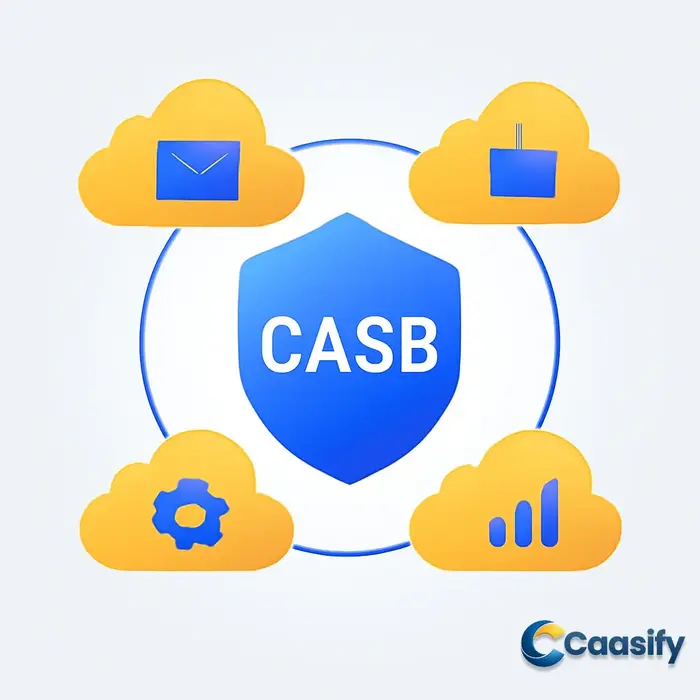
    A cloud access security broker (CASB) serves as a critical control point between your users and the cloud applications they rely on. According to Microsoft’s explanation of what a CASB is, CASBs provide unified visibility and policy enforcement across SaaS, IaaS, and PaaS environments. For organizations expanding their use of cloud services, a CASB strengthens governance and reduces the operational risks that come with distributed data. This section clarifies how CASBs support modern cloud security strategies, compares common CASB solutions, and offers practical guidance for selecting a provider that aligns with your security needs.

    A CASB integrates directly with identity providers, cloud service APIs, and existing cloud security tools to help you maintain consistent data controls. Many organizations use CASBs to enforce governance policies, monitor user activity, and reinforce data protection in cloud environments. For example, a CASB can apply rules like blocking uploads of sensitive files to unmanaged cloud storage or requiring encryption for specific data types.

    Under the hood, CASB solutions often rely on API-based integrations. For instance, you may configure a rule such as:

    az policy assignment create --name blockSensitiveUploads --policy blockUploadsPolicy

    This command assigns an Azure policy that restricts sensitive file uploads to defined cloud services, helping ensure consistent compliance. It simply binds a policy to your cloud environment so violations can be monitored or blocked.

    To understand how CASBs operate across increasingly complex cloud ecosystems, the Palo Alto Networks guide to CASB breaks down common deployment approaches and the protections they offer. These include monitoring SaaS usage, enforcing access policies, and supporting data breach prevention through granular control mechanisms. As organizations move toward multi-cloud architectures, CASBs help maintain alignment between compliance requirements and real-world user behavior. A recent perspective from SecurityScorecard on securing cloud access at scale emphasizes that CASBs are now essential for managing cloud service security across thousands of distributed endpoints.

    When comparing CASB providers, evaluate the following factors:

    • Integration breadth: Confirm compatibility with your identity provider, productivity suite, and security stack.
    • Policy flexibility: Look for customizable policies that support unique business workflows.
    • Visibility capabilities: Ensure the CASB provides deep visibility into sanctioned and unsanctioned SaaS use.
    • Ease of deployment: Favor solutions with clear documentation and straightforward onboarding.
    • Data protection features: Align features with your regulatory environment and internal governance objectives.

    Selecting the right provider requires balancing usability, visibility, and long-term strategic fit. A well-chosen CASB supports your broader cloud security strategy and acts as a safeguard against unnecessary risk.

    In summary, integrating a cloud access security broker into your environment helps safeguard critical data and standardize cloud service security oversight. As you evaluate CASB solutions, focus on provider transparency, integration depth, and policy flexibility to support sustainable data protection practices.

    The Role of CASB in Modern Cloud Security Strategies

    In today’s cloud-driven environment, organizations face increasing challenges in securing their data and maintaining compliance with industry regulations. A cloud access security broker (CASB) is a crucial tool for bridging the gap between an organization’s on-premises infrastructure and the cloud, offering robust security features across various cloud services. CASBs enable organizations to enforce security policies, protect sensitive data, and ensure compliance in multi-cloud environments. This section will explore how CASBs fit into modern cloud security strategies and the key benefits they bring to organizations.

    How CASB Fits Into Modern Cloud Security Strategies

    A cloud access security broker (CASB) plays a pivotal role in modern cloud security strategies by providing visibility, control, and protection across cloud environments. As businesses increasingly rely on cloud services—whether Software-as-a-Service (SaaS), Platform-as-a-Service (PaaS), or Infrastructure-as-a-Service (IaaS)—securing these platforms becomes crucial. CASBs sit between users and cloud applications, enabling organizations to enforce policies that govern cloud access and data protection.

    CASBs integrate with existing cloud services to provide centralized control over cloud resources. They allow organizations to implement access controls, monitor user behavior, and protect data in real-time. For example, a CASB can monitor the use of applications like Google Workspace or Salesforce, ensuring that sensitive data remains secure and that only authorized users can access critical systems.

    Real-world example: Consider a company using Office 365 for collaboration and data sharing. By deploying a CASB, the company can monitor for any unauthorized sharing of sensitive files and enforce encryption for specific document types, ensuring compliance with regulations such as GDPR or HIPAA.

    In addition to enforcing security policies, CASBs provide visibility into cloud usage, allowing security teams to track potential risks and manage vulnerabilities. The integration of CASBs with cloud services also enables data loss prevention (DLP) measures, preventing sensitive information from being leaked or exposed through misconfigurations or human error.

    For more information on CASB functionality, see What Is a Cloud Access Security Broker (CASB)? – Microsoft Security 101.

    Benefits of Using a Cloud Access Security Broker

    Implementing a cloud access security broker (CASB) offers numerous advantages to organizations, especially in terms of data protection, risk management, and compliance. Below are some key benefits that a CASB can bring to your cloud security strategy:

    • Enhanced Data Protection: CASBs protect sensitive data by enforcing encryption, tokenization, and access controls, ensuring that cloud environments remain secure even when data is stored or shared across various cloud platforms.
    • Improved Compliance: A CASB can help organizations meet industry regulations such as GDPR, HIPAA, and SOC 2 by providing real-time monitoring, auditing, and reporting capabilities that ensure compliance is maintained.
    • Visibility and Control: By offering detailed insights into cloud usage, a CASB allows security teams to monitor user activity and detect unauthorized access or risky behaviors. It enables organizations to establish granular controls over data access and usage.
    • Risk Management: With a CASB, organizations can proactively identify and mitigate security threats in the cloud, reducing the likelihood of data breaches or cyberattacks. This includes protection against shadow IT—unauthorized cloud applications used by employees outside the company’s knowledge.
    • Multi-Cloud Security: In a multi-cloud environment, a CASB provides a unified approach to securing applications and data across different cloud platforms. This reduces complexity and ensures that security policies are consistently applied, regardless of the cloud service provider.

    For example, a global enterprise with employees using various cloud platforms (AWS, Azure, and Google Cloud) can leverage a CASB to enforce a consistent set of security policies, ensuring that data security and compliance requirements are met across all services.

    CASBs also help organizations streamline their cloud risk management efforts by automating threat detection, providing real-time alerts, and enabling efficient response mechanisms. This ensures that security teams are always ahead of potential vulnerabilities or breaches in the cloud environment.

    To further understand the benefits and functions of CASBs, check out What Is a CASB? Cloud Access Security Broker explained (Palo Alto Networks).

    In conclusion, CASBs are an essential component of modern cloud security strategies. They provide organizations with the tools necessary to enforce security policies, protect sensitive data, and maintain compliance in a complex cloud landscape. Whether you are managing a single cloud platform or a multi-cloud environment, implementing a CASB can greatly enhance your ability to secure your cloud infrastructure.

    Key Features and Capabilities of CASB Solutions

    A cloud access security broker (CASB) is a crucial component in modern cloud security strategies. These solutions sit between cloud service users and cloud applications, providing an extra layer of security by enforcing policies that help organizations control their data and protect against potential threats. As cloud adoption grows, the need for robust CASBs is rising, helping businesses manage security and compliance while ensuring a seamless user experience. In this section, we will explore the core features of CASB solutions, how they integrate with cloud platforms, and their role in compliance with industry standards.

    Top CASB Features for Enhancing Cloud Security

    CASBs offer several key features that significantly enhance cloud security. These include visibility, threat protection, data loss prevention (DLP), and user activity monitoring.

    • Visibility: CASBs provide detailed insights into how cloud services are being used within an organization. This feature is essential for identifying shadow IT—unauthorized cloud applications being used by employees. With visibility into user activities, security teams can detect potential threats before they escalate.
    • Threat Protection: Real-time threat detection is a core feature of many CASBs. By continuously monitoring cloud applications, CASBs can identify suspicious behaviors such as unauthorized access attempts or data exfiltration, alerting security teams to potential risks.
    • Data Loss Prevention: CASBs can prevent the accidental or intentional loss of sensitive data by applying security policies like encryption or restricting access based on user roles. For example, a CASB might block a user from downloading sensitive documents if they are not authorized to do so.
    • User Activity Monitoring: By tracking user actions within cloud applications, CASBs can provide audit logs and detect any unusual behavior, such as login attempts from unfamiliar locations or excessive access to sensitive files.

    These features, combined with the ability to secure multi-cloud environments, make CASBs invaluable for organizations looking to safeguard their cloud infrastructure and data against a wide range of threats.

    Understanding CASB Integration with Cloud Applications

    CASBs seamlessly integrate with popular cloud platforms such as AWS, Microsoft Azure, and Google Cloud to enhance security and streamline cloud service management. By monitoring and controlling user access to cloud applications, CASBs ensure that only authorized users can interact with sensitive data.

    • Cloud Service Integration: CASBs support integration with cloud platforms to enforce security policies across services like file storage, collaboration tools, and enterprise applications. For example, a CASB might integrate with AWS to monitor user access to critical resources and alert security teams if unauthorized changes are made.
    • API Security: CASBs protect cloud applications by securing application programming interfaces (APIs) that facilitate communication between users and services. Through API monitoring, CASBs can detect malicious activity or security vulnerabilities within cloud applications.
    • Preventing Unauthorized Access: By controlling access to cloud applications, CASBs help organizations prevent unauthorized users from gaining entry. For example, a CASB solution may restrict access to a cloud storage system unless users authenticate through multi-factor authentication (MFA), significantly enhancing security.

    These integrations allow businesses to maintain security across a variety of cloud environments without disrupting their workflow. CASBs play an integral role in ensuring that cloud services are secure, compliant, and properly managed.

    How CASB Can Improve Compliance with Industry Standards

    One of the key advantages of using a CASB is its ability to help organizations comply with various industry standards like GDPR, HIPAA, and SOC 2. By providing security controls and detailed monitoring capabilities, CASBs simplify the process of maintaining compliance.

    • GDPR Compliance: For companies operating in Europe, GDPR mandates strict data privacy and security measures. A CASB can help organizations meet these requirements by encrypting sensitive data, tracking access to personally identifiable information (PII), and ensuring that data is only accessible by authorized users. For example, a healthcare organization might use a CASB to ensure that patient records stored in the cloud are protected from unauthorized access, helping them comply with GDPR’s data protection rules.
    • HIPAA Compliance: Healthcare providers subject to HIPAA regulations need to protect patient data from unauthorized access and ensure that all security measures are documented. CASBs help enforce HIPAA’s security requirements by monitoring and controlling access to sensitive healthcare data stored in cloud applications. A CASB could, for instance, restrict data sharing and ensure that healthcare professionals only access patient information when necessary and under compliant conditions.
    • SOC 2 Compliance: Organizations that handle customer data in the cloud often need to meet SOC 2 standards, which require strong data protection controls. A CASB provides the tools needed to monitor and secure customer data, ensuring that it remains protected in accordance with SOC 2’s strict standards.

    By assisting in the enforcement of security controls and tracking user activity, CASBs help businesses maintain compliance with relevant regulations, reducing the risk of non-compliance penalties and enhancing overall data security.

    For a more detailed understanding of CASBs and their capabilities, check out What Is a Cloud Access Security Broker (CASB)? — Microsoft and What Is a CASB (Cloud Access Security Broker)? | Palo Alto Networks Cyberpedia. For an in-depth overview of CASBs’ role in securing cloud environments, visit What are CASBs? Cloud Access Security Brokers Explained — Splunk.

    Evaluating CASB Providers: What to Look For

    When evaluating a cloud access security broker (CASB) provider, it’s essential to focus on several critical factors that will impact your organization’s cloud security and compliance needs. Choosing the right CASB involves looking beyond just the features and assessing performance, support, security, and industry-specific needs. In this section, we will explore the key aspects to consider when evaluating CASB providers and provide guidance to help you make an informed decision for your organization.

    Evaluating CASB Performance and Latency for Your Organization

    One of the most crucial factors to consider when evaluating a cloud access security broker (CASB) is its performance and latency. A CASB’s performance directly affects the efficiency of your cloud security policies and workflows, and even a slight delay can disrupt operations.

    The latency of a CASB impacts security policy enforcement in real-time, such as access control, data loss prevention (DLP), and activity monitoring. If a CASB introduces too much latency, it could delay security checks and cloud-based workflows, potentially allowing vulnerabilities to be exploited.

    Key metrics for evaluating CASB performance include:

    • Latency: Measure the delay in security checks during cloud access.
    • Throughput: Check how quickly the CASB can process large volumes of data without slowing down security enforcement.
    • Uptime: Ensure that the CASB maintains high availability, especially for business-critical operations.

    For example, imagine a scenario where an employee attempts to access sensitive data in a cloud application, and the CASB introduces a 200ms delay in processing. While this may not seem significant, in high-volume environments or for sensitive applications, this could result in a noticeable lag and delay in the enforcement of security policies, potentially leading to data exposure or non-compliance.

    When assessing CASB performance, look for benchmarks or case studies from other organizations in your industry to understand how the provider performs under different conditions.

    Evaluating CASB Support and Service Availability

    24/7 support and service availability are vital factors when selecting a CASB provider. Cloud environments run around the clock, and any downtime or delays in accessing critical support can have severe consequences, especially for global organizations.

    The best CASB providers offer continuous support with clear service level agreements (SLAs) that guarantee response times and uptime. Service availability directly relates to the CASB’s ability to ensure operational continuity for cloud-based applications. You need a provider that can quickly address any issues that arise to prevent security breaches or disruptions in cloud services.

    For example, a CASB provider offering an SLA that promises a 99.9% uptime guarantees that your service will be available most of the time, but it’s still important to assess how quickly they respond to incidents. A provider who offers rapid response times and clear escalation paths is preferable.

    Real-world scenarios show that having reliable support can significantly impact operational stability. A major global corporation might experience issues where security policies are not enforced across multiple cloud services during peak usage times. Without fast and reliable support, this could lead to security gaps. Choose a provider with a proven track record for availability and quick issue resolution.

    Security Considerations When Implementing a CASB

    Security should always be top of mind when implementing a CASB. These solutions often handle highly sensitive data, making it essential that they provide robust security features to ensure compliance with industry regulations like GDPR, HIPAA, and SOC 2.

    When evaluating CASBs, focus on key security features such as:

    • Encryption: Ensures that sensitive data is protected both at rest and in transit.
    • Access controls: Provides granular control over who can access specific data and applications.
    • Data Loss Prevention (DLP): Prevents unauthorized sharing or leakage of sensitive information.
    • Activity monitoring: Allows tracking of user activity to detect potential threats.

    For instance, a CASB can help ensure compliance with GDPR by offering features like encryption of personal data, access restrictions, and audit trails for tracking data handling. If a company needs to comply with these regulations, it’s essential that the CASB provider demonstrates its ability to meet such compliance standards through certifications or specific security features.

    Security risks should not be overlooked—when selecting a CASB, make sure to review its security capabilities thoroughly and ensure it aligns with your organization’s specific regulatory needs.

    Example: Global Infrastructure and Compliance Support for CASB Solutions

    In today’s globalized business environment, a CASB’s ability to support diverse infrastructure needs and comply with global regulations is critical. Organizations often operate in multiple regions, and their CASB must ensure data residency requirements are met while supporting industry-specific compliance.

    CASB solutions should provide features that meet global compliance standards, such as:

    • GDPR: Ensures the protection of personal data for users in the EU.
    • SOC 2: Demonstrates that the provider has implemented adequate security measures.
    • ISO 27001: Certifies that the CASB follows international best practices for information security.

    An example of a CASB supporting global infrastructure and compliance needs is a provider offering data residency features to ensure that data stored in specific regions complies with local data protection laws. For instance, some CASBs offer the ability to restrict data storage to certain countries to comply with data residency requirements.

    Additionally, some providers have multi-region support, allowing for seamless integration and security across global cloud environments while meeting regional compliance standards. Make sure your chosen CASB aligns with your organization’s geographical and compliance needs to avoid any gaps in regulatory adherence.


    By evaluating CASBs through these key factors—performance, support, security, and compliance—you can make a more informed decision about which provider will best meet your organization’s needs. For more detailed comparisons of top providers, check out our Cloud Access Security Broker: The Ultimate Comparison for 2025.

    Comparing CASB Solutions: Scalability, Security, and Integration

    When choosing a Cloud Access Security Broker (CASB), understanding key factors like scalability, security, and integration is crucial. CASBs are essential tools for securing cloud environments by providing visibility and control over cloud services. As businesses increasingly rely on cloud technologies, evaluating these solutions based on their ability to scale, integrate with existing infrastructure, and protect sensitive data becomes imperative. In this section, we will compare various CASB solutions to help you understand how they address these critical aspects, ultimately guiding you to the best solution for your organization’s needs.

    Scalability Considerations When Choosing a CASB

    Scalability is one of the most important features to consider when selecting a cloud access security broker. As businesses grow, the volume of data and the complexity of cloud environments expand. A scalable CASB ensures that the security framework can evolve alongside these changes without compromising performance or coverage.

    Key scalability features to look for in CASBs include:

    • Auto-scaling: CASBs should automatically adjust to changes in cloud resource usage, particularly in dynamic cloud environments like multi-cloud or hybrid setups.
    • Cloud-native integrations: CASBs that natively integrate with cloud services, such as AWS, Azure, and Google Cloud, provide better scalability by aligning security measures with cloud infrastructure.
    • Elastic load balancing: In multi-cloud environments, CASBs that can handle varied traffic loads are essential for maintaining secure access and preventing bottlenecks.

    For instance, organizations that experience rapid growth may require CASB solutions that can scale without manual intervention, such as those that seamlessly integrate with cloud-native security tools. This ensures continuous protection as data volume and user access points expand.

    CASB vs. Traditional Security Solutions: A Comparison

    Traditional security solutions like firewalls and VPNs were designed for on-premises environments, making them less effective in the modern cloud-first landscape. CASBs, on the other hand, are specifically built to protect cloud services, offering several advantages over traditional security tools:

    • Cloud-centric security: Unlike firewalls or VPNs, CASBs provide visibility into cloud applications and services, allowing organizations to monitor and control access to data stored in the cloud.
    • Granular control: CASBs offer more detailed, policy-based security controls for cloud services compared to traditional solutions, such as enforcing encryption policies or blocking unauthorized cloud app usage.
    • Adaptability: While firewalls and VPNs require manual configuration for every new cloud application, CASBs can automatically detect and secure new cloud services as they’re adopted.

    A key difference, for example, is that VPNs are generally not designed to handle cloud applications. They can only secure connections but cannot monitor or enforce policies specific to cloud environments, leaving gaps in security that a CASB can address effectively.

    CASB Deployment Models: On-Premises vs. Cloud-Based

    CASBs come in two primary deployment models: on-premises and cloud-based. Understanding the pros and cons of each model is crucial for selecting the right solution for your organization.

    • On-premises CASBs: These provide organizations with greater control over their security infrastructure. They are often preferred by businesses with stringent regulatory requirements or those that need to maintain a high level of control over their data security.
    • Cloud-based CASBs: Cloud-based CASBs offer more flexibility and are easier to deploy. They integrate seamlessly with cloud services and can scale as needed, making them a good choice for companies with a growing cloud presence or those that prioritize agility.

    For example, a large enterprise with a legacy system might prefer an on-premises model to ensure complete control over data security, whereas a growing startup might opt for a cloud-based CASB to take advantage of its scalability and reduced infrastructure costs.

    How CASB Can Protect Against Data Loss and Breaches

    One of the primary roles of a CASB is protecting against data loss and breaches. CASBs provide several features designed to safeguard sensitive data as it moves across cloud environments, including:

    • Data loss prevention (DLP): CASBs offer built-in DLP policies that help prevent unauthorized data transfers or access, ensuring that sensitive information remains secure in the cloud.
    • Threat intelligence: CASBs continuously monitor cloud environments for unusual behavior or known threats, enabling them to identify potential breaches before they occur.
    • Anomaly detection: CASBs use machine learning to detect abnormal behavior, such as unauthorized data access or sharing, and trigger alerts or corrective actions in real time.

    For instance, if an employee attempts to upload a file to a non-approved cloud service, a CASB can block the action or apply an encryption policy to protect the file. This proactive approach to security ensures that data is protected from loss or breach across all cloud platforms.

    By comparing CASBs across these features—scalability, security, and integration—you can make a more informed decision about the right solution for your organization’s needs. Each solution offers unique strengths, and understanding how they align with your cloud strategy will help ensure you choose the best option to protect your sensitive data and meet compliance requirements.

    For more details on the role of CASBs in cloud security, check out resources from Microsoft Security and Palo Alto Networks Cyberpedia.

    How to Choose the Right CASB Provider for Your Organization

    When selecting a cloud access security broker (CASB), organizations must assess key factors to ensure the chosen provider meets their security, compliance, and scalability needs. A CASB acts as a critical intermediary between cloud service providers and users, offering visibility, control, and protection across cloud environments. To make the best decision, you should consider how well the CASB integrates with your current cloud infrastructure, how it scales as your business grows, and how it supports your specific compliance requirements.

    Factors to Consider When Selecting a CASB Provider

    When choosing a CASB provider, it is crucial to evaluate a few fundamental factors that will impact your organization’s cloud security posture. The key elements to consider include integration, scalability, and security controls.

    • Integration with existing cloud services: A reliable CASB should seamlessly integrate with your current cloud environment, whether it’s IaaS, PaaS, or SaaS. It should support popular platforms such as AWS, Microsoft 365, or Google Workspace to ensure smooth adoption and continuous protection.
    • Scalability: As your organization grows, the CASB should scale with you. Whether you’re expanding your cloud footprint or adding more users, the CASB should handle increased data flow, users, and cloud services without compromising performance.
    • Security controls: Look for CASBs that offer comprehensive security features such as encryption, data loss prevention (DLP), and user activity monitoring. The CASB should also provide granular access controls to prevent unauthorized access to sensitive information.

    For example, a global enterprise using a CASB with robust integration capabilities can manage multi-cloud environments while ensuring compliance with strict security policies. This integration ensures centralized visibility across various cloud services and enhances data protection across the organization.

    How to Ensure CASB Meets Your Organization’s Compliance Requirements

    Compliance with regulations like GDPR, HIPAA, and CCPA is a top priority for any organization handling sensitive data. A CASB must be able to meet these compliance standards to avoid legal and financial risks.

    When assessing CASBs, ensure they provide essential compliance features such as:

    • Data encryption: Ensure that the CASB offers strong encryption both at rest and in transit to protect sensitive data.
    • User access control: A CASB should allow you to define and enforce strict user roles and access permissions, reducing the risk of data breaches.
    • Audit logs: Look for CASBs that maintain detailed logs of user activities, which are essential for compliance auditing and ensuring data access is appropriately monitored.

    For instance, a healthcare organization using a CASB compliant with HIPAA standards would ensure patient data remains encrypted and accessible only to authorized personnel.

    CASB Sizing: What to Consider for Your Organization’s Needs

    The size and security needs of your organization play a significant role in determining the right CASB solution. Consider the following when choosing a CASB based on your organization’s size:

    • Small to medium-sized businesses (SMBs): SMBs often require CASB solutions that are easy to deploy and manage without heavy IT resources. These businesses may prioritize affordability and ease of use over extensive customization.
    • Large enterprises: Larger organizations need CASBs that can scale and provide more granular control over complex cloud environments. These solutions often come with higher costs and more robust features, including multi-cloud support and advanced threat detection.

    For example, a small business migrating to a single cloud platform like AWS may select a CASB provider focused on cost-effective, simplified security, while a global enterprise will require a solution capable of managing multiple clouds and compliance across various regions.

    Example: Scalable and Compliant CASB Solutions for Enterprises

    A leading enterprise in the financial sector requires a CASB solution that offers both scalability and compliance with financial industry regulations like FINRA and PCI-DSS. By choosing a CASB that integrates seamlessly with their existing cloud services and offers strong data encryption, access controls, and audit logging, the organization ensures they meet compliance requirements while scaling securely as they expand their cloud infrastructure. This approach provides confidence that both operational efficiency and regulatory compliance are maintained at all times.

    For further insights into comparing different CASB solutions, check out Cloud Access Security Broker: The Ultimate Comparison for 2025.

    Optimizing CASB Configuration for Maximum Security and Efficiency

    Configuring a cloud access security broker (CASB) correctly is essential for ensuring both security and efficiency within cloud environments. By properly optimizing your CASB, you can protect sensitive data, enforce security policies, and integrate seamlessly with various cloud services, providing comprehensive visibility and control over cloud usage. This section will guide you through the best practices for CASB configuration and highlight key metrics to monitor for enhancing security and compliance.

    Best Practices for Optimizing Your CASB Configuration

    To optimize your CASB configuration effectively, focus on integrating it seamlessly with cloud services and implementing robust security policies. Here are several key steps to ensure maximum security and efficiency:

    • Data Loss Prevention (DLP) Settings: Configure DLP policies to prevent sensitive data from being improperly accessed or shared across cloud services. A typical configuration might look like this:
    casb-configure --set-dlp --apply-policy "Block access to PII data"

    This command applies a DLP policy to block access to personally identifiable information (PII) across connected cloud environments, ensuring that sensitive data remains secure.

    • Access Controls and User Authentication: Enforce strict access controls and ensure that multi-factor authentication (MFA) is required for all users accessing the cloud services. Implementing role-based access control (RBAC) ensures that only authorized personnel can access specific resources. For example, you could configure:
    casb-configure --enable-mfa --set-rbac "Administrator" "User"

    This ensures that users must authenticate with an additional layer of security and that roles are assigned to manage permissions effectively.

    • Cloud Service Integration: Proper integration with cloud services like AWS, Microsoft Azure, or Google Cloud Platform ensures that the CASB works seamlessly with the cloud environments. For example, to integrate with AWS, you might configure:
    casb-configure --integrate "AWS" --set-policy "Allow S3 bucket encryption"

    This configuration enforces encryption on all data stored in AWS S3 buckets, ensuring that your data remains protected.

    By following these best practices, you can ensure that your CASB is fully optimized to protect data, control access, and integrate well with cloud services.

    CASB Security Analytics: Key Metrics to Monitor

    Effective security analytics are critical for monitoring and improving your CASB’s performance. Below are some essential metrics to track for maintaining security and compliance:

    • Data Access Patterns: Monitor who is accessing data and how frequently. For example, a high number of accesses to a particular dataset might indicate a potential security risk. You can track this using a CASB dashboard, which might display metrics like:
    casb-dashboard --view-metrics "Data Access Frequency" "Top Data Accessed Files"

    This command shows you the most accessed data, helping you detect unusual access patterns that could indicate a breach.

    • Policy Violations: Tracking policy violations is crucial for ensuring compliance and security. Violations of access policies, such as attempts to access restricted files, should be flagged. A typical alert for such violations would look like:
    casb-alerts --show-violations --filter "Access Restriction Breach"

    This setup alerts you whenever a user tries to access data outside of their assigned role or policy.

    • Compliance Monitoring: Regularly monitor compliance with standards such as GDPR, HIPAA, or SOC 2. Set up the CASB to automatically generate reports for auditing purposes. For example:
    casb-compliance --generate-report "GDPR Compliance"

    This generates a compliance report that helps ensure your organization meets the required security and data protection standards.

    By monitoring these key metrics, you can improve your CASB’s effectiveness in safeguarding data, ensuring compliance, and enhancing overall security posture.

    By optimizing your CASB configuration and tracking the right security metrics, you can significantly enhance both the security and efficiency of your cloud environments.

    Post-Implementation Best Practices for CASB: Monitoring and Reporting

    After deploying a Cloud Access Security Broker (CASB), maintaining an effective monitoring and reporting strategy is crucial for ensuring ongoing cloud security, compliance, and risk management. Post-deployment, the primary goal is to continuously track, assess, and enhance the security posture of your cloud environment. This section covers essential practices to follow when managing CASB solutions post-implementation, ensuring that your system remains optimized, compliant, and secure as your business evolves.

    Post-Deployment CASB Monitoring and Reporting Best Practices

    Effective post-deployment monitoring and reporting are essential for maintaining a robust cloud security framework. With a cloud access security broker in place, it’s important to regularly assess key security metrics to ensure the ongoing protection of cloud services.

    Key Metrics to Track:

    • Access Control: Regularly review who is accessing cloud applications and sensitive data. Ensure that only authorized users have access based on least privilege principles.
    • Compliance Checks: Perform periodic compliance audits to verify adherence to industry standards and regulations such as GDPR, HIPAA, and others.
    • Security Incident Reports: Set up automated alerts and dashboards to monitor any unusual activities, such as unauthorized access attempts or data breaches.

    Best Practices for Reporting:

    • Automated Reporting: Set up automated reports for security events, access logs, and compliance checks. This ensures continuous visibility without manual effort.
    • Centralized Dashboards: Implement centralized monitoring dashboards within your CASB to view real-time security data and trends across your cloud environment.
    • Incident Response Alerts: Configure alert rules to notify your security team immediately when suspicious activity is detected, helping to reduce the risk of security breaches.

    These steps enable you to keep track of the security health of your CASB solution, giving you insights for proactive improvements. Regular reviews of these metrics will ensure that your cloud environment remains secure and compliant.

    How to Optimize Your CASB Post-Implementation for Ongoing Security

    Post-implementation optimization is essential for fine-tuning your cloud access security broker’s performance and ensuring it aligns with evolving business requirements. Optimizing your CASB setup can provide better security, scalability, and ease of management.

    Steps for Optimization:

    • Refining Security Policies: Review and update security policies regularly to address new cloud threats and changing compliance requirements. Adjust policies to cover new applications or services added to your cloud environment.
    • Enhancing Access Controls: Periodically reassess access controls to ensure they align with the principle of least privilege. Restrict unnecessary access rights and implement tighter controls for sensitive data.
    • Integrating New Cloud Services: As your business grows, integrate new cloud services with your CASB solution. Ensure that your CASB continues to provide visibility and protection across all cloud platforms used in your organization.

    By continuously reviewing and refining your CASB settings, you’ll ensure that your security policies evolve with your business and its changing needs. For example, adding new cloud applications may require updates to your access controls or compliance monitoring strategies.

    Example: 24/7 Support and Global Scalability for Ongoing CASB Optimization

    A critical aspect of post-implementation optimization is having 24/7 support and leveraging the global scalability features of CASB solutions. This combination helps businesses maintain their security posture across different regions and time zones, offering both real-time support and adaptability.

    Role of 24/7 Support:

    Consider a scenario where an unauthorized access attempt triggers an alert in your CASB system outside business hours. With 24/7 support, your security team can immediately address the issue, ensuring that response times are not delayed due to time zone differences. This quick resolution helps to prevent potential data breaches and minimize any damage.

    Leveraging Global Scalability:

    For businesses operating globally, the scalability of your CASB is crucial. A cloud access security broker that can scale to meet the needs of a distributed workforce across multiple regions ensures that security policies are enforced consistently, no matter where employees are located. For example, if your business expands into new regions, your CASB can scale to meet local compliance requirements without compromising security.

    By integrating 24/7 support and utilizing the scalability of your CASB solution, you can maintain a strong, responsive security posture that adapts to your evolving business needs.

    To learn more about optimizing your CASB and selecting the best solution for your needs, check out our Cloud Access Security Broker: The Ultimate Comparison for 2025.

  • KVM Virtualization: The Ultimate Guide to Optimizing Your Infrastructure

    KVM Virtualization: The Ultimate Guide to Optimizing Your Infrastructure

    Introduction to KVM Virtualization: Understanding the Basics

    KVM virtualization, or Kernel-based Virtual Machine virtualization, is a powerful and flexible server virtualization technology that leverages the full potential of hardware support for virtualization. By integrating with the Linux kernel, KVM enables the creation and management of virtual machines (VMs) on physical servers. It is widely used for server environments and cloud infrastructures due to its scalability, performance, and cost-effectiveness. In this section, we’ll explore the architecture behind KVM virtualization and its application within cloud environments.

    The architecture of KVM virtualization: an overview

    KVM virtualization is a Type 1 hypervisor, which means it runs directly on the hardware, providing a high level of performance and efficiency for virtual machines. At its core, KVM takes advantage of hardware virtualization features, such as Intel VT-x and AMD-V, available in modern processors. By utilizing these features, KVM allows multiple VMs to run on a single physical machine, each operating independently.

    The Linux kernel plays a central role in managing KVM virtualization. When KVM is installed, the Linux kernel becomes capable of acting as a hypervisor. It provides essential functions like memory management and scheduling for virtual machines. QEMU (Quick Emulator) works alongside the kernel to handle the hardware emulation necessary for virtual machines to operate. Together, KVM and QEMU enable the creation, management, and execution of VMs.

    A typical KVM setup command to initialize a virtual machine looks like this:

    sudo virt-install --name myvm --ram 2048 --disk path=/var/lib/libvirt/images/myvm.qcow2,size=10 --cdrom /path/to/iso

    This command creates a new virtual machine named “myvm” with 2GB of RAM, a 10GB disk, and an installation ISO. The command interacts with the kernel to allocate resources and configure the VM’s environment.

    By combining KVM’s tight integration with the Linux kernel and the capabilities of QEMU, this architecture ensures that virtual machines are lightweight, efficient, and capable of running diverse operating systems and applications.

    Understanding KVM virtualization in cloud environments

    In cloud environments, KVM virtualization is commonly used to manage virtual machines as part of the Infrastructure as a Service (IaaS) model. Cloud providers rely on KVM to deliver scalable, flexible, and cost-effective virtualized resources. Thanks to its open-source nature and robust support for multi-tenant environments, KVM is a preferred choice for many cloud providers.

    One of the primary benefits of using KVM in cloud infrastructures is its scalability. KVM can easily accommodate thousands of virtual machines on a single physical server, which makes it ideal for large-scale cloud environments where demand can fluctuate. Additionally, KVM’s flexibility allows cloud providers to allocate resources dynamically, creating and removing virtual machines on demand to meet customer needs.

    A real-world example of KVM in the cloud can be seen in many public cloud providers, where KVM is used to run virtual instances for clients. These virtual instances are isolated from one another, offering secure and efficient computing environments.

    A basic KVM cloud setup command might look like this:

    sudo virsh create /etc/libvirt/qemu/myvm.xml

    This command uses virsh, a command-line tool for managing virtual machines, to create a virtual machine defined in an XML configuration file. It showcases how KVM is integrated into cloud platforms to manage virtualized resources efficiently.

    With KVM virtualization, cloud environments can provide cost-effective computing resources, ensuring high levels of availability and performance. This makes it an essential tool in modern cloud infrastructures, helping organizations optimize their use of virtualized resources while maintaining flexibility and control.

    How KVM Virtualization Works: Key Concepts and Architecture

    KVM (Kernel-based Virtual Machine) virtualization is a powerful technology used to create virtualized environments on physical servers. It leverages the Linux kernel, QEMU, and various management tools to allow multiple virtual machines (VMs) to run on a single physical machine, each with its own isolated operating system. In this section, we’ll explore the key concepts of KVM virtualization, including its architecture and how it functions in cloud environments.

    The architecture of KVM virtualization: an overview

    KVM virtualization is a type of hardware virtualization, which means it directly uses the hardware capabilities of a physical machine to run virtual machines. At the core of KVM’s functionality is the KVM hypervisor, which transforms the Linux kernel into a full-fledged virtualization host. This allows KVM to create and manage virtual machines (VMs) with efficient access to physical resources like CPU, memory, and storage.

    Key components of KVM architecture:

    • KVM Kernel Modules: These modules are part of the Linux kernel and provide the low-level virtualization capabilities. They enable the use of hardware-assisted virtualization (such as Intel VT-x or AMD-V).
    • QEMU (Quick Emulator): KVM uses QEMU for managing and running virtual machines. While KVM handles the CPU virtualization, QEMU handles the virtual hardware and device emulation, including disk, network, and USB devices.
    • Libvirt: A toolkit used to manage virtualized environments. It provides a standard interface for managing KVM virtual machines, simplifying tasks like creation, modification, and monitoring.

    In essence, KVM acts as the hypervisor that runs directly on the Linux host, while QEMU takes care of managing virtual devices. The combination of KVM and QEMU enables the creation of efficient virtual machines that closely resemble physical systems.

    Example: Creating a Virtual Machine with virt-install

    To create a virtual machine using KVM, you can use the virt-install command, which simplifies the process of creating and configuring a VM. A basic example of creating a VM with virt-install is:

    virt-install --name myvm --ram 2048 --vcpus 2 --disk path=/var/lib/libvirt/images/myvm.qcow2,size=10 --cdrom /path/to/iso

    This command sets up a new virtual machine called myvm with 2GB of RAM, 2 CPU cores, and a 10GB virtual disk. The --cdrom flag points to an ISO image that will be used to install the operating system. This is a basic example, but virt-install can be customized further to suit specific requirements.

    Understanding KVM virtualization in cloud environments

    KVM virtualization plays a significant role in cloud environments, particularly in Infrastructure as a Service (IaaS) setups. Cloud providers leverage KVM to run multiple virtual machines on a single physical server, providing customers with flexible and scalable computing resources. Platforms like OpenStack often use KVM as the hypervisor of choice for managing virtualized instances across their infrastructure.

    In cloud setups, KVM virtualization helps improve resource utilization by allowing multiple VMs to share physical resources while remaining isolated from each other. Each VM operates independently, with its own operating system, even though they all run on the same physical hardware.

    For example, in an OpenStack cloud, KVM allows the deployment of virtual machines on a large scale. OpenStack’s Nova component, which manages compute resources, integrates with KVM to allocate virtual machines to physical hosts, providing elastic and on-demand compute power to users.

    Example: Provisioning a VM in a Cloud Environment with KVM

    In a cloud infrastructure powered by KVM, administrators can use tools like OpenStack’s nova command-line client to provision new virtual machines. A basic command to launch a new instance in OpenStack might look like this:

    nova boot --flavor m1.small --image ubuntu-20.04 --key-name my-key --security-group default myvm

    This command provisions a new virtual machine called myvm using the m1.small flavor (a predefined set of resources such as CPU and RAM) and an Ubuntu 20.04 image. The instance will be assigned the security group default and will use the my-key SSH key for access.

    By utilizing KVM virtualization in cloud environments, organizations can achieve efficient resource usage while providing customers with isolated, scalable virtual machines, making it a foundational component in modern cloud infrastructure.

    The Benefits of KVM Virtualization for Businesses and IT Professionals

    KVM virtualization, also known as Kernel-based Virtual Machine virtualization, provides businesses and IT professionals with scalable, cost-effective solutions for optimizing IT infrastructure. By utilizing KVM, businesses can enhance flexibility, reduce operational costs, and improve resource management, all while maintaining high performance. In this section, we will explore the key benefits of KVM virtualization for businesses and highlight how small to medium-sized businesses (SMBs) can leverage it for cost savings and efficiency.

    Key benefits of KVM virtualization for businesses

    KVM virtualization offers numerous advantages for businesses, particularly when it comes to scalability, flexibility, and cost-effectiveness. These key benefits make KVM an attractive option for businesses looking to optimize their IT infrastructure.

    1. Scalability: One of the primary advantages of KVM is its scalability. Businesses can start with a small infrastructure and scale up as needed without significant downtime or complexity. KVM allows businesses to easily allocate resources across multiple virtual machines (VMs), making it easier to handle increased workloads or expansion. For example, a growing e-commerce business can seamlessly scale its server resources to handle surges in traffic during peak sales seasons.
    2. Flexibility: KVM offers exceptional flexibility in terms of both hardware and software compatibility. Since KVM operates at the kernel level, it supports a wide range of operating systems, including Linux, Windows, and others. This makes it a versatile solution for companies with diverse IT environments. For instance, a multinational company with different teams running on various operating systems can deploy a KVM-based virtualized environment to consolidate their infrastructure while maintaining the necessary system compatibility.
    3. Cost-effectiveness: KVM is an open-source virtualization solution, meaning businesses can significantly cut down on licensing costs typically associated with proprietary virtualization technologies. By consolidating multiple workloads onto a single physical server, KVM allows businesses to optimize their hardware usage, leading to lower energy costs and reduced hardware requirements. A startup, for example, can use KVM to deploy multiple VMs on a single server, reducing the need for additional physical machines and lowering their overall infrastructure costs.

    Cost-effective KVM virtualization options for small to medium businesses

    For small to medium businesses (SMBs), cost-effectiveness is a critical factor when selecting virtualization solutions. KVM offers several advantages for SMBs, enabling them to implement powerful virtualization without breaking the bank.

    1. Affordable hardware requirements: KVM allows SMBs to get the most out of their existing hardware. Since KVM is efficient in its resource management, businesses can deploy several virtual machines on a single physical server. This minimizes the need for costly hardware upgrades and helps SMBs stretch their IT budgets. For example, a small digital marketing agency can run multiple web and database servers on one machine, avoiding the need to purchase additional hardware.
    2. Reduced operational costs: By consolidating resources and reducing hardware dependency, KVM lowers the operational costs associated with running physical servers. With fewer physical machines to maintain, businesses spend less on power, cooling, and hardware maintenance. A medium-sized retail company, for example, can use KVM to virtualize its internal applications, cutting costs on both hardware and the associated administrative overhead.
    3. Open-source flexibility: The open-source nature of KVM means businesses do not have to pay for expensive licenses or subscriptions. This makes KVM an attractive choice for SMBs, particularly those operating on tight budgets. Companies can take advantage of KVM’s free software while still benefiting from professional-grade virtualization features such as live migration, resource management, and high availability.

    By using KVM virtualization, small to medium-sized businesses can enjoy the benefits of server virtualization without the high upfront costs, making it a cost-effective solution for their IT needs.

    For further insights into KVM’s cost benefits, you can explore more in-depth information on AWS KVM Benefits. For additional details on how KVM works, refer to Red Hat KVM Overview.

    Evaluating KVM Virtualization Configurations: What to Consider

    When evaluating KVM virtualization configurations, it’s essential to consider a variety of factors to ensure your virtualized environment meets performance, security, and scalability requirements. KVM (Kernel-based Virtual Machine) virtualization offers a flexible and powerful solution for running virtual machines (VMs) on Linux systems. However, selecting the right configuration depends on understanding your specific needs, including VM resource allocation, security features, monitoring capabilities, and the flexibility of your provider. In this section, we’ll explore key considerations for sizing virtual machines, securing the virtualization environment, monitoring VM performance, and evaluating flexible KVM providers.

    Factors to consider when sizing your KVM virtual machines

    When sizing your KVM virtual machines (VMs), several factors need to be evaluated to ensure that the resources allocated match the workloads they will support. This includes CPU, RAM, and storage considerations.

    CPU and RAM Allocation

    To size VMs correctly, consider both the number of VMs you intend to deploy and the workloads they will host. For example, a database server will require more CPU and RAM than a simple web server. To allocate the correct amount of resources, assess the expected usage of each VM. Start with the requirements of the guest operating system, and then add additional resources for the applications or services it will run.

    Example: For a database VM, you may allocate 4 CPUs and 16GB of RAM, depending on the number of users and the complexity of the queries. To calculate the optimal resources, use tools like virt-top or virsh to monitor live resource usage, and adjust VM sizes accordingly.

    Storage Considerations

    Storage requirements depend heavily on the data the VM will handle. It’s important to account for disk space both for the operating system and any application data. SSD storage is preferable for high-performance VMs, especially when dealing with databases or applications that require frequent disk access.

    For example, a web server might need 20GB of disk space for the OS and applications, while a database server could require hundreds of gigabytes for storage. Balancing performance with cost is crucial. More resources mean better performance, but they also increase the cost. Thus, finding the right balance for your specific needs is key.

    KVM virtualization security features to look for

    Security is a critical consideration when configuring KVM virtualization. As KVM operates at the hypervisor level, securing both the host system and virtual machines is essential to prevent unauthorized access and potential vulnerabilities.

    Isolation and Access Control

    KVM provides strong isolation between virtual machines by leveraging Linux’s kernel features. This ensures that each VM operates independently, reducing the risk of one VM affecting the others. Additionally, controlling access to virtual machines is crucial. Tools like SELinux or AppArmor can be used to enforce security policies and limit what actions VMs can perform.

    Example: You can enforce strict access control by configuring SELinux policies to restrict network access between virtual machines. This reduces the likelihood of unauthorized data access.

    Encryption for Data Protection

    For data at rest, enabling disk encryption is an essential security measure. KVM supports encryption of virtual disk images, ensuring that sensitive data remains protected even if the underlying storage is compromised. To enable encryption for a VM’s disk, use the following example configuration:

    qemu-img create -f qcow2 -o encrypt=on,compression=lz4 /path/to/vm-image.qcow2

    This command creates a disk image with encryption and compression enabled, ensuring that data stored within the VM is protected. By focusing on strong isolation, encryption, and access controls, you can ensure that your KVM virtualization setup is secure.

    KVM virtualization monitoring tools for optimal performance

    Monitoring the performance of your KVM virtual machines is essential for maintaining an efficient and responsive virtualized environment. Several tools can help you monitor CPU, memory, and disk usage, ensuring that your VMs are running smoothly.

    Key Monitoring Tools

    Tools like virt-top and virsh are commonly used to monitor KVM VM performance. These utilities provide real-time information on resource usage and allow you to make adjustments when necessary. For instance, to monitor VM performance using virt-top, you can run:

    virt-top

    This command opens a real-time display showing CPU, memory, and disk usage for all running virtual machines. It’s an essential tool for tracking the health of your VMs.

    Setting Up Alerts

    To ensure proactive monitoring, setting up resource usage alerts can help you take action before performance issues become critical. Using monitoring systems like Nagios or Zabbix, you can configure thresholds for CPU, RAM, or disk space and receive notifications when these limits are exceeded. By regularly monitoring VM performance and setting alerts for resource overages, you can maintain an optimized and responsive environment.

    Example: Evaluating a Flexible KVM Provider

    When selecting a KVM provider, flexibility is one of the most important factors to consider. A good KVM provider should offer scalable resource allocation, allowing you to increase or decrease CPU, RAM, and storage as your needs evolve.

    Example: Imagine comparing two KVM providers. One offers fixed resource allocations with limited scalability, while the other allows you to dynamically scale resources up or down based on real-time needs. The second provider’s flexibility is a significant advantage if your workload is unpredictable or if you anticipate rapid growth in the future. By evaluating providers based on resource scalability, support quality, and the flexibility of their KVM configurations, you can select a provider that aligns best with your needs.

    For more details on performance and cost optimizations with KVM, check out KVM Virtualization: The Ultimate Guide to Performance and Cost.


    This section has covered the critical considerations when evaluating KVM virtualization configurations, including sizing VMs, implementing security features, monitoring performance, and selecting the right provider. By carefully assessing these factors, you can make informed decisions to optimize your KVM virtualization environment.

    KVM Virtualization vs. Other Virtualization Technologies: A Comparison

    Understanding KVM virtualization in the context of other leading hypervisors helps clarify its role in modern server environments and why many organizations choose it for performance, scalability, and cost efficiency. This section compares KVM with VMware, Xen, and Hyper-V from a practical, intermediate-level perspective, highlighting where each technology excels and how infrastructure teams can use these differences to optimize their data centers.


    How KVM virtualization compares to other virtualization technologies

    KVM operates as a Linux kernel module that turns the kernel itself into a type-1 hypervisor, giving it direct hardware access and efficient resource handling. Compared to VMware ESXi, Xen, and Hyper-V, KVM-based virtualization stands out for its open-source model, strong scalability, and lower total ownership cost.

    A quick feature breakdown shows clear differences:

    • Cost and licensing
      • VMware ESXi introduces recurring licensing fees, especially when scaling clusters.
      • Hyper-V requires Windows Server licensing.
      • KVM technology is open source, eliminating upfront license costs while maintaining enterprise-level capabilities.
    • For an in-depth look, see the official KVM vs. VMware comparison by Red Hat.
    • CPU and memory efficiency

      Independent tests highlight KVM’s efficient CPU passthrough mode using virtio drivers. For example, enabling CPU host passthrough uses the command:

      qemu-system-x86_64 -cpu host

      This exposes all host CPU features to the VM, improving performance under compute-intensive workloads.

    • Architecture differences

      KVM integrates directly with the Linux kernel scheduler, while Xen uses a microkernel design that introduces varying overhead depending on the deployment. A deeper comparison of Xen vs. KVM is available in Xen vs. KVM: how performance and architecture compare.

    • Hyper-V comparison

      Hyper-V offers tight Windows ecosystem integration but often underperforms in mixed-OS environments where Linux-first workloads benefit from KVM’s native kernel integration.

    Overall, KVM’s architecture and open-source model make it a strong alternative to proprietary hypervisors for teams prioritizing flexibility and cost-effective scalability.


    The impact of KVM virtualization on data center efficiency

    Data centers increasingly adopt KVM technology to improve operational efficiency across resource allocation, energy consumption, and hardware utilization. Because KVM relies on Linux’s scheduler and memory management systems, it distributes CPU cycles and RAM more effectively than many standalone hypervisors.

    Key areas where KVM improves efficiency include:

    • Resource allocation and consolidation

      KVM supports aggressive overcommit strategies (such as memory ballooning), allowing operators to run more virtual machines on the same physical hardware. To enable the balloon driver for a VM, administrators add:

      -device virtio-balloon

      This allows the host to reclaim memory during peak demand.

    • Energy efficiency

      By consolidating workloads onto fewer hosts, organizations report 20–40% reductions in power usage. KVM benefits from Linux power-saving features like CPU frequency scaling and tickless kernel operations.

    • Hardware compatibility and multi-tenant flexibility

      KVM supports a wide range of commodity hardware, ideal for cloud providers and enterprises running heterogeneous environments. Multi-tenant data centers often choose KVM virtualization because it isolates tenants using SELinux, cgroups, and namespaces without requiring add-on licensing.

      Example: A mid-sized European hosting provider migrated 60% of its VMware clusters to KVM-based virtualization. With hardware consolidation and licensing elimination, they reduced annual overhead by roughly €120,000 while freeing rack space and improving VM density by 18%.

    These real-world improvements make KVM a compelling choice for data centers aiming to reduce costs without compromising performance.


    Understanding KVM virtualization performance and scalability

    Performance and scalability are often deciding factors when comparing hypervisors, and KVM consistently performs well across both small lab environments and large-scale cloud deployments. Benchmarks like the Hypervisor showdown: KVM, VMware ESXi, and Hyper-V performance comparison show competitive or superior performance under both network-heavy and compute-heavy workloads.

    Highlights of KVM’s performance profile:

    • Near-native CPU performance

      Because KVM uses the Linux kernel’s scheduling and memory management, workloads often run at close to bare-metal speed. For optimized IO performance, enabling the virtio-net and virtio-blk drivers significantly reduces latency.

    • Scalability across environments
      • Small deployments: KVM can run efficiently on single-host environments using simple KVM/QEMU setups.
      • Large-scale deployments: Cloud providers use KVM to run thousands of VMs per cluster, benefiting from Linux’s control groups and NUMA-aware scheduling.
    • Comparison with VMware and Xen scalability

      VMware ESXi provides polished management tooling, but KVM often scales more cost-effectively because it avoids per-host licensing limits. Xen virtualization scales well too, but adds architectural complexity for operators unfamiliar with its split-driver model.

    • Example scalability scenario:

      A research organization expanded from 50 to 400 VMs over two years using KVM. By using NUMA pinning:

      virsh vcpupin vm1 0 0

      This command binds a virtual CPU to a specific physical core, increasing consistency for compute-bound workloads.

    These practical scalability capabilities make KVM virtualization a strong long-term option for growing infrastructure needs.


    In summary, KVM virtualization offers a balanced combination of cost efficiency, high performance, and strong scalability, making it a compelling alternative to VMware, Xen, and Hyper-V for organizations optimizing their infrastructure.

    Optimizing KVM Virtual Machines for Performance and Scalability

    Optimizing KVM virtualization is essential for achieving high-performance, scalable virtual environments. Whether you are managing a few virtual machines (VMs) or overseeing a large-scale deployment, understanding how to configure and fine-tune your KVM setup can lead to better resource management, reduced latency, and increased uptime. In this section, we’ll explore how to configure KVM virtual machines for maximum efficiency, optimize them for low-latency applications, ensure reliability, and choose scalable solutions with global reach.

    How to configure KVM virtual machines for maximum efficiency

    Configuring KVM virtual machines for optimal performance begins with key settings related to resource allocation, CPU pinning, and storage configurations. These initial steps ensure your VMs run efficiently, avoiding common bottlenecks in memory or CPU usage.

    1. Resource Allocation

      One of the first things to consider when configuring KVM virtual machines is how resources like CPU and memory are allocated. In KVM, you can assign a specific amount of CPU and RAM to each VM. A good starting point is to allocate at least 1 GB of RAM per VM, but depending on your workload, you might need more or less. You can adjust CPU and memory settings using the virt-manager GUI or virsh commands.

      Example: To allocate 2 CPUs and 4GB of memory to a KVM virtual machine, use the following command:

      virsh setvcpus <VM_Name> 2 --config
      virsh setmem <VM_Name> 4096 --config
      

      This ensures that the VM is allocated the appropriate CPU cores and memory.

    2. CPU Pinning

      For workloads requiring higher performance, especially in multi-core environments, CPU pinning can help reduce overhead by dedicating specific CPU cores to certain VMs. Pinning VMs to physical cores instead of allowing the hypervisor to allocate them dynamically can improve consistency in performance.

      Example:

      virsh vcpupin <VM_Name> 0 0
      virsh vcpupin <VM_Name> 1 1
      

      This command pins the first two vCPUs of the VM to physical CPU cores 0 and 1.

    3. Storage Optimization

      Another important area is storage, particularly when high-speed data access is needed. Using SSD storage for KVM virtual machines is highly recommended for better I/O performance. You can configure the storage pool to use SSDs, ensuring faster disk access for VMs.

      Example:

      virsh vol-create-as <pool> <volume_name> 20G --format qcow2
      

      This command creates a 20GB virtual disk in a specified storage pool. Using SSD-backed storage can significantly reduce disk latency, boosting overall performance.

    By focusing on CPU allocation, pinning, and efficient storage use, you can create KVM virtual machines that are well-optimized for performance.

    How to optimize KVM virtualization for low latency applications

    For applications that require low-latency performance, such as real-time processing or high-frequency trading systems, tuning KVM virtual machines is essential. By configuring the right settings for CPU affinity, memory management, and networking, you can reduce delays and improve responsiveness.

    1. IRQ Pinning

      Interrupt Request (IRQ) pinning allows you to assign specific IRQs to dedicated CPUs. This reduces latency by ensuring that hardware interrupts are handled by the same processor, avoiding context switching and delays.

      Example:

      echo 0 > /proc/irq/16/smp_affinity
      

      This binds IRQ 16 to CPU 0, which can help reduce latency for network devices or high-performance applications.

    2. CPU Affinity

      Assigning specific CPUs to virtual machines can prevent the hypervisor from distributing workloads across multiple cores, which may introduce latency. Pinning the VM’s vCPUs to dedicated physical cores ensures better real-time performance.

      Example:

      virsh vcpupin <VM_Name> 0 0
      virsh vcpupin <VM_Name> 1 1
      

      This configuration keeps the virtual CPUs on fixed cores, improving low-latency performance by minimizing context switching.

    3. Network Optimizations

      Low-latency applications also rely heavily on network performance. Optimizing network settings in KVM can include tuning the virtual network interface cards (vNICs) or using SR-IOV for direct device access to the VM.

      Example:

      virsh attach-interface --domain <VM_Name> --type network --source <Network_Name> --model virtio
      

      Using the virtio model for network interfaces can significantly reduce networking overhead, improving application responsiveness.

    By implementing these strategies—IRQ pinning, CPU affinity, and network optimizations—you can ensure that your KVM virtualization environment is tuned for low-latency applications.

    Ensuring uptime and reliability with KVM virtualization

    High availability (HA) and reliability are crucial for maintaining uninterrupted services. KVM virtualization can be configured to ensure that your VMs stay online and recover quickly in case of failures.

    1. Backup Strategies

      Regular backups are essential to prevent data loss. KVM supports snapshot-based backups, which allow you to create point-in-time copies of virtual machines. These snapshots can be used to restore VMs to their previous state in the event of a crash or failure.

      Example:

      virsh snapshot-create-as <VM_Name> --name <Snapshot_Name> --description "Backup snapshot"
      

      This command creates a snapshot of the VM, providing a backup that can be restored if necessary.

    2. Redundancy and Failover

      To ensure that your VMs remain available during hardware failures, consider setting up VM redundancy. This can be done by using multiple physical hosts with clustering and live migration enabled.

      Example:

      virsh migrate --live <VM_Name> qemu+ssh://<destination_host>/system
      

      This command migrates a running VM to another host, ensuring that the VM remains operational even in the event of a host failure.

    3. Offsite Backups

      Offsite backups can further enhance reliability by protecting your data from local hardware failures or disasters. Storing backups in remote locations or on cloud platforms ensures that your VMs can be restored if a disaster strikes.

    By combining regular snapshots, VM migration, and offsite backups, you can maintain a highly available and reliable KVM environment.

    Example: Choosing a Scalable KVM Solution with Global Reach

    When selecting a KVM solution for scalability, it’s important to consider how the infrastructure can grow with your needs, especially when you require global reach. A scalable KVM solution should support multiple data centers, geographic distribution, and easy resource allocation.

    1. Geographic Distribution

      For a truly global KVM deployment, ensure that your solution offers the ability to deploy VMs across different geographical regions. This can reduce latency for users around the world and allow for more efficient resource management.

    2. Elastic Resource Allocation

      A scalable KVM environment should support dynamic allocation of resources based on demand. This includes the ability to add or remove CPU, memory, and storage resources as workloads change. KVM can be configured to automatically adjust resources with minimal downtime.

    3. Cloud Infrastructure Support

      Many organizations choose KVM for cloud deployments because of its scalability. By utilizing KVM in a cloud-based infrastructure, you can take advantage of automated scaling and geographic distribution, ensuring that your virtual machines are always close to the end users.

    In a scalable KVM setup, you can leverage both local and cloud-based infrastructure to handle high traffic, ensuring low-latency performance and global availability.

    By following these steps for configuration, optimization, and scalability, you can ensure that your KVM virtualization environment performs optimally and scales to meet the demands of your applications. For more in-depth advice on KVM virtualization performance, check out our KVM Virtualization: The Ultimate Guide to Performance and Cost.

    Selecting the Right KVM Virtualization Solution for Your Needs

    KVM virtualization (Kernel-based Virtual Machine) is a robust solution for server virtualization that offers scalability, flexibility, and efficiency. As businesses look to optimize their infrastructure, choosing the right KVM solution is crucial to ensuring performance, manageability, and long-term scalability. This section will guide you through the essential factors to consider when selecting a KVM virtualization provider, the key features to look for in a control panel, and how to match the best KVM solution to your specific workload needs.

    How to choose the right KVM virtualization provider

    When selecting a KVM virtualization provider, it’s important to evaluate several key factors to ensure the solution fits your infrastructure requirements. Here’s how to approach the decision:

    • Scalability: Ensure the provider offers scalable solutions that can grow with your needs. This includes the ability to add more virtual machines (VMs), adjust resource allocations, and expand storage capacity.
    • Support: Check if the provider offers robust support options. Look for documentation, community forums, and commercial support if needed. It’s also valuable to evaluate response times and service-level agreements (SLAs) for support.
    • Pricing: Compare the pricing models of different providers to ensure you are getting good value. Consider both the initial cost and any ongoing fees based on the level of support, features, and resources you require.

    For example, when comparing two KVM providers, one may offer better scalability with more VM options and flexible resource allocation, while another may have more competitive pricing but offer less comprehensive support. Performance benchmarks, such as VM provisioning times or resource utilization metrics, can help you assess the reliability and efficiency of a provider’s service.

    Key features to look for in a KVM virtualization control panel

    A KVM control panel is essential for managing and configuring virtual environments efficiently. Here are the key features you should consider:

    • Ease of Use: The control panel should be intuitive, providing a clear dashboard with easy access to key functions like VM creation, resource management, and monitoring.
    • Scalability: As your infrastructure grows, the control panel should allow for easy expansion, including adding new VMs and managing resources effectively.
    • Multi-User Support: Look for a control panel that supports multiple users with varying permissions. This is particularly useful in environments where different team members or departments need access to the system.
    • Resource Monitoring: The control panel should provide real-time insights into the health and performance of your virtual machines, including CPU, memory, and network usage.

    Popular control panels such as Proxmox and oVirt are widely used in KVM environments. These panels allow for web-based access, streamlined management, and easy integration with other tools.

    Choosing the best KVM solution for your workload

    To choose the right KVM solution for your workload, consider the following:

    • Workload Size: If you have a small-scale operation, you might opt for a simpler KVM solution that requires fewer resources. For larger data centers or cloud hosting environments, you may need more complex solutions that can handle high availability, load balancing, and extensive resource allocation.
    • High Availability: For mission-critical workloads, ensure your KVM solution supports high availability features like live migration, automatic failover, and disaster recovery.
    • Resource Allocation: Consider your specific resource needs, such as CPU power, RAM, and storage. KVM solutions can be configured to allocate resources dynamically based on workload demands.

    For example, if you’re running a cloud-hosting environment, you might choose a KVM solution with advanced networking capabilities and the ability to easily scale resources on demand. Conversely, a smaller company may prioritize simplicity and cost-effectiveness over advanced features.

    By evaluating these factors, you can select a KVM solution that aligns with your needs, ensuring optimal performance and scalability.

    Best Practices for Post-Implementation Support and Optimization

    After deploying KVM virtualization, it’s essential to focus on post-implementation support and optimization to maintain efficiency, stability, and performance. By following best practices, you ensure that your KVM environment operates smoothly, minimizing issues and maximizing its potential. This guide will walk you through key practices, such as resource management, troubleshooting, and compliance, to ensure a seamless post-deployment experience with KVM virtualization.

    Post-implementation best practices for KVM virtualization

    Once your KVM virtualization is up and running, maintaining an optimal environment requires ongoing attention to various aspects. Start by optimizing resource allocation for your virtual machines (VMs) and monitoring performance.

    • Resource management: Ensure that your KVM virtual machines have adequate CPU, memory, and storage resources based on their workload. Regularly review the resource allocation to prevent overcommitment, which can lead to performance degradation.
    • Performance monitoring: Use tools like virsh and top to monitor VM performance. For instance, virsh list allows you to check running virtual machines, and top helps track resource usage.
    • System updates: Regularly update both the host system and virtual machines to stay protected against vulnerabilities and improve system performance. Enable automatic security updates where possible.
    • Backup and disaster recovery: Implement a robust backup strategy for your VMs. Use tools like virsh snapshot-create-as to create snapshots for quick recovery in case of failure.

    By following these practices, you’ll ensure that your KVM environment remains optimized and efficient long after the initial setup.

    How to ensure compliance with KVM virtualization deployments

    Compliance is an essential aspect of managing KVM virtual environments, especially in industries that deal with sensitive data or are subject to regulatory standards. To ensure compliance, focus on the following:

    • Data protection and encryption: Ensure that sensitive data within your virtual machines is encrypted. KVM supports encryption at both the storage and network levels.
    • Security updates: Regularly apply security patches and updates to both the KVM host and the VMs. Tools like yum or apt can automate updates, ensuring you’re always compliant with security standards.
    • Access control: Use tools like semanage to configure SELinux settings and restrict access to virtual machines based on user roles and permissions.

    Implementing these steps will help you maintain compliance with industry standards such as GDPR, HIPAA, or PCI DSS.

    Troubleshooting common KVM virtualization issues

    Despite the reliability of KVM virtualization, you may encounter issues like network connectivity failures, storage problems, or performance bottlenecks. Here’s how to troubleshoot some of the most common problems:

    • Network connectivity issues: If your virtual machine is unable to access the network, check the network interfaces with virsh domiflist <VM_name>. You may also want to verify the firewall settings and the host’s network bridge configuration.
    • Storage problems: If your VM is facing disk I/O performance issues, verify that the storage backend is properly configured and optimized. Use virsh domblklist <VM_name> to check the VM’s disk usage.
    • Performance bottlenecks: To identify CPU or memory bottlenecks, monitor the system performance using top or htop. If the system is under high load, consider adjusting resource allocations or moving VMs to less loaded hosts.

    By following these steps and leveraging tools like virsh and top, you can quickly resolve common KVM issues and restore your environment to optimal performance.

    Ensuring seamless migration to KVM virtual machines

    Migrating workloads to KVM virtual machines can be a complex process, but with the right approach, you can ensure a smooth transition. Here are key steps to consider for a successful migration:

    1. Prepare the host system: Ensure that the host system is ready for the new KVM virtual machines by installing the necessary KVM packages and ensuring sufficient resources (CPU, memory, and storage).
    2. Validate the migration: Before fully migrating your VMs, perform tests using tools like virt-v2v or qemu-img to validate that the migration process works smoothly without data loss or performance degradation.
    3. Check post-migration performance: After migrating the VMs, verify their performance by using virsh and other monitoring tools. Check that the network, storage, and CPU usage are as expected. You can use virsh vcpuinfo <VM_name> to check the CPU allocation and performance.
    4. Resolve common pitfalls: Address common issues like mismatched network settings or incorrect storage configurations by double-checking VM configurations in the KVM host.

    Following these steps will help ensure that your migration process is smooth and that your KVM virtual machines are properly configured post-migration.

    By implementing these best practices and troubleshooting steps, you can ensure that your KVM virtualization environment remains stable, secure, and efficient in the long term. For more detailed insights on optimizing KVM performance, you can refer to resources like Red Hat’s Virtualization Tuning and Optimization Guide or Tuning KVM.

  • Delete Docker Images Safely: Proven Methods for Cleanup

    Delete Docker Images Safely: Proven Methods for Cleanup

    H2 Title: Managing VPS Security Best Practices

    VPS (Virtual Private Server) security is a critical aspect of server management that ensures your website, applications, and data remain protected from malicious actors. Whether you’re managing a VPS for personal use or hosting business-critical applications, security should always be a top priority. In this section, we’ll explore essential practices and tools that will help you secure your VPS, preventing unauthorized access, data breaches, and potential downtime.

    By following these best practices, you’ll improve the security of your VPS, reduce vulnerabilities, and ensure your server stays resilient against attacks.


    Securing SSH Access

    Secure Shell (SSH) is a protocol used for remotely accessing and managing your VPS. It’s important to secure SSH access to prevent unauthorized logins and reduce the risk of attacks.

    Key Practices for SSH Security:

    1. Use Strong, Unique Passwords: Passwords are the first line of defense, but they must be complex and difficult to guess. A strong password typically contains at least 12 characters, combining uppercase and lowercase letters, numbers, and special characters.
    2. Disable Root Login: Allowing root access over SSH makes it easier for attackers to gain full control of your VPS. Instead, create a separate user with limited privileges and only use root for specific administrative tasks. This can be done by editing the /etc/ssh/sshd_config file and setting PermitRootLogin no.
      sudo nano /etc/ssh/sshd_config

      Change the following line:

      PermitRootLogin no

      This prevents attackers from attempting to log in as root directly.

    3. Enable SSH Key Authentication: Instead of relying on passwords, SSH keys provide a more secure method of authentication. Generate an SSH key pair on your local machine, and add the public key to the ~/.ssh/authorized_keys file on the server. This way, only someone with the corresponding private key can log in.
      To generate an SSH key pair:

      ssh-keygen -t rsa -b 2048
    4. Change the Default SSH Port: By default, SSH listens on port 22, making it a common target for attackers. Changing this to a non-standard port (e.g., 2222) can help reduce the chances of automated attacks.
      Edit /etc/ssh/sshd_config:

      Port 2222
    5. Use Two-Factor Authentication (2FA): Adding an extra layer of security to your SSH login process helps prevent unauthorized access even if an attacker obtains your credentials. Tools like Google Authenticator or Authy can be used for this purpose.

    Firewall Configuration

    A firewall acts as a barrier between your VPS and potential threats on the internet. Configuring a firewall properly ensures that only authorized traffic is allowed while blocking malicious requests.

    Key Firewall Configuration Steps:

    1. Enable UFW (Uncomplicated Firewall): UFW is a simple firewall tool that is easy to configure and maintain. To get started, first enable UFW on your VPS:
      sudo ufw enable
    2. Allow Only Essential Ports: Only allow the ports necessary for your VPS’s operation. For example, if you use SSH on port 2222 and a web server on port 80 (HTTP) and 443 (HTTPS), you would run the following commands:
      sudo ufw allow 2222/tcp
      sudo ufw allow 80/tcp
      sudo ufw allow 443/tcp
    3. Block Unnecessary Services: Block any unused or unnecessary ports to minimize your server’s exposure to attacks. For example, if your VPS doesn’t run a mail server, make sure ports like 25 (SMTP) are closed:
      sudo ufw deny 25/tcp
    4. Enable Logging for Security Audits: Enable logging so you can monitor any suspicious activity. This can be done with UFW:
      sudo ufw logging on

      This will allow you to review logs and catch any potential unauthorized access attempts.


    Regular Software Updates

    Keeping your VPS’s software up to date is one of the easiest and most effective ways to secure your server. Software updates often include security patches that address known vulnerabilities, making it crucial to apply them regularly.

    Steps for Software Updates:

    1. Update System Packages: Most Linux distributions allow you to update all installed packages at once using the following command:
      sudo apt update && sudo apt upgrade -y

      This will fetch the latest package lists from the repositories and install the newest versions of the packages.

    2. Enable Automatic Updates: To ensure that security patches are applied automatically, you can enable unattended upgrades. This can be set up on Ubuntu systems with the following command:
      sudo apt install unattended-upgrades

      Once installed, configure it to automatically install security updates by editing the /etc/apt/apt.conf.d/50unattended-upgrades file.

    3. Update Web Software and Frameworks: If you are running content management systems (CMS) like WordPress, Joomla, or any web application, ensure that they are regularly updated, as attackers often target vulnerabilities in outdated versions.
    4. Monitor for Vulnerabilities: Regularly check for new security advisories for the software you are using. You can use tools like apt-listchanges or services like CVE details to stay informed about potential vulnerabilities in the software packages installed on your VPS.

    Backup and Disaster Recovery

    While security measures are essential, they can only reduce risks; they cannot eliminate them. Therefore, a solid backup strategy is vital for disaster recovery in the event of an attack, hardware failure, or human error.

    Backup Best Practices:

    1. Regular Backups: Back up critical files and data on a regular basis. Automate the process with tools like rsync or backup scripts that can be scheduled using cron to run daily or weekly.
      For example, to back up your server’s web files to a remote server:

      rsync -avz /var/www/html/ user@backupserver:/backup/html/
    2. Store Backups Offsite: For additional security, store backups offsite, preferably in a cloud service such as AWS S3 or DigitalOcean Spaces. This ensures that your backups remain safe even if the VPS is compromised.
    3. Test Backups: It’s crucial to regularly test your backup system to ensure that it works correctly. Try restoring a backup on a test server to verify that it’s functioning as expected.

    Monitoring and Logging

    Regular monitoring and logging are critical for detecting and responding to potential threats in a timely manner. Set up monitoring tools to track server performance, security events, and potential intrusion attempts.

    Key Monitoring Tools:

    1. Fail2Ban: Fail2Ban is a security tool that monitors log files for suspicious activity and can block IP addresses involved in brute-force attacks. Install it on your VPS to enhance SSH security.
      sudo apt install fail2ban

      After installation, configure it to protect your SSH service by editing /etc/fail2ban/jail.local.

    2. System Logs: Always monitor logs like /var/log/auth.log and /var/log/syslog for any signs of malicious activity. Use log management tools like Logwatch or ELK Stack for more detailed analysis.
    3. Set Up Alerts: Use tools like Monit or Nagios to set up alerts for various server health indicators, including CPU usage, memory usage, and disk space.

    By implementing these best practices, you’ll greatly reduce the risk of your VPS being compromised. From securing SSH access to regularly backing up data and monitoring your server’s performance, each measure plays an important role in ensuring the long-term security of your VPS environment.

    Make sure to continue educating yourself on new security threats and always stay proactive in applying the latest updates and patches.

    Understanding How Docker Images Accumulate and Impact Disk Space

    As you use Docker, it’s easy for images to accumulate on your system and take up valuable disk space. This is particularly problematic if you work with a lot of containers or frequently build new images. To maintain optimal system performance, it’s essential to understand how unused Docker images affect disk space and how you can clean them up. In this section, we’ll explore practical methods for managing and deleting unused Docker images, ensuring that your disk space is used efficiently.

    Prepare the System for Docker Image Cleanup

    Before you delete Docker images, it’s important to prepare your system properly. Start by checking how much disk space Docker is consuming with the command:

    docker system df

    This command shows you a detailed overview of Docker’s disk usage, including images, containers, and volumes. It’s a good idea to back up any important images before proceeding with the cleanup, especially if you’re unsure whether they are in use. You can list your images with:

    docker images

    This will help you quickly identify critical images that should not be deleted. Preparation ensures that you don’t accidentally remove anything important during the cleanup process.

    Identify Unused Docker Images

    To effectively clean up your Docker images, you need to identify which ones are unused or “dangling.” These are images that are no longer referenced by any containers. Use the following command to list all images:

    docker image ls

    This will display a list of all available images on your system, including their repository, tag, and image ID. Look for images that are not tagged or associated with any running containers. You can also differentiate between dangling images and unused ones by checking the “REPOSITORY” and “TAG” columns.

    Unused images can accumulate over time, especially if you frequently build or pull new images. To see only dangling images (those that are not tagged or used), run:

    docker images -f "dangling=true"

    This command filters out all but the dangling images, making it easier to spot the ones you can safely remove.

    Run Basic Cleanup Commands

    Once you’ve identified the images you no longer need, it’s time to remove them. Docker provides a few useful commands for this task. The docker image prune command removes unused images, freeing up space:

    docker image prune

    This command deletes all dangling images, but it will prompt you for confirmation before proceeding. To automatically confirm and delete unused images without prompts, use the -f flag:

    docker image prune -f

    If you want to remove all unused images, not just dangling ones, you can add the --all flag:

    docker image prune -a

    Be cautious when using the --all flag, as it removes all images that are not currently in use by a container. If you’re not sure about a specific image, avoid this command until you’ve carefully reviewed your images.

    For a more thorough cleanup that includes unused volumes and stopped containers, you can use the docker system prune command:

    docker system prune

    This command removes all unused Docker data, including images, containers, networks, and volumes that are not being used. Again, be careful when running this, as it might delete more than you intend.

    Verify Cleanup and Free Space

    After running the cleanup commands, it’s important to verify that your system’s disk space has been freed up. Use the following command to check the current disk usage:

    docker system df

    This will show you the updated disk usage statistics after the cleanup. You should see a reduction in the “Images” section, indicating that unused images have been successfully deleted.

    By regularly performing Docker image cleanup, you can ensure that your system remains optimized and that disk space is not unnecessarily consumed. For more information on pruning unused resources, check out Docker’s official guide to pruning unused resources.

    Step-by-Step Guide to Safely Remove Docker Images Using Command-Line Tools

    Cleaning up unused Docker images is an important practice for maintaining an efficient and optimized system. If you’re running Docker for any length of time, images can quickly accumulate and consume valuable disk space. This guide will walk you through the process of safely removing Docker images using command-line tools, ensuring you can delete Docker images with confidence while avoiding unnecessary risks.

    Prepare the System for Docker Image Cleanup

    Before deleting Docker images, it’s crucial to prepare your system to prevent the accidental removal of important images. Running cleanup commands without a proper check can lead to the loss of valuable data or dependencies.

    Start by listing all Docker images currently available on your system with the following command:

    docker image ls

    This will display a list of all images, including their repository, tag, and ID. Review the list carefully to ensure you are not removing any images in use by running containers.

    It’s a good practice to identify which images are being used by containers. You can do this by checking which containers are active with:

    docker ps

    To avoid deleting images that are in use, filter out images by their tag or creation date using additional parameters with the docker image ls command. For example, you can filter by creation date:

    docker image ls --filter "before=<image-id>"

    This will help you ensure you’re only removing images that aren’t actively required.

    Identify Unused Docker Images

    The next step is identifying the Docker images that are no longer needed. Docker provides several tools to make this process easier and safer, allowing you to focus on cleaning up unused images without affecting those in use.

    One of the most useful commands for this task is docker image prune. It removes unused images that are not referenced by any containers. To list all unused images, you can run:

    docker image prune -a

    This command will show you all the images that are unused by any running or stopped containers. Review the list carefully, especially when using the -a flag, as it will show all unused images, not just the dangling ones.

    If you want to check specific images for dependencies before removal, you can inspect each image to confirm that it’s not tied to a container or volume:

    docker inspect <image-id>

    This command will provide detailed information about the image, including its history and any containers that may depend on it.

    Run Basic Cleanup Commands

    Now that you’ve identified the images to delete, it’s time to run the actual cleanup commands to remove them. Docker provides several options for deleting images, depending on your needs.

    To remove a single image, use the docker rmi command followed by the image ID or repository name:

    docker rmi <image-id>

    If you want to remove multiple images at once, you can pass multiple IDs:

    docker rmi <image-id-1> <image-id-2>

    For a broader cleanup, you can run the docker image prune command, which removes all dangling images:

    docker image prune

    This command only removes images that are not tagged and are not in use by any containers.

    For a more thorough cleanup, the docker system prune command can be used, which removes not only unused images but also unused containers, networks, and volumes. Be cautious when using this command, as it will delete everything that is not currently in use:

    docker system prune

    This command provides a comprehensive cleanup of your Docker environment.

    Verify Cleanup and Free Space

    After running the cleanup commands, it’s important to verify that the images have been deleted and that disk space has been freed up. Use the following command to check Docker’s disk usage:

    docker system df

    This will show the space used by Docker images, containers, and volumes. Compare this with the output from before you started the cleanup to confirm that space has been freed.

    Additionally, you can list the remaining Docker images using docker image ls to ensure that only the images you want to keep are present on your system.

    By performing these steps, you’ll ensure that your Docker environment is optimized, free of unnecessary images, and that valuable disk space is reclaimed. Regular cleanup is an essential part of Docker management, helping to keep your system running efficiently.

    For more information on Docker image pruning and cleanup, refer to the docker image prune — Docker documentation and Prune unused Docker objects — Docker documentation.

    Comparing Methods for Docker Image Cleanup: Manual vs. Automated Approaches

    Cleaning up Docker images is a crucial part of maintaining a healthy and efficient Docker environment. Unused or dangling Docker images can take up valuable disk space, slow down performance, and clutter your system. In this section, we’ll compare several methods for cleaning up Docker images, including manual cleanup, automated cleanup with cron jobs, and pruning with Docker commands. Each method has its strengths and drawbacks, so understanding the best strategy for your needs will ensure that you keep your Docker environment streamlined and efficient.

    Manual Cleanup with Docker Commands

    One of the simplest ways to delete Docker images is to use Docker’s built-in commands. Manual cleanup involves running specific commands to remove images that are no longer needed. The most common commands used for this process are docker rmi and docker image prune.

    • docker rmi <image_id>: This command removes a specific Docker image by its image ID. It’s useful when you know exactly which image you want to delete. For example:
    docker rmi abc123def456

    This command deletes the image with the ID abc123def456. Be cautious, as trying to remove an image that is still in use by a container will result in an error.

    • docker image prune: This command removes all unused Docker images that are not referenced by any container. This is useful when you want to quickly clean up all dangling images (those that are not tagged or associated with any container).
    docker image prune

    You can also use the -a flag to remove all unused images, not just dangling ones:

    docker image prune -a

    This command cleans up images that are not used by any containers, helping free up space. However, be mindful that this will remove all unused images, so ensure you’re not deleting anything critical.

    Manual cleanup gives you complete control, but it can be time-consuming, especially if you have a large number of unused images. It’s also prone to human error, particularly if you accidentally delete important images.

    Automated Cleanup with Cron Jobs and Scripting

    Automating Docker image cleanup can save time and ensure that your environment stays free of unused images without requiring constant manual intervention. By setting up a cron job, you can schedule Docker cleanup commands to run at regular intervals, automatically deleting unused images.

    To set up an automated cleanup process with cron jobs, follow these steps:

    1. Create a cleanup script: First, write a shell script that will execute the Docker cleanup command. Here’s an example script (cleanup_docker_images.sh):
    #!/bin/bash
    docker image prune -a -f

    This script runs docker image prune -a -f, which removes all unused images without asking for confirmation (-f forces the operation). Save this script in a directory like /usr/local/bin/.

    1. Schedule the cron job: Next, open your crontab file by running:
    crontab -e

    Then, add a cron job to run the script at a scheduled time. For example, to run the cleanup every Sunday at midnight:

    0 0 * * SUN /usr/local/bin/cleanup_docker_images.sh

    This cron job will automatically run the script every Sunday at midnight, cleaning up all unused Docker images.

    Automated cleanup helps you maintain a clutter-free Docker environment without manual intervention. However, ensure that your cron job is set up carefully to avoid removing images that may still be needed.

    Pruning Docker Images with Docker Prune

    Docker also provides the docker system prune command, which is a more aggressive approach to cleaning up unused images, containers, volumes, and networks. It removes all unused data from your system, not just images.

    • docker system prune: This command removes all unused containers, networks, volumes, and images (except those in use by containers). To run this command:
    docker system prune

    You will be prompted to confirm the deletion. Use the -f flag to skip the confirmation step:

    docker system prune -f
    • docker system prune -a: To remove all unused images (including those not dangling), you can add the -a flag:
    docker system prune -a -f

    The docker system prune command is effective for cleaning up a Docker environment entirely, but it should be used with caution, as it can remove more than just unused images. It’s best used in environments where you need a deep cleanup, such as after large-scale Docker operations or testing.

    Comparison of Ease of Use, Automation, and Risk

    When it comes to Docker image cleanup, there are trade-offs in terms of ease of use, automation, and risk.

    Method Ease of Use Automation Risk
    Manual Cleanup Easy None High risk of accidentally removing important images.
    Automated Cleanup (Cron Jobs) Medium High Medium risk if cron job isn’t configured properly.
    Pruning with docker prune Medium None Low risk, but can remove other resources beyond images.
    • Manual Cleanup: Best for users who need complete control over which images are deleted. It’s easy to execute but requires vigilance to avoid accidental deletions.
    • Automated Cleanup: Best for environments where regular cleanup is needed. It can be automated with cron jobs, but you need to configure it carefully to avoid deleting necessary images.
    • Pruning with docker prune: This method is useful for deep cleanups, but be aware that it removes not just unused images but also containers and other resources. It’s less prone to human error but can be too aggressive in some cases.

    Conclusion

    Choosing the best method to delete Docker images depends on your needs. If you want full control, manual cleanup might be the way to go, but if you’re looking for a hands-off solution, automating the cleanup process with cron jobs or using Docker’s built-in pruning commands might be more efficient. Always consider the risks involved, especially when using commands like docker system prune, which can remove more than just unused images.

    Best Practices for Docker Image Management and Cleanup Automation

    Docker image management is essential for maintaining a clean and efficient development environment. Regularly deleting unused Docker images can free up disk space, improve build performance, and prevent your system from becoming cluttered with outdated images. In this section, we will explore best practices for deleting Docker images, comparing both manual and automated methods, and show how to integrate cleanup procedures into your CI/CD pipelines.

    Deleting Unused Docker Images with Prune

    One of the most effective ways to delete Docker images is by using the docker image prune command. This built-in Docker command allows you to remove unused images, containers, and volumes that are no longer needed. It’s particularly helpful for cleaning up images that are dangling—those that are not tagged and are no longer in use by any containers.

    To prune unused Docker images, run the following command:

    docker image prune -a

    This command will remove all unused images. By default, Docker only removes dangling images, but the -a flag instructs it to remove all images that are not being used by any containers. After running this command, Docker will ask for confirmation before deleting images. If you’re confident in your cleanup, you can skip this prompt by adding the -f (force) flag:

    docker image prune -af

    While this approach is straightforward and effective for small-scale use, it’s important to be cautious. Always ensure that you’re not deleting images that you might need later. For a more refined approach, you can add filters to target specific images based on their age, size, or other parameters.

    For example, to remove images that are older than a certain number of days, you can use:

    docker image prune -a --filter "until=24h"

    This command will only remove images that are older than 24 hours. Customizing your prune operations like this helps avoid accidental deletions.

    Automation with Docker Cleanup Tools

    Automating Docker image cleanup can save you time and reduce the risk of cluttering your system with unnecessary images. Several Docker cleanup tools exist that help manage this process more efficiently, especially for large environments with frequent builds.

    One popular option is Docker’s built-in docker system prune, which removes not only unused images but also unused containers, networks, and volumes. This tool is great for comprehensive cleanup tasks and can be scheduled in cron jobs or automated through scripts.

    Here’s how you can use docker system prune:

    docker system prune -af

    This command removes all unused images, containers, networks, and volumes. Using this tool for scheduled cleanups can ensure that your system stays lean and efficient without requiring constant manual intervention.

    If you’re looking for a more user-friendly tool, Docker Cleaner is a third-party tool that offers more control and features, such as excluding certain images from being deleted. Many automated cleanup tools support integrating with existing CI/CD pipelines, making them an ideal choice for development environments where frequent image builds and removals are common.

    Configuring Cleanup in CI/CD Pipelines

    Integrating Docker image cleanup into your CI/CD pipelines is an excellent way to ensure that unused images are removed automatically after each build or deployment cycle. By configuring cleanup tasks within your pipeline, you can free up disk space and maintain a clutter-free environment without manual intervention.

    If you’re using Jenkins, GitLab CI, or similar tools, you can add cleanup steps directly into your pipeline scripts. For example, in a GitLab CI configuration file (.gitlab-ci.yml), you can add a cleanup stage like this:

    stages:
      - cleanup
    cleanup_images:
      stage: cleanup
      script:
        - docker image prune -af

    This configuration ensures that after each build, unused Docker images are automatically deleted. You can adjust this based on your specific cleanup needs, such as deleting images older than a certain number of days or skipping images used in specific environments.

    It’s important to note that while automating cleanup can significantly improve efficiency, you should always verify that your automated cleanup processes do not remove images that are still required for running containers or future builds. Adding exclusion rules and logging cleanup activities can help mitigate this risk.

    Evaluating Docker Cleanup Tools for Scalability

    As your project or infrastructure scales, it’s crucial to evaluate the scalability of your Docker image cleanup methods. Manual cleanup might work well in smaller environments but can become inefficient in larger systems with many images, containers, and volumes.

    For scaling Docker cleanup, you might want to consider more robust, specialized tools like Portainer or Watchtower. These tools offer advanced image management features and can automatically update and prune images across multiple Docker hosts.

    Portainer provides a graphical interface for managing Docker environments and can be configured to automatically prune unused images. Watchtower, on the other hand, is designed to automatically update running Docker containers and can be paired with custom cleanup scripts to maintain disk space efficiency.

    When evaluating cleanup tools for scalability, consider the following factors:

    • Ease of Use: Does the tool integrate well with your existing workflow?
    • Automation: Does it offer fully automated cleanup with options for scheduling?
    • Compatibility: Will the tool work across multiple Docker hosts if necessary?

    For larger teams or organizations, investing in scalable Docker cleanup tools will ensure that image management remains smooth as your environment grows.

    By implementing these best practices and integrating automated cleanup solutions, you can significantly reduce the maintenance overhead of managing Docker images, ensuring that your system remains efficient, responsive, and cost-effective.

    How to Integrate Docker Image Cleanup into CI/CD Pipelines for Ongoing Efficiency

    As Docker images accumulate over time, unused or outdated images can take up valuable disk space, potentially slowing down your CI/CD pipelines. To maintain optimal system performance, it’s essential to regularly delete Docker images that are no longer necessary. Automating this process within your CI/CD pipeline is a proactive way to ensure your system remains lean and efficient. This section will guide you through the process of integrating Docker image cleanup into your CI/CD pipelines, focusing on Jenkins, scheduling cleanup tasks, and integrating cleanup into build and deployment pipelines.

    Setting Up Automated Image Cleanup in Jenkins

    To delete Docker images automatically within Jenkins, you can set up a post-build cleanup job that removes unused images after each build. Using Jenkins’ built-in scripting capabilities, you can automate the removal of images with commands like docker image prune -f. This command will delete dangling images (those not associated with any container) and free up space.

    Here’s an example of a simple Jenkins pipeline step for Docker image cleanup:

    pipeline {
        agent any
        stages {
            stage('Build') {
                steps {
                    script {
                        // Build Docker image
                        sh 'docker build -t myapp:latest .'
                    }
                }
            }
            stage('Cleanup') {
                steps {
                    script {
                        // Remove unused Docker images
                        sh 'docker image prune -f'
                    }
                }
            }
        }
    }

    In this example, after the build stage, Jenkins runs the cleanup stage to delete unused Docker images. This ensures that unnecessary images do not accumulate and waste disk space, keeping your CI/CD pipeline running smoothly.

    Scheduling Cleanup Tasks with CI/CD Tools

    Scheduling Docker image cleanup tasks can be easily achieved with most CI/CD tools. For example, in Jenkins, you can set up a cron job within the Jenkins configuration to automate the cleanup process at specified intervals.

    A sample cron job in Jenkins would look like this:

    # Jenkins cron schedule to run cleanup every week
    0 0 * * 0 docker image prune -f

    This cron job will trigger the docker image prune -f command every Sunday at midnight, ensuring that unused images are regularly removed. Scheduling cleanup tasks like this can drastically reduce manual intervention and optimize disk space management without needing continuous monitoring.

    Similarly, other CI/CD tools like GitLab CI/CD and CircleCI offer cron-like scheduling options. In these cases, you can integrate Docker cleanup tasks into your build pipeline by including a scheduled cleanup step in your configuration file.

    Integrating Cleanup into Build and Deployment Pipelines

    Integrating Docker image cleanup into your build and deployment pipelines is essential for maintaining system efficiency. By including cleanup steps directly within these pipelines, you ensure that images are only retained if they are actively used in the deployment process.

    For example, in a GitLab CI pipeline, you could include a cleanup step after the deployment stage:

    stages:
      - build
      - deploy
      - cleanup
    
    build:
      script:
        - docker build -t myapp:latest .
    
    deploy:
      script:
        - docker run -d --name myapp myapp:latest
    
    cleanup:
      script:
        - docker image prune -f

    In this pipeline, after the application is deployed, the cleanup stage runs to remove unused Docker images. By placing this task at the end of the deployment process, you can ensure that only the images actively being used remain on the system, reducing clutter and maintaining a lean environment.

    Additionally, tools like CircleCI and Travis CI also allow you to add similar cleanup steps to your pipelines, keeping your environment clean and your system resources optimized. These tools support integration with Docker commands for image pruning or removal, helping automate the cleanup process throughout the lifecycle of your pipeline.


    Integrating Docker image cleanup into your CI/CD pipeline ensures that your environment remains efficient, with minimal intervention required. By automating the process through Jenkins or other CI/CD tools, you can free up valuable disk space and prevent potential slowdowns in your development workflow. For more details on pruning unused Docker images, refer to the Docker documentation on pruning unused Docker objects.

    Common Mistakes to Avoid When Deleting Docker Images

    When working with Docker, it’s common to accumulate unused images over time. However, when deleting Docker images, many users make mistakes that can lead to unintentional data loss or inefficient system management. In this section, we will explore the common pitfalls when deleting Docker images and provide practical guidance on how to avoid them for a smoother cleanup process.

    Unintentionally Removing Important Images

    One of the most frequent mistakes when deleting Docker images is unintentionally removing images that are still required for active projects. This often happens when users use the wrong flags with commands like docker image prune.

    The docker image prune command is designed to remove unused images, but it can be risky if misused. By default, it only removes “dangling” images—those that are not associated with any tag or container. However, using the -a flag causes Docker to delete all unused images, including those that are not dangling but may still be useful.

    To avoid this, be sure to run the following command to remove only the dangling images:

    docker image prune

    This command will clean up images that are not associated with any tag or container. It’s safer than using docker image prune -a, which could potentially remove images that are not currently in use but may be needed later.

    For further guidance on safely using Docker’s prune features, check out the official Docker pruning documentation.

    Neglecting to Automate Cleanup Processes

    Another mistake many Docker users make is neglecting to automate the cleanup of unused images. Manually deleting Docker images can be error-prone and inefficient, especially as the number of images grows over time. Automating the cleanup process ensures that unused images are regularly removed without manual intervention.

    A simple way to automate Docker image cleanup is by setting up a cron job that runs docker image prune on a schedule. Here’s an example of a basic cron job that runs the prune command every week:

    0 3 * * 0 docker image prune -f

    This command will automatically prune unused images at 3 AM every Sunday. The -f flag forces the removal without asking for confirmation. This automation ensures that old images don’t pile up and consume disk space, making your system more efficient.

    For more advanced Docker automation strategies, you can integrate image cleanup into your CI/CD pipeline or use external tools to schedule cleanups based on specific criteria.

    Ignoring Image Retention Policies

    Failing to implement proper image retention policies can lead to the unnecessary accumulation of outdated or unused Docker images. Without a retention policy in place, you might end up with a cluttered system, consuming disk space unnecessarily.

    Image retention policies define how long images should be kept before being pruned. For example, you might choose to retain only the last three versions of an image and delete older versions. Here’s an example of how you can manually delete older images based on tags:

    docker image prune --filter "until=168h"

    This command will remove images that haven’t been used in the past seven days (168 hours). By setting up a retention policy like this, you can ensure that your system only retains relevant images, optimizing disk usage.

    For more advanced retention strategies, you can also explore tools or scripts that enforce retention rules based on image tags or creation dates, ensuring that only the necessary images remain in your system.

    By avoiding these common mistakes—unintentionally removing important images, neglecting automation, and ignoring retention policies—you can perform a safe and efficient cleanup of your Docker environment. For more detailed information, check out the docker image prune command reference.

    Optimizing Docker Image Storage for Scalability and Performance

    In Docker environments, unused images can accumulate over time, leading to significant bloat that impacts both system performance and scalability. One of the most effective ways to maintain a clean and efficient system is to regularly delete Docker images that are no longer in use. By doing so, you can free up valuable storage space and ensure that your Docker setup runs smoothly as your application scales.

    Reducing Docker Image Bloat in Development Environments

    In development environments, Docker images can quickly pile up, especially when working with multiple branches or experimenting with different configurations. This results in unnecessary disk usage that can slow down your system. To address this, it’s essential to delete unused Docker images as part of your routine workflow. One efficient way to remove unnecessary images is by using the docker image prune command.

    docker image prune -a

    This command removes all unused images that are not referenced by any containers. The -a flag ensures that even images not associated with a container are deleted, which helps significantly reduce bloat in a development environment. Running this periodically after finishing a feature or switching branches can help keep your workspace lean and fast.

    Docker Image Cleanup in Virtualized Environments

    Virtualized environments often require more extensive management of Docker images due to the shared resources and isolated instances. In such setups, Docker images are commonly used in CI/CD pipelines, creating many temporary images that can quickly accumulate. To optimize storage, it’s essential to incorporate automated cleanup processes.

    One useful strategy for virtualized environments is setting up a scheduled cleanup using Docker’s system prune command, which removes not only unused images but also stopped containers and unused networks.

    docker system prune -a

    This command is a more comprehensive cleanup tool compared to docker image prune, as it eliminates all unused Docker objects, freeing up additional resources. For virtualized systems where scaling and resource management are crucial, implementing this command in a cron job or CI/CD pipeline ensures that the system remains clean without manual intervention.

    Best Practices for High Availability and Scalability

    Maintaining high availability and scalability with Docker images requires a proactive approach to image management. One key practice is to avoid image bloat by regularly removing unused images and automating cleanup processes in production environments. Docker’s ability to scale relies heavily on the efficient use of system resources, and image cleanup plays a critical role in that efficiency.

    To ensure smooth operations and performance, here are a few best practices for image management in high-availability environments:

    • Use Multi-Stage Builds: This minimizes the number of layers in your images, reducing the size and the number of intermediate images stored.
    • Automate Cleanup: Implement regular automated image cleanup using scripts or tools like docker system prune in your CI/CD pipelines.
    • Monitor Image Growth: Regularly audit the size of your Docker images, and implement storage quotas or alerts to track when cleanup is necessary.

    These practices help prevent Docker image bloat, enabling high scalability and ensuring that your system can handle the increased load while maintaining high availability.

    By regularly cleaning up Docker images and automating the process, you optimize your system’s performance and scalability. To dive deeper into managing Docker images efficiently, check out our Docker Image Management guide.

  • KVM Virtualization: The Ultimate Guide to Performance and Cost

    KVM Virtualization: The Ultimate Guide to Performance and Cost

    Comparing KVM Virtualization Options: Performance, Scalability, and Cost

    KVM virtualization is a popular choice for organizations looking to optimize their IT infrastructure, but selecting the right KVM setup requires a careful comparison of performance, scalability, and cost. Each of these factors plays a crucial role in determining the most effective configuration for your needs. In this section, we will explore different KVM virtualization options, comparing them based on how they perform, scale in larger environments, and their overall cost-efficiency. This will help you make an informed decision when configuring your virtualized infrastructure.

    KVM vs. VMware: Pros and Cons

    When comparing KVM and VMware, it’s important to understand the pros and cons of each platform, especially in terms of performance, scalability, and cost.

    • Performance: KVM is known for its close integration with the Linux kernel, offering near-native performance. This is a major advantage in environments that require high-speed processing, such as those running mission-critical applications. VMware, on the other hand, can sometimes provide better performance for enterprise workloads due to its robust optimization features and support for hardware acceleration.
    • Scalability: KVM offers flexible scalability, especially when deployed on cloud platforms, making it ideal for businesses that need to rapidly expand their infrastructure. VMware has strong scalability options as well, with the ability to manage large, complex environments through its vSphere suite, but it can be more resource-intensive and expensive as environments grow.
    • Cost: KVM is open-source and free to use, which makes it a cost-effective option for small and medium-sized businesses. In contrast, VMware is a proprietary solution with licensing fees that can add up significantly in large-scale deployments. This cost difference can be a major factor when choosing between the two, especially for budget-conscious organizations.

    How to Scale KVM Virtualization for Larger Environments

    Scaling KVM virtualization for larger environments requires careful planning and resource management to ensure smooth operations as the demand grows. There are several key strategies to consider:

    • Hardware Expansion: Adding more physical servers to a KVM setup can significantly improve scalability. By configuring a KVM cluster, you can distribute virtual machines (VMs) across multiple hosts, balancing the load and reducing the risk of hardware bottlenecks. For example, you can set up a high-availability cluster where VMs are automatically migrated between hosts in the event of a failure.
    • Cloud Integration: For businesses that require elastic scalability, integrating KVM with cloud infrastructure is a powerful option. Using public or private cloud services, you can dynamically allocate resources, such as storage and processing power, based on real-time demand. This is especially useful for environments that experience fluctuating workloads.
    • Managing Virtual Machines: To scale efficiently, it’s crucial to configure KVM environments to allocate resources effectively to each VM. Setting appropriate CPU, memory, and disk limits ensures that VMs are not over-provisioned, which can lead to inefficient resource usage. For instance, setting the correct CPU pinning and memory limits can prevent one VM from consuming all resources, which would impact the performance of others.

    Performance Considerations in KVM Virtualization

    Optimizing KVM performance requires an understanding of the key factors that affect the virtualization layer. To get the best performance from your KVM setup, consider the following:

    • CPU and Memory Optimization: Adjusting CPU pinning and memory allocation ensures that VMs perform at their best. You can dedicate specific CPU cores to particular VMs, reducing contention between virtual machines. Additionally, configuring memory limits for VMs prevents them from using more memory than necessary, which can lead to excessive swapping and degrade performance.
    • Disk I/O Optimization: Disk performance is crucial for KVM-based systems, especially for I/O-intensive applications. Using high-performance storage, such as SSDs, and configuring disk caching options can dramatically improve the responsiveness of your virtual machines. Consider using virtio drivers for disk and network interfaces, which are optimized for virtualized environments.
    • Network Performance: Network latency can become a bottleneck in virtualized environments, especially when VMs are spread across multiple hosts. To optimize network performance, enable features like virtual bridges and bonding, which can increase throughput and fault tolerance.

    Transparent Pricing in KVM Hosting: What You Need to Know

    KVM hosting providers often offer transparent pricing models that make it easy for businesses to understand the cost structure. However, several factors influence the price of KVM hosting, including hardware, bandwidth, and support services.

    • Hardware Costs: The type of hardware used for KVM hosting can have a significant impact on the price. Providers offering high-performance servers, such as those with SSD storage and powerful CPUs, may charge a premium for their services. However, the higher initial cost can often be justified by the improved performance and reliability.
    • Bandwidth and Storage: The amount of data transfer and storage required will also affect the cost of KVM hosting. Some providers offer unlimited bandwidth options, but these can come at a higher price. It’s important to assess the typical bandwidth usage of your virtual machines to avoid overpaying for unnecessary capacity.
    • Support and Maintenance: Many KVM hosting providers include 24/7 support and maintenance as part of their packages. While this can add to the cost, it provides peace of mind knowing that technical assistance is always available. However, some providers may charge extra for premium support, so it’s worth evaluating the level of service you need.

    Choosing a Cost-Efficient KVM Provider

    When selecting a KVM hosting provider, cost-efficiency should be evaluated not just in terms of price but also based on the quality of service and features provided. Here are key factors to consider:

    • Service Level Agreements (SLA): Look for a provider that offers a solid SLA with guarantees on uptime, support response times, and performance. While some providers may offer lower prices, they might not have the same level of reliability or customer support.
    • Resource Allocation: Consider how resources like CPU, RAM, and storage are allocated. Some providers offer more generous allocations at a lower price, while others may limit resources to keep costs down. Choose a provider that balances affordability with sufficient resources to meet your needs.
    • Support and Reliability: A provider with a strong reputation for customer support and infrastructure reliability is crucial for maintaining smooth operations. Check reviews and case studies to ensure the provider can meet your uptime and support expectations. Even if a provider’s price is competitive, poor support can lead to significant downtime, which can be costly in the long run.

    By evaluating these factors, you can identify a KVM hosting provider that offers a good balance of cost-efficiency, performance, and scalability, tailored to your business’s needs.

    For a deeper understanding of how virtualization can transform IT infrastructure, check out Virtualization Technology: The Ultimate Guide to IT Transformation.

    Choosing the Right KVM Configuration: Factors to Consider

    When setting up KVM virtualization, choosing the right configuration is crucial for balancing performance, scalability, and cost-effectiveness. Whether you’re managing a small development environment or scaling for enterprise workloads, the KVM configuration you select will directly impact your system’s efficiency and ability to grow. In this section, we’ll explore key factors to consider, including optimizing KVM for various workloads, sizing virtual machines (VMs), tuning the hypervisor, and selecting the best KVM hosting provider for your needs.

    Configuring KVM for Different Workloads

    The first step in configuring KVM virtualization is determining the type of workload it will support. Different environments—such as high-performance computing, web hosting, or software development—require distinct configurations to maximize efficiency. For example, a development or testing environment may prioritize resource flexibility, whereas a high-performance computing workload demands robust CPU and memory allocation.

    Example Configuration for a Development Environment:

    • CPU: 2 CPUs with 2 cores each
    • Memory: 4 GB of RAM
    • Storage: 40 GB SSD
    • Networking: Standard virtual network interface

    This configuration ensures that the VM can run common development tools and test applications without consuming excessive resources. On the other hand, high-performance workloads, such as database management systems or data analytics, require much more powerful configurations. For these environments, you’d typically allocate more CPUs, increase RAM to 16 GB or more, and opt for faster storage (e.g., NVMe drives) to ensure optimal performance.

    Sizing Virtual Machines and Allocating Resources

    Properly sizing VMs and allocating resources is vital for ensuring that KVM virtualization meets your performance requirements without overspending on excess resources. In KVM, resource allocation depends on the CPU, RAM, and disk space needs of your virtualized environments.

    Example 1: Small Web Server

    For a small web server hosting static websites or lightweight applications, allocate:

    • CPU: 1 core
    • Memory: 2 GB of RAM
    • Storage: 20 GB HDD or SSD

    This setup is cost-effective while still offering sufficient performance for hosting smaller websites or applications.

    Example 2: Large Database VM

    For a database server, especially one managing high-traffic websites or applications, the VM requires substantial resources:

    • CPU: 4 cores
    • Memory: 16 GB of RAM
    • Storage: 100 GB SSD (ideally with I/O optimization enabled)

    This configuration ensures the database performs efficiently, even under heavy load.

    When sizing VMs, always consider potential growth. It’s essential to leave room for increased demand as workloads evolve, particularly if you anticipate scaling in the future.

    Understanding Hypervisor Tuning for Optimal Performance

    Hypervisor tuning is a critical step in enhancing KVM virtualization performance. KVM, like any hypervisor, can be fine-tuned to optimize resource allocation, reduce overhead, and enhance overall efficiency.

    One key setting for performance tuning is I/O optimization. By adjusting parameters related to disk and network I/O, you can reduce bottlenecks and improve throughput. For example, enabling virtio drivers for disk and network interfaces can significantly boost performance in KVM virtualized environments.

    Example Hypervisor Tuning Command for I/O:

    echo "virtio-pci" > /sys/bus/pci/devices/0000:00:04.0/driver_override

    This command sets the device to use virtio for better I/O performance, reducing latency and increasing throughput for virtual machines.

    Additionally, memory management settings, like adjusting the swappiness value, help KVM determine when to swap memory pages to disk. A lower swappiness value can help prevent swapping, which might impact performance, especially for memory-intensive applications.

    Evaluating KVM Hosting Providers for Customization and Scalability

    Choosing the right hosting provider is key when configuring KVM for scalability. Different KVM hosting providers offer varying degrees of customization, scalability, and performance.

    When evaluating hosting providers, consider the following:

    • Customization: Look for hosting providers that allow you to configure KVM settings to meet your specific needs, including CPU, RAM, and storage options.
    • Scalability: Ensure the provider offers scalable solutions that can easily accommodate your growing workload. This includes adding more virtual machines or increasing resource allocations.
    • Support and Documentation: Comprehensive support is vital, especially if you encounter configuration or performance issues. A good provider will offer detailed documentation and responsive technical support.

    For example, if you plan on scaling your environment, choosing a provider that supports easy upgrades or adding extra resources (such as more RAM or CPUs) is a significant advantage.

    To explore more about scalable virtualization, check out the Virtualization Technology: The Ultimate Guide to IT Transformation.

    In conclusion, configuring KVM virtualization requires careful planning based on your specific workload, resource allocation, hypervisor tuning, and hosting provider capabilities. By optimizing these factors, you can ensure a robust, efficient, and scalable KVM environment tailored to your needs.

    Post-Migration Monitoring and Maintenance: Ensuring Long-Term Success

    After migrating to a KVM virtualization environment, the work doesn’t stop once the initial setup is complete. Post-migration monitoring and maintenance are essential to ensure that your KVM virtual machines (VMs) run efficiently, securely, and cost-effectively. This section will walk you through the necessary steps for monitoring KVM virtualization performance, maintaining system security, and optimizing your KVM setup to achieve long-term success.

    Monitoring KVM Virtualization Performance

    Effective monitoring of your KVM virtualization environment is crucial for identifying performance bottlenecks and ensuring smooth operations. Post-migration, you’ll want to track several key metrics to maintain optimal performance, including CPU usage, memory allocation, and disk I/O.

    To begin, you can use basic tools like top or htop to monitor system resources in real-time. For instance, running the following command in the terminal:

    top

    This command shows an overview of CPU usage, memory allocation, and the processes consuming the most resources. This is useful for spotting any sudden spikes in resource consumption that could affect your KVM setup’s performance. If you prefer a more interactive view, htop provides a more user-friendly display:

    htop

    With htop, you can filter and sort processes more easily, offering a better overview of how resources are being allocated across your virtual machines.

    For more advanced monitoring, tools like Prometheus or Nagios can provide more detailed insights and historical data. These tools can track specific metrics like disk I/O or network throughput, which are crucial for KVM performance monitoring. Prometheus, for example, can collect metrics from KVM hosts and display them in a dashboard for easy tracking over time.

    Ensuring System Security and Compliance Post-Migration

    Security is a key concern after migration to a KVM environment, especially when handling sensitive data or applications. There are several steps you can take to ensure that your KVM virtualization environment remains secure.

    1. SELinux and AppArmor: These are essential security modules for Linux-based systems. Configuring SELinux or AppArmor policies specifically for KVM helps to enforce security measures, such as preventing unauthorized access to your VMs. Here’s a basic example of an SELinux policy configuration for KVM:
    semanage port -a -t libvirt_t -p tcp 16509

    This command adds a new rule to SELinux, allowing access to port 16509 (used by KVM) under the libvirt_t context.

    1. Firewall Settings: Ensure that your KVM hosts are protected by appropriate firewall rules. Limiting inbound and outbound traffic to only necessary services reduces potential attack surfaces.
    2. Regular Security Audits: It’s important to conduct regular security audits on your KVM environment. OpenSCAP is a great tool for this purpose. A simple security scan using OpenSCAP can help identify vulnerabilities in your system. Run:
    oscap xccdf eval --profile xccdf_org.ssgproject.content_profile_standard /usr/share/openscap/scap-yaml/ssg-rhel7-ds.xml

    This command runs a compliance check based on the Security Technical Implementation Guide (STIG) for RHEL7 systems, but you can adjust it for your specific environment.

    By regularly auditing your system’s security, you can quickly identify and address vulnerabilities, ensuring your KVM environment remains compliant with security standards.

    Ongoing Maintenance and Updates for KVM Environments

    Routine maintenance and updates are vital for keeping your KVM virtualization setup running smoothly and securely. This includes software updates for both the KVM hypervisor and any guest VMs. Regular updates ensure that your environment benefits from the latest performance improvements, security patches, and bug fixes.

    To automate system updates, you can use a cron job to schedule updates on your KVM host. Here’s an example of how to schedule a simple update command:

    0 3 * * * root apt update && apt upgrade -y

    This command will run an update and upgrade every day at 3 AM, ensuring that your system stays up-to-date without manual intervention. You can customize the schedule based on your needs.

    Regularly reviewing the performance and system logs of your KVM environment is also essential. By monitoring logs for any unusual activity, you can catch potential issues early before they impact the stability of your VMs.

    Optimizing Post-Migration Performance and Cost with Scalable KVM Solutions

    Once your KVM environment is running smoothly, you can focus on optimizing performance and cost-efficiency. One of the best ways to achieve this is by scaling your KVM setup according to your workload needs.

    1. Resource Allocation: Adjusting resource allocation for your VMs—like tweaking CPU or memory settings—can help you strike the right balance between performance and cost. For example, if you notice that a VM is using too much CPU, you can reduce its allocated CPUs with the following command:
    virsh vcpus <vm_name> --vcpu 2

    This reduces the number of virtual CPUs assigned to the VM, potentially freeing up resources for other VMs without compromising the host’s performance.

    1. Resource Pooling: KVM allows for efficient resource pooling, where you can allocate resources dynamically based on the demands of your virtual machines. This helps to avoid over-provisioning and ensures that your KVM environment remains cost-effective.
    2. Load Balancing: If you’re running multiple VMs on your KVM setup, consider using load balancing techniques to distribute workloads evenly across your hosts. This can prevent any single host from becoming overwhelmed, ensuring that your environment runs smoothly and cost-efficiently.

    By scaling your KVM environment intelligently, you can maintain performance while minimizing unnecessary resource consumption, making your setup both cost-effective and efficient.


    By following these post-migration best practices for KVM virtualization, you can ensure that your environment runs optimally, stays secure, and remains cost-effective over time. Whether it’s monitoring system performance, ensuring security compliance, performing regular updates, or optimizing for scalability, these steps will help ensure long-term success for your KVM setup. For more insights into KVM and virtualization technologies in general, check out our Virtualization Technology: The Ultimate Guide to IT Transformation.

    Introduction to KVM Virtualization: Understanding the Basics

    KVM virtualization, short for Kernel-based Virtual Machine, is a key technology that enables efficient virtualization on Linux-based systems. It allows you to run multiple virtual machines (VMs) on a single physical host, each with its own isolated environment. This makes it a popular choice for server virtualization and cloud computing. In this section, we’ll explore the basics of KVM, how it works, and why it’s a critical part of modern computing environments.

    For a more detailed look at KVM, you can refer to the official KVM kernel documentation, which offers in-depth information.

    What is KVM Virtualization and Why is it Important?

    KVM virtualization is a type of virtualization technology integrated directly into the Linux kernel. It allows the host machine to create and run virtual machines (VMs) by utilizing the hardware features of the host system, such as Intel VT-x or AMD-V, which allow virtual machines to run with near-native performance. The KVM module essentially turns the Linux kernel into a bare-metal hypervisor, meaning it can run and manage multiple guest operating systems on a physical server.

    Why is KVM important? Its significance lies in the fact that it brings powerful, scalable virtualization to Linux environments, offering high performance and flexibility. With KVM, companies can consolidate servers, improve resource utilization, and efficiently run workloads across multiple virtual machines. This is especially valuable in server virtualization and cloud computing contexts, where resource management and isolation are crucial.

    For example, to install KVM on a Linux system, you would typically use the following commands:

    sudo apt-get install qemu-kvm libvirt-bin bridge-utils
    • qemu-kvm: Installs the KVM package and QEMU emulator.
    • libvirt-bin: A set of tools for managing virtualization.
    • bridge-utils: Tools for setting up network bridges for virtual machines.

    Once installed, KVM can be used to create and manage virtual machines, offering an effective solution for virtualization with minimal overhead.

    The Role of Hypervisors in Virtualization

    A hypervisor is a software layer that enables the creation and management of virtual machines by abstracting the underlying physical hardware. KVM is an example of a Type 1 hypervisor, meaning it operates directly on the host hardware, providing virtual machines with direct access to resources like CPU, memory, and storage. This gives KVM a significant performance advantage over Type 2 hypervisors, which run on top of an operating system.

    In the case of KVM, it works in tandem with QEMU, which is used to emulate hardware for the virtual machines. While KVM provides the virtualization framework, QEMU handles device emulation, ensuring the VMs have the necessary hardware interfaces to operate.

    To create a virtual machine with KVM, you can use the virt-install command, as shown here:

    virt-install --name myvm --memory 1024 --vcpus 2 --disk size=10 --cdrom /path/to/iso
    • --name myvm: Sets the name of the virtual machine.
    • --memory 1024: Allocates 1 GB of RAM to the VM.
    • --vcpus 2: Assigns 2 virtual CPUs.
    • --disk size=10: Creates a 10 GB virtual disk.
    • --cdrom /path/to/iso: Mounts an ISO file to install the operating system.

    This command sets up a virtual machine with the specified resources and boots from the provided ISO file. This example demonstrates the role of KVM in virtualization management, creating an efficient and isolated virtual environment.

    KVM’s role as a hypervisor, combined with its integration into the Linux kernel, makes it an essential component for those looking to optimize virtual machine management in server environments.

    How KVM Virtualization Works: Key Concepts Explained

    KVM (Kernel-based Virtual Machine) virtualization is a popular method for running multiple virtual machines (VMs) on a single physical host. It utilizes the Linux kernel’s capabilities to create isolated virtual environments, enabling resource management and virtual CPU assignment. This section will help you understand how KVM virtualization works, focusing on its architecture, the role of the Linux kernel, and how virtual machines are created and managed on KVM.

    Understanding KVM Architecture and Components

    KVM virtualization consists of several key components working together to enable efficient virtualization. The architecture of KVM is built on two main parts: the kernel module and user-space components. The kernel module, kvm.ko, provides the core functionality of KVM, enabling the Linux kernel to act as a hypervisor.

    The user-space components, such as QEMU and libvirt, interact with the kernel module to manage virtual machines. QEMU (Quick Emulator) is responsible for emulating hardware for virtual machines, allowing them to run as if they were on physical hardware. Libvirt is a toolkit used for managing virtualization platforms, offering a high-level API to create, monitor, and manage VMs.

    The interaction between these components is essential for KVM to function. When a virtual machine is created, QEMU acts as the emulator, while libvirt manages resources like virtual CPUs, memory, and storage. This architecture allows KVM to efficiently run multiple VMs with minimal overhead.

    For an illustration, imagine the KVM architecture like a pipeline:

    • The kernel (through kvm.ko) controls the hardware and assigns virtual resources.
    • QEMU runs the virtual machines and provides hardware emulation.
    • Libvirt manages the lifecycle of the VMs and their configurations.

    How Virtual Machines Run on KVM

    Running a virtual machine (VM) on KVM involves several steps, beginning with creating the VM and assigning it resources such as CPU, memory, and storage. Once the VM is created, KVM acts as a hypervisor, managing the virtual resources for each VM. KVM allows each VM to operate independently, with its own guest operating system.

    To launch a virtual machine on KVM, you can use the virsh command, which is part of the libvirt management tools. For example, to create a simple VM, you could use the following command:

    virsh create /path/to/vm-config.xml

    This command instructs virsh to read the VM configuration file and create a new VM instance. The XML file specifies details like the amount of memory, virtual CPUs, and storage for the VM. Once created, the VM starts running, and QEMU begins emulating hardware for the virtual machine. The guest OS then runs on top of this emulated hardware, functioning just like it would on a physical server.

    As the VM runs, KVM manages its access to physical resources through the Linux kernel, ensuring that each VM has isolated, dedicated resources, preventing interference between them.

    The Role of Kernel in KVM Virtualization

    The Linux kernel plays a crucial role in KVM virtualization. The kernel is responsible for managing key resources such as virtual memory, CPUs, and input/output operations, which are vital for virtualization. KVM relies on the kernel’s hardware virtualization extensions (like Intel VT-x or AMD-V) to provide efficient and secure virtual machine operation.

    The kernel’s management of virtual CPUs (vCPUs) ensures that each VM gets its share of CPU time. It also handles virtual memory, mapping the virtual address space of each VM to physical memory. When VMs perform I/O operations, the kernel coordinates the interaction with physical devices, allowing each VM to operate as if it were running on dedicated hardware.

    For example, to enable hardware virtualization support on a system running KVM, you can check if virtualization extensions are enabled using the following command:

    egrep -c '(vmx|svm)' /proc/cpuinfo

    If the output is greater than 0, it indicates that the CPU supports hardware virtualization. This feature is essential for optimal performance in KVM virtualization.

    In summary, the kernel’s role is to ensure that virtual machines can run effectively and independently, by handling resource allocation and managing the virtualization extensions. This tight integration with the hardware makes KVM a powerful and efficient virtualization solution.


    For more details on KVM architecture, you can refer to The Definitive KVM API Documentation. Additionally, for a broader overview, check out What is KVM? by Red Hat.

    Benefits of KVM Virtualization for Businesses and Enterprises

    KVM virtualization offers numerous advantages for businesses looking to optimize their infrastructure, increase flexibility, and reduce costs. KVM (Kernel-based Virtual Machine) technology enables companies to efficiently manage virtual environments, scale as needed, and achieve long-term cost savings through effective resource utilization. By utilizing KVM virtualization, businesses can unlock a range of operational benefits that support growth and enhance their IT operations.

    Improved Efficiency and Resource Utilization

    KVM virtualization provides businesses with powerful resource management capabilities, ensuring efficient allocation of CPU, memory, and storage across multiple virtual machines (VMs). This is particularly important for businesses that need to optimize their server resources and avoid underutilization.

    KVM’s ability to allocate resources dynamically allows companies to maximize their hardware’s potential. One key feature is CPU pinning, where specific CPU cores are assigned to VMs to improve performance and ensure that workloads are evenly distributed across available resources. Additionally, live migration in KVM enables seamless movement of VMs between hosts without downtime, making it easier to balance loads or perform maintenance.

    For example, if a company is running several VMs for different applications, KVM can optimize how memory and CPU resources are distributed, preventing one VM from consuming too much of the available resources and slowing down other critical applications. By efficiently allocating resources, businesses can ensure that each VM operates at peak performance without waste, leading to more efficient use of hardware and better overall system performance.

    Scalability and Flexibility in KVM

    One of the standout benefits of KVM virtualization is its scalability. As businesses grow, they need systems that can adapt to increasing demands. KVM makes it easy to scale resources both vertically and horizontally, giving companies the flexibility to adjust their infrastructure quickly.

    For example, if a business needs to add more computing power to a specific VM, KVM allows for vertical scaling by increasing the CPU or memory allocation to the VM. On the other hand, if the business needs to accommodate additional workloads, KVM supports horizontal scaling, where new VMs can be deployed across different hosts, ensuring the infrastructure grows alongside the business needs.

    Moreover, KVM’s ability to integrate seamlessly with cloud environments means businesses can easily scale their infrastructure as part of a hybrid or fully cloud-based setup. As workloads fluctuate, KVM can quickly adjust, ensuring that businesses only use the resources they need, reducing waste and maintaining performance as the business expands.

    Cost-Effectiveness for Long-Term Growth

    KVM virtualization is not only an efficient solution for resource management, but it also offers substantial cost savings for businesses. By consolidating workloads onto fewer physical machines, KVM reduces the need for additional hardware, which directly cuts down on upfront capital expenditures and ongoing maintenance costs.

    Additionally, KVM is built on open-source software, which helps avoid the licensing fees that often come with proprietary virtualization technologies. This makes it a cost-effective solution for businesses looking to reduce their IT expenses in the long term.

    A typical example would be a business that operates multiple servers for different applications. With KVM, they can consolidate these applications onto fewer physical machines, thus reducing the number of physical servers needed. This consolidation not only lowers hardware costs but also reduces energy consumption, cooling costs, and the complexity of system management.

    For more on how KVM architecture can improve performance, check out the KVM Performance Architecture Overview.

    By optimizing resource usage and consolidating hardware, businesses can achieve significant cost savings with KVM, making it an excellent long-term investment for organizations looking to scale efficiently while minimizing operating expenses.


    KVM virtualization provides numerous benefits for businesses, ranging from improved efficiency and resource utilization to scalable infrastructure and significant cost savings. By leveraging the power of KVM, businesses can not only optimize their operations but also position themselves for future growth without the burden of excessive hardware or software costs. If you want to explore how KVM can specifically impact your enterprise, you can read more about What is KVM and why it matters for enterprises.

    Optimizing Your KVM Virtualization Setup for Better Performance

    After migrating your KVM virtualization setup, it’s crucial to fine-tune it to ensure maximum performance. KVM virtualization can be highly efficient when properly optimized, providing greater scalability and reliability for your virtual machines. In this section, we will explore how to optimize your KVM setup, focusing on performance enhancements, resource management, and troubleshooting common issues. By the end, you’ll have actionable steps to boost your KVM setup’s efficiency without the need for additional hardware purchases.

    Performance Optimization for KVM Virtualization

    Performance optimization is one of the key areas to focus on when fine-tuning your KVM setup. Several strategies can help you improve the performance of your virtual machines (VMs), including adjusting CPU pinning, optimizing disk I/O, and using VirtIO drivers.

    1. CPU Pinning: Pinning specific virtual CPUs (vCPUs) to physical CPUs helps ensure that your VMs have dedicated resources, preventing performance degradation due to resource contention. This is especially beneficial in multi-core systems.

      Example: To pin a VM’s vCPU to a specific physical CPU core, use the virsh command:

      virsh vcpu-pin <vm_name> <vcpu_number> <cpu_number>

      This command binds a VM’s vCPU to a specific CPU core, improving performance by preventing unnecessary resource contention.

    2. Disk I/O Optimization: Disk I/O can often be a bottleneck in KVM virtualized environments. To improve disk performance, ensure you’re using VirtIO for virtual disk devices, as it offers better throughput than the default emulated devices.

      Example: When creating a virtual disk, ensure it uses the VirtIO interface:

      virt-install --name <vm_name> --disk path=/var/lib/libvirt/images/<vm_disk>.qcow2,device=disk,bus=virtio

      This sets the disk interface to VirtIO, which can significantly improve performance, particularly for disk-intensive workloads.

    3. NUMA (Non-Uniform Memory Access): If you’re running VMs on hardware with multiple NUMA nodes, configuring NUMA support for your VMs can optimize memory and CPU access. This helps minimize latency by ensuring that a VM uses the local memory of the NUMA node it’s running on.

      Example: To assign NUMA nodes in a KVM setup, you can modify the XML configuration of the VM:

      <numactrls>
        <numactrl node="0" cpuset="0-3" memory="0-3"/>
        <numactrl node="1" cpuset="4-7" memory="4-7"/>
      </numactrls>

    These optimization techniques will help you enhance your KVM setup’s performance, making it more responsive and efficient.

    How to Manage Resources in KVM Virtualization

    Managing resources effectively is crucial to ensure that each virtual machine gets the necessary resources without overcommitting or underutilizing them. Proper resource allocation in KVM involves balancing CPU, memory, and disk to maximize efficiency.

    1. CPU Allocation: When allocating CPU resources to VMs, it’s important to consider both the total number of physical CPUs and the workload each VM will handle. You can configure the number of CPUs and set CPU pinning to optimize VM performance.

      Example: To allocate 2 vCPUs to a VM, you can modify its XML configuration:

      <vcpu placement="static">2</vcpu>
    2. Memory Allocation: KVM allows dynamic memory allocation, but it’s essential to avoid over-provisioning memory, which can cause excessive swapping. Use the ballooning feature to enable dynamic memory adjustment based on VM demand.

      Example: To set memory ballooning, you can include the following in the VM’s XML:

      <memoryBacking>
        <hugepages />
      </memoryBacking>
    3. Disk Allocation: Use efficient storage formats such as QCOW2 for flexibility in expanding disk sizes. It’s also important to configure disk I/O settings to ensure optimal throughput.

      Example: To optimize disk allocation:

      qemu-img create -f qcow2 /var/lib/libvirt/images/vm_disk.qcow2 10G

      This creates a 10GB disk in the QCOW2 format, which is more efficient than the raw format in terms of storage and performance.

    By managing these resources carefully, you can prevent overloading or underutilizing resources, ensuring your KVM virtual machines run smoothly.

    Troubleshooting Common KVM Virtualization Issues

    Even with an optimized setup, issues can still arise in a KVM environment. Understanding how to diagnose and troubleshoot common KVM issues, such as performance bottlenecks, resource misallocation, and VM crashes, is essential.

    1. Performance Bottlenecks: One of the most common issues is when a VM experiences performance degradation due to CPU or disk I/O bottlenecks. To identify CPU bottlenecks, use the top command to monitor CPU usage:
      top -p <pid_of_vm>

      This shows the CPU usage of the process associated with the VM. If CPU usage is consistently high, it may indicate the need for CPU pinning or a reassignment of resources.

    2. Disk I/O Issues: Disk I/O issues can be diagnosed using the iostat command:
      iostat -xm 5

      This command provides real-time disk performance statistics. If the disk usage is high, consider switching to VirtIO for better performance.

    3. VM Crashes: VM crashes can occur due to resource misallocation or conflicts in configuration. To investigate a crash, check the VM’s logs:
      journalctl -u libvirtd

      This shows the logs of the libvirt service, where you can find details on any errors that occurred during the crash.

    4. Resource Misallocation: If your VM is not getting enough resources, ensure that the CPU, memory, and disk settings are properly configured. You can use virsh to check the current resource allocation:
      virsh dominfo <vm_name>

      This command shows the current CPU, memory, and disk allocation for the specified VM. Adjust settings as needed to optimize performance.

    By using these troubleshooting methods, you can quickly resolve common KVM virtualization issues and ensure that your setup remains stable and efficient.


    For more in-depth tuning and best practices, refer to the Red Hat Virtualization Tuning and Optimization Guide, Tuning KVM — Linux-KVM Official Documentation, and Proxmox VE Performance Tweaks for KVM VMs. These resources offer comprehensive insights into optimizing KVM virtualization performance for various use cases.

    Cost Efficiency in KVM Virtualization: Best Practices After Migration

    Achieving cost efficiency in KVM virtualization is a key goal after migration. Once your KVM virtual environment is up and running, optimizing its performance and minimizing costs should be a priority. From adjusting resource allocations to leveraging automation tools, there are several strategies to improve efficiency without compromising on performance. This section explores best practices for optimizing your KVM setup, evaluating the total cost of ownership, and making post-migration adjustments to maximize savings.

    Optimizing KVM Virtualization for Cost Efficiency

    After migrating to KVM, one of the first steps in optimizing for cost efficiency is to ensure that virtual machines (VMs) are properly allocated in terms of resources. Under-provisioning can lead to wasted potential, while over-provisioning wastes physical resources, leading to unnecessary costs.

    Resource Allocation: Use commands like virsh to adjust CPU and memory resources for each VM based on its current workload. For example:

    virsh setmem <vm_name> 4G

    This command increases the memory allocated to a virtual machine, ensuring that it has enough resources to run efficiently without impacting other VMs.

    Optimize Disk Usage: KVM supports various disk formats that can optimize storage efficiency. For instance, using the qcow2 format allows for thin provisioning, meaning the disk space used grows dynamically with actual usage, avoiding the allocation of excessive unused space.

    qemu-img create -f qcow2 /path/to/disk.qcow2 10G

    This command creates a dynamically allocated disk of 10GB, allowing the actual disk usage to expand as needed rather than pre-allocating all 10GB upfront.

    Automation and Scheduling: Automating VM start and stop times can reduce costs significantly. Use virsh or automation tools like Ansible to schedule VMs to shut down during off-peak hours. This reduces resource consumption and helps lower energy costs.

    Evaluating Total Cost of Ownership for KVM

    Evaluating the total cost of ownership (TCO) for KVM virtualization involves more than just the initial setup cost. It’s essential to consider long-term expenses, such as maintenance, support, and licensing costs.

    Licensing and Support: One of the advantages of KVM virtualization is that it is open-source, reducing or eliminating licensing fees compared to proprietary solutions. The TCO comparison between KVM and other platforms, such as VMware, can highlight significant savings in licensing and support costs. For example, consider a scenario where a company saves $5,000 annually by switching from a proprietary solution to KVM, which avoids per-VM licensing fees.

    Infrastructure Costs: KVM virtualization can run on commodity hardware, meaning that the underlying physical infrastructure is often cheaper than specialized hardware needed for other virtualization platforms. This flexibility in hardware choices can contribute to a lower overall TCO.

    For a rough TCO calculation, consider these factors:

    • KVM software costs: $0 (open-source)
    • Support costs: $500 annually for expert support
    • Hardware: $10,000 for initial server setup
    • Ongoing maintenance: $1,000 annually

    Total TCO for KVM in the first year: $11,500 (hardware + support + maintenance). Compare this to proprietary solutions that might charge $3,000 annually for licenses alone.

    Best Practices for KVM Virtualization After Migration

    To ensure cost efficiency after migrating to KVM, you need to implement several best practices that focus on resource optimization and automation.

    Optimize Network Traffic: Virtual network configurations can often be tweaked to reduce overhead. Using bridge networking and ensuring that virtual interfaces are properly tuned can help improve network throughput without requiring additional resources.

    Monitoring and Alerts: Implement tools such as virt-manager or open-source monitoring systems like Prometheus to track resource usage across your KVM virtual machines. Setting up alerts for resource spikes can prevent over-provisioning and help to identify opportunities for consolidation.

    Consolidation of Virtual Machines: Evaluate the resource usage of all VMs and consolidate underutilized ones. By merging smaller workloads onto fewer, more powerful VMs, you can reduce the number of VMs running, thereby lowering the associated overhead costs.

    Use Cloud Integration: For organizations looking to scale, integrating KVM with cloud solutions can help optimize cost efficiency. With hybrid or cloud-based KVM environments, you can dynamically scale resources and take advantage of pay-as-you-go pricing models, ensuring that you’re only paying for the resources you actually need.

    By following these best practices, organizations can maintain a cost-efficient KVM virtualization environment, ensuring that the system continues to deliver performance without unnecessary expenses.

    For further insights into KVM tuning and optimization, consider reviewing the Red Hat Enterprise Linux Virtualization Tuning and Optimization Guide and the official Tuning KVM — KVM official optimisation recommendations.